
A PDF workbench for the small changes that cannot wait
A date on a certificate, your signature on a supplier’s contract, a page from another file. Open the PDF in the browser, make the change, save it where it belongs.
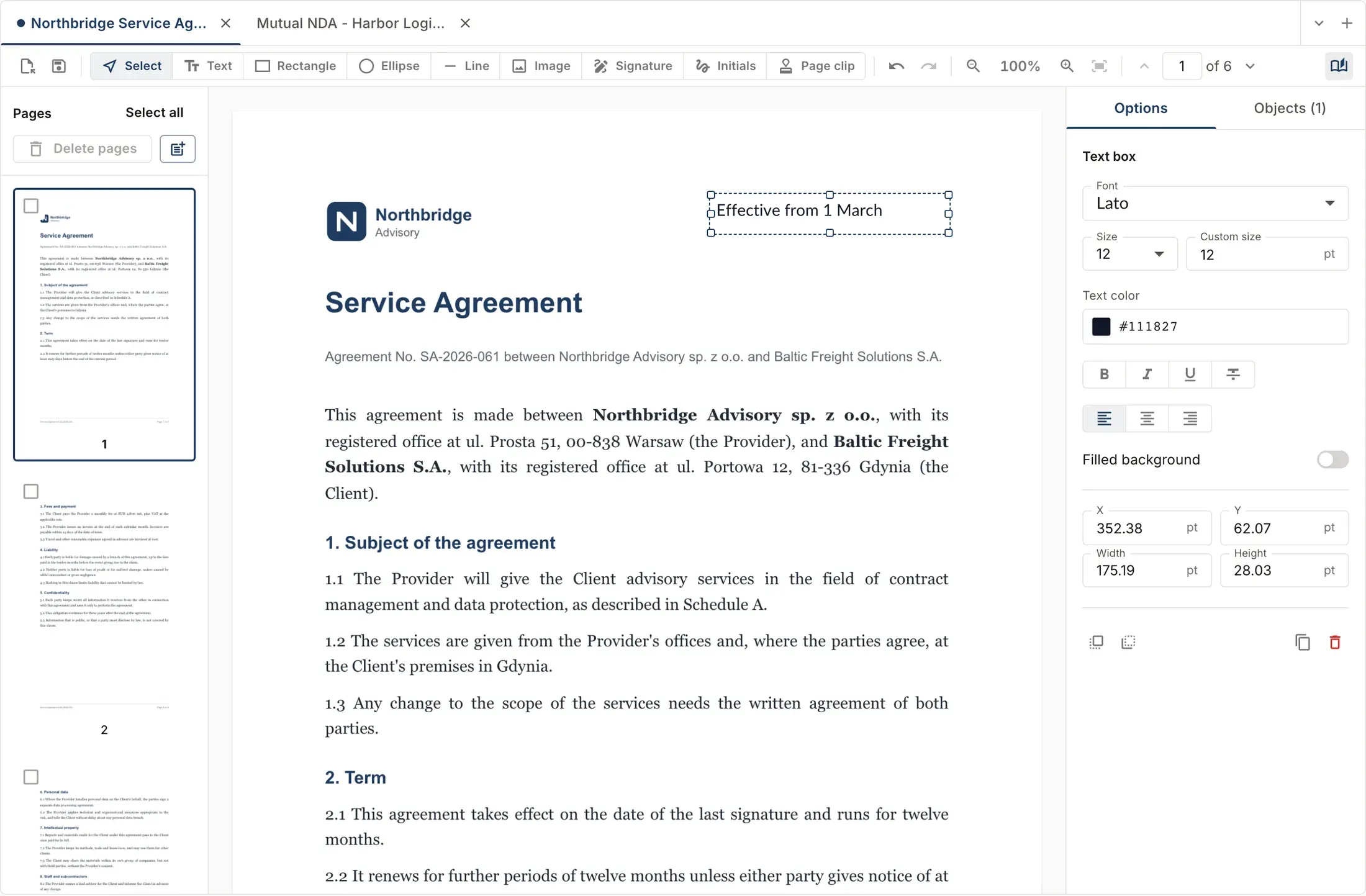
Add to the page
Text boxes, rectangles, ellipses, lines, images, your signature and your initials each sit on the page as an object you can move, restyle or delete until you save. Page clip copies a piece of a page so you can reuse it elsewhere.
A supplier who wants every page initialled gets it in a minute: place your initials at the foot of page 1, then paste them on each page at the same position.
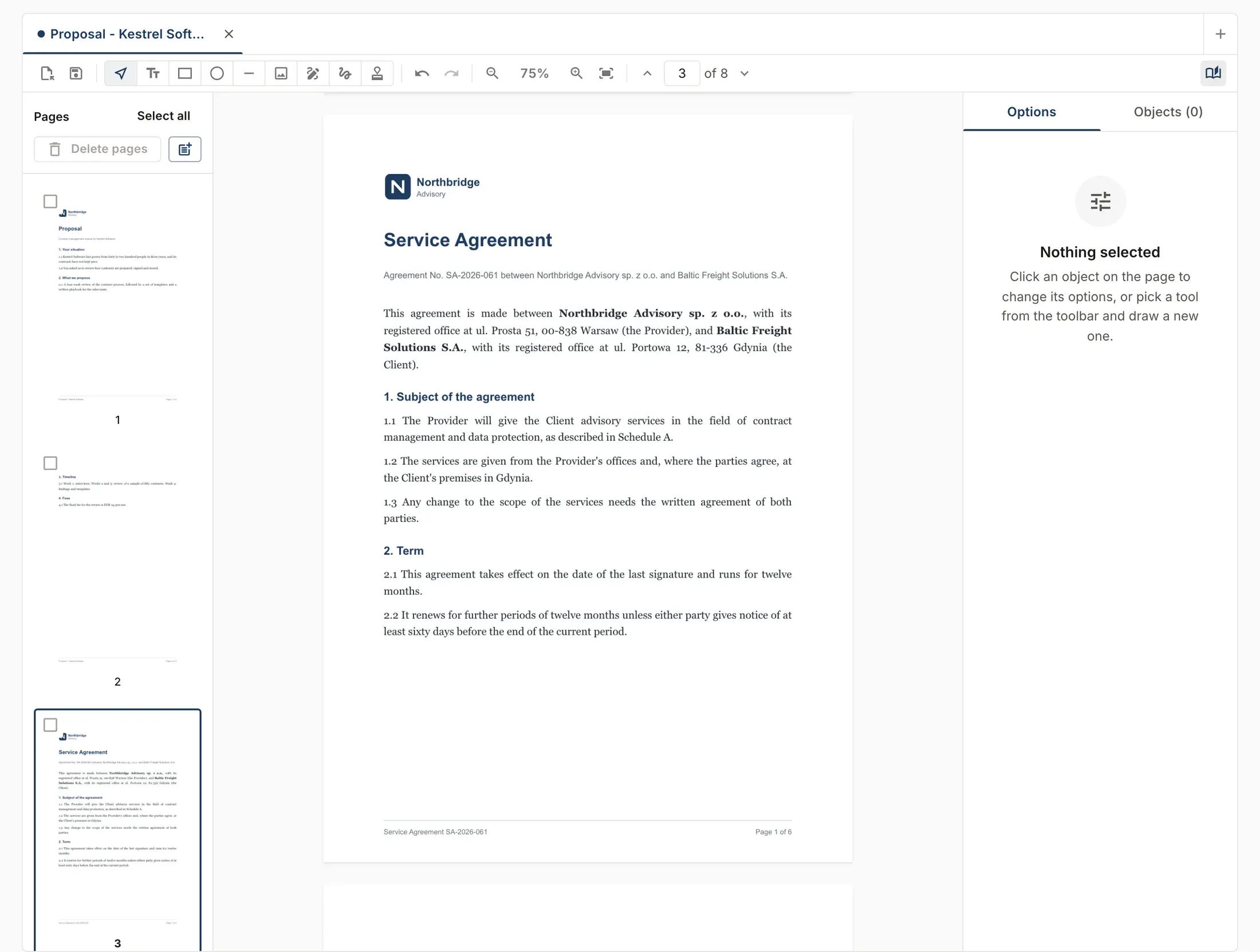
Take pages out, bring pages in
Delete the pages you do not need and merge in pages from other files, including Word documents, which open as PDFs. A proposal gets assembled from three files in a few minutes.
From your drive and back
Open a file from your computer or a connected Google Drive, OneDrive, SharePoint, Dropbox or Box, and save it the same way, or print it. In Cloud files, a PDF or Word document has an Edit in the PDF editor item in its menu.
What it does not do
- It adds to a page. It cannot retype a sentence or erase a logo that came with the file, only place something over it.
- It does not reorder or rotate pages, although you can reach a new position by inserting a page again.
- It does not open password-protected PDFs.
- A signature placed here is a mark on the page. For evidence and a seal, use e-signatures.
- It is on paid plans.
Questions people ask
Do I need to install anything?
No. The editor runs in the browser, inside Doxtly.
Can it change existing text in a PDF?
No. It adds objects to a page. To cover something, place a shape or text over it.
Which plans include it?
The paid plans. Your role also needs the Use the PDF editor permission.
Where it is used
Start with one document.
Take the contract you retype most often and turn it into a template. The Free plan is enough, and you need no card.