
The people you work with, in one address book
Add a client once, and their name, phone and language are one click away whenever you send them a package or a link. Workflows can save them for you, and each contact’s page shows what happened with them.
Details you never type twice
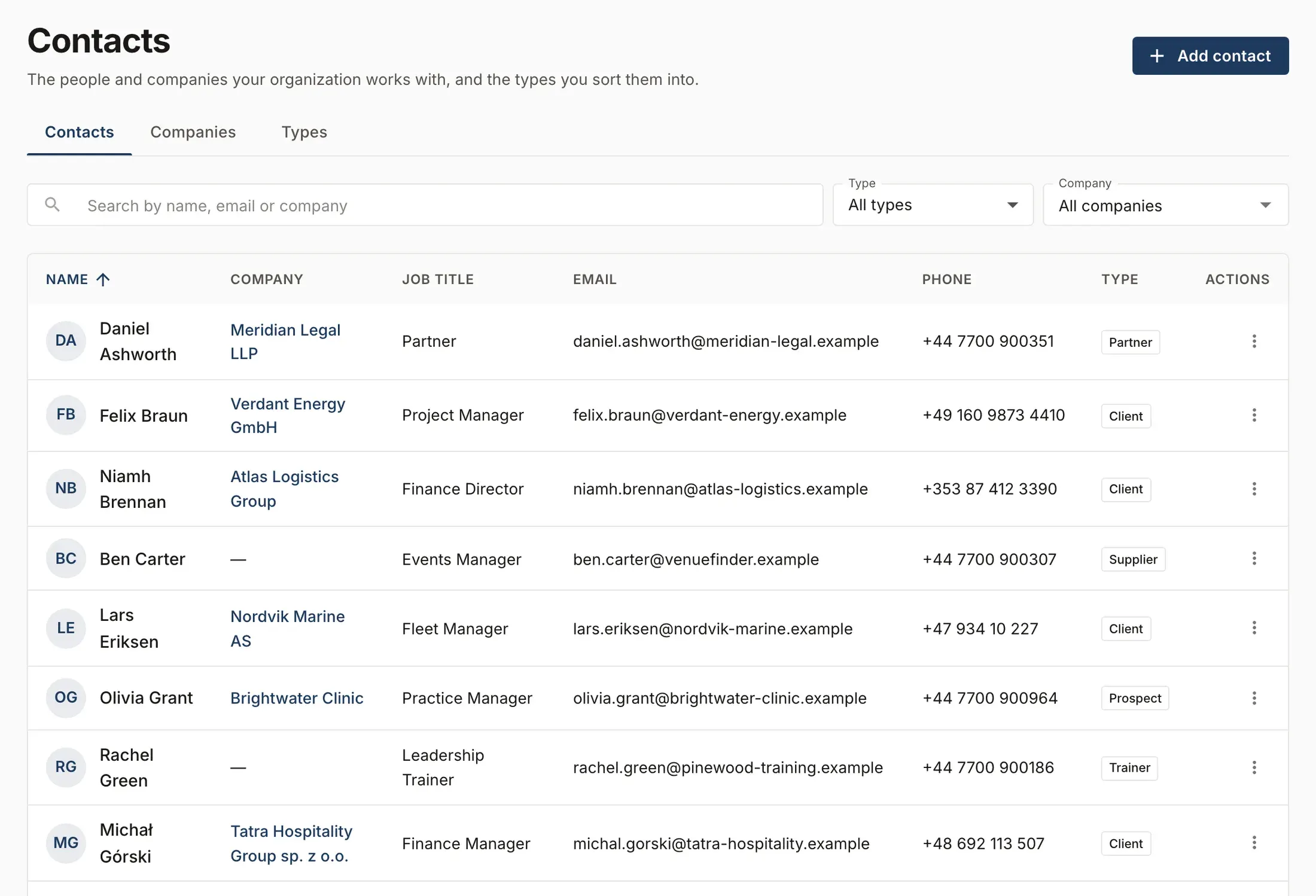
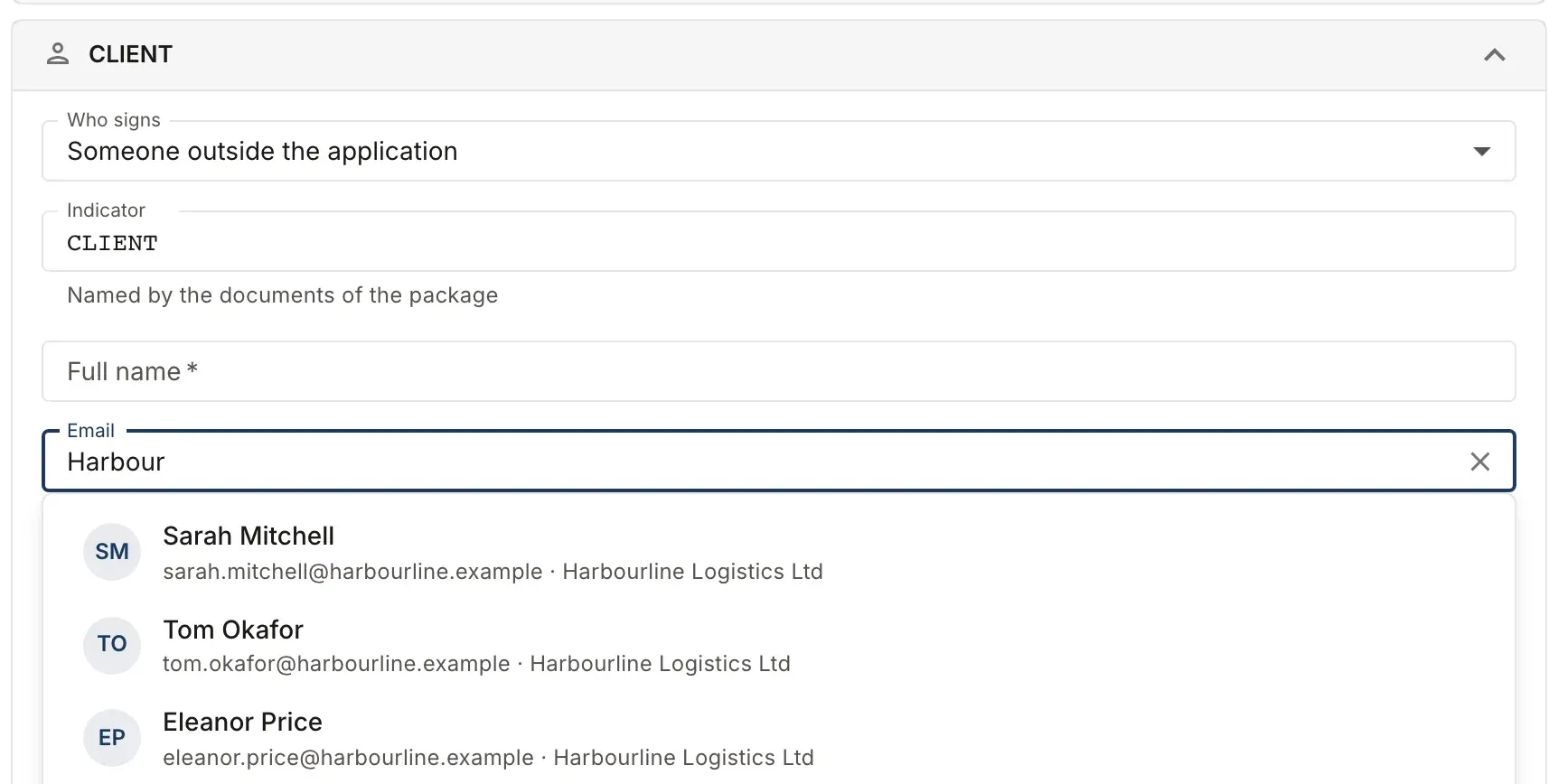
A contact holds a name, an email, a phone number, a job title, a company, a type of your own, such as Client or Supplier, a language and a photo. Start typing a name, email or company in a package, a viewer’s address or Send link, and Doxtly suggests the contact and fills in the rest. You can still type any address.
A person’s language decides which version of a message they get, so a German client receives the German reminder without anybody remembering to pick it.
Each contact has a history
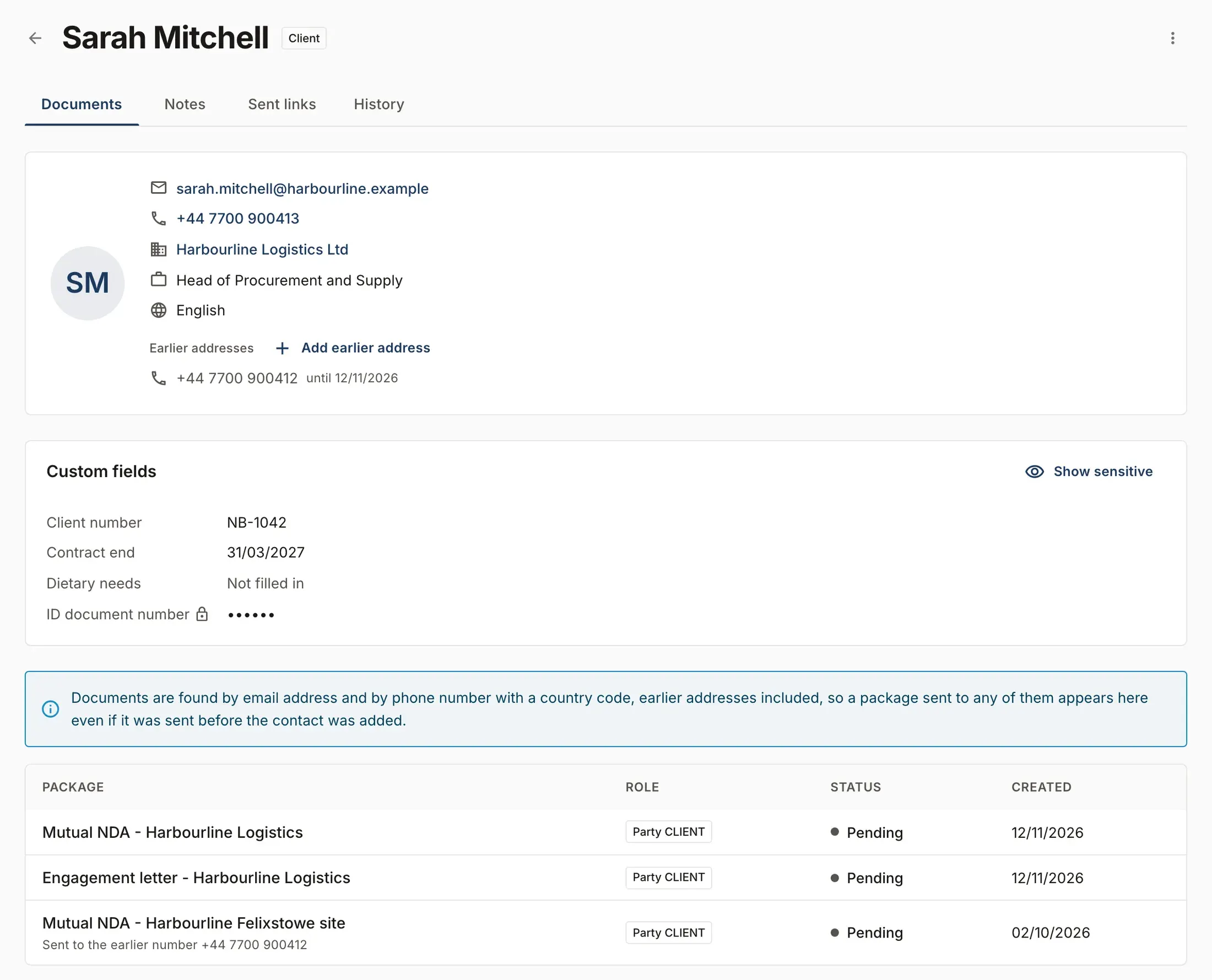
A contact’s page shows the documents they took part in, the notes your team wrote and the changes to their details. A party on a package that matches a contact, by email or by phone with a country code, carries a Contact chip that leads to it, and a party who isn’t one yet can be saved with one click.
Fed by your workflows
The Save contact step adds or updates a person from a form, a webhook or a spreadsheet, and Delete contact removes one. The trigger A contact is saved starts a workflow when someone is added or changed, for example to send a welcome message or tell an account manager. With Pipedrive, HubSpot or Copper connected, on the Pro and Business plans, a step keeps contacts in sync with your CRM, and people from it are suggested where you type an address.
Companies and fields of your own
People from one client sit under one company, with its tax ID and address. A company’s page lists its contacts, every document any of them is in and the links sent to them, so an account manager sees the whole client at once.
Add fields of your own to contacts and to companies: a client number, a contract end date, a credit limit, as text, a date or a number. A field marked sensitive, such as an ID document number, is kept encrypted and shown only to people allowed to see it. A field marked unique, such as a client number, can never hold the same value twice.
A template can take its values from the contact a party was chosen from, and from their company, so a package made by hand fills in the client’s details with nothing typed.
A form that arrives already filled in
To have a client check their details, press Send to fill in on their contact or company. They get a personal link by email, SMS or WhatsApp to a form or an interactive document that opens with what you know already filled in. They correct what changed, and the Update contact step writes the answers back to the contact. The link expires, can be revoked, and the contact’s page shows whether it was opened and filled in. The same button sends a quiz or a survey, and a contact who declined surveys is sent none.
Worth knowing before you start
- One email address is one contact in an organization.
- Plans limit how many contacts you can keep: 50 on Free, 1,000 on Starter, 5,000 on Pro and 25,000 on Business.
- Contacts have no retention period. They stay until somebody deletes them, and deleting one leaves the packages it was on untouched.
Questions people ask
Do I have to create contacts by hand?
No. A workflow can save the people who fill in a form, and on a package you can save a party with one click.
What if the address already belongs to a contact?
Doxtly says so and offers to open that contact instead of creating a second one.
Can a workflow start when a contact changes?
Yes. The trigger A contact is saved starts a workflow whenever a contact is added or changed.
Start with one document.
Take the contract you retype most often and turn it into a template. The Free plan is enough, and you need no card.