
E-signatures with the evidence kept in the file
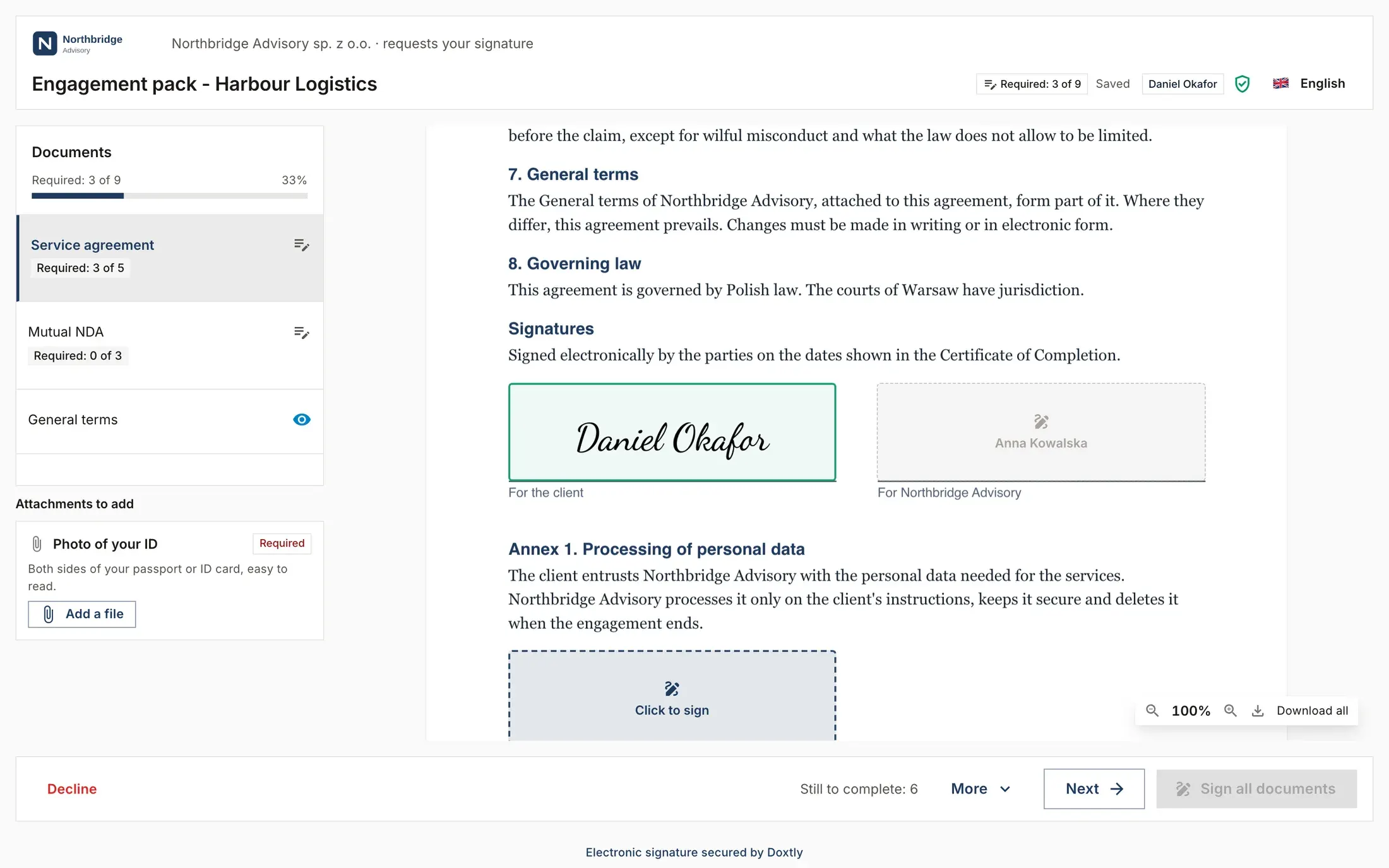
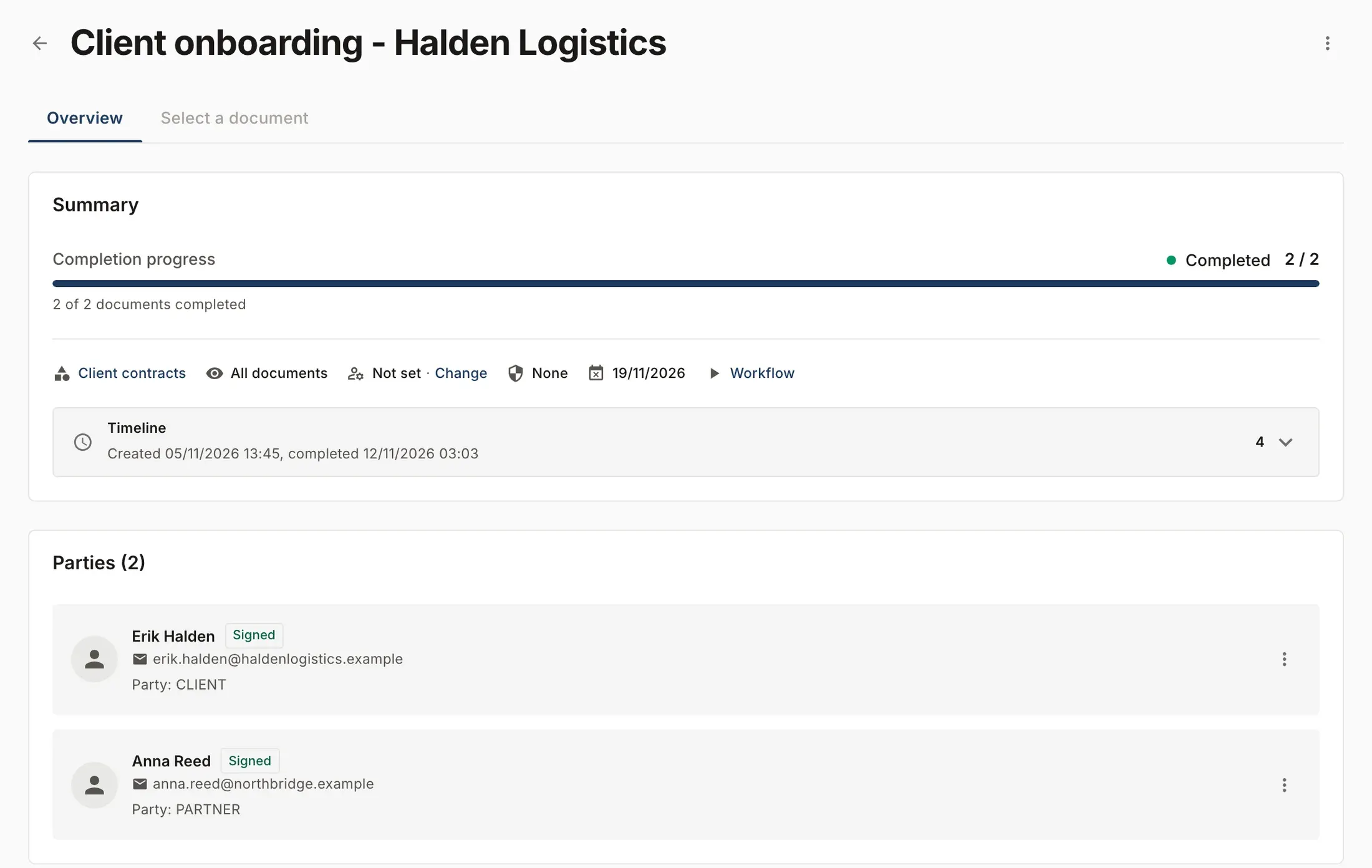
Put a package together in the app, or let a workflow do it. Each person gets a link, needs no account and installs nothing, and you see who has signed. When the last party signs, the PDF is sealed so that nobody can quietly change it.
What a Doxtly signature is, in plain words
Under the EU’s eIDAS regulation, a signature made on a Doxtly signing page is a simple electronic signature with strong evidence behind it, protected by a digital seal. That fits most everyday business documents: NDAs, service agreements, order confirmations, course enrolments, consent forms, internal approvals. The certificate on each sealed document says which level it is.
Where a document needs more, you can set a party to a qualified or an advanced electronic signature. They sign the PDF with a certificate of their own, for example in mObywatel, Szafir or Adobe with a token, and send the file back. Doxtly checks that nothing but their signature was added and that it is the kind you asked for, and never signs in their place.
Doxtly is also built to support electronic signing under the US ESIGN Act and state UETA laws: each signer accepts a disclosure before signing, and the proof stays with the file. Whether a signature is enough for a given document depends on the country and the document, so ask your lawyer about anything high-stakes.
A package, made by hand or by a workflow
A package holds one or more documents and the people who act on them. Press New package in Documents and build it from a file (PDF, Word or a picture), a template or a file on your drive. Save it as a draft, preview the signing page as each party would see it, and send. The same package can also come from a workflow step or through the API, so a contract written from a form needs nobody to touch it.
The documents name who signs where, so a party can’t be left without a place to sign. A PDF with no fields is fine too: draw the places on it, and add initials on every page for the parties you choose.
To send one agreement to forty people, turn on Send separately to several people. Paste a list from Excel or a CSV, and each person gets their own package with their own values.
- Signing in steps or all at once, with approvers before the parties
- Up to five reminders per package, after sending or before the deadline, only to those who can act
- A deadline, which you can move while the package is open, unless its document type fixes it
- Viewers who only read, and attachments nobody has to sign
- A number on every package of a type, such as UM/2026/0142, on paid plans
- A responsible person on each package, who gets its notifications and can be changed when the work moves to a colleague
- Bulk actions on the document list: remind, void, export or change the responsible person for up to 500 packages at once
- Fields of your own on packages, such as a deal ID or a contract value: filter and sort the document list by them, show them as columns, and use them in templates and workflows
Contracts that know when they end
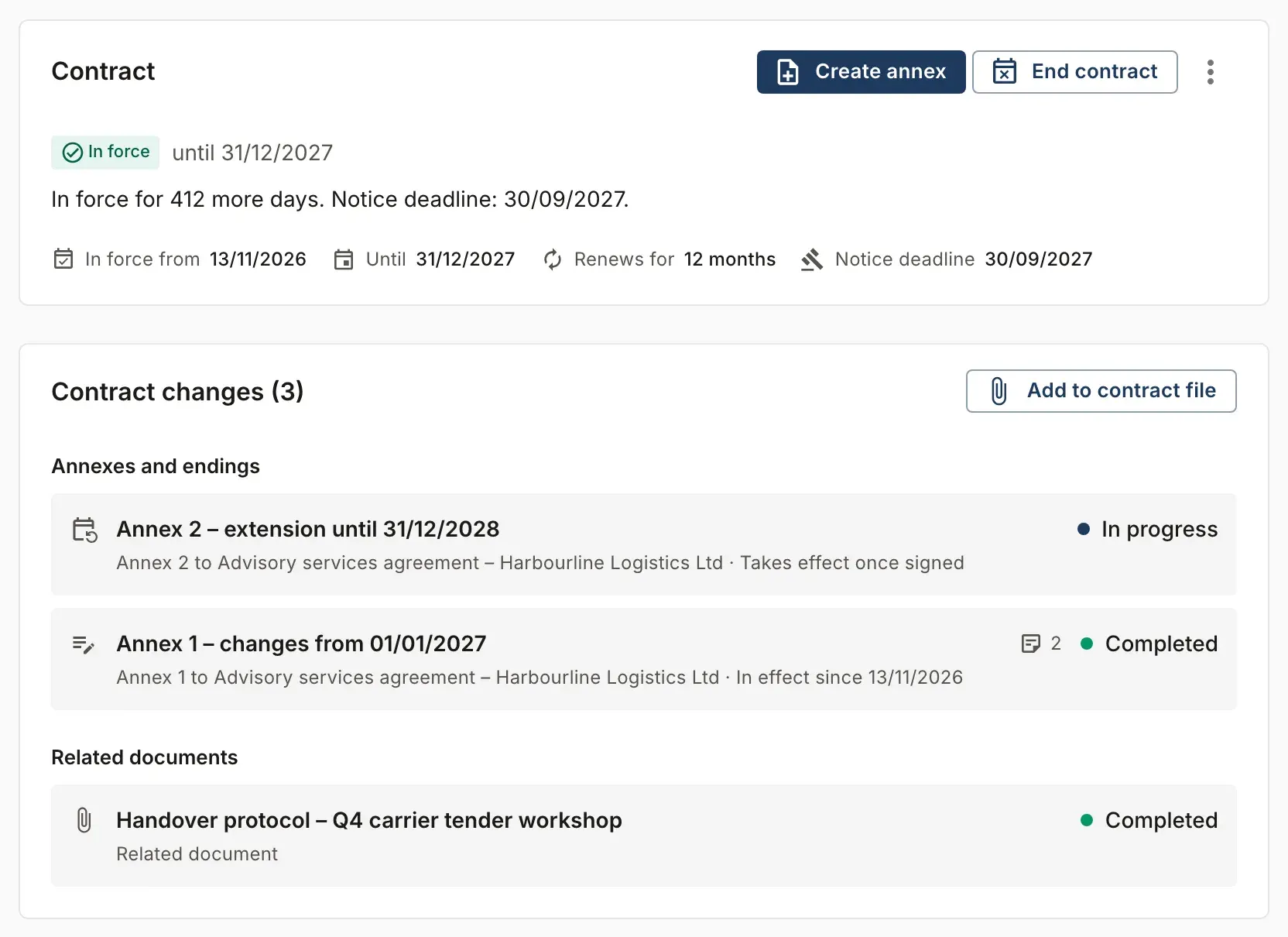
Turn on Contracts with a term for a document type, and every package of that type becomes a contract with dates: in force from signing or from a day you choose, until a date or indefinitely, renewing automatically if it does, with a notice period if it has one. Beside the signing status, each contract shows where it stands: Not yet in force, In force, Ending soon, Ended or Terminated.
A set number of days before the end, 30 unless you change it, the person responsible for the contract gets a notification, the contract appears under Contracts ending soon on the dashboard, and a workflow can start on it. For a contract that renews by itself, the warning comes before the last day to give notice, while there is still time to stop it.
What happens to a contract later stays with it, as in a paper file. Create annex extends it or changes its terms, End contract prepares a notice of termination or a termination agreement, and Add to contract file keeps a handover report or a letter beside it. Each change is a package of its own and can start from the template your document type sets for that kind of change, filled in with the contract’s data. An annex, a notice or an agreement acts on the contract once it is signed. Contract history keeps the rest: the signing, each change of the term with who made it, the changes that took effect and every automatic renewal.
- Contracts in the document list: a column and a filter by state, with annexes and notices grouped under their contract
- The notice deadline worked out for you, also to the end of a calendar month
- A term you can correct after signing, with the change kept in the contract’s history
- Workflow events when a contract changes, is ending soon or has ended
- Retention never removes a contract in force: its time counts from its last day in force
Contracts signed before Doxtly, or elsewhere
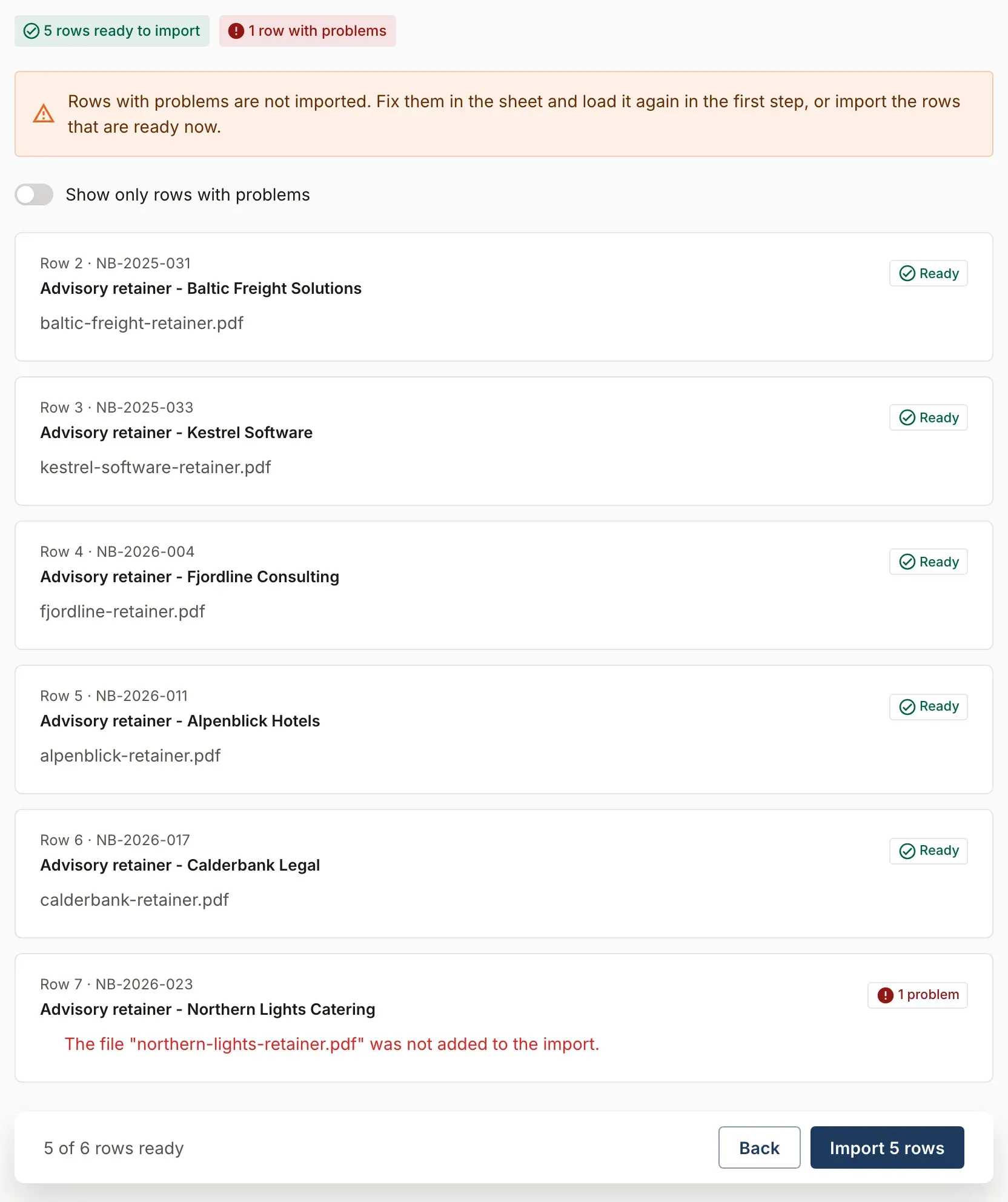
Contracts signed on paper or in another service can sit beside the rest. Add signed document records one: its PDFs, up to 20 files and 50 MB in all, its type, title and number, the day it was signed, the parties and its term. For a whole register, Import from a sheet takes a CSV, XLSX, ODS or XLS file of up to 500 rows with the PDFs it names, checks each row before anything is imported, and says which rows need fixing.
Nothing is sent to anybody. The package is marked Signed outside Doxtly, its parties can be linked to your contacts, and a contract added this way gets its state, its warnings and its contract file like one signed in Doxtly. A row of the sheet can also be an annex, a notice or a related document of a contract already in Doxtly, or of one an earlier row imports.
Sign, then pay
A tenant signs the lease and pays the deposit, a client signs the engagement letter and pays the retainer. Switch on Pays after signing for a party and set the amount and the currency. Once they have signed, their page asks them to pay through your own Przelewy24, Stripe, PayU or PayPal account, on the Starter, Pro and Business plans.
The package waits for the money. Parties of the next step are asked to sign only after the payment, reminders tell the party what is still to pay, and the package page shows who has paid. A workflow can work the amount out from its data and start on A party pays. Payments explains the rest.
As much proof as the document deserves
For each party you choose how they show who they are. The link alone is often enough. For more, ask for a code by email, SMS or WhatsApp, an access password you give them separately, or, on paid plans, an identity document and a selfie, checked on Stripe’s page before they see anything in the package.
A customer sitting across the desk can sign on your device, with you named as the host. Someone who must sign on paper can print the documents and send back a scan, and the audit trail keeps the fingerprint of the scan and both times. You can also ask for files to be added, such as a photo of an ID, and print the signer’s job title under the signature. Your own people, signing in the app, can use a photo of their signature where you allow it for their party; anyone from outside draws or types theirs.
Every signer accepts an electronic signature disclosure first. You word it yourself in the organization settings, in each of the 14 languages, and can add conditions of your own that they accept with it. When a colleague is away, they can authorize someone to sign in their name, openly: the document says who signed for whom.
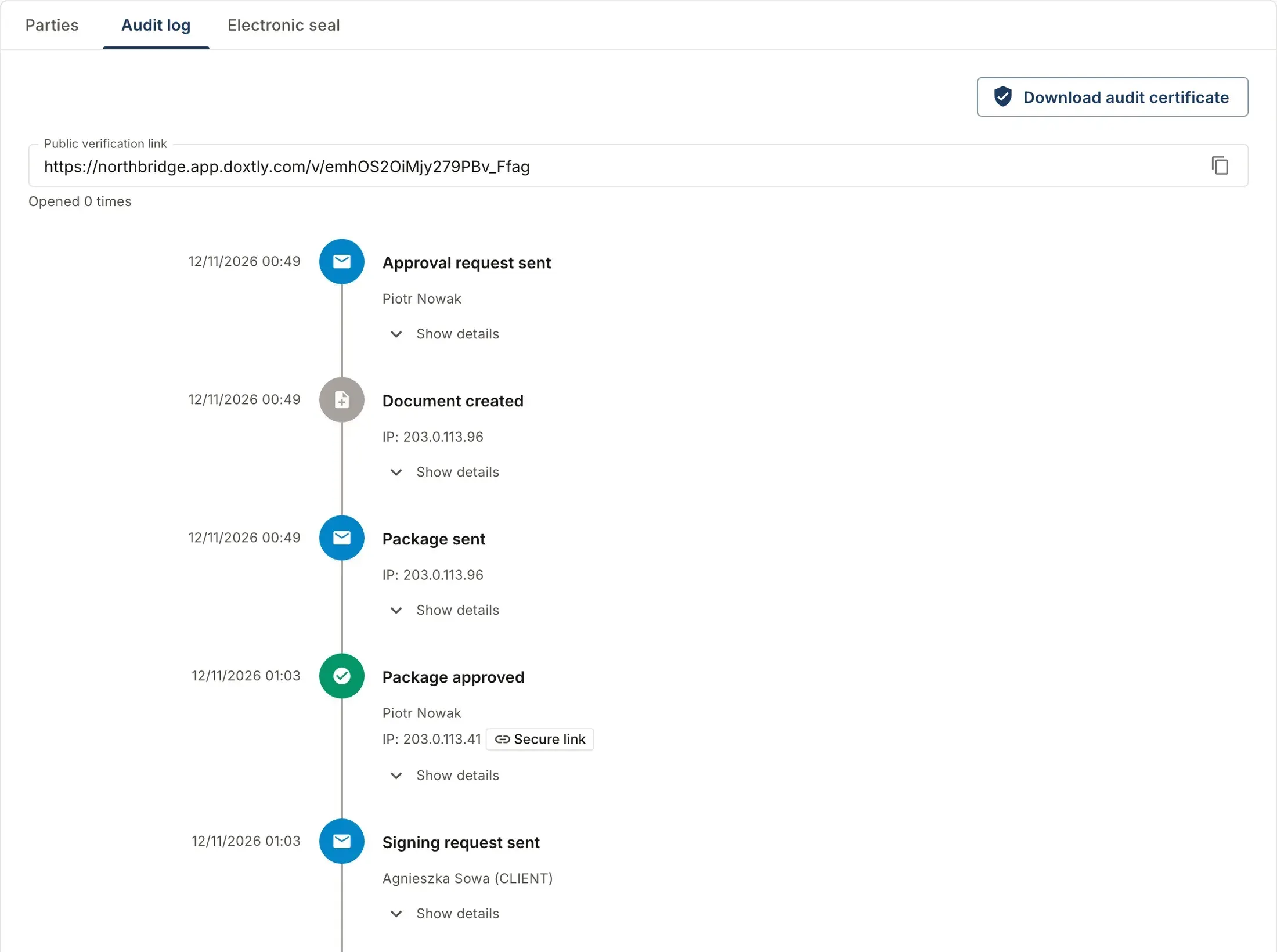
- Who signed, and how they were checked
- The disclosure they accepted, and its version
- Time, IP address and browser
- How the mark was made: drawn, typed, saved, from an uploaded picture or on paper
- A fingerprint of the document at that moment
The page your client sees
The signing page opens in the language you chose for the party, or else in their browser’s, in any of 14: English, Polish, Spanish, German, Portuguese, French, Italian, Ukrainian, Turkish, Arabic, Hindi, Thai, Japanese and simplified Chinese, and they can switch with one button. In Arabic the whole page runs right to left. Requests and reminders go out in each party’s language, from the same 14, and a document can carry its certificate in the languages of its parties.
The page and the messages carry your logo and accent color. A signing page can also open from your own website, in a pop-up or a new tab, with Doxtly’s address visible so the person can see where they are signing. A break costs nothing: what they typed stays saved, and if the page asks for their code again, whatever they had just pressed goes ahead once they enter it.
A seal that shows any change
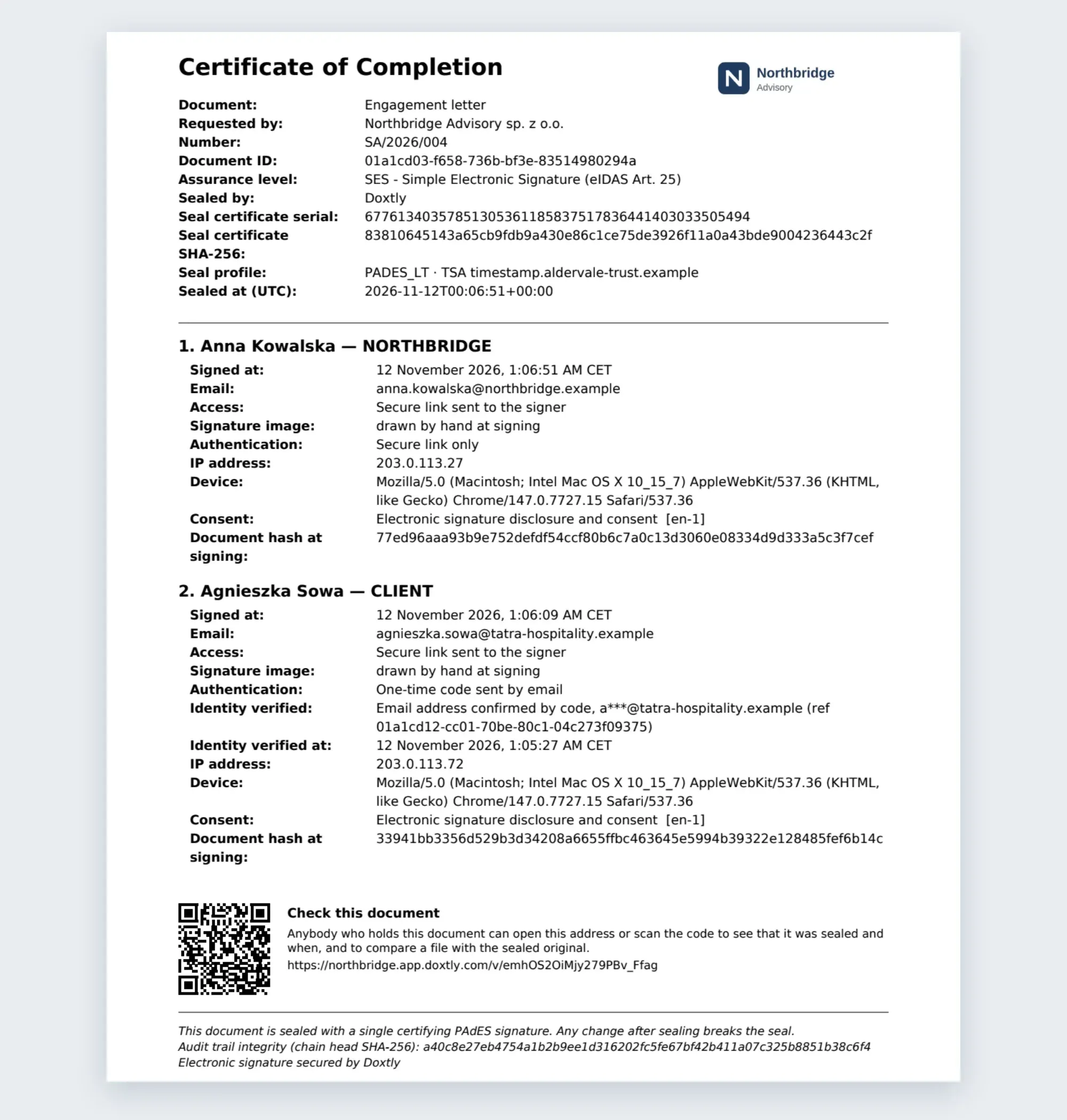
When the last party signs, Doxtly puts a PAdES seal over the whole PDF and adds a Certificate of Completion. Change the file afterwards and the seal breaks. PAdES is a European standard for signatures embedded in a PDF, so the proof travels inside the file. Each party receives their own sealed copy by email, and you can also export finished packages together.
Choose how long the seal has to be provable, per workflow step or package: from the basic level, through an independent timestamp, to the archival level for records kept ten years or more. Doxtly provides the timestamps, and there is no certificate of your own to buy or renew.
Check any signed PDF
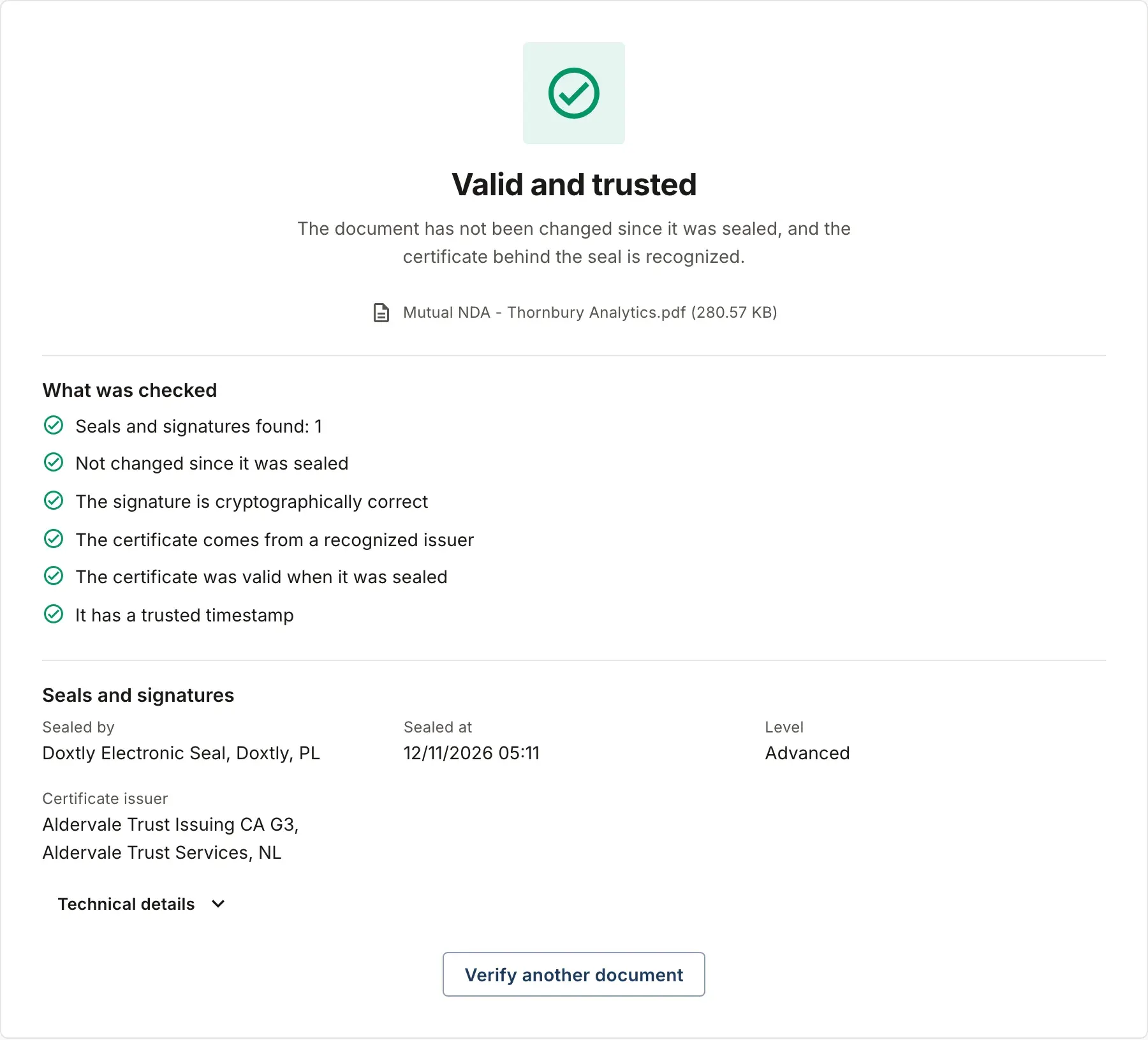
A signed PDF can be emailed around for years. Upload any copy to Verify signature to see whether it has changed and who sealed it. It works on any PDF with a PAdES signature, not only those signed in Doxtly.
Your client doesn’t need an account for this: the public validator runs the same check, stores nothing, and each sealed document also carries a short link and a QR code that lead to its own check. How to verify a PDF signature explains what the report tells you.
Worth knowing before you start
- A signature on the signing page is simple (SES), however strong the checks. A qualified or advanced one needs the party’s own certificate.
- A party who signs with their own certificate signs a document that is already fixed, so they cannot have fields of their own to fill in, and their document gets its Certificate of Completion as a separate PDF.
- With no mailbox of your own, Doxtly’s built-in mailbox still sends the messages about a package, in standard wording, up to your plan’s monthly number. For forms, portals, workflow emails and your own wording, connect your mailbox or switch on Doxtly e-mail, paid per message from your Doxtly balance once your plan’s messages are used up.
- SMS and WhatsApp codes go through your own provider, and identity checks are billed per check.
- A document added as signed outside Doxtly is kept as you recorded it: nobody signed it here, so it has no Doxtly seal and no Certificate of Completion.
Questions people ask
Is a Doxtly signature legally binding?
A court cannot reject a simple electronic signature only because it is electronic (eIDAS, Art. 25), and if someone disputes it, the evidence decides. Doxtly records that evidence. Whether it is enough for a given document depends on the country and the document, so for anything high-stakes ask your lawyer.
Does the person signing need a Doxtly account?
No. A link and a current browser on a computer or a phone are enough.
Can I get a qualified electronic signature?
A party can sign with a qualified or advanced certificate of their own, and Doxtly checks it before accepting the file. Doxtly does not issue qualified certificates. See Qualified signatures for the order this needs and what can be combined.
Can several people sign the same document, in a set order?
Yes. A package can have several parties and approvers. You can let them act at once, or in steps, where each step waits for the one before. The document is sealed when the last of them signs.
Does Doxtly remind people who have not signed?
Yes, if you set it. A package can carry up to five reminders, and they reach only those whose turn has come and who have not acted yet. While someone still has something to sign, you can also send them the link again by hand.
Does Doxtly warn me before a contract ends?
Yes, for document types with Contracts with a term turned on. A set number of days before the end, 30 unless you change it, the person responsible for the contract is notified and the contract shows as Ending soon. For one that renews automatically, the warning comes before the last day to give notice. A workflow can start at the same moment, to write to the client or prepare an annex. See Contracts.
Can I keep contracts signed on paper or in another service?
Yes. Add them one at a time with their PDFs, or import a whole register from a sheet. Nothing is sent to anybody, and those contracts get the same dates, warnings and contract file as the ones signed in Doxtly.
In the manual
Where it is used
Start with one document.
Take the contract you retype most often and turn it into a template. The Free plan is enough, and you need no card.