

Qualified signatures and signing a PDF yourself
A qualified electronic signature (QES) has the same legal effect as a handwritten one across the EU. Doxtly takes it in two ways: you set a party to Qualified electronic signature when you prepare the package, or a party allowed to sign on paper sends back a PDF they signed themselves.
Either way the party signs with a certificate of their own, for example from mObywatel, Szafir or Adobe with a token. Doxtly never signs in their place. A qualified signature cannot be given in somebody else’s name, and a party signing with a certificate does not sign with a drawn mark as well.
Asking for a qualified signature
Section titled “Asking for a qualified signature”In How this party signs, set Signature type to Qualified electronic signature. Below it, Ways of signing lists the ways your organization offers, and at least one stays ticked. Each party set this way gets a step of their own in the order. A party set to Advanced electronic signature through the API shows that value in the field and signs the same way, and an advanced signature is enough for them.
What changes for that document:
- Order. Parties with a simple signature can only sign before the first party with a qualified signature. From then on only parties with a qualified signature sign, each in a step of their own. A simple signature after a qualified one needs a separate package.
- Everything is filled in first. The document is fixed when the first qualified party’s turn comes, so values, initials and drawn marks of the parties before them must be done by then. The party sees Preparing your document while that happens.
- No fields of their own. For the same reason a qualified party cannot be given fields to fill in: whatever they typed after the document is fixed could not go into it. A package where they would have to is not sent, and says which: Party CLIENT signs with their own certificate, so they cannot fill in… Assign those fields to another party or give them values before sending.
- No paper or identity document. A qualified party cannot also sign on paper or be asked for an identity document: the trust service provider that issued their certificate has already checked who they are. Without verification at the entry, anyone with the link can read the document before signing, so Doxtly warns you when you choose that.
- No password on the document. A document with a password cannot have a qualified party.
- Certificate as a separate file. Nothing can be added to a file after a qualified signature, so the Certificate of Completion is a separate PDF of its own.
A document type can set the signature type for every package, or require at least a qualified signature.
Which ways of signing your organization offers
Section titled “Which ways of signing your organization offers”A qualified party signs the PDF in their own program, such as mObywatel, Szafir or Adobe, and sends the signed file back: Signed in their own program and sent as a PDF in the party’s row. It needs nothing beyond that program, on any plan. Under Organization settings → Configuration, the Qualified signature routes card lists it as Signed elsewhere and uploaded, ticked; unticked, it isn’t offered to any party, whatever a package says, and a package whose qualified party is left with no way your organization offers is not sent: Party CLIENT has no way to give a qualified signature.
Where your installation offers it, the same card lists Own card or token, ticked, and so does the party’s row: the party signs on the page with their eID card through Web eID, described below. It needs nothing from your organization either, on any plan.
The seal on the finished document
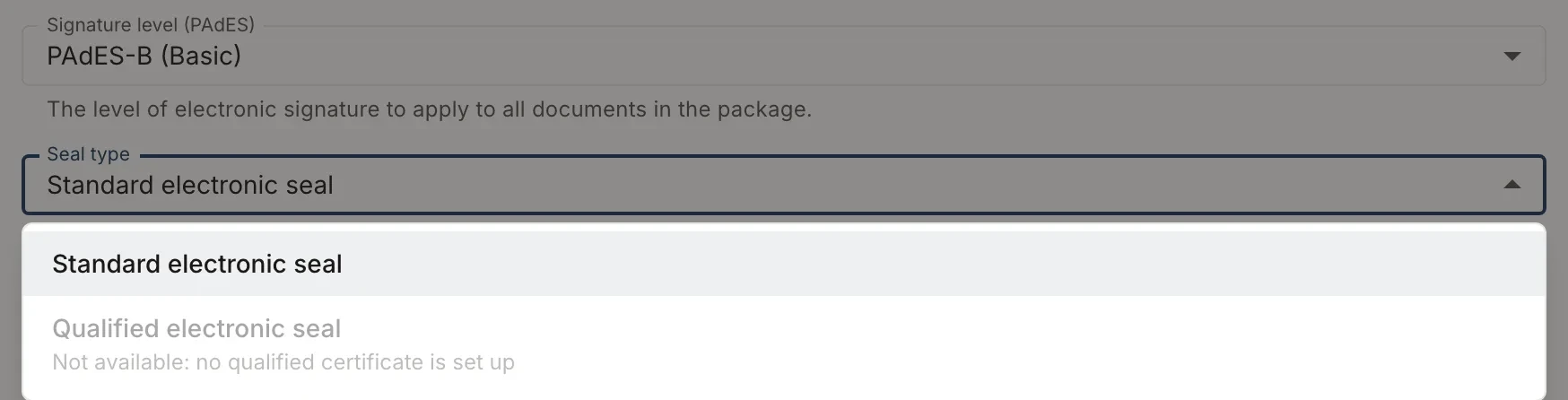
Section titled “The seal on the finished document”Under Basics, Seal type sets the seal Doxtly adds once every party has signed: standard, or qualified where one is available. Doxtly’s cloud offers none, so there the qualified seal is greyed out with Not available: no qualified certificate is set up. A document type can fix the seal for all its packages, and the field then only shows it. A qualified seal stays qualified on every plan; what the plan decides is the timestamp, qualified on paid plans and a free, non-qualified one on the Free plan.
If preparing the documents for a qualified signature fails, the package’s page offers Try again.
Signing on the page
Section titled “Signing on the page”A qualified party sees one button: Sign with a qualified electronic signature. It opens a window that says what to do, with Download to sign and, under each document, Choose the signed PDF.
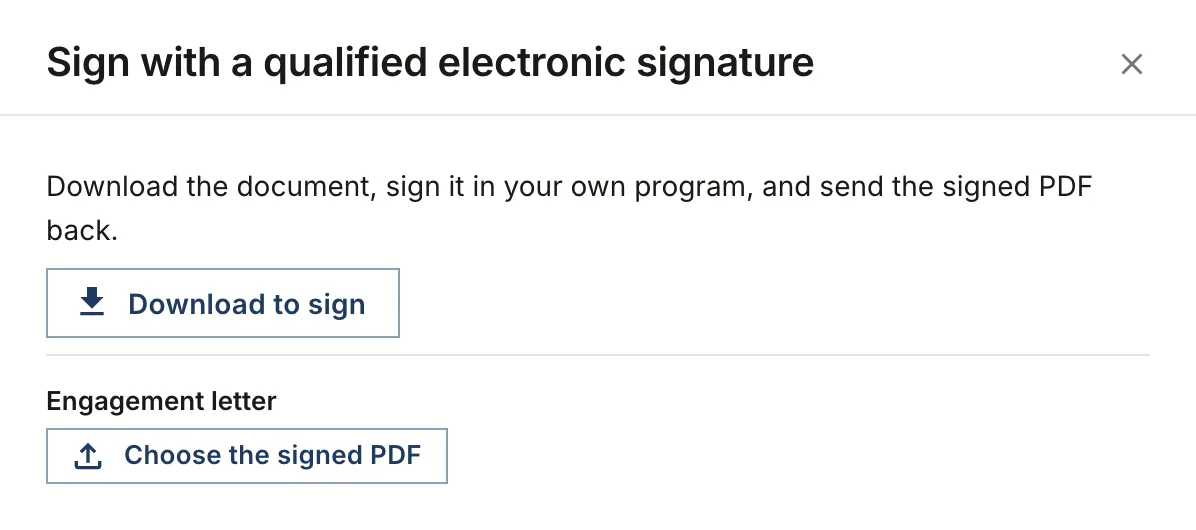
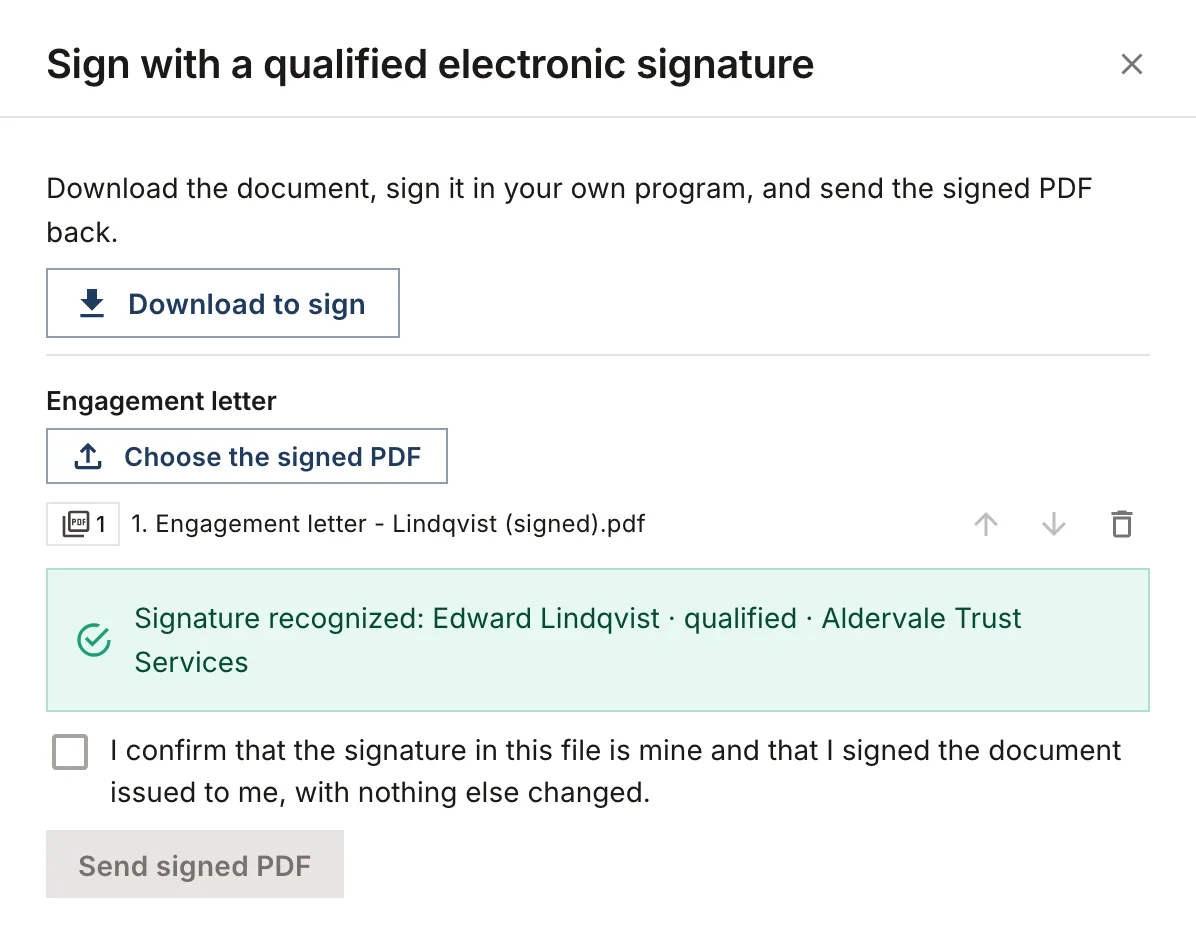
The party presses Download to sign, signs the file in their program, then presses Choose the signed PDF under the document. Doxtly checks the file at once and shows what it found. The party ticks the confirmation that the signature is theirs and that nothing else was changed, and presses Send signed PDF.
Signing with a card or token (Web eID)
Section titled “Signing with a card or token (Web eID)”With Own card or token, the party signs on the signing page itself, with the eID card in their card reader, through Web eID: a free program from the Estonian Information System Authority that reads national eID cards. There is no file to download and send back: the card signs, and Doxtly puts the signature into the document.
What the signer needs
Section titled “What the signer needs”- A computer. The tile isn’t offered on a phone or a tablet, which have no card reader.
- A card reader and an eID card with a signing certificate from Estonia, Finland, Latvia, Lithuania, Croatia, Belgium, Czechia, Luxembourg or Romania. For a Lithuanian, Croatian, Belgian, Czech, Luxembourg or Romanian card, the card’s own software from the country that issued it must be installed as well.
- Web eID, installed once: an application and a browser extension, in Chrome, Edge or Firefox on Windows, macOS or Ubuntu, or in Safari on macOS. The installer from web-eid.eu puts both in place; on Safari, Web eID comes from the App Store. After installing, the extension has to be turned on in the browser, which may need a restart.
Signing
Section titled “Signing”- Press Sign with a qualified electronic signature and choose With my card or token.
- If Web eID is missing, the window says Install the signing component first, with Download Web eID and Add the browser extension for the browser in use. Install it, restart the browser and open the link again.
- Insert the card, tick the confirmation and press Sign with my card.
- Web eID’s own window opens, reads the signing certificate and asks for the card’s signing PIN (PIN2 on an Estonian card). The PIN goes from that window to the card and nowhere else: neither the page nor Doxtly sees it.
Doxtly then checks the signature as it checks a PDF sent back: valid, qualified according to the EU Trusted Lists (or advanced, where the party may sign that way, and then it says so), and in the party’s name.
If the installation offers more than one program for cards, the window first lists them under Choose your signing component, those for the party’s country first and the others under Other options. Each says Ready, Extension or app needed or Not available in this browser; the browser remembers the party’s choice for next time.
What the messages mean
Section titled “What the messages mean”A missing reader or card, a mistyped or blocked PIN and a card Web eID cannot read are shown in Web eID’s own window. Closing it brings the party back to the page.
| What you see | What to do |
|---|---|
| The browser extension of your signing component is missing or turned off | Add the extension, or turn it on in the browser’s extensions, then try again. |
| The signing component’s application is not installed on this computer, or needs an update | Install or update Web eID from web-eid.eu, then try again. |
| Signing was cancelled | Web eID’s window was closed. Try again when ready. |
| Signing took too long and was stopped | The PIN wasn’t entered in time. Try again. |
| The signing component reported an error | Try again; if it happens again, restart the browser or sign in your own program instead. |
| The signature is not qualified | The card’s certificate isn’t qualified. Use another way of signing. |
| The name in the certificate does not match this party | Ask the sender to correct the party’s name, or sign with your own card. |
Sending back a PDF you signed
Section titled “Sending back a PDF you signed”A party allowed to sign on paper can do the same without being set to a qualified signature. In Print and sign, use Download to sign electronically for that document, sign the file you got and send it back on the Sign tab. You don’t choose what you are sending: Doxtly looks at the file and tells you what it found, for example Signature recognized: Anna Nowak · qualified · KIR.
Send the file exactly as your program saved it, as one file on its own. Doxtly accepts it when:
- every byte of the copy you downloaded is unchanged, with exactly one signature added and nothing else changed;
- the signature is valid and qualified, according to the EU Trusted Lists, or advanced, in which case it counts as advanced and Doxtly says so;
- the name in the certificate is the party’s.
| What you see | What to do |
|---|---|
| The document has changed since you downloaded it | Download it again, sign that file and send it back. |
| What you typed in the document has changed since you downloaded it | The values you typed on the page must be the ones in the copy you signed. Download it again, sign that file and send it back. |
| This is the signed file of another document | Send it at the document it belongs to. |
| The signature is not qualified | Sign with a qualified certificate, or use the paper route. |
| The name in the certificate does not match this party | Ask the sender to correct the party’s name, or sign with your own certificate. |
| A digital signature nobody can verify | It can be sent as a scan, with the confirmation for a handwritten signature. |
Download to sign electronically is offered only where nothing that still has to happen would break your signature. If someone after you signs in a way that cannot be added to an already signed file, the dialog says so before you start, and you can sign by hand instead. Several downloads of a document that hasn’t changed are the same copy.
What the certificate says
Section titled “What the certificate says”Every signature with a certificate of the party’s own appears in the audit trail and the Certificate of Completion: the way it was given, the name and issuer of the certificate, its level and the Trusted List’s verdict, and for a sent-back file the hash of the issued copy, the hash of the file received and both times, with the address and browser.