

Create documents
Create documents turns a run into a package of documents to be signed: a service agreement with its annexes, an NDA, a consent form. You say what goes in and who the parties are, and Doxtly creates the package with a personal signing link for each party.
This page is the reference for the node. For the whole journey, including how signers are checked, read Sending documents for signature; for deadlines and reminders, Reminders and deadlines.
Always available
The node is in the Documents group of the palette. Some of its options depend on other things: codes and requests sent by email, SMS or WhatsApp need the matching integration, and viewers need the organization’s email configuration.
Setting it up
Section titled “Setting it up”The side panel holds one button, Configure this step. It opens a dialog with four tabs: Basics, Documents, People and Delivery. A change lands on the node as you make it, so you close the dialog with Close and nothing can be lost. A tab with a problem carries a red dot.

Work through them in this order, as each depends on the one before:
-
On Basics, choose the Document type. For a contract, give its term there too, or make the package a change of a contract.
-
On Documents, add each document and say where it comes from.
-
On People, under Parties, say who each party is on this run and how they are asked.
-
On the same tab, add Approvers if someone should decide before the parties sign, and Viewers if someone should read along.
-
Under Order, there once the step has two parties or an approver, set who acts after whom.
-
On Delivery, set the deadline and say what reminds those still to act.
-
Also on Delivery, decide whether the person who submitted signs on the spot.
-
Back on Basics, set who answers for the packages and how they are signed, and on Delivery which messages go out.
The node has to be connected first. Until something leads into it, adding documents and parties is disabled, because there is no telling which files will exist when it runs.
Basics
Section titled “Basics”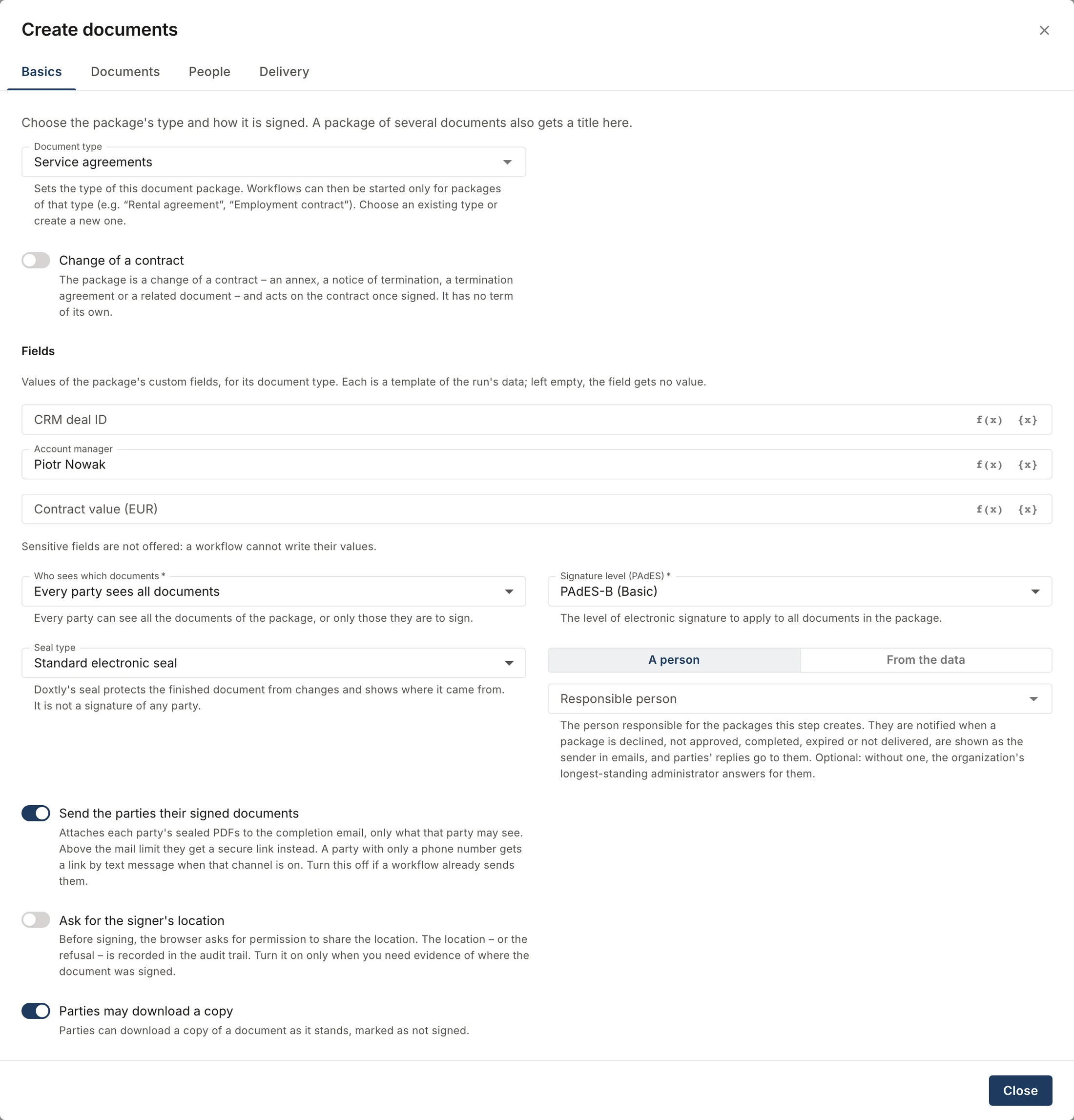
| Setting | Values and default | What it does |
|---|---|---|
| Package title | Text and variables. Shown once the step holds more than one document, and then required. | The package’s name. With a single document, the document’s title is used instead. |
| Description | Optional. Text and variables. Shown with more than one document. | A line of explanation for the package. With a single document, the document’s description is used. |
| Document type | One of your document types. A new step starts on General, and a step left without a type files its packages under it. Choosing a type also takes its preset deadline and reminders. | Files the package, decides which departments see it, and is what the package triggers listen to. Its rules can fix or limit what you choose on the other tabs: a locked setting says Set by the document type. With the Manage document types permission you can type a new name and pick Create “…”. A type made here is open to the whole organization, or kept to your own department if that is all your role may choose. You can change that on the document types page. |
| Contract term | Off by default. Shown for a type that keeps contracts with a term, unless the package is a change of a contract. | The days the contract is in force for. See Contract term. |
| Change of a contract | Off by default. | Makes the package an annex, a notice, a termination agreement or a related document of a signed contract. See Change of a contract. |
| Who sees which documents | Every party sees all documents (default), Each party sees only their own | Whether each party sees the whole package or only what they are assigned. |
| Signature level (PAdES) | PAdES-B (Basic), PAdES-T (Timestamp), PAdES-LT (Long-term), PAdES-LTA (Archival). A new step starts at PAdES-LT, or at PAdES-B where no timestamp service is available. | How long the seal can be proved. Applies to every document of the step. See Signature levels. |
| Seal type | Standard electronic seal (default), or Qualified electronic seal where one is available; Doxtly’s cloud offers none, so there it is greyed out with Not available: no qualified certificate is set up. A document type can fix it. | Which seal Doxtly puts on the documents once every party has signed. The standard seal is Doxtly’s own advanced electronic seal, which protects the finished documents from changes and isn’t a signature of any party. |
| Ask for the signer’s location | Off by default. | The browser asks the signer to share their location as soon as the signing page opens. The location, or the refusal, goes into the audit trail. A refusal stops nothing. |
| Parties may download a copy | On by default. | Parties can keep a copy of a document as it stands, marked as not signed. |
| Responsible person | A person who may read the type, or From the data: an expression giving a person’s id or email address. Empty by default: the packages then go to the organization’s longest-standing administrator, as they do when the expression names nobody of the organization. | Who answers for the packages: told of refusals, non-approval, completion, expiry and undelivered requests, named as the sender of the emails, and replies go to them. |
| Send the parties their signed documents | As the document type sets it, on for a new type. Choosing another type sets it again. | Each party’s sealed PDFs go with the Everyone signed message, only what that party may see. Over the mail limit, they get a secure link instead. |
| Fields | Optional. Text and variables, one for each custom field of packages the chosen document type has. Shown when your organization has such fields. | The package’s values of those fields, rendered when the step runs. A field left empty gets no value. Sensitive fields are not offered, as a workflow cannot write their values, and a value for a field another type has is dropped when you choose a different type. |
Variables in these fields can carry operations and functions, such as {{ id | first(8) }} or {{ nickname ?? firstName }}: click a variable and then Operations, or use f(x).
Contract term
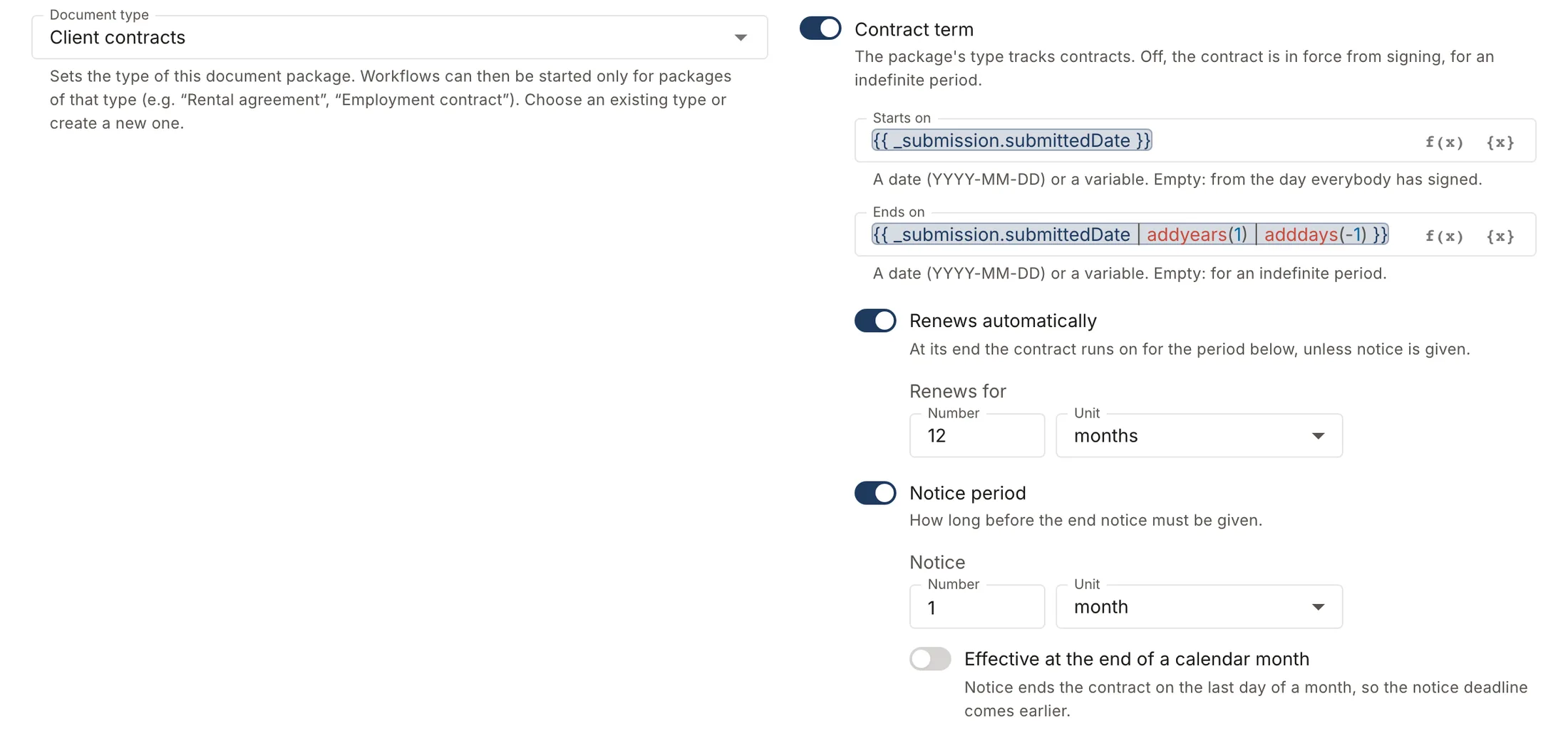
Section titled “Contract term”A package of a type that keeps contracts with a term is a contract. Left off, Contract term gives it no term of its own: the contract is in force from the day everybody has signed, for an indefinite period. Turned on, it sets the term each run’s contract gets, which then shows in its contract file and drives its alerts and the contract events of workflows.
| Setting | Values and default | What it does |
|---|---|---|
| Starts on | A date or a variable. Empty by default. | The first day in force. Left empty: from the day everybody has signed. |
| Ends on | A date or a variable. Empty by default. | The last day in force. Left empty: for an indefinite period. |
| Renews automatically | Off by default. Shown once Ends on holds something. On, Renews for starts at 12 months. | At its end the contract runs on for that period, again and again, unless notice is given. |
| Notice period | Off by default. On, Notice starts at 1 month. | How long before the end notice must be given. |
| Effective at the end of a calendar month | Off by default. Shown with a notice period. | Notice ends the contract on the last day of a month, so the notice deadline comes earlier. |
A period is from 1 to 999 days, weeks, months or years. The two dates are read when the step runs, so they can come from the form: the day it was submitted, {{ _submission.submittedDate }}, and the day before its anniversary, {{ _submission.submittedDate | addyears(1) | adddays(-1) }}, or a date field the form asks for. Each must come out as a day, such as 2027-11-30 or 30.11.2027; a date with a time gives its day. Something else stops the step, and so does an end before the start. The package’s documents are rendered knowing the term, so they can print it from _package.contract, described under the contract blocks.
Choosing a type that keeps no contracts clears the term.
Change of a contract
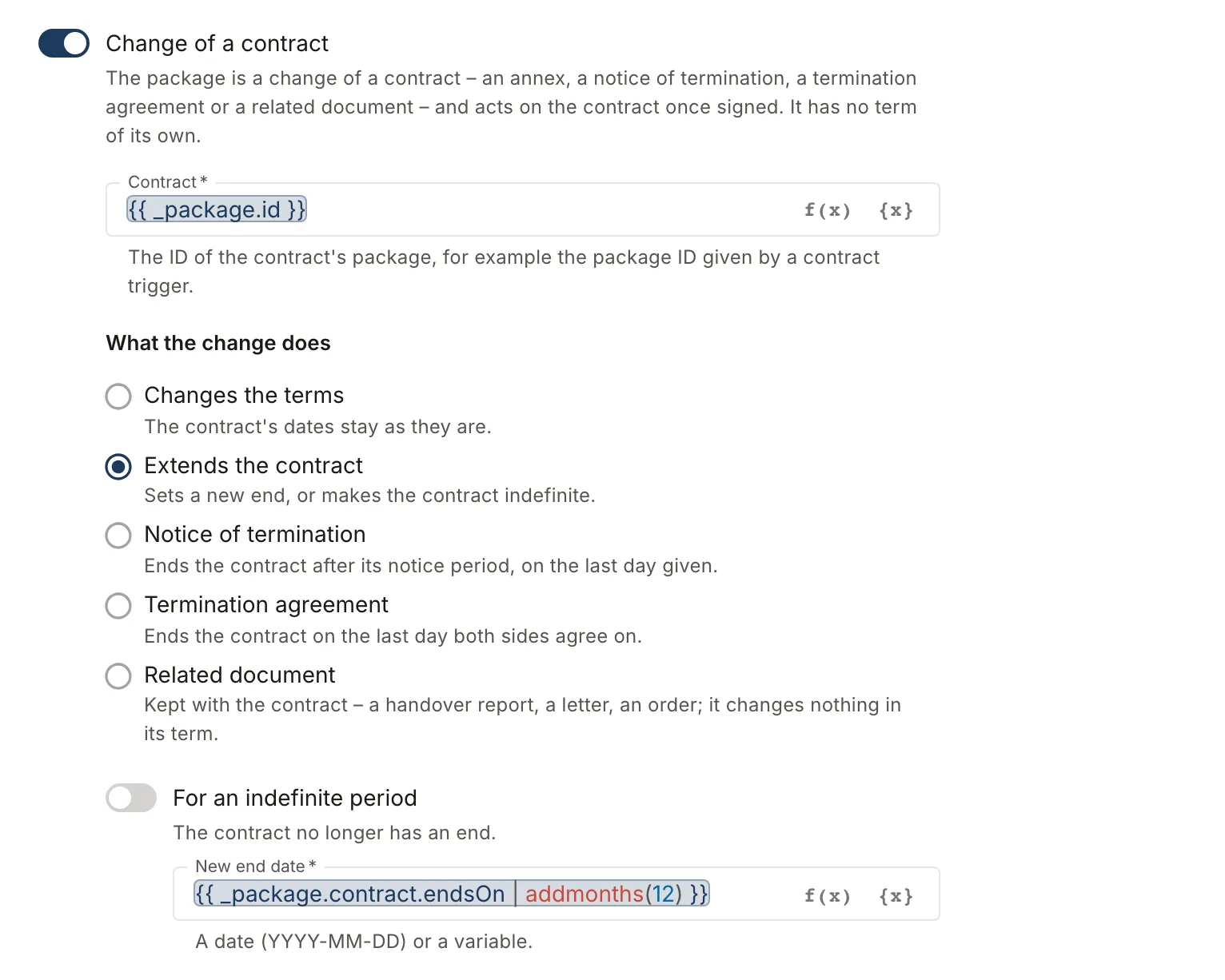
Section titled “Change of a contract”Change of a contract makes the package a change of a contract that everybody has already signed, instead of a contract of its own: an annex, a notice of termination, a termination agreement or a related document. It goes into the contract’s file like one made with Create annex, and acts on the contract once everybody has signed it. A change has no term of its own, so turning it on takes Contract term away. Use it to send an extension when a contract is about to end, or a notice when a client cancels through a form.
| Setting | Values and default | What it does |
|---|---|---|
| Contract | Required. A variable or an ID. | The ID of the contract’s package. In a workflow started by a contract event, {{ _package.id }}. After Find a contract, {{ contract.id }}. |
| What the change does | Changes the terms (default), Extends the contract, Notice of termination, Termination agreement or Related document. | What the change does to the contract once signed, and which date it asks for. |
| What the change does | Its date | Effect on the contract |
|---|---|---|
| Changes the terms | Applies from, optional. Empty: once everybody has signed. | The contract’s dates stay as they are. An annex, numbered within the contract. |
| Extends the contract | New end date, required, unless For an indefinite period is on. | Sets a new end, or makes the contract indefinite. An annex, numbered within the contract. |
| Notice of termination | Last day in force, required. | Ends the contract after its notice period, on the last day given. |
| Termination agreement | Last day in force, required. | Ends the contract on the last day both sides agree on. |
| Related document | None. | Kept with the contract, such as a handover report, a letter or an order. It changes nothing in its term. |
The dates take variables and must come out as a day, as for the term. Choosing another kind empties the date of the one before. Until the step names its contract and the date its kind needs, the designer says Name the contract this change is made to., Give the new end date, or extend the contract indefinitely. or Give the contract’s last day in force.
An annex takes the next number of its contract as the package is made. The documents are rendered with it and with the contract they change, so a template can print _package.annex.number, _package.annex.newEndsOn or _package.annex.contract.title: see the contract blocks. With documents of its own, the step’s parties are its own, as for any package, so name them on People. There, and in the step’s other settings, _package is still the package the workflow was started by: in a workflow a contract event started, the contract’s first party is {{ _package.contract.parties[0].fullName }} at {{ _package.contract.parties[0].email }}. Only the documents read the package the step makes.
Documents from the document type
Section titled “Documents from the document type”A change needs no documents of its own. Leave the Documents tab empty, as a new step has it, and the step makes the change from the template its document type sets for that kind of change under Documents for changes, as Create annex does in the contract file. Under the change, Basics says A step without documents makes the document from the template its document type sets for this kind of change, signed by the contract’s parties. Without that template the step can’t be saved. The parties of a contract signed outside Doxtly have no roles: make its changes in the app. Once the step has a change, the last document can be removed too.
The template is filled with the run’s data and, where the run gives no value, with what the contract itself was filled with. The parties come from the contract, so People shows Parties: from the contract where the parties would be, with The type’s template for this change makes the document, and the contract’s parties sign it: those the template names sign, the others with an e-mail get it to read.

- a party of the contract whom the template names signs the change under the same indicator, and is asked as for the contract: the same delivery, verification, language and linked user, signing order and signature type
- a party who opened the contract with an access password gets your organization’s default verification instead, because the password can’t be copied
- every other party with an email address gets the change to read, as a viewer
A contract signed outside Doxtly has only the parties recorded with it, who have no indicators, and a run has nobody to ask whom each signs as. A step that makes its change from the type’s template fails with "..." was signed outside Doxtly, so its parties have no roles: create this change in the app., naming the contract. Make such a change from the contract’s page, where you choose whom each party signs as, or give the step documents and parties of its own.
Approvers and viewers you add on People stay. Names and addresses are taken from the contract exactly as written: a name that looks like a variable is printed as it is, never worked out.
Saving the workflow checks that the document type has a template for the kind of change, and each run checks again, because the template can be taken off the type in the meantime. Without one, you see The document type "..." has no template for this change (...). Add the documents to the step, or choose the template under Documents for changes in the document type., with the type’s name and the kind of change, such as Annex extending the contract.
Documents
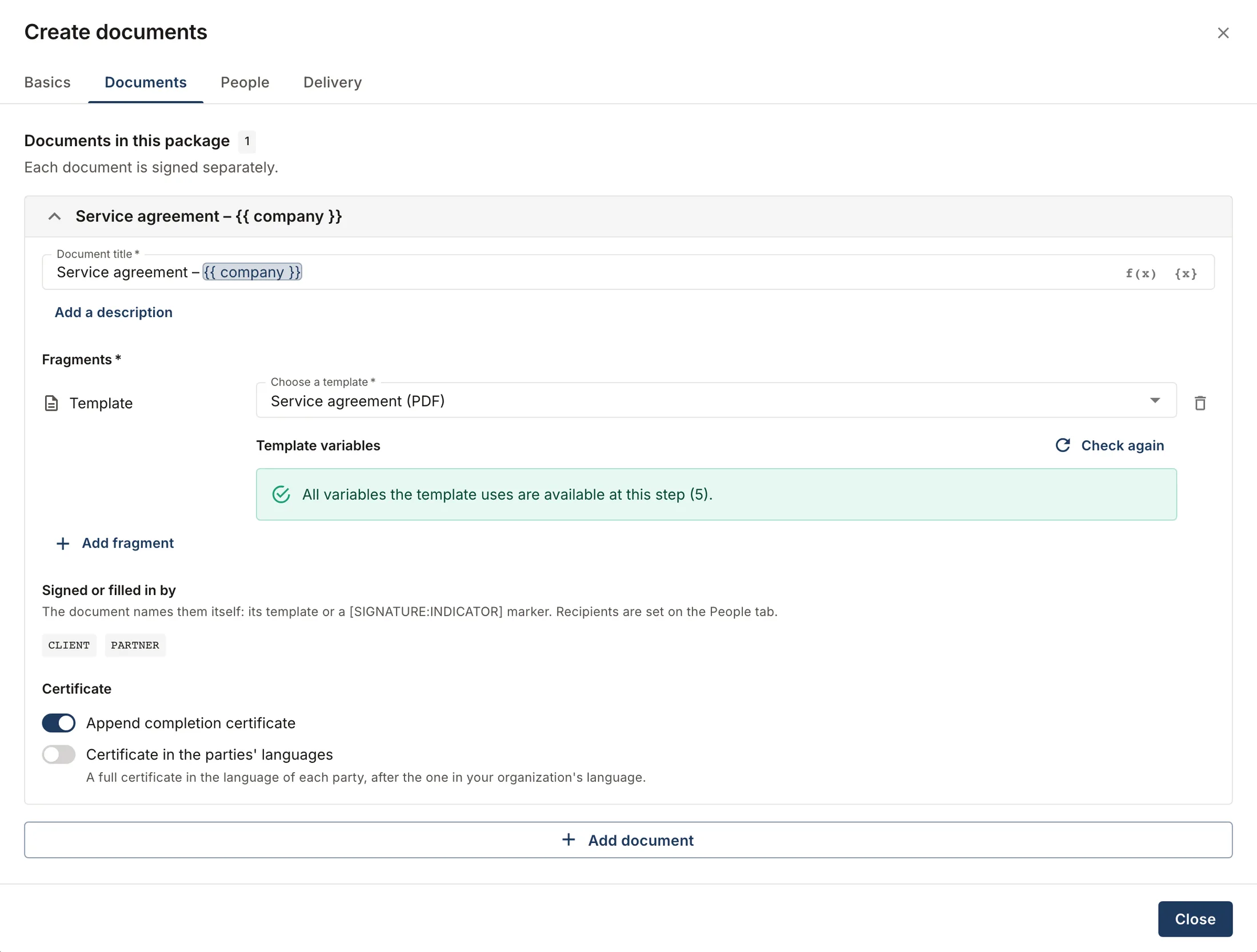
Section titled “Documents”The tab is headed Documents in this package, with their number. Each document is signed separately, and each is a card: closed, it shows its title, how many fragments it has and the parties it names, or what is still wrong with it. One card is open at a time. Move a document with its up and down arrows, or remove it with the bin; a package needs at least one, so the last one has no bin, unless the step makes a change of a contract, which can have none. Add document, under the cards, adds another.
| Setting | Values and default | What it does |
|---|---|---|
| Document title | Required. Text and variables. | The name the signers see. |
| Description | Optional, behind Add a description. Text and variables. | A line about this document. |
| Fragments | At least one. Up to 20 in one document. | What the document is made of, joined into one PDF in this order. A contract with its general terms is one PDF with one signature. |
| Add fragment | File from workflow or Template. Without a template you can use, only the file. | Adds one more fragment at the end. A document with none shows the two choices directly. |
| File from workflow | Exactly one file. | A file from the trigger or an earlier step, such as a generated document. PDFs are offered, and pictures and office documents too, because those become PDFs when they arrive. Files of other types aren’t offered, and the field tells you how many it left out. A form field holding a list of files can’t be chosen, because a document is one file. |
| Template | One template. | The template to render, PDF, Word or SVG, on the run’s data. In a PDF template, areas the data can’t answer are collected from the parties on the document page; a code area can’t be typed in, so without its value it stays empty. A Word or SVG template needs its type’s plan feature. Under the chosen template, the Template variables box says whether this step has everything it prints. |
| Password that opens this file | For a file joined to others, behind Encrypted file? Enter its password. | The password that opens the file, which may be a workflow value. It sets nothing: this step only uses it to read the file, it is never kept in the step’s output, and the joined document has no password. |
| Signed or filled in by | Read only. | The parties the document names. |
| Append completion certificate | On by default. | Adds the page listing each signer’s evidence to the end of the sealed PDF. |
| Certificate in the parties’ languages | Off by default. Shown with the certificate on. | A full certificate in the language of each party, after the one in your organization’s language. |
With two or more fragments, each row gets its number and the up and down arrows, and the line Joined into one PDF in this order appears. A document that was already signed can’t be joined, because joining would break its signature.
You don’t choose who signs a document. It says so itself: a PDF template through its signature areas and fields, a Word or SVG template or any other file through [SIGNATURE:CLIENT] markers in its text.
For a template, and for a file from a Generate document step, Doxtly looks at the template, so the parties show up as soon as it has read it. A file nobody can look into yet, such as a form upload or a file from a drive, is read when it arrives, and until then the row says so. While a fragment has nothing chosen, the row asks you to choose it first.
The Template variables box works as in Generate document: a variable Not available at this step stops the run, because no package is created without it, so add it where the data comes from, or in an earlier step, and click Check again. The package’s number, {{ _package.number }}, is always there, as the step renders its documents with it. On the canvas the node shows Template variables missing with the number of such variables across all its templates. It is a warning, and the workflow still saves.
A party marked CLIENT · conditional is named only in a conditional block or by a conditional area. A document that names nobody goes into the package to be read, like general terms beside a contract. At least one document of the package has to name a party, or the run stops.
People
Section titled “People”Who takes part, on one page: the parties first, then those who approve, those who may read, and the order. Each section has its number beside the heading; an empty one you can do without is one line with Add.
Parties
Section titled “Parties”There is one row for each party the documents name. A party’s Indicator comes from the documents, so you can’t change it, and you can’t add or remove parties here.
The exception is a document made from a file whose parties are known only when it arrives. As long as the package has one, you type the indicators yourself with Add party, so add one for each party the file may name. A party the file turns out not to name is left out of that run’s package, and no harm done.
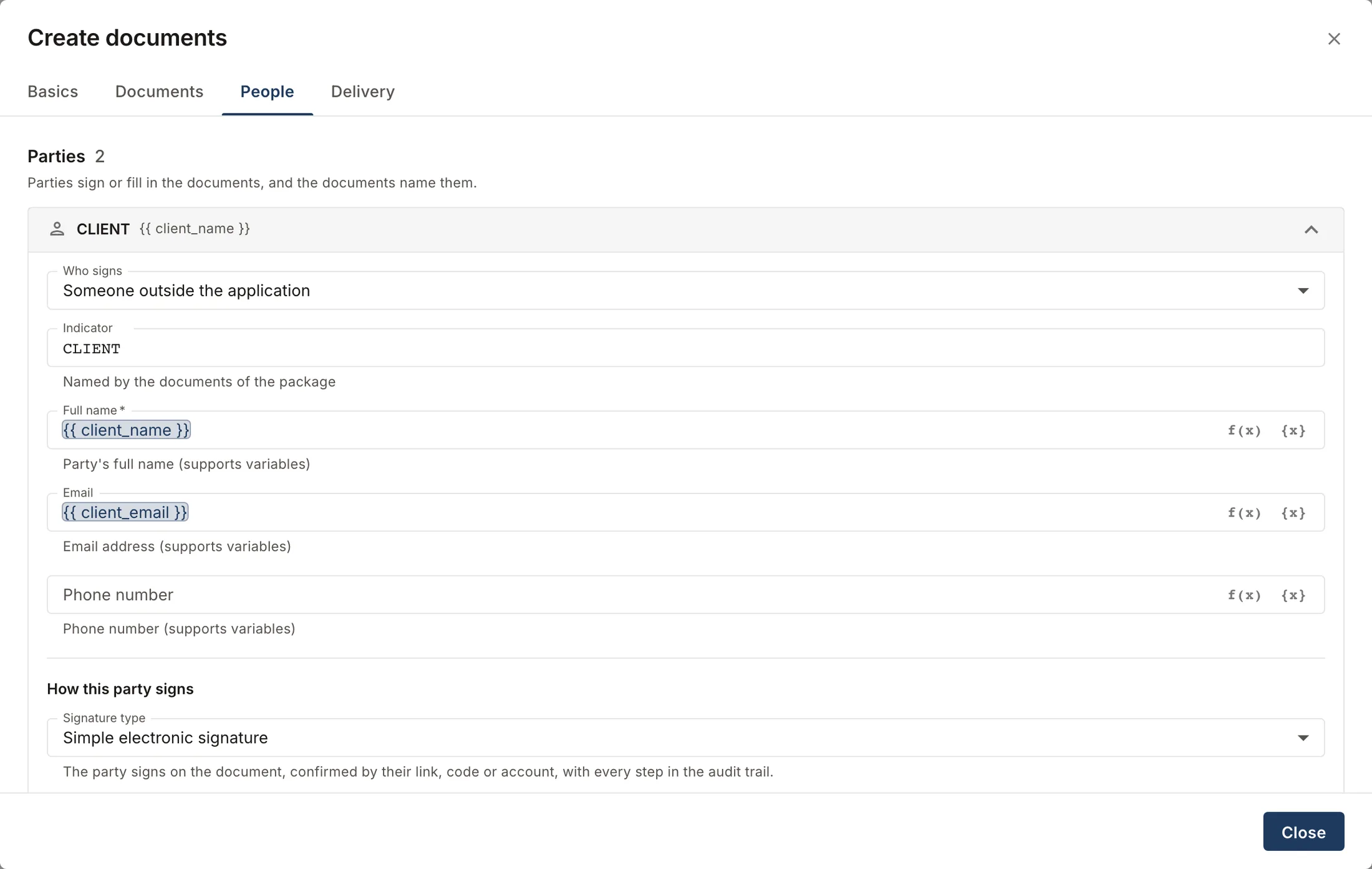
| Setting | Values and default | What it does |
|---|---|---|
| Indicator | Required. After variables are filled in: a capital letter, then capitals, digits or _. Lower case is turned into capitals. |
The party’s label, for example CLIENT or PARTNER. It must be unique in the step. |
| Who signs | Someone outside the application (default), A user of the application, or Anybody in a department. | A user links the party to a person who may read documents of the package’s type, and who can then sign inside Doxtly. Their name and email are filled in, and you can change them or replace them with variables. Anybody in a department is signed by whoever of the department starts first, in the application. Choose the package type on Basics first. |
| Full name | Required. Text and variables. | Who the party is on this run. |
| Optional in general. Text and variables. | Required with Code by email, for a request sent by email and for the Main signing party. Also used for resending the link and the completion notice. | |
| Phone number | Optional in general. Text and variables. | Required with Code by SMS and Code by WhatsApp, and for a request sent by text message. Also what a later SMS or WhatsApp step can read. |
| Language | The organization’s language (default), or one you pick from the list. | The language of the party’s request and of the page they open, which the party can still change. |
| Signature request | On by default for a new party. | Whether and how Doxtly asks the party to sign. See How a party is asked. |
A party marked conditional is named only in a conditional block or by a conditional area, so it takes part only in the runs where that part appears. On other runs its row is left out of the package.
If you change the package type, a linked person who can’t read the new type is unlinked, and you can see that in the row. If the type is closed to them later, the workflow won’t save until you link someone else or open the type to their department. If a linked person leaves the organization, the package is still created, without the link.
How this party signs
Section titled “How this party signs”Each party’s row has its own signing settings. A document type can preset or fix them, and a fixed one reads Set by the document type. Apply to all parties copies this party’s verification and job title to the others, and leaves their signature type and ways of signing as they are.
| Setting | Values and default | What it does |
|---|---|---|
| Signature type | Simple electronic signature (default) or Qualified electronic signature. | With a qualified one, you also choose the Ways of signing the party may use. See Qualified signatures. |
| Verification | The organization’s default (default), None, Code by email, Code by SMS, Code by WhatsApp, Access password, Identity document and selfie. | How the party shows who they are when opening the page. An Access password has at least six characters and may come from a variable. The last one depends on your plan and on identity checks being on. See Identity verification. |
| Allowed ways of signing | The document type’s list, or else the organization’s: normally Drawn by hand, Typed name and Saved signature (signed-in parties). | What the signature window offers the party. Uploaded image can be ticked only for A user of the application or Anybody in a department, and is offered only when they sign inside Doxtly. A type that locks the ways makes the field read-only. See Choosing the ways of signing. |
| Job title under the signature | Off by default. | Prints the party’s job title under their signature. Left empty, the party types it in when signing. |
| Attachments | None by default. | Files the party is asked to send with the signature: Add attachment request. See Files from signers. |
| Signs in person – do not send an invitation | Off by default. Only for a simple signature. | The party signs on a device you hand them, with no link, message or reminder. See In-person signing. |
| Allow signing on paper | Off by default. | The party can print the documents, sign them by hand and send back scans. |
| Pays after signing | Off by default. Shown on a plan with payments, and can be turned on once your organization has a payment integration. | Once they have signed, the party is asked to pay through the Payment integration you choose, in a Currency it takes. The Amount can be a variable, worked out when the documents are created; What the payer sees is shown on the provider’s page and the receipt, and left empty it is the package’s title. See Sign and pay. |
| Return address | Optional. Text and variables. | Where the party can go back to when they finish, for example your client portal. It must be on a site your organization allows. |
A party chosen as Anybody in a department signs in the application with their account, so it has no verification, language, request, in-person, paper, payment or return address settings.
The designer holds you to the requirements above when it saves, and it counts The organization’s default too: if your organization asks every package for an email code, each party needs an Email here as well.
How a party is asked
Section titled “How a party is asked”Each party has a Signature request switch. It is on for every party the documents bring and every party you add, and off for one saved before this existed, so an older step never starts sending twice. The line under it says what the switch does as it stands: on, that Doxtly asks the party with the message chosen below; off, that you deliver the link yourself.
With it on, Doxtly asks the party when their turn begins: when the package is created for the first step, and for the next step once the one before it is through. You choose:
| Setting | Values and default | What it does |
|---|---|---|
| Send by | Email (default), Doxtly’s mailbox, SMS or WhatsApp. | Only what your organization can send by is offered. With an address written out, an email needs an Email, and a text message a Phone number, at the latest when the run starts. |
| Message | Default (Signature request), or one of your own templates written for a signature request. | What goes out. The default is your organization’s default message in the party’s language. |
| Language | Recipient’s language (default), Organization’s language, a fixed one, or From a variable…. | The language of the message. With a variable, If it is not a supported language says what to use when the value doesn’t fit. See Languages. |
With it off, nobody tells the party: deliver the link yourself, from a later step or from a workflow on A party’s turn begins. If the parties sign in order, a warning reminds you. The link in {{ _recipients.CLIENT.signingUrl }} is filled in only for a party Doxtly doesn’t ask itself: a link delivered before a party’s turn would only open the waiting page.
The request is added to the audit log of each document the party has to deal with, as Signing request sent, once the provider has taken it.
Approvers
Section titled “Approvers”An approver reads the documents and decides whether they go on to the people in the next steps. They sign nothing, fill in nothing and add nothing to the PDF: an office manager checking a lease before it goes to the tenant, say. This section is optional, and a step can have up to five approvers. Click Add approver for each one.
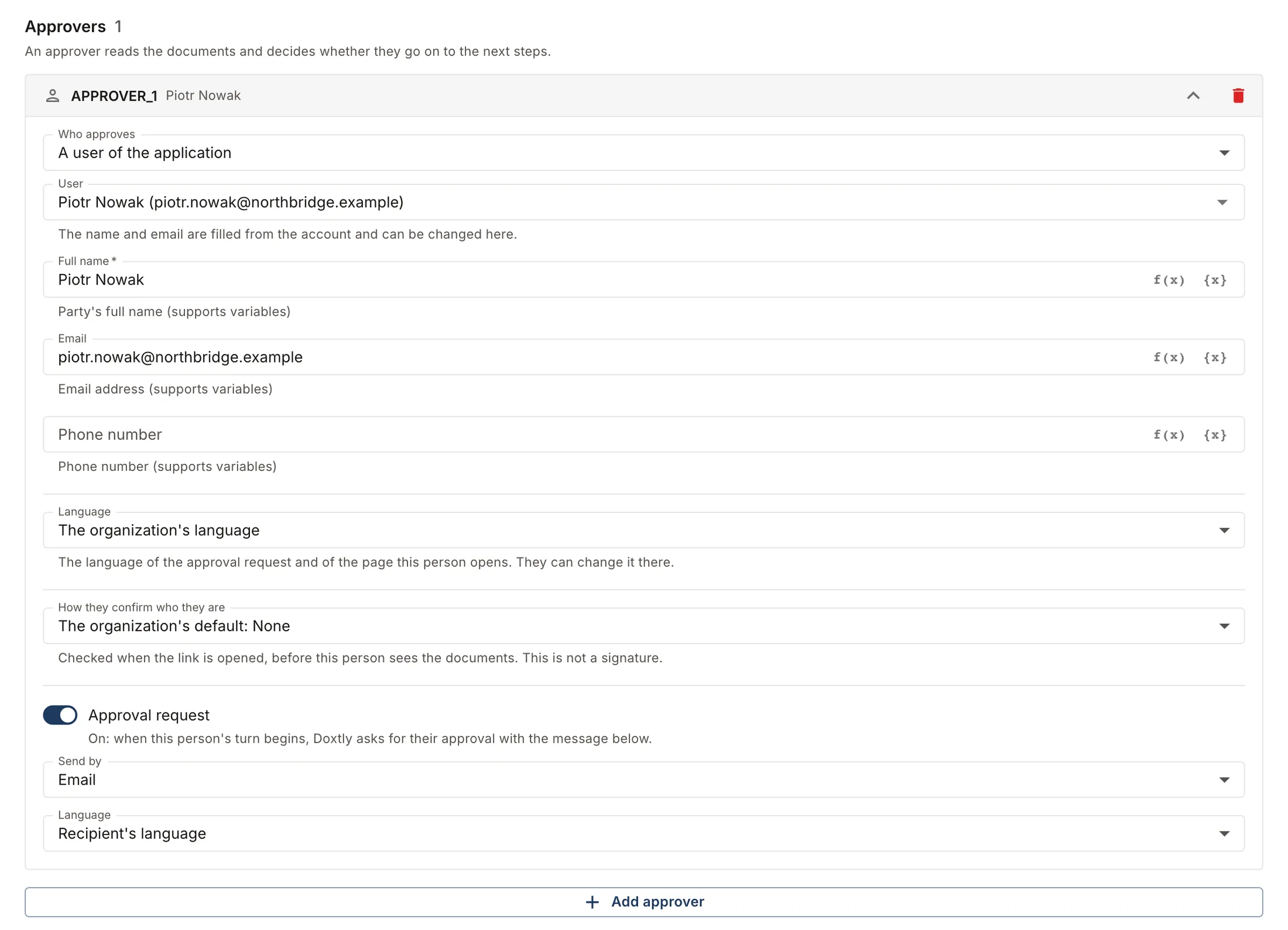
| Setting | Values and default | What it does |
|---|---|---|
| Who approves | Someone outside the application (default) or A user of the application. | As for a party. An approver can’t be a whole department. |
| Full name | Required. Text and variables. | Who the approver is on this run. |
| Email, Phone number | Text and variables. | Where the request goes. At least the one its channel needs. |
| Language | The organization’s language (default), or one you pick from the list. | Of the approval request and of the page the approver opens, which they can change. |
| How they confirm who they are | The same choices as a party’s Verification. | Checked when the link is opened, before this person sees the documents. This is not a signature. |
| Approval request | On by default for a new approver. | As Signature request, with Default (Approval request) as the message. Off, you deliver the link yourself. |
An approver has no signature type, attachments, signing on paper, signing in person or return address, because they sign nothing. The decision, approval or rejection with a reason, goes into the audit trail and on the certificate. A package that isn’t approved ends there, as Not approved. A workflow can follow the decision with An approver approves the package and An approver rejects the package. See Parties, approvers and viewers.
Viewers
Section titled “Viewers”Viewers read the package and sign nothing: a lawyer, an accountant, a compliance officer. This section is optional. Click Add viewer for each one.
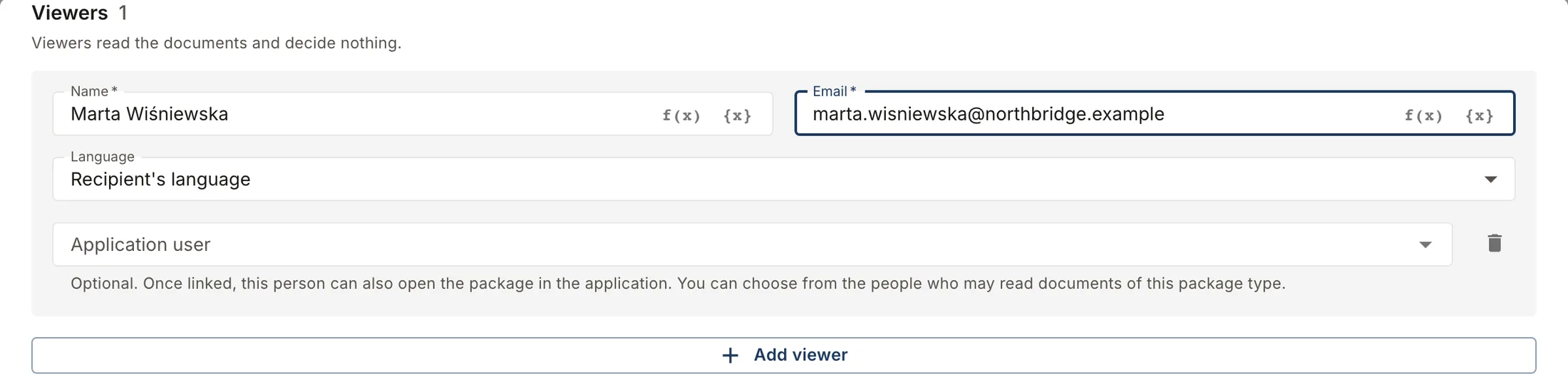
| Setting | Values and default | What it does |
|---|---|---|
| Name | Required for each viewer. Text and variables. | Who the viewer is. |
| Required for each viewer. Text and variables. | Each viewer is emailed a link of their own once the package is created, and a notice when it is completed. | |
| Language | Recipient’s language (default), Organization’s language, a fixed one, or From a variable…. | The language of the email with the viewer’s link. |
| Application user | Optional. Same list as for parties. | Linked, the viewer can also open the package in the app. Their empty name and address are filled in for you. |
Without an email configuration the section warns you, because the link can’t be sent and the step would fail. An address written out in full is checked when you save, and may appear only once. An address built from variables is checked on the run: if it isn’t a valid address there, the run stops. Two variables that come out as the same address produce one viewer.
The section, there once the step has two parties or an approver, shows the whole sequence at a glance: a list of steps, each with its people and their role. People in one step act at the same time, and each step waits for the one before: step 2 is asked only once step 1 is finished. It works as in a package made by hand.
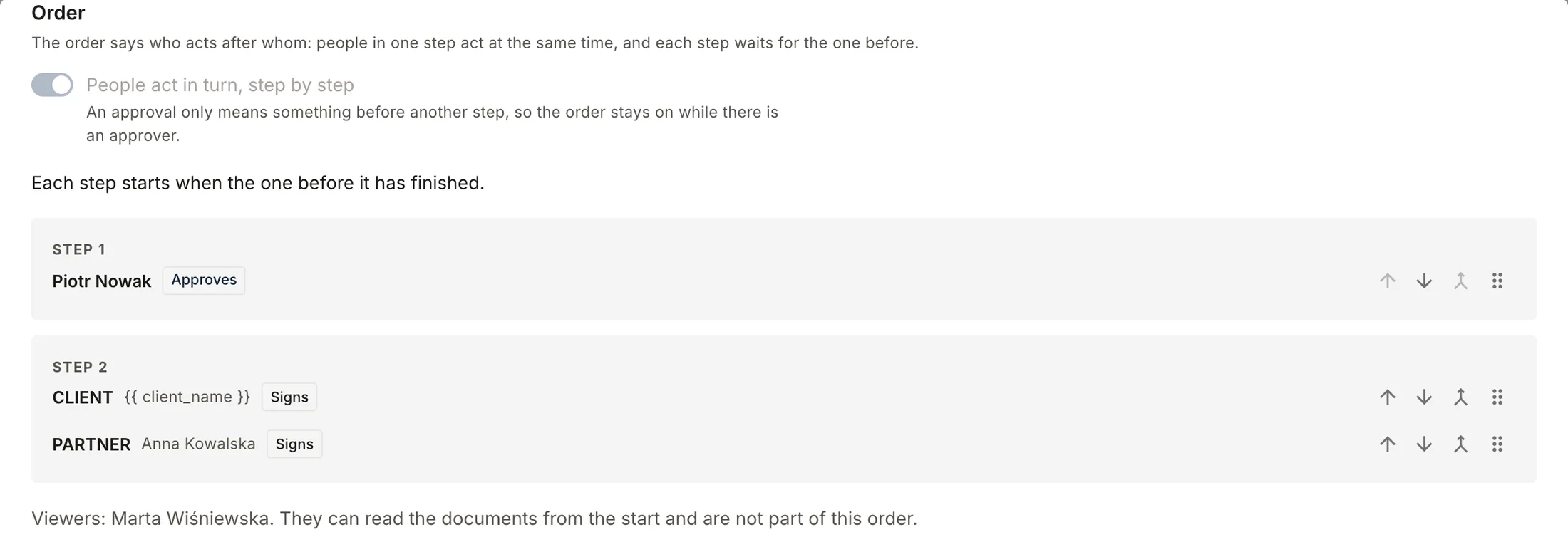
With the switch People act in turn, step by step off, everybody gets the request right away and acts independently of the others. With an approver on the list it stays on, because an approval only means something before another step. A new approver takes the step before the parties, or, with immediate signing on, the step after the main signing party.
To change the order, use the arrows on a person to move them up or down, Together with the previous step, or drag them onto another step. Viewers are named under the steps: they can read the documents from the start and are no step of the order.
It shows a problem before the step can run:
- An approver last in the order has nobody left to hold back. Move them before a party who has to sign.
- After the first party with a qualified signature, only parties with a qualified signature may sign, each in a step of their own.
- The Main signing party of immediate signing has to be in the first step, with no approver before them, as that signature leaves no time to approve.
Delivery
Section titled “Delivery”When and how the package goes: its deadline, reminders, Doxtly’s notifications and, where it applies, signing straight away.
Deadline and notifications
Section titled “Deadline and notifications”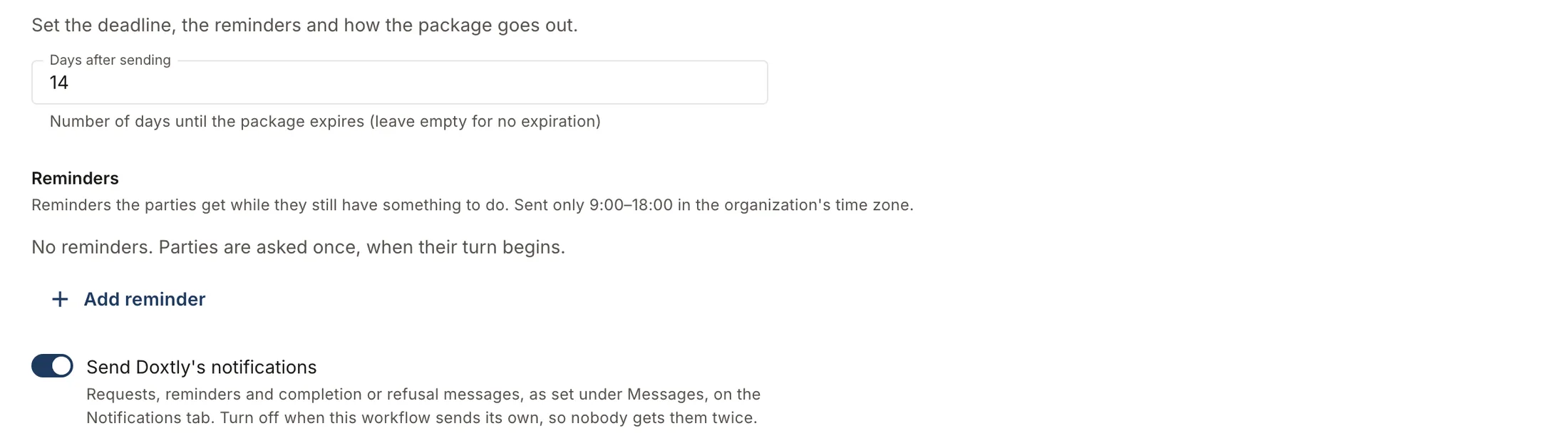
| Setting | Values and default | What it does |
|---|---|---|
| Days after sending | A whole number. Empty by default. | Days until the package expires. Empty, or 0, means it never does. A document type can fix it. |
| Send Doxtly’s notifications | On by default. | Requests, reminders and the completion and refusal messages, as set under Notifications. Turn off if this workflow writes its own, so nobody gets two. |
How each party proves who they are is no longer set here: it is Verification under How this party signs.
Reminders
Section titled “Reminders”Reminders go to each party still to act, by themselves, from a fixed number of days after sending or before the deadline. A step can have up to five, and an identical reminder is kept only once. This section is optional, and a document type can fix what is on it.
The settings are those of a package’s reminders: Days (1 to 90) and When (after sending or before the deadline), Repeat (Every (days), 1 to 90, and At most (times), 1 to 10), and The same way as the signature request, which goes as the party was asked, or your own Send by, Message and Language, which here can come from a variable. before the deadline needs Days after sending, above them on Delivery.
Reminders go only to somebody who can act now, only between 9:00 and 18:00 in your organization’s time zone, and never after a party has signed or the package has ended.
A channel your organization can’t send by, or a reminder before a deadline the step doesn’t set, is refused when you save the workflow.
Immediate signing
Section titled “Immediate signing”Use this when the person who just sent a form should sign on the spot, without going to their inbox: a client confirming an NDA at the end of an intake form, say.
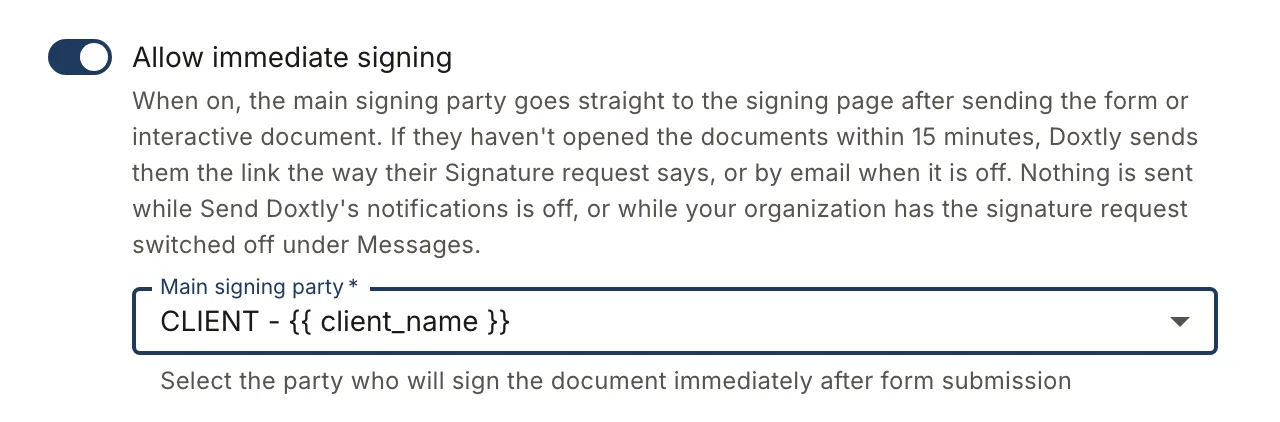
| Setting | Values and default | What it does |
|---|---|---|
| Allow immediate signing | Off by default. | Hands the person who submitted straight to the signing page. |
| Main signing party | Shown and required while Allow immediate signing is on. | Which party that person is. With one possible party, it is chosen for you. |
The switch can only be turned on when all of this holds. When it doesn’t, it stays off and says why.

- The workflow starts from A form is submitted or An interactive document is filled in, so somebody is waiting.
- No other Create documents node in the workflow has it on. The person is handed over at the first one, so a second would do nothing.
- At least one party can be chosen. A party named only conditionally can’t, because it may have nothing to sign on the very run the person is waiting for.
If a later change breaks one of these, say you swap the trigger for Recurring, the switch turns itself off and the main party is cleared.
The main party also needs an Email, or the designer stops you with Immediate signing: the main party (CLIENT) needs an email address. It can’t sign in person either: saving then says Party CLIENT signs right after the form, so it cannot sign in person. When the page can’t take over, because a run has nobody waiting (one started by an edited submission, say) or the person hasn’t opened the documents within 15 minutes, Doxtly sends the main party the link the way their Signature request says, and by email when that is off. Nothing is sent while Send Doxtly’s notifications is off on this step, or while your organization has the signature request switched off under Messages; the link then reaches them only through a step of your own. Signing right after a form covers the waiting page and what happens if the visitor leaves.
What the next steps get
Section titled “What the next steps get”The parties, as variables. Each party of the package lands in the run’s data under its indicator. The variable picker lists them under Package parties (latest package).
| Variable | Label in the picker | Holds |
|---|---|---|
{{ _recipients.CLIENT.signingUrl }} |
CLIENT – signing link | The party’s personal signing link. Empty when Doxtly asks the party itself or the party signs in person |
{{ _recipients.CLIENT.fullName }} |
CLIENT – full name | The name as rendered on this run |
{{ _recipients.CLIENT.email }} |
CLIENT – email address | The address, empty if not given |
{{ _recipients.CLIENT.phone }} |
CLIENT – phone number | The number, empty if not given |
{{ _recipients.CLIENT.indicator }} |
CLIENT – indicator | CLIENT |
{{ _recipients.CLIENT.recipientId }} |
CLIENT – recipient ID | The party’s identifier in Doxtly |
{{ _recipients.CLIENT.signingOrder }} |
The party’s step in the order | |
{{ _recipients.CLIENT.language }} |
The party’s language | |
{{ _recipients.CLIENT.channel }} |
CLIENT – how they sign | secure_link, or in_person for a party set to sign in person |
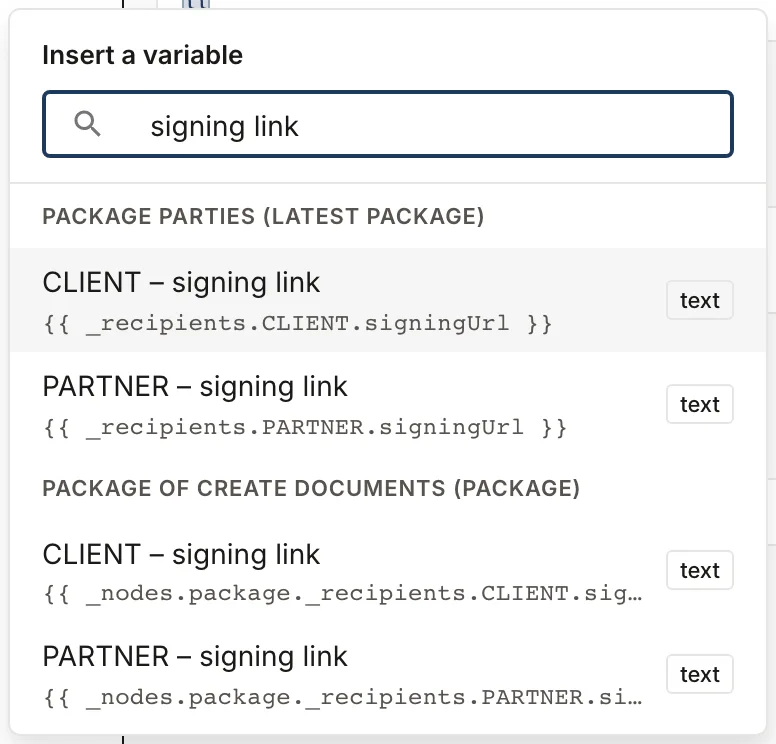
With two Create documents steps in one workflow, _recipients holds the latest package’s party of each indicator. To reach one package for certain, go through its step’s Node ID: {{ _nodes.agreement._recipients.CLIENT.signingUrl }}. The picker lists these, with the package’s number {{ _nodes.agreement.number }}, in a group of their own for each step, named Package of the step’s title. Stick to letters, digits and _ in such an ID, because a hyphen doesn’t work in conditions and needs a different notation in email templates. All of this survives a Data transformation. See Data and variables.
Metadata. The metadata of the templates the documents are rendered from joins the run’s _metadata.
Values from contacts. A template’s values filled from contacts are filled where the run gives no value, from the contact whose email address the party gets in this run, and the package’s party keeps the link to that contact. A sensitive field is never filled by a workflow. The Template variables box lists such a value under Filled from contacts, with the party and the field it comes from, when the step has that party with an email address. When no contact has the address the run gives, the value is missing, as any other.
No files. The step adds nothing to the run’s files, and the signed PDF doesn’t exist yet. To work with it, start a second workflow with The package is fully signed, which gets the sealed documents and the data this run had.
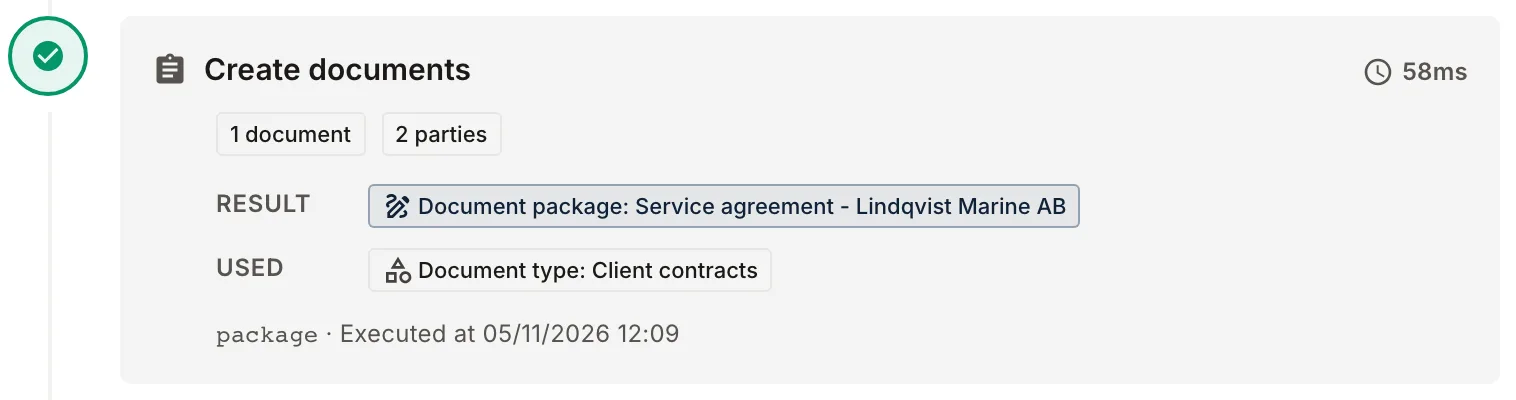
On the run’s page the step shows the Document package under Result, the Document type under Used, and how many documents and parties the step was set up with, such as 1 document and 2 parties. A conditional party left out of this run still counts there. If the package was never made, the card shows its title without a link.
When it fails
Section titled “When it fails”The step prepares everything before it creates anything: it renders the documents, reads the parties and checks the recipients. A failure at that stage leaves no package behind.
| What you see | Why |
|---|---|
A document of this package names the party ..., which the step has no recipient for |
A file arrived with a marker for a party nobody stands for. Add it on People, under Parties. |
None of the documents of this package names a party |
No document has a signature place or a field for anyone on this run. |
Enter the full name of party .... |
The name came out empty. Check its variables. |
Party ... has no email address to send the verification code to. |
The party’s address came out empty, while they need one for an email code or for a Signature request sent by email. With an SMS or WhatsApp code, or a request by text message, an empty phone number gives Party ... has no phone number to send the verification code to. |
Invalid recipient indicator '...' or Duplicate recipient indicator '...' |
An indicator doesn’t fit the rule, or two came out the same. |
A file chosen for this package is not a PDF document |
Judged by the file’s content, not its name. Only PDFs can be signed. |
The template "..." used by a document was not found. |
The template was deleted after you chose it. Pick another one. |
Document requires exactly one file to be selected. |
The chosen file isn’t in this run, for example an optional upload left empty. |
The party chosen to sign right after the form, ..., takes no part in this package |
No document names the main party on this run. |
The custom field ... cannot take the value this run gave it, or the package's document type has no such field |
Under Fields, an expression gave a value its field refuses, such as text for a number field. Check the field’s type and the expression. |
A viewer of this package, "...", has no email address a link could be sent to |
The viewer’s address came out empty or invalid. |
The step gave "..." for "...", which is not a date. Write it as 2027-12-31 or 31.12.2027. |
A date of the term or of the change came out as something that isn’t a day. The message quotes what came out and names the date, such as New end date. 2027-12-31, 31.12.2027 and a date with a time, such as 2027-12-31T09:00:00+01:00, are all taken. |
The document type "..." has no template for this change (...). Add the documents to the step, or choose the template under Documents for changes in the document type. |
A change with no documents of its own has no template on its type for its kind. |
"..." was signed outside Doxtly, so its parties have no roles: create this change in the app. |
A change with no documents of its own is made to a contract signed outside Doxtly, whose recorded parties have no indicators. Create it from the contract’s page. |
A contract cannot end before it starts. |
Under Contract term, Ends on came out before Starts on. |
This contract is not available. |
Contract gave no ID of a package of your organization. |
This package is not a contract: its document type does not track contracts. |
Contract names a package whose type keeps no contracts. |
An annex amends a contract: make it of the contract itself. |
Contract names a change, not the contract. |
An annex can be made only of a contract everybody has signed. |
The contract is still being signed. |
A change cannot end or extend the contract to a day before it is in force. |
The change’s date comes before the contract’s first day in force. |
Give the new end date, or extend the contract indefinitely. or Give the last day the contract is in force. |
The date the change needs came out empty. |
Another annex of this contract took its number meanwhile. Run the step again to number it anew. |
Another annex of the same contract was made at the same moment. Rerun the run: the annex then takes the next number. |
If something goes wrong after the package exists, for example a viewer’s link can’t be sent, the run stops with the Document package link on the step, and the package stays as far as it got. Check it before you rerun, because Rerun starts the workflow again from the beginning and creates a new package.
As with any failed step, nothing after it runs, and people who may view workflows get a Workflow failed notification. A run someone is waiting on to sign is different: Doxtly retries it by itself and reports Signing session failed only if that doesn’t help.
Example: a service agreement
Section titled “Example: a service agreement”Northbridge Advisory sends every new client a service agreement, signed by the client and a partner, after the office manager has approved it.
| Tab | Setting | Value |
|---|---|---|
| Basics | Document type | Service agreements |
| Documents | Template, Document title | Service agreement, Service agreement for {{ client_name }} |
| People | CLIENT: Full name, Email |
{{ client_name }}, {{ client_email }} |
CLIENT: Verification |
Code by email | |
PARTNER: Who signs |
A user of the application: Anna Kowalska | |
| People, Approvers | Who approves | A user of the application: the office manager |
| People, Order | Step 1, step 2 | The office manager, then CLIENT and PARTNER together |
| Delivery | Days, When | 3, after sending |
| Delivery | Days after sending | 14 |
Doxtly sends each request itself, as Signature request is on, and the client is written to only once the manager has approved. When both have signed, another workflow triggered by The package is fully signed files the sealed PDF in the firm’s drive.
If the client should sign right after sending the form, turn on Allow immediate signing on Delivery and choose CLIENT as the Main signing party, and put the approver in a step after the client. The client lands on the signing page and the partner is still asked in turn.
To write the request in your own words, turn off Signature request and add a Send email step with {{ _recipients.CLIENT.email }} as the recipient and a template holding a button to {{ _recipients.CLIENT.signingUrl }}.