

Webhook requests
The Requests tab is the log of everything your webhooks received: what came in, what it was answered and which workflows it started. This is the first place to look when a client says an order never produced a contract, or a developer asks why their call failed.
Available when: your role includes View webhooks and their requests
Open Resources > Webhooks in the sidebar and switch to Requests. To see one webhook’s requests, use Show requests in its row menu.
The list
Section titled “The list”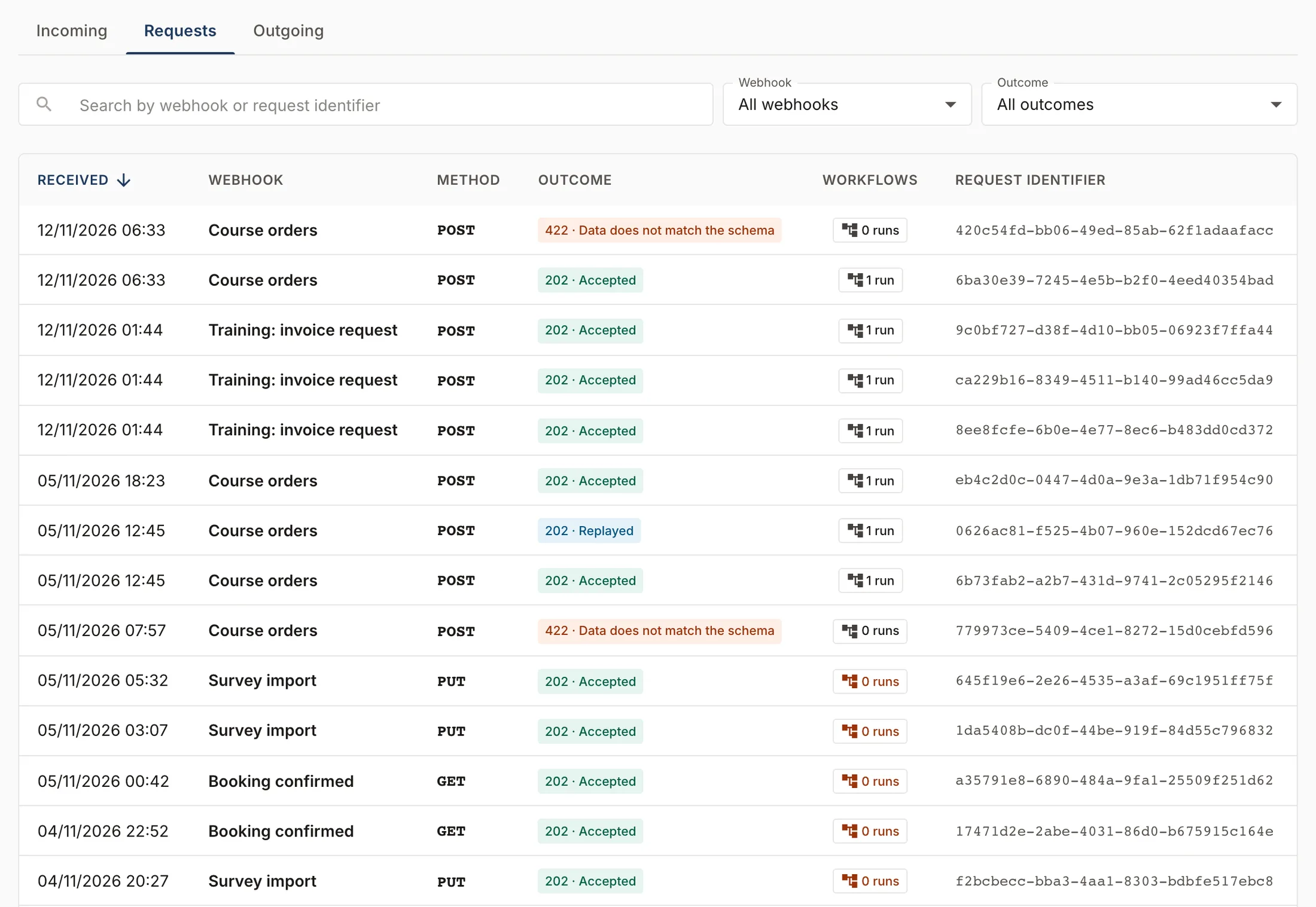
| Column | What it shows |
|---|---|
| Received | When the request arrived. Sortable. |
| Webhook | The webhook it was made to. Sortable. |
| Method | The HTTP method it came with, even one the webhook doesn’t take. |
| Outcome | The status it was answered, and what that means. Sortable, by status. |
| Workflows | How many workflow runs it started, the same number its page gives. A run you ran again counts once. |
| Request identifier | The value sent back in the X-Request-ID header. |
The newest requests come first until you sort by a column, 25 to a page. Click a row to open the request. On a phone each request is a card with the same facts.
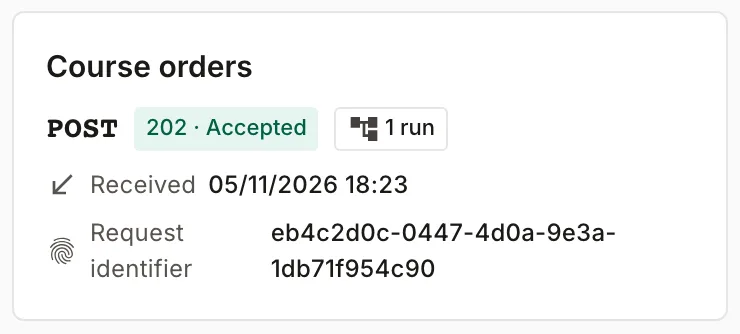
An amber 0 runs is worth a look. The request was accepted, but no active workflow listens to that webhook, and hovering over the chip says so.

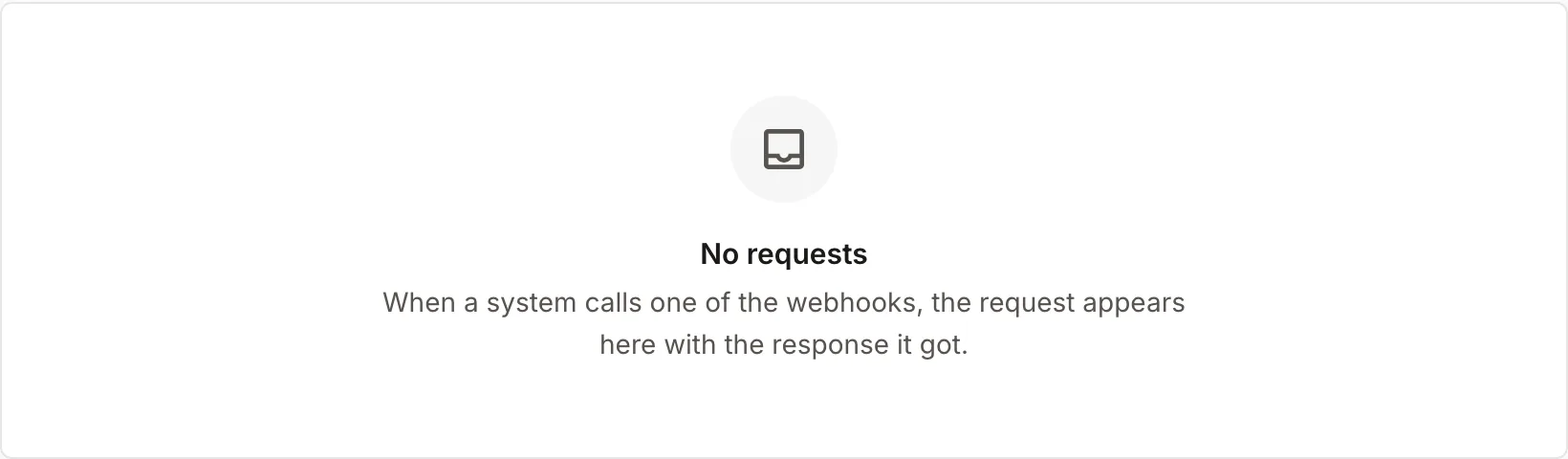
With no requests yet you see No requests. When a system calls one of your webhooks, the call appears here.
Finding a request
Section titled “Finding a request”
| Filter | What it does |
|---|---|
| Search | Finds a part of the webhook’s name or of the request identifier. Paste the identifier a developer quotes, and you land on that call. |
| Webhook | One webhook, or All webhooks. |
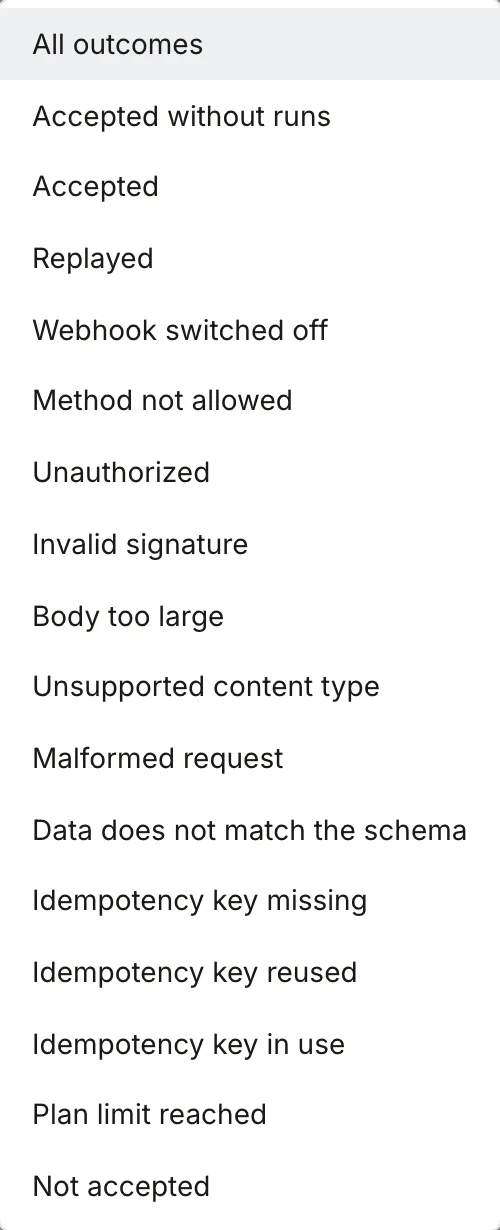
| Outcome | All outcomes, one outcome from the table below, or Accepted without runs. |
Accepted without runs is a quick health check: it lists the requests that were taken and started nothing, which shows webhooks nobody has wired up yet.
Each filter shows as a chip that you can remove on its own, and Clear filters removes them all. If nothing matches you see No matching requests. The filters are part of the page address, so you can send a colleague a link to the same view.
What each outcome means
Section titled “What each outcome means”The chip shows the status and its meaning, for example 202 · Accepted. Green means taken, blue a repeat, grey a webhook that is switched off, amber a problem on the caller’s side and red a problem at Doxtly’s end or with your plan.
| Outcome | Status | What happened | What to do |
|---|---|---|---|
| Accepted | As set on the webhook | Taken, and its workflows were started. | Nothing. |
| Replayed | As the first request | A repeat of a request already answered, with the same idempotency key. Nothing started. | Nothing: this is the protection working. |
| Webhook switched off | 404 | The webhook is Inactive. | Switch it on, or stop the caller. |
| Method not allowed | 405 | The request used a method the webhook doesn’t take. | Change the webhook’s Method, or the caller. |
| Unauthorized | 401 | The token or access key was missing or wrong. | Check the credentials and where they’re sent. |
| Invalid signature | 401 | The signature was missing or wrong, or a Standard Webhooks timestamp was over 5 minutes off. | Check the secret, the header and the encoding. Check the sender’s clock. |
| Body too large | 413 | The body was over the webhook’s Largest body. | Raise the limit, up to 1024 KB, or send less. |
| Unsupported content type | 415 | The body was neither JSON, a form nor text. Files aren’t accepted. | Change what the caller sends. |
| Malformed request | 400 | The body wasn’t what its type says, or the idempotency key was invalid. | Read the reason on the request’s page. |
| Data does not match the schema | 422 | The data broke the webhook’s JSON Schema. | Read the list of problems. Correct the sender or the schema. |
| Idempotency key missing | 400 | The webhook requires a key and the request had none. | Add the header, or turn off the requirement. |
| Idempotency key reused | 422 | The key was used before, for a request with different content. | The caller should use a new key for each event. |
| Idempotency key in use | 409 | The first request with this key was still being handled. | Nothing, if the caller tries again. |
| Plan limit reached | 503 | Your plan’s workflow runs were used up. | Check your subscription. A caller that retries gets through once there is room. |
| Not accepted | 503 | Doxtly couldn’t start the workflows. | The caller should try again. If it keeps happening, contact support with the request identifier. |
When an order produced nothing
Section titled “When an order produced nothing”Say a client paid and no confirmation went out. Work through it in this order:
- Search for the webhook, or filter by it, and look at the time of the order. If there is no request at all, it’s one of the calls you won’t find here, or the other system never sent anything.
- If the request has an amber or red outcome, the table above says why it was refused and what to do.
- If it reads 202 · Accepted with an amber 0 runs, no active workflow listens to the webhook. Activate the workflow.
- If it started a run, open it on the Workflows tab. The run shows the step that failed, and the Body tab shows what the step had to work with.
Calls you won’t find here
Section titled “Calls you won’t find here”Two kinds of call aren’t recorded at all:
- A call to a wrong address. No webhook means nobody’s log to put it in. Compare the address in the other system with the one on the webhook’s page. A deleted webhook behaves the same.
- A call over your rate limits. It’s answered
429and left out, so a flood can’t bury the calls that matter. If this is what’s happening, see rate limits.
A request’s page
Section titled “A request’s page”The page is headed by the webhook’s name and the outcome chip. Under the header are the tabs: Information, Headers, Parameters, Body and Workflows, with the number of runs in brackets. Parameters and Body appear only when the request had any, or when the content wasn’t kept and they have to say why.
The menu beside the title has Copy the request identifier and, with Manage webhooks, Delete the request.

Information
Section titled “Information”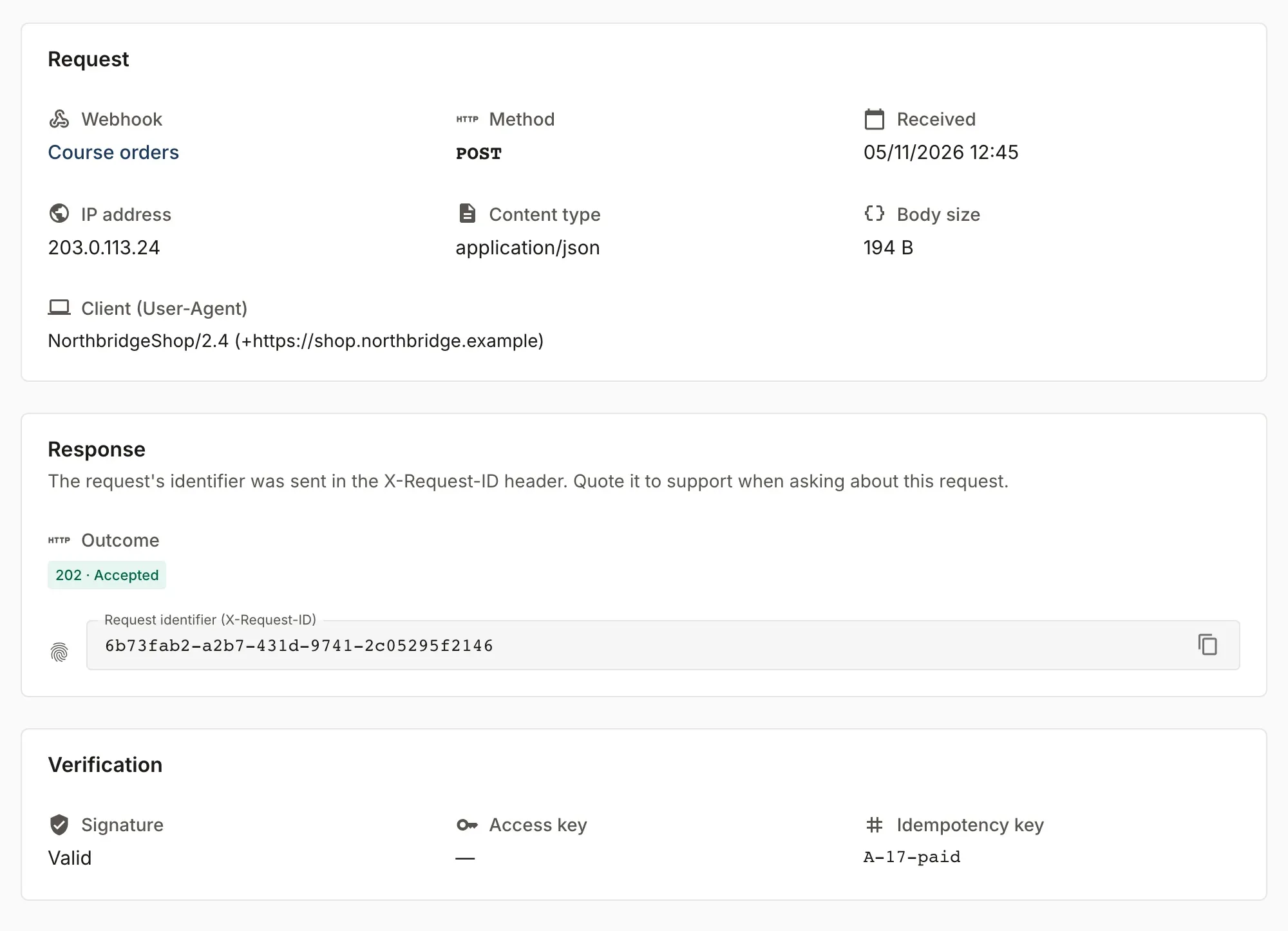
For a refused request, the tab opens with Why the request was refused, if there is more to say than the outcome. Each line is a problem. For a schema problem, it starts with the place in the data, such as /orderId. A required field that is missing is reported at /, the top of the data. At most ten are listed.

Request describes the call.
| Field | What it shows |
|---|---|
| Webhook | Its name, a link to its settings if you hold Manage webhooks. |
| Method | The HTTP method. |
| Received | Date and time. |
| IP address | Where the call came from. |
| Content type | The Content-Type header, or a dash. |
| Body size | The size of the body. For a request refused before its body was read, the size it declared. |
| Client (User-Agent) | The program that called, as it names itself. |
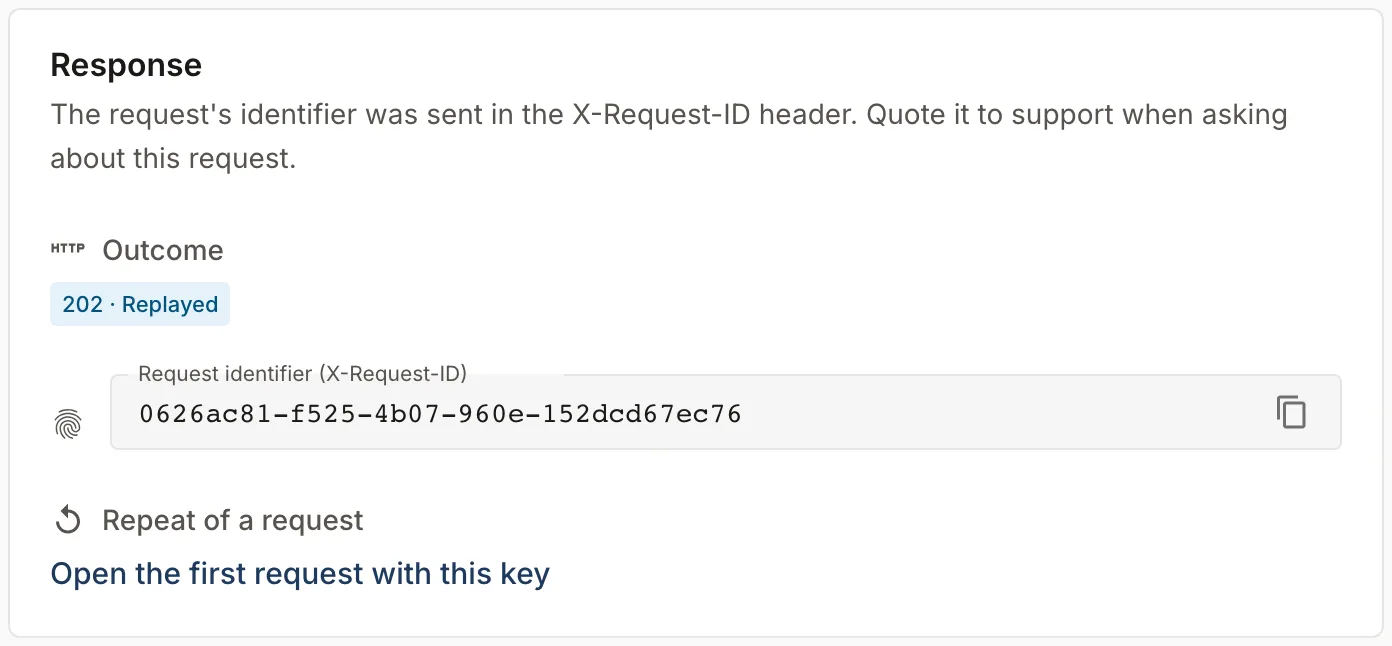
Response says how it was answered.
| Field | What it shows |
|---|---|
| Outcome | The chip again. |
| Request identifier (X-Request-ID) | The identifier sent back to the caller, with a copy button. Quote it to support when you ask about this call. |
| Repeat of a request | Only for a repeat, or for a retry that finished what a failed request began: Open the first request with this key takes you to the original. |
Verification says how the caller was told apart.
| Field | What it shows |
|---|---|
| Signature | Valid, Invalid or Not checked. It reads Not checked on a webhook with no signature, or when the request was refused before the signature came up. |
| Access key | The name of the key used, if any. |
| Idempotency key | The key the request carried, if any. |
Headers, Parameters and Body
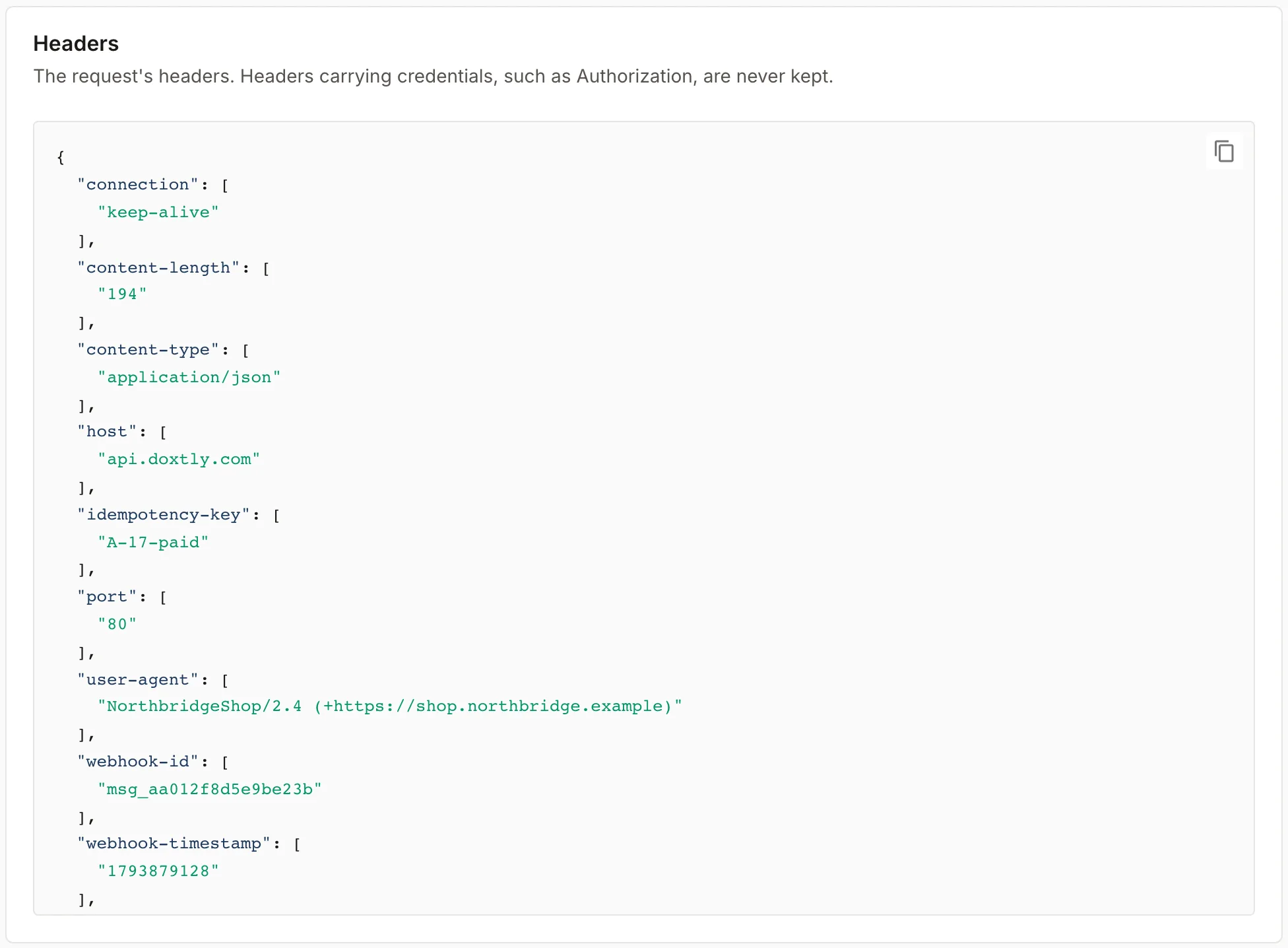
Section titled “Headers, Parameters and Body”These tabs show the request as it arrived, each with a Copy button. A JSON body is laid out for reading, and anything else appears as it came.
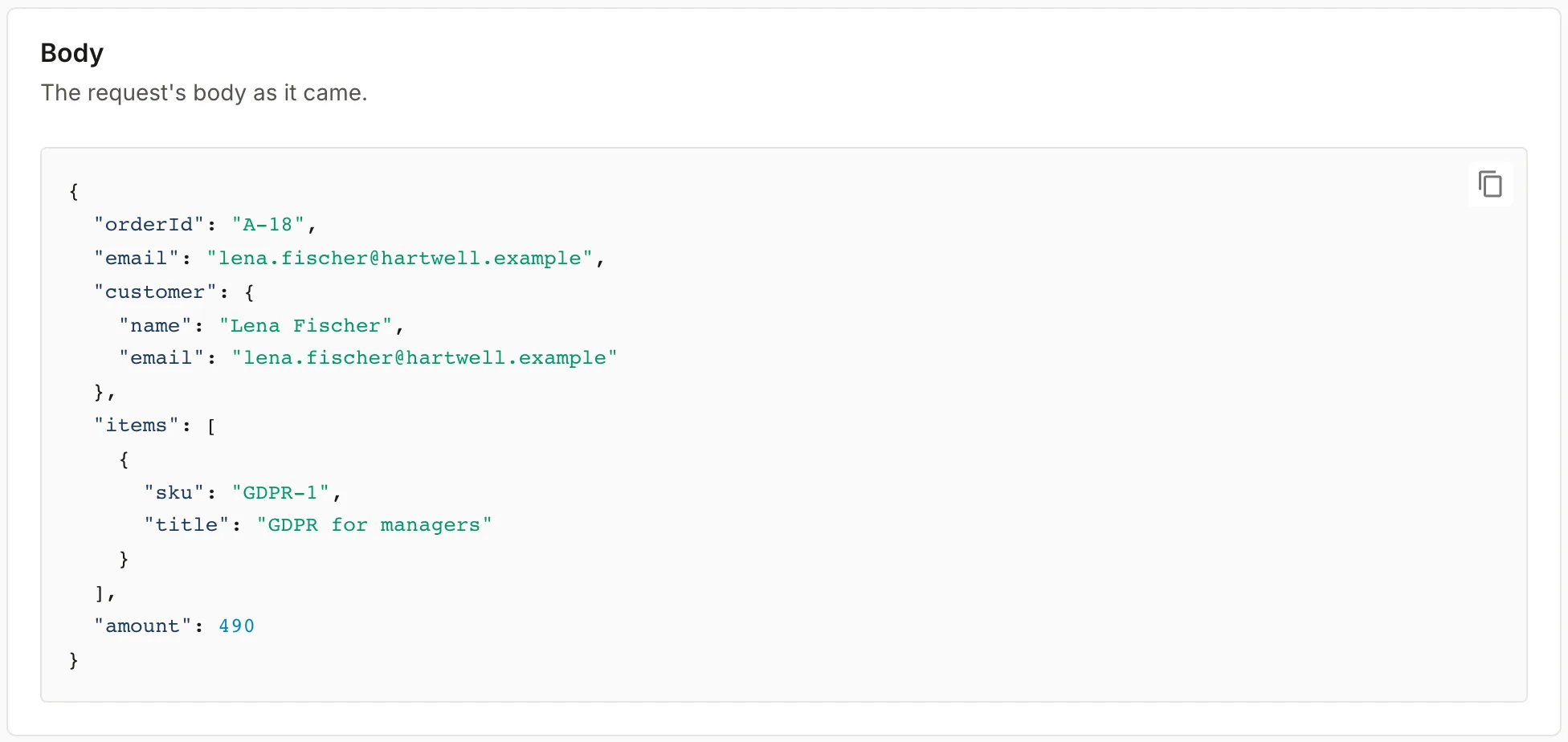
Headers lists the request’s headers, without the ones carrying credentials.
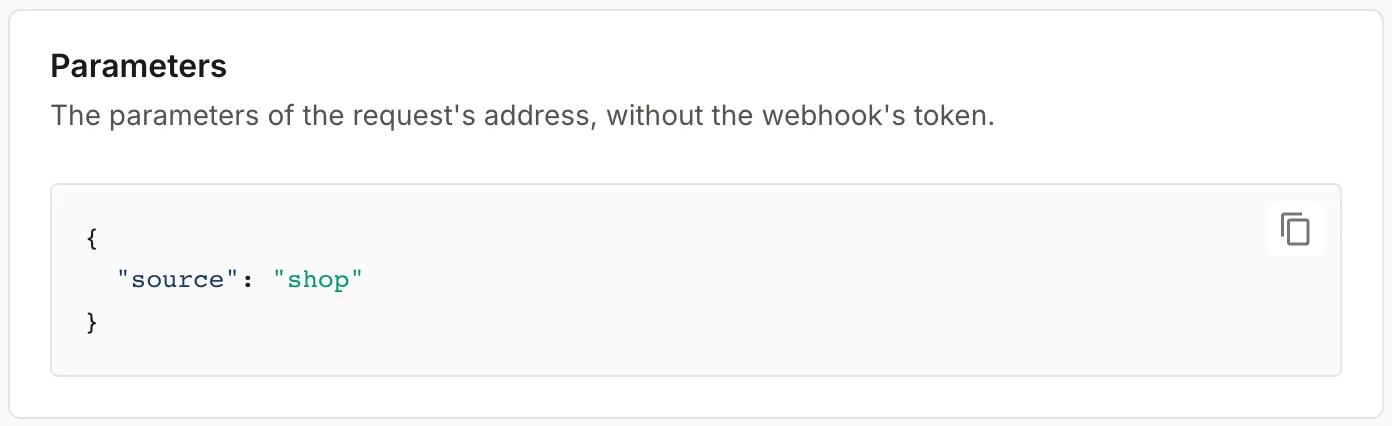
Parameters lists the parameters of the address, without the webhook’s token.
Workflows
Section titled “Workflows”This tab lists the runs the request started: status, workflow name and start time. The status is Running, Completed, Failed or Timed out. If you hold View workflows and their runs, the name links to the run, where you can see each step. From there, the Webhook request field brings you back.

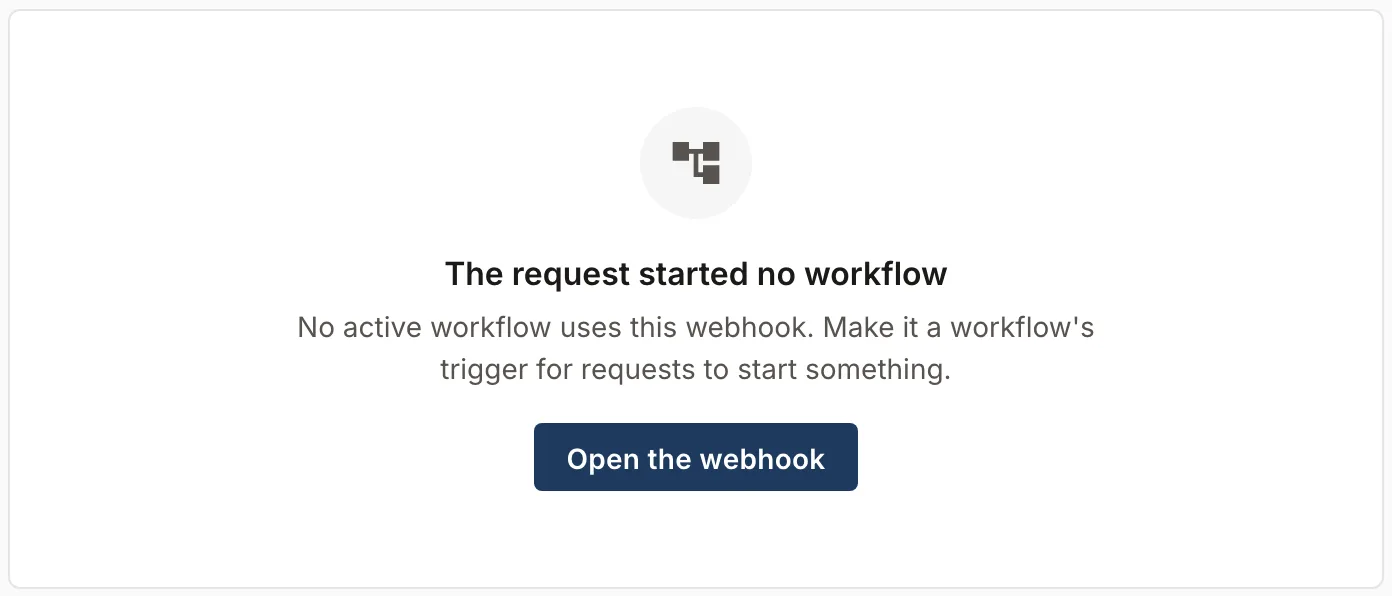
If there are no runs, the tab says why. On an accepted request, no active workflow uses the webhook, and Open the webhook takes you to its settings if you may edit it. On a refused request, the refusal is the reason.
A Replayed request started nothing of its own, so the list shows 0 runs for it. Its Workflows tab shows the runs of the first request, since those are the runs it stands for.
Deleting a request
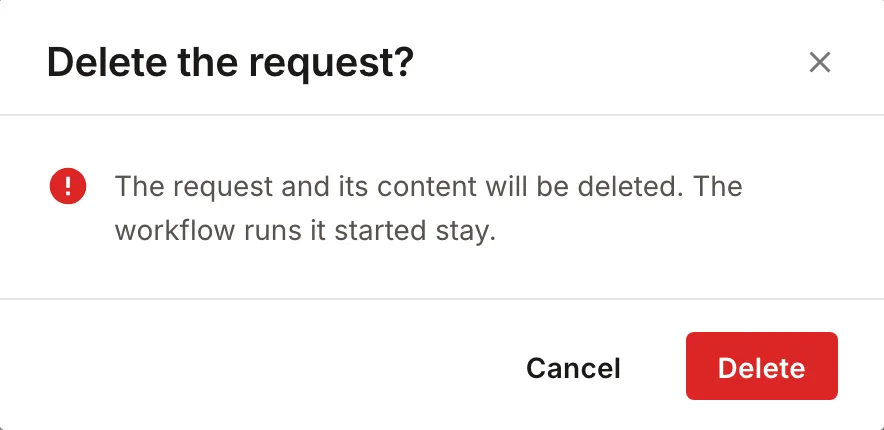
Section titled “Deleting a request”Delete the request removes it and its content, after you confirm. Runs it started stay. You need Manage webhooks. Use this to remove a call with data that shouldn’t be stored. For routine clean-up, set the retention period below instead.
What is kept
Section titled “What is kept”For every request in the log, Doxtly keeps the facts on the Information tab. Its content, meaning the headers, parameters and body, is stored encrypted, and only under these conditions.
| The tab says | Why there is no content |
|---|---|
| The content is not kept: the webhook is set not to keep it. Any workflows it started got the data all the same. | Keep the requests’ content is off for the webhook. |
| The content was not kept because the plan’s data space was used up. Any workflows it started got the data all the same. | Your data space was full when the request came. |
| The request was refused before it was known to come from an allowed system, so its content is not kept. | The request failed one of the first checks. Nobody without your token can fill your storage by sending junk. |

The last case covers these outcomes: Webhook switched off, Method not allowed, Unauthorized, Body too large and Invalid signature. Requests refused later, for instance for their data, keep their content, so you can see exactly what broke the schema.
Some things are never kept, whatever the settings: the Authorization, Proxy-Authorization, Cookie, X-Api-Key and X-Api-Secret headers, the signature header and, on a webhook that takes its token there, the token address parameter.
How long requests are kept
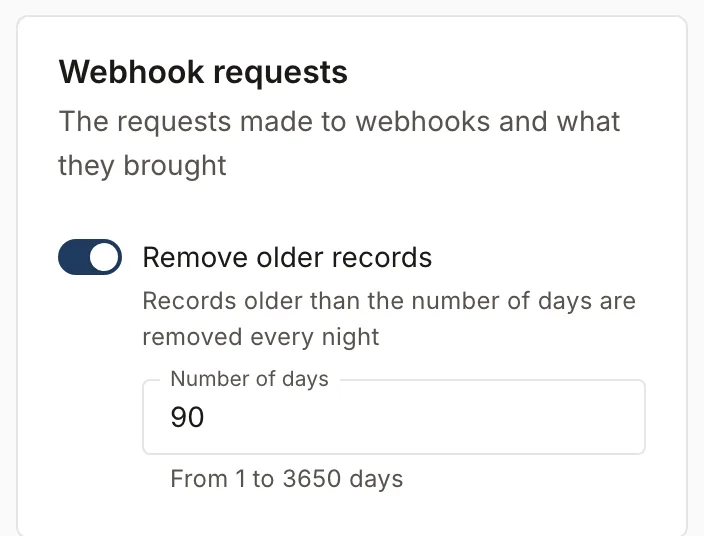
Section titled “How long requests are kept”Webhook requests are removed after 90 days by default, much sooner than other records, because they arrive in large numbers and are mostly useful while an integration is being set up or investigated.
To change that, open Organization settings, then Data retention, and find Webhook requests. With Remove older records on, the Number of days can be from 1 to 3650. With it off, the row says Kept for good. Older records are removed every night with what they carried. The runs they started follow their own retention setting. See Organization settings.
Content counts against your plan’s data space. If a busy webhook fills it, shorten the retention period, turn off Keep the requests’ content for that webhook, or upgrade your plan. Deleting a webhook deletes all its requests.