

Files from signers
A contract often comes with something the other side must add: a photo of an ID, an insurance certificate, a company register extract. Instead of chasing those by email, ask for them in the package. The party adds the files on the signing page, and they stay with the documents, on the record of what was signed.
Ask for a file
Section titled “Ask for a file”-
Open the party’s row on People, in the package editor or a Create documents step.
-
Under How this party signs, in Attachments, choose Add attachment request.
-
Fill in what you are asking for.
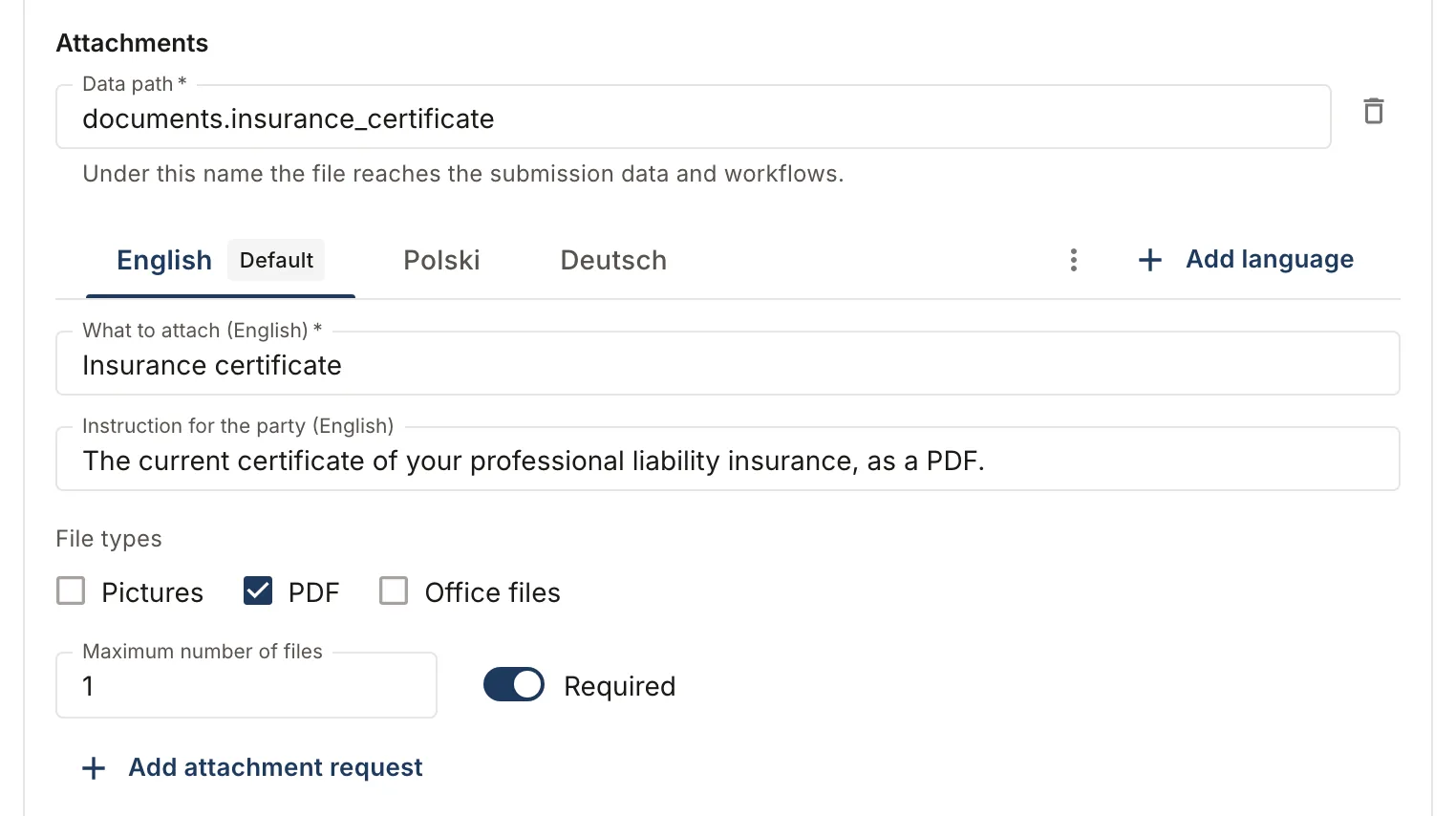
| Setting | What it does |
|---|---|
| Data path | Where the file lands in the data, such as documents.passport. Required, letters, digits, dots and underscores; unique within the package, fields included. It can’t start with an underscore or with filledDocuments, signedDocuments or packageAttachments, which Doxtly uses itself. It is suggested from the name, and workflows and the API find the file under it. |
| What to attach | The name the party sees, such as “Passport photo”, one version per language in the tabs. Required in your organization’s default language, up to 255 characters. It also names the file in the package. |
| Instruction for the party | Optional. How you want it, one version per language, up to 2,000 characters, for example “Both sides of the document, in colour”. |
| File types: Pictures, PDF, Office files | Which kinds are taken. Pictures are JPEG, PNG, WebP and iPhone HEIC; office files are Word documents, ODT and RTF. |
| Maximum number of files | From 1 to 10. |
| Required | A required attachment keeps the signature off until it is added. |
| Combine pictures into one PDF | Appears with more than one file and pictures allowed. Several photos then become one document instead of one document each. |
The bin beside Data path removes the request, and Add attachment request adds another, for example a second one for a company register extract. Add language adds a tab for another of the fourteen languages, and the menu beside the tabs holds what you can do with the language you are on. The tab marked Default is your organization’s default language, where the name is required.
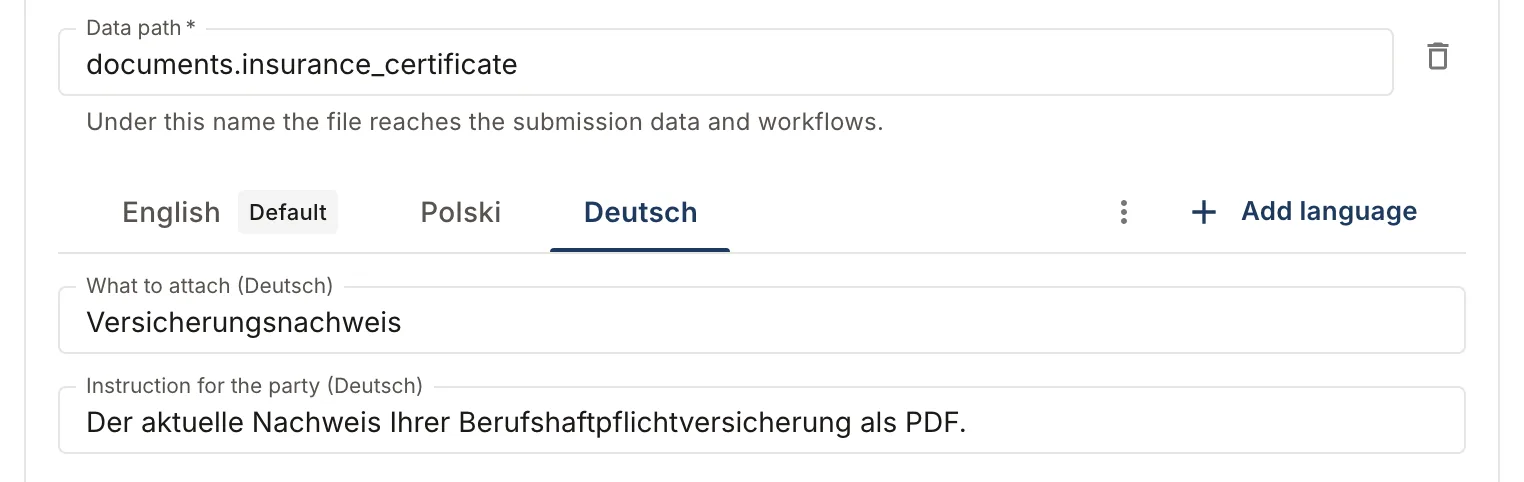
A party’s page shows the name and instruction in the language of the page, then a language of their browser, then your organization’s default language.
A file may be up to 25 MB. Word and other office files are turned into PDF the moment they are added, like everything in Doxtly, and only the PDF is kept.
What the party sees
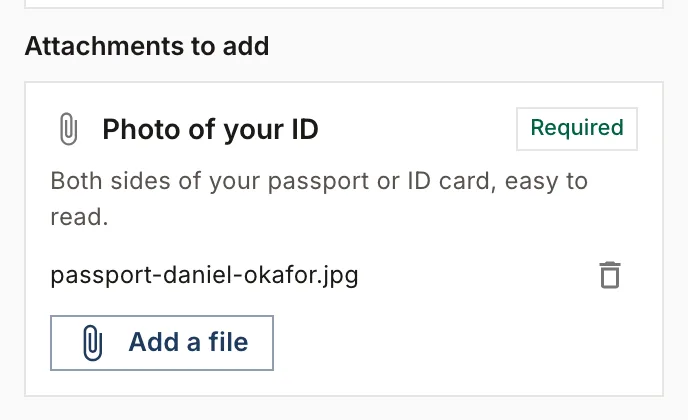
Section titled “What the party sees”In the list of documents, on a phone behind the list button, Attachments to add holds a place for each request, with its instruction and Add a file (the camera works too), which takes several files at once where the request allows more than one. A file that was added shows with a button to take it back.
If they leave and return before signing, the files are still there, for up to 7 days, and no longer than the package is open.
The files count only with the signature: until then the party can remove any of them, and nobody else sees them. If they sign and something required is missing, the page names it, and the list of problems takes them there.
The same applies to signing on paper: required attachments come before a scan can be sent.
What happens after signing
Section titled “What happens after signing”Each file becomes a document of the package, titled with the request and the file’s name, such as “Passport photo – IMG_2041.pdf”, or with the request’s name alone for pictures combined into one. Nobody signs it, so it ends as Completed and carries no seal of its own.
The record is on the party’s own signature: the Certificate of Completion lists each attachment, with the name of the original file and its SHA-256, and the audit log gets Party added an attachment. So the signature ties the party to exactly those files.
The files count against your organization’s disk space like other documents for signing.
Where the files arrive
Section titled “Where the files arrive”Once the party signs, each file reaches the package’s data at its Data path as a file: reference, the way a form’s upload does: documents.passport holds "file:<id>" for a request that keeps one file, and a list ["file:<id>", ...] for one that takes several (pictures combined into one PDF count as one file). Those references go out as they are in a webhook step: use {{ documents.passport }} in the body. The file itself is also available in file pickers, under that path, in the Requested attachments group of a package trigger.
The API returns the path as attachmentDataPath on each document of the package.
On a package made by a workflow
Section titled “On a package made by a workflow”The request is set the same way on the step, and the files arrive with the package. A workflow on The package is fully signed can send them on, for example to a CRM, along with the signed documents.