

The signing experience
This page walks through signing from the signer’s chair. Read it to know what your clients will see, and to answer them when they ask. People who sign don’t need a Doxtly account, and nothing has to be installed: a current browser on a computer or a phone is enough.
Two ways in
Section titled “Two ways in”| Through a link | Inside Doxtly | |
|---|---|---|
| Who | Anyone: clients, partners, candidates | Users of your organization who are a party to the package |
| How it starts | A link sent to them, opened at /s/... |
The package in Documents, or Waiting for you on the dashboard |
| Who they are shown to be | Whoever holds the link, and with a code, whoever also gets the code at the party’s email address or phone | The signed-in account |
| Saved signature | Not offered | Offered |
| A picture of a signature | Not offered | Offered to a party who is a user of your organization, where the package allows it |
| Recorded in the audit log as | Secure link | In the app |
The page itself is the same in both cases, with the same controls. If the package asks for a one-time code, it is asked for either way, because the two checks are independent: through a link before anything is shown, inside Doxtly when the signer confirms.
Confirming that it is you
Section titled “Confirming that it is you”When the package asks for a one-time code, a link opens on a short check before anything else. The page says which organization is asking, and where the code will go, with the address or number partly hidden, such as j***@example.com or ••••4821. Nothing of the package is shown yet: not its title, not a document.
- The signer presses Send code. No code goes out until they do, so a link opened by a mail scanner costs nothing.
- The page says Code sent to the same masked address, and the code field appears. On a phone, the code from a text message can be filled in from the keyboard.
- They enter the six digits and press Confirm. The package opens.
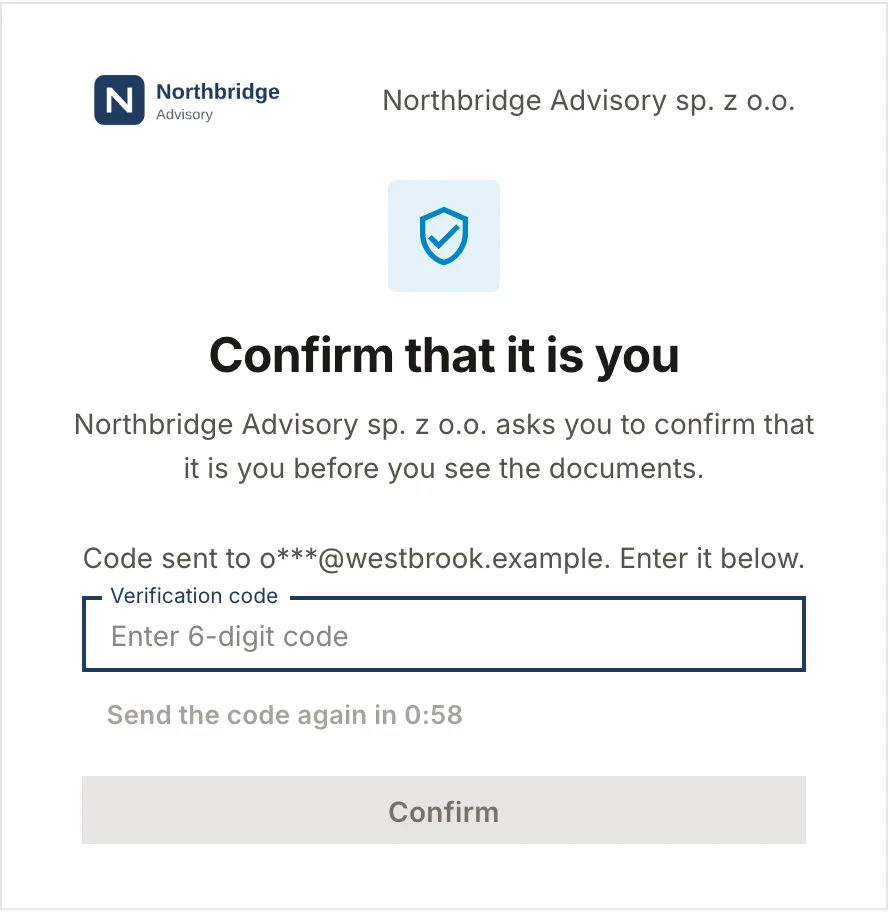
Send the code again turns on 60 seconds after a code was sent, with a countdown on the button. The other limits are in One-time codes.
The check holds for the whole visit: reading, signing, filling in and declining don’t ask for the code again, in one go or in several. Reloading the page doesn’t ask either. After 30 minutes without any activity, or 4 hours in total, the page asks again. If that happens while the signer is working, the check opens over the documents, and what they entered and drew stays on the page. A signer who comes back to the tab after a break sees the check straight away, not only at their next click.
Nothing they did is lost to the check. Whatever they had just pressed, Sign, Decline, Approve or Do not approve, a download, a print or a file they added, goes ahead by itself once the code is confirmed, with the same values and signatures, without pressing it again. Values typed while the check was due are saved as soon as they are through, even if the page was reloaded meanwhile in the same tab.
A package can also ask for an access password, which you gave the party yourself, or an identity document and a selfie instead of a code. The same rule holds: nothing shows until the check has passed.
The audit log records Party confirmed who they are with the masked address the code went to, and the signature records when the code was confirmed beside when the document was signed.
Waiting for your turn
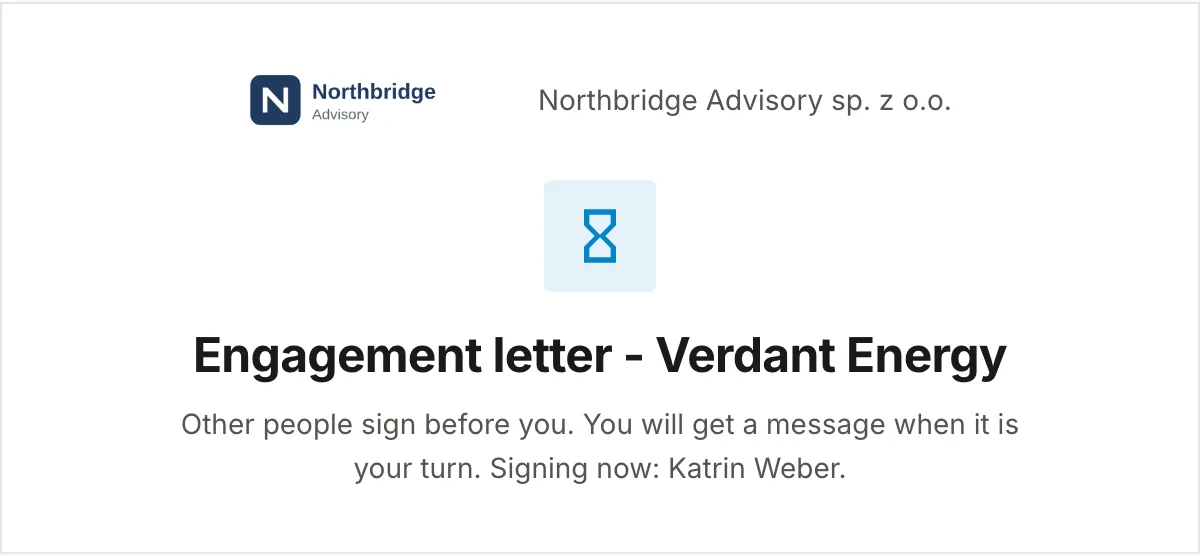
Section titled “Waiting for your turn”In a package with an order, a link opened early shows a card instead of the documents: Other people sign before you. You will get a message when it is your turn., with who is signing now and the deadline. Nothing can be read or signed until then. A party waiting for an approver sees An approver has to approve this package before it comes to you. A party with a qualified signature may see Preparing your document while the document is made ready.
Approving a package
Section titled “Approving a package”An approver opens their link, confirms who they are if the package asks, reads the documents and chooses Approve or Do not approve. The second asks for a Reason, ends the package and tells the sender why. An approver signs nothing. Their decision is on the audit log and the certificate, with the person’s details.
The signing page
Section titled “The signing page”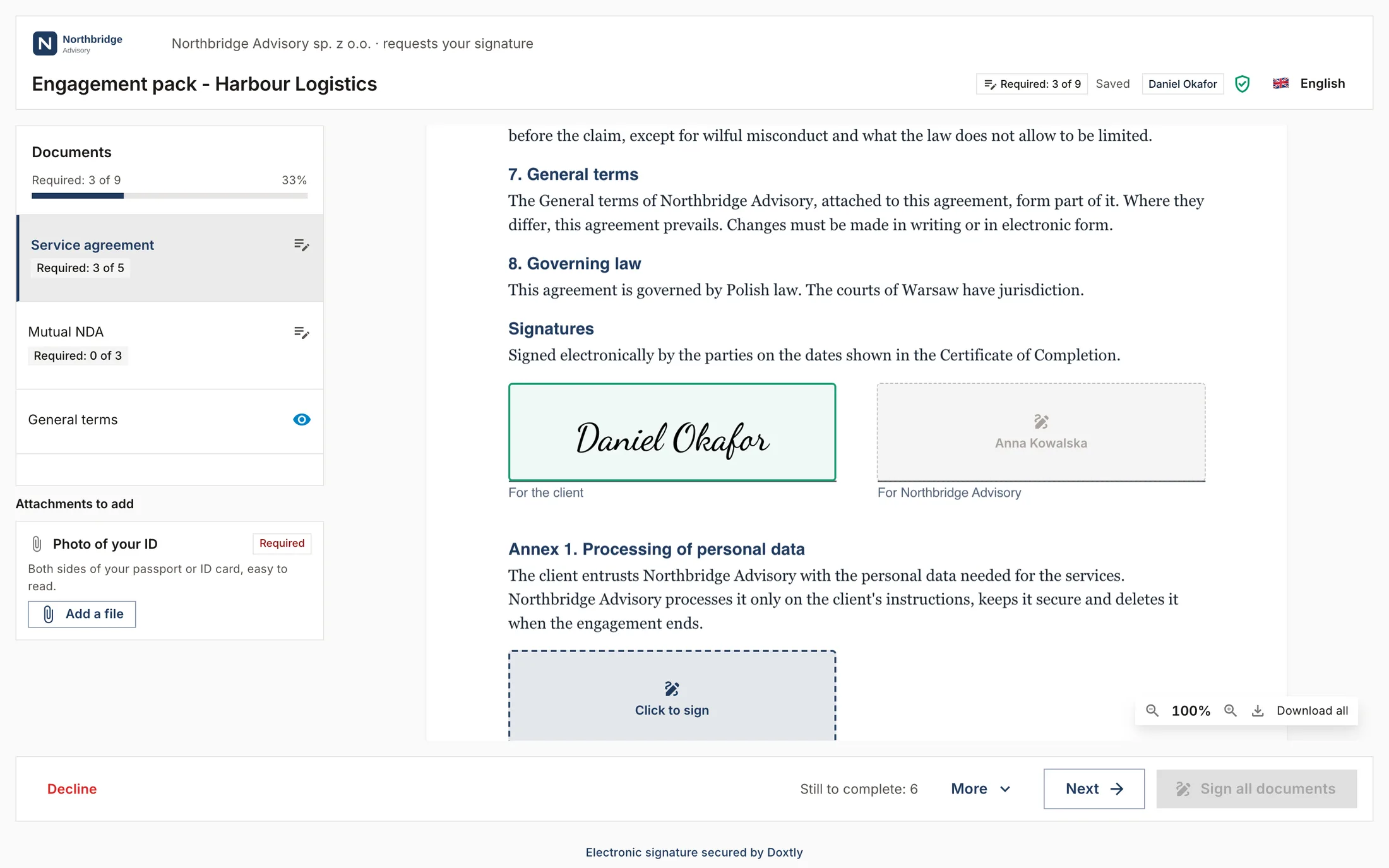
From top to bottom:
- The header shows the title, the signer’s name, the deadline if there is one, and how far along they are with what is required of them: Required: 2 of 5, counting required fields, signatures, initials and required attachments, which is the same count the document list shows. Optional fields never hold it back. Pressing the counter goes where Next goes. In a package of one document, the document’s own name is the title. Above them stand the organization’s logo and name and what it asks of you, such as Northbridge Advisory · requests your signature; the browser tab shows the document and the organization. On a phone the header keeps to the title and the progress; the arrow beside the title opens the rest, including the language.
- The document list, in a package of several, shows each document with an icon for its status (To sign, To fill in, Ready, Signed, View only or Opened), with a tick once everything required of it is done and a counter such as Required: 1 of 3, and the same count for the whole package at the top. On a phone the list opens from the menu button.
- The document itself, with a line of instructions above it and zoom controls. The zoom stays as set when the signer opens another document. The zoom has a row of its own under the document, so it never covers text or a place to sign.
- The action bar stays at the bottom and is the same on every page where you fill in or sign, with its buttons always in the same places: Decline on one side, then a short sentence saying what is still needed (1 required field left, 1 signature and 6 places for initials left, Still to complete: 2 when different kinds of things are left, All set), then Next and the signing button. Next always has the same name: it goes to whatever needs you next (see below). The signing button stays off until nothing required is missing; pressing it early does nothing, and its tooltip gives the same reason as the sentence beside it. On a phone the sentence is on one line above the buttons and Decline is in the More menu.

Opening a document is recorded: the party’s status turns to Viewed, and the audit log gets a Document viewed entry.
If the package asks for the signer’s location (Ask for the signer’s location in the package), the browser asks straight away, while the signer is reading, not when they confirm. If they refuse or their device can’t tell, a note on the page says that this is recorded with the signature. They can still sign.
Filling in values
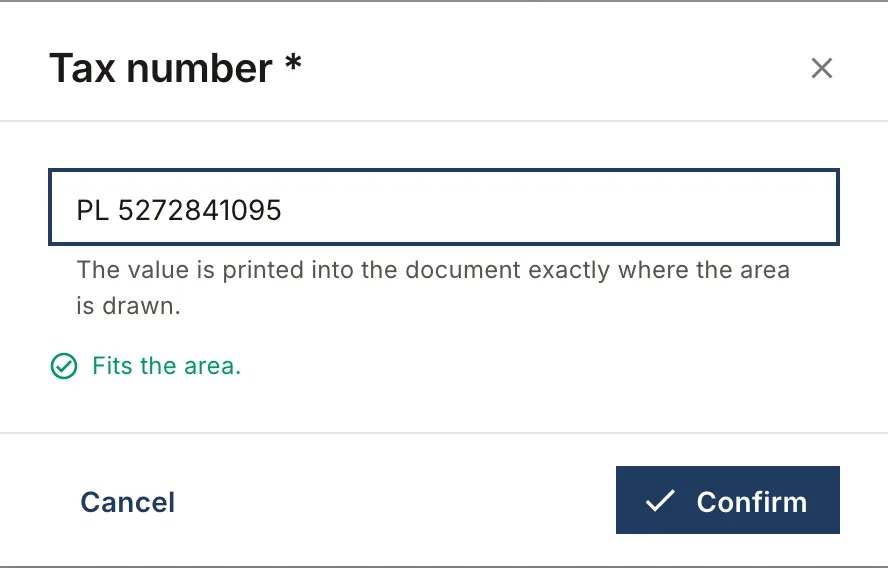
Section titled “Filling in values”A document can ask the signer for information: a tax number typed in, a box to tick, a picture such as a company stamp. Those areas are highlighted, and the instructions say how many values are needed. Clicking one opens a small dialog, and Confirm puts the value on the page.
| Area | How it is filled |
|---|---|
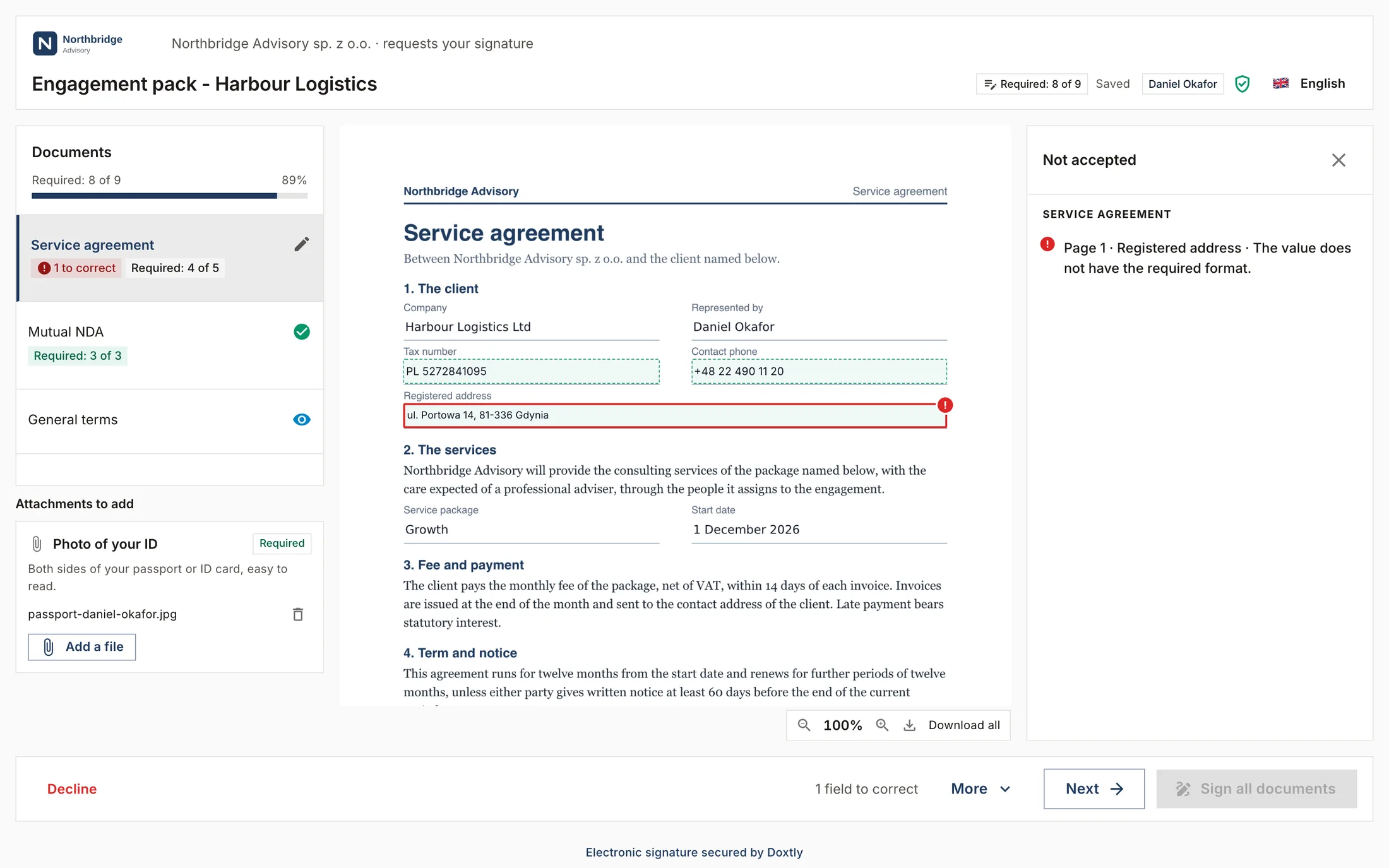
| Text | Typed in. The dialog says whether it Fits the area, fits in a smaller font, or is too long, in which case the rest is printed in an annex at the end of the document. If the area expects a set format, a value in another format is refused with “The value does not have the required format.” |
| Tick box | Yes ticked or left empty. |
| Picture | Dropped in or chosen from the disk: PNG, JPEG, GIF, WebP or BMP, up to 10 MB. |
| Date | Picked from a calendar, as a day, a time or both. Only the days the document allows can be chosen, and the value shows in its format. |
| Choice list | One of the options, searched when there are more than 10. |
| Drawing | Drawn with a mouse or finger in Draw, over the part of the page it covers, with undo, redo and clear. Besides the pen, words can be typed in place and rectangles and ellipses drawn, unless the template switched them off (how the tools work). |
An area with a soft tint and no dashed frame works itself out as the others change: a total or a date, for instance. Nothing is entered there, and it isn’t among the fields to fill in. A QR code or barcode built from typed values is redrawn the same way.
Required areas block signing, and so does a value in the wrong format. Optional ones don’t.
An area may depend on another: tick “Company” and the tax number area appears. Values given go onto the document before it is signed. See PDF template fields for how these are set up.
A party who only fills in and signs nothing gets Submit instead of a signing button, and a line saying how many fields still need a value. Submit sends the values at once. Inside Doxtly, with a one-time code on the package, it opens Confirm submission instead, which works like the signature confirmation below, ending in Accept & submit. The signer then sees Documents filled in.
Placing a signature
Section titled “Placing a signature”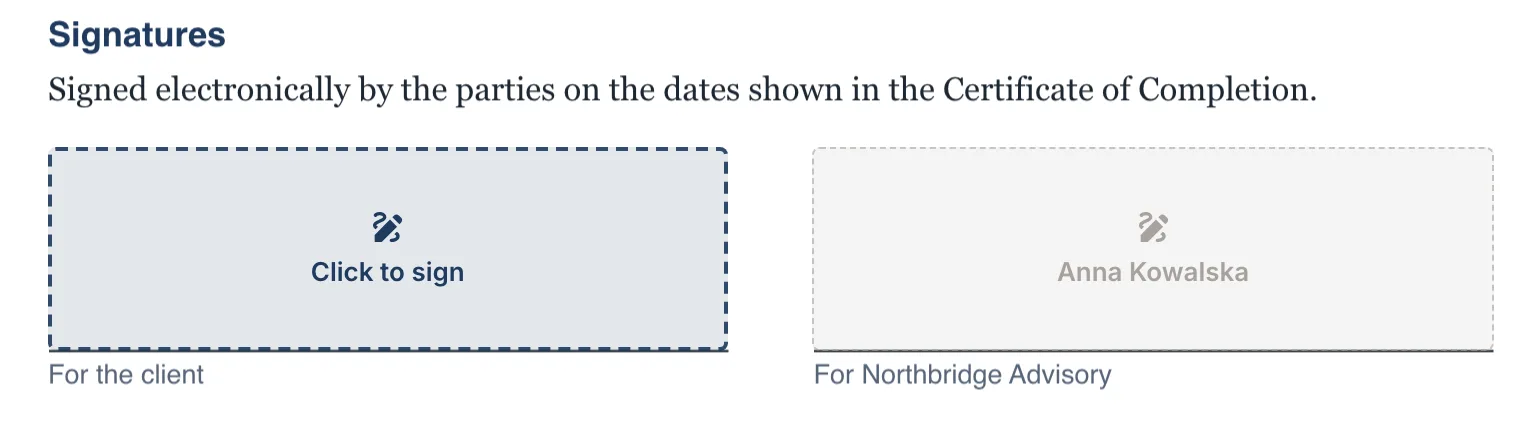
The signer’s own places are highlighted and say Click to sign. Other parties’ places stay visible, greyed out, for context, and marks already given appear on the page. Next goes through whatever needs you, in a fixed order across all documents: first a document still locked by its password, then required fields and places to sign that are empty, then fields with a wrong value, then required attachments, and last the optional fields. The place it lands on pulses briefly. When nothing is left, Next goes quiet.
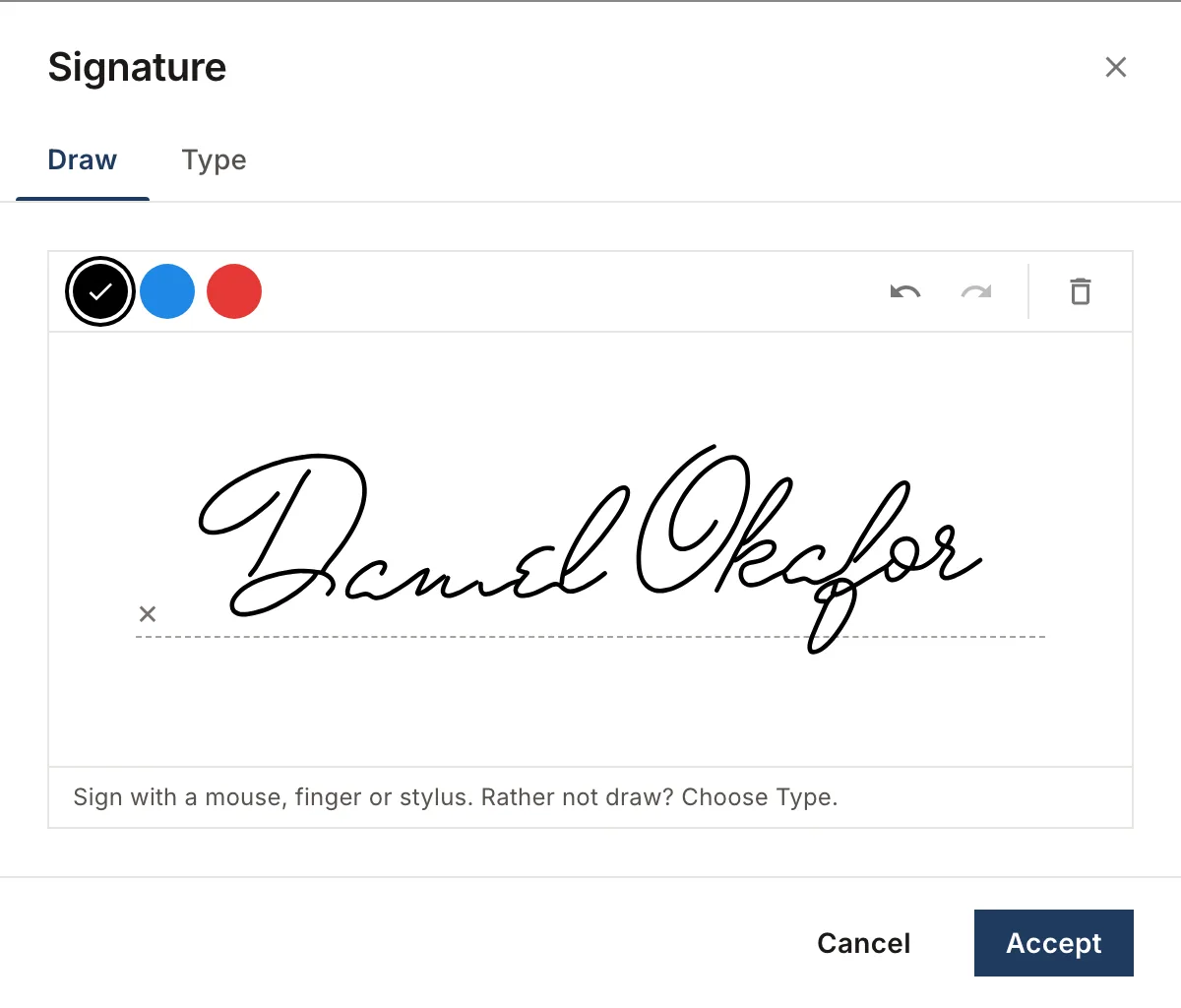
Clicking a signature place opens the Signature dialog.
| Tab | How it works | Recorded as |
|---|---|---|
| Draw | Sign with a mouse, finger or stylus. Choose an Ink color: Black, Blue or Red. Undo, Redo and Clear help with a bad stroke. | Drawn by hand during this signing |
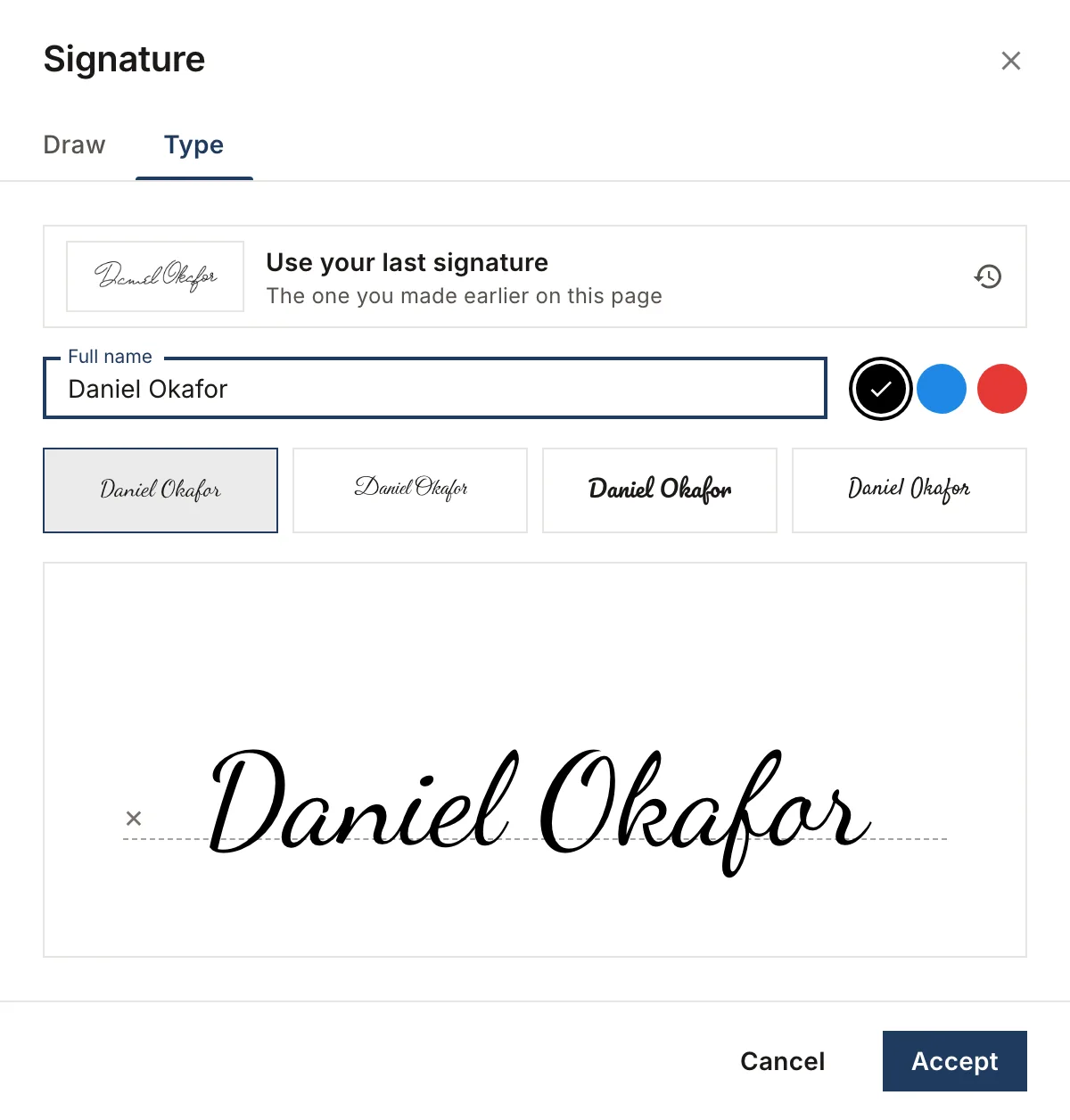
| Type | Type a Full name, up to 60 characters, pick one of four style samples and an ink color. Doxtly renders it in a handwriting font. | Typed and rendered in a handwriting font |
| My signature | Applies the signature saved in your profile with one click. Only inside Doxtly, and only if you saved one in this organization. The dialog then opens on this tab. A signature saved from a picture counts as an uploaded image: where the package doesn’t allow one for your party, the tab says Your saved signature is a picture, which this document doesn’t accept – draw or type it. | Taken from the signature saved on the account, or, for one saved from a picture, an uploaded picture of a signature |
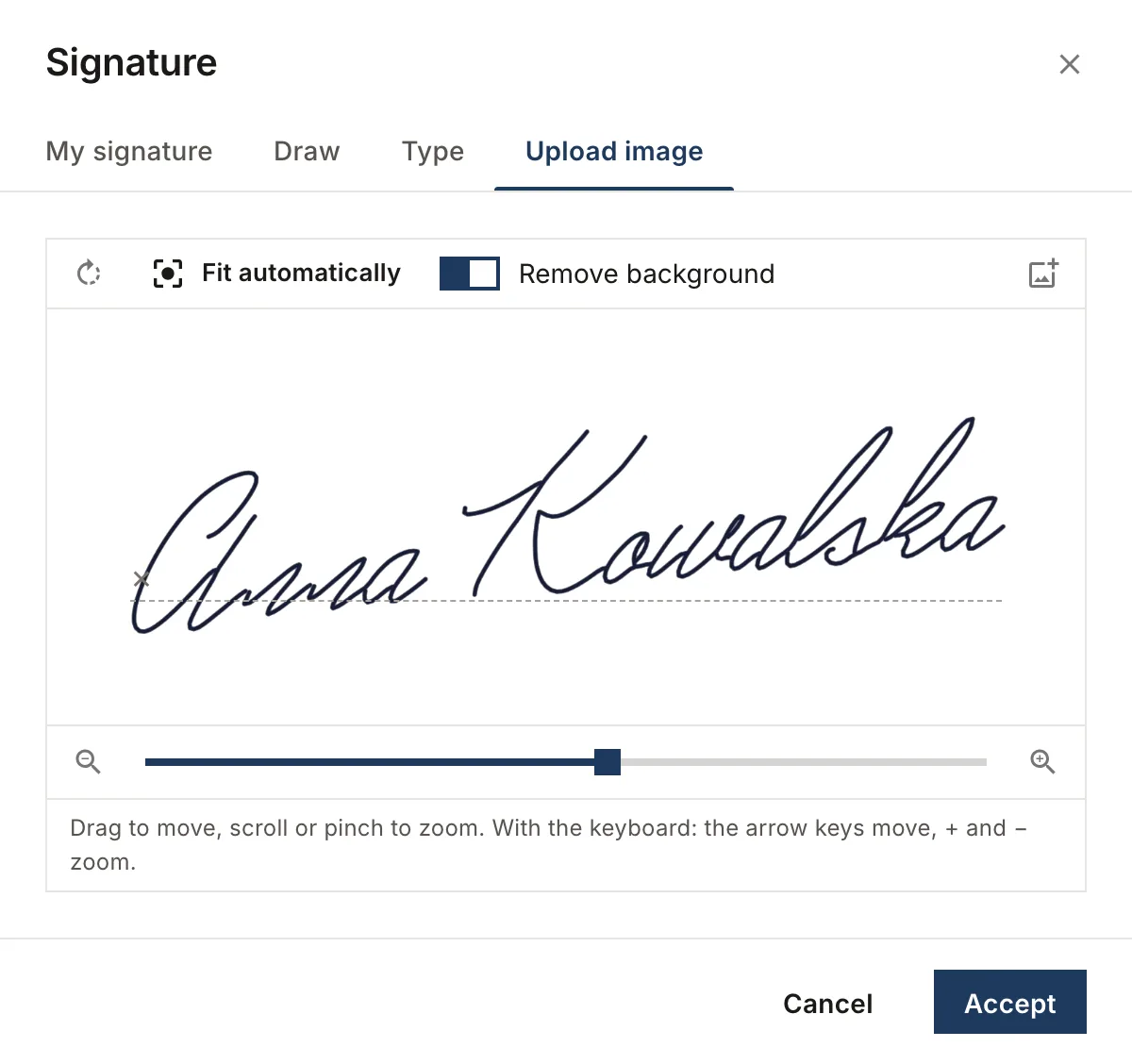
| Upload image | A photo or scan of a signature on paper, fitted onto the line as in the profile: PNG, JPG or WebP, up to 10 MB. Only inside Doxtly, for a party who is a user of your organization, and only where the package allows an uploaded image for that party. | An uploaded picture of a signature |
Accept places the signature. With several places to sign, nobody has to draw the same thing ten times. Once you have made a signature on the page, the dialog offers Use your last signature. It lasts until the page is closed or reloaded, and it is recorded the way the original was made, so a picture uploaded for one document is not offered on a document that doesn’t take uploaded images.
To change a signature before finishing, click it and sign again. Strokes drawn over an uploaded picture leave it an uploaded picture; where the document doesn’t take uploaded images, the Draw pad opens empty instead.
Giving initials
Section titled “Giving initials”Places for initials are smaller than signature places and say Click to initial. They work like signatures: only your own places are active, and a click opens the Initials dialog with the same tabs and inks, on a narrower sheet.
- Type starts with the letters of your name, such as JK, which you can change.
- My initials applies the initials saved in your profile. As with the signature, only inside Doxtly.
- Use your last initials appears once you have made initials on the page, separately from your last signature.
After the first initials, a bar over the document offers Apply to all with the number of places still empty, across every document of the package. One press copies your initials there; a password-protected document is filled only once you have opened it. Not now closes it, and it is not offered again. You can still click any place and give it other initials; that place is then no longer counted as copied. The audit log records how the initials were made, how many a document has, and how many were placed with Apply to all.
Confirming
Section titled “Confirming”The signing button, Sign document or Sign all documents, turns on once every required field and every signature and initials place is done.
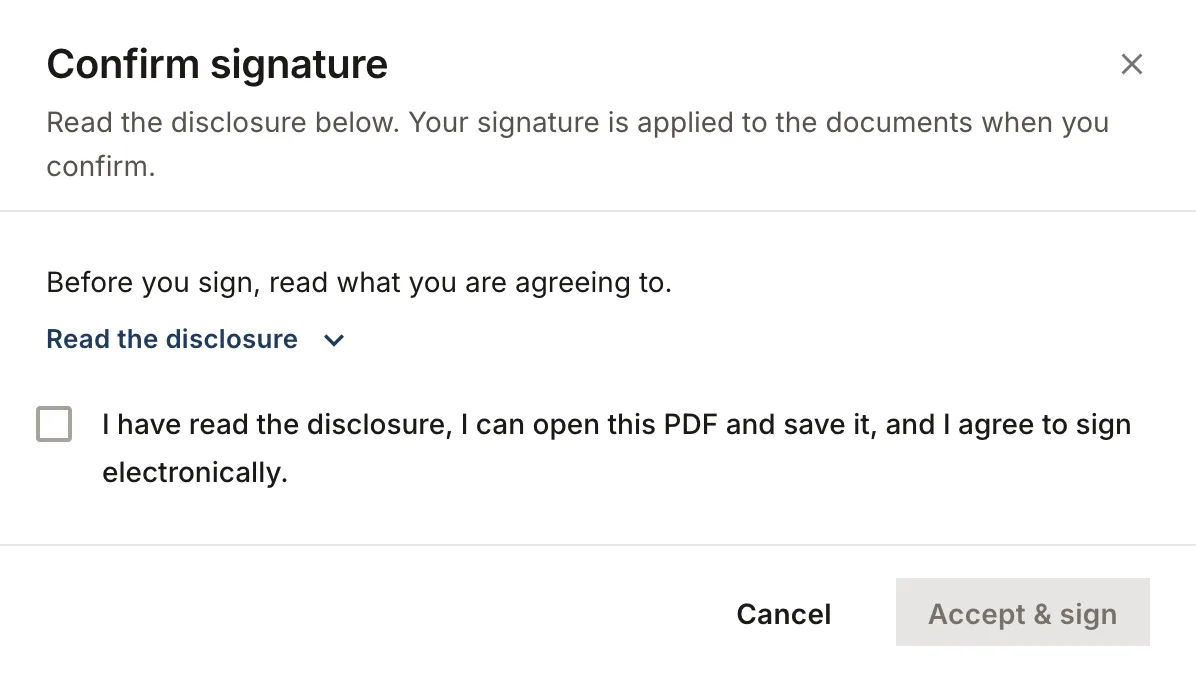
The Confirm signature dialog opens on one short line and a Read the disclosure button that unfolds the whole electronic signature disclosure. Your organization words it in its settings, in every language the page can show, and the contact and the fee come from there too. Doxtly’s text, which every organization starts from, says what the consent covers and that the person means to sign electronically, how to get a paper copy and what it costs, how to withdraw the consent before or after signing, how to update contact details, what they need to view and keep the documents, and what is recorded. The disclosure comes with its version, so you can always tell which words a signer accepted. On a device handed over in person the signer reads Doxtly’s wording for that case: the same facts, without saving the file, because nothing can be downloaded on that device.
They tick the sentence beside the box, in Doxtly’s text “I have read the disclosure, I can open this PDF and save it, and I agree to sign electronically”, and press Accept & sign. Through a link nothing more is asked: the code was entered on the way in. Inside Doxtly, a package with a code asks for it here.
All signatures are applied in one go, for up to 100 documents at a time. A large package can take a few minutes, and the dialog asks the signer to keep the page open. It is all or nothing: if anything fails or time runs out, nothing is signed, and they can try again.
One-time codes
Section titled “One-time codes”Through a link, the code is entered once, on the way in: see Confirming that it is you. Inside Doxtly, it is asked for when the signer confirms: the first one goes out as the dialog opens, and Accept & sign turns on once all six digits are in and the box is ticked.
| Rule | Value |
|---|---|
| Code length | 6 digits |
| Valid for | 10 minutes |
| Tries per code | 3 |
| New codes | Up to 3 in 5 minutes, and up to 10 in a day, per party |
Send the code again replaces a code that didn’t arrive or ran out. One code covers the whole package, and a code already confirmed stays good if signing fails for another reason, so nobody has to ask for a second one.
The address or number comes from the package and can’t be changed on the page. If it is wrong, the signer has to ask the sender.
Fixing problems
Section titled “Fixing problems”A value in the wrong format gets a red frame with ! as soon as you leave the field, and the sentence in the bar counts it, so you never press the signing button to find out what is wrong. If the server still refuses what you sent (a value that is no longer accepted, for example), a list titled Not accepted opens with what it said: beside the document on a wide screen and from the bottom on a phone. Each entry names the document, the page and the field. Press one to go there. Fields it refused stay marked, in its words, until you change them, and the list goes away when nothing is left on it.
After signing
Section titled “After signing”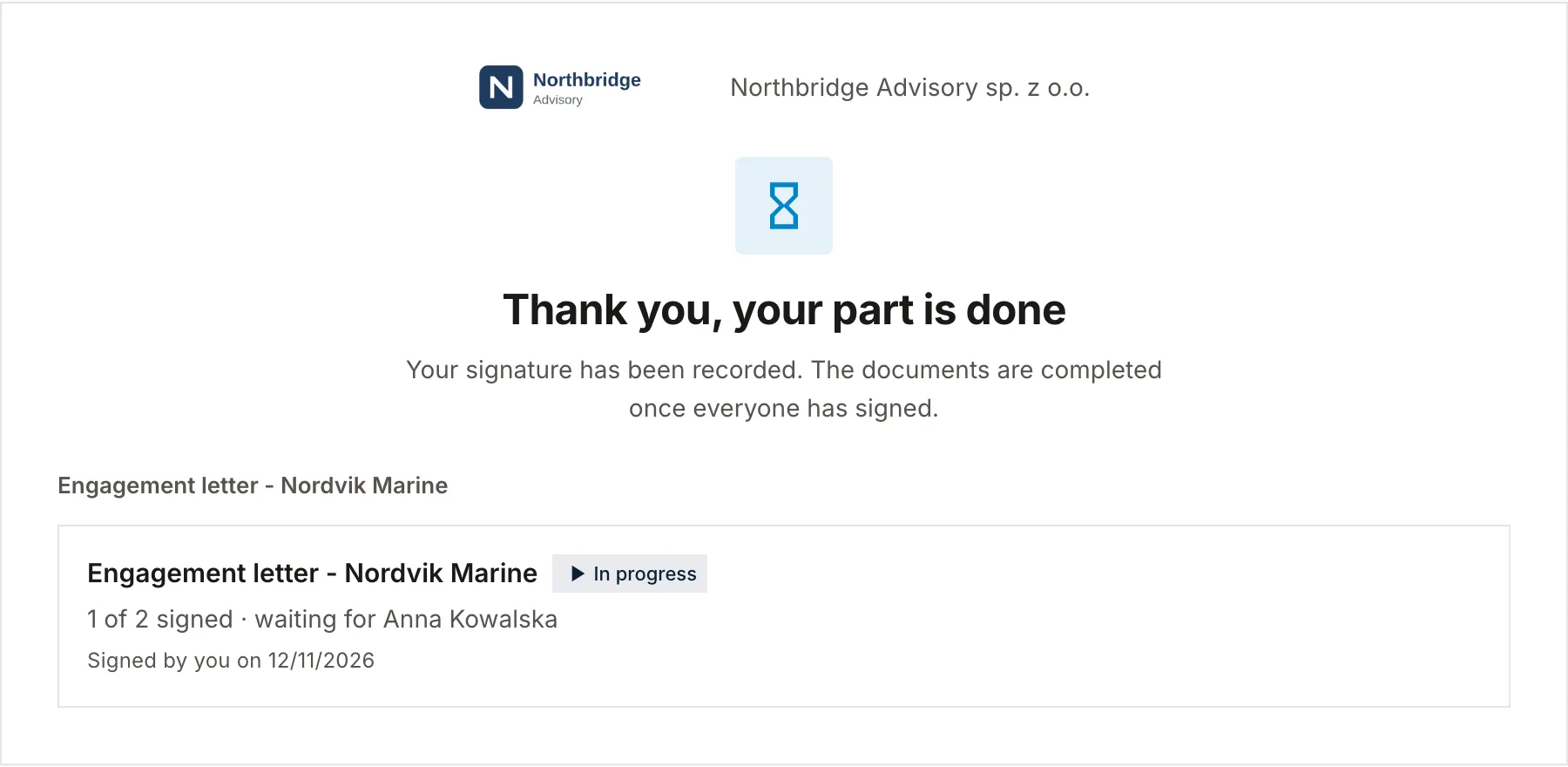
What comes next depends on where the package stands.
| Situation | What the signer sees |
|---|---|
| Others still have to sign | Thank you, your part is done, with each document, the count of signatures, and who is still awaited. |
| Theirs was the last signature | Thank you, everyone has signed. It says the documents are sealed and where their signed copy goes: by email, or as a link to their phone when your organization sends this message by SMS or WhatsApp. When the package sends no signed copies, or the completion message can’t reach them, it tells them to contact the sender for a copy. |
| They came from a form with immediate signing | Document signed successfully, or Documents signed successfully for several. |
They can come back to the link while the package is open, to see where it stands. If other documents of the package are still open but theirs are not, the same card reads Signing was declined, Signing period ended or Documents closed, depending on how their documents ended. When the package is complete, the people on it get your organization’s completion message, unless it is turned off, and the link stops opening documents. It then shows only how the package ended.
Declining
Section titled “Declining”A signer who doesn’t agree with a document presses Decline.
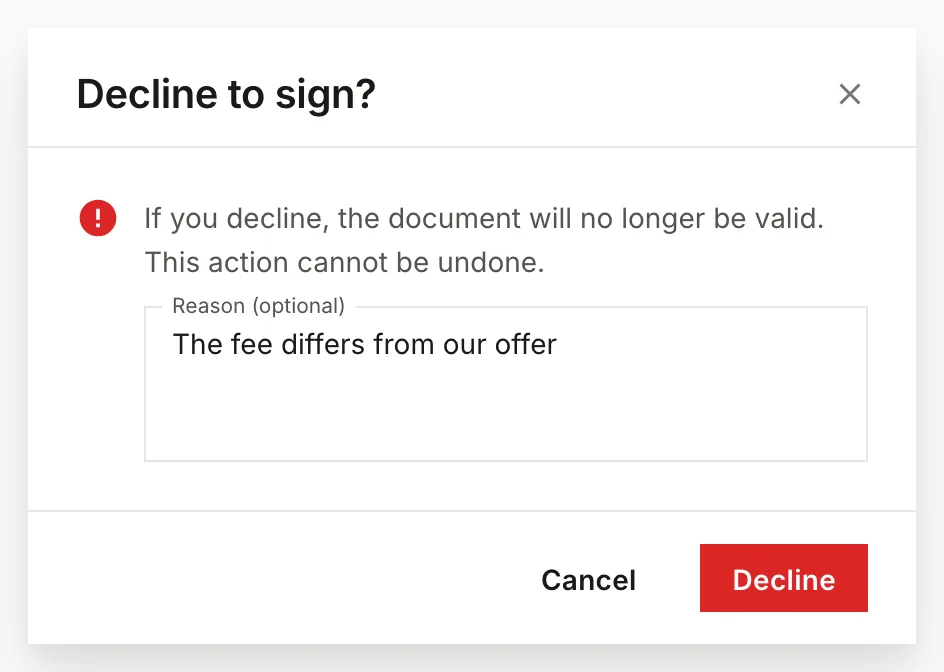
The Decline to sign dialog warns that the document will no longer be valid and that this can’t be undone. It asks for an optional Reason, up to 1,000 characters. Inside Doxtly it asks for the code too, if the package requires one.
- All of the signer’s documents that were still open become Declined. They can’t be signed by anyone any more, even if other parties signed already.
- Documents in the package that the signer isn’t on stay open.
- The audit log records the refusal and its reason, and workflows with the A party declines to sign trigger start. The person responsible for the package is notified, and when the refusal ends the package, the parties who signed or whose turn came get the Package refused message.
- The signer sees Signing declined, with “You have declined to sign this document.”
Parties who come later see Signing was declined once their documents are closed. A declined document can’t be reopened: fix what’s wrong and run the workflow again for a new package.
Declining is for parties who have something to sign. A party who only fills in values doesn’t get the button.
The line at the foot of the page
Section titled “The line at the foot of the page”The signing page ends with Electronic signature secured by Doxtly. The line links to the public page where anyone can check a signed PDF without an account.
Signing inside Doxtly
Section titled “Signing inside Doxtly”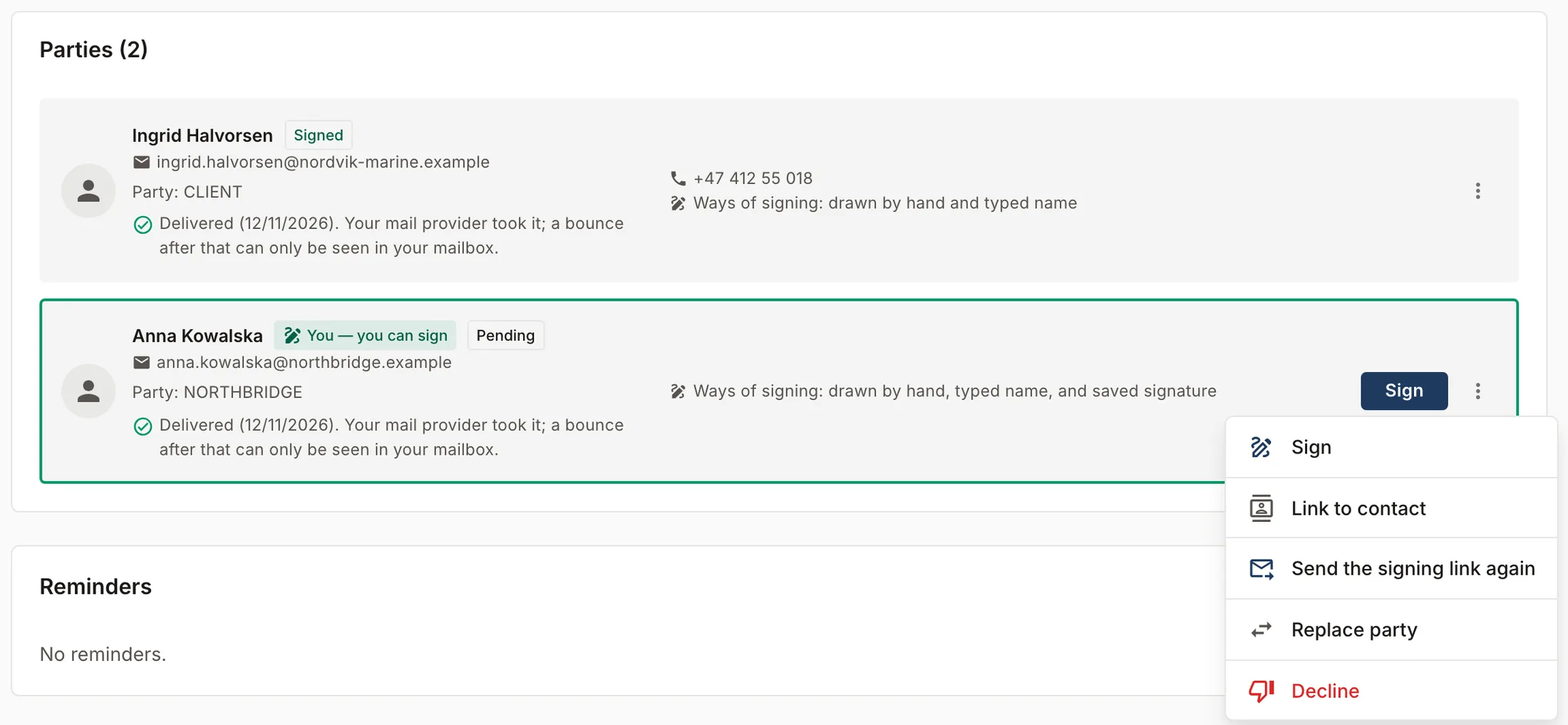
If a package waits on you, you have several ways to it:
- Waiting for you on the dashboard, nearest deadline first. A click goes straight to signing.
- Documents, filtered by Waiting set to Waiting on me (also as a delegate).
- The actions menu of the package’s row: Sign or Decline.
- Your own row on the package page, marked You — you can sign, with a Sign button and the same two items in its menu. If you may manage documents, the menu also has the row’s usual actions, such as Link to contact, Send the signing link again and Replace party.
Doxtly knows you are a party when the workflow linked the party to your account, or when the party’s email is your account’s email. No permission is needed to see or sign your own package. Having every permission in the organization doesn’t make you a party, though, so an administrator can’t sign for somebody else.
Sign opens the same page inside the app, with Back to the package at the top. You can leave without finishing, and return later. Your saved signature is offered as My signature. It belongs to the organization you are in, so if you work in two, each keeps its own: see My signature.
What viewers see
Section titled “What viewers see”A viewer opens their link and gets the documents to read, each marked View only, and no action bar. They see every document of the package, whatever Who sees which documents says. When they first and last opened it shows on the package page. Once the package is completed, their link goes on showing the signed documents, and every opening is recorded on the package page: proof, for a notice of termination, that the other side has read it. Once it is over otherwise (voided, declined, not approved, expired), their link shows only how it ended, as everyone else’s does. Withdrawing their access, or the package being deleted, closes the link for good.
Parties can read too. A document a party doesn’t sign shows “This document is for your review only. No signature is required.” When the package is set to Each party sees only their own, a party isn’t shown such documents at all.
Languages
Section titled “Languages”The page and the disclosure appear in any of Doxtly’s fourteen languages: Polish, English, Spanish, German, Portuguese, French, Ukrainian, Thai, Chinese, Hindi, Arabic, Japanese, Turkish and Italian. The page opens in the party’s language, if one was chosen for them, otherwise in the browser’s, then in your organization’s. In Arabic the whole page reads from right to left, while the documents keep their own layout. The party can change the language with the language button at the top of the page, which opens the list of all fourteen.
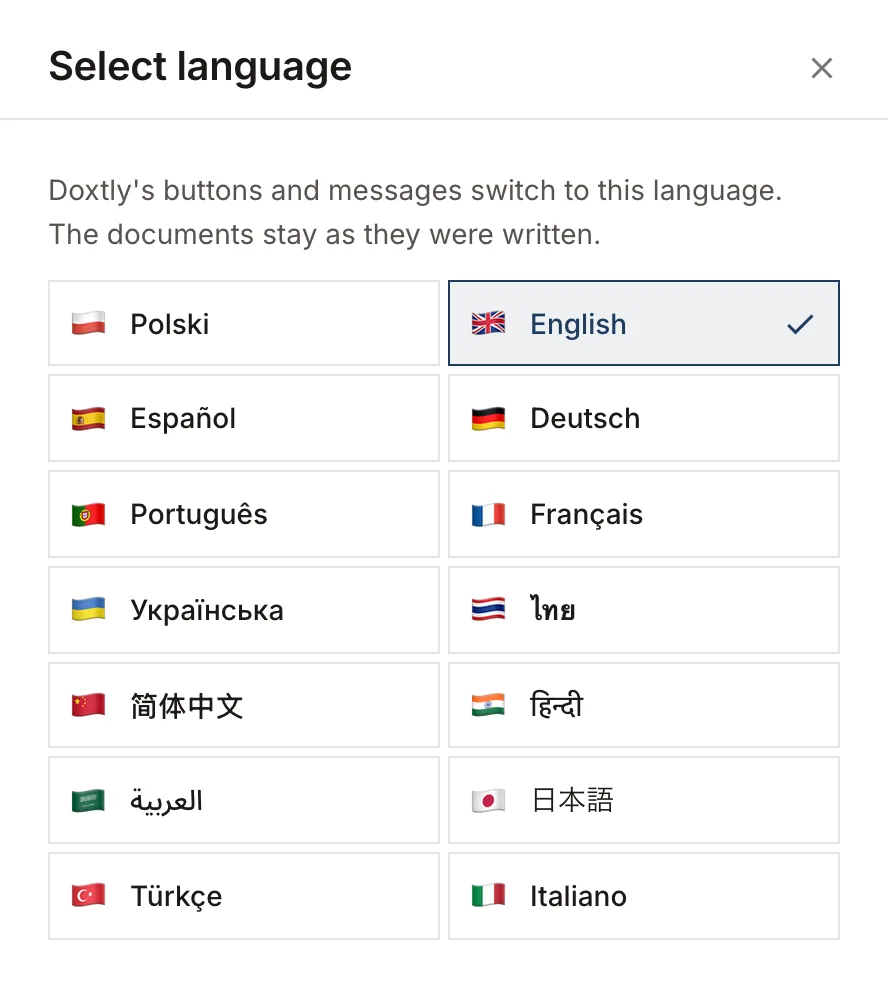
See Languages for what follows the language and what stays as written, and for messages and certificates in other languages.
When a link stops working
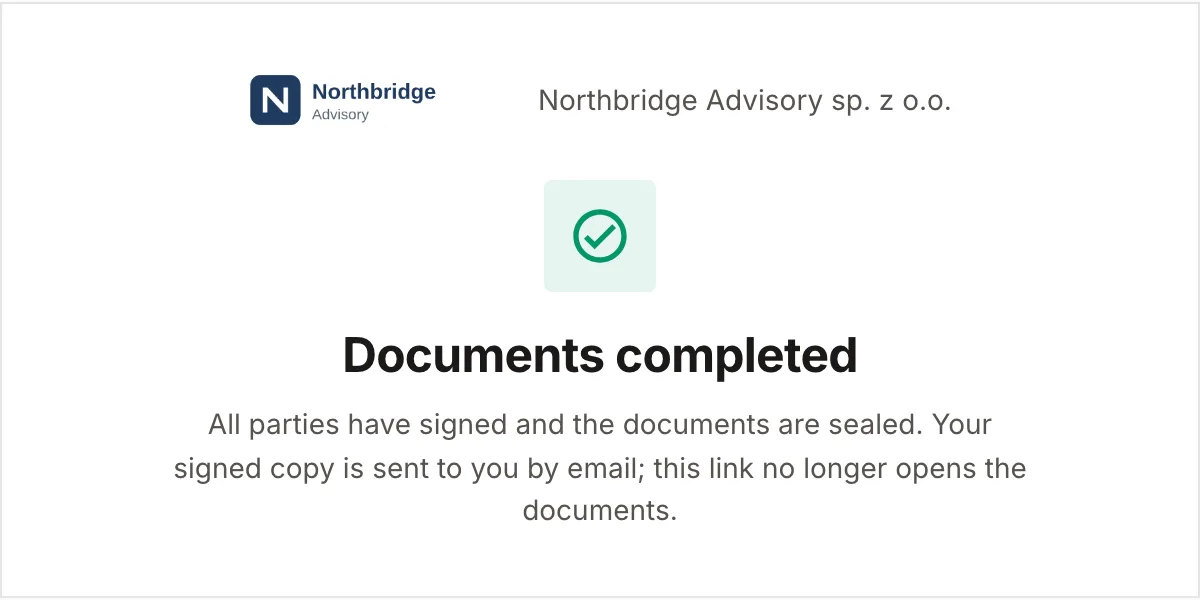
Section titled “When a link stops working”When the package is over, anyone opening a link sees one of these cards, with no title and no document, so a forwarded link reveals nothing. A package is over once nothing in it is open, or when the deadline of everything still open has passed. The one exception is a viewer of a completed package, whose link goes on showing the signed documents.
| Screen | Means |
|---|---|
| Documents completed | All parties signed and the documents are sealed. A party whose copy went to them by email or to their phone is told so; anyone else is told to contact the sender for a copy. |
| Signing was declined | The package wasn’t completed because a party declined. |
| Package voided | The sender voided it. Nothing further is needed. |
| Package expired | The signing period ended first. |
| Package not approved | An approver did not approve it, so it will not be signed. |
Keeping a copy
Section titled “Keeping a copy”If the sender allows it, the toolbar next to the zoom has a download button, Download copy, for the document you are reading, and in a package of several documents Download all, which saves each of them. The page’s More menu has Download copy too. The file holds everything entered so far, the signatures others have already given, and a line at the bottom of every page saying it is not signed. Your own unconfirmed signature is not included.
Print and sign
Section titled “Print and sign”When the sender allows signing on paper, the More menu offers Print and sign: print, sign by hand and send back a scan, or a PDF signed in your own program. See Signing on paper and Sending back a PDF you signed.
Attachments
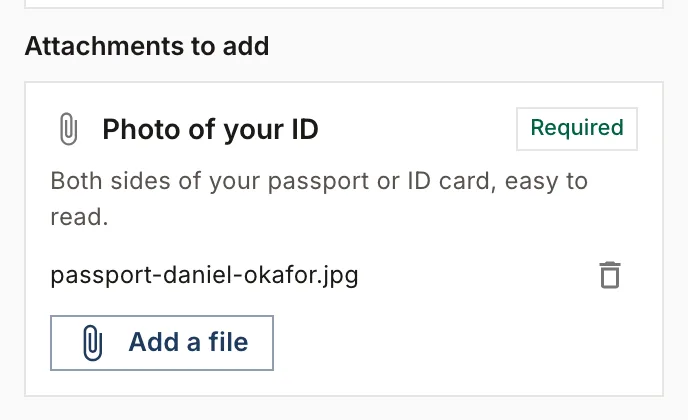
Section titled “Attachments”A sender can ask you for files, such as a photo of an ID. They appear in the list of documents as Attachments to add, on a phone behind the list button, each with a place to add files, including from the camera. A required attachment keeps the signature off until it is added.
See Files from signers.
Password-protected documents
Section titled “Password-protected documents”A document generated with a password opens only after you enter that password on the page. Doxtly does not know it: if you do not have it, ask the sender. Tick Remember to avoid entering it again for this session. The password stays in your browser and is sent only for the request that needs it; the signed file stays protected with the same password.
Saved work
Section titled “Saved work”Values you type are saved as you go, with a discreet Saved in the bar, and are back when you return. That holds when the page reloads too, including when a phone’s browser reloads a page it kept in the background. Signatures are never saved: you draw them when you confirm, and after a reload you place them again. If the page asks for the code again while you work, see Confirming that it is you: what you were doing goes ahead once you are through.
Additional conditions
Section titled “Additional conditions”An organization or a document type can add conditions to accept before signing. They are shown in the confirmation dialog under the standard statement and accepted with one extra tick; the exact wording you accepted is recorded with the signature. If they were not written in the language of your page, you see them in the organization’s language. If they change while the page is open, signing asks you to reload and read them again.
How you may sign
Section titled “How you may sign”The signature dialog offers only the ways of signing allowed for your party, normally Draw and Type, and My signature inside Doxtly. Your organization, the document type or the sender, party by party, can narrow them, or allow Upload image for a party who is a user of your organization. Someone from outside never gets it, and neither does anyone signing through a link or on a device handed to them. Doxtly refuses a signature given any other way.
If something goes wrong
Section titled “If something goes wrong”| What the signer sees | What it means and what to do |
|---|---|
| “Failed to load the package. The link may be invalid or expired.” | The link is damaged or wrong. Copy the whole address from the message, or ask the sender to send it again. |
| “This document could not be loaded. Reload the page to try again.” | The PDF didn’t arrive. Reload the page. |
| “This document waits for your signature but has no place for it…” | The document was sent without a signature place for this party. Only the sender can fix it: send a corrected package. The signer can decline in the meantime. |
| Nothing is waiting for your signature | None of the documents waits on this person right now. If they expected one, they should contact the sender. |
| “Invalid verification code. Please check and try again.” | Mistyped. Correct it in place. After three wrong tries, ask for a new code. |
| “Your verification code has expired. Please request a new one.” | More than ten minutes passed. Press Send the code again. |
| “Too many OTP requests. Please wait 5 minutes before requesting a new code.” | Too many codes in a few minutes. Wait, then try again. |
| “Too many verification codes have been sent for this package today. Please try again later.” | The daily limit. Try again later. |
| This page has been updated. Reload it to continue. | Doxtly was updated while the page was open and the signer had already entered something or drawn a signature. Press Reload: the values come back, and only the signatures have to be placed again. A page with nothing entered or drawn on it reloads by itself. |
| “The electronic signature disclosure shown to you is out of date. Reload the page and sign again.” | The wording changed while the page was open. Reload and sign again. |
| “No answer came back in time. The page now shows whether your documents were signed; if they were not, try again.” | The connection dropped. The page reads the package again and shows whether the signature went through. |
| “Signing these documents took longer than the time allowed for it, so nothing was signed. Try again in a few minutes.” | A very large package at a busy moment. |
| “This package is being signed or changed by somebody else right now, so nothing was signed. Try again in a few minutes.” | Another party acted at the same moment. |