

AI agents
An AI agent is a specialist you set up once. You tell it what job it does, which rules it follows and what it should know, and it does that job every time a workflow hands it something to read. A consulting firm might keep one agent that summarises each new client onboarding form for the account manager, and another that sorts the comments of a satisfaction survey into themes.
Available when: your plan includes AI agents, your organization has an active AI integration, and you hold the Use AI agents permission
What an agent does
Section titled “What an agent does”An agent reads and answers. You give it a request, some named values (the answers of a form, say) and optionally files, and it comes back with text, a JSON document or a picture.
An agent cannot send an email, change a record or call another system by itself. It answers, and the steps after it in the workflow act on the answer: the agent proposes a category, and a condition step decides where the case goes.
| The job | What the agent reads | What it answers | What the workflow does next |
|---|---|---|---|
| Summarise a client onboarding form | The form’s answers | Text | Emails the summary to the account manager |
| Triage a client complaint | The complaint form | JSON with a category and an urgency | Routes the case on those two values |
| Check a signed NDA against the firm’s rules | The uploaded PDF | Text listing what deviates | Puts the list in an email to the lawyer |
| Pull the details out of an invoice request | The request form and its attachment | JSON with the billing fields | Fills in an invoice template |
| Draw a header picture for a course page | The course name and topic | An image | Adds the picture to the run’s files, for a later step to attach |
An example from start to finish
Section titled “An example from start to finish”Northbridge Advisory takes complaints through a web form, and each one used to wait until somebody had read it. Now a workflow does the first pass:
- A client sends the complaint form, and that starts the workflow.
- An AI agent step hands the complaint to the agent Complaint triage, which answers with a category and whether the matter is urgent.
- A condition step reads the answer. An urgent complaint is emailed to the account manager at once, and the others go to the support address.
- If the agent gives no usable answer, the step’s No result output sends the complaint to a colleague to read.
The settings of that step are in the example on the AI agent step’s page.
What an agent is made of
Section titled “What an agent is made of”Every part below is a card in the agent builder.
| Part | What it is for |
|---|---|
| Identity | The name, icon, colour and description. The description also tells the agent its purpose. |
| Instructions | The job itself: what the agent does, its tone, the rules it follows. Sent with every run. |
| Skills | Separate instructions for one kind of situation each, such as Summarise a contract. Written for one agent, or kept in a library that many agents share. |
| Knowledge | Web pages the agent should know, such as your terms or price list. They are fetched when you save, so a run reads the same material every time. |
| Web search | Lets the agent look things up on the internet during a run, everywhere or on chosen sites only. Off until you turn it on. |
| Model | The AI integration and model it runs on, how hard the model thinks, the language of the answers and the output format. |
| Examples | Pairs of an input and the answer you expect. They teach shape and tone better than a description does. |
When the feature appears
Section titled “When the feature appears”Three things decide whether you see AI agents and what you can do with them.
Your plan. AI agents are part of the paid plans. On the free plan the menu entry is not shown, and a direct link to the page says AI agents are not in your plan, with a See the plans button. See plans and limits.
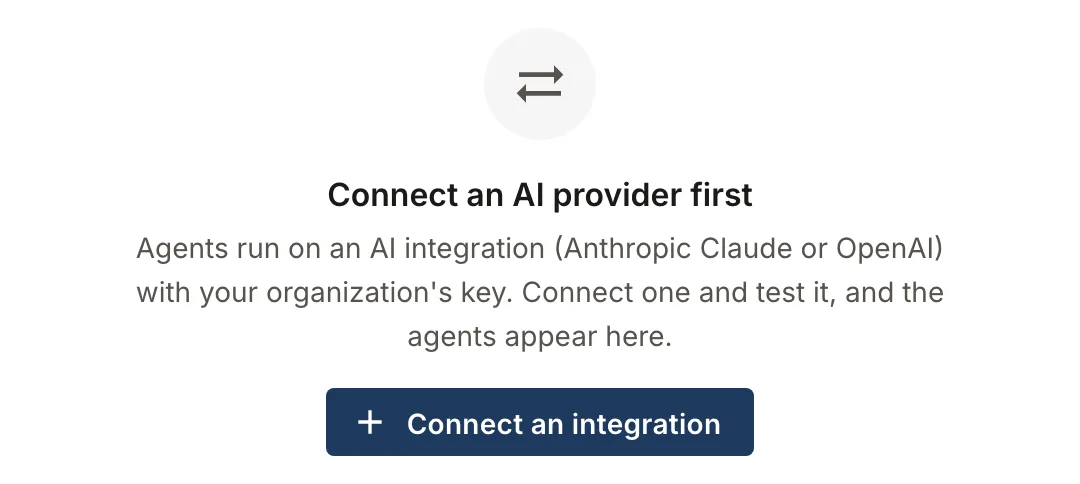
An AI integration. Agents run on your organization’s own account with Anthropic Claude or OpenAI, using your own API key, so the provider bills you directly. Doxtly AI, which runs Doxie, never runs agents, so no agent runs until someone connects an integration and it is active. Until then the page says Connect an AI provider first in place of its tabs. Whoever may manage integrations also gets a Connect an integration button, and someone who may only view them is told to ask that person. People who cannot view integrations at all see the page as usual, and find out when they try an agent.
The same message returns if your last active integration stops being active, for example because a run found its key refused. Your agents and skills are still there, and they come back once an integration is active again.
Your permissions. Two permissions in the Tools group split reading from building. Both apply across the whole organization. You assign them on the roles page.
| Permission | What it allows | Built-in roles that have it |
|---|---|---|
| Use AI agents | See the agents and the skill library, open an agent, try a saved agent, see what the agents cost. With the permission to manage workflows, also add or change an AI agent step. | Administrator, Manager, Member |
| Build AI agents | Create, change, duplicate and delete agents, manage the skill library, and, with Use Doxie, ask Doxie to build or improve them. Goes together with Use AI agents. | Administrator, Manager, Member |
A Viewer has neither, and does not see the menu entry. Someone with Use AI agents alone opens the builder read-only: every field is greyed out, the buttons that add things are gone and so are the Doxie buttons, but Try it still runs the saved agent.
The AI agents page
Section titled “The AI agents page”Open Tools in the left menu and choose AI agents. The page has two tabs: Agents, described here, and Skills, the skill library.
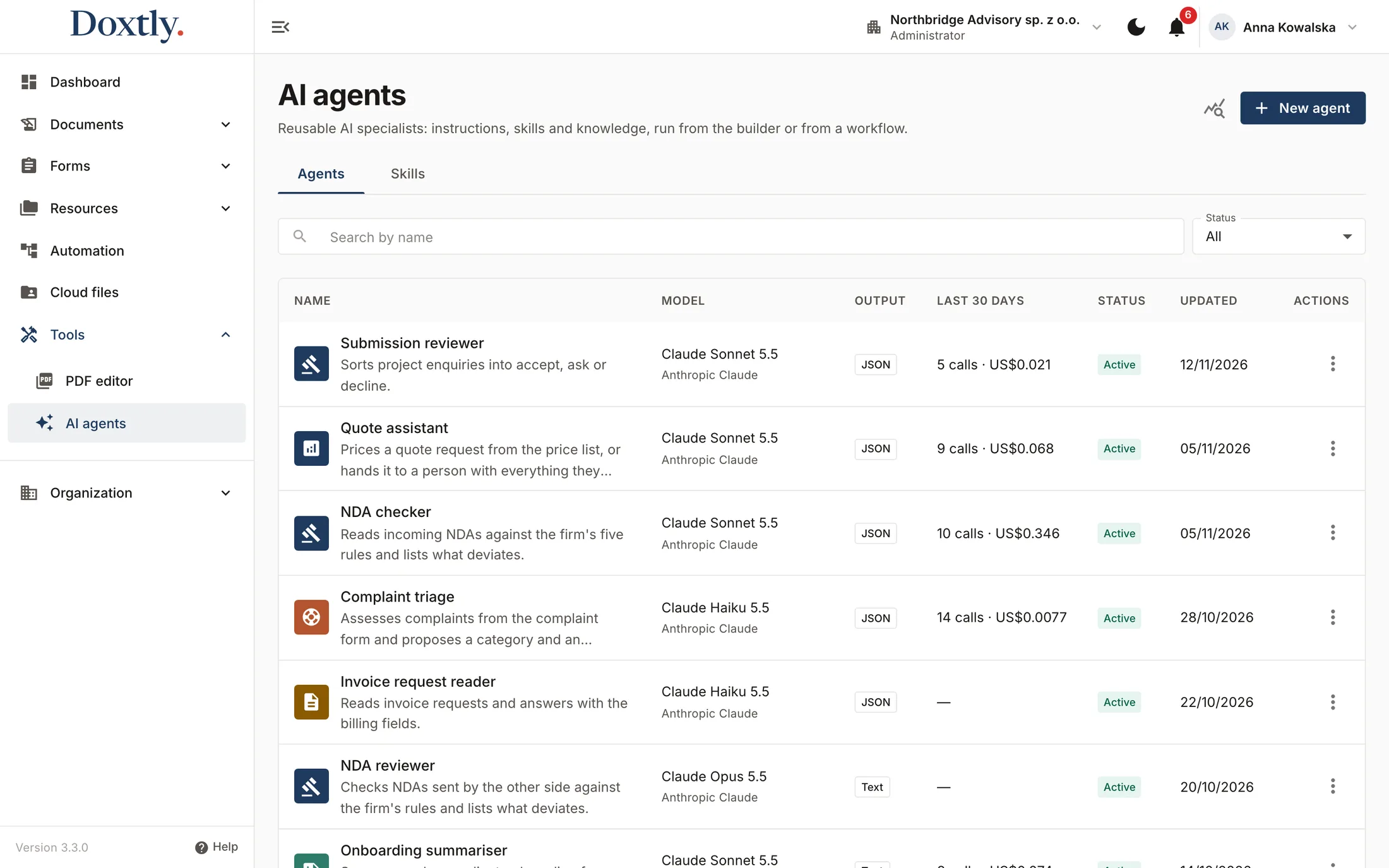
New agent, at the top right, opens an empty builder. Only people who may build agents see it. Clicking a row opens that agent. On a phone each row becomes a card with the same details, except that the model is shown without its provider and integration.
| Column | What it shows |
|---|---|
| Name | The icon, the name and the first lines of the description. You can sort by it. |
| Model | The model a run uses, with the provider and the integration under it (the integration’s name is left out when it is the provider’s own, such as Anthropic Claude). An agent left on the defaults shows what those defaults are today. |
| Output | Text, JSON or Image. |
| Skills | How many skills the agent has, its own and linked ones together. Shown only in a window at least 1536 pixels wide, like Knowledge. |
| Knowledge | How many web pages it knows. |
| Last 30 days | How many calls it made and what they cost, such as 12 calls · US$0.42. Workflow runs and try-outs of the saved agent both count; a try-out of unsaved changes does not. A dash means it did not run. |
| Status | Active or Inactive. |
| Updated | When it was last changed. You can sort by it. |
| Actions | The row’s menu, for people who may build agents. |
Above the table you can search by name and filter by Status (All, Active, Inactive). Each active filter shows as a chip you can remove, and Clear all drops them together. The filters live in the page’s address, so you can send a colleague a link to the filtered list.
Click Name or Updated to sort: once for ascending, again for descending, a third time to go back to the usual order. The list shows 25 agents a page, and the control under it switches to 10 or 50.
Before the first agent exists, the tab says No agents yet. Whoever may build gets a New agent button there, and everyone else is told that agents will appear once somebody builds one. When your filters match nothing, it says No agents match with a Clear all filters button.
The row menu
Section titled “The row menu”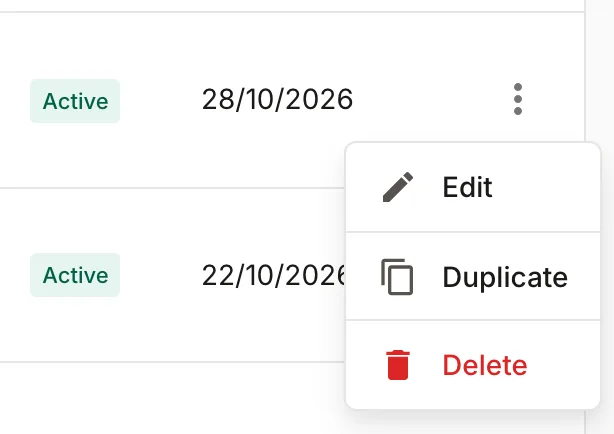
Edit opens the builder, as a click on the row does.
Duplicate asks for the copy’s name, filled in as the original’s with (copy) added, for example Complaint triage (copy); change it or keep it, and press Duplicate or Enter. A name another agent already has, the offered one included, is refused with An agent with this name already exists., and the dialog stays open for another. The copy then opens in the builder. It has the same instructions, skills, links to library skills, examples and settings, and it keeps the text already fetched for its knowledge pages. It starts as Inactive, so it cannot run by accident while you work on it. Duplicating is the safe way to test a change to an agent in use.
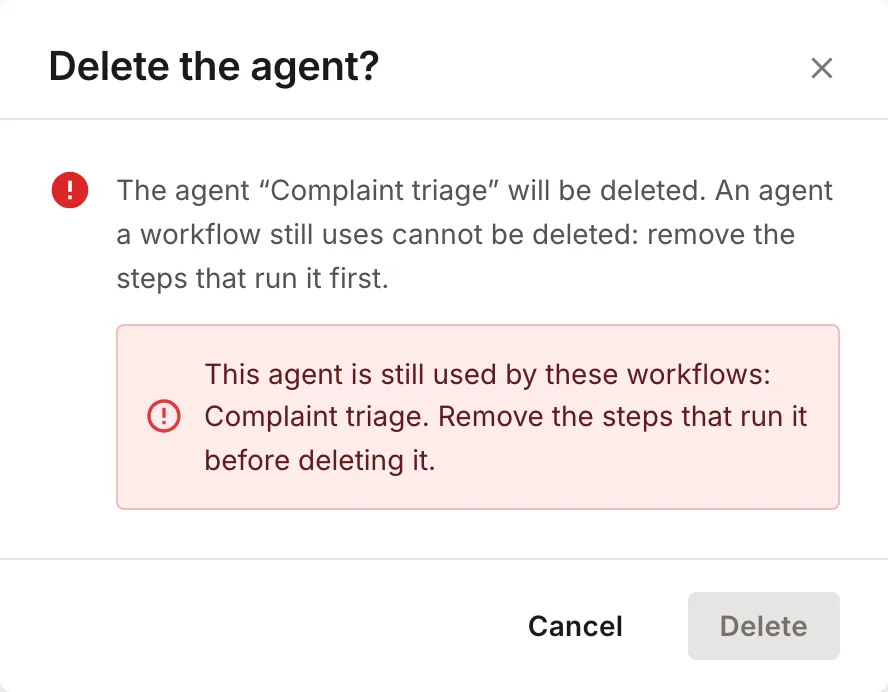
Delete asks you to confirm, and deleting cannot be undone. An agent that a workflow step still uses cannot be deleted, even if that workflow is switched off. When you press Delete, a red message in the dialog names the workflows and the button stays disabled, so remove those steps first.
What it costs so far
Section titled “What it costs so far”Your AI provider bills your account for every call, so Doxtly shows what you are spending. A statistics button, This month’s AI usage, is at the top right of both tabs. It opens This month: the number of calls, the tokens in and out (tokens are the units providers charge by, roughly a few characters each) and the cost in US dollars. The month is the calendar month in UTC.
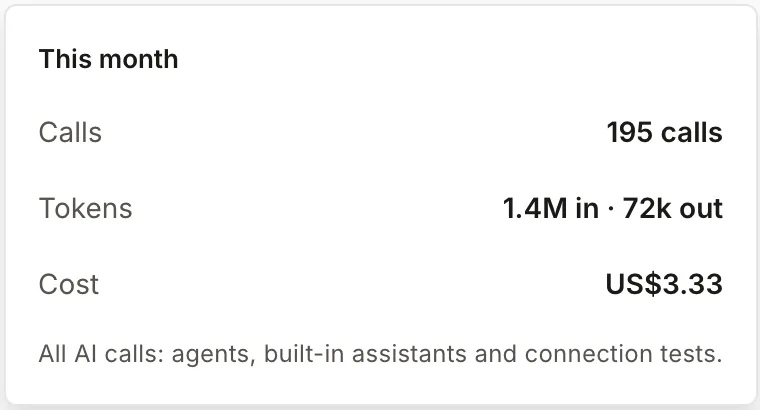
The last line says what was counted. If you may view integrations you see every AI call through your organization’s integrations, including connection tests and Doxie’s work when she runs on one of them. If you may only use the agents, you see their runs and try-outs alone. The cost is worked out from each model’s list prices, web searches and pictures included, so your provider’s invoice has the final word. A model without a known price is counted under calls without a price, and its cost is left out of the total.
To cap the spending, set a monthly budget on the AI integration. Once it is spent, new runs through that integration are refused until the next month. A run already under way finishes.
Using an agent
Section titled “Using an agent”You run an agent in two places.
In the builder, with Try it, while you work on it. You paste a message and optional data or files and see the answer, the tokens, the cost and how long it took.
In a workflow, for real, through the AI agent step. The step names the agent, writes the request with variables from the run, hands over named values and files, and stores the answer under a variable the next steps can use.
The AI agent step page covers adding an agent to a workflow, passing it data and files, setting the JSON schema and deciding what happens when there is no answer.
A few things about the agent itself carry over to the step:
- The step can ask for the agent’s output format, or narrow it: a JSON agent can be asked for plain text instead. A text agent can never be asked for JSON, and an image agent only gives images.
- A JSON agent has no schema of its own. The step decides which fields it wants, so the same agent can serve several workflows.
- The step always runs the agent as it stands now. Saving a change in the builder changes every workflow that uses the agent from its next run on.
- A workflow with a step that names an inactive agent cannot be saved. If you switch an agent off after that, its steps fail when they run.
The run record of an AI agent step shows the agent, the model, the tokens, the web searches and the cost. It never shows the prompt or the answer, so to read what the agent said, send the answer on in an email or write it to a sheet.
Agents and Doxie
Section titled “Agents and Doxie”Doxie, the AI assistant in Doxtly, is not an agent you build: Doxtly defines her, you can’t edit her, and she doesn’t appear on this page. She can help you build agents, though. In the builder, Write with Doxie on the Instructions card, or Suggest improvements once it holds text, opens her with a request ready to send. Ask her to design a new agent, or to write the instructions, skills, examples or knowledge of the one you have open, or to review it. What she prepares waits for you to apply it: see Work Doxie prepares. This takes Build AI agents and Use Doxie, on a plan that includes AI agents.
Doxie runs on Doxtly AI, or on the integration your organization assigned to her, never on an agent’s own integration. See Which AI runs Doxie.