

Sharing a form
Every form has its own public page, and anyone with the link can open it without an account. This is the quickest way to publish a form: paste the link into an email, a chat, a newsletter or a calendar invitation. If you would rather have the form inside your own website, see Embedding a form, or the plugins if your site runs on WordPress, Joomla, Drupal or Magento. To offer it next to your other forms and documents on one page, link it from a portal.
Getting the link
Section titled “Getting the link”- Open Web forms and find the form. It has to be Active.
- Open its menu (the three dots) and choose Share.
- Press the copy button next to Public link.
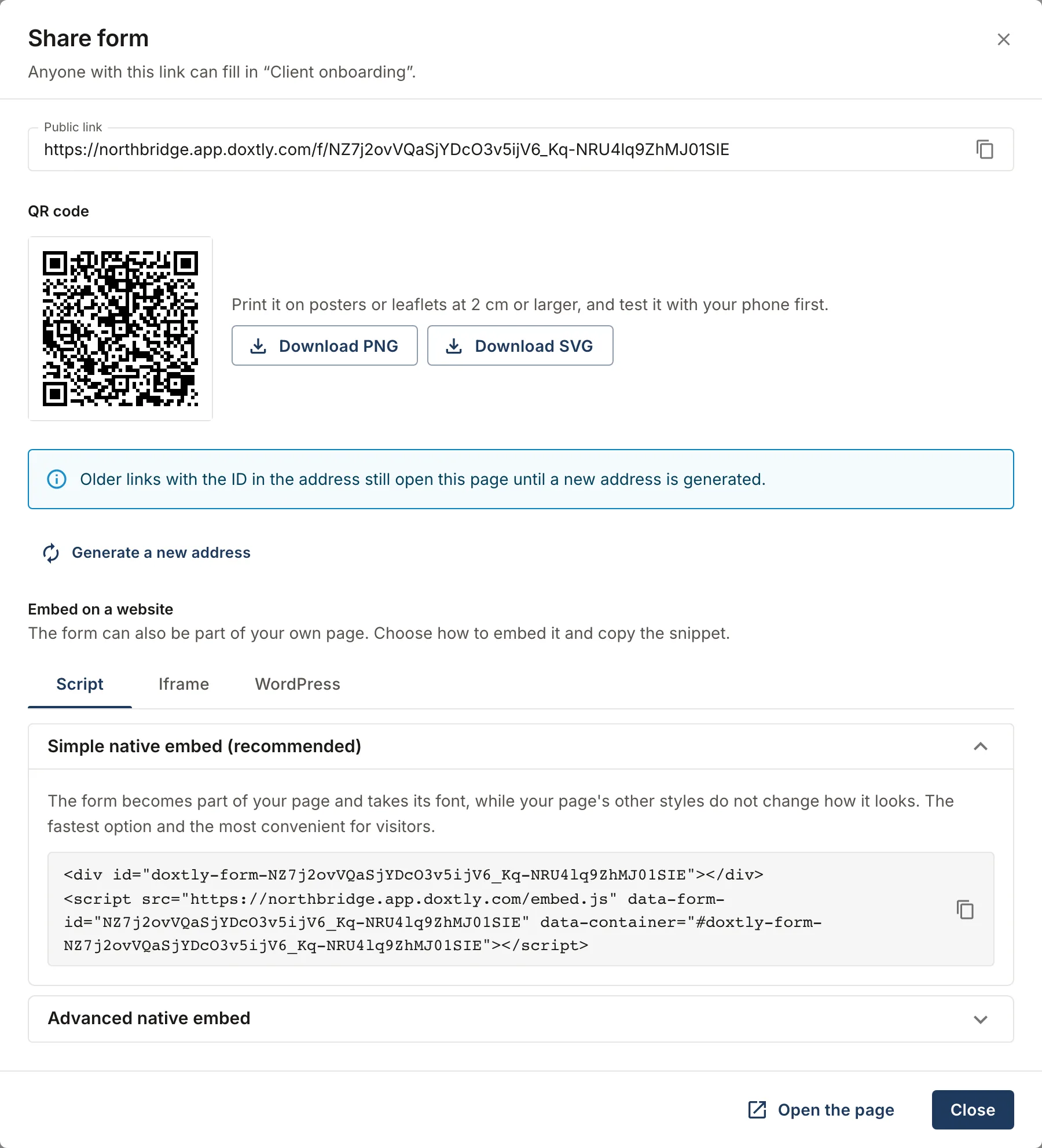
The link is your organization’s own address when it has a subdomain, otherwise the main one, followed by /f/ and the form’s public token, a random code that is longer than its ID: for example https://acme.app.doxtly.com/f/ or https://app.doxtly.com/f/ and then the token. Links handed out earlier keep working on either address. Open the page opens it in a new tab, so you can see what a visitor sees. Below the link, the same dialog has the snippets for embedding the form.
Everyone who can see the forms list can use Share. The dialog opens for an inactive form too, but its link shows Form not found until you switch the form on.
QR code
Section titled “QR code”The Share dialog also shows a QR code of the public link. Point a phone’s camera at it to check it, then choose Download PNG for print or Download SVG for a design tool. The code is black on white with an empty margin, so it stays readable; print it at least 2 cm wide.
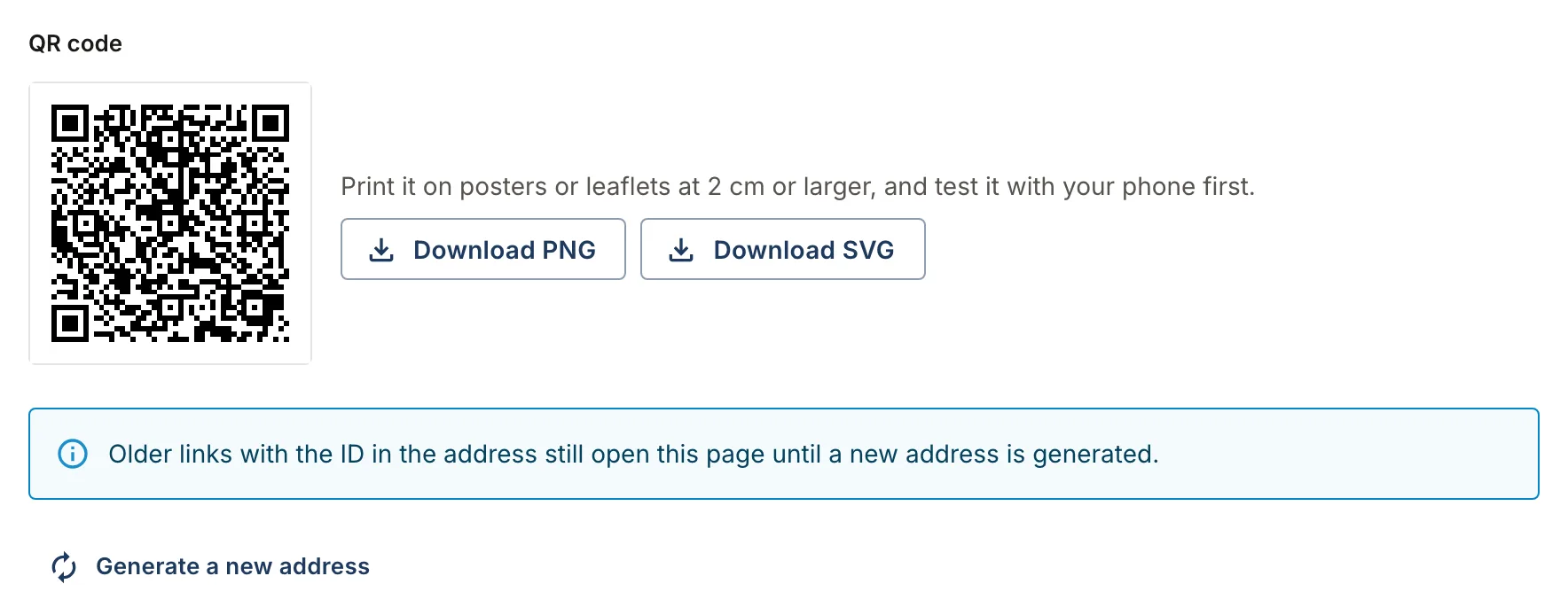
The same code is in the sharing dialogs of interactive documents and portals.
A new address
Section titled “A new address”If a link leaked, or you want the old one out of circulation, choose Generate a new address in the Share dialog (you need the Manage forms permission) and confirm. The form gets a new public token at once. The old link, printed QR codes and embeds on other sites stop working immediately, and nothing else about the form changes. Everywhere you embedded the form, paste the new snippet or token.
A form created before public tokens was shared with its ID in the address (/f/ followed by the ID), and the plugins’ embeds named it by its ID too. Those links, QR codes and embeds keep working until you generate a new address, and the Share dialog reminds you of that. From then on the form opens only at its new token. A form created since never opens at its ID.
What a visitor sees
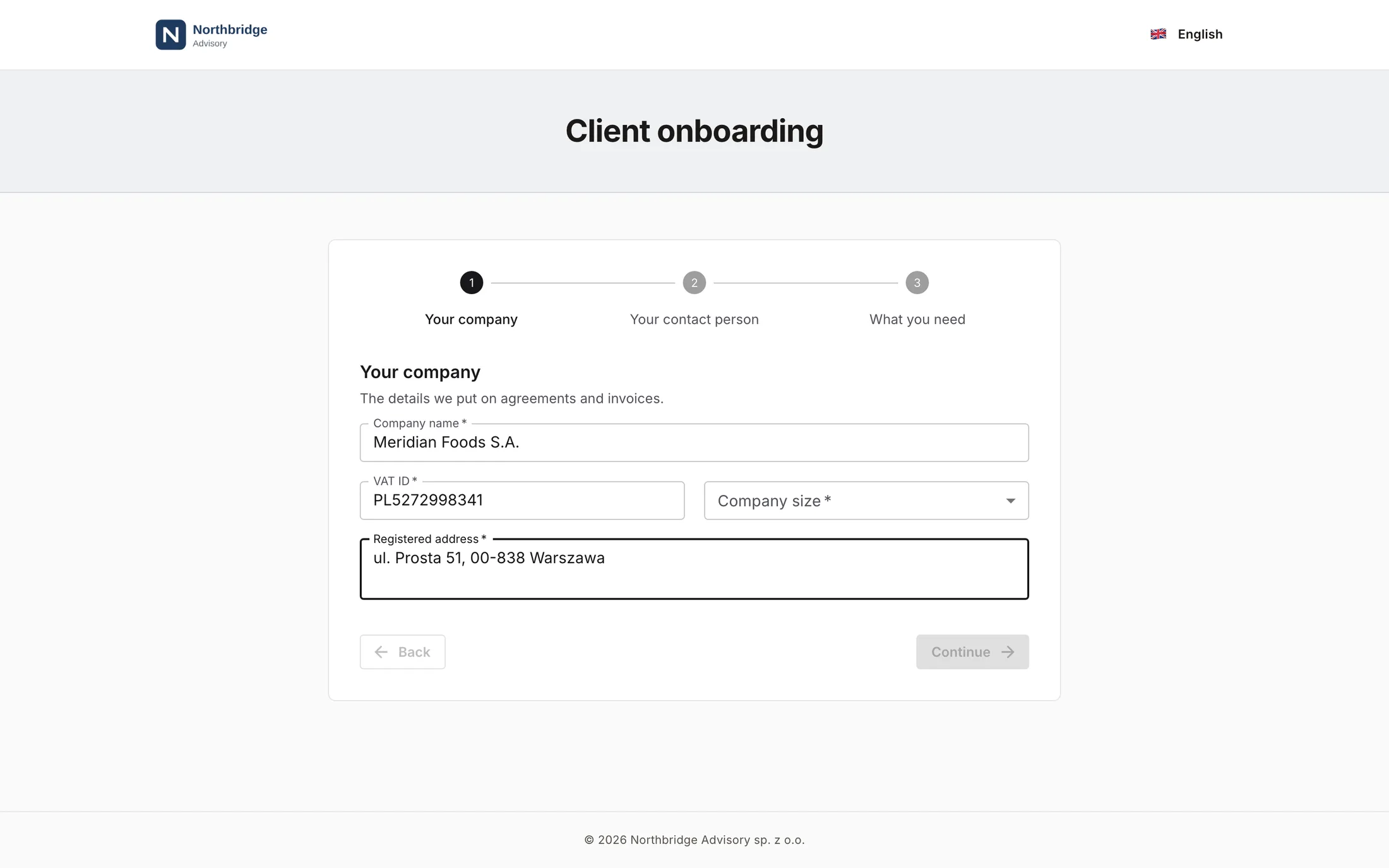
Section titled “What a visitor sees”Opened from its link, the form sits on your organization’s page: a slim bar with your logo and the language, a band with the form’s title, and the copyright at the bottom, in your organization’s colours and the visitor’s light or dark mode. The form itself keeps its neutral style, with your custom styling on top, on a white card. The browser tab carries the form’s title.
Inside an iframe on a website there is no page around it: only the bare form is shown.
Instead of the form, a visitor may meet one of these screens.
| Screen | When it appears |
|---|---|
| Password protected form | The form has a password. |
| Missing required parameters | The link lacks a required parameter. |
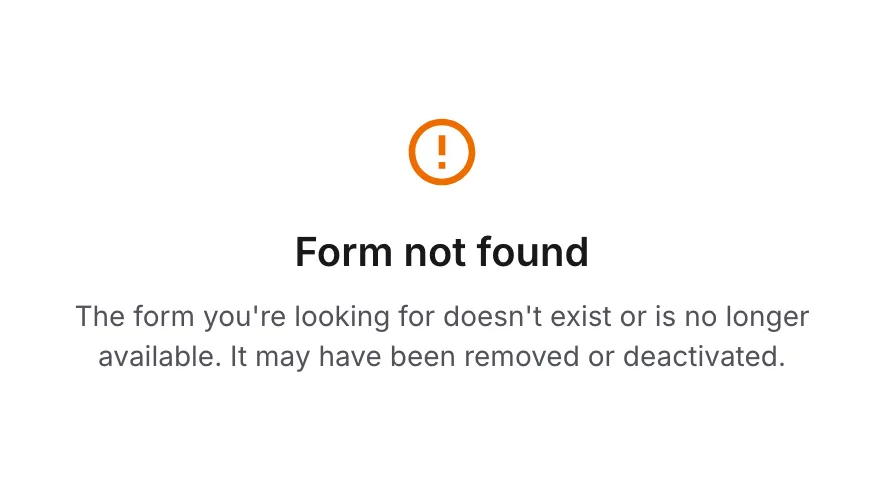
| Form not found | The form is inactive or deleted, or the visitor is refused by the allowed origins or the blocked IPs. The screen deliberately does not say which, so nobody can probe your forms. |
| Failed to load form | Something went wrong on the way, or the visitor went over a rate limit. Trying later helps. |
If the form saves the user’s location, the browser asks the visitor for permission when the form opens. See Form settings.
A long break or a reload
Section titled “A long break or a reload”A visitor can leave the form open as long as they like, over lunch or until the next morning, and still send it when they come back: the open page keeps its session alive by itself.
If the page is reloaded, by the visitor or by a phone’s browser that reloads a tab it put to sleep, what they typed comes back, on the same step of a form with several steps. A note above the form says We have restored what you entered. The browser never keeps passwords, signatures, drawings, photos or files, so those have to be given again, and in a form that has any of them the note reads We have restored what you entered. Add files, photos and signatures again. Start over empties the form and goes back to its beginning, and the cross closes the note. The same holds for a form embedded on a website.
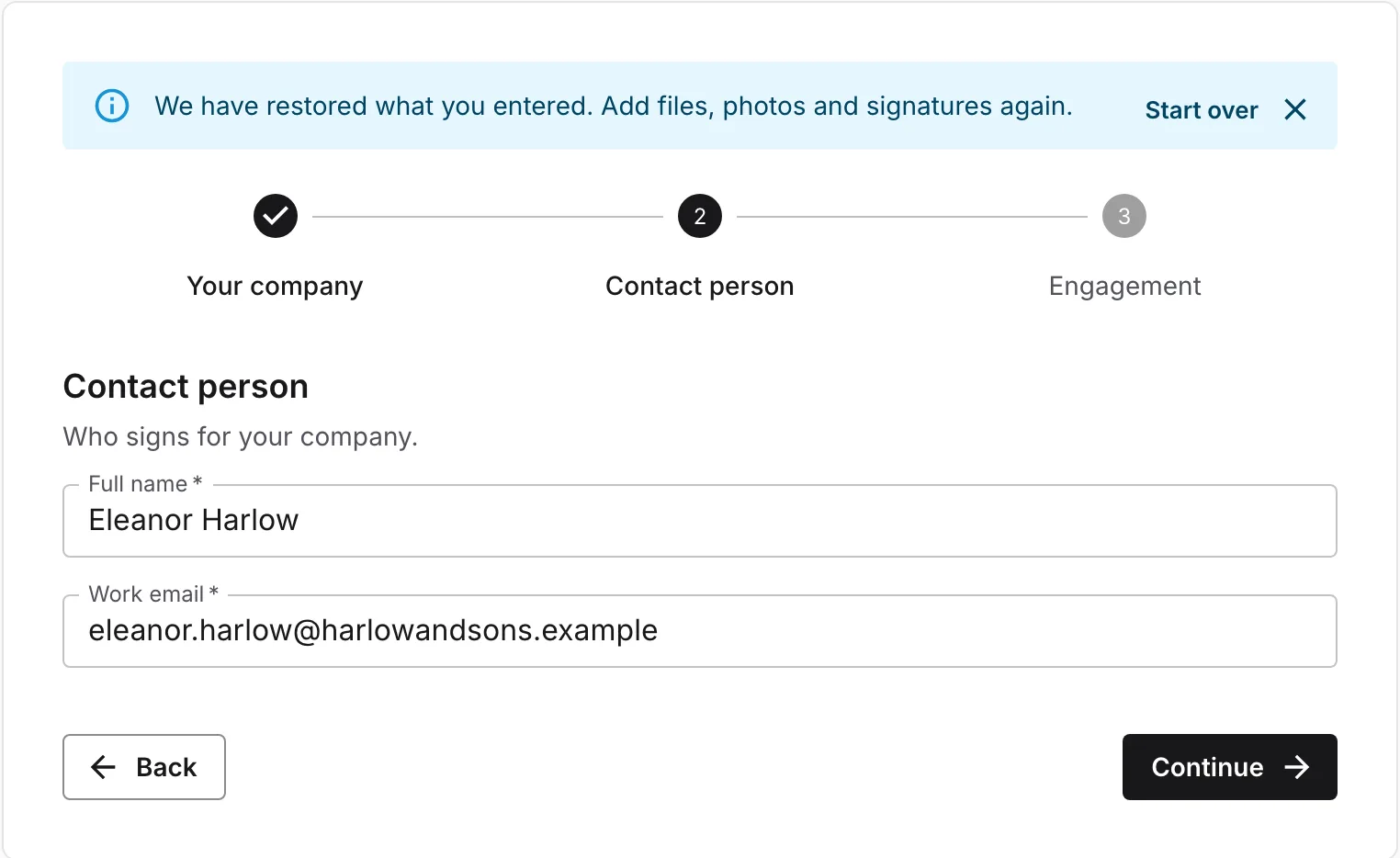
What is kept stays in that browser tab alone, and is gone once the form is sent or the tab is closed. Nothing reaches your organization before the visitor sends the form. Two copies of the same form embedded on one page keep their answers apart.
If the connection drops while the form is being sent, the visitor can press the button again, even after a reload. When the first sending did arrive, Doxtly takes the form once: there is no second submission, no second workflow run and no second count toward your plan, and the visitor sees the same thank-you as the first time. If the first sending is still being processed, the button keeps waiting until it is done. A form with Save form data off keeps no answers to write your success message from, so on such a second sending the visitor reads the default message instead.
After sending
Section titled “After sending”Normally the visitor sees Form submitted successfully with your success message, or “Thank you for your submission. Your response has been recorded.” if you wrote none. The message can print values from the submission, such as a reference to quote.
A form can also redirect to another page instead. The visitor then sees the confirmation for a moment, with a note and a Continue button in case their browser doesn’t move on.
When a workflow prepares a document to sign on the spot, signing goes first, even on a form with a redirect, and the visitor sees one of these instead:
| Screen | What it means |
|---|---|
| Preparing your document | The document is being generated. This usually takes a moment, and then the page moves on to signing without the visitor doing anything. |
| Processing your submission | The page has stopped waiting. It tells the visitor that the organization sends them the link to sign by email, text message or WhatsApp, and to contact it if nothing arrives within a few minutes. |
| Document preparation in progress | The document did not arrive on the page. The screen asks the visitor to look for the link to sign in their email, text messages or WhatsApp, or to contact the organization. |
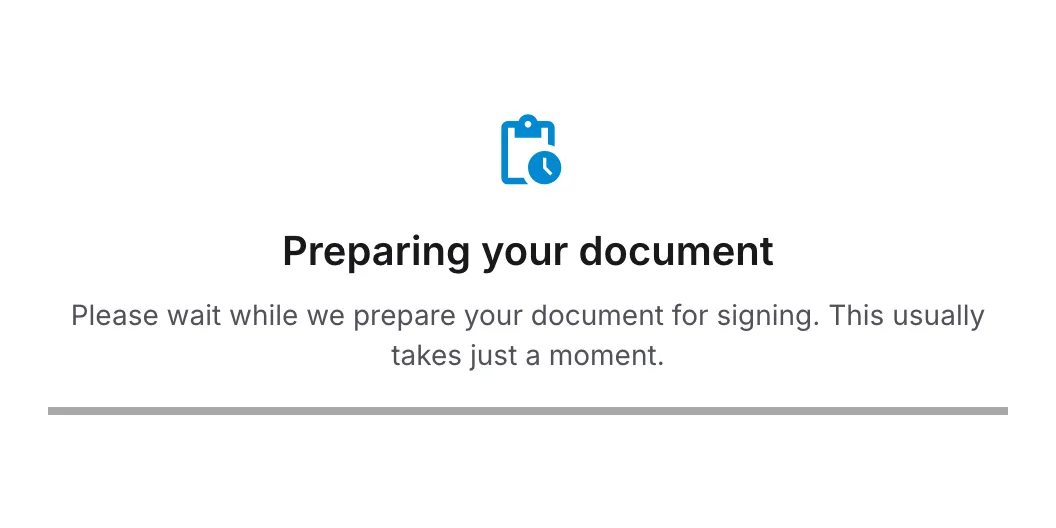
The last two screens also show the submission’s ID, which helps you find it if the person gets in touch.
When sending is refused
Section titled “When sending is refused”If something stops the form from going through, it stays on screen with everything typed in, and a red message above it says why.
| The visitor reads | Why |
|---|---|
| “Some answers need correcting. Please check the highlighted fields.” | The answers did not pass the fields’ validation. Each problem is shown at its field. |
| “The requested form was not found or is no longer available.” | You switched the form to inactive or deleted it while they were filling it in. |
| “Too many requests. Try again in 5 min.” | They went over a rate limit. |
| A note about the limit of your plan | Your plan takes no more submissions in this billing period. |
Other messages come from the form’s protection and are listed in Protecting forms.
Language of the page
Section titled “Language of the page”The texts Doxtly adds around your form, such as the password prompt, error messages and date pickers, come in the 14 languages of Doxtly: Polish, English, Spanish, German, Portuguese, French, Ukrainian, Thai, Chinese (Simplified), Hindi, Arabic, Japanese, Turkish and Italian, with Arabic written right to left. Doxtly goes by the language set in the visitor’s browser, and a browser set to none of them gets English. The language button in the page’s top bar lets the visitor switch. Someone who uses Doxtly in the same browser sees the language they picked there. To fix the language for everybody, add language to the link:
https://app.doxtly.com/f/YOUR-FORM-TOKEN?language=enThis changes those texts only, and the visitor keeps the language if the form takes them on to signing. The labels of your fields stay as you wrote them, so a form in two languages is two forms.
Sending the link
Section titled “Sending the link”Available when: your role has the Manage forms permission and the form is active
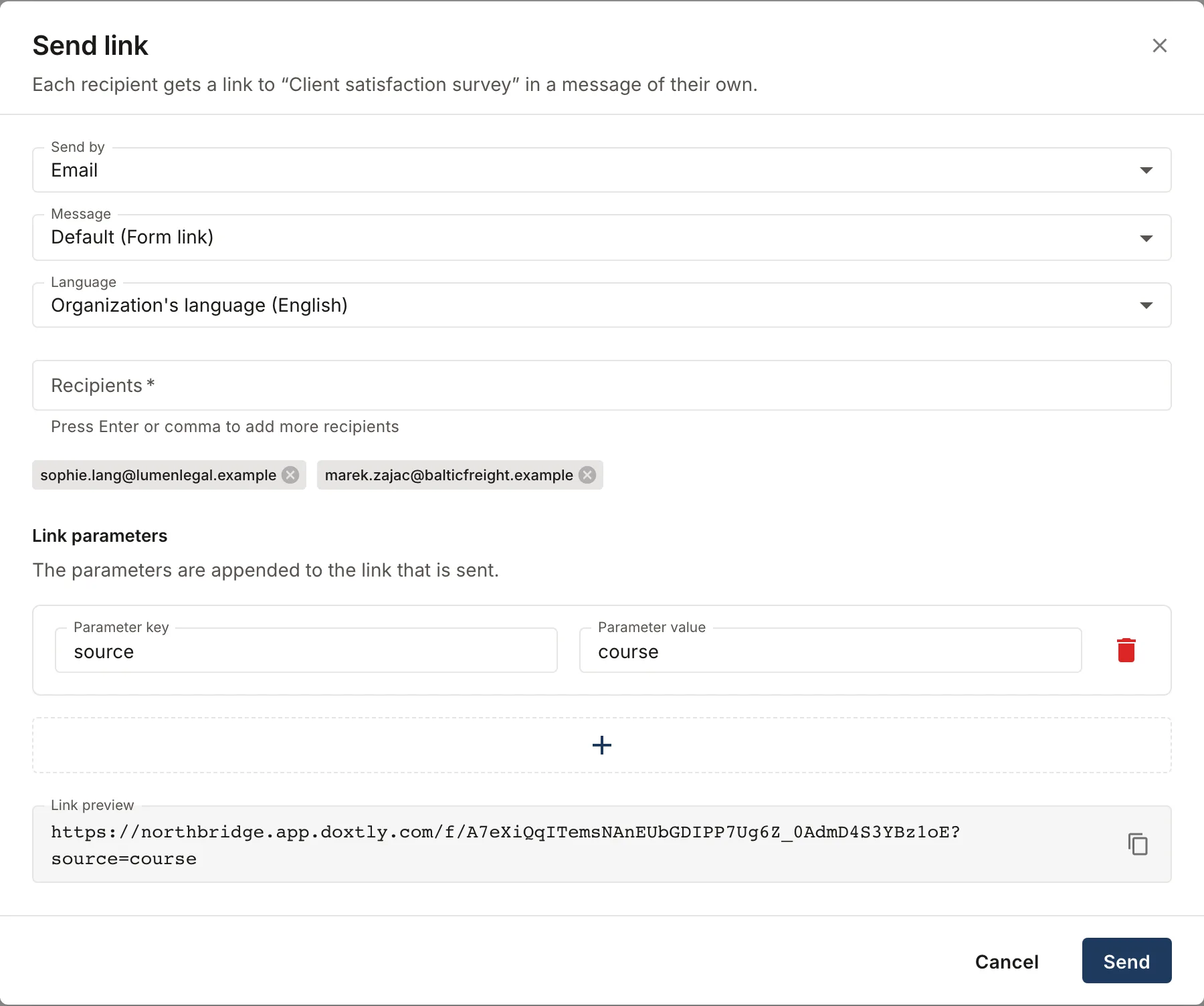
Send link in the form’s menu opens a dialog of the same name, which sends everyone a message of their own, so nobody sees anybody else’s address.
- Open the form’s menu and choose Send link.
- Choose Send by: email, or SMS and WhatsApp when your organization has those integrations. A channel you can’t use isn’t offered, and with only one channel the field isn’t shown.
- Pick the Message. Default (Form link) is your organization’s default message and is selected until you choose one of your own for form links. The field appears once you have such templates.
- Set the Language of the message, your organization’s unless you choose another.
- Type an address or a phone number under Recipients and press Enter or a comma. Repeat for each person. Write a number with its country code, such as
+48 600 100 200. - Optionally add Link parameters, check the Link preview and press Send.
When everything has gone out, the dialog closes and you see “Link sent”.
What the template is given
Section titled “What the template is given”The template is written for the occasion and gets its variables: {{ formUrl }}, the link with any parameters you added, {{ formName }}, {{ senderName }} and {{ organizationName }}. A template for form links must print {{ formUrl }}, and saving one without it says so.
Fields of the dialog
Section titled “Fields of the dialog”| Field | What to know |
|---|---|
| Send by | Offered only where your organization can use it. Changing it clears the recipients, since addresses and numbers aren’t interchangeable. |
| Message | The default message first, then your own active templates written for form links. |
| Language | Your organization’s, a chosen one, or a fixed one. |
| Recipients | At least one. Each becomes a chip, which you can remove with its cross. A duplicate or a malformed entry is refused on the spot. One still in the field when you press Send is included as if you had added it. |
| Link parameters | Pairs of Parameter key and Parameter value, added to the link. Every recipient gets the same parameters. |
| Link preview | The exact link that will go out. You can copy it from here too. |
Parameters added here reach the submission only if the form is set to keep them. And if the form has a required parameter, add it here, or everyone you write to will land on Missing required parameters.
When some messages fail
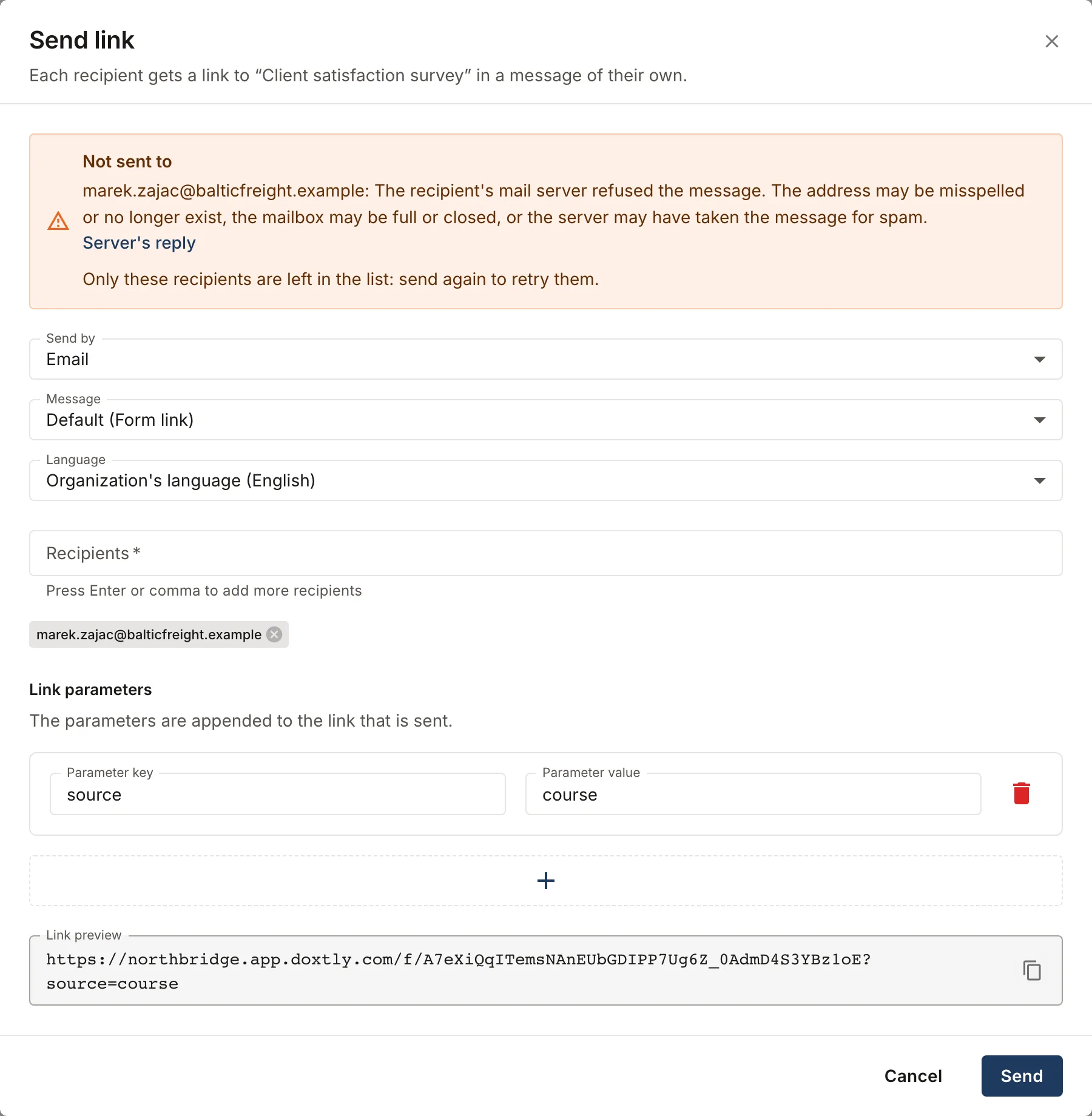
Section titled “When some messages fail”Each message goes out on its own, so one bad mailbox doesn’t stop the others. If some fail, you see how many went out, such as “Sent to 2 of 3 recipients”. The dialog stays open with a Not sent to list giving the reason for each, and sending again goes only to them.
What else to expect
Section titled “What else to expect”- An email counts as an email sent on your plan. SMS and WhatsApp are billed by your provider and aren’t counted.
- The messages appear among your sent emails or sent SMS and WhatsApp.
Link parameters
Section titled “Link parameters”You can add your own information to the end of a form’s link, after a question mark:
https://app.doxtly.com/f/YOUR-FORM-TOKEN?source=newsletter&campaign=autumnThe form does not show these values, but they are stored with the submission. This is how you learn where an answer came from without adding a “How did you hear about us?” field. The same form can hand out a different link per campaign, or per client:
| Use | Example link ending | What you get |
|---|---|---|
| Campaign tracking | ?utm_source=linkedin&utm_campaign=autumn |
You see which channel brought each submission |
| A link per client | ?client_id=4711 |
A workflow can look up client 4711 and file the answers in the right place |
| A link per course | ?course=gdpr-basics&date=2026-11-20 |
One feedback form serves every course |
Turning it on
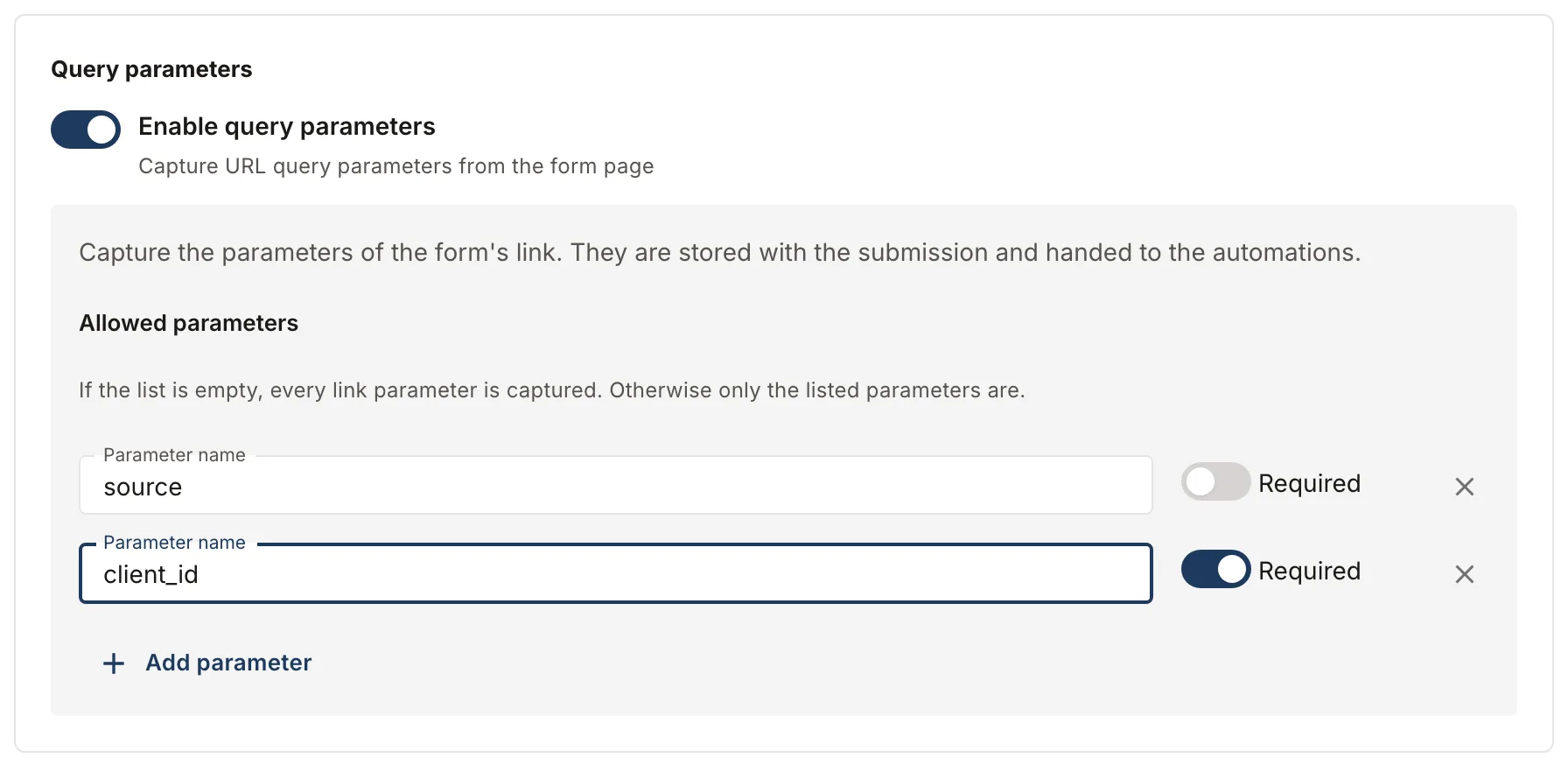
Section titled “Turning it on”Parameters are stored only when the form asks for them. In the designer, open Settings, go to the Link parameters section, switch on Accept link parameters, and save the form.
| Setting | What a submission keeps |
|---|---|
| Accept link parameters off (the default) | No parameters |
| On, with an empty Allowed parameters | Every parameter in the link, whatever its name |
| On, with names on the list | Only the listed parameters |
An empty whitelist is handy at the start. Once you know which parameters you use, list them, so that a stray gclid from an ad does not end up in your data. On an empty whitelist, language is kept too if the link has it, and so is embed, which an embedded form can carry.
To add a name, press Add parameter and fill in Parameter name. A name starts with a letter or an underscore and holds only letters, digits and underscores, and each name can appear once. The cross next to a name removes it.
If a link repeats a parameter, as in ?x=1&x=2, the first value is kept.
Required parameters
Section titled “Required parameters”Switch on Required next to a name when the form makes no sense without it. Only a name on the list can be required. If the parameter is missing from the link or empty, the visitor sees Missing required parameters instead of the form, and cannot fill it in. A form that saves the location does not ask for it on that screen either. The check is repeated when the form is sent.
This suits a form meant for a personal link. Northbridge’s onboarding form requires client_id, so nobody can send it anonymously by trimming the address.
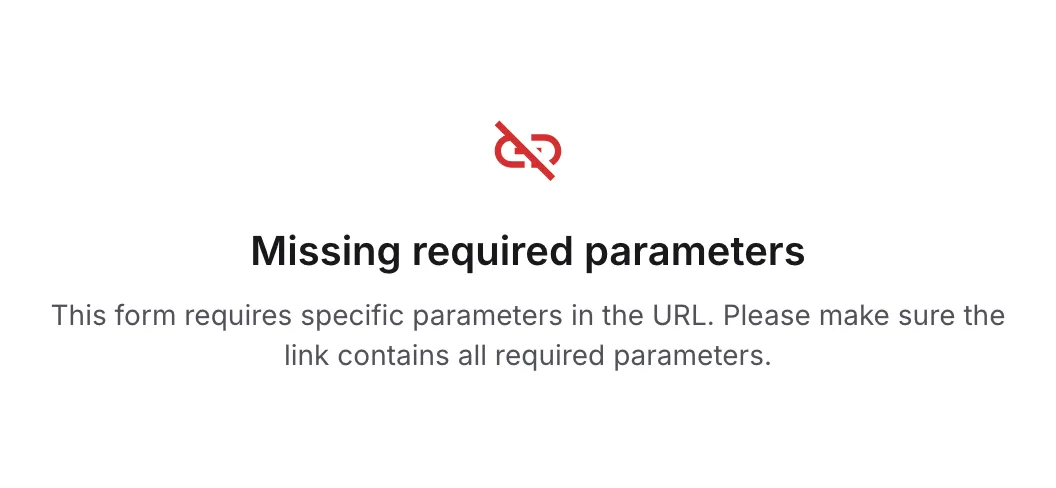
A required parameter stops people who lack it. It does not check that the value is genuine, so anyone can type another client_id into the address. For anything sensitive, add a password or check the value in your workflow.
Where the parameters end up
Section titled “Where the parameters end up”- On the submission, on its Link parameters tab. See Submissions.
- In the form’s workflows, under
_params. For example{{ _params.client_id }}. See Data and variables.
Link parameters do not fill in the form’s fields. They travel next to the answers, so a value you want the visitor to see or correct has to be a field they fill in.
Embedded forms pick up the parameters of the page they sit on, and you can add more in code. See Passing parameters to a form.
How long a link lasts and who can use it
Section titled “How long a link lasts and who can use it”A form’s link has no end date of its own and no limit on the number of answers. It works for as long as the form is Active, so closing a form is your decision: switch it to inactive when registration ends. The only caps on volume are your plan’s submissions and the rate limits. To narrow who can reach the form, you have these options, all described in Protecting forms:
| You want | Use |
|---|---|
| Only people who know a code word | Password |
| The form only on your own website | Validate request origin |
| To shut out specific addresses | Block IPs from list |
| Only people with a personal link | Required parameters, or Send to fill in from a contact: a link of their own that fills in their details, expires and can be revoked |