

Verifying signatures
A signed PDF can be emailed around for years. This page answers two questions about any copy: has it changed since it was signed, and who vouches for it? Use it when a client sends back “the signed contract” and you want to be sure, or when a PDF signed elsewhere lands in your inbox.
Everyone signed in to Doxtly can use this page, and anyone without an account can use the public one. The file doesn’t have to come from Doxtly. Any PDF with a PAdES signature can be checked. PAdES is the European standard for digital signatures embedded in a PDF.
Say Northbridge Advisory is in a dispute over a fee, and the client’s lawyer sends over “the contract you signed”. Upload their copy here. If the report comes back clean, the file is what was sealed. If it says the file was changed, you know before anyone argues about clause 7.
Check a file
Section titled “Check a file”- In the sidebar, open Documents > Verify signature. The page is called Verify signed document.
- Drop the PDF on the page, or click Select PDF file and choose it. The check starts at once.
- Read the result. To check something else, click Verify another document.
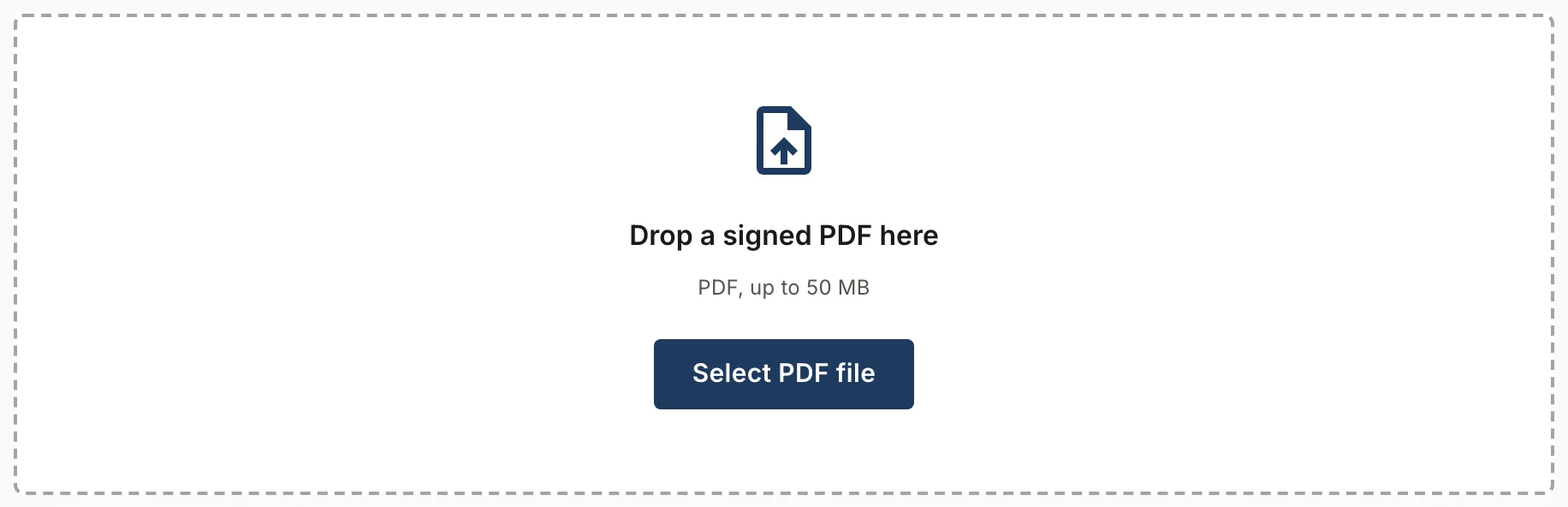
The file is checked and that’s all: it isn’t added to your documents. The check looks at the document’s seal, its certificate and any change made after signing. If a PDF carries several signatures, the result describes the seal and lists each signature under Signatures in this document.
When the file can’t be checked
Section titled “When the file can’t be checked”| Message | What to do |
|---|---|
| Please select a PDF file. | You picked something else. Only PDF files are accepted. |
| File too large. Maximum size is 50 MB. | The file is over the limit. |
| This file is protected by a password | Its signatures can’t be read without the password. Remove the password, or ask the sender for a copy without one. |
| This file cannot be read | The file is damaged, or isn’t really a PDF despite its name. |
| The file did not arrive in full. Upload it again. | The upload was cut off. |
| Validation failed. Please try again. | The check couldn’t run. Try again shortly. |
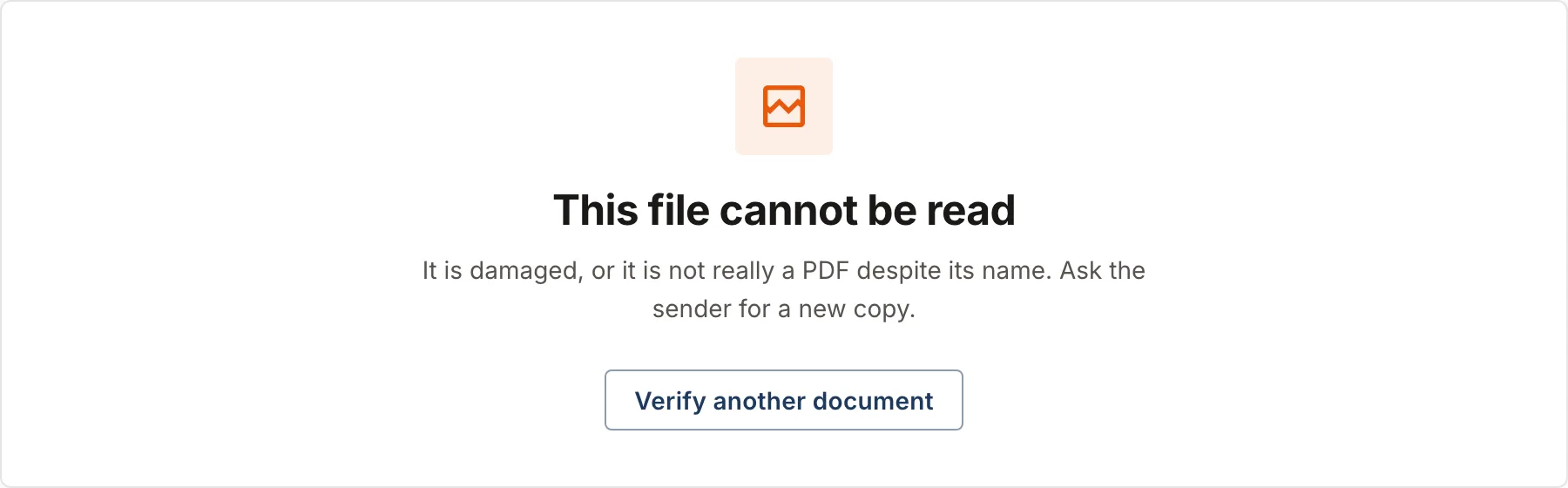
The outcomes
Section titled “The outcomes”The result opens with an icon and a headline in plain words. Below is what each one means.
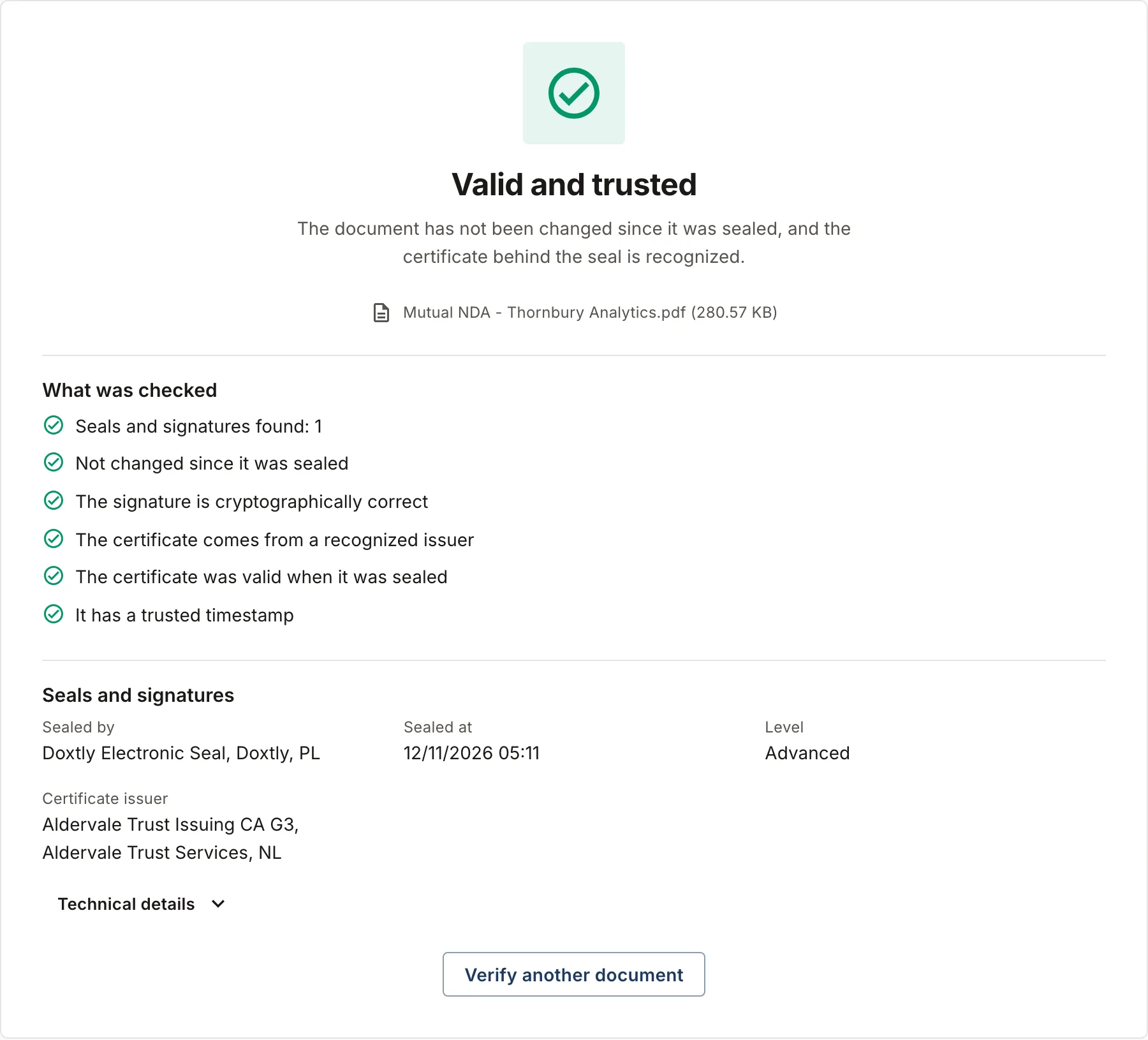
Valid and trusted
Section titled “Valid and trusted”The file is intact, the signature is sound, and the certificate behind it is trusted.
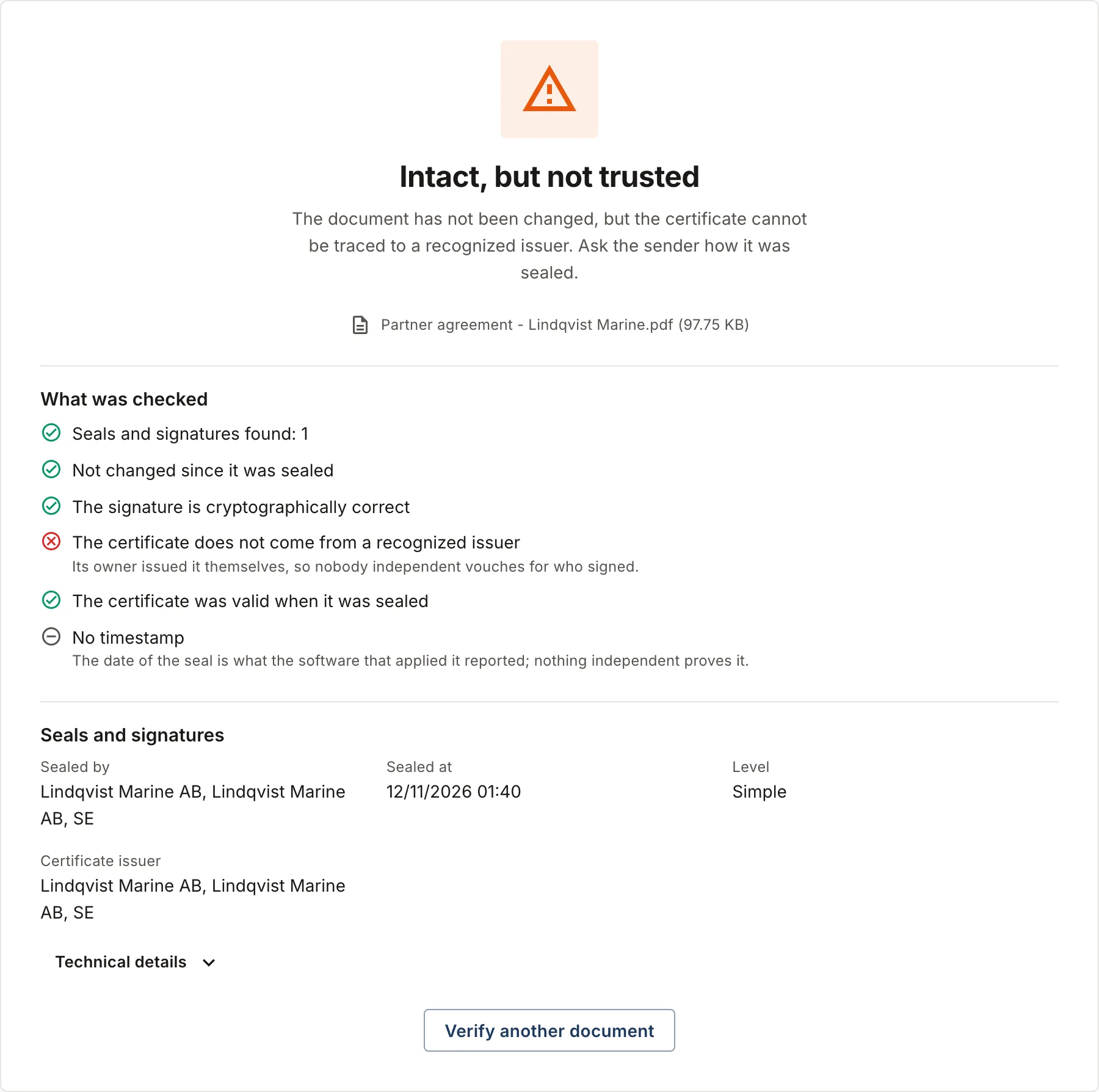
Intact, but not trusted
Section titled “Intact, but not trusted”The content is what was signed, but no recognized authority stands behind the certificate, so you have to decide for yourself whether you trust who signed it. Ask the sender how the document was sealed.
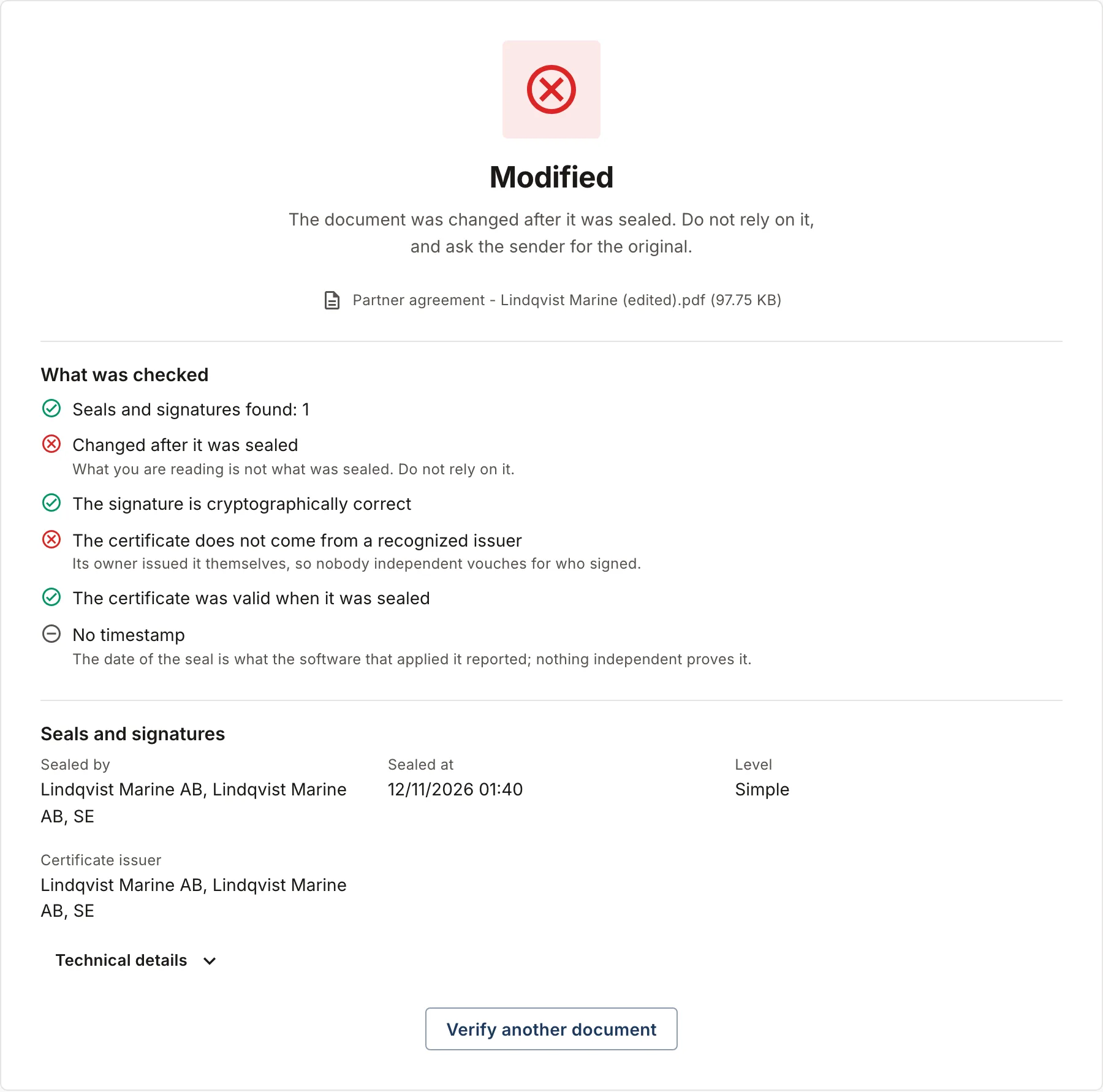
Modified
Section titled “Modified”The file was changed after sealing, or the seal doesn’t check out. Don’t rely on this copy, and ask the sender for the original.
Could not be checked
Section titled “Could not be checked”The check itself failed on this seal. Nothing is known either way, so this says nothing against the file. Try again.
No signatures
Section titled “No signatures”The PDF has no digital signature of any kind. A scan of a paper contract, or an image of a signature pasted into a PDF, ends up here. It doesn’t mean the file is forged. It means nothing in it can be checked.
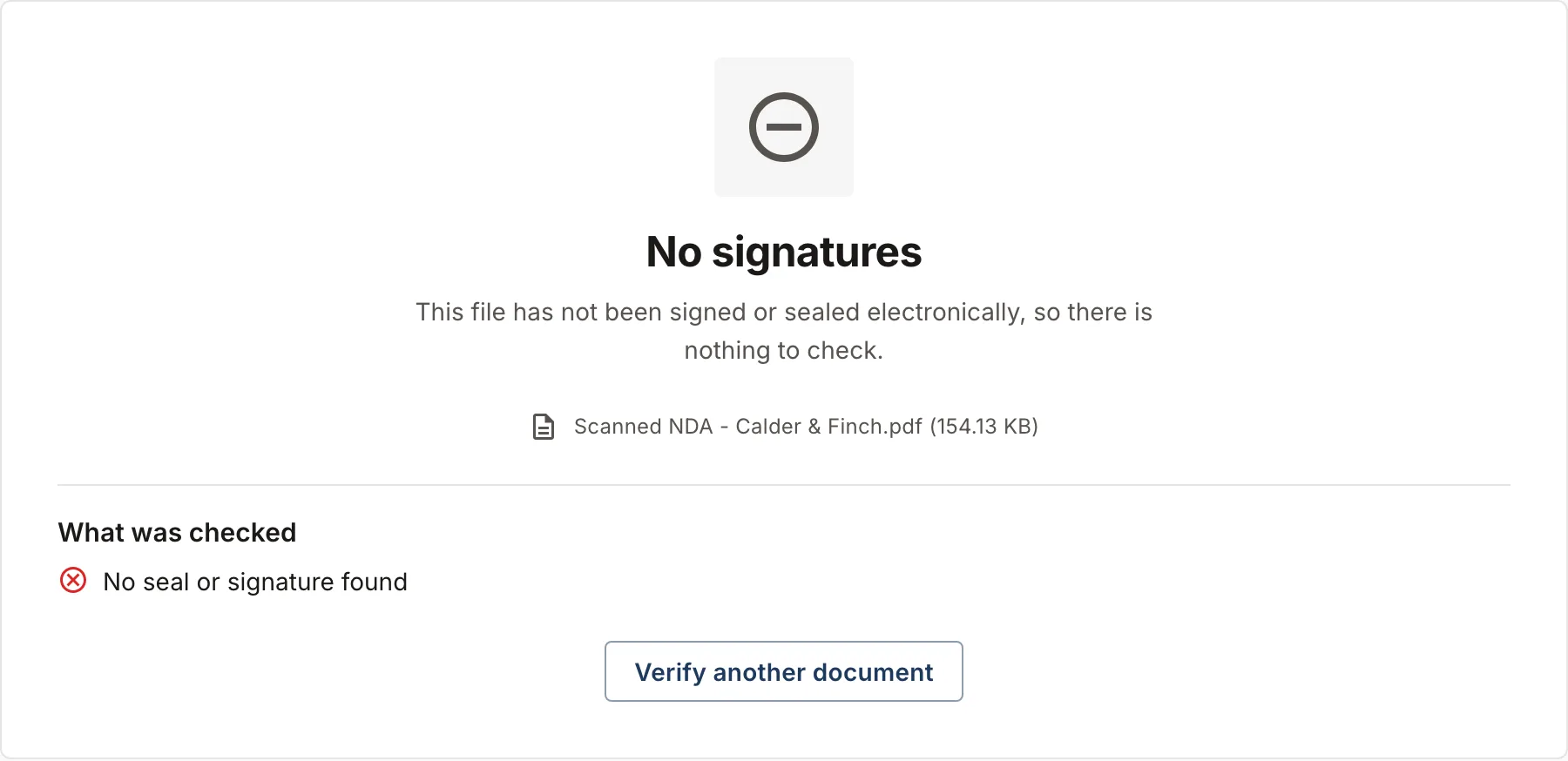
You’ll also get this for a Doxtly document that isn’t sealed: a Current PDF downloaded before the last party signed shows marks but has no seal yet, and a document that was only filled in never gets one.
What was checked
Section titled “What was checked”Under the headline, What was checked answers line by line for this file. A green tick has passed, a red cross has failed, a grey dash doesn’t apply to this file, and a question mark couldn’t be determined. Every line that isn’t a pass says in a sentence what it means for the document.
| Line | What it answers |
|---|---|
| Seals and signatures found | How many the file carries. Without any, this is the only line. |
| Not changed since it was sealed | Whether the bytes the seal covers still match. If a form was filled in or a note added in a way the seal permits, it says Something was added after it was sealed: the added part isn’t covered. |
| The signature is cryptographically correct | Whether the signature itself verifies. |
| The certificate comes from a recognized issuer | Whether it leads back to a recognized authority. A self-signed certificate fails here. |
| The certificate was valid when it was sealed | Whether the sealing date falls within the certificate’s dates, and that the issuer hasn’t revoked it. |
| It has a trusted timestamp | Whether an independent authority proves the time. No timestamp is normal at level PAdES-B: see Signature types. |
| It is a qualified signature | Shown only for a qualified one. |
A long-term seal (PAdES-LT or LTA) adds validation data and timestamps to itself after sealing. That isn’t counted as something added.
Reading the details
Section titled “Reading the details”Under Seals and signatures the result names the seal the file is judged by: for a file with a certifying signature, which is how Doxtly seals its documents, that’s the one; for a file with only ordinary signatures, it’s the last one in the file.
| Line | What it shows |
|---|---|
| Sealed by | The name, organization and country in the certificate. |
| Sealed at | The date in the timestamp if there is one, otherwise the date the sealer’s software reported. |
| Level | How strong the seal is: Qualified, Advanced or Simple, as in Signature types. |
| Certificate issuer | Who issued the certificate. |
Technical details opens the rest: any problems found, whether the seal locks the document, the result, the timestamp, the certificate’s dates, its serial number and its SHA-256 fingerprint.
Signatures in this document
Section titled “Signatures in this document”A PDF with more than one signature, such as one signed in several steps with qualified signatures, gets a list under Signatures in this document: for each, Party’s signature, Doxtly seal or Document timestamp, with the name, level, provider and time. Each row has its own ticks: Nothing was added after it, Only further signatures and validation data were added after it or a cross with The document was changed after it, and It is a qualified signature where its provider is on the Trusted Lists. A timestamp of a non-qualified authority says so. Where parties signed with their own qualified certificates, a note says whether Doxtly added its qualified seal after them.
The seal card of a document
Section titled “The seal card of a document”The Electronic seal tab on a document’s page shows the same seal as a card with chips. Hover over any chip to see a short explanation.
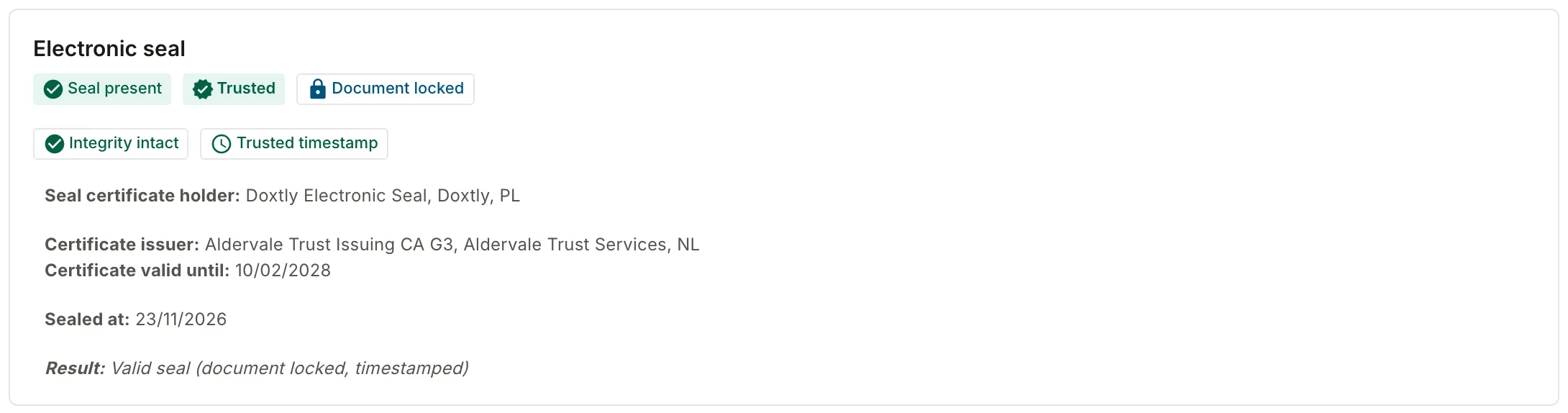
Seal present is always there when the card appears. The others depend on the file.
Trust level is the overall classification:
| Chip | Meaning |
|---|---|
| Qualified | The file is intact, and it carries a qualified signature with a trusted certificate and timestamp. |
| Trusted | The file is intact and the certificate comes from a recognized certification authority. |
| Self-Signed | The file is intact, but the certificate was issued by its owner rather than by an authority. |
| Untrusted | The file is intact, but the certificate comes from an authority that isn’t recognized, or its trust couldn’t be established. |
| Invalid | The signature is broken or the file was changed. |
| Not checked | The check failed on this signature, so its trust level is unknown. |
Document locked means the seal forbids any further change to the file. Doxtly’s seals are of this kind.
Integrity answers “is this what was signed?”:
| Chip | Meaning |
|---|---|
| Integrity intact | The signature is valid and nothing it covers has been tampered with. |
| Integrity compromised | The document was modified after signing, or the signature doesn’t check out. |
| Integrity not checked | The check failed, so nothing is known about whether the document was modified. |
Certificate trust answers “who stands behind it?”:
| Chip | Meaning |
|---|---|
| Trusted | Issued by a recognized certification authority. Left out when the trust level already says Trusted or Qualified. |
| Self-signed | Not issued by an authority. Left out when the trust level already says so. |
| Unknown CA | Issued by an authority that isn’t recognized. |
| Not evaluated | Trust couldn’t be evaluated. |
Timestamp answers “can the time be proved?”. A timestamp comes from an independent time-stamping authority, so the signing moment doesn’t rest on anybody’s own clock.
| Chip | Meaning |
|---|---|
| Trusted timestamp | The signature has a timestamp from a trusted authority. |
| Untrusted timestamp | There is a timestamp, but it couldn’t be verified as trusted. |
| No timestamp | The signature has none. This is normal for level PAdES-B: see Signature types. |
Details
Section titled “Details”| Line | What it shows |
|---|---|
| Seal certificate holder | The name, organization and country in the certificate. The seal is applied for your organization, which the document’s page names under Sealed by; the certificate is Doxtly’s. |
| Certificate issuer | Who issued the certificate. |
| Certificate valid until | The last day of the certificate’s validity. |
| Sealed at | The date in the timestamp if there is one, otherwise the date the sealer’s software reported. |
Result
Section titled “Result”Result sums everything up in a few words:
| Result | Meaning |
|---|---|
| Valid seal | Everything checks out. |
| Valid seal (document locked) | As above, and no change is allowed. |
| Valid seal with trusted timestamp | Valid, and the time is proved. |
| Valid seal (document locked, timestamped) | All of the above. The strongest result. |
| Content appended after sealing | The signature is sound, but something was added to the file after it, in a way the signature permits, such as a filled-in form or an annotation. The added part isn’t covered by the signature. |
| Seal certificate is not trusted | The file is intact, but the certificate isn’t trusted. |
| Seal has been modified | The signature or the signed content doesn’t check out. |
| The seal could not be checked | The check failed partway, so there’s no answer about this seal. |
Content appended after sealing can come with a valid result, since nothing was broken, so read the Result line too. A long-term seal (PAdES-LT or LTA) adds validation data and timestamps to itself after sealing. That isn’t counted as added content.
Issues
Section titled “Issues”Problems are listed at the bottom of the card, red for errors and yellow for warnings.
| Text | Meaning |
|---|---|
| Document integrity has been compromised: the sealed content was modified | The bytes the seal covers no longer match. |
| The seal’s cryptographic check failed | The seal itself doesn’t verify. |
| The seal’s certificate has been revoked | The issuer has withdrawn the certificate. |
| Certificate is not recognized by an external certification authority | The certificate doesn’t lead back to a recognized authority. |
| The document was changed after it was sealed in a way the seal does not permit | A later edit broke the seal’s rules, for instance a page’s content was replaced. |
| Content was appended to the file after it was sealed | A warning: see Content appended after sealing above. |
| Checking the seal ran into an unexpected error | The check itself failed on this seal, so nothing else on the card tells you anything about it. Try again. |
What “trusted” covers
Section titled “What “trusted” covers”A certificate counts as recognized when it leads back to a publicly recognized certification authority, or when it is Doxtly’s own sealing certificate. The check also looks for a revocation of the certificate.
Check a copy against the record
Section titled “Check a copy against the record”For a document in your own organization there’s a second, stricter test: does this file have exactly the same bytes as the sealed original?
-
On the package page, open the document and copy Sealed PDF SHA-256.
-
Compute the same fingerprint of the copy you hold, using a tool on your computer:
Terminal window # macOS or Linuxshasum -a 256 contract.pdf# Windowscertutil -hashfile contract.pdf SHA256 -
Compare the two values. If they match, the files are identical. Any difference, even a single byte, gives a completely different value.
Checking without an account
Section titled “Checking without an account”Anyone can check a signed PDF at app.doxtly.com/verify-signature, in the language they read: the address carries it as ?language=pl, and switching the language on the page updates it, so a copied link keeps it. It runs the same check as this page, with no account and no organization around it, and shows the same result. On your organization’s own address it wears your logo and accent. The file is checked and then discarded, nothing is stored, and an address can check up to five files in ten minutes and thirty a day: past that, the page says to wait. Verify a PDF signature explains it for someone who has never heard of Doxtly.
Verification link on a sealed document
Section titled “Verification link on a sealed document”Every document sealed in Doxtly gets a short link and a QR code on its certificate, so someone who received the signed contract can check it without an account. The link opens a page that shows the status, the document’s title, your organization, when it was sealed, the level of the seal and whether its certificate is trusted, its SHA-256 fingerprint and how many people signed and when. No document can be downloaded from it.
On that page, Compare your file tells whether a PDF is exactly the sealed file. The comparison happens in the browser: the file isn’t uploaded. The signature can also be checked in Adobe Acrobat Reader.
You’ll find the link and how many times it was opened on the document’s Audit log tab. The link stops working when the package is voided or deleted, when its retention period ends, or when your organization switches the check off under Signing. The names of the signers appear only if your organization chooses so.
Where else you see this report
Section titled “Where else you see this report”The Electronic seal tab on a document’s page shows the seal for the stored file, as the card described above, without any upload. See Electronic seal tab. Use the tab for the stored original, and this page for a copy that has been out in the world.
The seal is a standard PDF signature, so Adobe Acrobat and other PDF readers with a signature panel can show it too. Acrobat and Acrobat Reader show it as trusted, with a green tick, because its certificate comes from a certification authority on Adobe’s Approved Trust List. Your client doesn’t need a Doxtly account to check it.
Stored documents keep their timestamps
Section titled “Stored documents keep their timestamps”Every timestamp ends with the certificate behind it. A year before that happens, Doxtly adds a fresh document timestamp to the stored sealed document, so it can still be verified long after the original timestamp has run out. Nothing in the document changes, and its earlier signatures and the Certificate of Completion stay valid.
The file does change, so its fingerprint does too. Sealed PDF SHA-256 stays the fingerprint of the file as it was sealed: that is the one on the certificate and in your webhooks. The verification page accepts both the sealed fingerprint and the fingerprint of the current file, so neither an old download nor a renewed file is reported as changed. The API gives the current one as currentPdfSha256.
Password-protected documents
Section titled “Password-protected documents”A sealed document that was protected with a password stays protected: open it with the same password, then verify as usual. Doxtly does not hold the password, so it cannot refresh the timestamp of such a document; its long-term validity ends with the certificate of its last timestamp.