

Read from a sheet
This node treats a spreadsheet as a small database. It looks up one row, loads every row that matches, or counts them, and passes the answer to the steps after it. Many firms keep their real data in a sheet: course results, a price list, a register of clients. With this node a workflow can use that data without anybody retyping it.
Available when: the sheet is a file of the run; for a cloud file, the organization also needs an active Google Drive, OneDrive, SharePoint, Dropbox or Box integration and your role needs View cloud files
The palette has three entries under Spreadsheets. All three are this node, started in a different mode, and the canvas names the node by what it is set to do.
| Palette entry | What it does | Starts with |
|---|---|---|
| Find a row | Looks up one row, for example by ID number, and branches when there is none | One row, Branch: Found / Not found |
| Load rows | Loads every matching row as a list | All matching rows, Continue |
| Count rows | Counts the rows that meet the conditions | The number of matching rows |
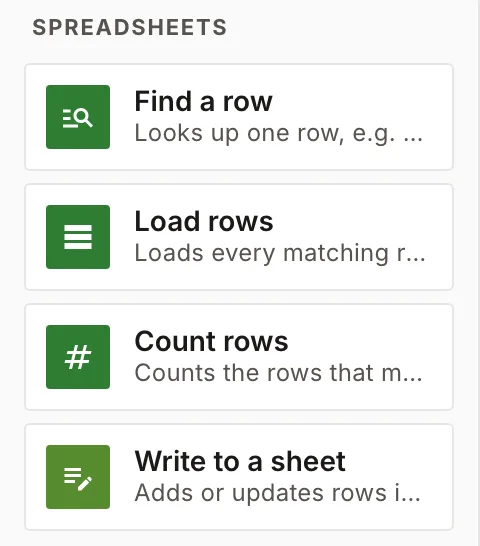
Here is how that looks in a working week. A training firm uses Find a row to look up a trainee’s result by email before it issues a certificate. An office uses Load rows to pull all of a client’s open orders from a sheet and write them into a new Excel file for an email. A course sign-up uses Count rows to see how many seats are taken, and a Condition on seats.count turns people away once the course is full.
Set it up
Section titled “Set it up”Selecting the node shows a short list of what is missing and a Configure this step button. The settings open in a dialog with four tabs: File, Search, Columns and Result. Once it is set up, the node sums itself up on the canvas, for example results.xlsx · Email = {{ email }} → trainee.
You can also ask Doxie, the AI assistant in Doxtly, to set up the selected step. She reads the real spreadsheet first, checks her settings against its sheets and columns, and shows what they would do, such as “Matches 12 of 340 rows.”, before you apply them.
- Drag Find a row onto the canvas and open its settings.
- On File, say where the sheet is. A new node starts on Workflow file.
- On Search, add a condition such as
Emailequals{{ email }}. - On Result, type a name for the result in Store the result as, for example
client. - In the steps after it, use
{{ client.display.company }}.
File tab
Section titled “File tab”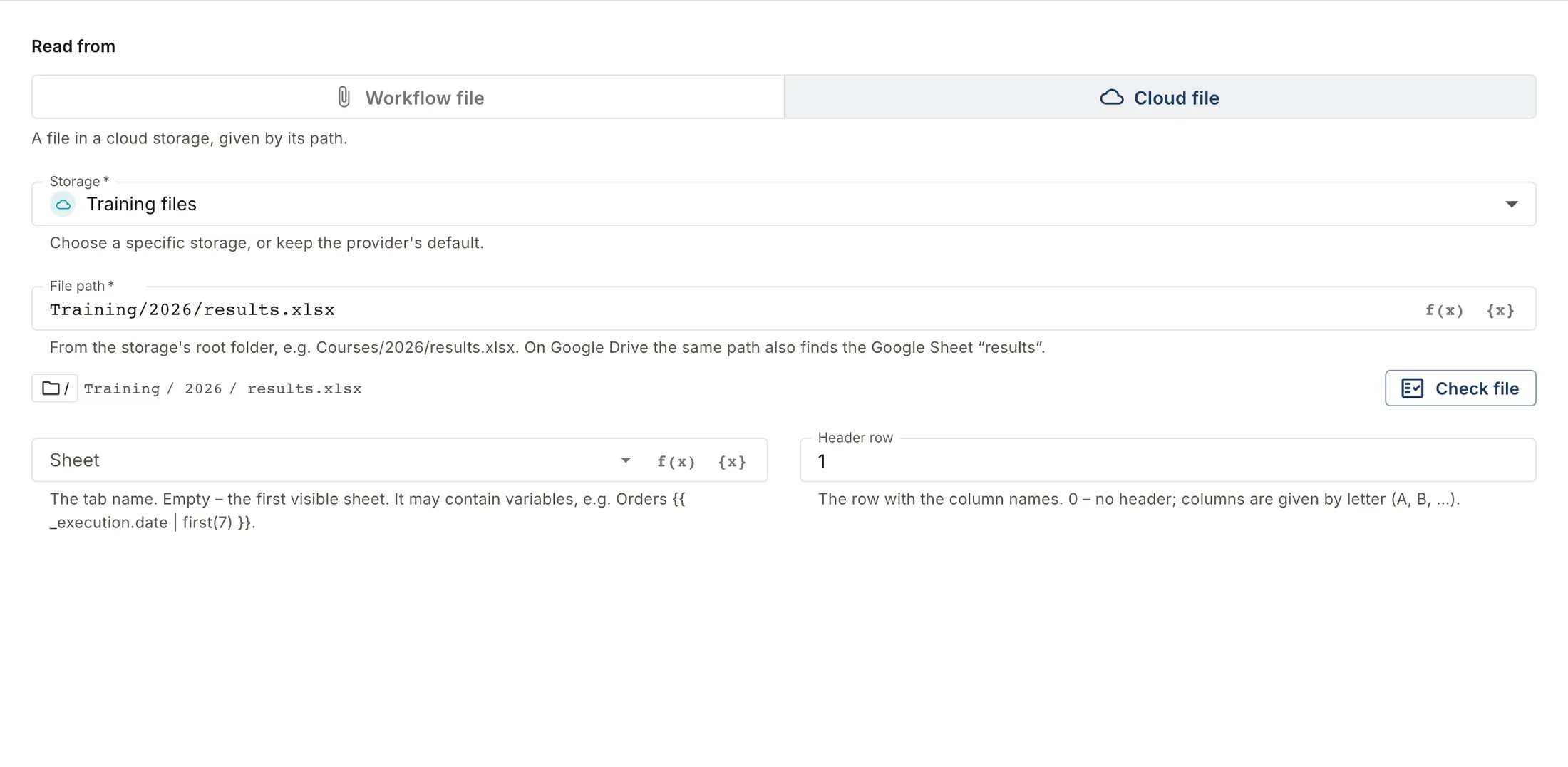
| Setting | What it does | Allowed values | Default |
|---|---|---|---|
| Read from | Where the sheet is. | Workflow file, Cloud file | Workflow file |
| Storage | The connected storage. Cloud file only. | A default storage or a named one | Required |
| File path | The file, from the storage’s root folder. Cloud file only. | A path, which may contain variables | Required |
| File | One file of the run. Workflow file only. | A single file that can be a sheet | Required |
| Sheet | The tab to read. | A name, which may contain variables | Empty: the first visible sheet |
| Header row | The row with the column names. | 0 for no header, or a row number |
1 |
Variables in these fields can carry operations and functions, such as {{ id | first(8) }} or {{ nickname ?? firstName }}: click a variable and then Operations, or use f(x).
Read from. A Workflow file was sent with the form or made by an earlier step, and needs no integration. A Cloud file is on your drive, named by its path. While no storage is connected, Cloud file is greyed out and the tab says a cloud file needs a connected storage, with a Go to integrations link, or Ask an administrator to connect one. if your role cannot open that page.
File lists only the files that can be a spreadsheet, each with where it comes from and its type. Under the field it names the files of other types it left out. Pick exactly one: not all files, not a whole list. If the workflow has no sheet yet, the field tells you the ways to get one: a file field on the form, an earlier step that downloads or creates a sheet, or Cloud file. A form field with no set type is offered too, and if another kind of file arrives the run stops with an error. A chosen file that no longer fits stays in the field, marked, and the workflow cannot be saved until you replace it.
File path works as for Download from the cloud, Check file included. It also finds a Google Sheet and a file interchangeably: results.xlsx finds the Google Sheet results too.
Besides f(x) and {x}, which every field with variables has, Sheet has a third button inside the field: Choose a sheet from the file lists the tabs, with hidden ones marked. For a cloud file, opening the list reads the file, and Load the sheets again refreshes it. Picking a sheet replaces whatever is in the field. For a workflow file, the list fills once you have loaded a sample on the Columns tab.
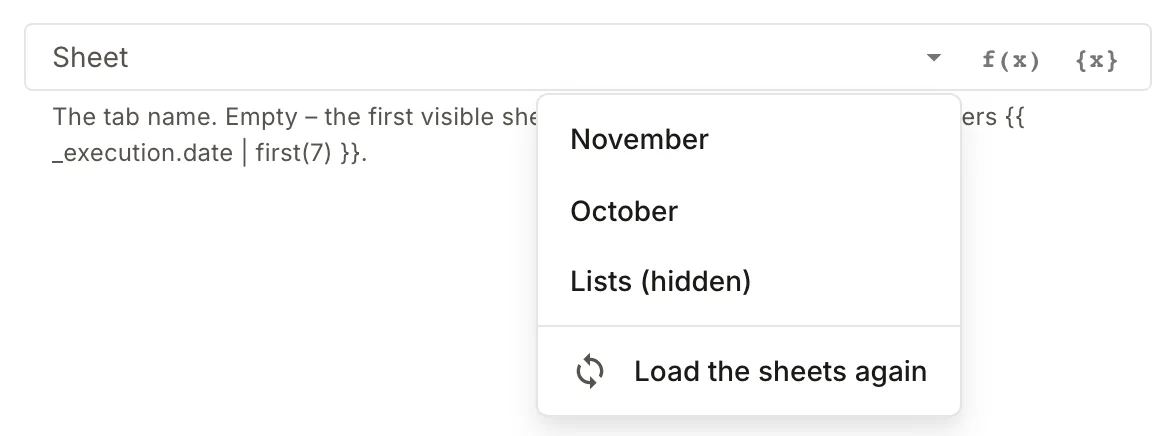
A name with variables gives you a tab per month:
Orders {{ _execution.date | first(7) }}Such a name must come out complete. If a variable it uses is missing or empty, the node stops rather than read the wrong tab. While you design, columns are suggested from a sample sheet of the file, and the field says so.
Header row. With 0, columns go by their letters (A, B, and so on). Use another number if the sheet starts with a title or a logo, for example 3.
File formats
Section titled “File formats”| Format | Reading |
|---|---|
| XLSX, XLS (Excel 97-2003), ODS, CSV, TSV | Yes, every sheet |
| Google Sheet | Yes, on Google Drive |
.xlsb, .xlsm (with macros), Excel 5.0/95 workbooks |
No: the node fails |
| A workbook protected with a password to open it, in any format | No: the node fails with This spreadsheet is protected with a password, so it cannot be opened. Save a copy without the password and use that file. |
Doxtly decides the format from the file’s content, not its name, so a .xlsx that is really something else is refused. For CSV and TSV files it works out the separator and the encoding by itself, so a file exported from an old accounting program in Windows-1250 reads as well as one in UTF-8.
Search tab
Section titled “Search tab”| Setting | What it does | Allowed values | Default |
|---|---|---|---|
| What to read | One row for a lookup, all rows as a list for later steps, or only how many. | One row, All matching rows, The number of matching rows | Set by the palette entry |
| Conditions | What a row must meet to be found. | A list of conditions | None: every row matches |
| If several rows match | Which row a lookup takes. Only for One row. | Take the first, Take the last, Stop with an error | Take the first |
| Maximum number of rows | How many rows come back at most. Only for All matching rows. | 1 to 5000 | 1000 |
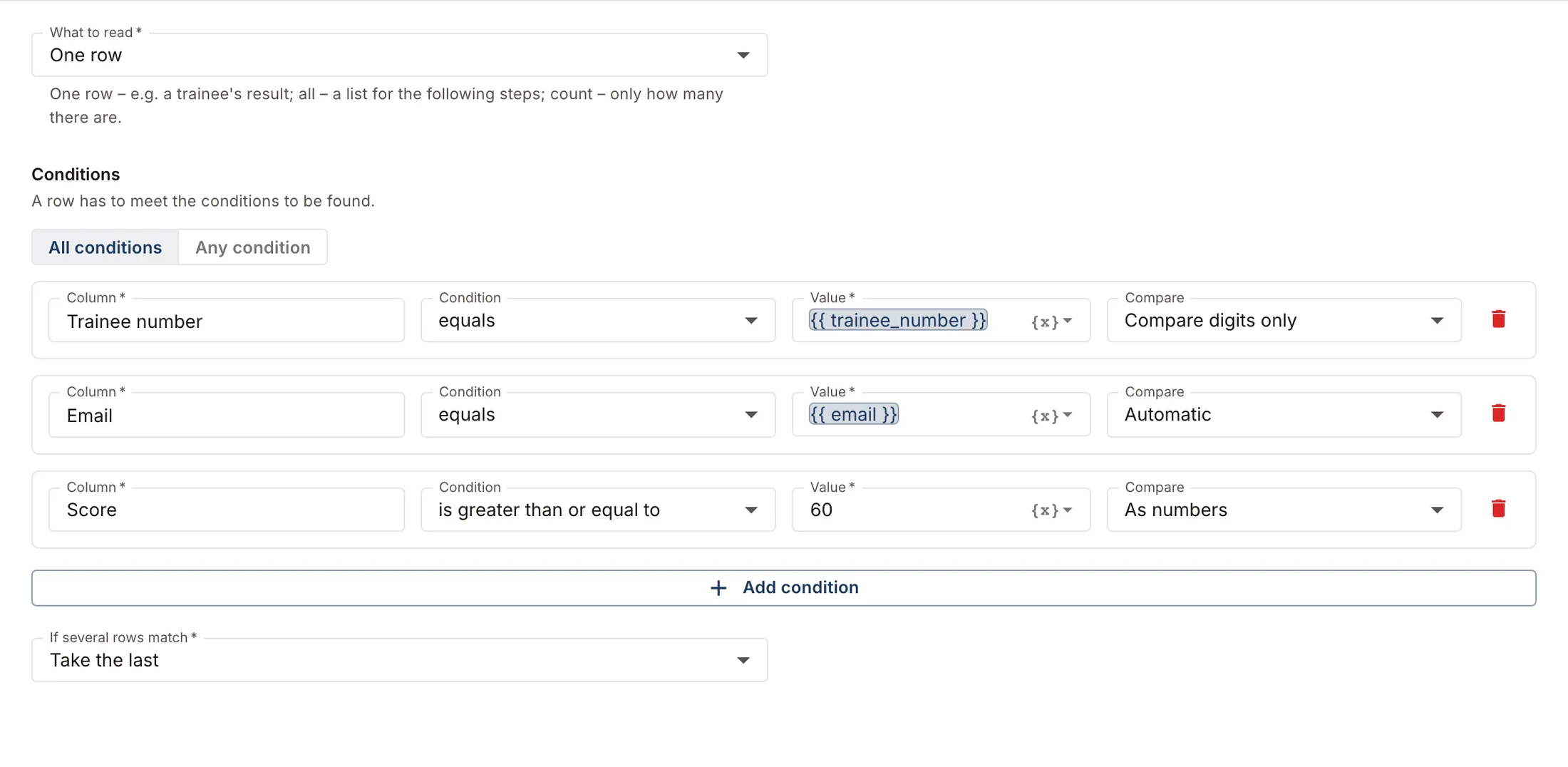
Add a condition with Add condition. Each one has four parts:
| Part | What it is |
|---|---|
| Column | Picked from the sheet’s columns, or typed. Opening the list reads the columns from a cloud file. In a sheet without a header, type a letter. A column can also be written as its letter in a sheet with a header. |
| Condition | The operator, listed below. |
| Value | Text or a variable such as {{ email }}. Required, except for is empty and is not empty, which say This condition needs no value. |
| Compare | How the two sides are compared, listed below. Default: Automatic. Not used by is empty and is not empty. |
With two or more conditions, choose All conditions or Any condition above the list.
The operators are equals, does not equal, contains, does not contain, starts with, ends with, is empty, is not empty, is greater than, is greater than or equal to, is less than and is less than or equal to.
contains, does not contain, starts with and ends with compare text, ignoring case, even for As numbers and As dates. As text, case-sensitive makes them respect case, and Compare digits only makes them look at the digits. is empty looks at the cell alone, and a cell of spaces counts as empty.
The four ordering operators need two things that can be ordered. An empty cell is neither greater nor less than anything, and neither is a number against a word, so a none in an amount column does not match is greater than 100. Text cells that hold numbers or dates, which is everything in a CSV file, order as numbers or dates. Plain words order alphabetically, with Polish letters in their proper places.
| Compare | How it works |
|---|---|
| Automatic | The way a person would. A number cell compares as a number, so 1 234 finds 1234 and an ID stored as a number is found by its 11 digits. A date cell compares as a date, a yes/no cell with tak/nie, true/false, yes/no, prawda/fałsz or 1/0. Anything else compares as text, ignoring case and extra spaces. Text stays text for equality: 007 is not 7. |
| As text | Text, ignoring case. |
| As text, case-sensitive | Text, with case. |
| Compare digits only | Only the digits of both sides, leading zeros ignored. +48 600-100-200 equals 48600100200. A value with no digits matches nothing. This is the one for phone numbers and tax IDs, which people type in every possible way. |
| As numbers | Both sides as numbers. A decimal comma is fine. |
| As dates | Both sides as dates, also for dates stored as text, as in a CSV file. |
Dates may be written 2026-06-15, 2026-06-15 10:30, 15.06.2026 or 15.06.2026 10:30. A form like 06/15/2026 leaves day and month open and is not read as a date, and neither is a two-digit year. When only one side has a time, the two are compared by day, so “after 2026-06-15” does not include noon on the 15th.

A value that comes out empty stops the node. If the form did not deliver {{ email }}, the run fails rather than compare with nothing, since every text “contains” an empty value. To look for empty cells, use is empty.
Columns tab
Section titled “Columns tab”Unavailable for The number of matching rows, which returns no columns.
The tab holds one list, Columns in the result. With an empty list, which says The result has all of the sheet’s columns., the result has every column of the sheet, each under a key made from its header. Headers become lower-case letters, digits and _: Date of exam becomes date_of_exam, Łódź becomes lodz. A header starting with a digit gets col_ in front, an empty one becomes col_ plus the column’s letter, and a repeated one gets _2, _3 and so on.
Use Add column to pick some, rename them, or read them as a certain type. Once you list any, only those are returned, and a listed column the sheet lacks fails the run. Listing columns pays off when a sheet has dozens of them and you need three, or when a column has to be read as a certain type.
Fill in does the typing for you:
- Load columns from the file reads the header of a cloud file. For a workflow file, or a path with variables, it is Load columns from a sample file: you pick an
.xlsx,.xls,.csv,.tsvor.odsfile from your computer. The sample is not kept. Doxtly learns the headers and the type of each column, never the values. Before a cloud file can be read, the entry is disabled and says what is missing: Choose a storage first. or Enter a valid file path first. - All columns (clear the list) goes back to returning everything.
A message then says what happened, such as Columns loaded: 6 (sheet “Results”). If the header looks like it sits in another row, or the row you named holds no header (This row of the sheet has no header.), the message offers Use row 3 or whichever row it found. That reads the file again and replaces what the wrong row added. A file that is not there gives No file was found at this path.
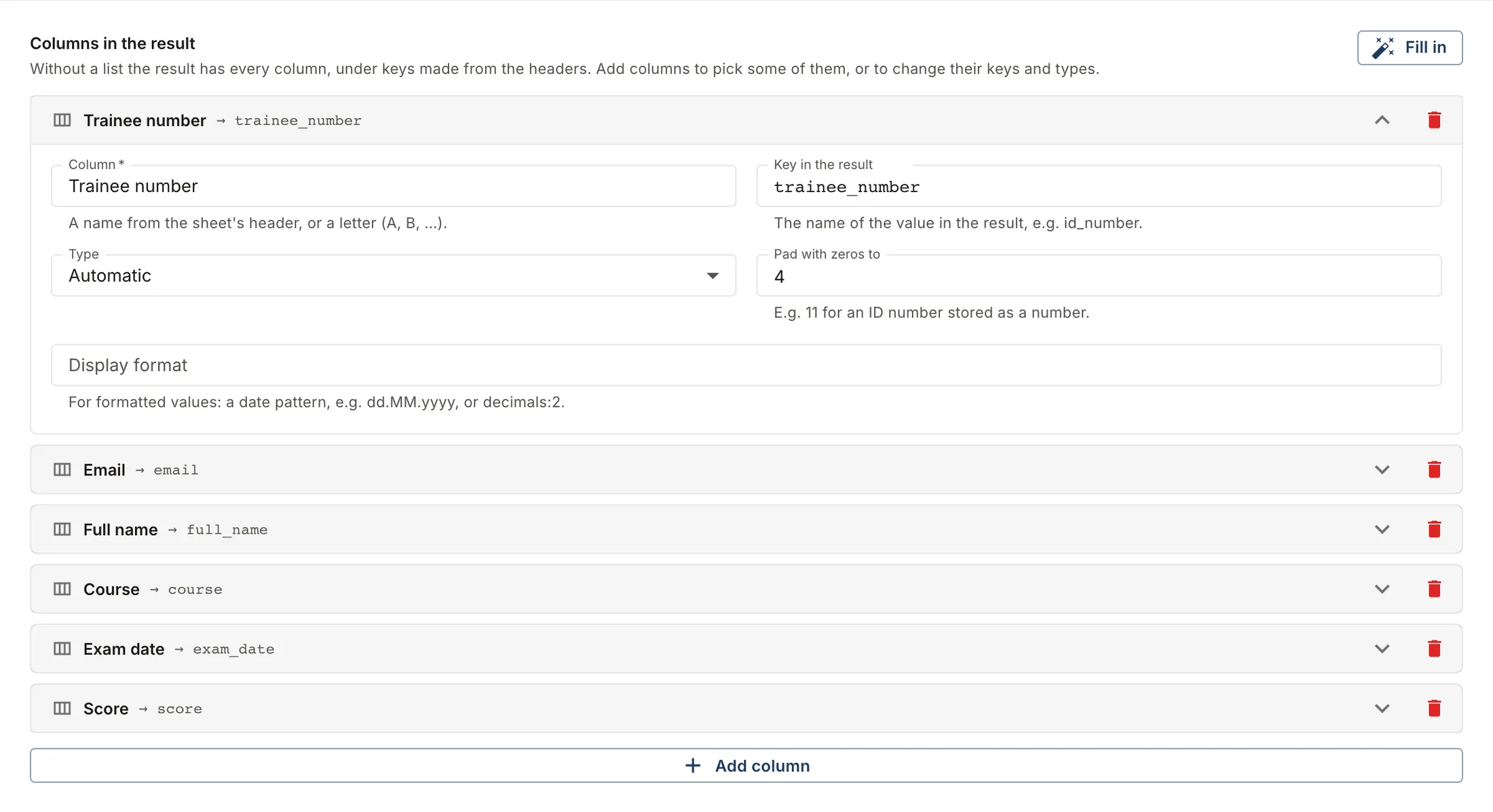
Each column has these settings:
| Setting | What it does | Allowed values | Default |
|---|---|---|---|
| Column | The column’s header, or its letter. Required. | Text | Empty |
| Key in the result | The name of the value in the result. Follows the column’s name until you change it. | Letters, digits and _, starting with a letter or _. Unique. |
Made from the header |
| Type | How to read each cell. | Automatic, Text, Number, Whole number, Date, Date and time, Yes/No | Automatic |
| Pad with zeros to | Pads an all-digit value on the left. Works with the types Automatic and Text. | Up to 64 | Empty |
| Display format | The format of the column’s value in display. A pattern that does not work is ignored, and the value shows in the default format. |
A pattern such as dd.MM.yyyy or #,##0.00, or decimals:2 |
Empty: the default shown under What it produces |
Type converts each cell before the conditions see it. A cell that cannot be read as that type stays as it is, so one odd cell never fails a run. Number and Whole number understand a decimal comma and spaces between thousands; Whole number rounds. Yes/No reads tak/nie, true/false, yes/no, 1/0 and prawda/fałsz.
Pad with zeros to solves a classic Excel trap. Type a Polish PESEL such as 02070803628 into a cell and Excel stores the number 2070803628. Set the column to Text and pad to 11, and you get 02070803628 back.
Result tab
Section titled “Result tab”| Setting | What it does | Allowed values | Default |
|---|---|---|---|
| Store the result as | The variable with the result. Required for All matching rows and The number of matching rows, optional for One row, whose outputs alone can say whether the row is there. | A variable name, such as client or course.result |
Empty, with a suggestion to click: row, rows or count |
| If nothing is found | What happens with no match. Not shown for a count, because zero is an answer. | Branch: Found / Not found, Continue, Stop with an error | Set by the palette entry |

Under the name the field shows how to use it in the following steps. It warns you when another node already stores under that name, when the name is reserved, and when the trigger brings a variable of the same name, which the result then replaces.
What it produces
Section titled “What it produces”A count stores only two values: {{ count.found }} and {{ count.count }}.
One row or all rows store this, here under the name client:
| Variable | What it holds |
|---|---|
{{ client.found }} |
true or false |
{{ client.count }} |
How many rows matched. With All matching rows this can exceed the rows returned. |
{{ client.rowNumber }} |
The sheet’s row number of the first row returned |
{{ client.row.company }} |
A value of the first row, typed: a number, a date as 2026-06-15, true |
{{ client.display.company }} |
The same value, formatted for people |
{{ client.rows }} |
Every returned row, as a list. One row gives at most one. |
{{ client.displayRows }} |
The same rows, formatted |
{{ client.rowNumbers }} |
The row number of each returned row |
{{ client.truncated }} |
true when more rows matched than the maximum |
{{ client.columns }} |
Each column’s key and header |
{{ client.sheet }} |
The tab asked for. Empty when the node uses the first sheet. |
{{ client.file.name }}, {{ client.file.path }} |
The file. The path is empty for a workflow file. |
When nothing matched, found is false, count is 0, and the rows are empty.
row or display? Use row for conditions, calculations and further writes. Use display in documents and emails. display follows the organization’s language: 15.06.2026, 87,5 in Polish, Tak/Nie or Yes/No. Numbers have no thousands separators, so an ID read as a number never comes out with spaces in it.
| Cell | In row |
In display (Polish / English) |
|---|---|---|
| Number | 87.5 |
87,5 / 87.5 |
| Date | 2026-06-15 |
15.06.2026 |
| Date and time | 2026-06-15 10:30:00 |
15.06.2026 10:30 |
| Yes/no | true |
Tak / Yes |
| Empty | nothing | empty text |
Error such as #N/A |
nothing | the error text |
Once the columns are known, from the list or from a loaded file, the variable picker in later steps offers {{ client.row.company }} before the workflow has ever run. For more on lists, see Data and variables.
When something goes wrong
Section titled “When something goes wrong”| Situation | What happens |
|---|---|
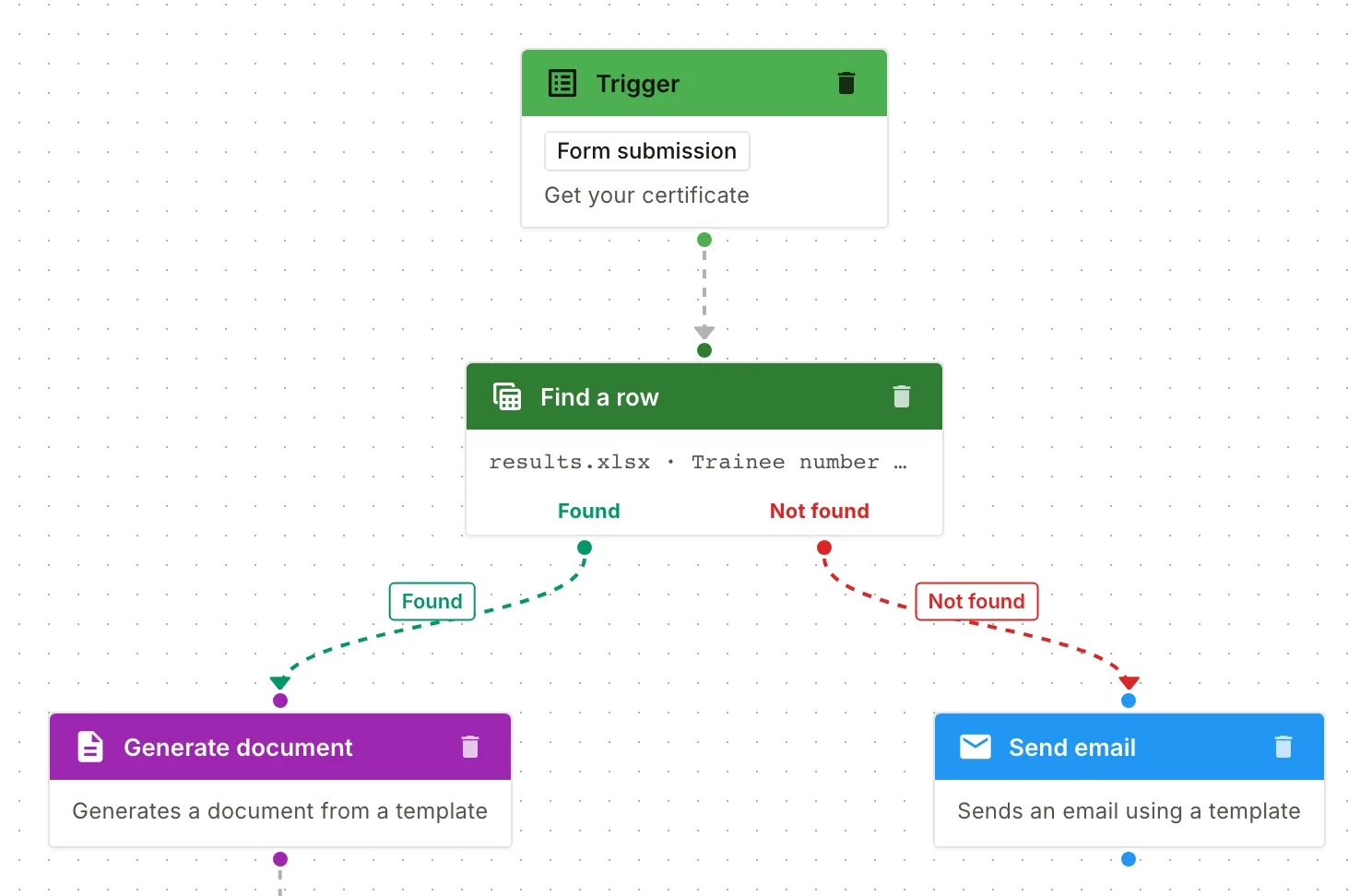
| No match, Branch: Found / Not found | The run takes Not found. Left unconnected, the run ends there without an error, marked Not found in the execution list, where Outcome can filter by it. |
| No match, Continue | The run goes on with an empty result. |
| No match, Stop with an error | The node fails: No matching row was found. |
| Several rows match, Stop with an error | The node fails. |
| The cloud file is not there | The node fails, whatever If nothing is found says. That setting is about rows, not the file. |
| The chosen workflow file is not in this run | The node fails, for example when the form was sent without that attachment. |
| The sheet is not in the file | The node fails and lists the sheets that are. |
| A listed column or a condition’s column is not in the sheet | The node fails and lists the columns that are. |
| The header row is empty | The node fails. |
| A variable in a condition, in the path or in the sheet name is empty | The node fails. |
| The file cannot be a spreadsheet, or is damaged | The node fails. |
| The sheet is larger than the limits below | The node fails and names the limit. |
Size limits for one read:
| What | Limit |
|---|---|
| File size | 25 MB |
| Rows searched | 200,000 |
| Columns | 200 |
| Rows returned | 5,000 |
Reads never wait for writes. Each run reads the file as it stands at that moment.
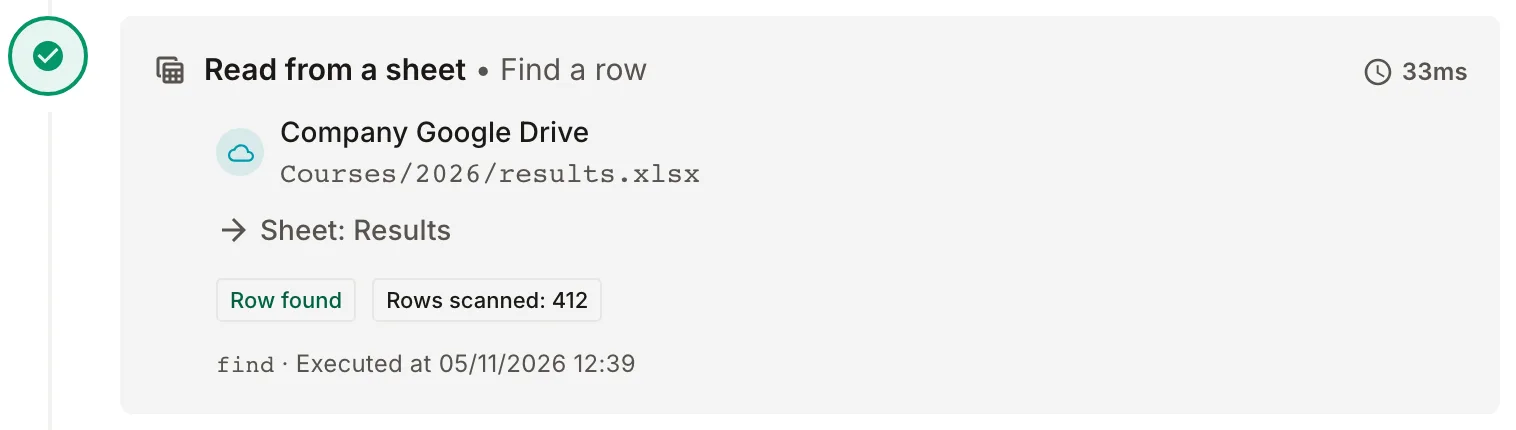
The run’s card shows the file, the sheet, Row found, Rows found or Matching rows, Not found, Rows scanned, a Google Sheet chip for a sheet of that kind, and Result cut at the limit when the list stopped at the maximum. A lookup that takes the first match stops reading there, so Rows scanned can be small on a big sheet. The card never shows the values read.
To read a cloud file, setting up or changing the node takes View cloud files. A person without it gets Show the settings of this step in place of the configure button, sees the settings read-only, and can still connect, move or delete the node. A node on a file of the run takes nothing extra, so anyone who builds workflows can drop one in. If they then switch it to Cloud file, the side panel says which permission that takes. See Access.
Example
Section titled “Example”Northbridge Advisory issues course certificates. Trainees enter their email on a form, and the results sit in Courses/2026/results.xlsx.
| Tab | Setting | Value |
|---|---|---|
| File | Read from | Cloud file |
| File | File path | Courses/2026/results.xlsx |
| File | Sheet | Results |
| Search | What to read | One row |
| Search | Conditions | Email equals {{ email }}, and Passed equals yes |
| Search | If several rows match | Take the last |
| Result | Store the result as | trainee |
| Result | If nothing is found | Branch: Found / Not found |
Found leads to Generate document, which prints {{ trainee.display.date_of_exam }} on the certificate, and then to an email. Not found leads to an email explaining that no passed exam was found for that address.