

Data and variables in templates
A template names the values it needs. Whoever asks for a document supplies them as structured data, and Doxtly matches the two by name. This page shows how that match works, where the data comes from, which values are built in, and what happens when something does not line up.
Paths: how a value is named
Section titled “Paths: how a value is named”A variable is a path into the data, with dots going down a level. Take this data:
{ "client": { "name": "Lakeside Clinic", "address": { "city": "Gdańsk" } }, "items": [ { "name": "GDPR workshop", "price": 4200 }, { "name": "Staff training", "price": 1800 } ]}Each template type writes the same path in its own way:
| Type | Printing the client’s city | Going through the list |
|---|---|---|
| Word | ${client.address.city} |
${items} … ${/items}, or a table row with ${items.name}. See Word templates. |
| SVG | {{ client.address.city }} |
{% for item in items %} … {% endfor %}. See Twig. |
The area’s variable: client.address.city |
See PDF templates. |
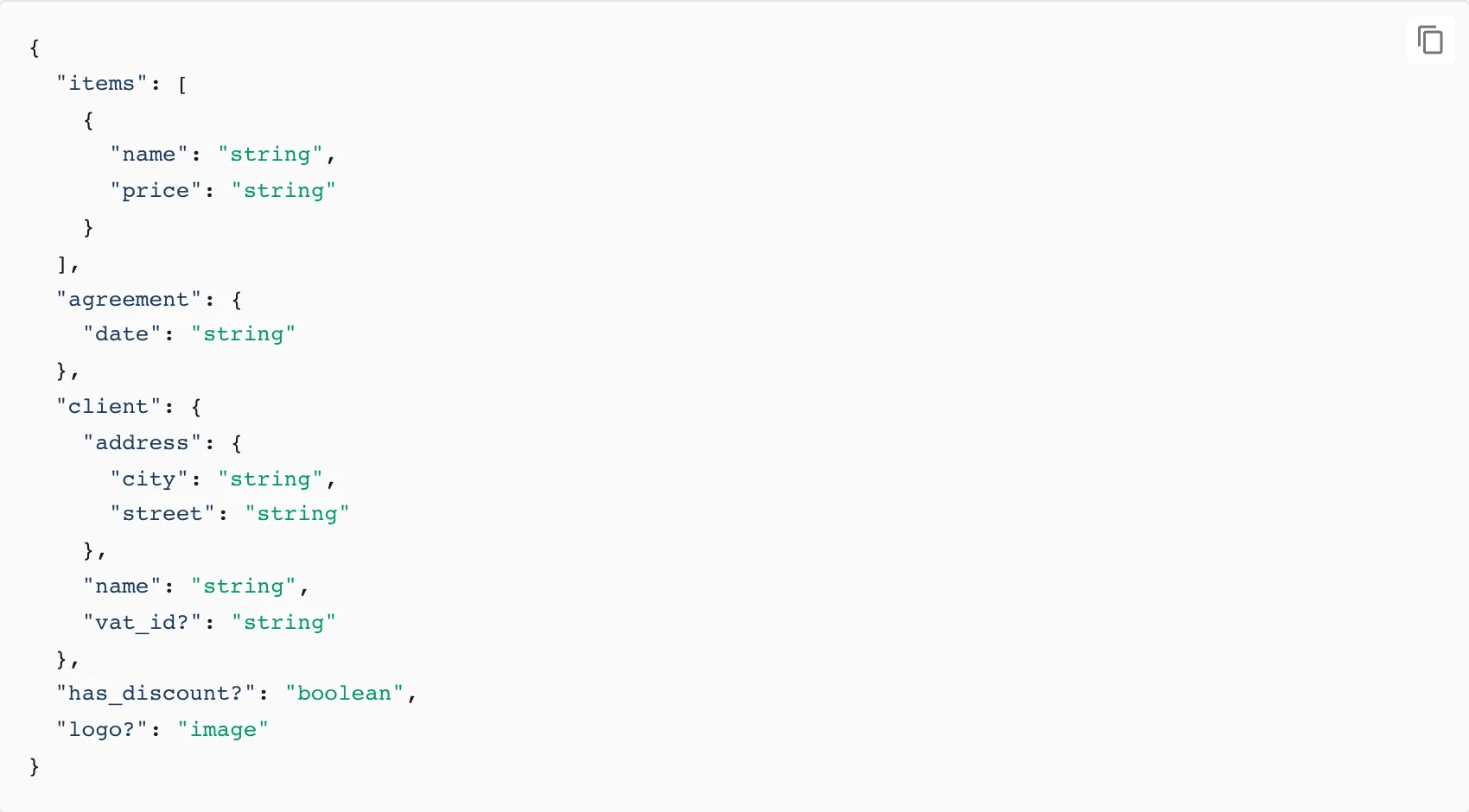
The Variables tab of a template lists what it reads, and Data structure shows the shape as JSON, with its Fields tab showing the same as a tree: lists inside lists indented, each value with the conditions it is printed under and its default. Treat it as the specification you give to whoever supplies the data.
A list’s items may hold lists of their own, { "sections": [{ "title": "Scope", "paragraphs": [{ "text": "…" }] }] }, and a Word template repeats each of them inside the item’s section, up to four levels: see a list inside each item.
Where the data comes from
Section titled “Where the data comes from”There is no single place to attach a form to a template. A template is always filled by something asking for a document.
From a form, through a workflow
Section titled “From a form, through a workflow”This is the most common route. A client fills in your onboarding form, a workflow starts, and its Generate document step fills the template.
- The form’s fields each have a data path, set in the form designer. The form’s answers become the data, nested as those paths say. A repeating fieldset becomes a list.
- A workflow starts from the form.
- The Generate document step names the Document template and hands it all the data of the run.
The key to it: a form field’s data path must equal the template’s variable. If they differ, the document fails with a missing value.
| Form field | Data path | In a Word template | In an SVG template |
|---|---|---|---|
| Company name | client.name |
${client.name} |
{{ client.name }} |
| City | client.address.city |
${client.address.city} |
{{ client.address.city }} |
| Start date | start_date |
${start_date} |
{{ formatdate(start_date, 'dd.MM.yyyy') }} |
Doxie, the AI assistant in Doxtly, can build a form for a template, or check a form against one, for you. In the workflow designer, the Generate document step has a Template variables box that lists what the template needs and this step of the run does not have, before anyone sends the form. It is a warning, so the workflow still saves.
Here is what the step receives for a form opened at …?utm_source=newsletter:
{ "client": { "name": "Lakeside Clinic", "email": "office@example.com" }, "services": [{ "name": "GDPR workshop", "days": 2 }], "_submission": { "id": "…", "title": "Onboarding: Lakeside Clinic", "submittedAt": "2026-10-11T12:00:00+02:00", "submittedDate": "2026-10-11", "revision": 0, "editedAt": null, "editedBy": null }, "_metadata": { "campaign": "autumn2026" }, "_params": { "utm_source": "newsletter" }, "_execution": { "id": "…", "eventId": "…", "workflowId": "…", "triggeredAt": "2026-10-11T12:00:00+02:00", "date": "2026-10-11" }}A few things change what arrives:
- With Save form data off in the form’s settings, no field values are passed on. Link parameters and metadata still are.
- An uploaded file arrives as a data URI at its path, so a template can show a photo from a form. See Images for SVG.
- Each earlier step adds its output under its output key, such as a spreadsheet row or a webhook’s answer, and a template can read those too.
- A Data transformation step set to replace the data replaces it entirely, trigger blocks such as
_submissionincluded._metadata,_params,_execution,_recipientsand_nodessurvive it. One set to store under a key adds its result under that key and leaves the rest.
The complete picture, trigger by trigger, is in Workflow data and variables.
From an interactive document
Section titled “From an interactive document”An interactive document shows PDF templates and forms to a visitor. What is typed into its areas and forms becomes the data, under each area’s variable or field’s data path. If both supply the same path, the PDF value wins.
Through the API
Section titled “Through the API”Your own system asks for a document directly:
POST/v1/generate
{ "templateId": "0199a3f2-7c1e-7b52-9e0a-3f4b1c2d5e6f", "filename": "service-agreement-lakeside.pdf", "persist": true, "data": { "client": { "name": "Lakeside Clinic", "address": { "city": "Gdańsk" } }, "items": [{ "name": "GDPR workshop", "price": 4200 }] }}| Field | Meaning |
|---|---|
templateId |
Required. From Copy ID on the template. |
data |
Required. The values. |
filename |
Optional, up to 255 characters, and not blank: Enter a file name. Defaults to document.pdf. A name that does not end in .pdf gets the ending, which counts towards the 255. |
persist |
Optional, false by default. true keeps the file in Doxtly, if your storage allows. |
password |
Optional. The password that opens the PDF. It may use variables. |
options.pdf |
Optional page settings. An SVG template takes all of them; see Page size. A Word template takes only landscape. |
The answer is the PDF itself, or JSON with the file inside if you send Accept: application/json. See Generate a document for the details and for API keys. An API call gets no _params, _execution or form values by itself. It may send _metadata and _params inside data.
Filled from contacts
Section titled “Filled from contacts”A package made by hand can fill a value from the contact a party was chosen from, or that contact’s company, instead of having it typed. You set this once, on the template: open its page, then the Variables tab. The Filled from contacts card appears there as soon as the template has variables, and lists each value with its party and field, such as CLIENT · Company: City. With none yet it says No value is filled from contacts.
To add one, click Add (shown while some variable is not filled from a contact yet) and fill in the Fill from a contact window:
| Field | What to choose |
|---|---|
| Variable | One of the template’s variables. |
| Party | The party whose contact gives the value, as the documents mark it, such as CLIENT. The template’s parties are suggested, and you can type another in capitals. |
| Where the value comes from | The contact, or The contact’s company. |
| Field | Under Standard fields: for a contact First name, Last name, Full name, Job title, Email, Phone and Language; for a company Name, Tax ID, Street, Postal code, City, Country, Email, Phone and Website. Under Custom fields: your custom fields of that kind, a sensitive one marked sensitive. |
Save stores it. The pencil beside a value opens the same window, where Do not fill from a contact removes it. Changing this takes the Manage file templates permission; anyone else sees the list without the buttons. A template can fill up to 200 values this way.
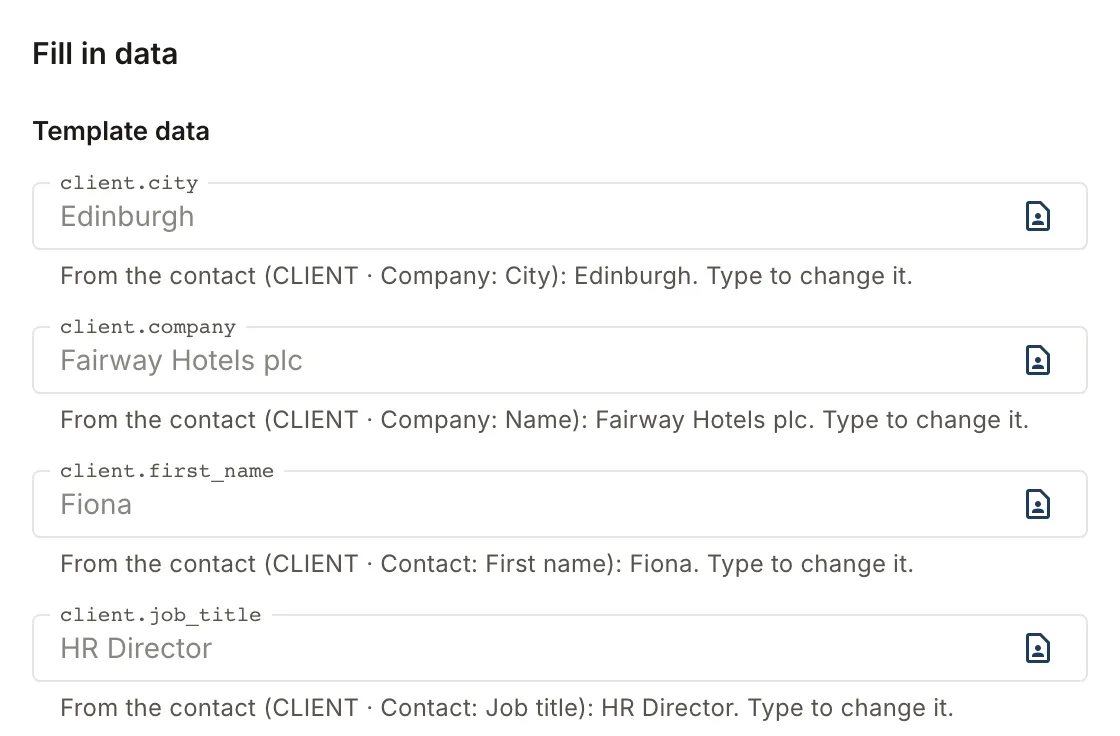
The value is read from the contact as it is when the package is sent, and it is only a suggestion: a value typed in the package is printed instead.
Northbridge’s engagement letter, for example, takes the client’s name, first name, job title and client number from the contact, and the company name and address from the contact’s company. Choose the CLIENT party from your contacts, and the letter arrives with those details in place, ready to check.
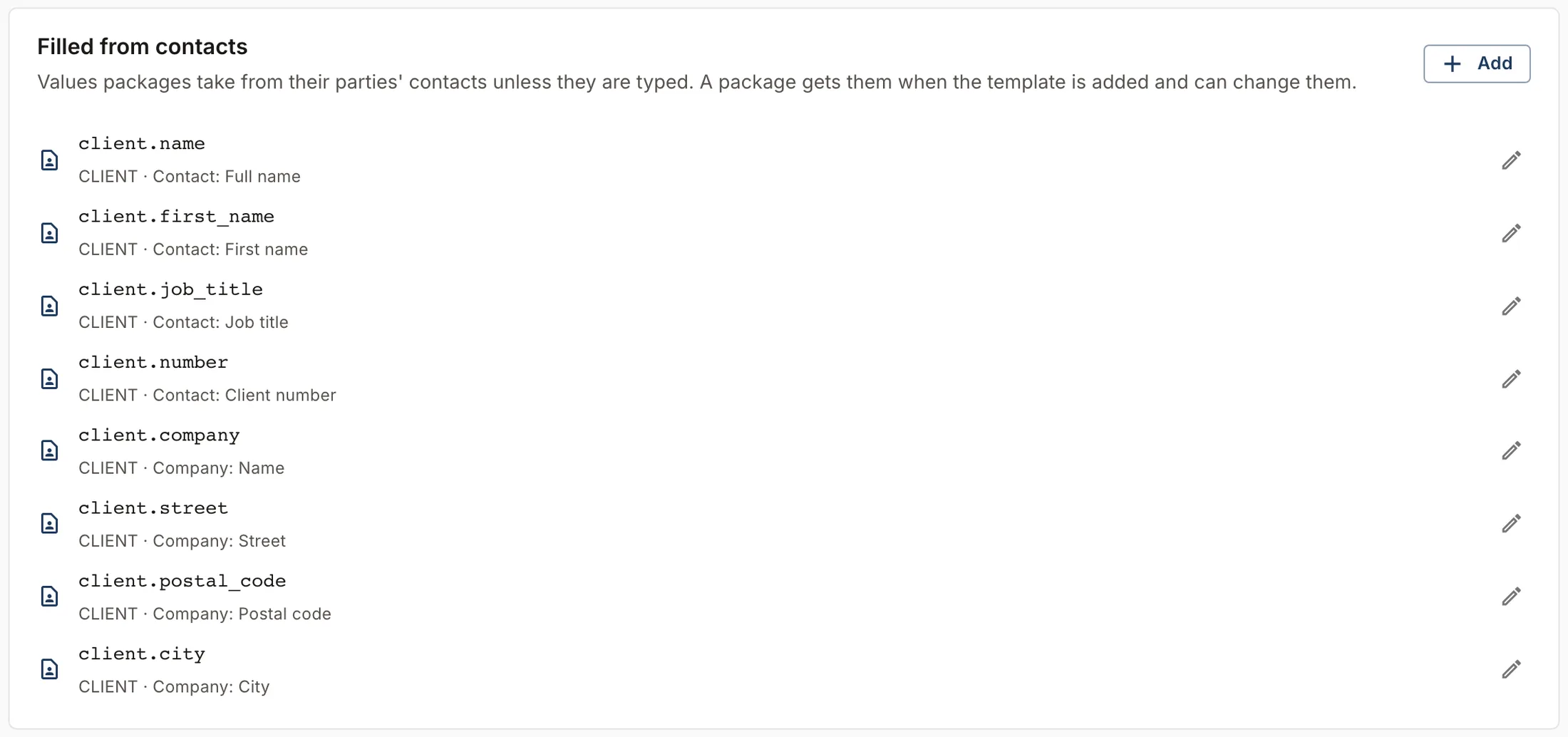
Every package the template is added to from then on gets these values, and can change them or type others: see Values from contacts. A Create documents step fills them as it runs, from the contact whose email address the party has, wherever the run gives no value. It never fills a value from a sensitive field: a document that needs one stops the step with a message naming it, unless the run’s data gives the value. Deleting a custom field names the templates that fill documents from it, and takes those values away from them.
Built-in values
Section titled “Built-in values”Names starting with _ are Doxtly’s own. Each one exists only when it has something in it, so treat them as optional unless you know the route the data takes.
| Value | What it holds | Available |
|---|---|---|
_metadata |
The metadata of the template and of the run. | Always, when any exists. |
_request.file_name, _request.template_type, _request.generated_at |
The file being generated, the type, and when generation started in your organization’s time zone. | Word and SVG templates. In Word, the date prints as 13.03.2026 14:05. In SVG, it is a date: {{ _request.generated_at|formatdate('dd.MM.yyyy HH:mm') }}. |
_params |
The link parameters kept by a form or interactive document. Their settings decide which are kept. | Runs started by such a source, and anything after them. |
_execution.id, .eventId, .workflowId, .triggeredAt, .date |
The workflow run. | Workflows. |
_submission |
The submission: id, title, submittedAt, submittedDate, revision, editedAt, editedBy. An interactive document adds its id and title. |
Runs started by a submission, until a Data transformation. |
_schedule |
triggeredAt, cronExpression, nextRunAt. |
Runs started by a Recurring trigger. |
_package, _party |
The signing package, and who signed or declined. | Runs started by a signing event. |
_package.number |
The package’s number, when its type numbers packages. A change of a contract has none. | A package’s documents, a Create documents step and the steps after it, runs started by a signing event. Not in a Generate document step with no package before it, nor through the API. See Where the number exists. |
_package.contract.state, .startsOn, .endsOn, .noticeDeadline, .renews, .terminatedOn |
The contract the package is: its state and its days, written as 2027-06-30. Empty for a package that is no contract. |
The documents of a package whose type keeps contracts with a term, the documents of a Create documents step, runs started by a signing event. |
_package.annex.kind, .number, .effectiveOn, .newEndsOn, .indefinite, .lastDay, _package.annex.contract.* |
The change of a contract the package is, and the contract it changes: its title, number, signing date, days, notice period in words and custom fields. Empty for a package that is no change. | The documents of a change, the documents of a Create documents step with Change of a contract, runs started by a signing event. See Documents for changes. |
_webhook |
The incoming request. | Runs started by an incoming webhook. |
_recipients.<PARTY> |
recipientId, indicator, fullName, email, phone, signingUrl of a party in the latest package a Create documents step created in this run. |
After such a step. |
_nodes.<node id>._recipients.<PARTY> |
The same, from one particular step. | After such a step. |
A manual PDF area cannot use a path starting with _. A From data area can: that is how it prints _metadata.company.name.
Metadata
Section titled “Metadata”Metadata comes from three places, and they combine in depth, so company.name from one and company.vat_id from another are both there.
| Source | Set in |
|---|---|
| Template | The Metadata section of the template. See Metadata. |
| Form or interactive document | Its settings, in the Metadata section. |
| API call | _metadata inside data. |
While a template renders, its own metadata wins. After the step, the template’s metadata joins the run’s as the latest, for the steps after it to read: an email attaching the document can use _metadata.* too.
Here is a run through two Generate document steps:
form: { "company": { "vat_id": "111" }, "campaign": "spring" }template of step 1: { "company": { "name": "Northbridge Advisory" } }template of step 2: { "company": { "vat_id": "222" }, "tags": ["a"] }after step 2: { "company": { "vat_id": "222", "name": "Northbridge Advisory" }, "campaign": "spring", "tags": ["a"] }Two objects merge key by key. Anything else, a value or a list, is replaced whole.
A template is saved whatever _metadata.* it reads, since a run may bring the value. The value still has to exist when the document is generated.
When a value is missing
Section titled “When a value is missing”Doxtly will not send a contract with a gap where the company was meant to be. What happens depends on the type.
| Type | A required value that is missing | How to make it optional |
|---|---|---|
| Word | The document fails, naming what is missing. A value only a block that did not render would print is not needed. | A default in the marker: ${client.vat_id|none}. See Word templates. |
| SVG | The request is refused with the list of what is missing. | |default(…) or is defined. See Twig. |
| PDF, From data | The document fails, unless the area has a print condition, which makes it optional. Only a Create documents step goes on without the value: the area stays open for the recipient to fill in, and a QR code or barcode stays empty. | A print condition. See PDF fields. |
_metadata.* is held to the same rule as anything else. A failed Generate document step names what is missing on the workflow run, and an API call is answered Request data is missing required variables: …
Files and pictures
Section titled “Files and pictures”Pictures travel as data URIs inside the data, data:image/png;base64,…. In a workflow, a file uploaded earlier in the run becomes one by itself at its path. From the API, you encode it yourself. Each template type has its own rules:
| Type | Picture formats | How to place it |
|---|---|---|
| Word | PNG, JPEG, GIF, BMP | An image marker. See Word templates. |
| SVG | PNG, JPEG, GIF, BMP, SVG, WebP | image(). See Images. |
| PNG, JPEG, GIF, WebP, BMP | An image area. See PDF fields. |
A picture may be up to 10 MB.
Dates and time zones
Section titled “Dates and time zones”Values that Doxtly stamps, such as _submission.submittedAt and _request.generated_at, are written in your organization’s time zone, set in the organization settings. Values typed by people arrive as typed. A date field in a form gives 2026-03-15. Each template type prints it in the format you choose: a date marker in Word, formatdate in SVG, and the Format of a Date area in PDF. A Word template prints any other value exactly as it receives it, so to reshape a number, do it in an earlier step of the workflow, such as a Data transformation.
A checklist when a document fails
Section titled “A checklist when a document fails”- Open the failed step or read the API’s answer. It names the value or the line.
- Open the template’s Data structure and compare it with the data the run really had, shown on the workflow run. In the designer, the step’s Template variables box does the same comparison for you.
- Compare a form field’s data path with the template’s variable, letter by letter. Paths are case-sensitive.
- Check that Save form data is on, and that no Data transformation step dropped the value.
- For a cloud template, check whether a new version added a variable.