

Slack integration
A Slack integration connects your Slack workspace to Doxtly through the Doxtly app for Slack. Your team then hears about what happens in Doxtly where it already talks: a failed workflow lands in #operations, a partner gets their own notifications as a direct message, and a workflow posts “Contract signed” to #sales the moment the last party signs.
Available when: you hold Manage integrations
What needs it
Section titled “What needs it”- Notifications in channels, set on this integration’s page: which of your organization’s notifications are posted to which channel
- a Slack column on the Notifications tab of every person’s profile, for the notifications they want as a direct message. See Notification preferences
- the workflow step Send to a messenger, which posts to a channel or to a person
Doxtly only posts. It doesn’t read your channels or messages, and nobody can reply to Doxtly in Slack.
Connect Slack
Section titled “Connect Slack”You need permission to install apps in your Slack workspace. In many companies only a workspace administrator has it, and Slack then offers to send them a request instead.
- Go to Organization, Integrations, click New integration and pick Slack.
- Fill in Integration name, such as “Northbridge Slack”.
- Click Connect Slack.
- Slack shows the workspace and what the Doxtly app asks for: posting messages, seeing the list of channels and finding people by their email address. Check that the workspace in the top right is the right one and click Allow.
- You return to the integration, which is now Active and shows “Connected to” with the workspace’s name.
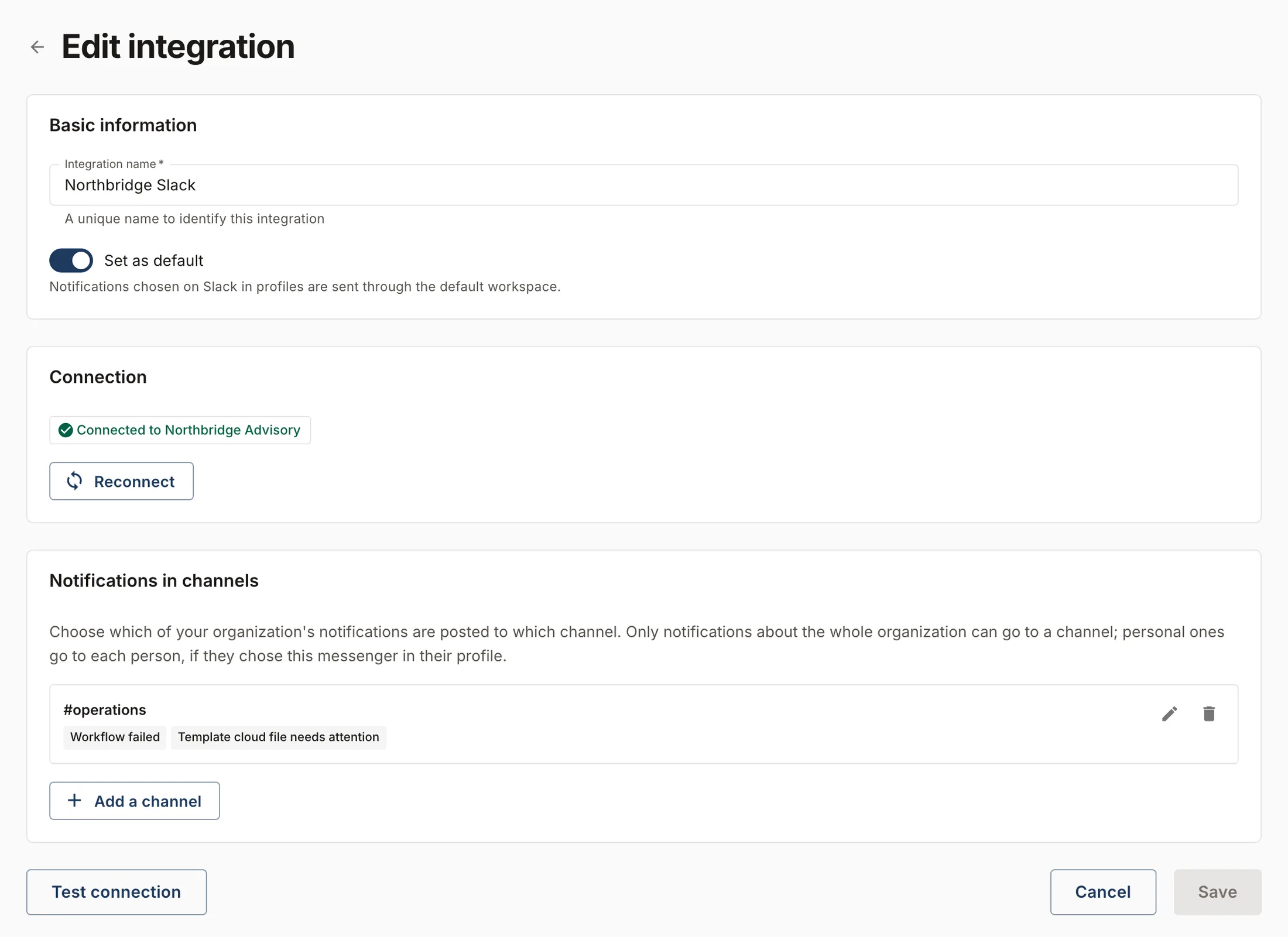
Until it is connected, the page says “Connect a Slack workspace to continue: you’ll be asked to install the Doxtly app in it.” A new integration has no Save button at this point, because connecting is what creates it. If you stop at Slack’s page, you find a Draft in the list. Open it and click Connect Slack again.
Private channels
Section titled “Private channels”Doxtly can post in any public channel straight away. A private channel is listed, and can be posted to, only once you invite the app to it: in the channel, type /invite @Doxtly and send it. A channel archived in Slack is not listed at all.
Every field
Section titled “Every field”| Field | What it does |
|---|---|
| Integration name | Your label, shown wherever people pick a workspace. Up to 255 characters, unique among your Slack integrations. |
| Set as default | Makes this the workspace people’s own notifications go through, and the one a new workflow step picks for you. See the default integration. |
| Connect Slack, Reconnect | Installs the Doxtly app in the workspace. |
| Test connection | Asks Slack whether the connection still works. |
Notifications in channels
Section titled “Notifications in channels”Once the integration is Active, its page has a Notifications in channels card. Each line is a channel and the notifications posted there. Northbridge Advisory, for example, posts Workflow failed and Template cloud file needs attention to #operations, and Payment failed to #finance.
- On the integration’s page, under Notifications in channels, click Add a channel.
- Pick the Channel. Start typing its name to find it.
- Tick the notifications to post there.
- Click Save.
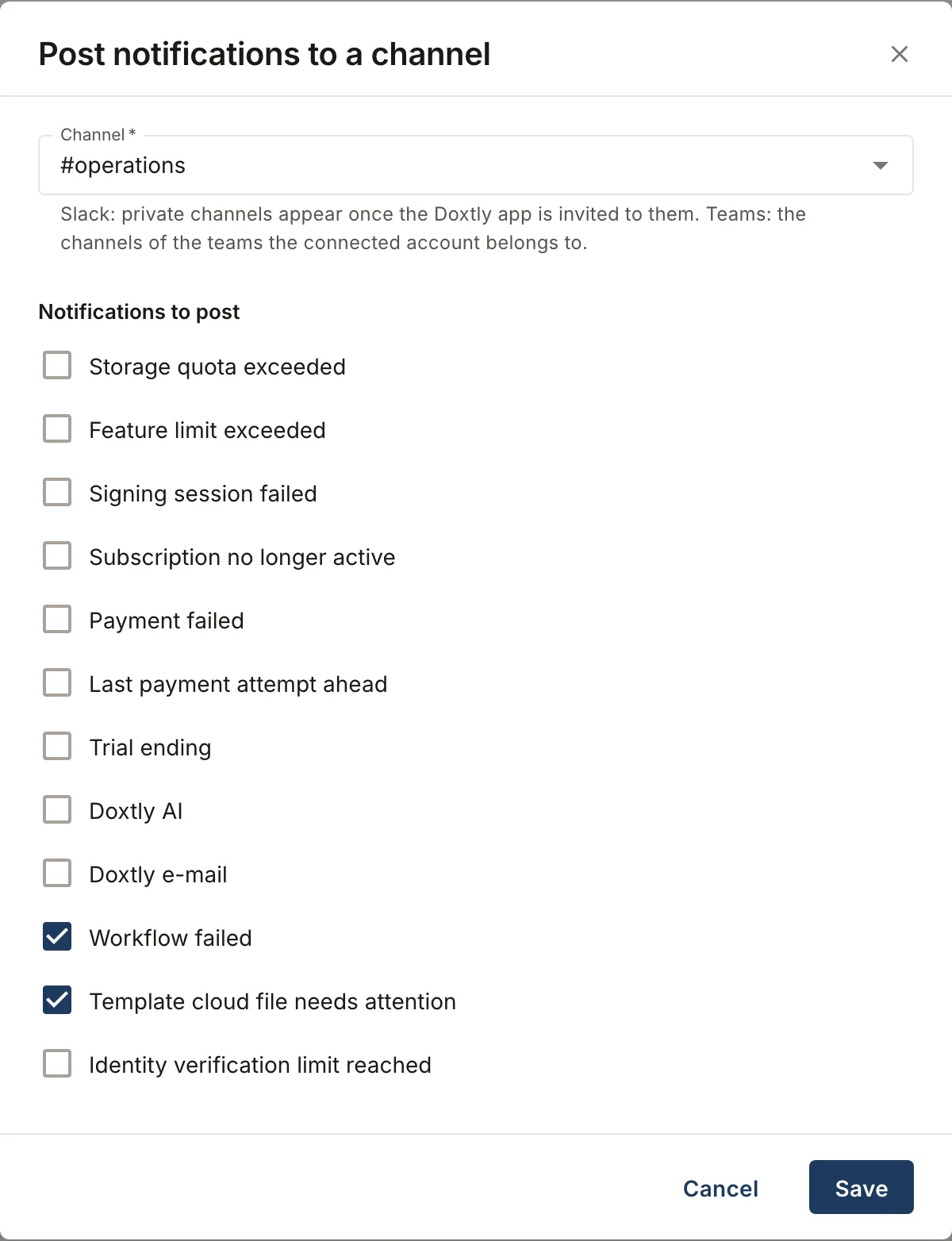
The pencil beside a channel changes it, and the bin removes it after you confirm.
Only notifications about the whole organization can go to a channel: a limit reached, a failed payment, a failed workflow, a cloud template that needs attention, a data source that can’t be read. Notifications about one person’s work, such as a package they sent being refused, a contract they’re responsible for ending soon or an authorization they were given, go to that person alone. To post news about packages and contracts to a channel, use a workflow with Send to a messenger.
A channel is told about the same thing once a day. A workflow that fails every few minutes posts once, not every time, and a new failure of another workflow is posted at once. Channel notifications are written in your organization’s language.
Each person’s own notifications
Section titled “Each person’s own notifications”Once a workspace is connected, everyone in your organization sees a Slack column on the Notifications tab of their profile. Whoever turns it on for a notification gets it as a direct message from the Doxtly app: in Slack, under Apps, Doxtly. Doxtly finds the person in the workspace by the email address they sign in to Doxtly with, so it works for people whose Slack account uses the same address. Someone without one isn’t sent anything on Slack, and their other channels work as before.
Doxtly sends a direct message when it would send the email: once for each notification in the bell, not again for every repeat of it while it’s unread. The message goes through your default Slack integration.
When the connection stops working
Section titled “When the connection stops working”The connection ends when someone removes the Doxtly app from the workspace in Slack, or the workspace is closed. The integration turns Invalid the next time Doxtly posts. Workflow steps on it fail with “Slack no longer accepts Doxtly’s connection. Connect the integration again.”, and nothing is posted to channels or people until you do.
Open the integration and click Reconnect. Your channels and their notifications are kept.
What you see once it’s set up
Section titled “What you see once it’s set up”Click the row in the list for the summary: Workspace and Installed by, the address of the person who installed the app.

Delete a Slack integration
Section titled “Delete a Slack integration”Deleting the integration ends posting to Slack: the channels and their notifications go with it. Workflow steps that post through it then fail, so check them first. The Doxtly app stays installed in the workspace until you remove it there, under Settings & administration, Manage apps. See Delete an integration.