

E-signing overview
Doxtly lets people sign PDFs online and keeps the proof of who did what. Use it whenever a document you generate or collect has to come back signed: a service agreement for a new client, an NDA before a first meeting, a consent form for a training course.
Every plan includes signing, with a monthly limit on packages sent for signature. There is no separate signing app to learn. You put a package together by hand, or a workflow makes one from a form, a webhook or a schedule; the people on it sign through a link or inside Doxtly, and the finished PDF is sealed so that nobody can quietly change it afterwards.
How it works, in one pass
Section titled “How it works, in one pass”Say Northbridge Advisory wants every new client to sign a service agreement and an NDA.
- A client fills in the onboarding form. That starts a workflow.
- The workflow’s Create documents step builds a package holding both documents, and files it under a document type such as “Client contracts”.
- When a party’s turn comes, Doxtly asks them to sign, by email, SMS or WhatsApp, with a personal link. You can pick the message, turn the request off and deliver the link yourself, or hand over a device in the room. See Sending for signature.
- They open the page, read, sign or decline.
- When the last party signs a document, Doxtly applies its digital seal and adds a Certificate of Completion.
- Once every document is finished, Doxtly tells the people on the package so, with the completion message of your organization’s notifications. An administrator can turn that message off, and a package can go without Doxtly’s notifications. Any workflow waiting for that event starts too: it can send the signed PDF to the client or file it in Google Drive.
You follow all of this in Documents.
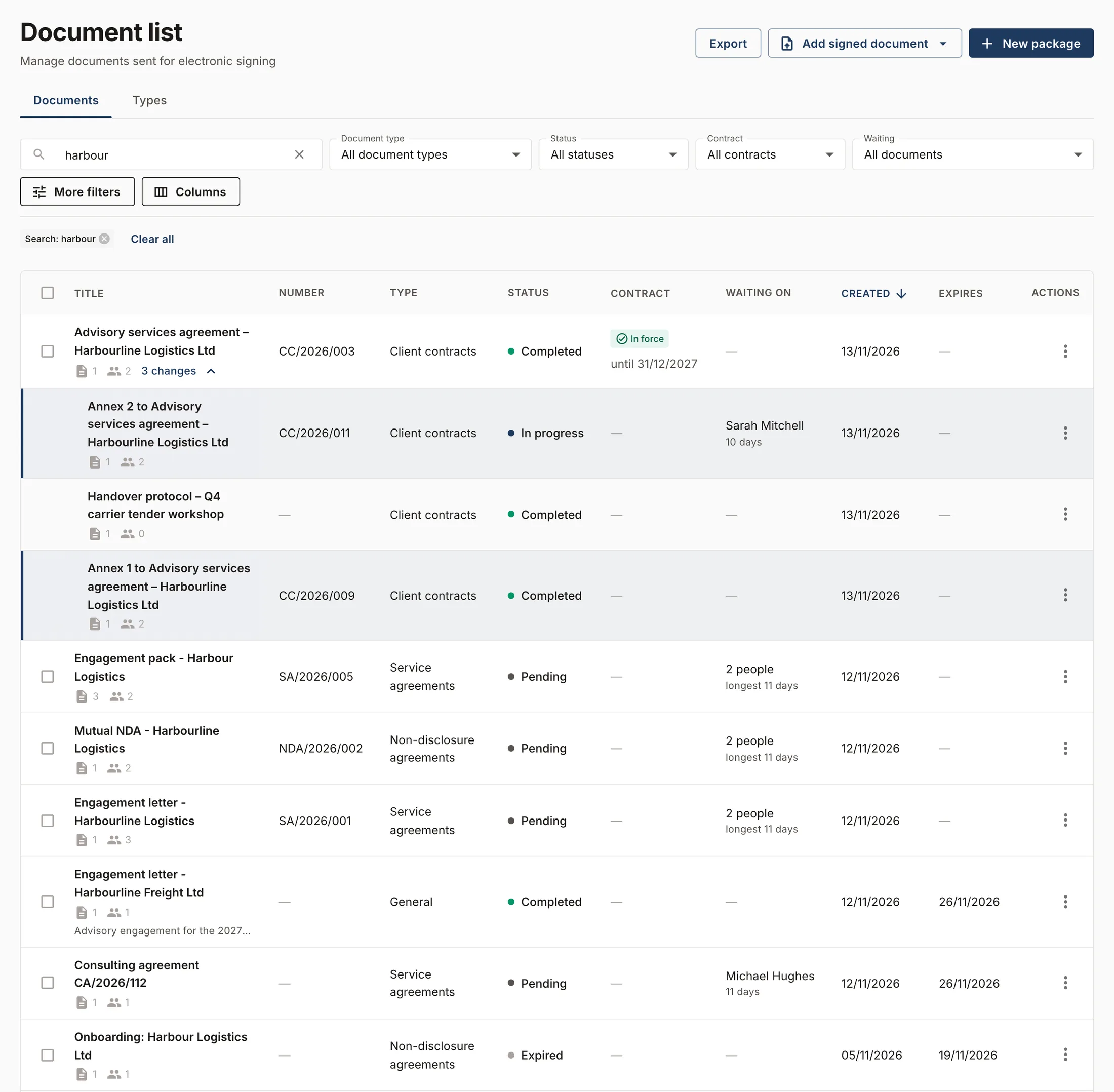
A package doesn’t have to come from a workflow. New package in Documents puts one together by hand, which is the quickest way to send one contract once. See New package. Use a workflow for whatever repeats, so the same rules apply every time and each package can be traced back to the run that made it.
The words you will meet
Section titled “The words you will meet”| Term | What it means |
|---|---|
| Package | The envelope: one or more documents that go out together under one title. |
| Document | One PDF inside a package. Each has its own status, and its own seal once finished. |
| Document type | The category a package is filed under. Workflows, access and authorizations all work by type. |
| Party, or recipient | A person who signs or fills in something. Some parties only fill in values and sign nothing. Each has an indicator, a short upper-case label such as CLIENT or LANDLORD, which the documents use to say who signs where. |
| Approver | Somebody who reads the documents and decides whether they go on to the people after them. They sign nothing. See New package. |
| Viewer | Somebody who only reads the package: a lawyer, an accountant. They sign nothing. |
| Attachment | A document nobody signs or fills in, such as general terms. It is there to be read, and it holds nothing up. |
| Responsible person | The one person who answers for a package: told when it is refused, not approved, finished, expired or not delivered, and, for a contract, before it ends. See Package page. |
| Main party | The party who is taken to the signing page right after sending a form or an interactive document. |
| Authorized person | A colleague allowed to accept or refuse in somebody’s name. See Authorizations. |
| Contract | A package of a document type with contracts with a term. Besides its signing status it has a state of its own: In force, Ending soon, Ended and the others. See Contracts. |
| Contract term | When a contract is in force: from its signing or a date, until a date or indefinitely, whether it renews by itself and its notice period. See Contract term. |
| Contract change | A package of its own that changes a signed contract or is kept with it: an annex, a notice of termination, a termination agreement or a related document. See Contract changes. |
| Annex | A contract change the parties sign to change its terms or extend it, numbered within its contract: Annex 1, Annex 2. Not to be confused with an attachment. |
| Contract file | A contract’s page, with its changes and its history beside it. See The contract file. |
| Signed outside Doxtly | A document signed on paper or in another service and recorded in Doxtly, so that it sits with the rest. Nothing of it is sent to anybody. See Documents signed outside Doxtly. |
Who decides who signs
Section titled “Who decides who signs”The documents do. A PDF template’s signature areas and fields, and the [SIGNATURE:INDICATOR] markers in a document’s text, name the parties, and on a plain file you can mark the places yourself. A workflow step or the package editor only says who each party is. You never pick signers beside the document, so a party can’t be left without a place to sign, and a place to sign can’t be left without a party.
This has a useful side effect. A party named only inside a conditional block takes part only in the runs where that block appears. A guarantor clause that prints for some clients and not others brings the guarantor along only when it prints.
A document may name nobody, which makes it an attachment, but at least one document in the package has to name a party. If none does, a workflow run stops and no package is created, and a package made by hand can’t be sent.
Signing order
Section titled “Signing order”By default parties sign in any order: every party whose link has gone out can sign straight away, sees the signatures given so far, and the last to sign triggers the seal. Set the steps in the Order section of the People tab, in a package you make by hand or the Create documents step, to have them sign in steps instead: a link that arrives early opens a page saying others sign first, and nothing can be signed or refused until the party’s turn.
The order has one fixed rule. Parties with a qualified signature come after every party with a simple signature, each in a step of their own, because a qualified signature must be on the document as it finally stands. A simple signature can’t follow a qualified one, so if somebody with a simple signature has to sign last, put that into a separate package. See New package.
Where a package can end up
Section titled “Where a package can end up”These are the statuses in the Status column and filter.
| Status | Meaning |
|---|---|
| Draft | Being put together, sent to nobody yet. |
| Pending | Created. Nobody has signed or finished anything yet. |
| In progress | The first signature is in, or a document is finished, and something is still open. |
| Completed | Every document is finished: sealed, or with nothing left to do. |
| Declined | A party refused at least one document. |
| Not approved | An approver refused it before the parties were asked. |
| Voided | Somebody with Manage documents cancelled the package. Documents not yet finished were voided, and a sealed or completed one stayed as it was. |
| Expired | A document ran out of time before it was finished. |
When a package could read two ways, Declined wins over Voided, and Voided over Expired.
Each document has its own status too. A document with some of its signatures reads In progress, and stays open: the next signature, a refusal, a void and the deadline all still apply to it. A single document can also show Sealed, which is the normal end for a document people signed. A document that was only filled in, and an attachment, end as Completed with no seal, because nobody signed them.
A refusal closes the refusing party’s documents. Other documents in the same package, which that party isn’t on, stay open to be signed. The package reads as Declined from the first refusal, and it is over once nothing in it is open.
Who can see what
Section titled “Who can see what”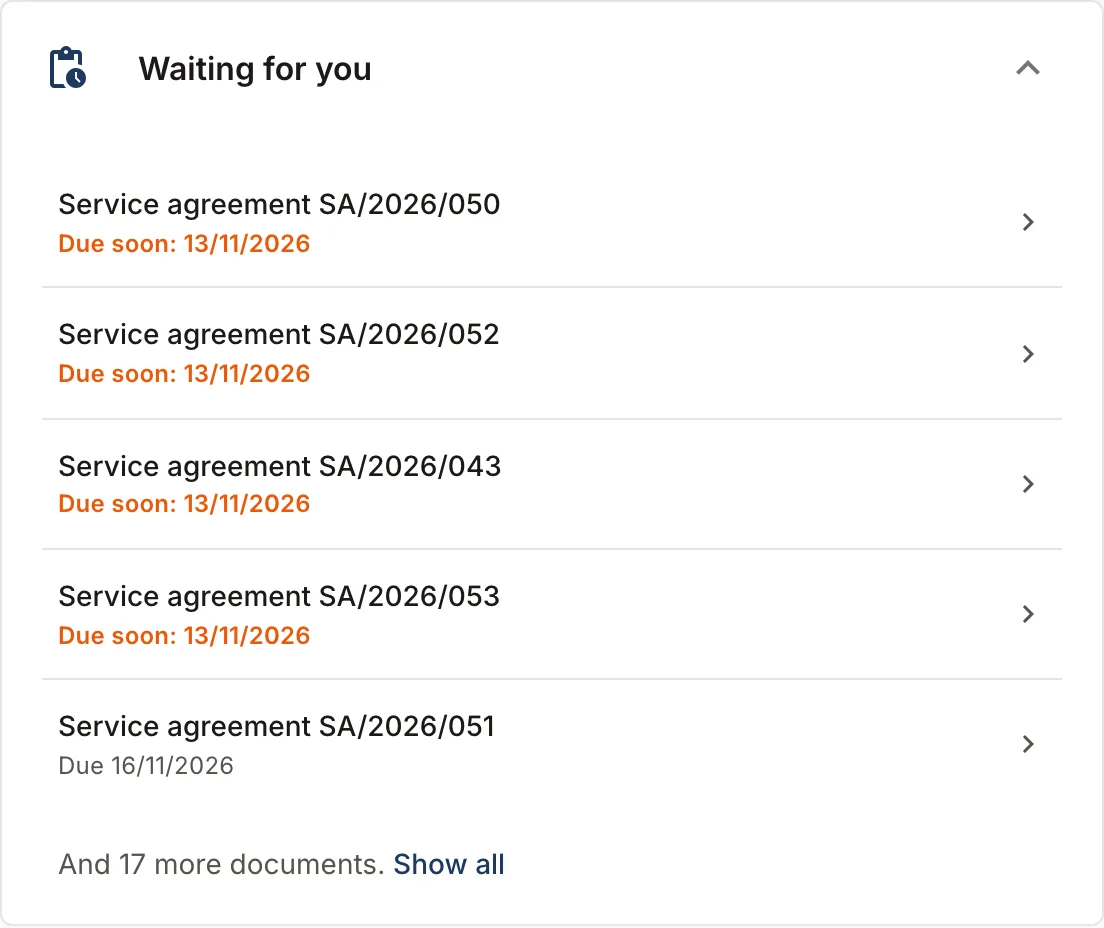
- Everyone has the Documents tab. A person always sees the packages they are a party to, and what waits on them shows under Waiting for you on the dashboard.
- View documents opens the other packages, with their audit trail and certificates. When a type is restricted to departments, a person limited to their own department sees only the packages of types open to it. See Document types.
- Manage documents adds putting packages together and sending them, voiding them, resending signing links, managing viewers and the other actions on a package’s page.
- Host in-person signing lets you hand your device to a party in the room. See In-person signing.
- Manage custom fields of packages adds, changes, orders and removes the custom fields of packages, such as a CRM deal ID. Filling in a package’s fields is part of managing it.
- Managing every package never lets you sign one. Only a party can sign, or somebody that party authorized.
Roles are set up under Roles.
A package sent for signature counts once toward your plan’s Packages sent for signature, however many documents and parties it holds; a draft counts for nothing. The documents are stored with your other files, shown as Documents for signing on the dashboard’s storage tile. See Plans and limits.