

Talk to Doxie
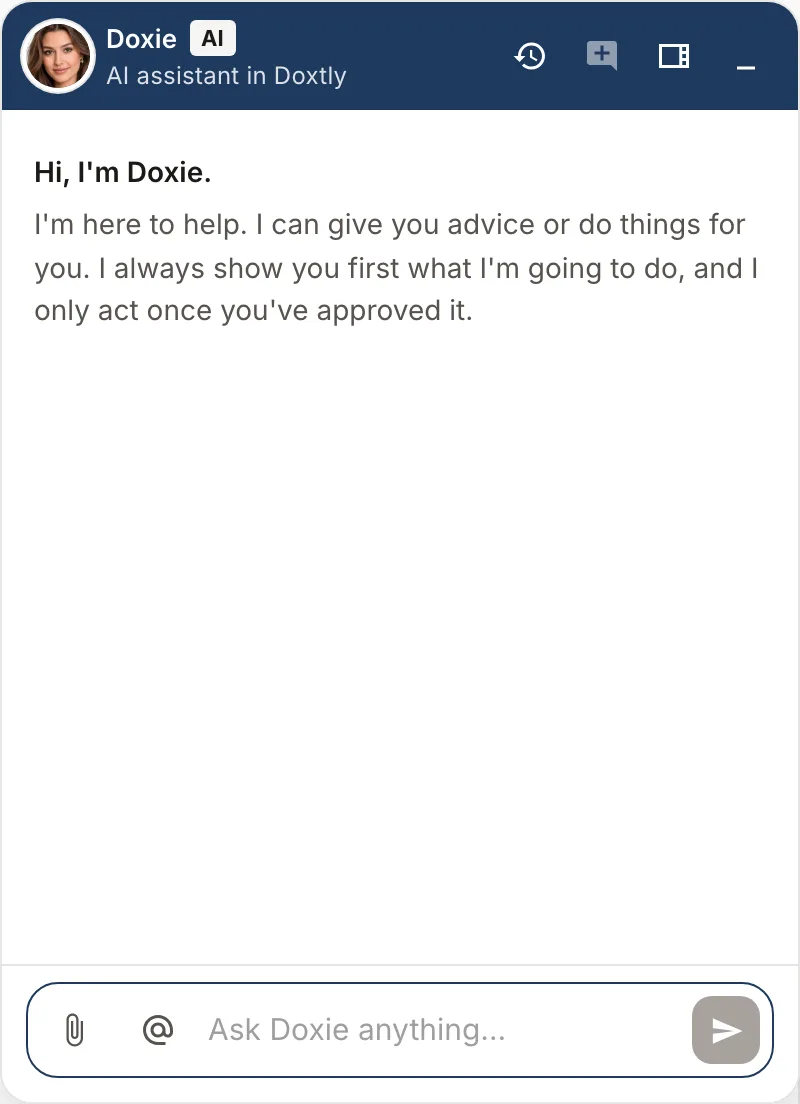
Doxie lives in a panel of her own, beside whatever page you are working on. She knows which page that is, so you can ask about “this form” or “the step I selected” without explaining where you are. This page covers the panel itself: opening it, asking, reading the answers and finding a conversation again.
Available when: your role has the Use Doxie permission
Open Doxie
Section titled “Open Doxie”Doxie’s button is the round picture of her at the bottom right of every page. The dot on it says whether she can answer right now: green when she can, grey when she can’t. Point at the button and its tooltip says the same in words, with the reason when she is unavailable. See When Doxie is unavailable.
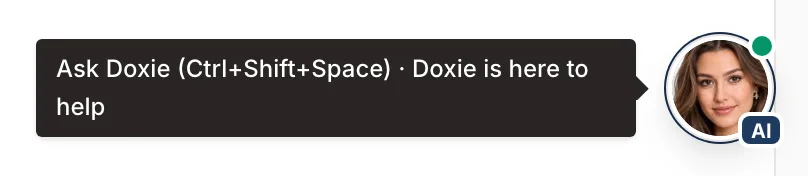
You can also open her from the keyboard, from anywhere in the app, even while typing in a field:
| Keyboard | Shortcut |
|---|---|
| Windows and Linux | Ctrl + Shift + Space |
| Mac | ⌘ + Shift + Space |
With the panel already open, the same shortcut puts the cursor in her message box, or minimises the panel when the cursor is already there.
The button keeps out of the way of the page’s own controls, moving up when a page has buttons of its own in that corner. While the panel is open, the button is hidden.
On a computer the panel is a window over the page, at the bottom right under the top bar, so the page keeps its layout. Drag its header to move it, and its left edge or top-left corner to resize it; it keeps its size and place the next time. Minimize in its header (or Esc) hides it, and your conversation waits for you, a reply in progress included: a dot on Doxie’s button says when an answer has arrived meanwhile. On a screen at least 1280 pixels wide, Pin to the side in the header docks the panel at the right instead, and the page narrows beside it; Float over the page takes it back to the window. On a phone the panel takes the whole screen; your phone’s Back gesture, pulling the header down or Minimize closes it.
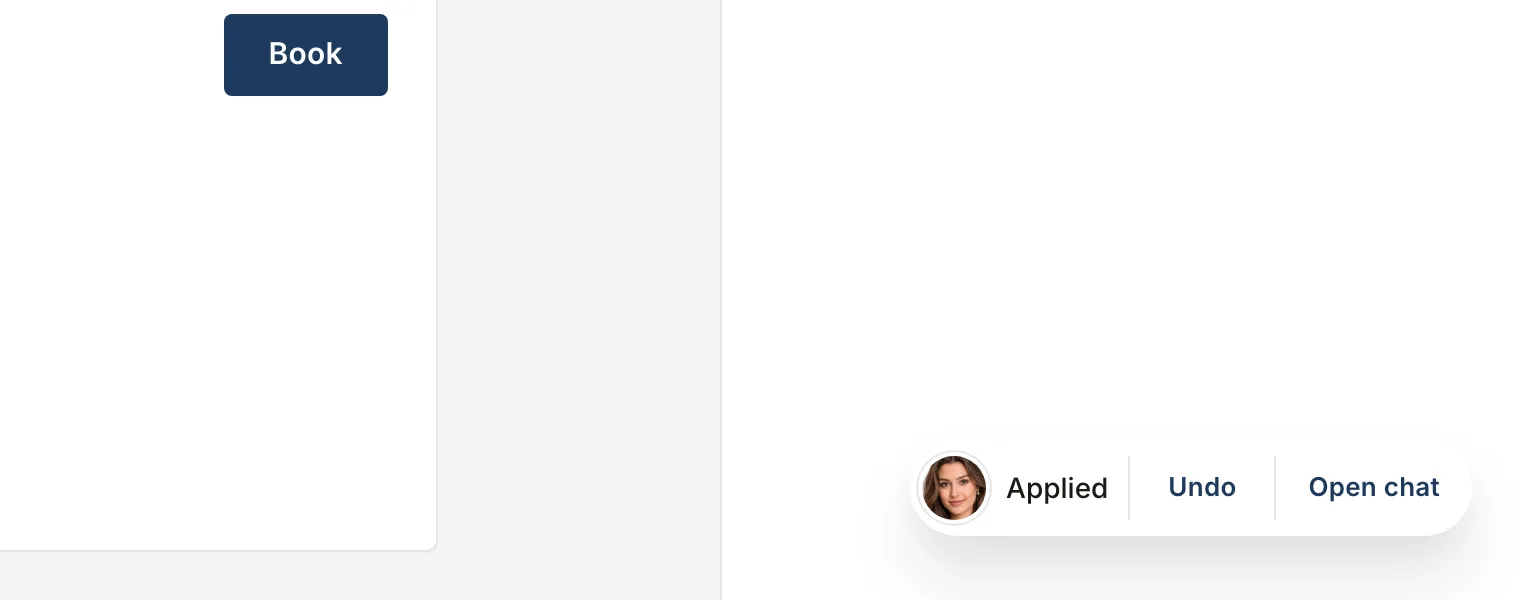
In a designer, applying one of Doxie’s changes steps the panel aside so you can see the change on the canvas: a small bar Applied · Undo · Open chat takes the place of her button.
Hide Doxie
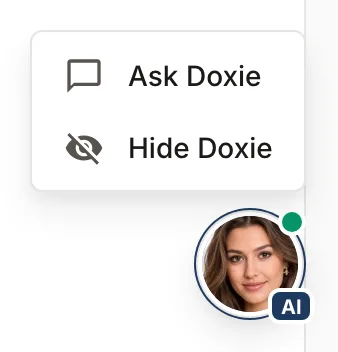
Section titled “Hide Doxie”If you’d rather not see Doxie, right-click her button (on a phone, press and hold it; from the keyboard, Shift + F10) and choose Hide Doxie. Her button and the panel disappear for you on every device, and the shortcut stops opening her. The message that confirms it has an Undo button.
To bring her back, open your profile, go to the Doxie tab and turn on Show Doxie in the app.
While she is hidden, the AI buttons in the editors keep working. Ask Doxie under an error still opens her panel, just for that question: close it and she stays hidden.
Ask a question
Section titled “Ask a question”-
Type your question in Ask Doxie anything…. A message can be up to 4,000 characters.
-
Press Enter to send. Shift + Enter starts a new line.
-
Watch the three dots: under them Doxie says what she is doing, such as Checking the documentation… or Designing the form….
-
Read the answer as it appears. To stop it halfway, press Stop where the send button was. What she has written so far stays, marked Stopped.
Ask the way you’d ask a colleague: “How do I send a contract to two people so the second signs after the first?”, “Why didn’t my workflow send the email yesterday?”, “Can a client sign without an account?”. For a long question with several parts, she answers every part; if it is too much for one answer, she says so and asks you to go one part at a time.
She knows the page you’re on
Section titled “She knows the page you’re on”With every message the app tells Doxie which page you are on, what is open there and what you have selected: the form in the designer, unsaved changes included, the template, the workflow and its selected step, the agent in the builder, the contact or the document package you are looking at. So “add a phone field to this form” means the form in front of you, and “what does this step do?” means the step you selected.
Doxie only learns what you may see yourself. A record from another organization, or one you have no access to, never reaches her.
Read the answer
Section titled “Read the answer”| Under an answer | What it does |
|---|---|
| Sources | The sections of the manual the answer comes from. Each is a link, which opens in a new tab. |
| Open in the manual | Opens the manual, in a new tab, at the section that walks you through it. Shown when one section of the manual covers what you asked step by step. |
| A link to a page of the app | Opens that page in the same tab, with Doxie still beside it. |
| The two thumbs | Rate the answer: see Rate an answer. |
| A card with Apply or Create | Something she prepared for you: see Work Doxie prepares. |
Doxie only cites sections she actually read for this answer. If the documentation doesn’t cover something, she tells you so plainly and suggests writing to our team. She doesn’t fill the gap with a guess.
When an answer doesn’t come
Section titled “When an answer doesn’t come”| You see | What happened | What to do |
|---|---|---|
| The reason in her words, and Try again | The answer failed, for example because of a temporary problem. | Try again asks the same question again in its place. You can do it twice for one message. |
| The answer was cut short. | Preparing it took too long. | Ask about one thing at a time. |
| Couldn’t send and Retry under your message | Your message didn’t reach Doxtly, for example while you were offline. | Retry sends it again, as you wrote it. |
| Doxie is still answering your previous message. | You wrote before the last answer was finished. | Wait for it, or stop it. |
| You’ve sent a lot of messages in a short time. | On the Free plan, during a trial, or on a plan with no allowance for Doxie, when your organization has no Doxtly balance, one person can send up to 60 messages an hour. | Wait a little. |
Rate an answer
Section titled “Rate an answer”Under each finished answer there are two thumbs, Helpful and Not helpful. A thumbs down asks What went wrong?: Wrong, Incomplete, Misunderstood me, or Other, which opens a line for your own words (up to 500 characters) and a Send button.
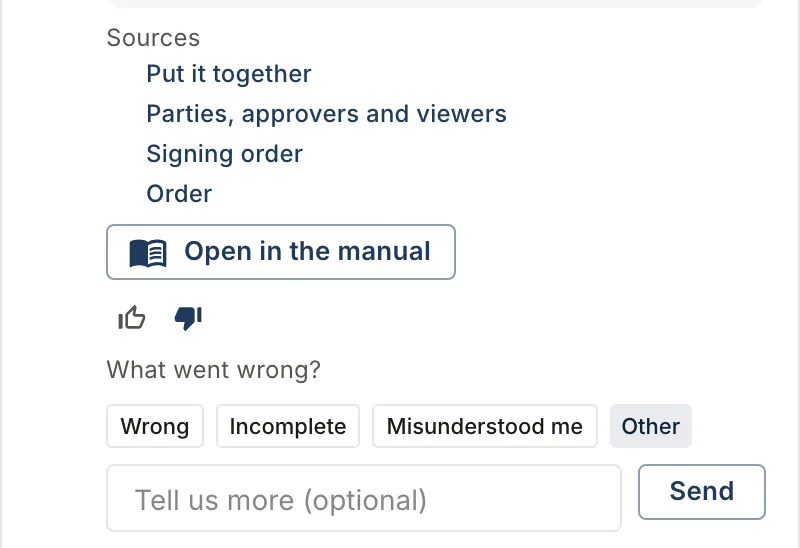
You can change a rating once, by choosing the other thumb or a different reason. After that it stays, and the thumbs say Your rating is saved. Ratings help us find what the manual and Doxie get wrong. They are kept with the answer, and in an anonymised summary of the conversation: see What Doxie can see.
Conversations
Section titled “Conversations”Moving to another page never interrupts Doxie: an answer being written goes on, and the conversation is still there when you get back. Reload the page, and she picks up where she was.
New conversation in the panel’s header starts afresh. Start a new one for a new subject: Doxie reads a conversation as a whole, so an old subject can colour a new answer.
Conversations in the header lists yours, the latest first, each named after its first message and showing when you last wrote in it. Click one to carry on with it, or Back to the conversation to return to the one you had open. The bin beside a conversation (Delete) asks once more, then deletes the conversation and all its messages, for good.
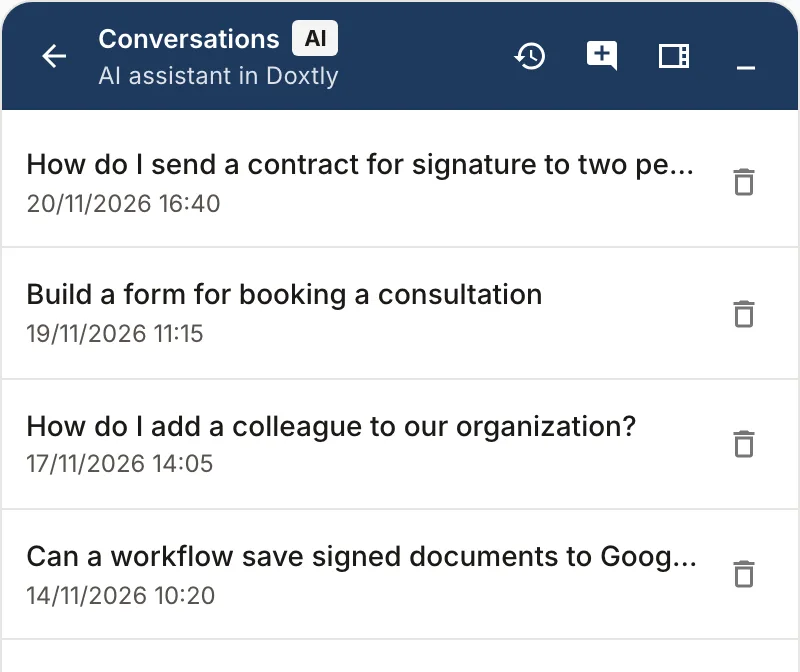
Your conversations are yours alone. Nobody else in the organization sees them, administrators included, and those you have in one organization are not shown in another.
| Limit | Value |
|---|---|
| A message | 4,000 characters |
| Your messages in one conversation | 200. After that, start a new conversation. |
| Messages an hour, per person | No limit on a paid plan with an allowance for Doxie, or with a Doxtly balance. On the Free plan, during a trial, or on a plan with no allowance: 60 |
| Conversations in the list | The latest 50 |
| How long a conversation is kept | 90 days after its last message, then it is deleted |