

Attempts and results
An attempt is one person’s go at a quiz, from Start the quiz to its result. Here you see what a quiz’s attempts add up to, who has taken it, how each attempt ended and what it scored, and how to pass every finished attempt on to the rest of your tools. A survey’s responses are added up in Survey results.
The Results section
Section titled “The Results section”Available when: your role has the View quizzes, attempts and results permission
Choose Results in a quiz’s row menu. The tabs are Overview, Summary, Questions, Cross-tab, AI analysis and Responses, then Grading for whoever may grade and People for whoever may manage the quiz.
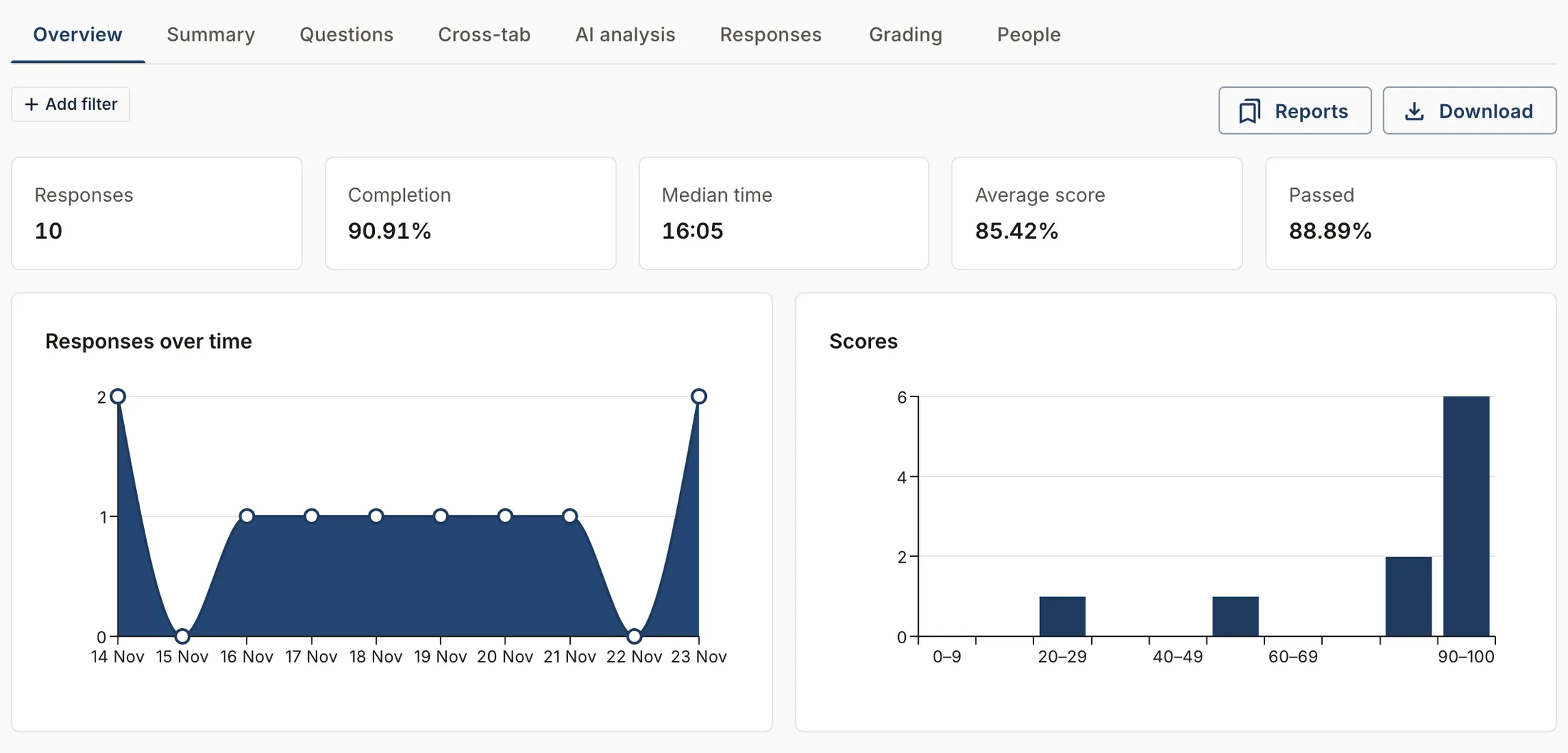
- Overview: Responses (the attempts sent), Completion, Median time, Average score and Passed, the attempts over time, and Scores, how many attempts fell in each tenth of the points, from 0–9 to 90–100.
- Questions: a card for each question, with its answers drawn as on a survey’s Questions tab and, under each scored question, its item analysis. A click on a bar filters every chart by that answer.
- Cross-tab: two questions, or a question and the language, status, device or group, against each other, as for a survey.
- AI analysis: the themes of the open answers, with their shares, how they feel and quotes, and a summary, as for a survey. Useful for the free-text answers of a test or an exam’s feedback questions.
- Reports and Download: saved views of the results (a report can be shared by a link), the results report as a PDF and the attempts as an Excel or CSV file, as for a survey. A quiz’s report adds the average score, the pass rate and the spread of scores, and marks the correct options of each question with ✓ correct, as the answer sheet does; its files add the sheet number, name, e-mail, group, status, points, %, grade and whether it passed. Past 20,000 attempts the Excel and CSV files are made in the background and a notification brings them, as for a survey. More than two segments, the cross-tab’s significance test and the AI analysis are part of the Pro and Business plans, as for a survey.
- Summary, Responses and Grading: below, and in Grading by hand.
- People: everyone the quiz was sent to and how far they got; see People and access.
A quiz with more than 20,000 attempts is counted in the background, as a survey is: the page updates by itself and you get a notification when the results are ready.
The Responses tab
Section titled “The Responses tab”Available when: your role has the View quizzes, attempts and results permission
Choose Results in a quiz’s row menu and open the Responses tab. It lists its attempts, newest first, 25 to a page; the control under the list switches to 10 or 50. Until the first one arrives it says No attempts yet.
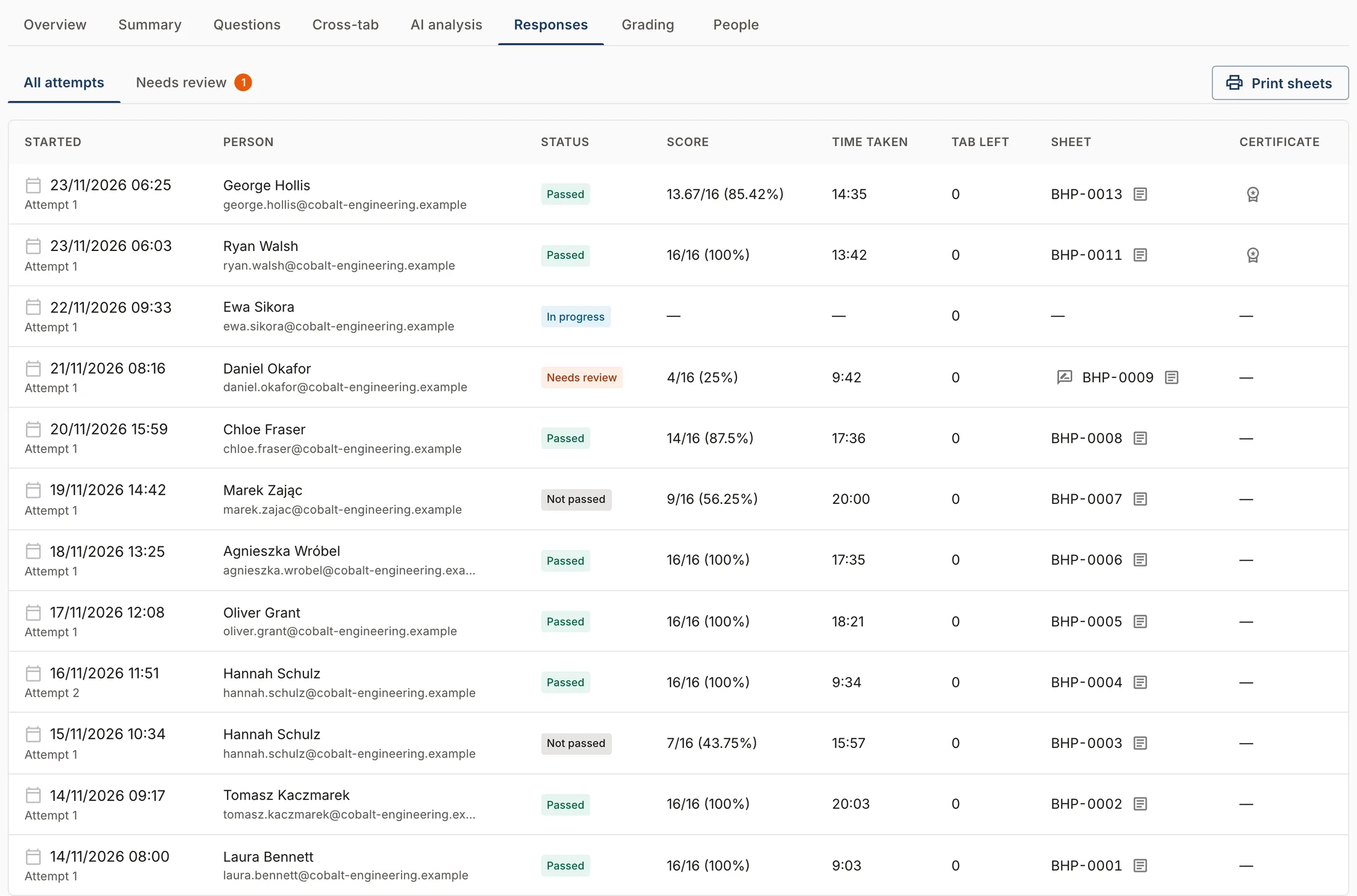
| Column | What it shows |
|---|---|
| Started | When the attempt began and, under it, Attempt 2 for the person’s second, or how it ended when the quiz sent it: Sent when the time ran out, Sent after the tab was left too often. |
| Person | Who took the attempt, by name, or by e-mail address for someone without one. Shown only when the quiz is for the people on its access list; someone removed from the list since is marked Removed. |
| Status | Where the attempt stands; see below. |
| Score | The points scored out of the most there were, with the share in per cent, such as 9/12 (75%). - while there is no score yet. |
| Time taken | How long the attempt lasted; – while it is still being taken. An asterisk means the time the page reported was longer than the server measured, so it was cut to the server’s; point at it for the explanation. |
| Tab left | How often the person switched to another tab or window. |
| Sheet | The attempt’s sheet number, such as EXAM-0042, and a button that downloads its answer sheet. |
| Certificate | Shown when the quiz has a certificate workflow: a button that downloads the attempt’s certificate, an hourglass while it’s being made, or a warning when its run ended without one. With a connected drive, the button also offers Save to a cloud drive. |
| Status | Meaning |
|---|---|
| In progress | Being taken now, or left open with time still to run. |
| Being graded | Sent; the AI is grading its open answers. |
| Completed | Sent and scored. With a pass mark, the chip says Passed or Not passed instead. |
| Needs review | The AI could not grade some open answers, so the score is not final until someone grades them by hand. |
The Needs review tab above the list holds only the attempts that wait for a grade, with their number on the tab. Someone whose role may grade opens any attempt’s page with a click, to read its answers and grade them: see Grading by hand. Everyone else, also whoever may manage the quiz without grading it, sees the list without the answers and without the Needs review and Grading tabs. On a phone the table turns into cards with the same information.
The Summary tab
Section titled “The Summary tab”Available when: your role has the View quizzes, attempts and results permission
A quiz’s Summary tab is its class list: one row per person by the attempt that counts for them, or every attempt with Attempts in the switch above it. Each row shows the sheet number, the name, the group, the points, the percent, the grade, Passed or Failed, the time taken (– for an attempt still being taken), the attempts used, when it finished and each section’s subtotal. Above the list: the people or attempts, the mean and median percent, the pass rate and how many reached each grade, over every row the filters leave.
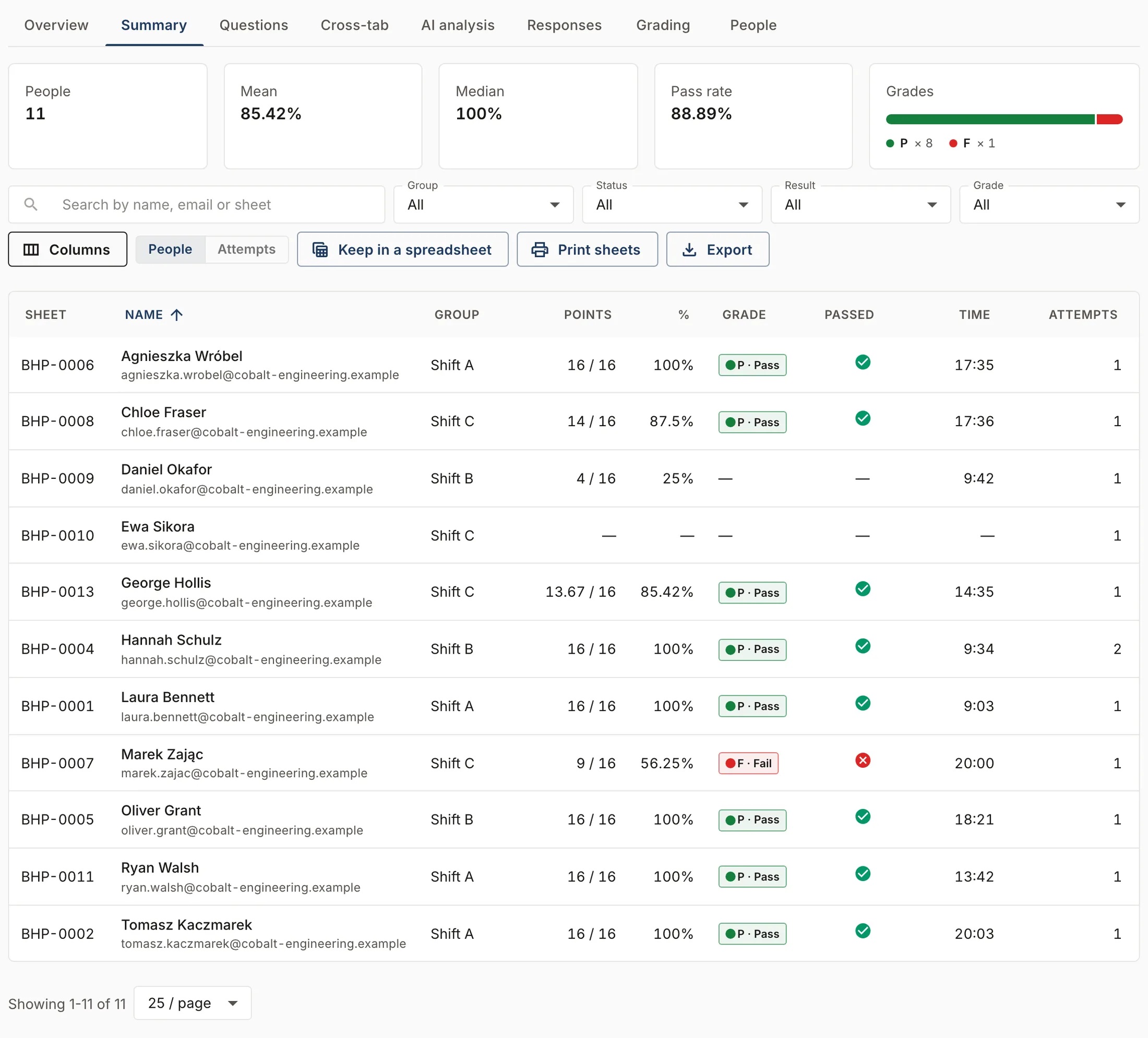
- Filters: search by name, e-mail or sheet number; Group (with groups among the attempts), Status, Result and Grade. Click a column heading to sort by it.
- Columns: the column button chooses what the table shows; E-mail, Started, Status, Language and Tab leaves are off until you turn them on. Your choice is remembered in this browser.
- Export: Excel (.xlsx) writes the rows with real numbers, dates and durations, the filter in words and the figures above them, and a Questions sheet; Excel with answers adds an Answers sheet with each person’s answer to each question and its points; CSV gives the rows only. Up to 50,000 rows the file downloads at once; with more, up to 1,000,000, it is made in the background and a notification brings it when it is ready, kept for 7 days. Each file can also be saved to a drive instead.
- Keep in a spreadsheet: opens a dialog; nothing is set up until you confirm it. Choose the drive, then either A spreadsheet in the drive (picked from its files, and the sheet to write, the first one if you leave it empty) or A new spreadsheet (a folder and a file name). The name can hold variables, so
{{ _quiz.title }} – results {{ _attempt.finishedAt | year }}keeps a file per year: each new name gets its file, made with the first attempt that needs it. A line in the dialog says where the rows will go. Confirming adds two active workflows, named in the quiz’s language: one writes each finished attempt’s row, one writes it again whenever an attempt is regraded; a row is found by its sheet number and updated, or added. A chosen spreadsheet is followed by its file, so moving or renaming it in the drive changes nothing. A sheet that already has columns keeps them and its rows: columns are matched by their header, the missing ones are added at the end, and nothing else is touched. Afterwards the button reads Results sheet; its menu opens the spreadsheet and both workflows, which you change like any other, and Stop keeping the sheet deletes the two workflows, leaving the spreadsheet in the drive. A quiz keeps one sheet. Shown while a drive is connected, to whoever may manage the quiz and workflows and view cloud files.
To read the same rows in your own workflow, use the Quiz summary node.
Item analysis
Section titled “Item analysis”Available when: your role has the View quizzes, attempts and results permission
On the Questions tab of a quiz’s results, each scored question shows how it worked, over each person’s counted, finished attempt:
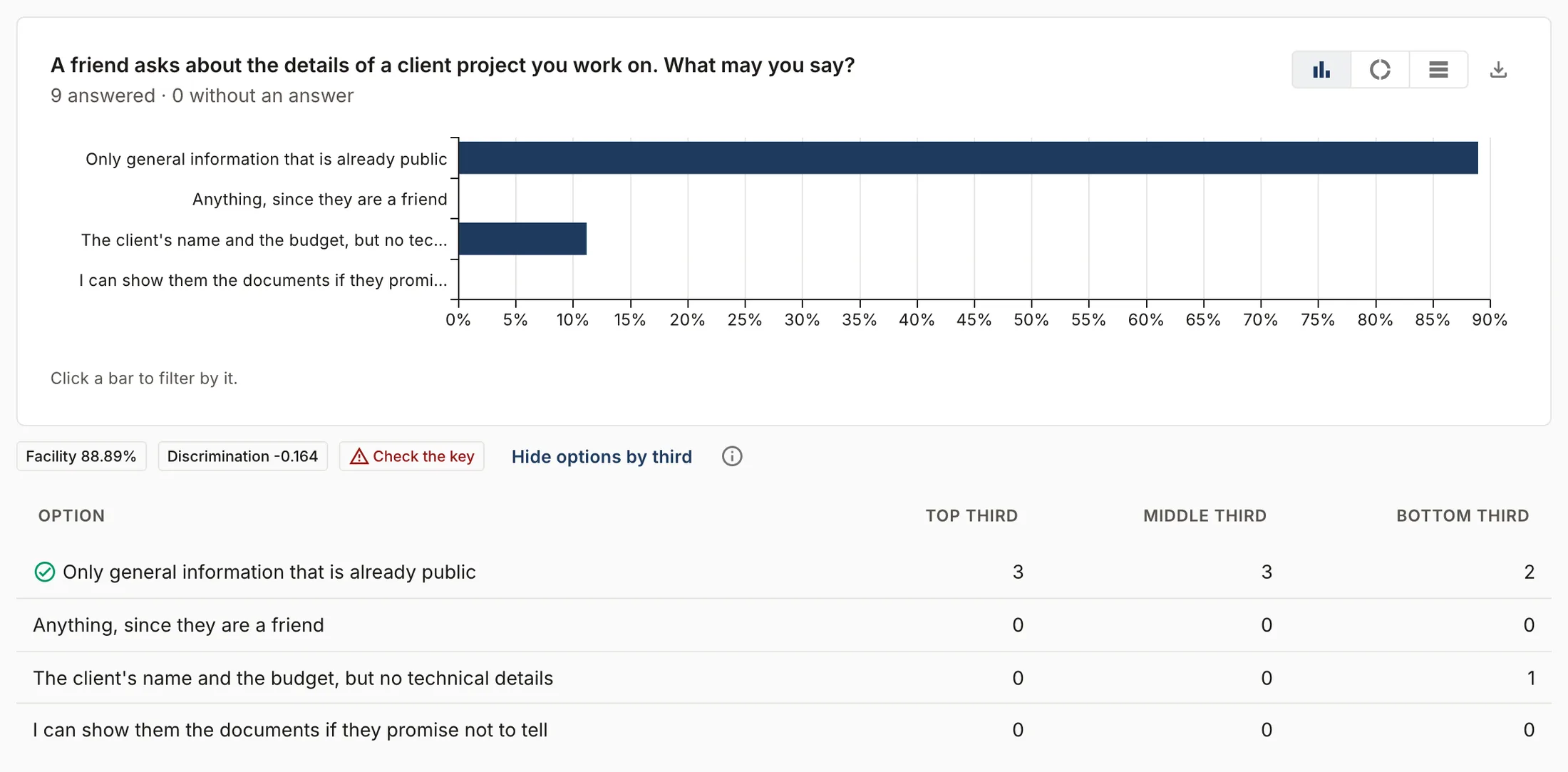
- Facility: the average share of its points people earned. Above 90 % it is flagged Too easy.
- Discrimination: how well it separates stronger from weaker participants, from -1 to 1 (above 0.3 is good). Below 0 it is flagged Check the key: weaker participants did better on it than stronger ones, which usually means a wrong key or an unclear question.
- Options by score third, for a choice: how many in the top, middle and bottom third by score chose each option. A wrong option the top third picks often deserves a second look.
- Options by score third for a grid or a ranking: each row of the grid, or each place of the ranking, with how often it was answered right, and how many in the top, middle and bottom third got it right.
The Excel export’s Questions sheet gives the same figures per question: facility, discrimination and the upper-lower index (the top third’s facility less the bottom third’s).
Answer sheets
Section titled “Answer sheets”Available when: your role has the View quizzes, attempts and results permission
An answer sheet is a PDF of one attempt, ready to print or file: the sheet number in large type, the person and the times, then every question with the answer given (the options with the chosen ones and the correct ones marked apart, a written answer in full, the text written with Other, or No answer), its points and the comment for the person, section subtotals, and at the end the points, percent, grade and Passed or Failed. It is in the language the attempt was taken in, and it never shows the examiner’s notes.
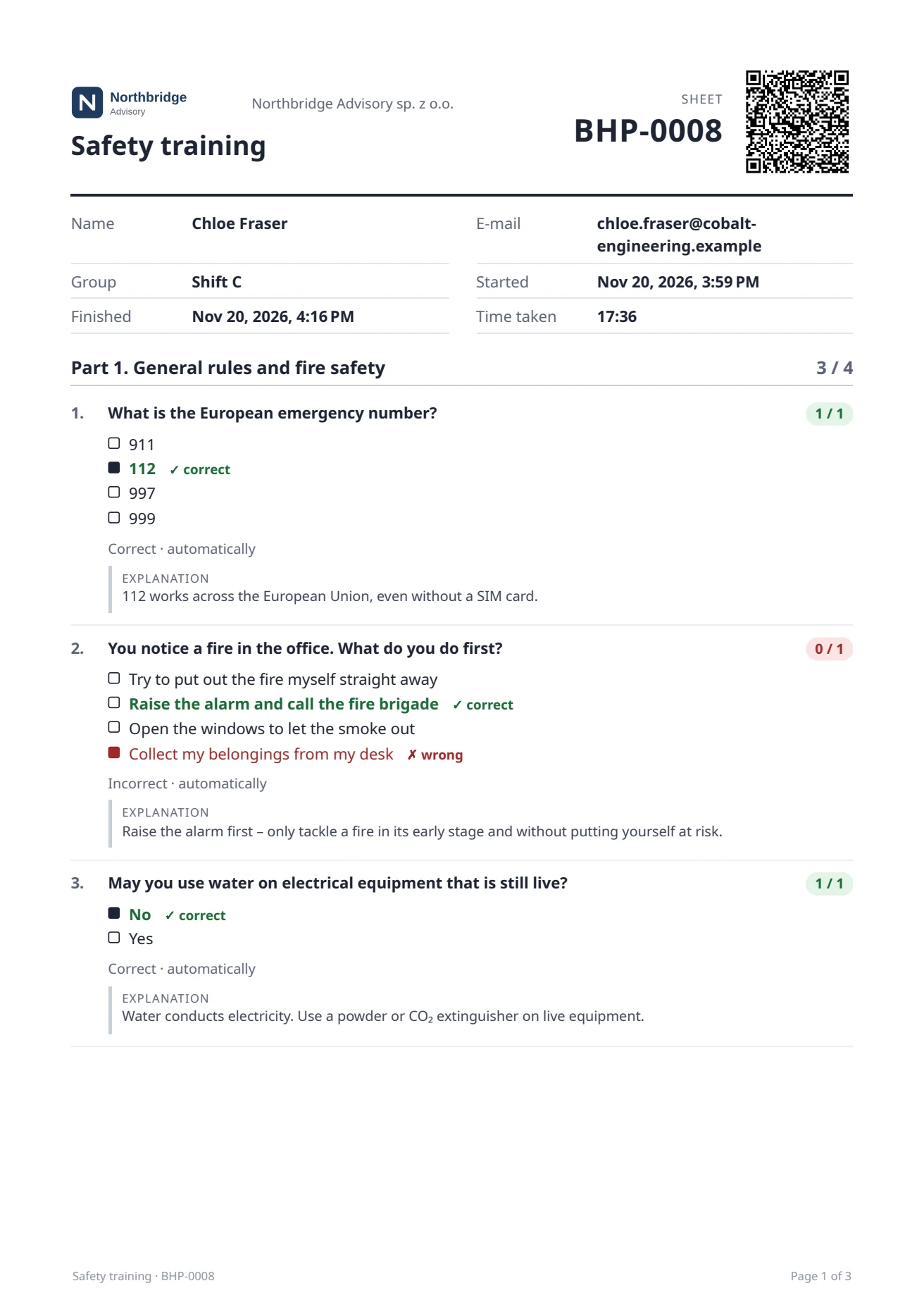
Download it with the sheet button in the attempt’s row. In the quiz’s Settings, the Answer sheet section chooses what the header shows and in what order, whether the correct answers are marked, whether each question’s explanation (on at first) and its pictures, at thumbnail size, are printed, the signature lines at the end (up to four, such as Examiner), and A4 or Letter paper. Every page ends with the quiz, the sheet number and the page as n / m, and the sheet number has a QR code beside it that opens the attempt’s page in Doxtly: it holds no password, so only someone signed in to your organization who may see the quiz’s results gets in.
A sheet is printed once and kept: downloading it again, or handing it to a workflow, gives the same file until the attempt’s grades change. To let people download their own sheet, turn on Let people download their sheet (off at first): their result page then offers it once their result is released.
Whoever may grade also gets an Examiner copy button on the attempt’s page and beside each answer on the Grading tab (not while grading blind, as the copy names the person): the same sheet with the correct answers and explanations, and under each question its examiner note, its rubric with the items applied, the AI’s suggestion, the time the participant spent on it and away from the page, and every change of its grade, who made it and when. It is printed when asked for and never kept or given to the participant.
To print a class set, choose Print sheets above the Responses list, or above the Summary tab to print what its filters leave, then One PDF or ZIP, a PDF each. Up to 1,000 sheets are printed at a time, in the background; you’re notified when the file is ready, and it’s kept for 7 days. Attempts still being taken are left out.
A survey’s response has a response sheet instead, with no points, marks or explanations: see Survey settings.
Act on every attempt with a workflow
Section titled “Act on every attempt with a workflow”The Quiz trigger starts a workflow when an attempt is started, needs grading, is finished or is regraded, when a result is released, when the quiz closes, or when somebody it was sent to does not respond in time. A finished attempt brings its answers, its score, whether it passed, the time taken, the tab left and each question’s result. Use it to give a certificate to everyone who passed, to tell a trainer who failed, or to add one spreadsheet row per attempt.
The same seven events, from A quiz attempt is started to A quiz attempt is regraded, reach outgoing webhooks, for a training system that should hear about every attempt by itself. In the body they are quizAttemptStarted, quizAttemptNeedsGrading, quizAttemptFinished, quizResultsReleased, quizClosed, quizRecipientDidNotRespond and quizAttemptRegraded.
A survey’s responses don’t start the Quiz trigger: they start the Survey trigger, with the answers and the response sheet once a response is submitted, and reach outgoing webhooks as surveyResponseStarted and surveyResponseSubmitted.
Through the API
Section titled “Through the API”GET /v1/quizzes/{id}/attempts lists the attempts with the same information as the page, never the answers. On a quiz with an access list, each attempt names its person. An access key needs the List quiz attempts operation (get_quiz_attempts). filter[status][eq]=needs_review gives the queue. See List attempts, and Get an attempt for one attempt with its answers.