

Organizations and people
An organization is your company’s private space in Doxtly: its forms, templates, documents, workflows, people, plan and settings. Your account is you. Understanding the difference explains how an accountant can serve three clients from one login, and why an administrator can never see your password.
Your account and your organizations
Section titled “Your account and your organizations”You have one account: one email address, one password, one two-factor setup, one Google, one Microsoft and one Facebook sign-in. With it you can belong to any number of organizations, and in each you have a membership.
| Belongs to your account, everywhere | Belongs to your membership, in each organization |
|---|---|
| Sign-in address | First and last name, job title |
| Password | Profile picture and signature |
| Two-factor authentication | Role and department |
| Google, Microsoft and Facebook sign-in | Notification preferences |
| Your list of sessions | Whether your access is switched on |
So you can be Anna Kowalska, Partner with the Administrator role at Northbridge Advisory, and a Viewer under a different name at a client’s organization, without signing in twice.
Organizations are fully separate. Nothing in one is visible from another, and an organization cannot find out which other organizations its people belong to. Each has its own plan and bill.
Switching between organizations
Section titled “Switching between organizations”The switcher in the header always shows where you are working and your role there, so you know where a change will go. Click it to see Your organizations.
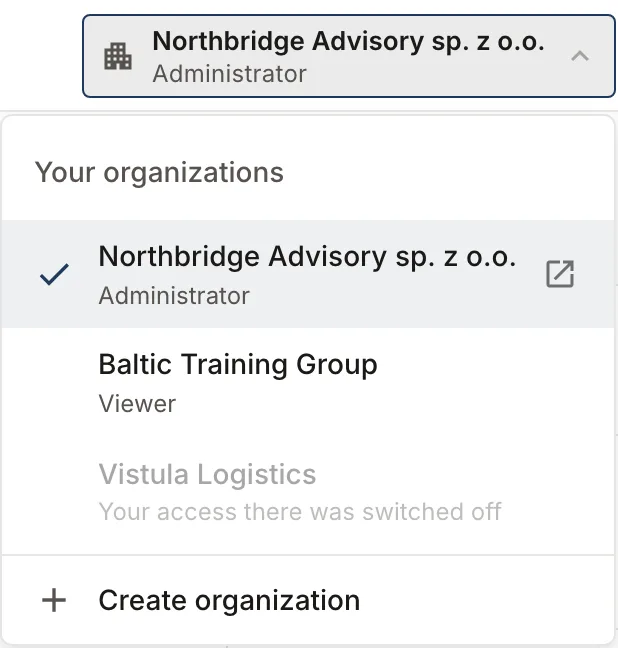
- A tick marks the current organization. Click another to move there, with no new sign-in.
- If you use two-factor authentication and this session has not given a code yet, you are asked for one.
- A greyed-out entry cannot be opened, and says why: Your access there was switched off, The organization is blocked, or Your address was never confirmed there.
- An organization with its own address has a small icon (Open at and the address) that opens it there.
- Two organizations with the same name are told apart by the date each was founded.
On a phone, the same list opens from the account menu. If you belong to several organizations, the first sign-in in a browser also tells you which one you are in and points you to this menu.
Links into another organization
Section titled “Links into another organization”An accountant working for three clients gets emails from all of them, and each link belongs to one organization. When you open a link to another of your organizations, Doxtly stops and asks: This link is in that organization, with Switch to and Stay in buttons. It never switches behind your back, because that would move your other tabs too.
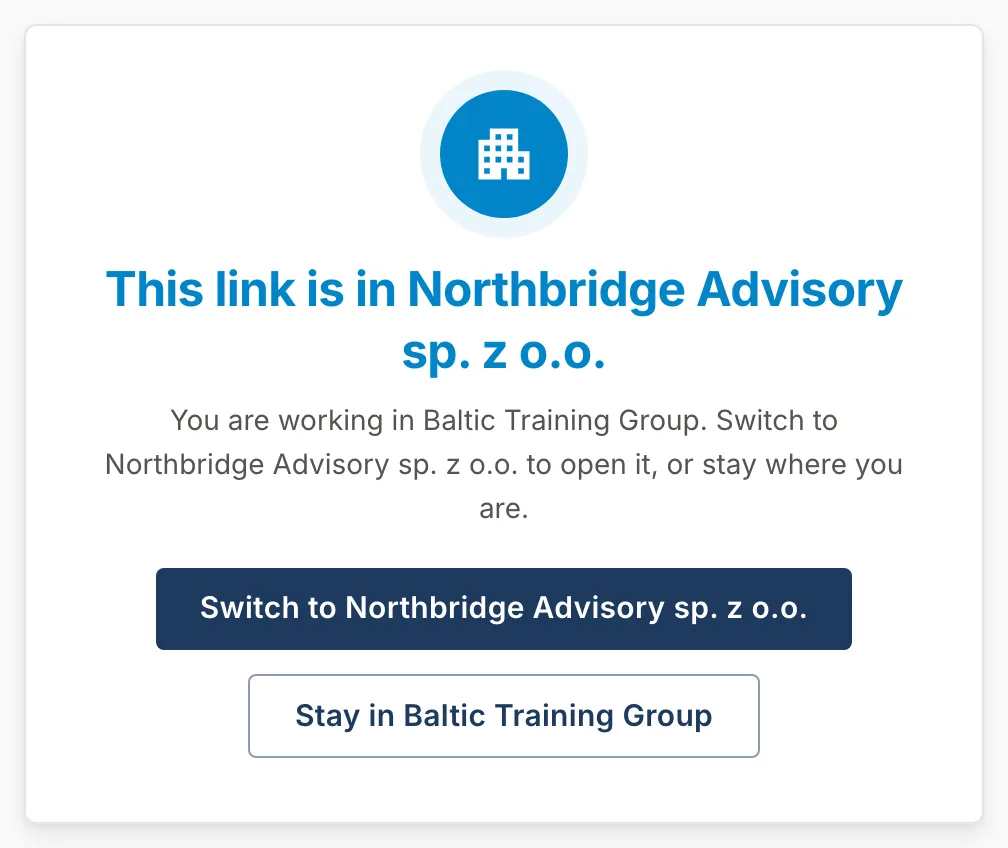
If you cannot enter that organization, the page says why, in the same words as the switcher. This link is not for this account means your account is not in that organization at all: Sign in with another account comes back to the link once you have.
Creating another organization
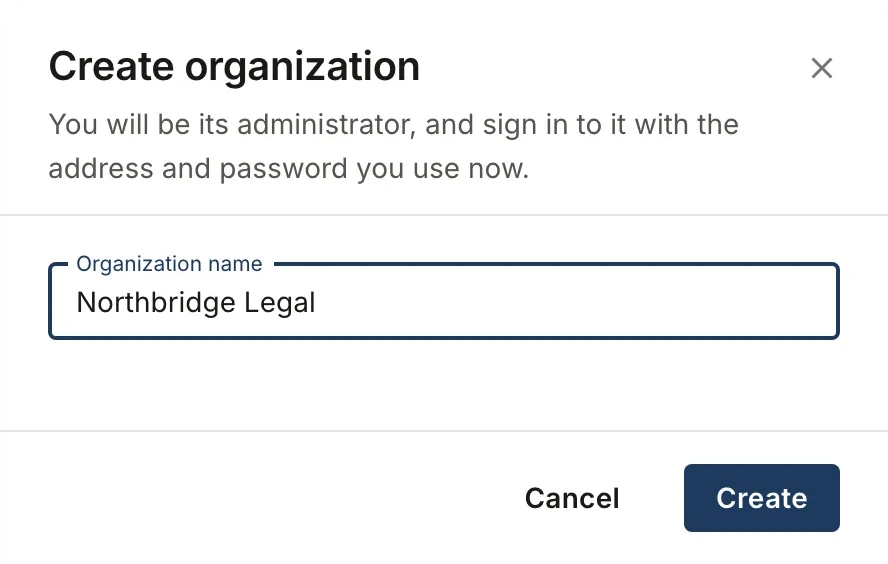
Section titled “Creating another organization”At the bottom of the switcher, click Create organization, enter a name of 2 to 150 characters and click Create. You sign in to it with the same address and password, you become its administrator, it starts on the Free plan (the Starter trial is one per account), and you are moved into it. An account can create five organizations a day, counting those it registers by email.
A separate organization makes sense when the data and the bill have to stay apart: a second company in a group, or a client you run paperwork for. Different teams in one company are better served by departments.
You can also register a new organization with an address that already has an account: see signing up.
When an organization is blocked
Section titled “When an organization is blocked”Doxtly can block an organization. It keeps everything it has, but nobody can use it: nobody signs in to it, and its forms, interactive documents, documents to sign and access keys stop answering. No new workflow run starts, from an event or at a recurring time. A run already under way finishes.
The organization’s administrators get an email saying so. It doesn’t give the reason, so reply to it to find out why or to get access back. Nothing is deleted, and everything works again as soon as the organization is unblocked. If you belong to other organizations, you go on working in them, and the blocked one stays greyed out in the switcher.
Getting people in
Section titled “Getting people in”The people of an organization are under Organization → Users. To add a colleague, click Invite user, enter their address, and choose a role and, optionally, a department. They get an email with a link valid for 72 hours and join from there. You can resend or cancel a pending invitation on the Invitations tab. The invitations page has the details.
Plans do not limit how many people an organization has.
You cannot give anyone more than you have yourself. Your role decides which roles and departments you can hand out, in an invitation or when changing someone’s access.
What administrators can and cannot do
Section titled “What administrators can and cannot do”Someone who manages people works with memberships, never with accounts. In a person’s row on the Users page, they can:
| Action | Effect |
|---|---|
| Change role and department | Changes what the person can do in this organization |
| Deactivate / Activate | Switches their access off or on. Deactivating ends their sessions in this organization. |
| Delete user | Removes them from this organization. Their account and other organizations stay. Someone who ever gave or held a signing authorization cannot be deleted, because those stay on record: deactivate them instead. |
| Reset two-factor authentication | For someone who lost their phone. Administrators have this by default. Works only if the person is in no other organization. Otherwise they sign in with a backup code or contact Doxtly support. |
An administrator cannot read or set your password, and cannot change your name: only you edit that, on your profile. To leave an organization, ask an administrator to remove you, as there is no button for doing it yourself.
Roles and permissions
Section titled “Roles and permissions”A role is a set of permissions. Everyone has one role in each organization, and you can see yours on the Role & permissions tab of your profile.
Every organization starts with four built-in roles, so you can invite colleagues without designing anything. At Northbridge, the partners are Administrators, the office manager is a Manager, consultants are Members, and the external auditor who checks files once a year is a Viewer.
| Area | Administrator | Manager | Member | Viewer |
|---|---|---|---|---|
| Documents, contacts, forms, quizzes, surveys, portals, templates, emails, SMS and WhatsApp templates, workflows, webhooks, cloud files, integrations, access keys | Full | Full | Full | View only |
| Tools: PDF editor, AI agents, AI assistants | Yes | Yes | Yes | No |
| Grading quiz attempts | Yes | Yes | Yes | No |
| Doxie, the AI assistant in Doxtly | Yes | Yes | Yes | Yes |
| People | Full | View, invite, manage | Own department, view only | Themselves only |
| Departments | Full | View | Own department, view only | No |
| Roles | Full | View | No | No |
| Organization settings | Change | View | No | No |
| Themes | Full | Full | No | No |
| Subscription and invoices | Full | No | No | No |
| Payments | View and refund | View and refund | View | No |
The person who founds an organization is an Administrator, and an organization always keeps at least one. Built-in roles cannot be renamed, changed or removed. For anything else, build a role of your own under Organization → Structure → Roles. Duplicate on a built-in role gives you a copy to adjust.
Some permissions also have a reach, which decides how far they go:
| Reach | Means |
|---|---|
| Own records | Only what belongs to the person |
| Own department | Records of the person’s department. Someone in no department reaches none this way. |
| Whole organization | Everything |
Permissions come in groups that follow the sidebar: Documents, Document types, Contacts, Web forms, Interactive documents, Portals, Quizzes, Surveys, File templates, Email templates, SMS and WhatsApp templates, Automation, Cloud files, Tools, Webhooks, Access keys, Integrations, Payments, Users, Departments, Roles, Organization settings, and Subscription and billing. Usually there is a view permission and a manage permission, and a few specific ones such as Edit submissions or Reset two-factor authentication. The roles page lists them all.
Three things follow from this:
- What you may not open is left out of the sidebar and the dashboard, rather than shown and then refused.
- Documents you are a party to stay open to you whatever your role. Even with no permissions at all, you can sign what you were sent.
- Notifications go to the people who can act on them, so a role also decides what you are told.
Departments
Section titled “Departments”Departments are optional. Add them under Organization → Structure when you want to give people a home in the organization, narrow what someone sees of their colleagues, or open certain document types only to the teams that need them. A small firm can ignore them entirely.
Organization-wide settings worth knowing early
Section titled “Organization-wide settings worth knowing early”These live in the organization settings, and each affects everyone:
- Time zone decides the clock dates show for everybody. Dates and numbers are written the way the language each person reads the app in writes them, and Language settles the regional details for those who read in that same language. Language also sets the language of the organization’s emails, in any of Doxtly’s 14 languages; with a language Doxtly doesn’t write in, such as Dutch, Russian or Korean, they go out in English. A new organization takes the language its founder registered in.
- Subdomain gives the organization an address of its own.
- Branding holds your logo, which the emails Doxtly sends for you carry in place of its own.
- Billing data is needed before you can buy a paid plan.
- Data retention sets how long submissions, runs and other data are kept.
- Authorizations decides whether people may let a colleague act for them.
- Security can require two-factor authentication for all users.