

How parties sign
Every party in a package can be asked to sign differently. A consumer might only need the link, an employee might sign in the app, and a landlord of a commercial lease might be asked for a qualified signature. You set this per party, in How this party signs, and the signing page then offers only what you allowed.
Available when: you may manage documents of the package's type, or workflows for a Create documents step
Where you set it
Section titled “Where you set it”The same settings appear in two places: a package you make by hand and a workflow’s Create documents step. Open People, expand a party’s row, and you will find the section.
Start by saying who the party is with Who signs: Someone outside the application, A user of the application or Anybody in a department. A party that stands for a department signs in the application, with a simple signature, and keeps only the job title and the attachments of what follows.
The settings
Section titled “The settings”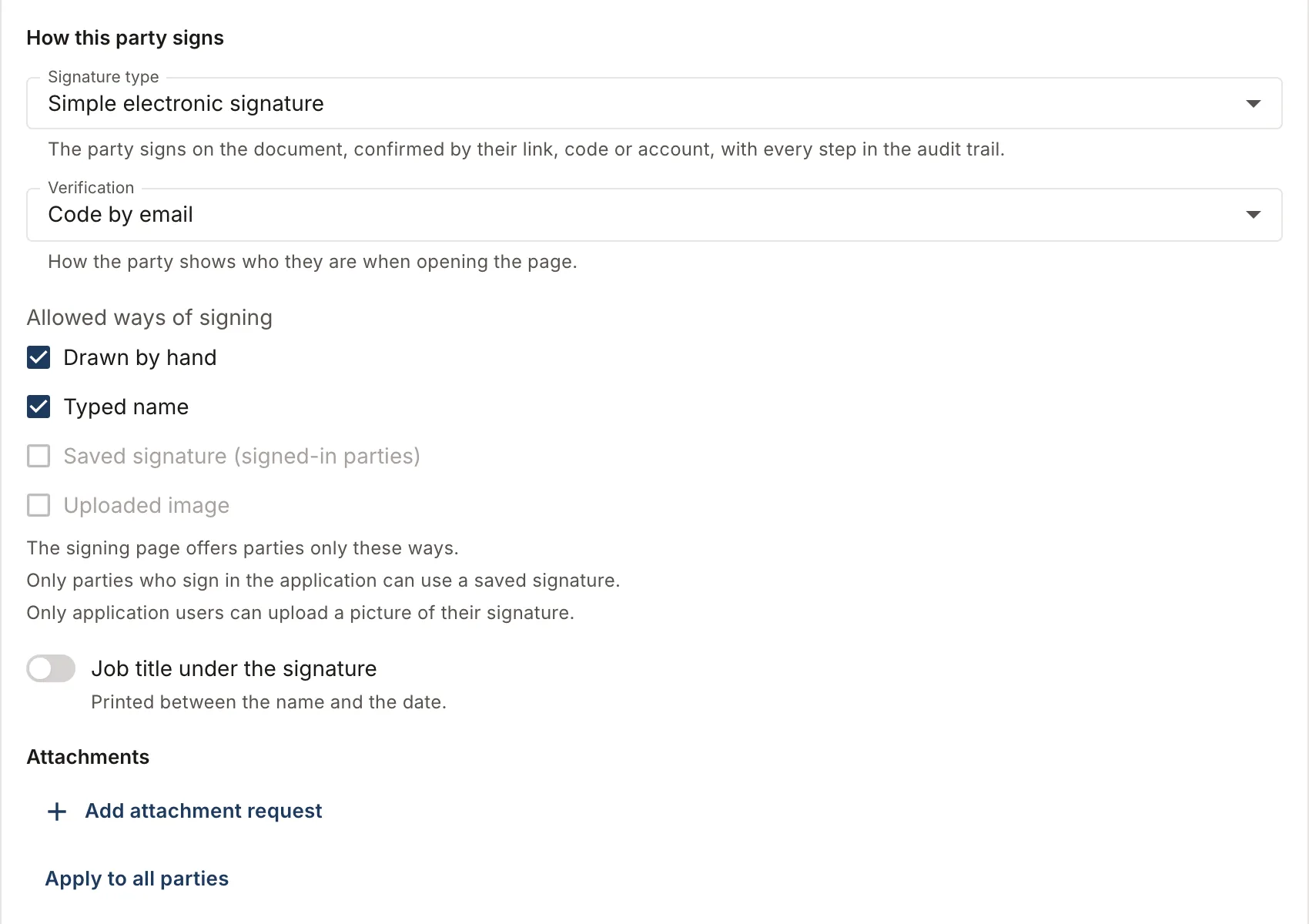
| Setting | Options | What it does |
|---|---|---|
| Signature type | Simple electronic signature (default), Qualified electronic signature | Simple is signed on the page, confirmed by link, code or account. Qualified is given with the party’s own certificate: see Qualified signatures. Advanced electronic signature appears only for a party set so through the API. |
| Ways of signing | Signed in their own program and sent as a PDF | Only with a qualified signature. The ways your organization offers that this party may use; at least one stays ticked. |
| Verification | The organization’s default, None, Code by email, Code by SMS, Code by WhatsApp, Access password, Identity document and selfie | How the party shows who they are on the way in. Nothing of the package shows until they pass. See below. |
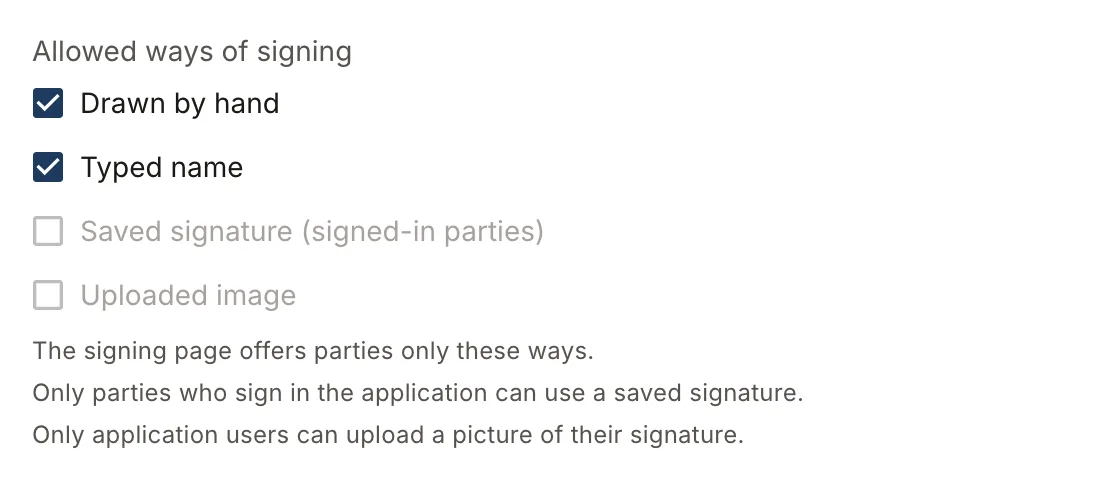
| Allowed ways of signing | Drawn by hand, Typed name, Saved signature (signed-in parties), Uploaded image | What the signature window offers this party. It starts from the document type’s list, or else the organization’s. See below. |
| Job title under the signature | Off (default) or on, with Job title | Printed between the name and the date. Left empty, the party types it while signing. |
| Attachments | Requests for files | What the party must add: see Files from signers. |
Further down the same row:
| Setting | What it does |
|---|---|
| Language | The language of messages to the party, and the one their signing page opens in. The party can change the page’s language. See Languages. |
| Signature request | How Doxtly asks the party to sign when their turn starts: the channel, the message and, in a workflow, its language. A package made by hand writes in the party’s Language, so it asks for no other. Off means nobody writes to them and you deliver the link yourself. |
| Signs in person – do not send an invitation | They will sign on a device you hand them. See In-person signing. |
| Allow signing on paper | They can print, sign by hand and send back a scan. See Signing on paper. |
| Return address | A page of one of the sites that may open signing, starting with https://, kept with the party. An address outside that list is refused when you save. When the party finishes or refuses, the final page offers a button back to it, Back to and the site’s name. An address later taken off the list is no longer offered. |
Apply to all parties copies this party’s verification and job title to every other party, and leaves each party’s signature type and ways of signing as they are. It is handy when all of them should be asked for an SMS code.
Choosing the verification
Section titled “Choosing the verification”| Method | Good for | Needs |
|---|---|---|
| None | Low-risk paperwork: the link is the check. | Nothing. |
| Code by email | A little more certainty that they control the mailbox. | An email address, and the organization’s email configuration. |
| Code by SMS | Stronger than email, since a forwarded email alone is not enough. | A phone number, and an SMS integration. |
| Code by WhatsApp | The same as SMS, for people who prefer it. | A phone number, and a WhatsApp integration. |
| Access password | A party you speak to directly: you pass them a password of at least six characters yourself. | Nothing. |
| Identity document and selfie | When the wrong person signing would be expensive. See Identity verification. | Identity checks turned on, on a paid plan. Paid per attempt. |
| The organization’s default | Whatever your organization requires of every package, and nothing beyond the link when it requires nothing. | Whatever that method needs. |
After five wrong tries of an access password within fifteen minutes, the party is locked for fifteen minutes, and after twenty within a day, until a day has passed since the first of them. Change password on the party’s row on the package page sets a new one and unlocks them at once.
Choosing the ways of signing
Section titled “Choosing the ways of signing”Allowed ways of signing starts with the ways the document type gives, or, when it gives none, those of your organization: normally a signature drawn by hand, a typed name and the signature saved on the account. Untick what this party shouldn’t use; at least one stays ticked. When the type locks the ways, the field is read-only and says Set by the document type with the type’s name. The saved signature only ever reaches a party who signs inside Doxtly, signed in, since through a link there is no account to take it from: for someone outside the application it is greyed out, with Only parties who sign in the application can use a saved signature.
Uploaded image lets the party sign with a photo or scan of their signature, or with a signature they saved from a picture. It is the weakest proof, because anyone holding a copy of the picture can make the same mark, and the field says so when it is ticked. It can be ticked only for a party who is a user of the application, or a department: for someone outside the application it is greyed out, with Only application users can upload a picture of their signature. Changing a party from a user to someone outside takes it off their list. Even ticked, it is offered only when the party signs inside Doxtly, never through a link or on a device handed over. For a party who signs in person, the field says On a device handed to them there is no account of theirs: the saved signature and an uploaded image are not offered.
Northbridge Advisory’s partner signs dozens of engagement letters from her desk and has saved a scan of her own signature, so her row allows Uploaded image. The client’s row keeps drawn and typed signatures: the client signs through a link, where a picture would prove too little.
Rules a document type can set
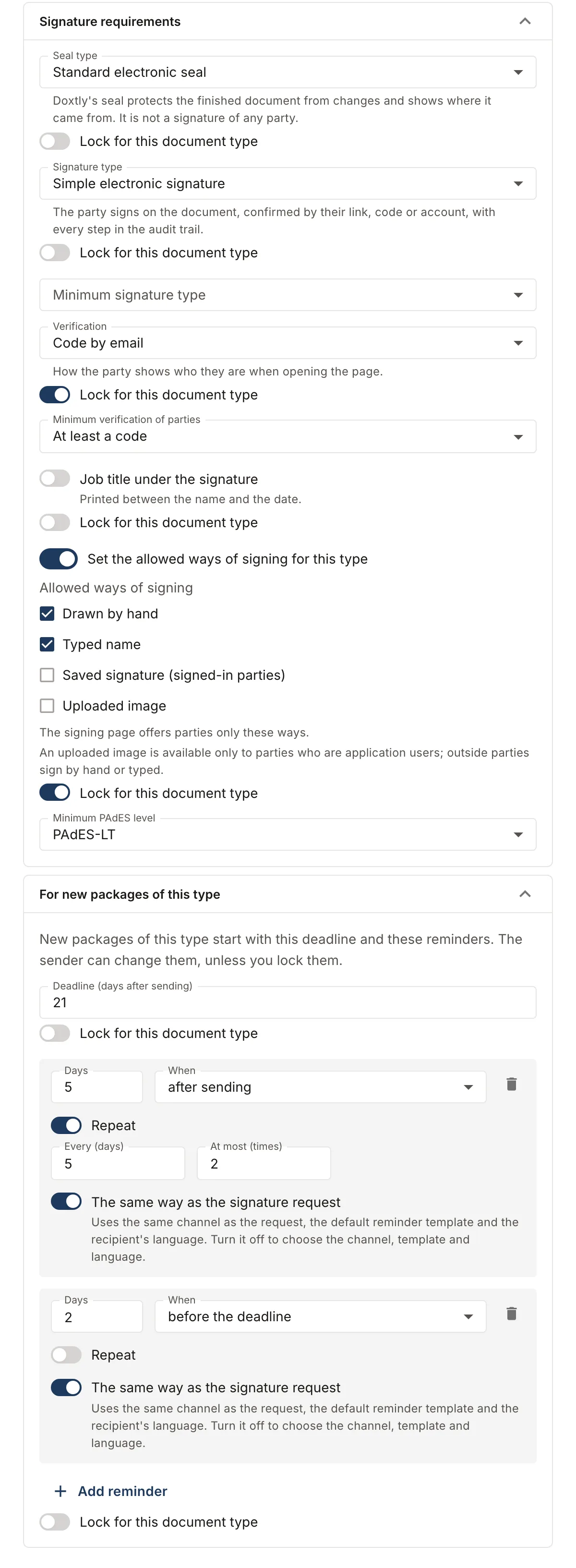
Section titled “Rules a document type can set”A document type can give every package of the type a default for these settings and lock them. Then the field is read-only and says Set by the document type with the type’s name, and a minimum is spelled out under the field, as in Document type “Supplier contracts” requires at least a code.

The default for a party is decided in this order: what was chosen for this party, then what the type gives, then what the organization requires, and finally no check beyond the link. The field says which method the organization’s default stands for. The organization’s default verification and the ways of signing it allows are set in Organization settings → Signing.
The seal on the finished documents
Section titled “The seal on the finished documents”On the Basics tab, of the package editor and of a Create documents step alike, Seal type chooses the seal Doxtly adds once every party has signed: Standard electronic seal, Doxtly’s advanced electronic seal, or Qualified electronic seal where one is available; Doxtly’s cloud offers none, so there it is greyed out with Not available: no qualified certificate is set up. A document type can fix it. The seal is Doxtly’s, and isn’t a signature of any party: it protects the finished file from changes and shows where it came from. See Signature types.
What the party sees
Section titled “What the party sees”- A check, if one was chosen, before anything else: see Confirming that it is you.
- A job title field in the confirmation, if you left the title for them to fill in.
- The places to sign or the qualified signature button, and anything else this row allowed, such as Print and sign under More.
A working example
Section titled “A working example”Northbridge Advisory sends a share purchase agreement to the seller and the buyer. The seller’s lawyer asked for a qualified signature on the seller’s side, so the seller’s row is set to Qualified electronic signature, and the seller signs the PDF in their own program and sends it back. The buyer signs online with a Code by SMS, and their director also adds his job title. Northbridge’s own partner signs in the app first. Because a simple signature can’t come after a qualified one, the order is partner, then buyer, then seller.