

Outgoing webhooks
An outgoing webhook works the other way round from an incoming one: Doxtly calls another system whenever something you chose happens in your organization. You give it an HTTPS address and pick the events, and from then on each of those events is sent to that address as JSON. You want one when your CRM, your accounting system or your own program should learn about an event the moment it happens, without anybody checking Doxtly and without a workflow for each case.
Available when: your role includes View webhooks and their requests (adding, changing and testing them takes Manage webhooks)
Outgoing webhooks are under Resources > Webhooks, on the Outgoing tab.
What it does for you
Section titled “What it does for you”Northbridge Advisory takes training orders through an interactive document. Its accounting system needs every order to issue the invoice, and its CRM needs to know when a client’s contract is about to end. One outgoing webhook, Accounting: training orders, takes An interactive document is filled in, narrowed to the order document. Another, CRM: contracts, takes A contract is ending soon and A contract ends. Nobody exports anything, and if the accounting system is down for an afternoon, Doxtly keeps trying until it is back.
Outgoing webhook or the Webhook step
Section titled “Outgoing webhook or the Webhook step”Both send a request to another system, but they suit different jobs.
| Outgoing webhook | Webhook step of a workflow | |
|---|---|---|
| What is sent | A fixed JSON body describing the event, the same shape for every receiver | Whatever you write: method, headers, body |
| When | For every event of the types it takes | When a workflow reaches the step, after any conditions and steps before it |
| Signature | Always signed with its own secret (Standard Webhooks) | Optional |
| If the address fails | Tried again for about 45 hours, and you can send it again by hand | The workflow stops |
| Counts against | Your plan’s outgoing webhooks | Your plan’s workflow runs |
Use an outgoing webhook when another system wants to be told about events and does its own work with them. Use the Webhook step when Doxtly has to call a specific API in a specific way, for example to create a deal in your CRM with its own field names.
Your first outgoing webhook
Section titled “Your first outgoing webhook”-
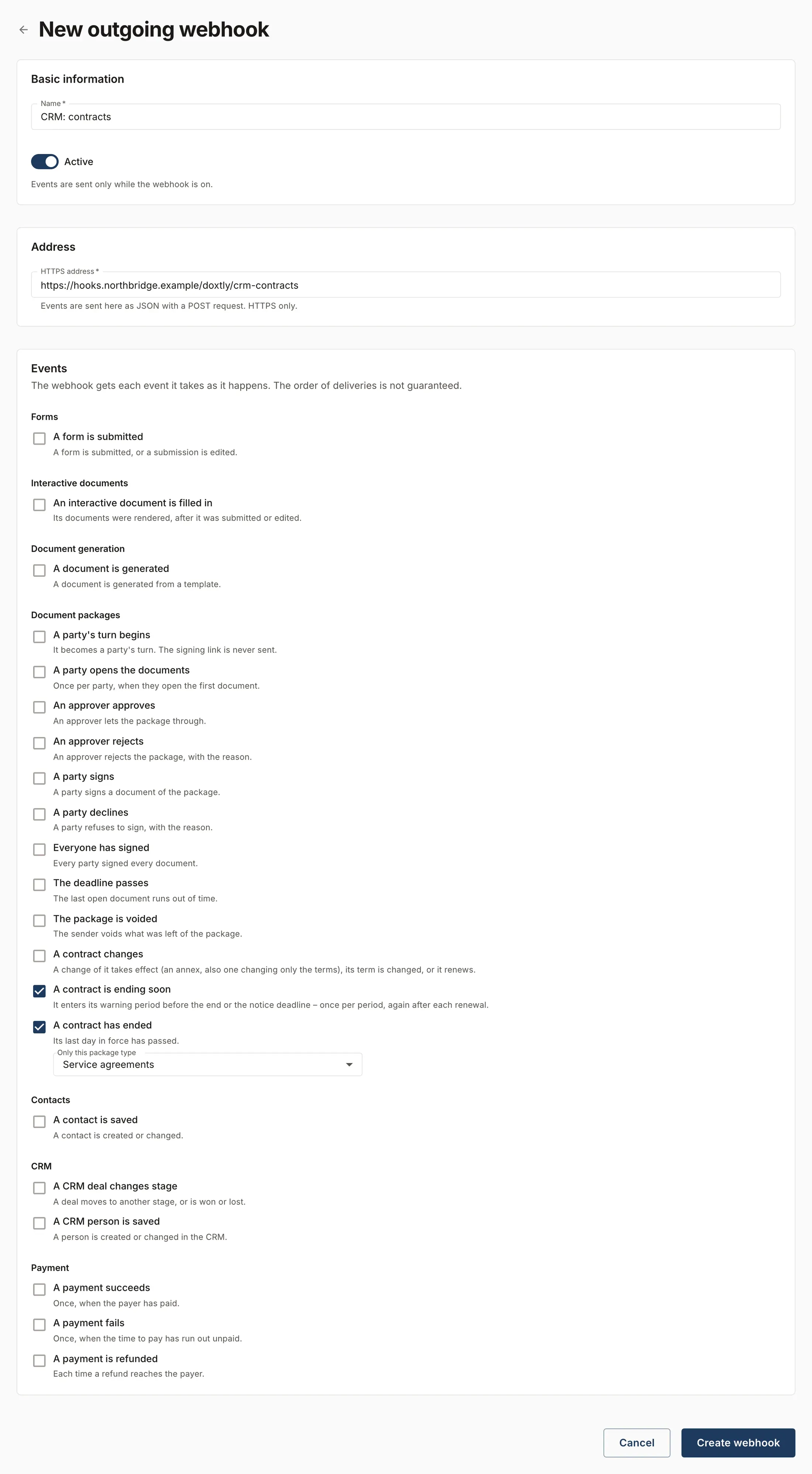
Open Resources > Webhooks, go to the Outgoing tab and click Add outgoing webhook.
-
Give it a Name that says where the events go, for example Accounting: training orders.
-
Under Address, enter the HTTPS address the other system gave you for receiving events.
-
Under Events, tick what it should receive. If you tick an event of interactive documents, Only this interactive document appears below the group: choose the document, or leave Any.
-
Click Create webhook.
-
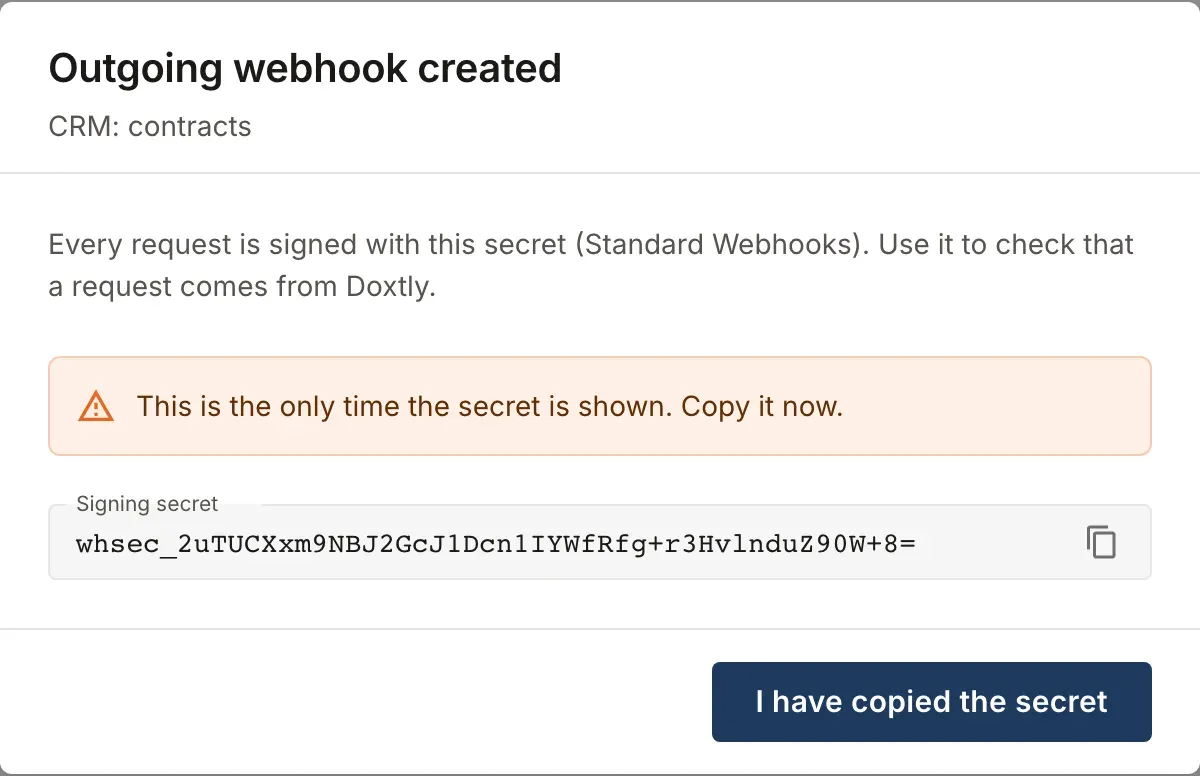
The Outgoing webhook created window shows the Signing secret. Copy it and give it to whoever runs the other system, then click I have copied the secret. The secret is not shown again.
-
Open the webhook, go to Deliveries and click Send test event. A message tells you whether the address answered, with its HTTP status.
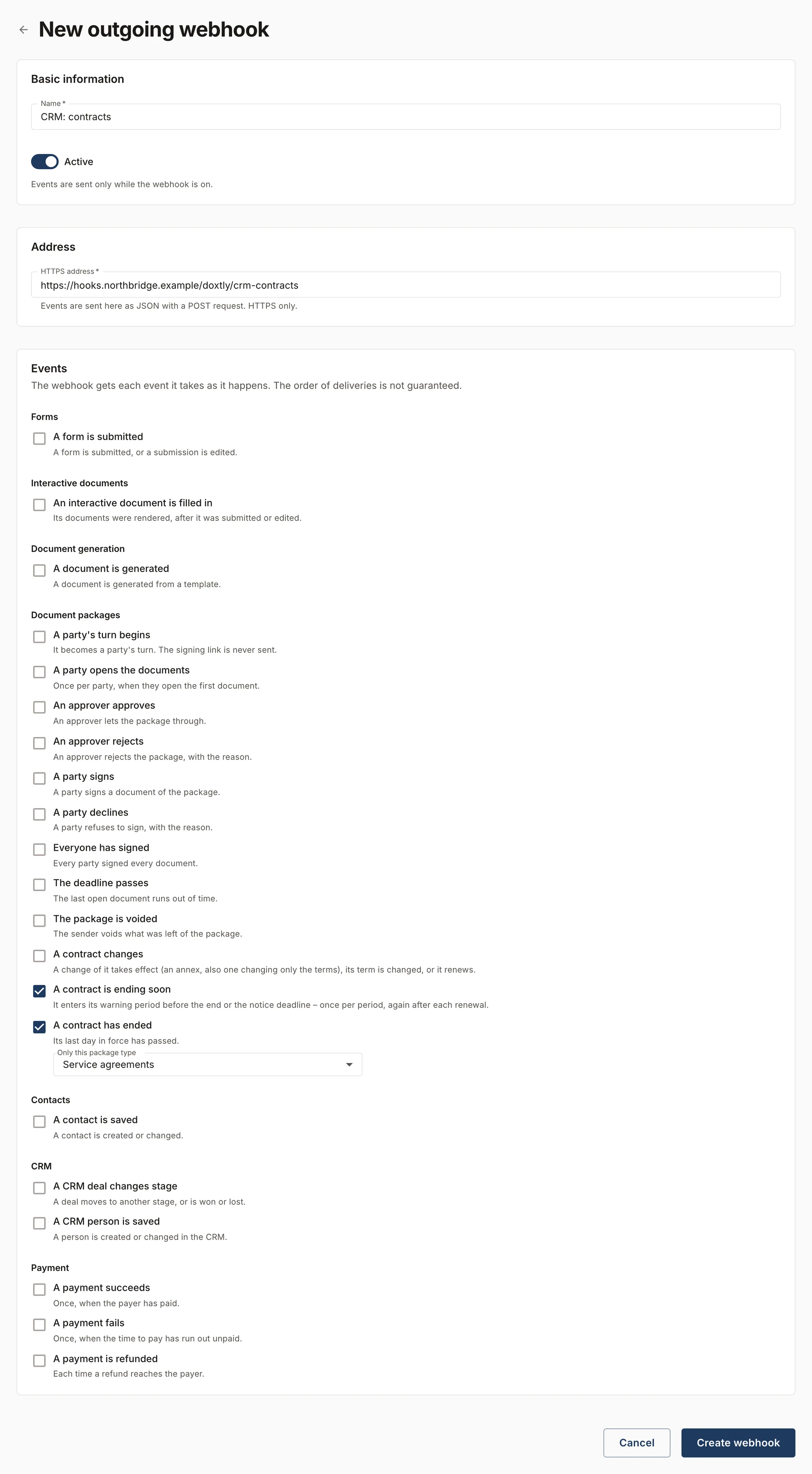
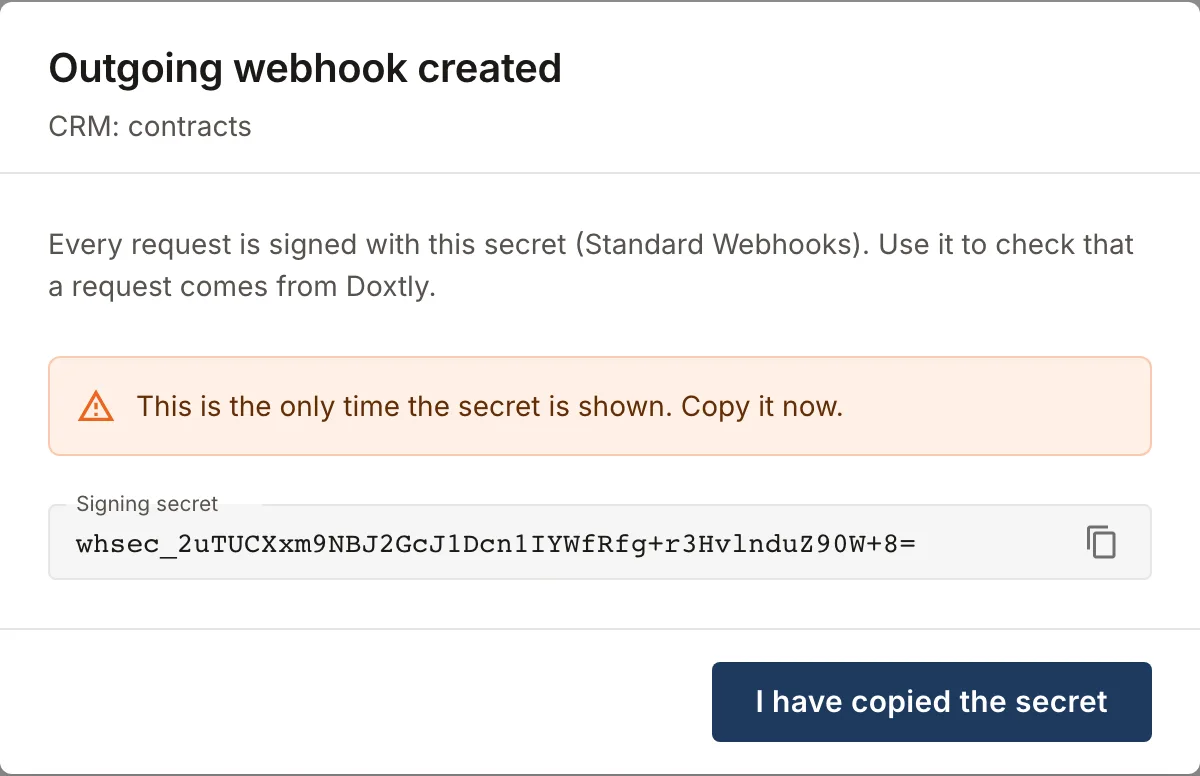
From now on every event the webhook takes reaches the address, and appears on its Deliveries tab.
The list of outgoing webhooks
Section titled “The list of outgoing webhooks”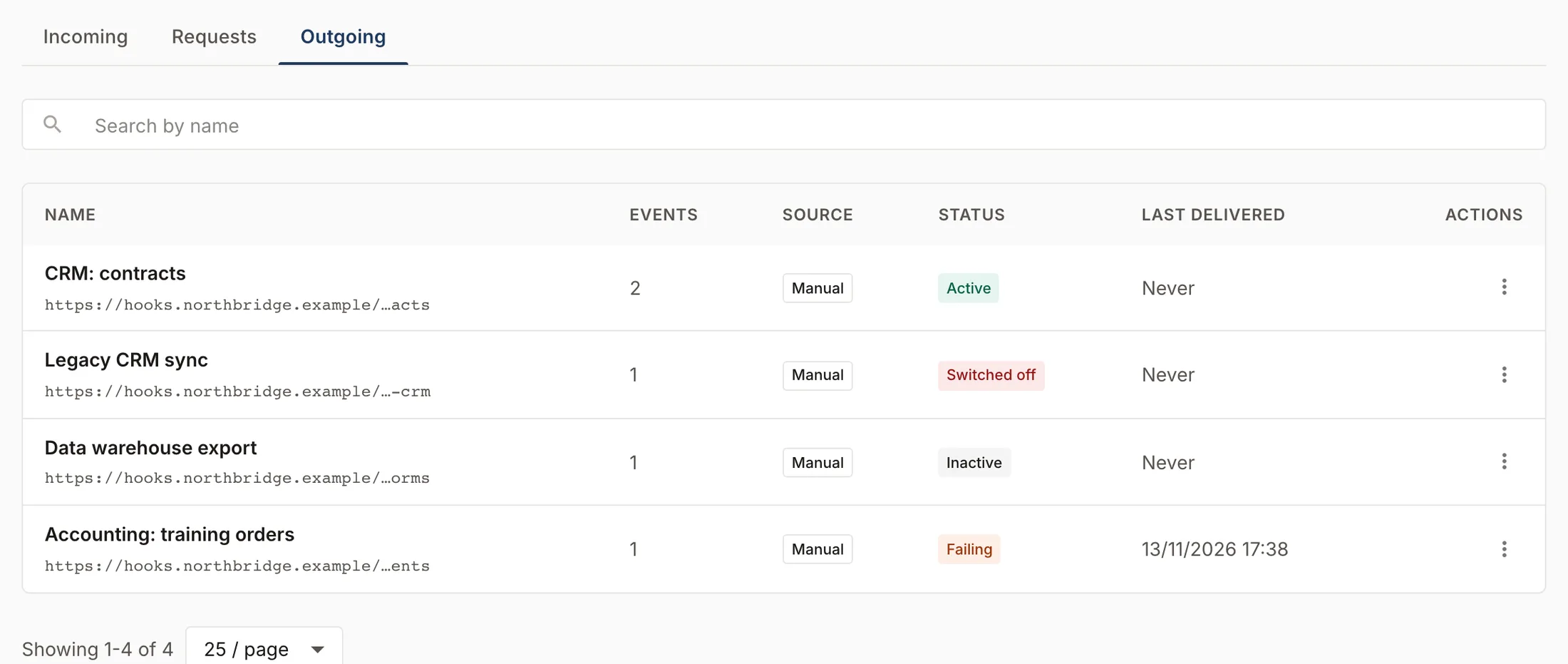
| Column | What it shows |
|---|---|
| Name | The webhook’s name, with its address below it, shortened to the host and the last four characters. Sortable. |
| Events | How many events it takes. |
| Source | Who made it: Manual for someone in the app, API for a program, or Zapier, Make or n8n when one of those platforms made it through the API. |
| Status | Whether events are sent to it, explained below. |
| Last delivered | When it last took a delivery, or Never. |
| Actions | The menu: Copy ID, which copies the webhook’s identifier for support or the API, and Delete, for people with Manage webhooks. |
The newest come first until you sort by name, 25 to a page. The search box finds webhooks by name, and the search shows as a chip you can remove, or clear with Clear filters. If nothing matches you see No matching webhooks.
Click a row to open the webhook. Anyone who can see webhooks can open it and read its settings and deliveries; only people with Manage webhooks can change it. On a phone each webhook is a card with its status, source, number of events and last delivery.
An organization with none sees No outgoing webhooks yet, with Add outgoing webhook if you may add one.
Deleting
Section titled “Deleting”Delete asks Delete the outgoing webhook? and says that the webhook stops receiving events and its deliveries are deleted with it. It can’t be undone. To stop events for a while instead, switch the webhook off in its settings.
The settings
Section titled “The settings”The webhook’s page has two tabs, Settings and Deliveries. A new webhook has only the settings. Save with Create webhook or Save changes. Cancel and the back arrow take you to the list, and if you changed something, Doxtly asks Leave the page?
Basic information
Section titled “Basic information”Name is required, up to 255 characters.
The switch next to it turns the webhook on and off, and reads Active or Inactive. Events are sent only while the webhook is on. An event that happens while it is off is not sent later, and deliveries still waiting for another attempt are canceled when their turn comes.
Address
Section titled “Address”HTTPS address is where events are sent, as JSON in a POST request. It must start with https://, carry no user name or password, and point to a server on the public internet. Doxtly refuses an address in a private network, such as one inside your office, and checks this again at every delivery. Up to 2,048 characters.
Once the webhook is saved, the field is empty and shows the current address shortened, for example https://hooks.example.com/…a1b2. Leave it empty to keep the address, or type a new one. The full address isn’t shown again because services such as Zapier put a secret token in it.
Events
Section titled “Events”The events are grouped as in the workflow designer’s triggers. Tick at least one; each has a line saying what it is.
| Group | Event | Sent when |
|---|---|---|
| Forms | A form is submitted | A form is submitted, or a submission is edited. On a form that takes a payment, once it is paid. |
| Interactive documents | An interactive document is filled in | Its documents were rendered, after it was submitted or edited. |
| Document generation | A document is generated | A document is generated from a template. |
| Document packages | A party’s turn begins | It becomes a party’s turn. The signing link is never sent. |
| A party opens the documents | Once per party, when they open the first document. | |
| An approver approves the package | An approver lets the package through. | |
| An approver rejects the package | An approver rejects the package, with the reason. | |
| A party signs | A party signs a document of the package. | |
| A party pays | A party who pays as part of signing has paid. | |
| A party’s payment fails | A party’s payment ends unpaid after 24 hours. Their signature stands. | |
| A party declines to sign | A party refuses to sign, with the reason. | |
| The package is fully signed | Every party signed every document. | |
| The package expires | The last open document runs out of time. | |
| The package is voided | The sender voids what was left of the package. | |
| A contract changes | A change of it takes effect (an annex, also one changing only the terms), its term is changed, or it renews. | |
| A contract is ending soon | It enters its warning period before the end or the notice deadline – once per period, again after each renewal. | |
| A contract ends | Its last day in force has passed. | |
| Contacts | A contact is saved | A contact is created or changed. |
| CRM | A CRM deal changes stage or status | A deal in your Pipedrive company or HubSpot account, or an opportunity in Copper, moves to another stage, or is won or lost. |
| A CRM person is saved | A person is created or changed in Pipedrive, HubSpot or Copper. | |
| Payment | A payment succeeds | Once, when the payer of a payment has paid: a form’s, or a party’s who pays as part of signing. |
| A payment fails | Once, when the time to pay has run out unpaid. | |
| A payment is refunded | Each time a refund reaches the payer. | |
| Quizzes | A quiz attempt is started | Each time somebody starts a quiz. |
| A quiz attempt is finished | Once per attempt, when it is sent and scored. The body holds each question’s answer and verdict. | |
| A quiz attempt needs grading | Once per attempt, when open answers wait for someone to grade them by hand. A quiz attempt is finished follows once they are graded, with the final score. | |
| A quiz result is released | Once per attempt, when the person is shown their result. The body holds the grade reached. | |
| A quiz closes | When the close date passes or the last response it takes starts. The body says why. | |
| A quiz recipient does not respond | Once per person, when the deadline of the invitation that sent them the quiz passes without their answer. The body says who, and for a contact brings the contact and their company. | |
| A quiz attempt is regraded | Each time a finished attempt’s outcome changes. The body holds the outcome before the change. | |
| Surveys | A survey response is started | Each time somebody starts responding to a survey. |
| A survey response is submitted | Once per response, when it is sent. The body holds every question’s answer. | |
| A survey recipient does not respond | Once per person, when the deadline of the invitation that sent them the survey passes without their response. The body says who, and for a contact brings the contact and their company. | |
| A survey closes | When the close date passes or the last response it takes starts. The body says why. | |
| A survey quota is full | Once per quota, when the response that takes its last place is sent. The body says which quota, with its limit. |
The order of deliveries isn’t guaranteed: two events close together can arrive the other way round. Each body says when its event happened.
Under the groups of forms, interactive documents, packages, contacts and payments, a filter appears once you tick one of their events: Only this form, Only this interactive document, Only this package type or Only this contact type. Payments are narrowed by the form they were taken through, with the same Only this form as the form’s own events: one choice narrows both groups. Leave it at Any to take every one. A filter only narrows the events of its own group, so a webhook taking the submissions of one form and every expired package gets both. A document is generated, the quizzes’ and surveys’ events and the CRM’s events have no filter: a webhook taking a quiz event gets the attempts at every quiz, and the body names the quiz, as it names the survey for a survey event; a webhook taking a CRM event gets it from every CRM integration, and the body names the integration.
The signing secret
Section titled “The signing secret”When you create a webhook, Doxtly makes its secret and shows it once, in the Outgoing webhook created window. Every request is signed with it, so the other system can check that a request really comes from Doxtly and wasn’t changed on the way. Copy it before you click I have copied the secret: nobody can see it afterwards, in the app or through the API. If it is lost, create the webhook again and delete the old one.
Deliveries
Section titled “Deliveries”A delivery is one event sent to one webhook. The Deliveries tab lists those of the last 30 days, the latest first, 25 to a page.
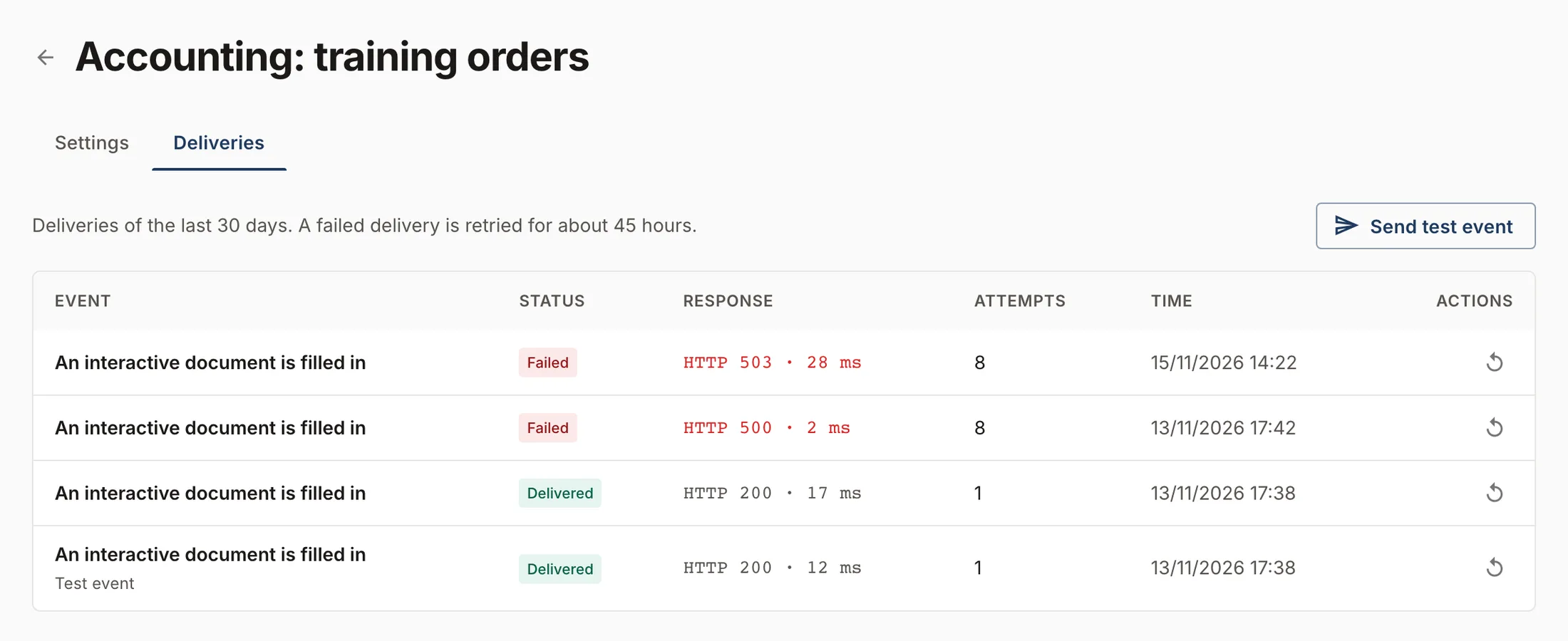
| Column | What it shows |
|---|---|
| Event | The event’s name, with Test event below it for a test. |
| Status | Where the delivery stands. While it is Retrying, the chip’s tooltip says when the next attempt is. |
| Response | The HTTP status the address answered with and how long it took, such as HTTP 200 · 182 ms, or No answer. When it failed, the text is red and its tooltip says why. |
| Attempts | How many times it was sent. |
| Time | When it was last sent, or made if it hasn’t been sent yet. |
| Status | Meaning |
|---|---|
| Pending | Made, not sent yet. |
| Retrying | Sent and refused, or not answered; it will be sent again. |
| Delivered | The address answered with a 2xx status. |
| Failed | Every attempt failed, or the address answered 410 Gone. |
| Canceled | Not sent any more, because the webhook was switched off. |
With Manage webhooks you also have:
- Send test event, which sends a sample of the first event the webhook takes, with made-up values, signed like any delivery. You get the result in a message right away, and the test appears in the list. A test is sent once, never retried, and works even while the webhook is switched off. It doesn’t change the webhook’s status.
- Send again, the arrow on each row, which sends that delivery again from its first attempt, with the same body and the same delivery ID. It is there while the webhook is on.
How delivery works
Section titled “How delivery works”A delivery succeeds when the address answers with a 2xx status within 15 seconds. A redirect is not followed and counts as a failure. Any other answer, or none, is tried again 1 minute, 5 minutes, 30 minutes, 2 hours, 6 hours, 12 hours and 24 hours after the attempt before. That makes eight attempts over about 45 hours, after which the delivery is Failed and only Send again sends it. An address that answers 429 or 503 with a Retry-After header is waited for as it asks, up to a day.
An answer of 410 Gone means nobody listens at that address any more. The delivery isn’t retried, and the webhook is switched off. A webhook that Zapier, Make or n8n made is deleted instead, because that is how those platforms remove a connection.
The status of a webhook
Section titled “The status of a webhook”| Status | Meaning |
|---|---|
| Active (green) | On, and nothing failing. |
| Failing (amber) | On, but its last attempt failed. A delivered one brings it back to Active. |
| Inactive | Switched off by someone. |
| Switched off (red) | Switched off by Doxtly, which says why at the top of its settings. |

When an address keeps failing, Doxtly tells the people with Manage webhooks:
- An outgoing webhook keeps failing, a warning, once a day has passed since the first failed attempt with nothing delivered and at least five attempts have failed. It comes once for each spell of failures.
- An outgoing webhook was switched off, critical, after five days without a delivery and at least 20 failed attempts. Doxtly switches the webhook off and cancels the deliveries still waiting. The same notice comes when an address answered
410 Gone.
Both counts are needed, so a webhook that receives an event a week isn’t switched off for one bad day. Both notices link to the webhook. To turn one back on, fix the address if needed and switch it on again in its settings. It starts afresh, but the canceled deliveries stay canceled: use Send again on those you still need.
What the other system receives
Section titled “What the other system receives”Each delivery is a POST request with a JSON body: the event’s type and ID, when it happened, your organization’s ID and the event’s data. The data is what a workflow started by the same event gets, such as the package, the party, the submission with its values, or the contact. Files and documents come as links to the API, which open only with an access key that may download them.
A grid of a form, a quiz or a survey comes as its rows and its text: {"rows": [{"value", "label", "answer": {"value", "label"}}], "text"}, with answer null for a row left unanswered.
Some things never leave Doxtly in a delivery:
- the values of custom fields marked as sensitive;
- what was typed into password and signature fields;
- a party’s signing link;
- the data given to the workflow that created a package.
The headers, the signature and how to check it, and the body of every event are for whoever builds the receiving side: send them Outgoing webhooks in the API reference.
Limits of your plan
Section titled “Limits of your plan”The number of outgoing webhooks is limited by your plan, and it counts all of them, active or not. Deliveries don’t count.
| Free | Starter | Pro | Business | |
|---|---|---|---|---|
| Outgoing webhooks | 3 | 25 | 100 | 300 |
At the limit, Add outgoing webhook is disabled and says Your plan allows no more outgoing webhooks. After a move to a smaller plan, webhooks above the new limit keep receiving events and can still be changed; you only can’t add new ones. If the organization’s subscription is canceled, no events are sent at all. See Plans and limits.
Who can do what
Section titled “Who can do what”| Permission | What it allows |
|---|---|
| View webhooks and their requests | The list of outgoing webhooks, each one’s settings and deliveries. |
| Manage webhooks | Adding, changing, switching off and deleting them, sending a test event and sending a delivery again. Also the notices about failing webhooks. |
These are the permissions of incoming webhooks too. The built-in Administrator, Manager and Member roles hold both, and Viewer holds the first. You can change this in Roles.
A program can look after outgoing webhooks too. An access key can hold List outgoing webhooks, Read an outgoing webhook, Create outgoing webhooks, Update outgoing webhooks, Delete outgoing webhooks, List outgoing webhook deliveries, Resend outgoing webhook deliveries, Send test events, Read the event catalogue and Read sample events. The API reference covers those calls.