Work Doxie prepares
Ask Doxie to build or change something, and she prepares it and shows it to you as a card under her answer. The card says what she prepared and what it changes. Nothing in your organization changes until you press its button, and what you apply to an open editor can be undone. A first draft of an onboarding form takes a sentence; you then read it, adjust it and save it like anything you built yourself.
Available when: your role has Use Doxie and the permission of the thing she prepares, such as Manage forms for a form
How a proposal works
Section titled “How a proposal works”-
Say what you need, on any page: “Create a client onboarding form with company details, a billing contact and a GDPR consent”, or, with a form open in the designer, “Add a phone number field after the email”.
-
Doxie prepares it. Before you see it, Doxtly checks it with the same rules as saving it would, as you: what wouldn’t save, or what you aren’t allowed to do, never reaches the card. If she can’t get it right, she tells you what is missing instead.
-
Read the card: its kind (Form, Template areas, Agent changes, Skill, Transformation code, Step settings, Custom role), what changes, and a preview, such as the form’s title and Fields: 12.
-
Press its button, or Discard.
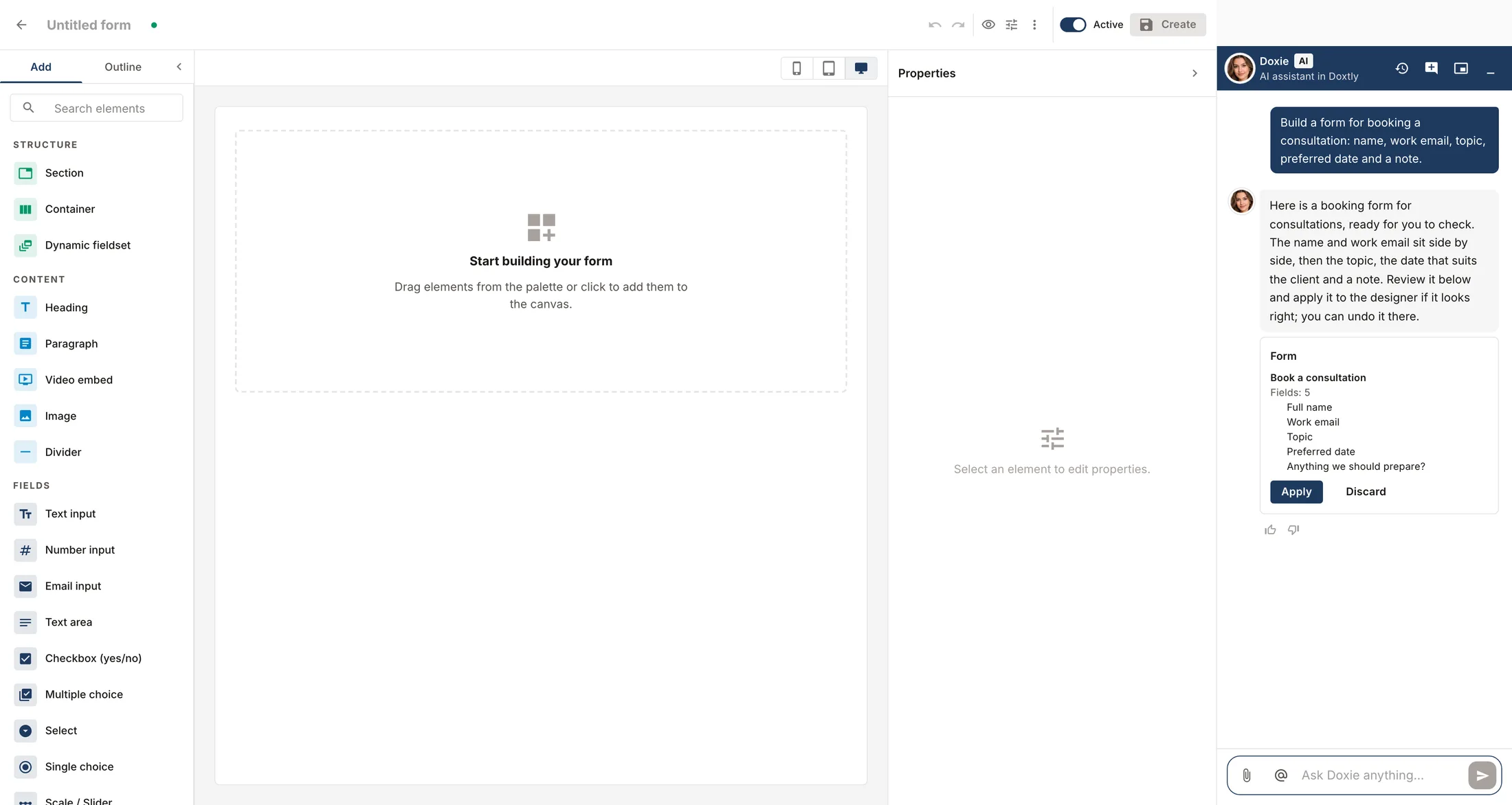
Which button the card shows depends on what is open on your screen:
| Button | When | What it does |
|---|---|---|
| Apply | The editor it belongs to is open: the form designer, the PDF template designer, the agent builder, the skill dialog, the workflow designer, the e-mail designer, the portal editor, the interactive document builder | Puts it into the editor as one step. The card then says Applied and offers Undo. Nothing is saved until you save in the editor. |
| Create | Nothing is open for it, and it is something new: a form, an AI agent, a skill, a custom role, a workflow, a portal, an interactive document | Creates it as you, then opens it: a form in the designer, an agent in the builder, a workflow in the designer (switched off), a portal or an interactive document in its editor (switched off), a skill in the library, a role in the role editor. The card says Done. |
| Open and apply | It belongs to a record that exists but isn’t open: a form, a template, a workflow, an e-mail template, a portal, an interactive document | Opens that record’s editor and applies it there, ready for Undo. |
| Open as a draft | A new e-mail template | Opens the e-mail designer of a new template with it filled in. Save it there: it is saved as a draft. |
| Make the change, Save | It changes a record that exists, or adds a contact or a company | Makes it as you, as the record’s own page would. The card says Done and offers Undo and Open. |
| Send, Cancel the package, Delete | It sends something or deletes a record, which can’t be taken back | Stays off until you tick I understand this can’t be undone. Then it does it as you, as the record’s own page would. The card says Sent, Cancelled or Deleted, with no Undo. |
| Discard | Always, until you decide | Sets it aside. The card says Discarded. |
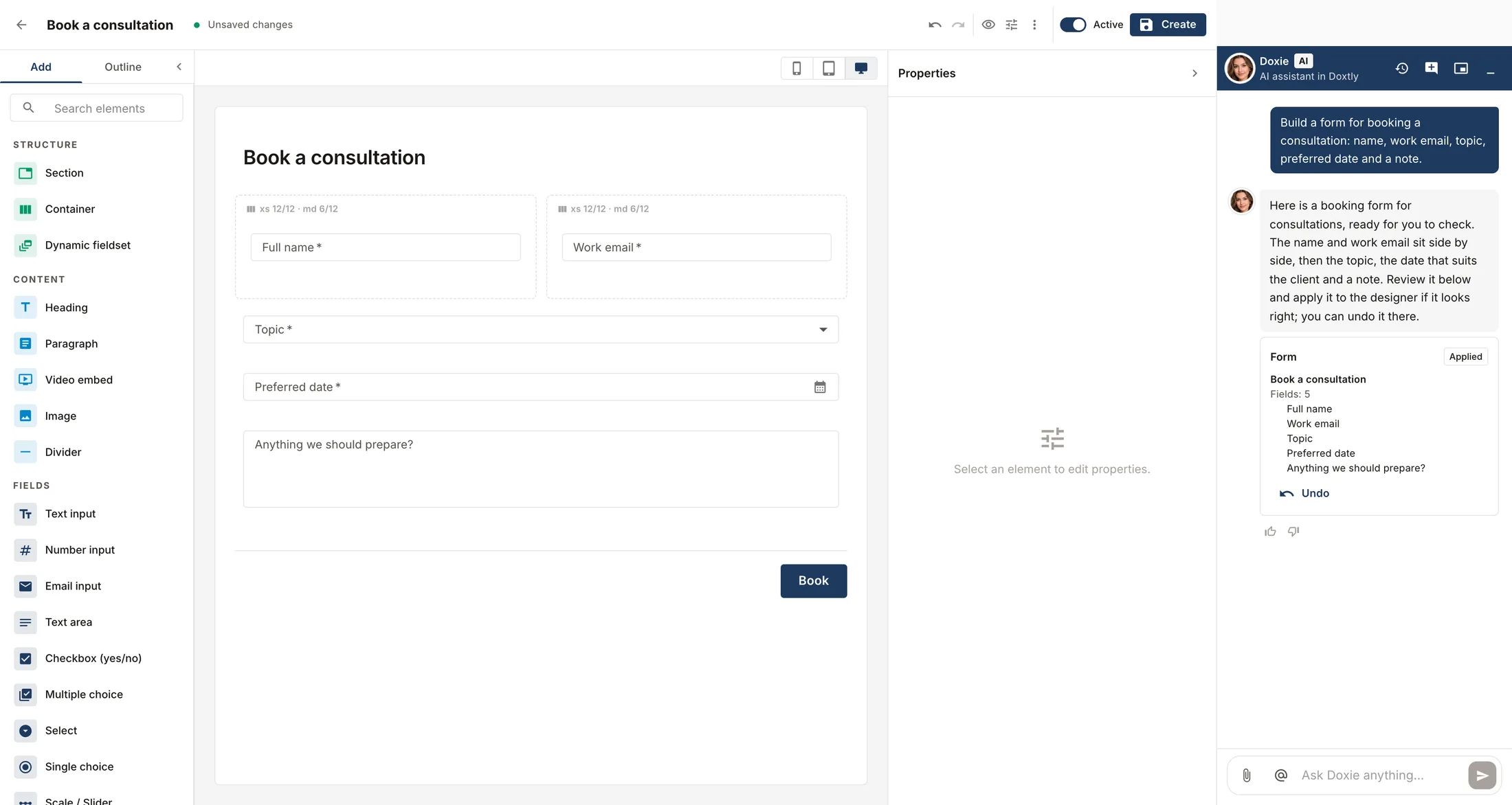
Undo on the card takes the change back while it is still the latest one in the editor. Once you have changed the same thing again, the card says so, and the editor’s own undo is the way back. An applied change is one step in the editor’s history either way.
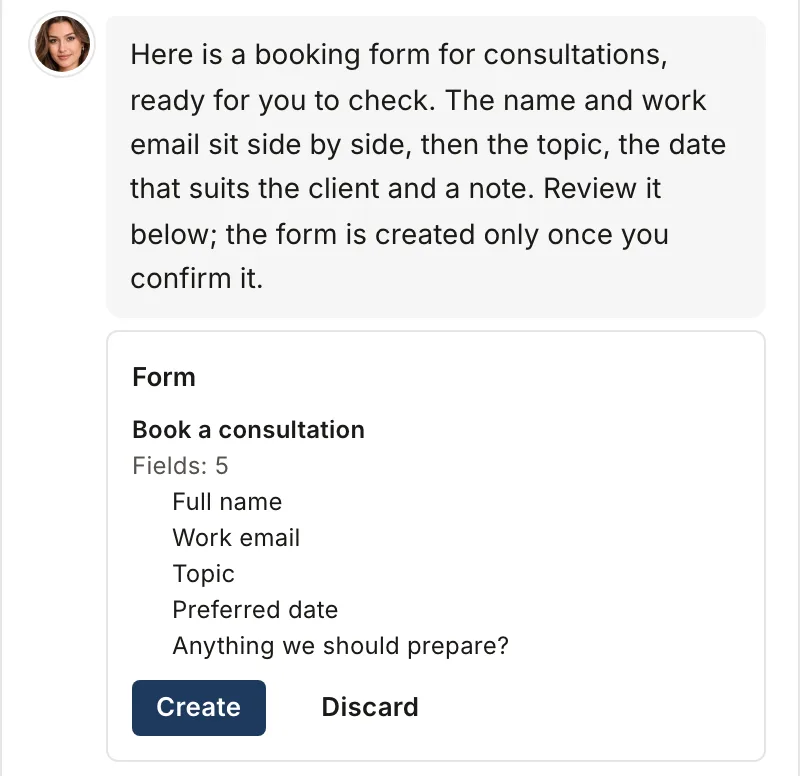
A form Doxie creates is switched off, so nothing goes public before you have looked at it. See Active and inactive.
What she can prepare
Section titled “What she can prepare”| What | Where | Your permission | What she does |
|---|---|---|---|
| Forms | Anywhere; the form designer for a change | Manage forms | Designs a new form, changes or reviews the open one, builds a form for a template or checks one against it, borrows from another form. |
| PDF template areas | A PDF template open in its designer; a Word or SVG template on its Template tab | Manage file templates | Lists the values a template needs and what it lacks; on a PDF, places the missing areas. |
| AI agents | Anywhere; the agent builder for a change | Build AI agents, on a plan with AI agents | Designs a new agent, reviews and improves the open one. |
| Skills | Anywhere; the skill dialog for a change | Build AI agents, on a plan with AI agents | Writes a skill for the library or the open agent, or improves the open one. |
| Data transformation | The workflow designer, the Data transformation step selected | Manage workflows | Writes or changes the step’s code, tried on sample data first. |
| One workflow step | The workflow designer, or a workflow you name | Manage workflows | Explains a step, fixes the error it failed with, changes its settings, connects it, inserts a step after it. |
| A whole workflow | Anywhere | Manage workflows | Builds a new workflow, or adds, reorders or removes steps of one. |
| E-mail templates | Anywhere; the e-mail designer for a change | Manage email templates | Writes a new e-mail template, or changes one: its subject, texts, buttons, blocks, a version in another language, its colours and footer. |
| Portals | Anywhere; the portal editor for a change | Manage portals | Builds a new portal’s page, or changes one: its name, headings, texts, groups and links to your forms and interactive documents. |
| Interactive documents | Anywhere; the interactive document builder for a change | Manage interactive documents | Puts together a new interactive document, or changes one: which PDF templates and forms, their order, its title and the texts of its page. |
| Quizzes | Anywhere; the quiz designer for a change | Manage quizzes, on a plan with quizzes | Creates a quiz from a description, pasted text or a Word file, or changes one: its questions (grids and rankings too), right answers, points and sections, its settings by name, a language version; adds questions from the question library, duplicates it, saves its questions to the library, saves it as your organization’s template or starts one from such a template. |
| Surveys | Anywhere; the survey designer for a change | Manage surveys, on a plan with surveys | Creates a survey the same way, or changes one: its questions (grids and rankings too), NPS, CSAT and CES scores, sections, anonymity and other settings by name, a language version; adds questions from the question library, duplicates it, saves its questions to the library, saves it as your organization’s template or starts one from such a template. |
| Results of quizzes and surveys | Anywhere, when your organization lets Doxie read its data | View quizzes, attempts and results or View surveys, responses and results | Answers from the Results page: the pass rate, the hardest questions, what respondents like and dislike, what waits for grading. |
| Themes | Anywhere; the theme designer for a change | Manage themes | Creates a theme of your public pages or changes one of your own: its colours, font, text size, corners, buttons, options, density, the logo’s place, the standard look and its custom CSS. |
| Custom roles | Anywhere | Manage roles to create one | Advises a built-in role, or proposes a custom role with exactly the permissions needed. |
| A template from a Word file | Anywhere, with the file attached | Manage file templates and Use the AI assistants, on a plan with AI | Turns an ordinary Word document into a template, asking you only what it must. |
| A PDF template from a PDF | Anywhere, with the file attached | Manage file templates | Creates a PDF template from the file and, if you agree, suggests its areas. |
| Import from a file | Anywhere, with the file attached | Manage forms, Manage email templates, Manage interactive documents or Manage workflows, for what the file holds | Reads a form, an e-mail template, an interactive document or a workflow exported from Doxtly and opens it in a new designer, ready to save. |
| Your organization’s logo | Anywhere, with the picture attached | Change organization settings | Makes the picture your organization’s logo, or its logo on dark backgrounds. |
| Documents for signing | Anywhere | Manage documents | Prepares a draft package of your templates or an attached PDF, with its parties, order and deadline. |
| Sending | Anywhere | Manage documents; for a link, the permission to manage the form, interactive document, portal, quiz or survey | Sends a draft for signing, reminds the parties whose turn it is, cancels a sent package, or sends a form’s, an interactive document’s, a portal’s, a quiz’s or a survey’s link by e-mail. |
| Deleting | Anywhere | The permission to manage what you delete | Deletes one form, file template, workflow, contact, company, package draft, quiz or survey. |
| Duplicating | Anywhere | The permission to manage what you duplicate | Duplicates a form, an interactive document, an e-mail template, a workflow, a file template, a portal or an AI agent. |
| Switching on and off, renaming | Anywhere | Manage forms, Manage workflows, Manage portals, Manage quizzes, Manage surveys or Manage interactive documents; Manage themes for the default theme | Switches a form, a workflow, a portal, a quiz or a survey on or off, or renames it; puts a form or an interactive document in a theme; makes a theme your organization’s default. |
| Contacts and companies | Anywhere | Manage contacts | Adds a contact or a company, or changes one field by field; links a contact to its company. |
Without the permission, Doxie can still explain how to do it, but she won’t prepare it.
Doxie designs forms with the same designer you use: sections, fields, validation, conditions, data paths, the success message and a redirect.
- A new form: describe who fills it in, what it collects and in which language. Without a form open, the card offers Create. With one open, say you want a new one, or she works on the open form.
- The form in the designer: “make the tax ID required for companies only”, “improve the labels”. She reads the form as it stands, unsaved changes included, and Apply loads her version into the designer as one step.
- A review: “check this form” gets you an answer in words, what to change and why, with nothing changed. Say “do it” to get a card.
- For a template: “build the form for the Mutual NDA template” gives every value the template needs a field of the right type, at the variable’s own data path, required where the template requires it. “Check this form against the Mutual NDA template” tells you what is missing, what has the wrong type and what the template doesn’t need, and changes nothing. You need View file templates and generated files as well.
- Like another form: “take the consent section from the Client feedback form”. The other form is only read. You need View forms and submissions for it.
Name a template or a form exactly as it is called in the app. If she can’t find it among those you may see, she asks.
What stays in your hands: the form’s password, Validate request origin and Block IPs from list are never sent to the AI or changed by it; she doesn’t add a Payment element or pictures, so she can lay a choice’s options out as cards but leaves their pictures for you to add in the designer; and she refuses a form built to deceive, such as a copy of a bank’s sign-in page.
Templates
Section titled “Templates”Open a PDF template in its designer (Edit areas on its Template tab), or a Word or SVG template on its Template tab, and ask: “List every value this template needs”, “What is this template missing?”, or, on a PDF, “Place the missing areas on the page”.
- On a PDF, she places new areas where the page asks for them: over a blank line, after a label such as VAT ID:, under a heading, inside a drawn box, on a signature line. What your organization fills in becomes a From data area, what the recipient fills in or signs a Filled by recipient area. The card shows Areas: 12; Apply adds them in one step, which Undo in the designer’s top bar also removes. She never moves, changes or removes an area that is already there. Save the template with Save changes.
- On Word and SVG templates, she advises: what to add, where, and the exact marker to write, such as
${client.name|Unknown}. You edit the file. To turn an ordinary Word document into a template, use Turn a Word file into a template.
She reads the template’s saved file. A scanned page with no text gives her nothing to anchor an area to: she says so, and you draw the areas in the PDF template designer.
AI agents and skills
Section titled “AI agents and skills”In the agent builder, ask Doxie to review the agent or improve its instructions, skills, examples or knowledge. The card, Agent changes, lists the parts she changes; Apply puts them into the builder, with Undo. Without an agent open, describe the job and Create makes a new agent and opens it in the builder.
Two buttons open her with a request already written, which you can edit before sending:
- on the builder’s Instructions card, Write with Doxie while the instructions are empty, Suggest improvements once they are written;
- Write with Doxie and Improve with Doxie in the skill dialog.
A skill she writes for the library is created with Create; one for the skill dialog that is open goes in with Apply. See Skills.
Workflow steps
Section titled “Workflow steps”In the workflow designer, select a step and ask, or name the step in your request: “the e-mail step”, “the second Generate document”. Outside the designer, name the workflow too. Doxie works on that one step alone, which keeps it quick. If several steps fit what you wrote, a card Which step do you mean? lets you pick one.
- A Data transformation step: describe what it should produce from the run’s data, or press the Doxie icon beside its code, which opens her with a request ready. She writes the code and Doxtly tries it on sample data before the card shows it. Apply puts it into the step. See Data transformation.
- Explain or fix a step: “What does this step do?” gets an explanation from the step’s own settings. “Fix this step” works from the error it failed with in its last run.
- Connect a step, or add one after it: “After this check, when it’s false, send an e-mail”. The card, Workflow changes, lists the workflow’s steps and marks the new and changed ones.
- Any other action, a condition, a switch or the trigger: describe what the step should do, for example “read the rows of the Courses sheet where the date is next week”. The settings are checked as saving the workflow checks them, and against what is true: the variables the step can really read, your templates and integrations, and for a spreadsheet step the file itself, its sheets and its column headings. A spreadsheet step is then tried on the file’s real rows, without writing anything, and the card shows the result, such as Matches 12 of 340 rows. and the first rows found.
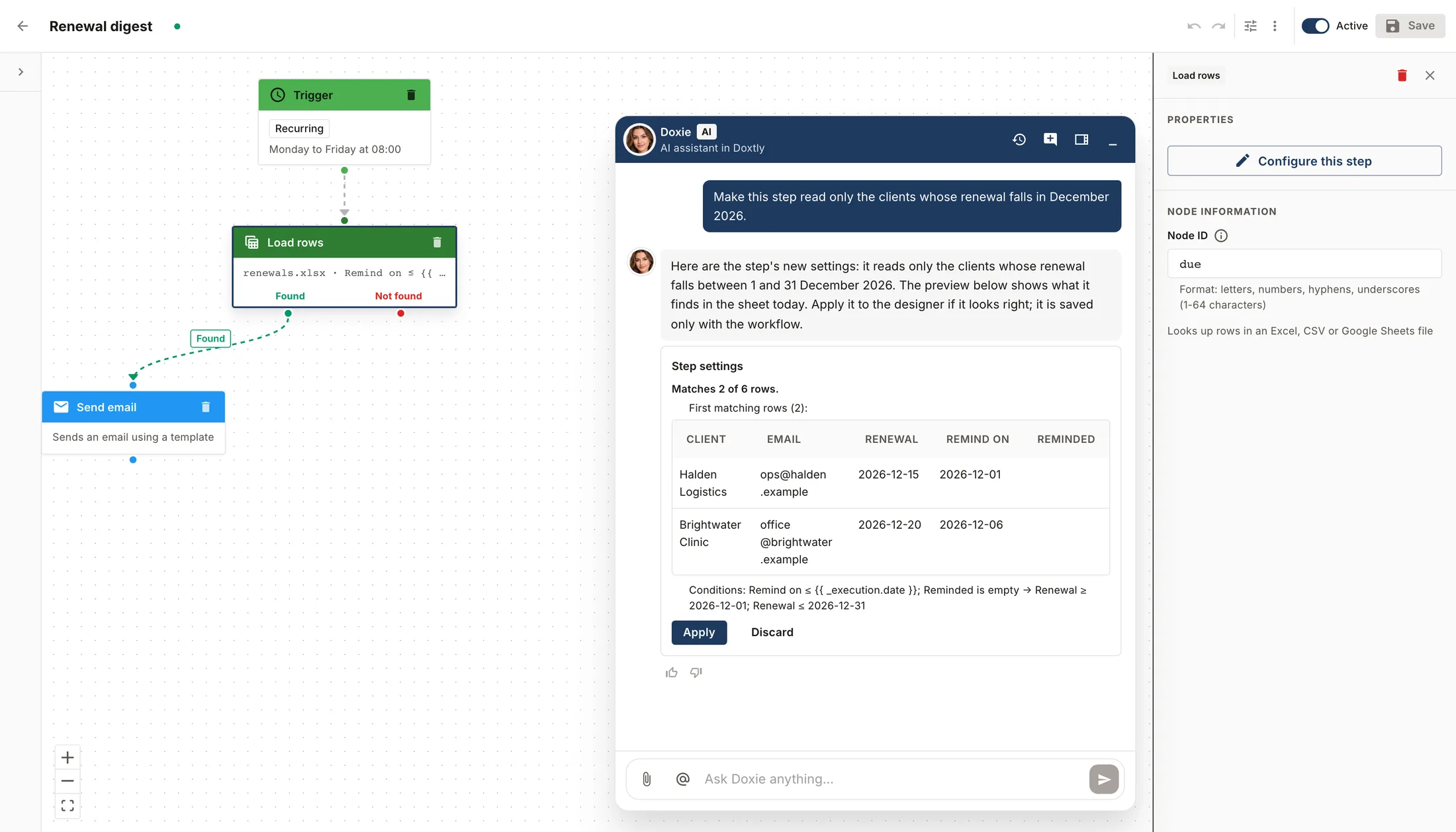
Apply puts the change into the designer, and Undo takes it back. The workflow is saved when you save it. If the workflow isn’t open, Open and apply opens it in the designer first. Doxie doesn’t touch a step that holds a password or a key.
A whole workflow
Section titled “A whole workflow”Describe the workflow, anywhere in the application: “When the Complaint form is submitted, generate a document from the Note template and e-mail it to the address from the form.” Doxie decides the steps and their order, sets each one up on its own and checks the whole workflow as saving checks it. She names the forms, templates and e-mail templates you already have. When one is missing, she tells you what to create first. The Workflow changes card shows the steps. For a new workflow, Create creates it switched off and opens it in the designer, so nothing runs until you switch it on. For a workflow that is open, Apply puts the change into the designer, with Undo. Steps you didn’t mention stay exactly as they are, and Doxie removes a step only when you ask her to.
E-mail templates, portals and interactive documents
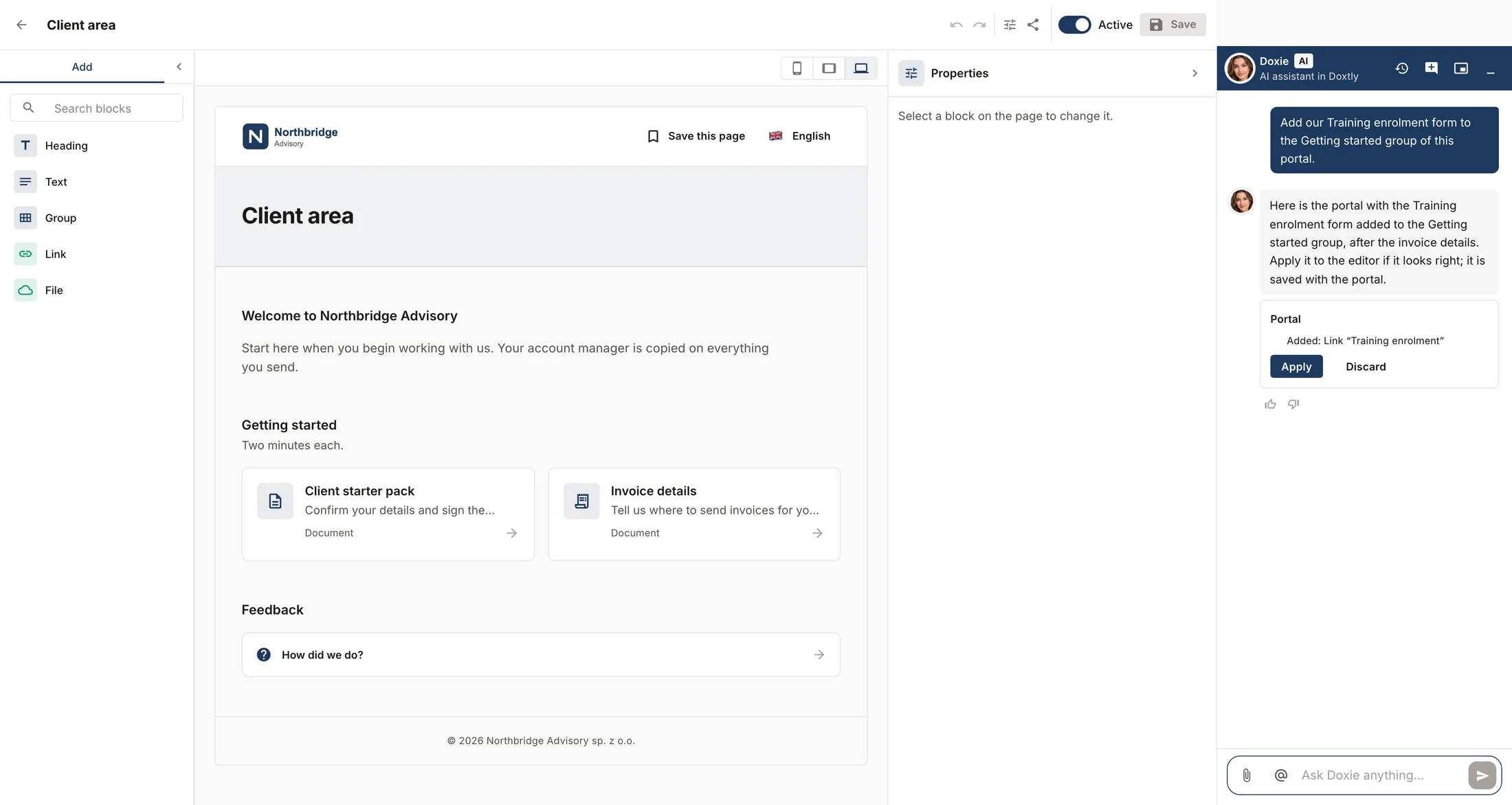
Section titled “E-mail templates, portals and interactive documents”Describe what you want: “Write a reminder e-mail with a Confirm button”, “Add a group of links to our job forms to the Careers portal”, “Add the GDPR consent form at the end of this interactive document”. Doxie works on the one open in its editor, one you point to with @, or one you name, and the card lists exactly what changes: a text added, a heading reworded, a position moved. What you didn’t mention stays as it is, and she removes a block, a link, a position or a language version only when you ask her to.
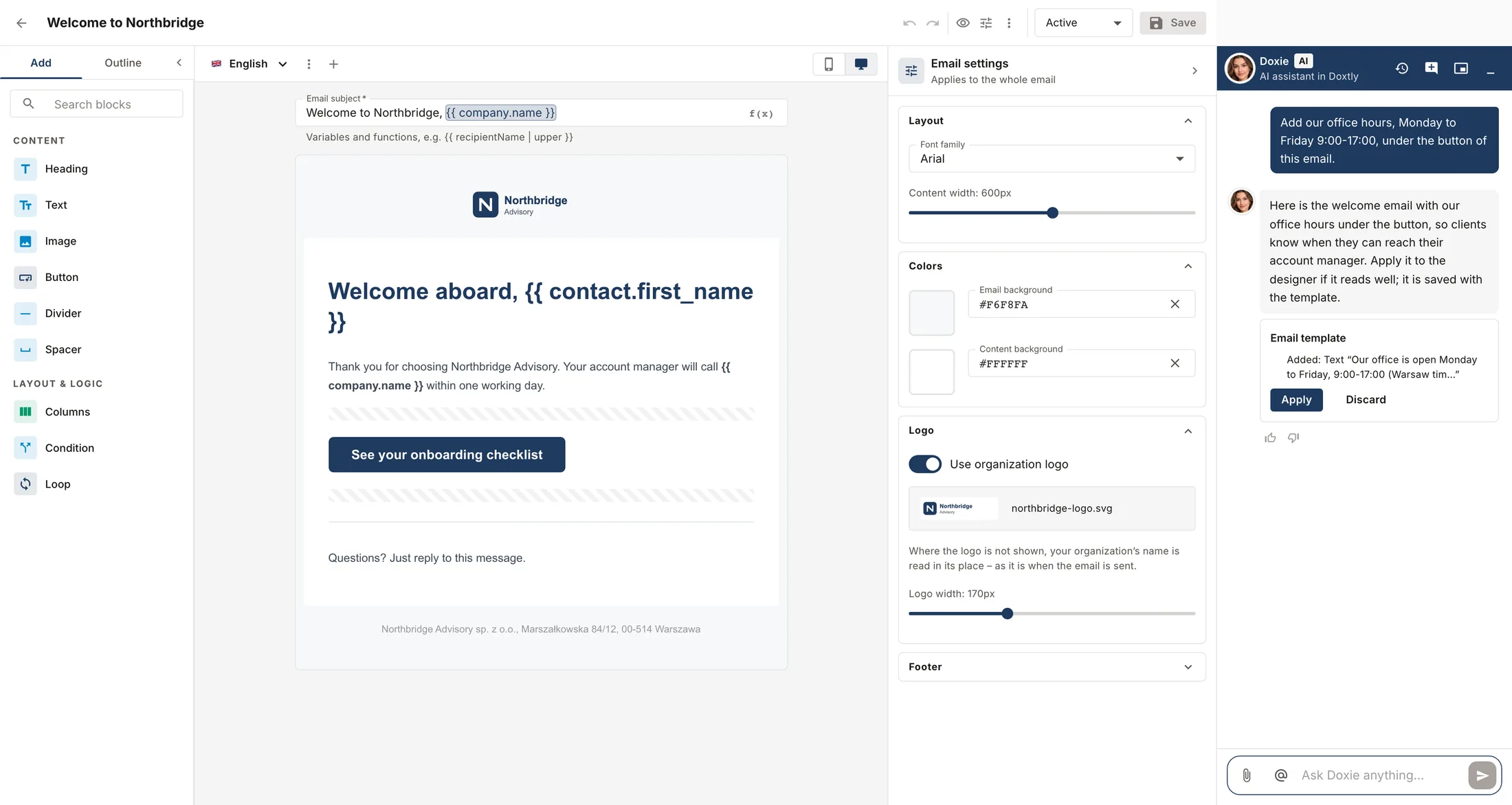
- In the editor: Apply puts the change into the e-mail designer, the portal editor or the interactive document builder, and Undo takes it back. Nothing is saved until you save there.
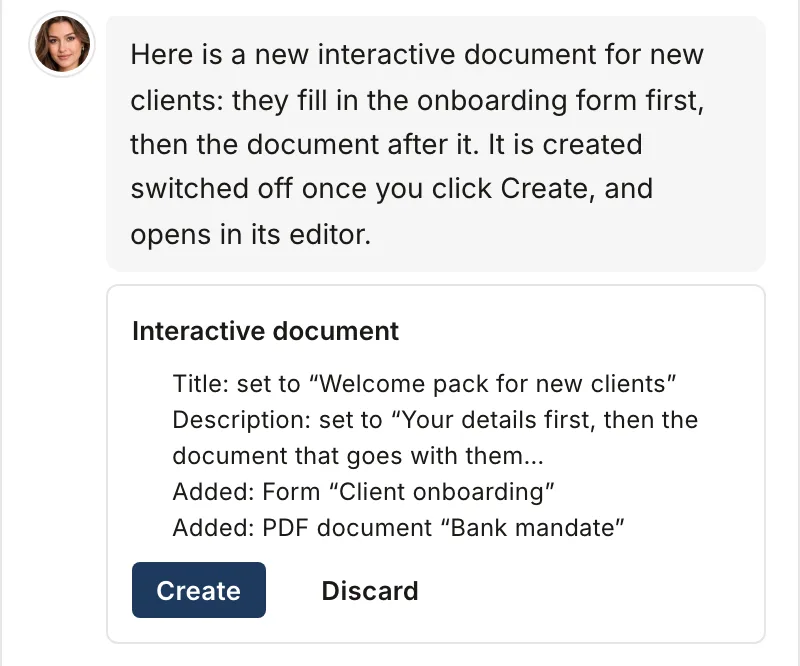
- A new portal or interactive document: Create creates it switched off and opens it, so nobody can open it before you switch it on.
- A new e-mail template: Open as a draft opens it in the e-mail designer; you save it there, as a draft.
In the portal editor the card stands beside the page, and Apply puts the change into it:
Asked for anywhere else, a new interactive document comes with Create:
Some things stay yours to set on the page itself, and Doxie leaves them exactly as they are: a portal’s passwords and how it is opened, an interactive document’s password and protections and what it keeps of a submission, switching any of them on, the pictures of an e-mail and HTML written by hand in its source view. She tells you where to change them.
Themes
Section titled “Themes”Describe the look you want: “Make a theme in our green, #0b5d3b, with rounded buttons and the Lato font”, “Make the text on this theme darker”, “Add CSS that puts the questions’ titles in capitals”. Doxie works on the theme open in the theme designer, one you name, or a new one. The card lists what changes, such as Primary colour: #0b5d3b. In the open designer Apply puts it in as one step and Undo takes it back; nothing is saved until you press Save. Open and apply opens the designer of a theme that isn’t open, and Create makes a new one, which no page uses until you pick it.
She checks the theme as saving it does: the text must stay readable on its card, and custom CSS the sanitizer would refuse, such as @import or an address of another site, is never proposed; she says why and suggests the tokens instead. A built-in theme is never changed: she makes a new one from your description. She also makes a theme your organization’s default and puts a form or an interactive document in a theme, with a card you confirm and can undo (see Switching on and off, renaming); a quiz’s or a survey’s theme she sets by name in its designer’s Look.
Quizzes and surveys
Section titled “Quizzes and surveys”A quiz and a survey are two things to Doxie, as in the app: a quiz has right answers, points, a pass mark and grades; a survey asks for opinions, and she speaks of its responses and respondents. Describe what you want:
- “Make a 10-question quiz on fire safety for new staff, pass mark 80%, 20 minutes.”
- “Turn the attached Word file into a quiz”, or paste the questions into the message.
- “Create an anonymous customer satisfaction survey with an NPS question and two open questions.”
- “Set the time limit to 20 minutes”, “one question per page”, “use the Calm theme”, “make it anonymous”.
- “Add a section Safety equipment with three questions about helmets”, “the right answer to question 4 is B”, “give question 2 two points”.
- “Add a grid: which bin for a PET bottle, a jar and a newspaper - yellow, green or blue”, “add a ranking of the evacuation steps in the right order”.
- “Translate this survey into German.”
She writes the questions with the same Draft with AI and Word import as the designer, so they come out as they would there: options, right answers and points for a quiz, none for a survey. Writing questions takes Use the AI assistants. For a new quiz she suggests sensible settings, such as a pass mark, a time limit and one question per page; for a survey, anonymous responses. If the request is vague, she first asks what it is about, for whom and how many questions. For a ready start she starts a new one from your organization’s own template you name: “Start a survey from our Visit feedback template” shows the Import from a file card, and Open in the designer opens the new survey with the template, ready to check and save, as New survey → From a template does. Doxtly’s templates she points you to there (see quiz templates and survey templates).
The card lists exactly what changes: a question added, an option reworded, Time limit (seconds): 1200. In the open designer Apply puts it in as one step and Undo takes it back; nothing is saved until you press Save. Open and apply opens the designer of a quiz or survey that isn’t open. Create creates a new one switched off, within your plan’s limit of quizzes or surveys, and opens it in the designer.
Some things stay yours to set in the designer or on its pages, and Doxie leaves them as they are: switching it on, its password, who may take it and its access list, the protection of its public link, proctoring, how long responses are kept, the certificate, the examiner notes and pictures. She never makes an anonymous survey’s respondents known again unless you ask her to. Pictures and videos are added in the designer (a question from the library brings its own pictures); she can link you to the right screen, such as the designer’s settings, the Results tabs or the People page.
From the question library. Ask “Add the questions tagged fire safety from the question library” or “Add the library’s questions about ladders to this quiz”. She finds them in your organization’s question library of that kind, by their text or a tag, and the card lists each question it adds, at most 20 at a time. They are copied as the designer’s Add from question library copies them: each a question of its own, with its pictures and with its words in the quiz’s other language versions. A quiz’s library is never added to a survey, nor a survey’s to a quiz.
Copies. “Duplicate the Fire safety quiz as Fire safety 2027” makes a card, Copy, with the copy’s title and what comes with it. It copies as the Duplicate dialog does: inactive, under the title you gave or the original’s with (copy), with its access list or its workflows only when you ask for them, and its workflows only if you may manage workflows. Make the copy makes it and Open takes you to its designer. “Save the questions about helmets to the question library under safety” makes a card, Question library, listing the questions and tags; Save to the library saves them, as last saved, as the designer’s Save to question library does, conditions and jumps left out and a survey’s without right answers. “Save this survey as a template named Visit feedback” makes a card, Organization template, with its name and description; Save as a template saves it, as last saved, without its people, results or passwords, as Save as a template in its menu does, and it appears under From a template. None of these cards is undone: delete the copy, the library questions or the template on their pages.
She also switches a quiz or survey on or off and renames it, sends its link to up to 10 people, and deletes one, each with its card. Invitations to its access list, reminders and personal links are sent from its People page.
Results of quizzes and surveys
Section titled “Results of quizzes and surveys”When your organization lets Doxie read its data, ask her about the results of a quiz or survey you may view: “What’s the pass rate of the Fire safety quiz?”, “Which question was the hardest?”, “What do people dislike in the Customer satisfaction survey?”, “What’s our NPS?”. She answers from what its Results show: how many began and finished, the average score and pass rate, the questions most often answered wrong, each question’s answers, and the themes and summary of the AI analysis if it was run. If it wasn’t, she tells you what it would cost. Ask her to run it and she shows a card, AI analysis, with the number of open answers and the estimated cost, and who pays it: Doxtly AI or your organization’s AI provider. Nothing starts and nothing is charged until you tick I accept the cost and press Start the analysis; you are told when it ends, and the card opens the AI analysis tab. Your organization’s first analysis, a run above its cap, a cost your Doxtly balance doesn’t cover and a plan without the AI analysis are left to the tab or the subscription page: she says why and gives the link. Taking on the AI’s grade suggestions, saving or sharing a report and Keep in a spreadsheet stay on the Results page. Downloads, the report PDF included, are in the Results toolbar.
She never names a person or repeats their answers. An anonymous survey with fewer than five responses shows nothing of what was answered, to her as on the page. Examiner notes are never read.
If you grade quizzes, she tells you how many answers wait for grading and how many have an AI suggestion, and links to the grading workspace. A suggestion is only ever applied by the examiner there, never by Doxie.
Workflows on quiz and survey events, such as “when someone passes, send the certificate” or “when a response has an NPS of 6 or less, notify the manager”, are built as any workflow.
Roles and permissions
Section titled “Roles and permissions”Tell Doxie what a colleague should be able to do, and what not: “Our assistant should send contracts for signature and see the contacts, but not change templates.” She answers with the smallest fit, from the permissions as the app defines them: a built-in role, or a custom role with exactly the permissions needed, and what that choice also allows. If you may manage roles, the card, Custom role, lists its permissions, and Create creates it and opens it in the role editor. Assign it under Users. See Roles and permissions.
Files you attach
Section titled “Files you attach”The paperclip inside the message box, Attach a file, takes the kinds of file Doxie can do something with:
| File | Up to | What Doxie does with it | Who sees it in the paperclip |
|---|---|---|---|
| A Word document (.docx) | 10 MB | A template from a Word file | Manage file templates |
| A PDF (.pdf) | 10 MB | A PDF template from a PDF | Manage file templates |
| A file exported from Doxtly (.json) | 10 MB | Import from a file | Manage forms, Manage email templates, Manage interactive documents or Manage workflows |
| A picture (.png, .jpg, .webp, .svg) | 2 MB | Your organization’s logo | Change organization settings |
Once a cloud drive is connected and your role has View cloud files, the paperclip opens a menu: From computer or From cloud drive, where the drive offers only the kinds you may attach. A file from the drive is checked exactly as the same file from your computer. See Importing from a drive.
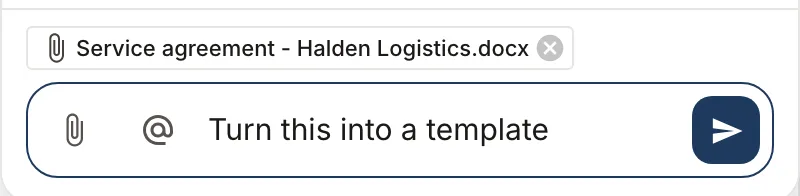
The file shows as a chip above the box until you send the message; remove it with the chip’s cross. Any other kind of file, such as a spreadsheet, is refused at once, with a message listing what you can attach. You see the paperclip if your role lets you use at least one of these, and it offers only those.
Doxie does with a file what the table says, and only that. She doesn’t read, summarize or check a file: ask her to review a contract, and she tells you plainly what she can do with it instead. There is no import of contacts from a spreadsheet: she can add them one by one, as described in Contacts and companies.
A template from a Word file
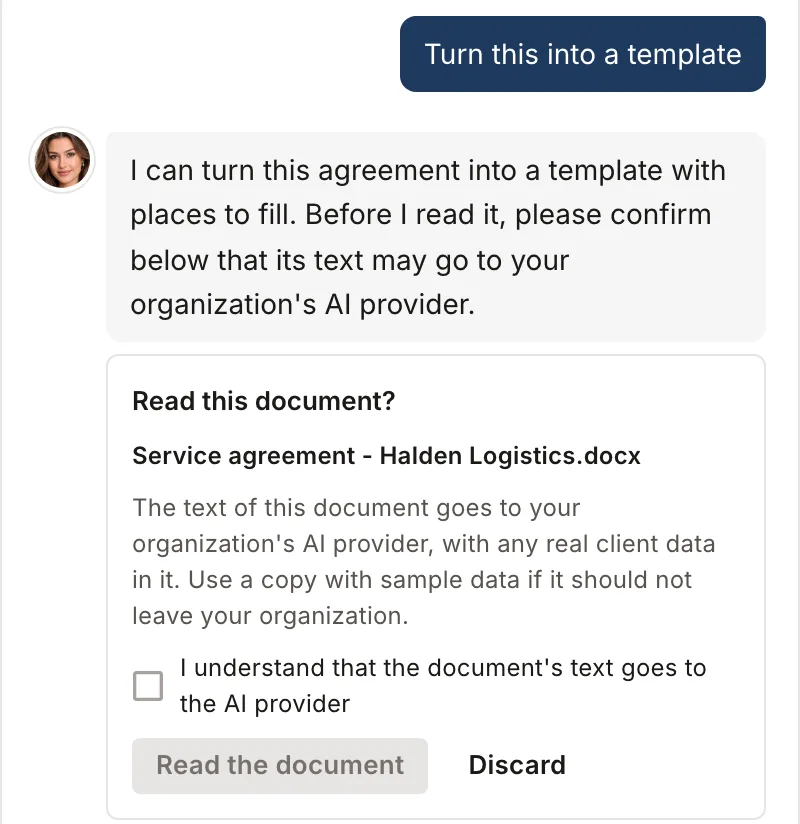
Section titled “A template from a Word file”Attach an ordinary Word document, one with no markers yet, and ask: “Turn this into a template”. It is the same assistant as on Turn a Word file into a template, and it works the same way:
-
Doxie shows Read this document? with the file’s name and the page’s own notice: the text of the document goes to your organization’s AI provider, with any real client data in it. Nothing is read or sent until you tick I understand that the document’s text goes to the AI provider and press Read the document.
-
If the assistant needs to ask, the questions come in a card, Questions about the document, the same questions as on the page: choose an answer to each, or create the template with the defaults.
-
The last card, Template from a Word file, offers Open for review. It opens the page’s review, where you see every change, untick any, and save the result as a new template. Your file stays as it is, and nothing is saved before you save it there.
You can also start from a Word template you already have: “Turn the Lease template into one with places to fill” works without attaching anything.
A PDF template from a PDF
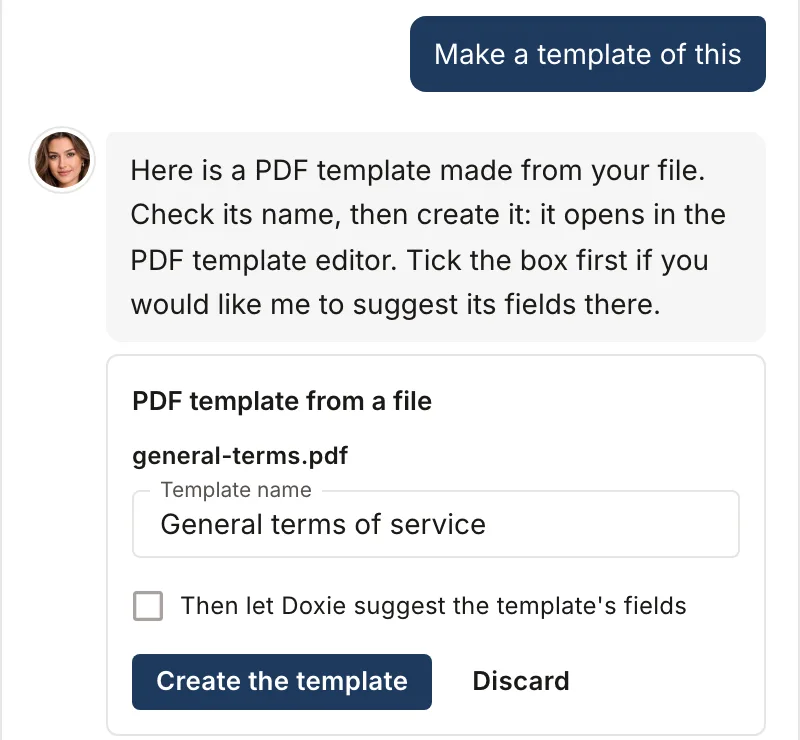
Section titled “A PDF template from a PDF”Attach a PDF and ask: “Make a template of this”. The card, PDF template from a file, shows the file and a Template name, which you can change. Create the template creates it as a new PDF template, exactly as if you had uploaded the file under File templates, and opens it in its designer.
Tick Then let Doxie suggest the template’s fields first, and once the designer is open she proposes its areas, as in Templates: a Template areas card you apply with Apply and can undo. Ticking it sends the document’s text to your organization’s AI provider, as the notice under the box says; leave it unticked and you draw the areas yourself.
Import from a file
Section titled “Import from a file”Attach a file you exported from Doxtly, in your organization or another one, and ask: “Import this form”. It works for a form, an e-mail template, an interactive document and a workflow, exactly like Import from a file on their lists, described in Import and export.
The card, Import from a file, shows the file’s name, what it holds and its title. Under What it uses from the organization it came from it lists what the file names there, such as a reCAPTCHA or a drive file, and what in your organization it will use instead: the one of the same name, or else the default or the only one, marked a different name when the names differ, or nothing here fits – left empty. If your plan won’t keep all of it, the card says what.
Nothing is imported yet. Open in the designer opens a new form, e-mail template, interactive document or workflow with the file, and the import’s own window, where you change what it uses if you want to. Save it there, and it becomes yours; leave the designer without saving, and nothing remains. Doxie never sees what the file contains, only its kind, its title and the names it gives.
Your organization’s logo
Section titled “Your organization’s logo”Attach a picture and ask: “Use this as our logo”. The card, Logo, shows the picture’s name, where it goes, its type and its size; if you already have a logo, it says that the current one is replaced and deleted. Set as logo saves it exactly as uploading it under Branding does, with the same limits: PNG, JPG, WebP or SVG, up to 2 MB. Ask for “the logo on dark backgrounds” to set that version instead, once you have a logo. It can’t be undone from the card, just as on the settings page; Open takes you to the organization’s settings.
The logo is the only place a picture you attach goes. Pictures in an e-mail template or a portal stay yours to choose in their editors.
Documents for signing
Section titled “Documents for signing”Ask Doxie to prepare documents for signing, the way you would set them up in the package editor: “Prepare the Lease template for Anna Nowak to sign within 14 days, with Ewa Kowalska approving it first”. Name the templates you use, or attach a PDF; name the people from your contacts, or give a name with an e-mail address. She finds each by name among the records your role lets you use; when more than one fits, she shows Which one do you mean? and waits for your pick.
When a template has several parties, such as a landlord and a tenant, and you didn’t say who signs as which, she asks rather than guess. The card, Package draft, lists the Document type, the Deadline, the Documents, the Parties and the Approvers, with each person’s address, role and step, and anything still to fill in. Create draft creates the package as a draft, exactly as if you had made it in the editor, and opens it there. Nothing is sent: you check the draft and fill in the template’s values. Then press Send in the editor, or ask Doxie to send it, as described in Sending.
Switching on and off, renaming
Section titled “Switching on and off, renaming”Ask Doxie to switch a form, a workflow, a portal, a quiz or a survey on or off, or to give it a new name: “Switch off the Invoices after signing workflow”, or, with a form open, “Rename this form to Customer complaints”. The card, Change, shows the record and what changes, such as Status: on → off. Nothing changes until you press Make the change. Afterwards the card offers Undo, which puts back what was there, as long as nobody has changed the record again in the meantime; otherwise it tells you that it can’t be undone here. Open takes you to the record’s page.
The same card puts a form or an interactive document in a theme of your theme library, as its designer’s Look does: “Show the Complaints form in the Calm theme” shows Theme: Doxtly standard look → Calm. “Make Ocean our default theme” changes your organization’s default theme, which new forms, interactive documents, quizzes and surveys take; it takes Manage themes. A theme of another organization is never offered.
Doxie changes only what the record’s own page lets you change. To delete a record, see Deleting.
Duplicating
Section titled “Duplicating”“Duplicate the Complaints form as Complaints 2027” makes a card, Copy, with the copy’s title. Doxie copies a form, an interactive document, an e-mail template, a workflow, a file template, a portal or an AI agent as its page’s Duplicate does: under the title you gave, or the original’s with (copy); a workflow’s and a portal’s copy is switched off. It takes the permission to manage that kind of record, and room in your plan for one more. Nothing is copied until you press Make the copy; Open then takes you to the copy. The card is not undone: delete the copy on its page. A quiz or a survey is duplicated as described in Quizzes and surveys.
Sending
Section titled “Sending”Doxie can send one thing at a time on your behalf: “Send the Lease for Anna Nowak for signing”, “Remind the parties of the NDA with Halden Logistics”, “Cancel the Lease for Anna Nowak, the client withdrew”, or “Send the link to the Complaint form to Anna Nowak and jan@example.com”.
| What | Where it goes |
|---|---|
| A draft package, for signing | Its own parties and approvers, as the draft lists them. Doxie never adds or changes a recipient. |
| A reminder of a sent package | The parties whose turn it is now and who haven’t signed yet, each by the channel they were asked by. |
| Cancelling a sent package | Its parties are told that it was cancelled. Your reason is kept on the package and isn’t shown to them. |
| A form’s, an interactive document’s, a portal’s, a quiz’s or a survey’s link | By e-mail, to up to 10 people: your contacts, by name, or addresses you wrote yourself in the conversation. Doxie never sends to an address you didn’t give her. |
The card names exactly what goes and to whom: each recipient with their e-mail address or phone number, their role, the channel, and when they get it. In a package signed in steps, the later steps get their request when their turn comes. If a draft isn’t ready, the card lists what the package editor would stop you on, such as a party without an e-mail address, and offers Open instead of Send.
Nothing goes until you tick I understand this can’t be undone and press Send (or Cancel the package). It is sent as you, exactly as the record’s own page sends it, and the package’s audit trail names you, through Doxie. A message can’t be called back, so the card has no Undo. If the package changed after the card was shown, for example a party was edited, Doxie sends nothing and asks you to ask her again.
When your organization’s e-mail goes through Doxtly e-mail, the card also says how many messages go and what pays them: your plan’s Doxtly e-mail messages, or the Doxtly balance, with the amount. When neither can, the card says so and offers no Send until the balance is topped up.
A package sent to many people separately is sent from the package editor, and a mailing to more than 10 people from the record’s own page. A quiz’s or a survey’s invitations to its access list, its reminders and personal links go from its People page: Doxie gives you its link.
Deleting
Section titled “Deleting”Ask Doxie to delete one form, file template, workflow, contact, company, package draft, quiz or survey: “Delete the Survey 2025 form”. The card names it and says what goes with it, as the record’s own delete dialog does:
- a form: its submissions, with their number;
- a file template: the files generated from it, with their number;
- a workflow: its run history;
- a contact: their notes and history; the document packages they are in stay as they are;
- a company: its contacts stay, without a company;
- a package draft: the files uploaded to it;
- a quiz: its attempts, with their number; a survey: its responses, with their number.
Before you confirm, the card also shows what uses the record, as its delete dialog does: under Used by, the workflows that use it, each linked, and the portals that link to it. While a workflow uses it the card offers no Delete: change or delete that workflow first. A quiz’s or a survey’s Keep in a spreadsheet workflows are listed under Also removed and go with it; the spreadsheet stays in the drive.
Doxtly keeps no bin, so what is deleted can’t be restored, and the card says so. Nothing is deleted until you tick I understand this can’t be undone and press Delete. Doxie deletes one record per card, never several at once. A package that has been sent isn’t deleted here: ask her to cancel it, which tells its parties.
Contacts and companies
Section titled “Contacts and companies”Ask Doxie to add a contact or a company, or to change one: “Add Anna Nowak, anna.nowak@example.com, phone +48 600 100 200, at Nowak Design”, or, on a contact’s page, “Change this contact’s job title to Head of Finance”. The card, Contact details, lists each field with its value before and after. Save saves it, exactly as the contact’s or the company’s dialog would, and Undo takes it back as long as nobody has changed the record since. A contact you added is then removed again.
- Name the company the contact works for, and Doxie links the contact to it. If your organization has no company of that name yet, the card says that one will be created with the contact.
- Your organization’s custom fields work as well. Confidential fields are the exception: Doxie never reads or fills them in, so their values never pass through the conversation. Fill them in on the contact’s or the company’s page.
- If the contact’s email address is already in use, or another record already holds a value of a unique field, or a company of that name exists, Doxie creates no second one. She tells you which record it is and shows it in Which one do you mean?, so you can change that one instead.
Pointing Doxie to a record
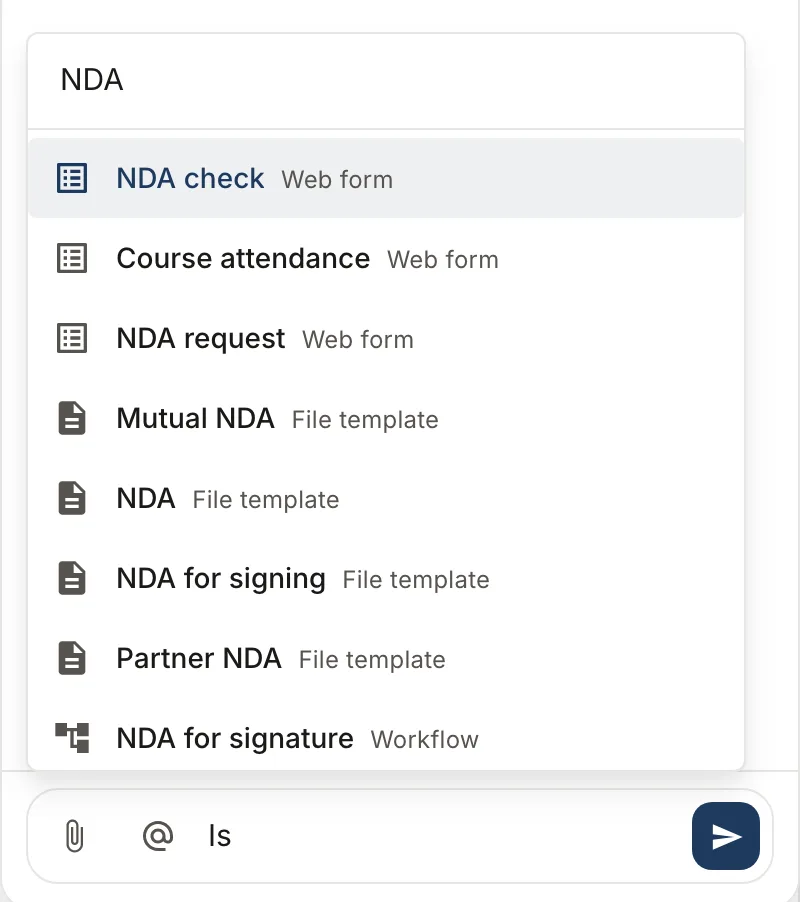
Section titled “Pointing Doxie to a record”On a page that shows one record, “this form”, “this template” or “this contact” means that record, unsaved changes in an open designer included. To point at another one without opening it, type @ in the message, or press Refer to… beside the paperclip, and start typing its name: forms, file templates, workflows, interactive documents, email templates, AI agents, skills, documents, contacts, companies, portals, quizzes and surveys, those your role lets you see. The record you pick becomes a chip in the message, and Doxie works on it rather than on the open one. If what you write and the chip disagree, she asks which you mean.
Name a record in your own words instead, and Doxie looks it up. When more than one fits, she shows Which one do you mean? with the candidates, and you pick one; she never guesses.
With a form and a template named, she can also tell you whether the form has every field the template needs: “Does the Client onboarding form have everything the Mutual NDA template needs?”. The answer lists exactly what is missing, and “add them” gets you a Form card with the missing fields.
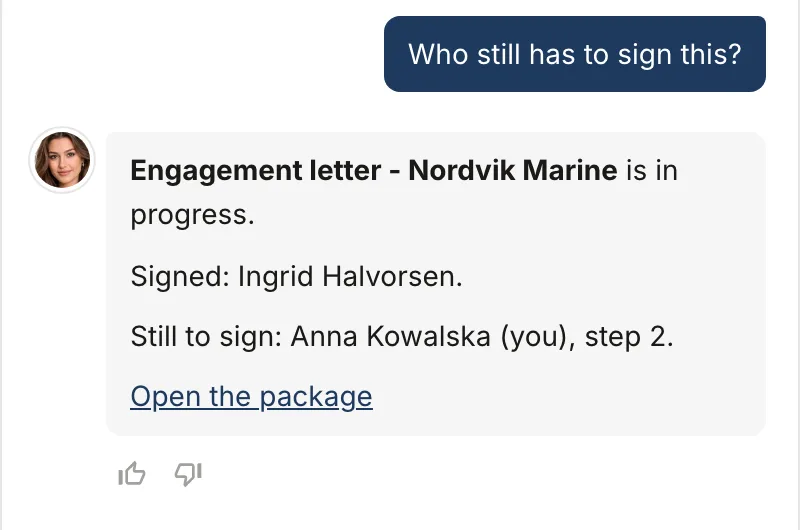
Where things stand
Section titled “Where things stand”Doxie also tells you how one of your records stands, as its own page would: who has signed a document and who hasn’t, whether a workflow ran and why its last run failed, how many submissions a form has and how many still await payment, a payment’s status, the values a template needs, whether a portal is switched on. Ask about the record open on your screen, one you point to with @, or one you name: “Who still has to sign the lease for Anna Nowak?”. She answers from what that page shows you, with its link, and changes nothing. A record your role doesn’t let you open stays out of her reach.