

SMS integration
An SMS integration lets Doxtly send text messages through your own account at Twilio or SMSAPI. You want one if signers should confirm who they are with a code on their phone, if a client should get their signing link by text, or if a workflow should text a client, say a reminder that their course starts tomorrow.
Available when: you hold Manage integrations
What needs it
Section titled “What needs it”- SMS OTP when signing: a one-time code sent to each party’s phone, which shows that the person signing holds that number
- the messages about a package when SMS is chosen as their channel: signature and approval requests, reminders and the other notifications
- Send link by SMS on a form, an interactive document or a portal
- the Send SMS workflow step, which is unavailable in the designer until an SMS integration is active
What these messages say comes from your SMS and WhatsApp templates.
Your provider bills every message. The connection test sends none, so it costs nothing.
Prepare your account
Section titled “Prepare your account”- Create an account at twilio.com.
- Buy a phone number that can send SMS to the countries you need. A trial account can write only to numbers you verified, so upgrade before you write to clients.
- On the front page of the Twilio Console, copy the Account SID and the Auth Token.
- Create an account at smsapi.pl. Doxtly talks to this service, so a token from another SMSAPI site won’t work.
- In the customer panel, generate an API token that is allowed to send SMS and to read the account profile. Without the second permission the test fails, even though the token could send.
- Register the sender you want to use in the panel, a phone number or a name, and wait for SMSAPI to approve it.
Set it up
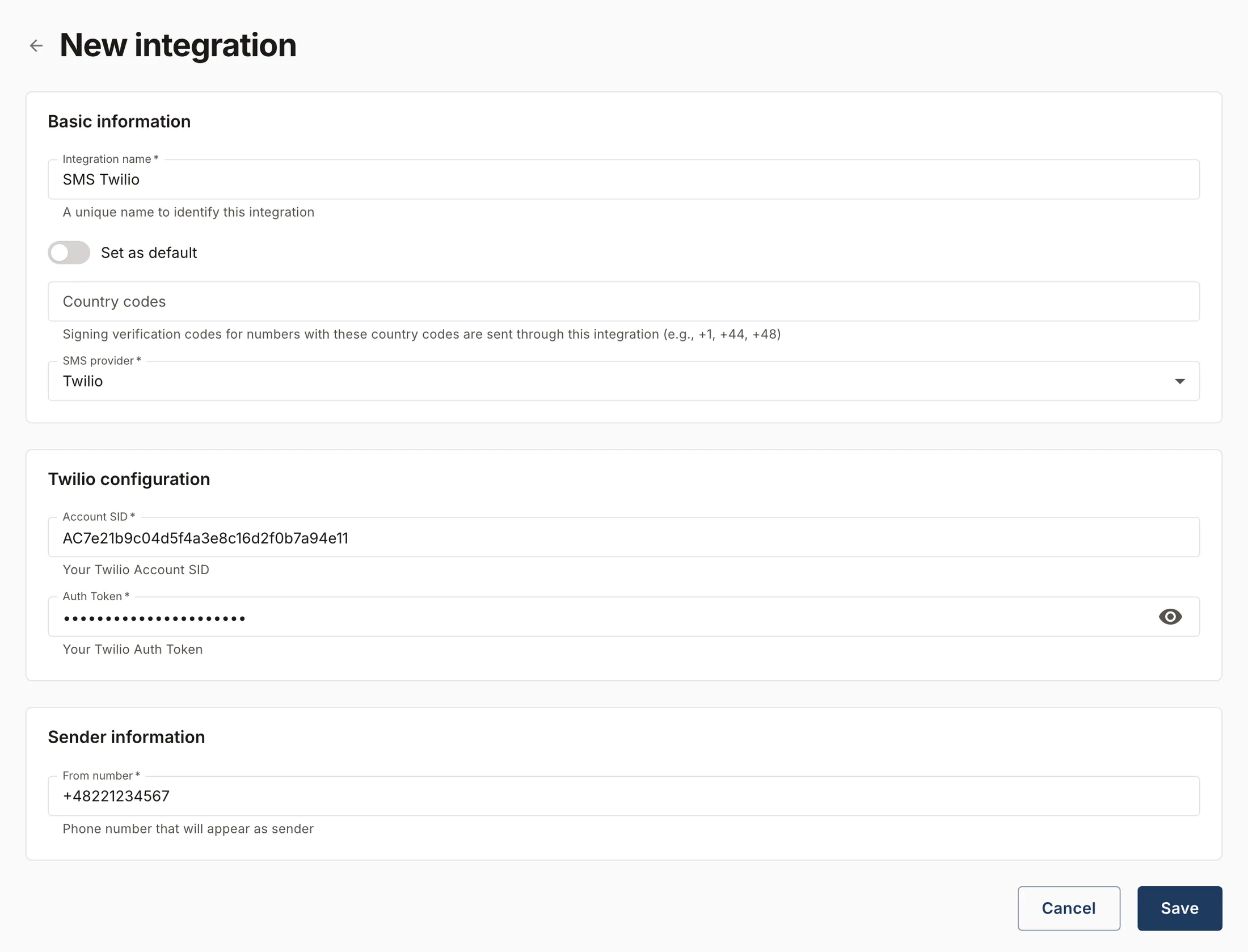
Section titled “Set it up”- Go to Organization, Integrations, click New integration and pick SMS.
- Fill in Integration name.
- Choose the SMS provider.
- Fill in the keys. Twilio asks for Account SID and Auth Token, SMSAPI for API token.
- Under Sender information, fill in From number.
- Click Save. The integration is a Draft, and you land on its page.
- Click Test connection. Doxtly asks the provider about your account and sends no message: Twilio is asked for the account, SMSAPI for the profile of the token’s account. When it passes, the integration is Active.
A passed test proves your keys work. It doesn’t prove the sender is allowed in a given country, so send yourself one real message before you rely on it: a short test workflow with a Send SMS step will do.
Every field
Section titled “Every field”| Field | Shown for | What it does |
|---|---|---|
| Integration name | All | Your label, such as “SMS Poland”. Up to 255 characters, unique among your SMS integrations. A repeat is refused with “An integration of this type with this name already exists.” |
| Set as default | All | Makes this the integration used when nothing else decides. |
| Country codes | Integrations that are not the default | Which countries this integration handles, see below. |
| SMS provider | All | Twilio or SMSAPI. New forms start on Twilio. |
| Account SID | Twilio | Your Twilio account’s identifier. Up to 255 characters. |
| Auth Token | Twilio | Your Twilio password for programs. Up to 255 characters, stored encrypted and never shown again. |
| API token | SMSAPI | The token from your SMSAPI panel. Up to 255 characters, stored encrypted and never shown again. |
| From number | All | The sender people see. Required, up to 255 characters. Write a phone number in international form, such as +48221234567. With SMSAPI this can also be a sender name you registered in the panel. |
When you edit an integration, leave the token empty to keep the stored one.
If you switch provider on a saved integration, the account and token fields empty themselves, because one provider’s keys mean nothing to the other. Type the new ones. Going back to the saved provider before you save restores the old values.
Send different countries through different integrations
Section titled “Send different countries through different integrations”Local numbers are often cheaper and more likely to arrive. Say Northbridge uses Twilio for everyone, but sends to Polish clients through SMSAPI.
- Keep the Twilio integration as the default.
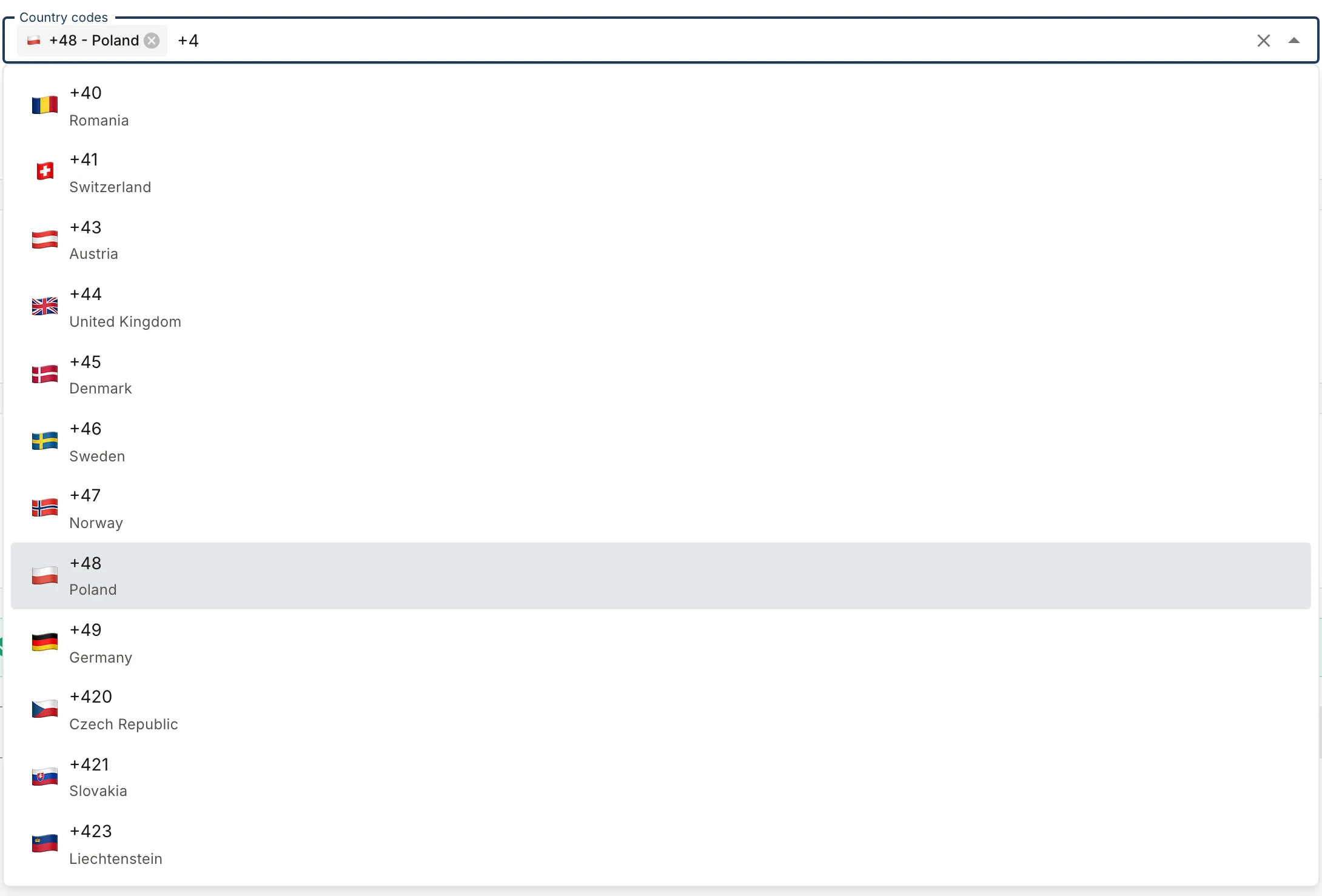
- Add a second integration for SMSAPI and leave Set as default off. The Country codes field appears.
- Pick
+48. Type a country’s name or a code to search. Only codes from the list can be chosen, and you can pick as many as you need. - Save and test.
For every text message Doxtly sends on its own, such as a signing code, a signature request or a link, it looks through the active integrations that are not the default:
- If a number starts with one of an integration’s country codes, that integration sends it. When several match, the longest code wins, so
+1242beats+1. - If nothing matches, the default sends it.
- With no active default, the only active integration sends it.
A few things follow from this:
- The default’s own country codes are ignored, and the field is hidden on it. The default takes whatever is left.
- A non-default integration with no country codes sends none of these messages, unless it’s the only active integration. A workflow step can still choose it.
- Spaces and separators in a number don’t matter, and a leading
00counts as+, so+48 600-100-200and0048600100200both match+48. A number with no international prefix, such as600100200or48600100200, is not matched and goes through the default. - Countries sharing a code, such as the United States and Canada on
+1, can’t be told apart.
Country codes don’t apply to workflows. A Send SMS workflow step sends through the integration chosen in the step, whatever the number. To send by country in a workflow, branch on the number and use one step for each integration.
What you see once it’s set up
Section titled “What you see once it’s set up”Click the row in the list for the summary: Provider, From number, Country codes if there are any, each with its flag and country as in the form, and “Verified on” with the date of the last passed test. The integration’s page shows “SMS configuration verified successfully”.

Saving a change removes the verified mark. The integration stays Active and uses the new settings at once, so run the test again.
When a message doesn’t go out
Section titled “When a message doesn’t go out”If the provider refuses a message, the workflow step fails, or the signer is told the code could not be sent. The provider’s account shows the exact reason. Most failures are an empty balance, a trial account writing to an unverified number, or a sender not allowed in the recipient’s country.