

SMS and WhatsApp templates
A text message template is one text used for both SMS and WhatsApp, in a version for each language. You find them under Resources > Messages, on the Templates tab, by choosing SMS or WhatsApp under Channel; a template is the same for both, so either shows the same list. To add one, click New template and choose SMS or WhatsApp in its menu; the kind you pick only names the editor, since the template serves both. You use them in the Send SMS and Send WhatsApp workflow steps, in signature requests and when you send a link.
Available when: your organization has an SMS or WhatsApp integration and your role has the View or Manage SMS and WhatsApp templates permission
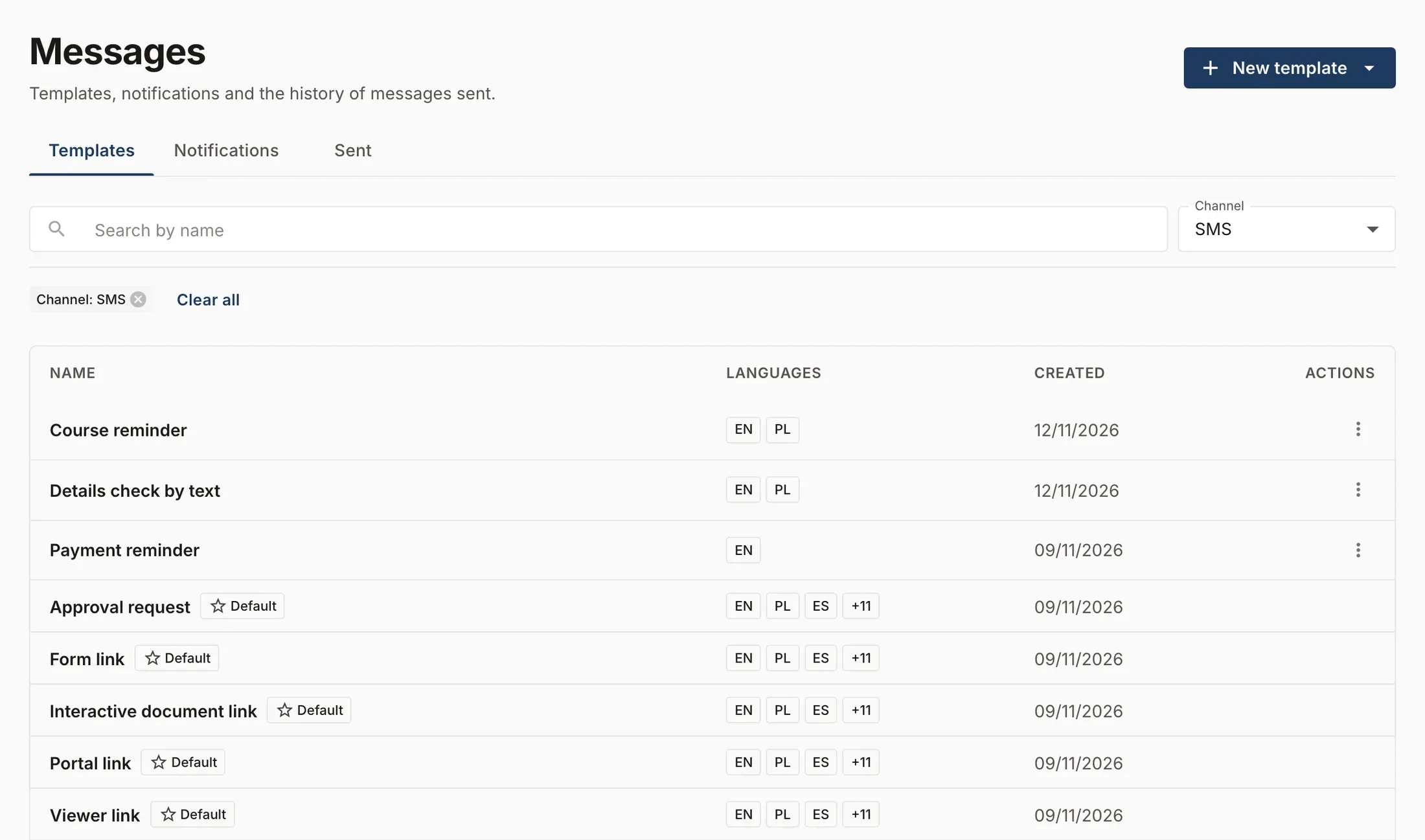
Without an SMS or WhatsApp integration, there is no Channel filter, and the tabs show email alone. If you remove the last one, what was already sent stays readable: on the Sent tab, choose SMS or WhatsApp under Channel. The templates come back when you connect an integration again.
Click a row to open the template. With Manage SMS and WhatsApp templates, the three dots at the end of a row offer Make default for its purpose, on a template written for an occasion that isn’t its default yet (see Using your own instead), and Delete, after a confirmation. A default message has no Delete. The delete dialog lists the workflows that use the template under Used by, and while there are any, Delete is greyed out: see Deleting what a workflow uses.
Writing one
Section titled “Writing one”-
Click New template, choose SMS or WhatsApp, and give the template a name.
-
Under Used for, choose its occasion, or Custom message (workflows) for one a workflow sends. An occasion gives the template its own variables.
-
Write the text. For a template with an occasion, the
{x}button lists its variables; otherwise write them as in emails, for example{{ recipientName }}. Click a variable and then Operations to change how it’s printed, or pick a function withf(x). -
Press Add language for another version, then save.
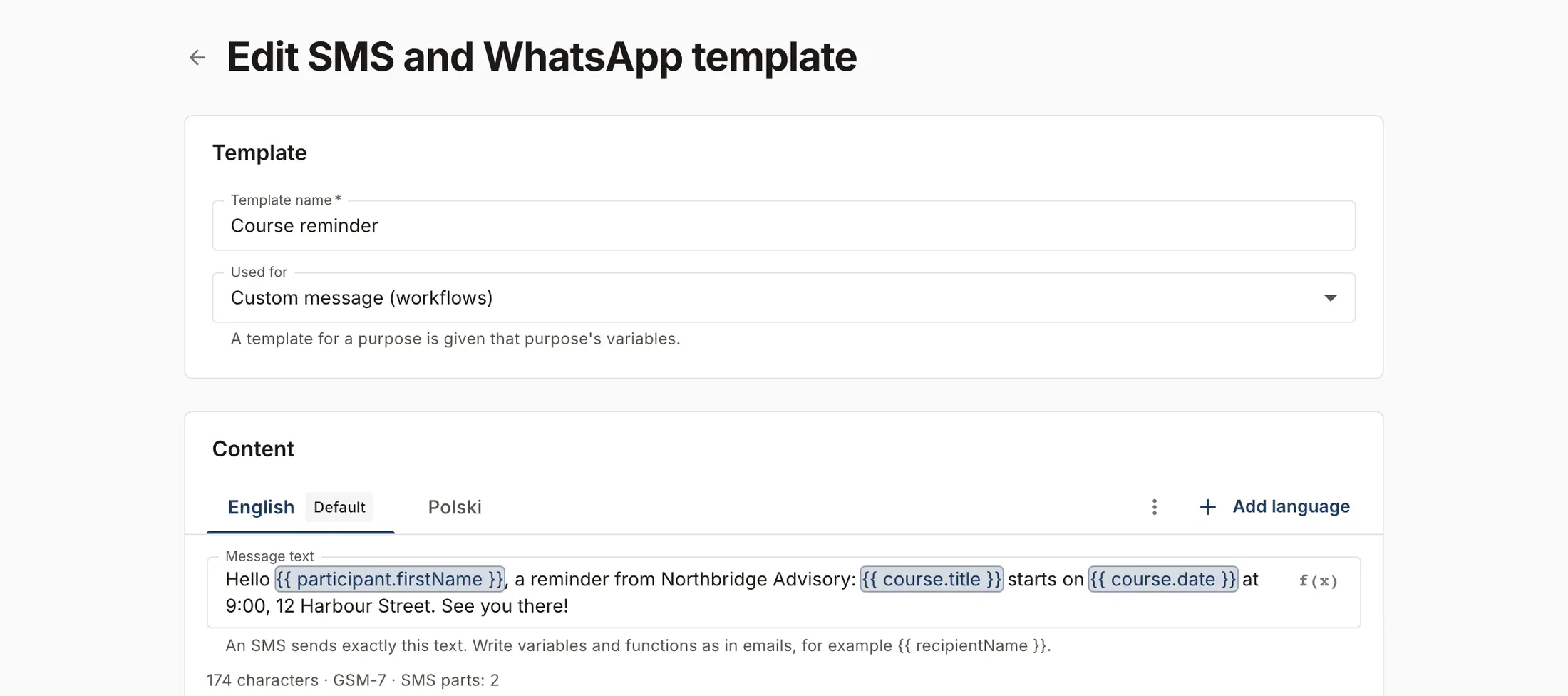
Saving stays off until the template has a name and every version has its text; pointing at the button says Enter a name and the text in every language.
Under the text you see how long it is: an SMS is split into parts, and one letter outside the basic SMS alphabet, such as a Polish or Ukrainian letter or a Spanish í, switches the whole message from 160 to 70 characters per part, so a short message without Polish letters costs less on your provider’s bill.
Your plan limits the number of templates; default messages don’t count. Doxtly doesn’t count the messages themselves, since your provider bills them.
WhatsApp and the 24-hour window
Section titled “WhatsApp and the 24-hour window”Outside the 24 hours after somebody last wrote to you, WhatsApp delivers only templates approved in your WhatsApp account. So a text can have an approved template behind it. The Approved WhatsApp template card of each version lists your WhatsApp integrations: Link a template on one of them and fill in
| Provider | What you enter |
|---|---|
| Meta | Template name in Meta and Meta language code |
| Twilio | Twilio Content SID |
Then, with Add parameter, map each parameter of the approved template to a Variable: {{1}} is Template parameter 1, and {{first_name}} is first_name. For a URL button ending in {{1}}, choose the Variable with the button’s link; its last part becomes the ending. Unlink removes the mapping. Each version has its own, so an approved template in Polish goes with the Polish version.
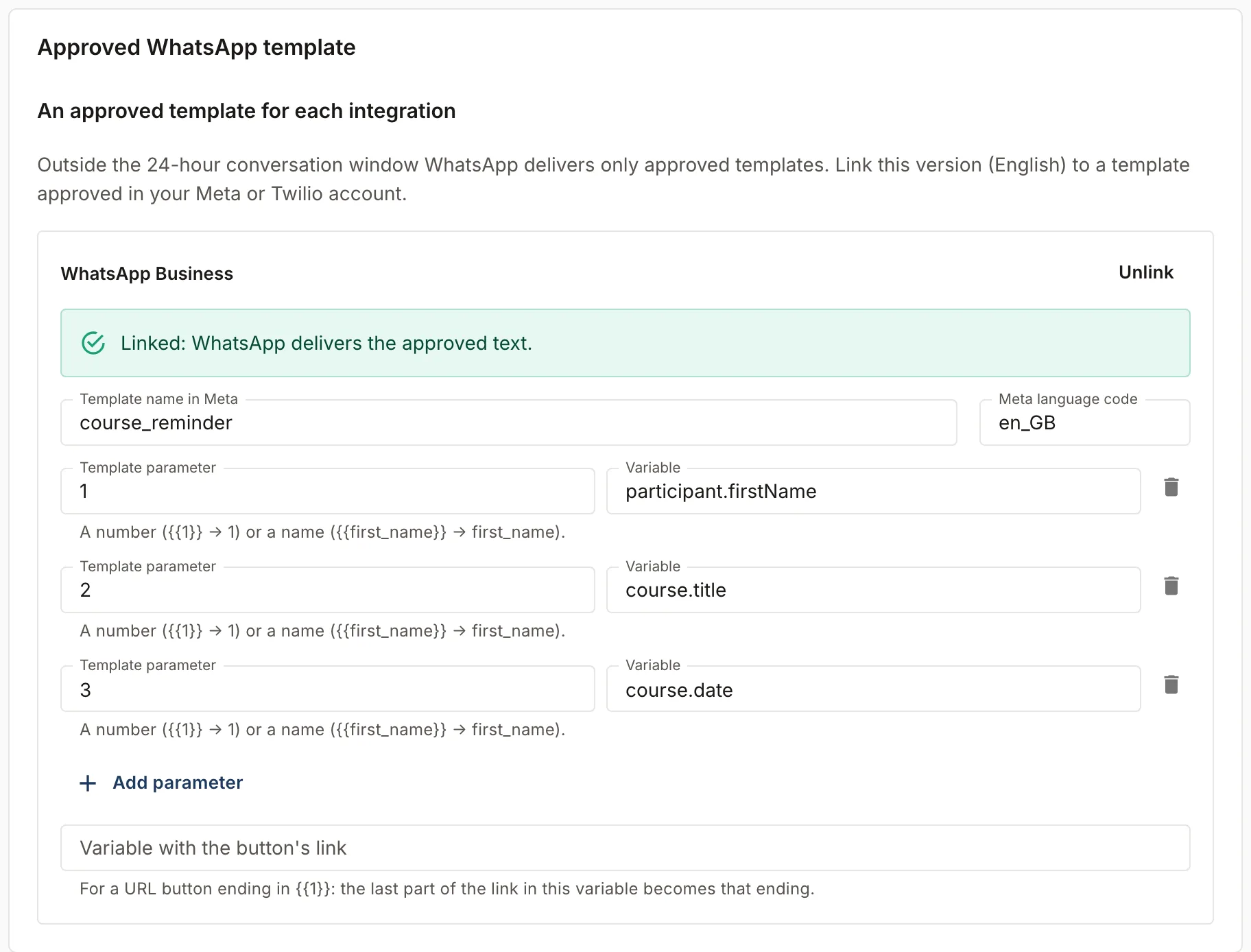
With a mapping, WhatsApp delivers the approved text and yours is only a preview, which the editor says. The card reads Linked: WhatsApp delivers the approved text., or Not linked with what that means. Without one, the message goes as plain text and reaches only somebody who wrote in the last 24 hours. If Meta has no approved template in the recipient’s language, Doxtly tries the other mapped languages, your organization’s first, and notes the fallback.
The code for signing goes through its own Authentication template, set in the WhatsApp integration.
Sent SMS and WhatsApp
Section titled “Sent SMS and WhatsApp”On the Sent tab, with SMS or WhatsApp chosen under Channel, the list shows every message sent from a template by that channel: Recipient, Template, Language (marked fallback used when the message went in another language than asked), the status and when it was Sent. Search by number finds the messages to one phone number.
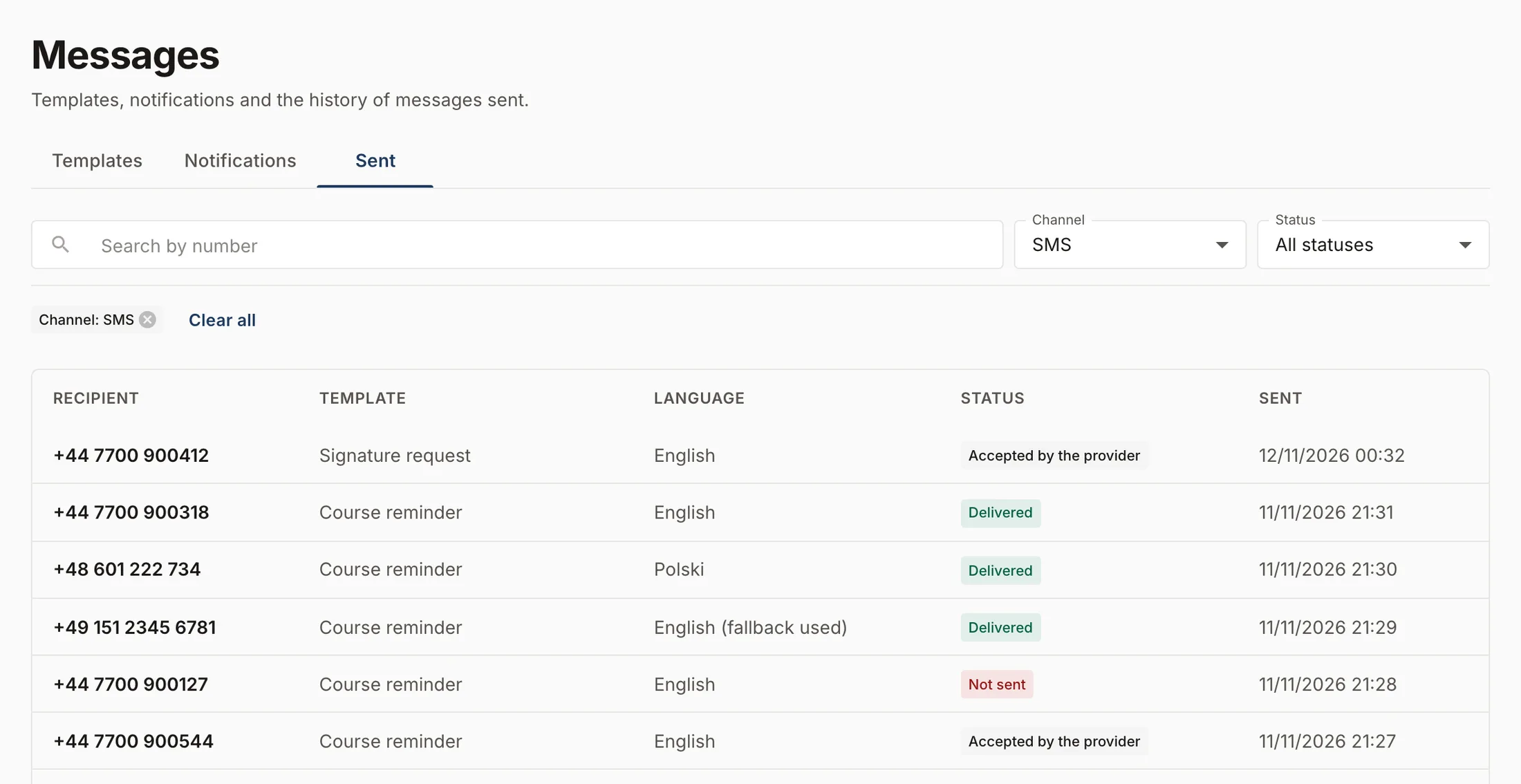
What became of each message:
| Status | Meaning |
|---|---|
| Accepted by the provider | Your provider took it. Nothing more is known yet. |
| Sent / Delivered / Read | Reported by the provider. |
| Not sent | The provider refused it or there was nothing to send it with; the reason, with the provider’s code when it gave one, is on hover. |
Statuses other than Accepted need a webhook: Twilio reports automatically, and for Meta you set up the status webhook in your own Meta app. Records are kept as long as your sent emails, under your data retention settings.