

SharePoint integration
A SharePoint integration connects one Microsoft 365 account and one document library of a SharePoint site to Doxtly. Use it when your team keeps its files on a shared site rather than in one person’s OneDrive. A law firm might connect the Contracts library of its Legal site, so signed contracts land where the whole team already looks, and a workflow keeps Registers/2026 contracts.xlsx there up to date.
Once the library is chosen, SharePoint works exactly as OneDrive does: files, folders, spreadsheets and cloud templates behave the same.
Available when: you hold Manage integrations
What needs it
Section titled “What needs it”- the Cloud files page, which appears in the sidebar once a drive is active, for people who may view cloud files
- the workflow steps Upload to the cloud, Download from the cloud, Read from a sheet and Write to a sheet, which work with Excel (
.xlsx), OpenDocument (.ods) and CSV files - cloud templates, which follow a file in the library
- Save to a cloud drive in the PDF editor
- data sources of forms and PDF templates, which read a spreadsheet or a JSON file from the library
You can connect several libraries, of one site or of several, each as its own integration.
Before you start
Section titled “Before you start”You need a work or school Microsoft 365 account that can open the site and its library. Personal Microsoft accounts have no SharePoint.
Doxtly asks to read and write the files you can reach and to find the sites you can see. Since August 2025 Microsoft lets only an administrator agree to that in most organizations, for OneDrive and SharePoint alike. If Microsoft says Need admin approval when you sign in, ask your Microsoft 365 administrator to approve Doxtly for the organization, or to approve the request Microsoft offers to send. Once approved, everyone in the organization can connect without asking again.
Connect a library
Section titled “Connect a library”- Go to Organization, Integrations, click New integration and pick SharePoint.
- Fill in Integration name, such as “Legal – Contracts”.
- Click Connect SharePoint.
- Microsoft asks which account to use. Pick it, sign in and accept.
- You return to the integration, which shows “Connected as” with the address. It stays a Draft until you choose a library.
- Under Document library, type part of the site’s name in Site, or paste the site’s address, and pick it from the list.
- Pick the library in Library.
- Click Save. The integration becomes Active.
- Under Folder selection, open the folder Doxtly should work in and click Choose this folder, then Save again. Skip this to work at the top of the library.
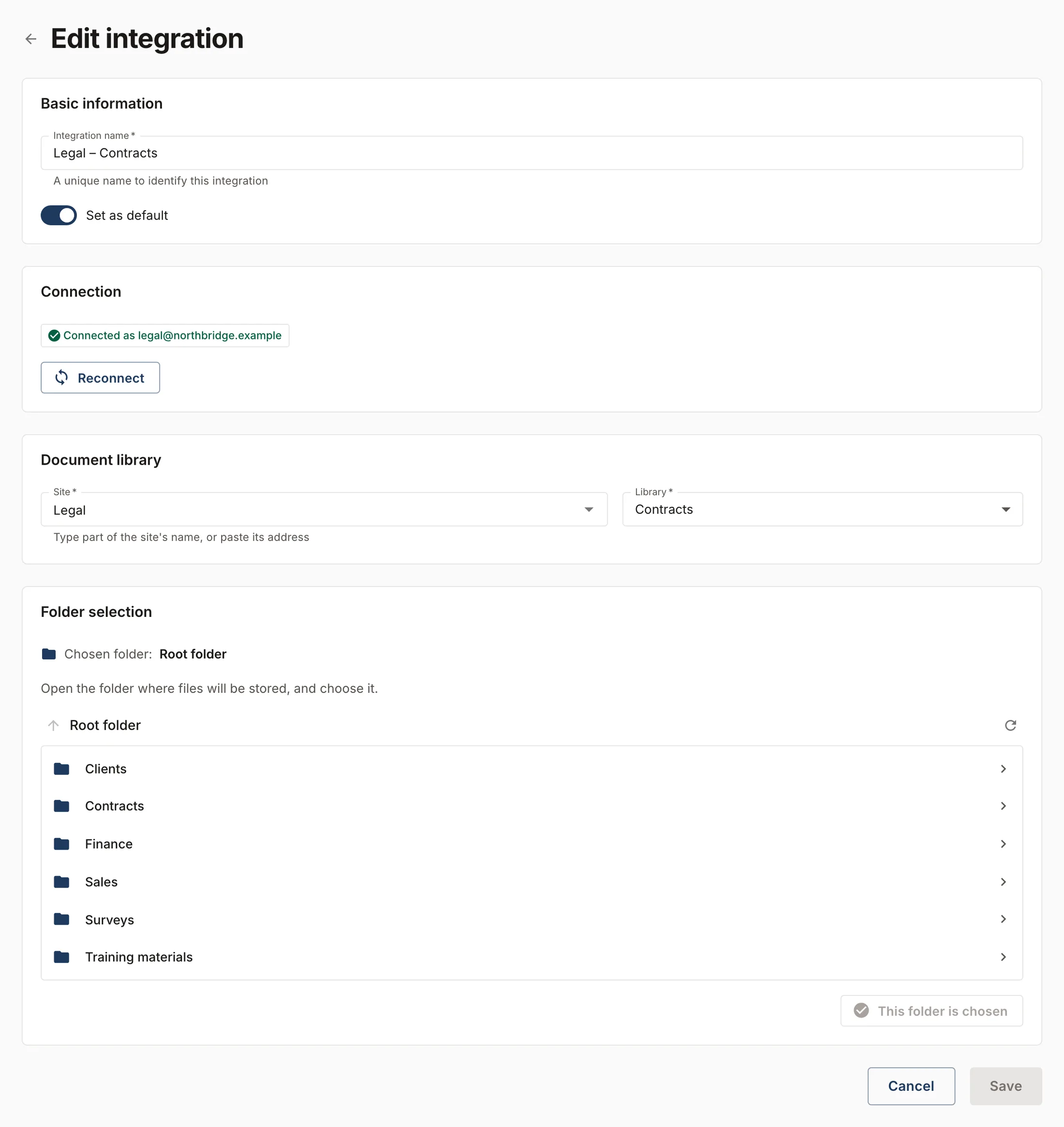
The site list shows the sites your account can see. If a site doesn’t appear by name, paste its address from the browser, for example https://contoso.sharepoint.com/sites/legal. A page inside the site works too. Library lists only document libraries; SharePoint’s own system libraries are left out.
After you pick another library, the page says “Save to choose a folder in this library”: the folders shown are always those of the library that is saved.
Every field
Section titled “Every field”| Field | What it does |
|---|---|
| Integration name | Your label, shown wherever people pick a drive. Up to 255 characters, unique among your SharePoint integrations. |
| Set as default | Makes this the SharePoint library used when a workflow step names no particular one. See the default integration. |
| Connect SharePoint, Reconnect | Signs in at Microsoft. |
| Site | The SharePoint site, found by its name or address. |
| Library | The site’s document library Doxtly works in. Choosing another one starts the integration at that library’s top. |
| Folder selection | The root folder in the library, shown once the library is saved and the integration is Active. |
If the library can no longer be found, for example because it was deleted or your account lost access, saving is refused with “This library cannot be found, or the connected account may not see it. Choose another.”
The root folder
Section titled “The root folder”The root folder works as on OneDrive: workflows and the Cloud files page work inside it, and nothing outside it can be named. Without a choice, the root is the top of the library. Everything in the folder is visible to Doxtly, including files your colleagues put there.
When the connection stops working
Section titled “When the connection stops working”The integration turns Invalid when Microsoft ends the connection: consent was withdrawn, the account was closed, or it lost access to the site. Workflow steps on it fail with “The connection to … has expired or was revoked. Connect the integration again.” Open the integration and click Reconnect.
Reconnecting keeps the library chosen. If you sign in with another account that can’t open it, choose a library that account can see.
What you see once it’s set up
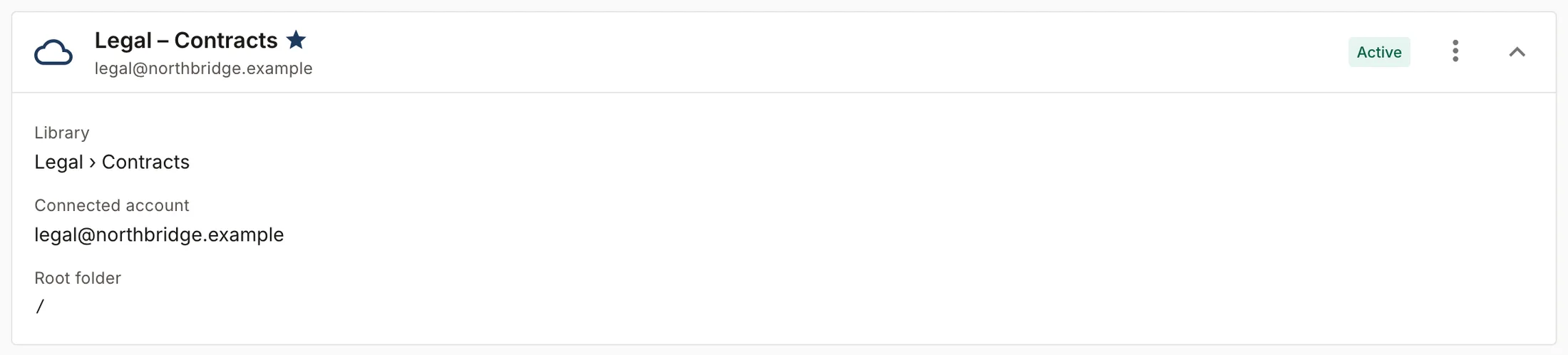
Section titled “What you see once it’s set up”Click the row in the list for the summary: Library, the site and library names, Connected account and Root folder.
Delete a library
Section titled “Delete a library”Doxtly refuses while a workflow relies on the integration, a template follows a file in it or a data source reads from it, and names them. Files in the library stay where they are: deleting the integration ends the connection, nothing else. See Delete an integration.