

Interactive document submission trigger
This trigger starts a run when someone completes one of your interactive documents, and if you wish, when a submission is corrected. Use it when the person fills in the document itself, such as an NDA they complete online, and the finished PDFs need to go somewhere.
Always available
What starts it
Section titled “What starts it”The person finishes the document on its page. The documents are then rendered to PDF, and the run starts once they’re ready, so every workflow gets the same finished files. However many workflows listen, a submission is rendered only once. If the runs can’t be started once the files are ready, Doxtly tries again by itself, and a workflow that has already run for the submission doesn’t run a second time.
An edit starts a run only if When allows it and the person correcting the submission clicks Save and run workflows. The run starts after the documents are rendered again. See editing a submission.
Settings
Section titled “Settings”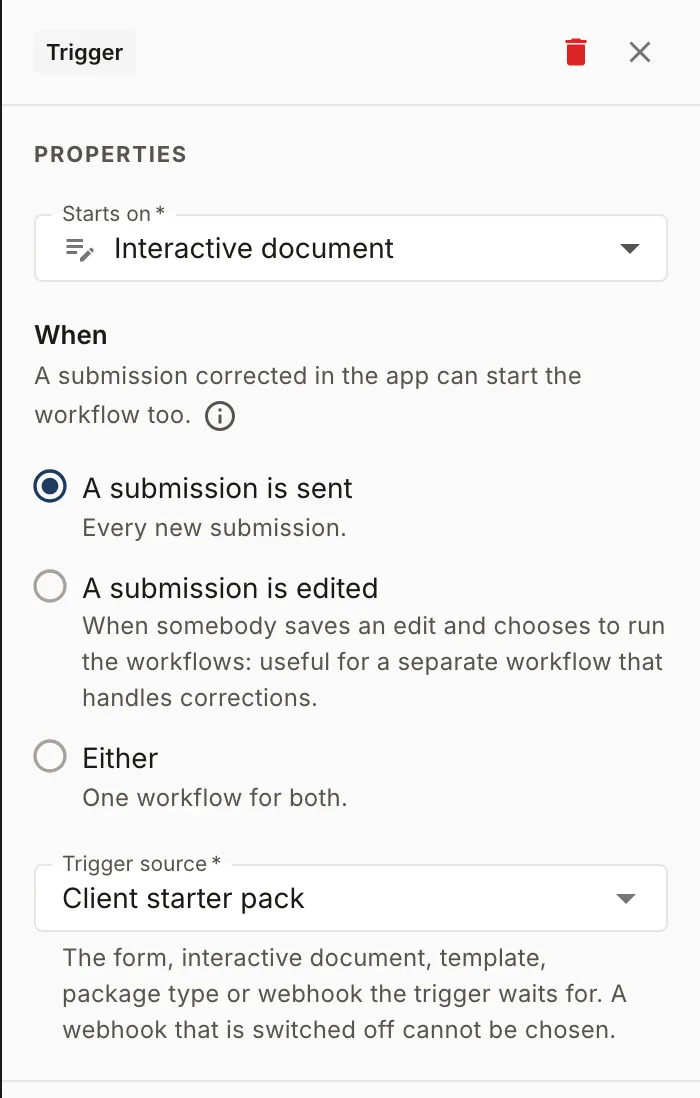
| Setting | Values | What it does |
|---|---|---|
| Trigger source | One of your interactive documents | The document to wait for. Required. |
| When | A submission is sent (default) | Every new submission. |
| A submission is edited | Only when somebody saves an edit and chooses to run the workflows. | |
| Either | Both. Tell them apart with _submission.revision. |
What later steps get
Section titled “What later steps get”Values
Section titled “Values”The answers from the document’s web forms and the values typed into its PDF areas, merged into one set. When a form field and a PDF area share a path, the PDF value wins.
Only areas that publish a value are included: text, checkboxes and pictures with a variable path that doesn’t start with _. In the picker, an area that publishes nothing appears greyed out, with what to change and a link to the template. Typed text is trimmed, a ticked checkbox is "1", an unticked one is "0", and an untouched one is absent. A picture is a file reference.
Because an untouched checkbox or a field under a display condition can be absent from a run, read such values in a Condition with a fallback.
The _interactiveDocument block
Section titled “The _interactiveDocument block”| Variable | Label in the picker | Contents |
|---|---|---|
_interactiveDocument.id |
Interactive document ID | The identifier of the document that was filled in. |
_interactiveDocument.title |
Interactive document title | Its title, as the document is named now. |
Workflows set up before this block read the same values as _submission.interactiveDocumentId and _submission.interactiveDocumentTitle. Those names keep working, but the picker offers only the new ones.
The _submission block
Section titled “The _submission block”| Variable | Label in the picker | Contents |
|---|---|---|
_submission.id |
Submission ID | The submission’s identifier. |
_submission.title |
Submission title | Its title. |
_submission.submittedAt |
Submitted at (date and time) | When it was submitted, not when it was rendered. |
_submission.submittedDate |
Submitted on (date) | The day it was submitted, such as 2026-11-05, in your organization’s time zone. |
_submission.language |
Language of the page | The language of the page it was sent from, such as en. |
_submission.revision |
Edit number (0 on a submission) | 0 when submitted, then the edit’s number. |
_submission.editedAt |
Edited at (date and time) | When it was edited. Empty on a submission. |
_submission.editedBy |
Edited by | Who edited it. Empty on a submission. |
_submission.personalLink |
Sent in through a personal link | true for a submission through a personal link, false otherwise. |
The _contact and _company blocks
Section titled “The _contact and _company blocks”A submission through a personal link also brings the contact and the company the link was sent to, as they were when it was submitted, their custom fields included. The picker lists them under From a personal link. Any other submission has none of them, so check _submission.personalLink before a step that needs them. Every variable is listed under Data and variables.
Metadata and link parameters
Section titled “Metadata and link parameters”_metadata is the document’s metadata as the submission keeps it. _params comes from the document’s own link parameter settings, never from those of the forms inside it. Both may be empty.
| Group in the picker | What it holds |
|---|---|
| Filled documents | Each rendered PDF, by its title, and each file field of the web forms inside the document, by its label. |
| Uploaded pictures | Each picture put into an image area, by the area’s label, and any file field that accepts only pictures. |
| Every file of the trigger | All of the above together. |
A rendered document remembers what it still leaves open, so a package built from it can be signed where the template says.
The variable picker groups all of this as Interactive document fields, Interactive document, Submission, Link parameters, Interactive document metadata and This run.
A sample
Section titled “A sample”{ "client": { "name": "Halden Logistics", "signatory": "Marta Lindqvist" }, "consents": { "marketing": "1" }, "city": "Gothenburg", "_interactiveDocument": { "id": "0198d1c0-55e2-7f13-9b02-c47e10a3f6d8", "title": "Mutual NDA" }, "_submission": { "id": "019a4f22-13bc-7a91-b0d4-8f2e6c1a7d35", "title": "NDA – Halden Logistics", "interactiveDocumentId": "0198d1c0-55e2-7f13-9b02-c47e10a3f6d8", "interactiveDocumentTitle": "Mutual NDA", "submittedAt": "2026-11-05T11:02:00+01:00", "submittedDate": "2026-11-05", "language": "en", "revision": 0, "editedAt": null, "editedBy": null, "personalLink": false }, "_metadata": { "office": "Gothenburg" }, "_params": { "source": "partner" }, "_execution": { "id": "…", "eventId": "…", "workflowId": "…", "triggeredAt": "…", "date": "2026-11-05" }}What this trigger allows
Section titled “What this trigger allows”Like the form trigger, it allows Allow immediate signing: a Create documents step takes the person who just finished straight to the signing page. On an edit nobody is waiting, so those runs send the main party the link the way their Signature request says, or by email when it is off.
Example: countersign a completed NDA
Section titled “Example: countersign a completed NDA”A client completes Northbridge’s mutual NDA online. A Create documents step picks the rendered NDA from Filled documents and names the client and the partner as parties, and a Send email step gives each of them their signing link. A second workflow on The package is fully signed then files the sealed copy in the client’s folder.