

Placing forms
There are three ways to put a form on a page, and they all produce the same result. Use the one that matches what you are doing.
| Way | Use it when | Options |
|---|---|---|
| Insert Widget | You edit a CMS page or block, or the description of a product or category | Form, embed type, language, width, minimum height, style isolation |
| Widget instance | One form belongs on a whole group of pages, such as every product page | The same |
| Tag | You write HTML, or paste the form from somewhere else | The same |
A page can hold several forms, and the same form more than once. A CMS block with a form can also appear twice on one page, and each copy gets its own form.
Insert Widget
Section titled “Insert Widget”The Doxtly Form widget goes wherever Magento’s editor offers Insert Widget: CMS pages and blocks, and the descriptions of products and categories. Page Builder is on by default, so that is the usual way in.
-
Open the page, expand Content and click Edit with Page Builder.
-
Open the widget’s dialog. In a Text element, click into the text and use the Insert Widget button of the toolbar, the small cube. In an HTML Code element, open its settings and click Insert Widget….
-
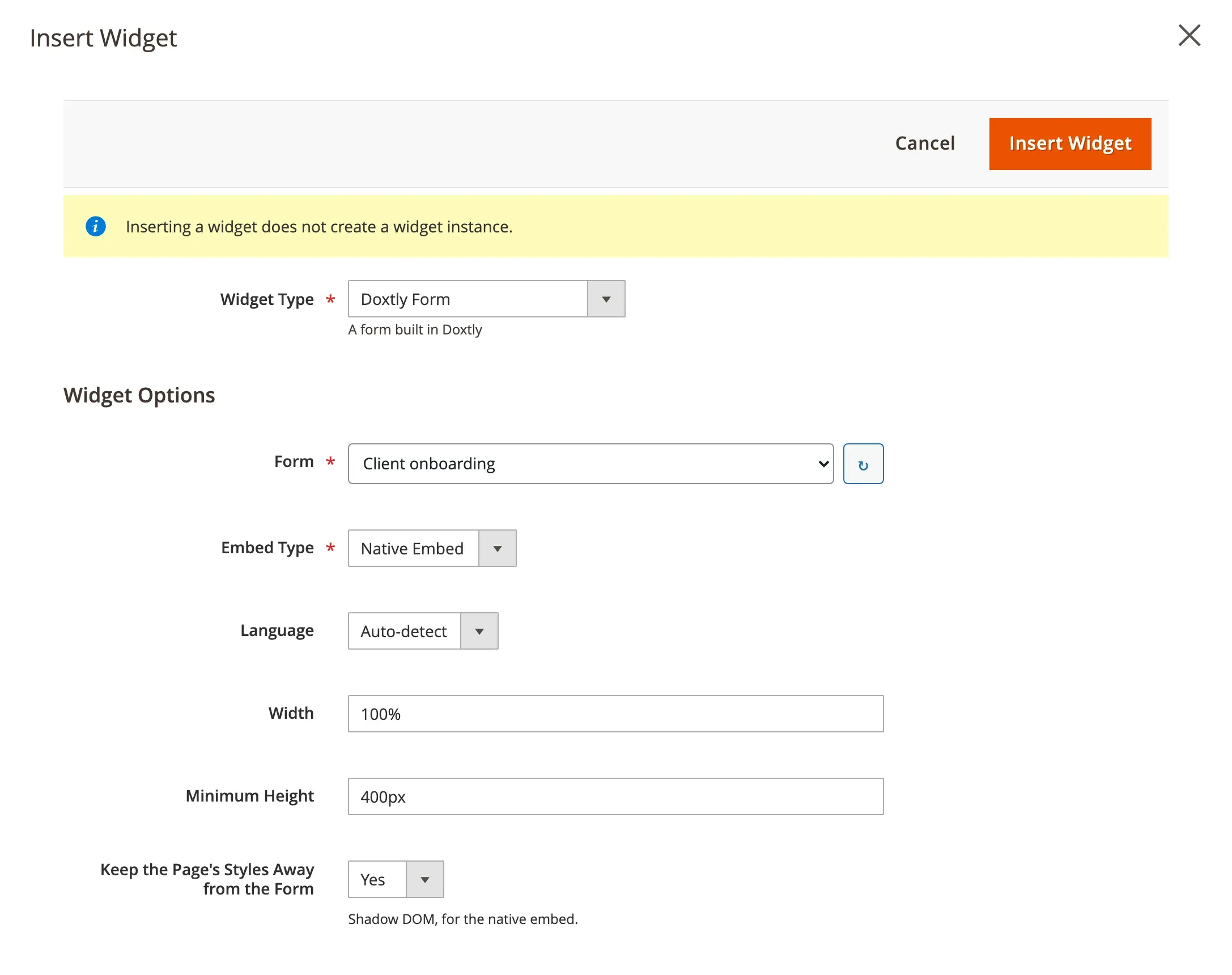
Under Widget Type, choose Doxtly Form.
-
Choose the form under Form, and adjust the rest if you need to.
-
Click Insert Widget, then save the element and the page.
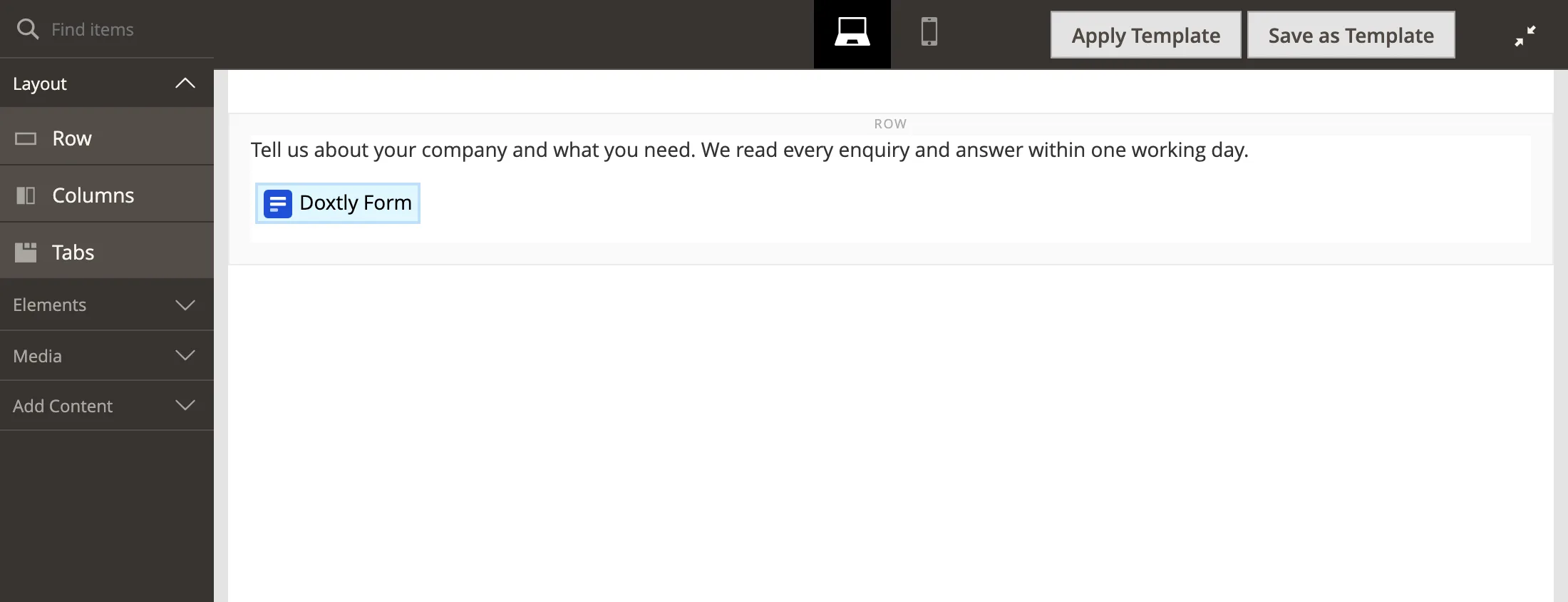
In a Text element the form appears as a Doxtly Form placeholder. The form does not run in the editor, so nobody can send a test submission by accident. To see it, open the page in the store.
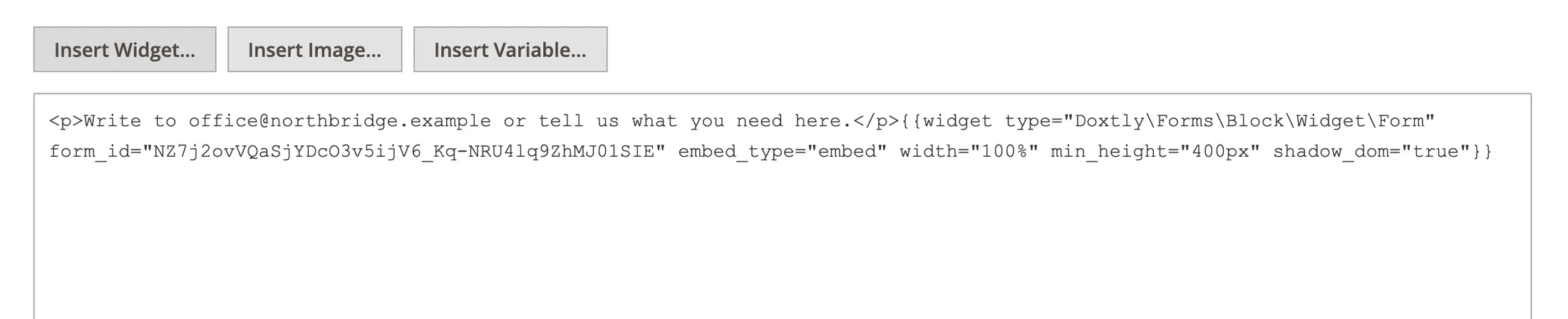
In HTML Code it appears as a {{widget}} line. That is what Magento stores in both cases.
With Enable Page Builder set to No, under Stores → Configuration → General → Content Management → Advanced Content Tools, the page has Magento’s plain editor, with the same cube in its toolbar and the same placeholder. Double-click a placeholder there to open the dialog again with the form’s options filled in. The placeholder doesn’t name the form, so that is how you see which one it holds.

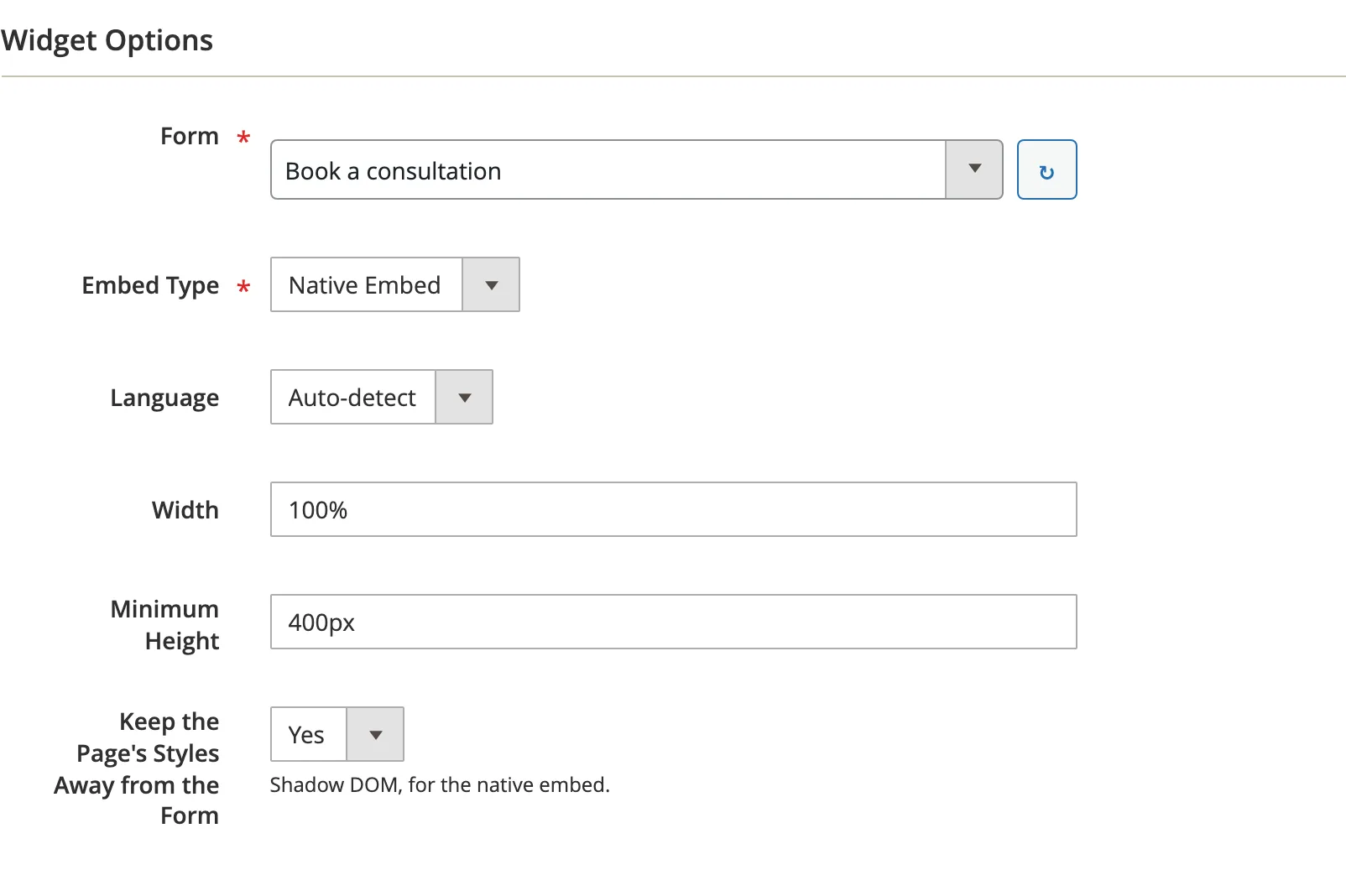
| Option | What it does | Default |
|---|---|---|
| Form | Which form to show. See What the Form field offers. | None |
| Embed Type | Native Embed draws the form inside your page. Iframe Embed shows it in a frame. See Native or iframe. | Native Embed |
| Language | Auto-detect, English, Polski, Español, Deutsch, Português, Français, Українська, ไทย, 简体中文, हिन्दी, العربية, 日本語, Türkçe or Italiano, for the texts Doxtly adds around your fields: buttons, messages, date pickers. See Languages. | Auto-detect |
| Width | The form’s width, such as 100% or 600px. |
100% |
| Minimum Height | The space the form always takes up, such as 400px, so the text below does not jump while it loads. The form grows past it as needed. A short form still takes this much room, so lower it for one. |
400px |
| Isolate from the Site’s Styles | Yes keeps your theme out of the form. No lets its styles in. Offered for Native Embed only. See Styling. | Yes |
| Doxtly Theme | The theme it is shown in: Theme set in Doxtly, or another theme of your organization. See Doxtly theme and background. | Theme set in Doxtly |
| Transparent Background | Leaves out the theme’s page background, so your page’s own shows around the card. | No |
Width and Minimum Height take a number with a unit: px, %, em, rem, vh or vw. Anything else falls back to the default. The form is never wider than the space it stands in, so 640px still fits a phone.
A widget instance
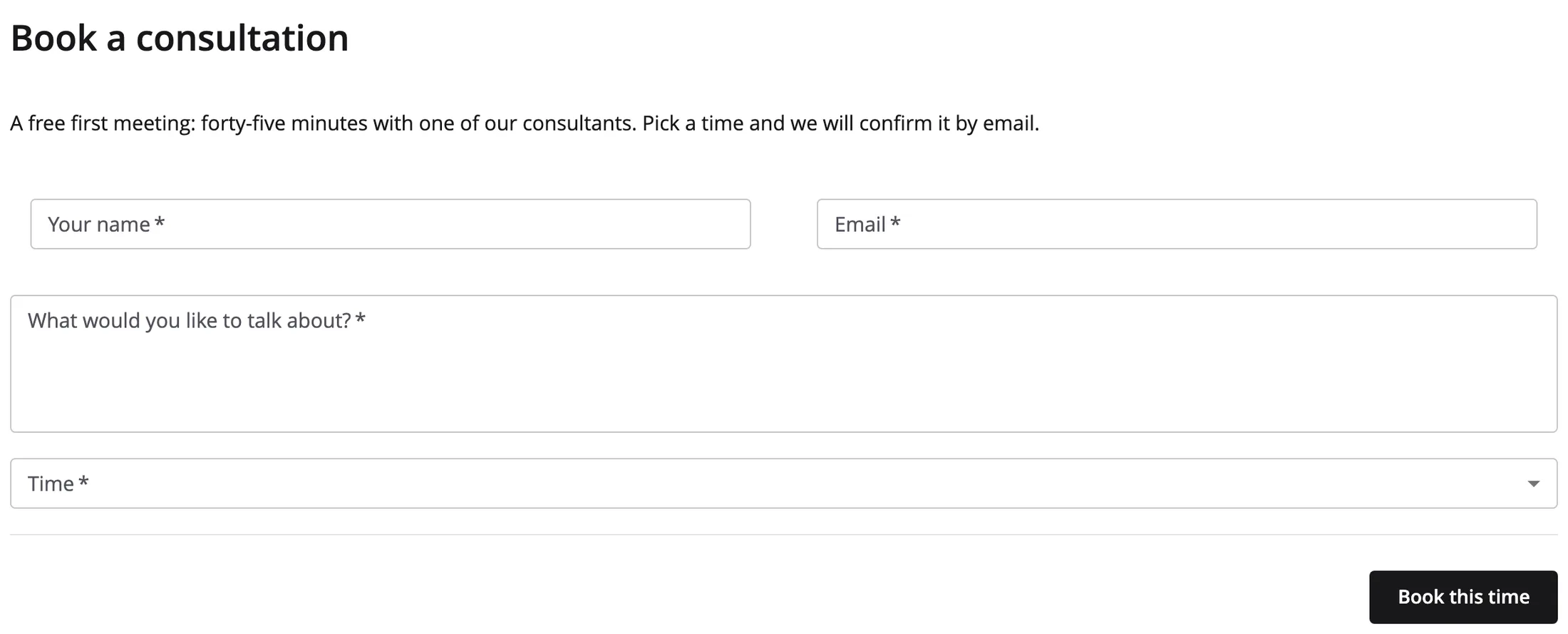
Section titled “A widget instance”A widget instance puts a form into a part of the layout on many pages at once, without touching their content. Northbridge shows “Book a consultation” under every product.
-
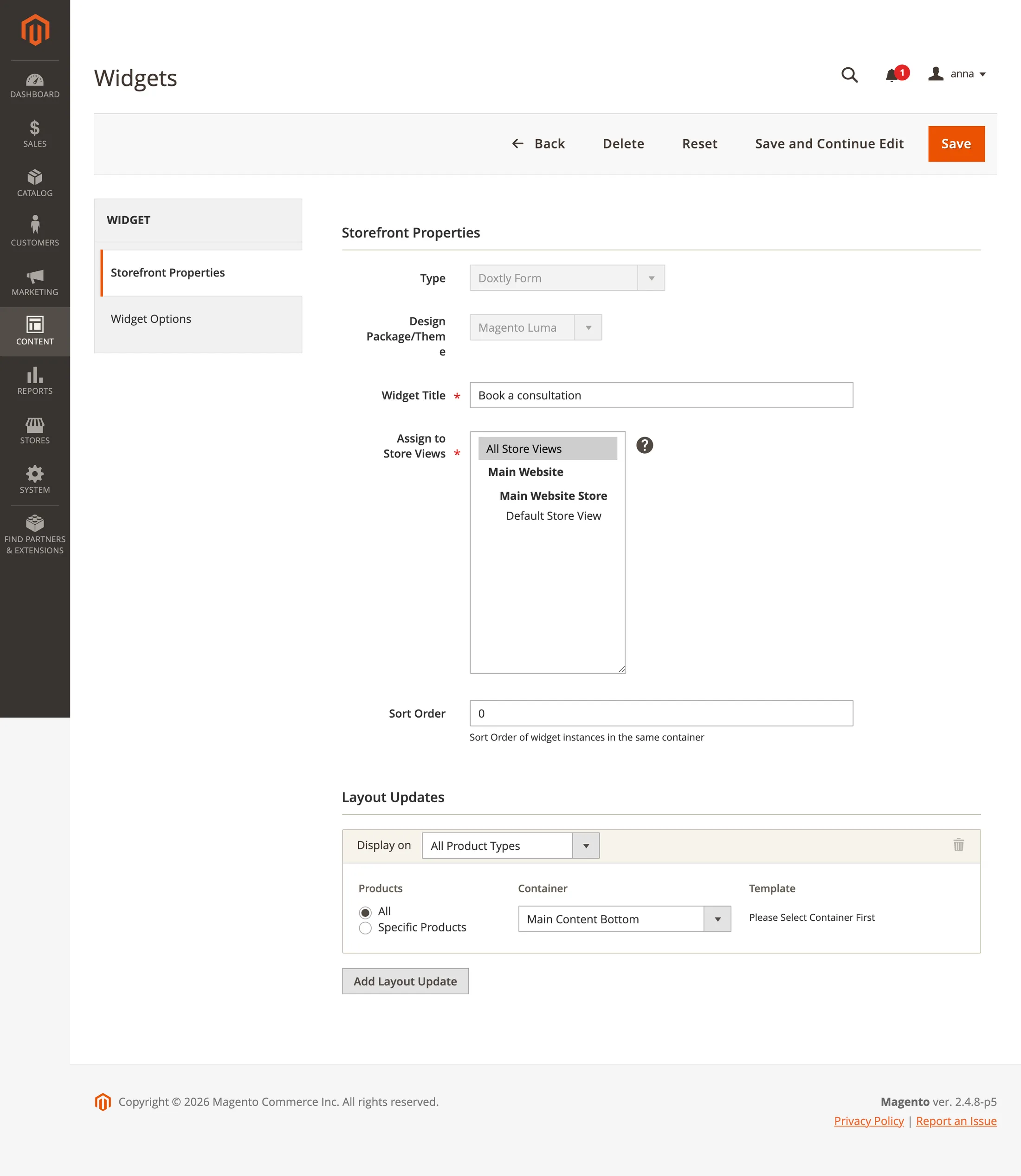
Go to Content → Elements → Widgets and click Add Widget.
-
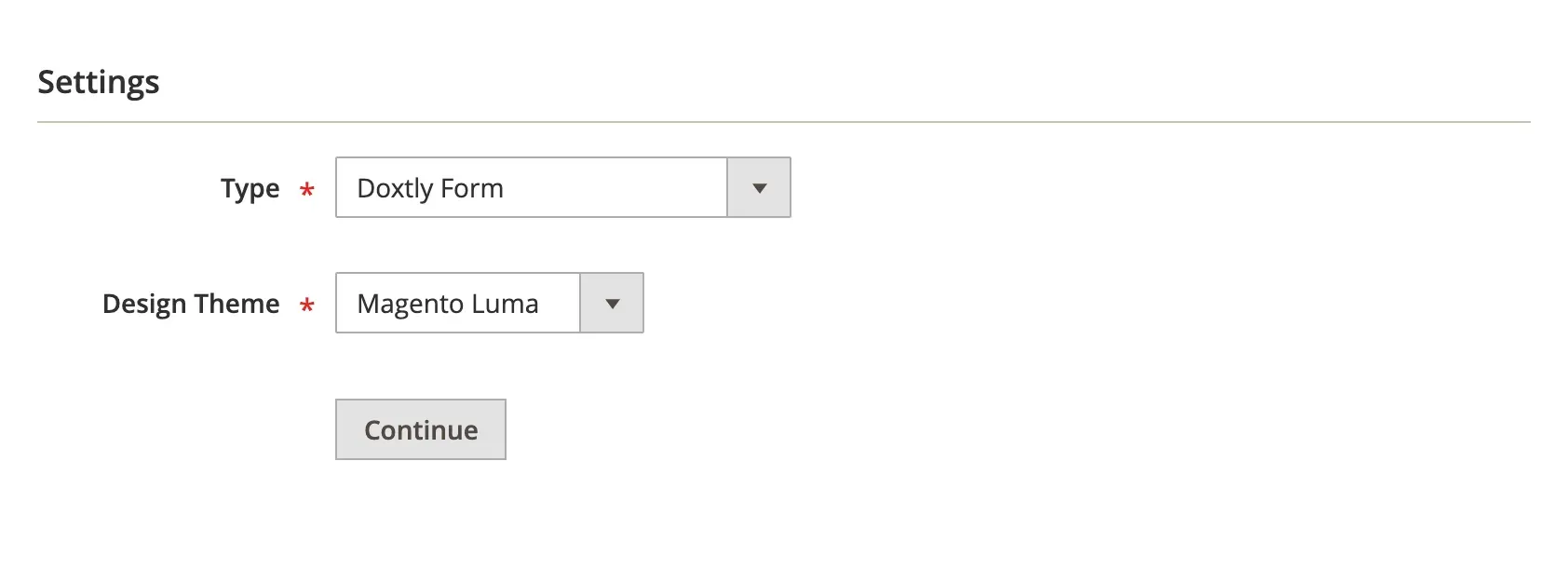
Under Type, choose Doxtly Form, choose your theme under Design Theme and click Continue.
-
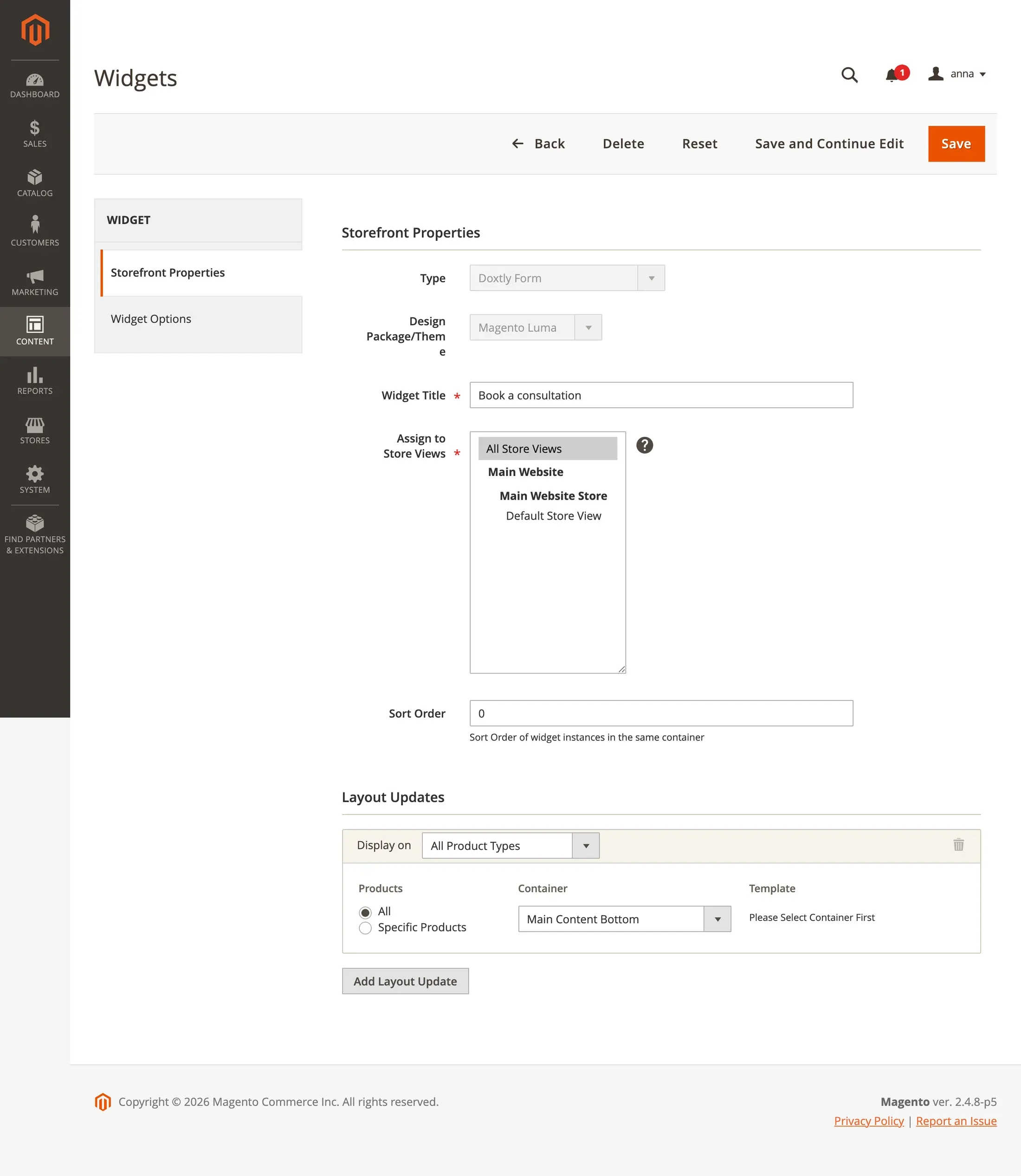
Give it a Widget Title and choose the Assign to Store Views.
-
Under Layout Updates, click Add Layout Update and say where the form goes: which pages under Display on, and which part of them under Container.
-
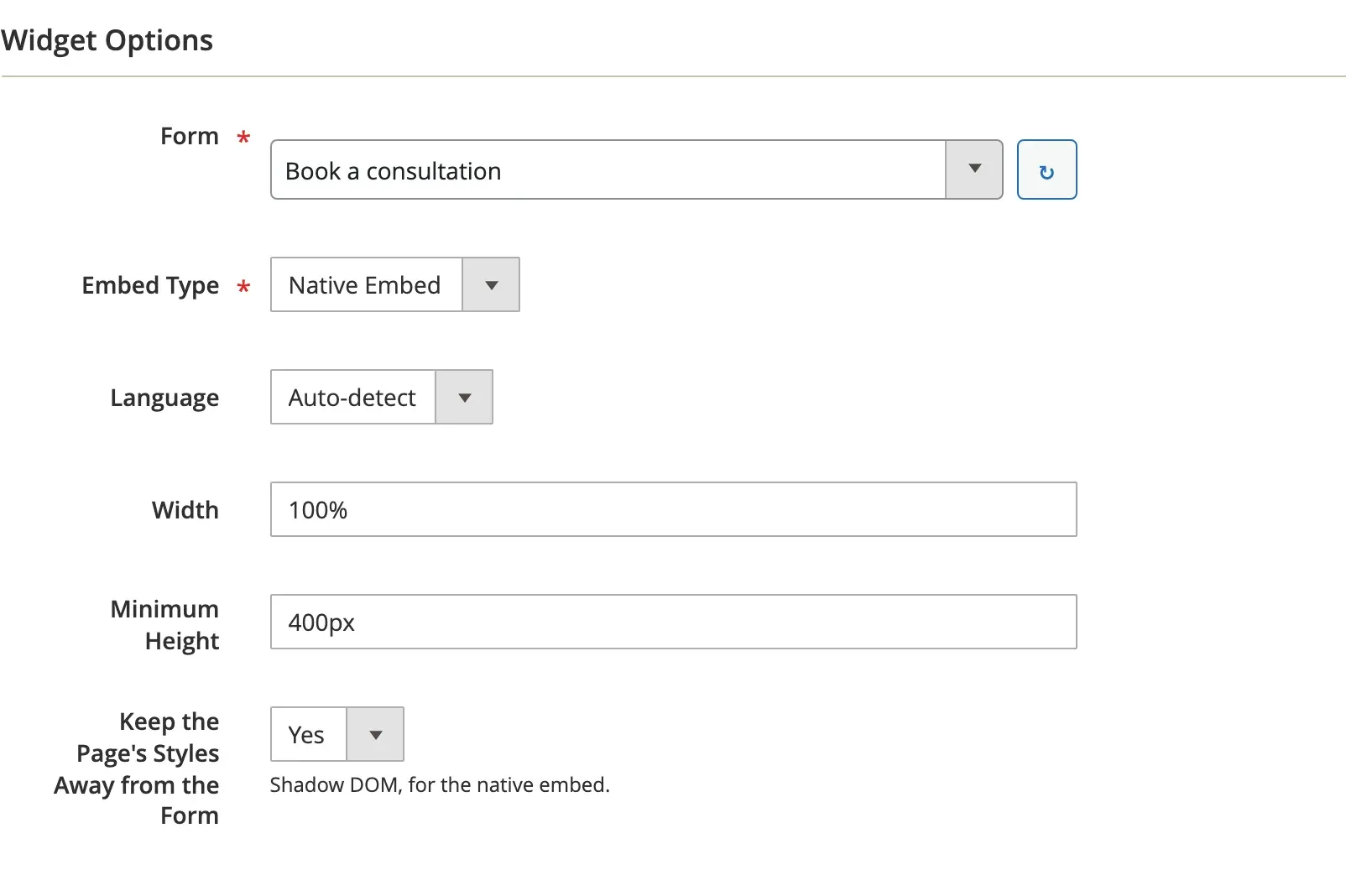
Open Widget Options and choose the form. The options are those of the table above.
-
Click Save. Magento then reports One or more of the Cache Types are invalidated: go to System → Cache Management and refresh them, and the form is on your pages.
The tag
Section titled “The tag”A tag is a short piece of text in square brackets that the module swaps for a form when Magento shows the page. It works in the content of CMS pages and blocks and in the descriptions of products and categories, also in Page Builder’s HTML Code.
[doxtly_form id="sAFZpCfzVDHA4ZGG7cg-mHG1Vz3Q6gSgRdoEtCpaLio"]You don’t have to write it yourself. In Doxtly, open the form’s menu, choose Share and open the WordPress tab under Embed on a website. The tag is the same as WordPress’s shortcode, so it comes with the form’s ID filled in, for both embed types.

| Attribute | What it does | Values | Default |
|---|---|---|---|
id |
The form. Required. | The form’s ID | |
type |
The embed type. | embed or iframe |
embed |
width |
The form’s width. | A number with a unit, as for the widget | 100% |
min_height |
The space the form always takes up. | The same | 400px |
language |
The language of Doxtly’s own texts. | en, pl, es, de, pt, fr, uk, th, zh, hi, ar, ja, tr or it |
Detected |
shadow_dom |
false lets your theme’s styles reach the form. Native embed only. See Styling. |
true or false |
true |
theme |
A Doxtly theme to show it in instead of the one set in Doxtly. See Doxtly theme and background. | The theme’s ID, or a built-in one: branding, standard, neutral, calm, bold, exam or dark |
The theme set in Doxtly |
transparent |
true leaves out the theme’s page background, so your page’s own shows around the card. |
true or false |
false |
A full example, for a narrower form that is always in Polish:
[doxtly_form id="sAFZpCfzVDHA4ZGG7cg-mHG1Vz3Q6gSgRdoEtCpaLio" type="iframe" width="640px" min_height="600px" language="pl"]A value that is not allowed does no harm: the module uses the default instead. Only id stops the form. Without one, the page shows “Doxtly Forms: Form ID is required.”, and one that cannot be an ID shows “Doxtly Forms: Form ID is invalid.”
What the Form field offers
Section titled “What the Form field offers”The Form field of the widget depends on what the module knows about your forms.
| Situation | What you get |
|---|---|
| No access key saved | A field to paste the ID into, and a reminder that a key would give you a list |
| The list loaded | A list of your active forms, sorted by title. You can’t type here, so a typo or a draft can’t reach a page. |
| No active forms in Doxtly | “No forms to choose from.”, with a note to set a form as active and refresh |
| The list failed to load | The reason, and a field for the ID, so a connection problem never stops anyone from editing a page |

Magento keeps a loaded list for ten minutes, so opening the editor stays quick. If you have just made a form active, click the refresh button next to the field. The list holds up to a thousand forms.

A form that is no longer available
Section titled “A form that is no longer available”A widget can hold a form the list does not have: it was deleted, set to inactive, belongs to another organization, or was typed in while the list was failing. The module never swaps it silently. When you open the widget, the field shows Unavailable form, and a warning explains why.
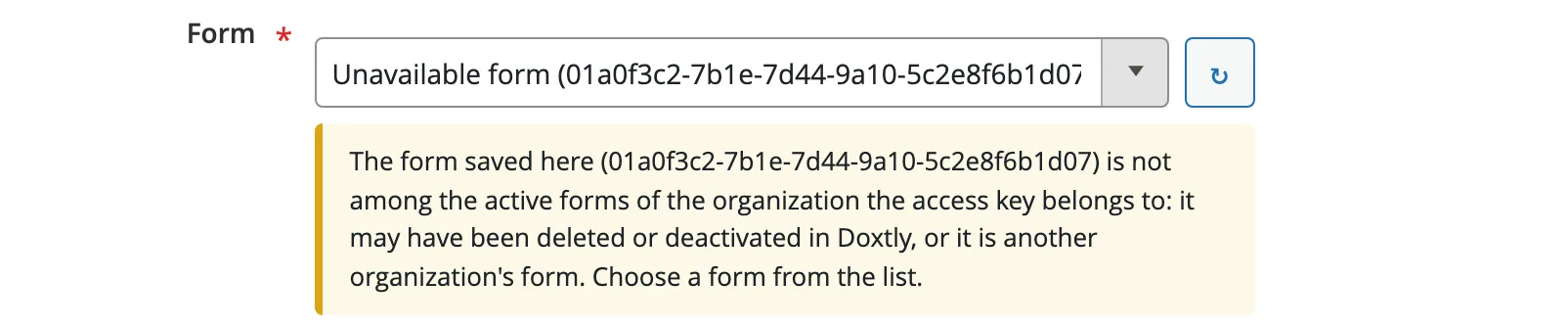
Choose another form from the list. If there is nothing to choose from, Remove the saved form clears the field. Until you act, visitors see what Doxtly answers for that form, usually Form not found.
Native or iframe
Section titled “Native or iframe”Both embed types show the same form, and in both the height follows the form, so there are no inner scrollbars. Native is the default.
| Native Embed | Iframe Embed | |
|---|---|---|
| Where the form lives | Inside your page, in a sealed area your theme’s CSS can’t reach | In a frame, fully separate from your page |
| Font | Inherited from your page | The visitor’s system font |
| Background | Your page’s | White |
| Going on to signing | Your page moves to the signing page, so the link passes through your page’s scripts | The frame opens the signing page, and your page never sees the link |
| With Validate request origin | List your store’s address | List your Doxtly address, such as https://app.doxtly.com |
Choose Iframe Embed if scripts or styles on your store get in the way of the form, or if you don’t want analytics or chat scripts on your page anywhere near a signing link.
Doxtly theme and background
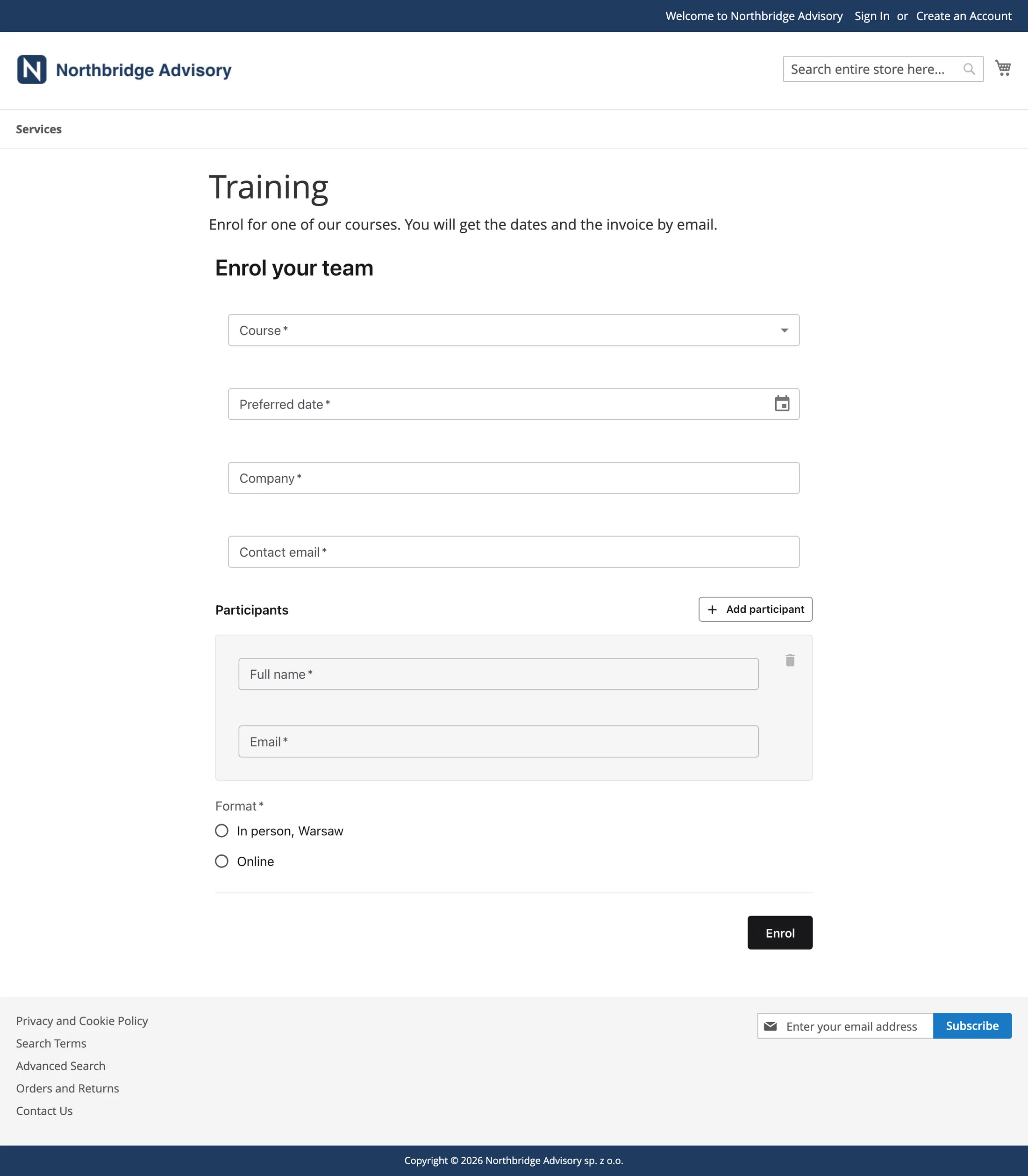
Section titled “Doxtly theme and background”A form, a quiz or a survey appears in the theme chosen for it in Doxtly - its colours, font and custom CSS - with either embed type, and the theme stays inside it: it never restyles the rest of your page. To show one place differently, such as the same survey on two sites with different looks, choose another theme of your organization under Doxtly Theme, in the widget, or give a tag the theme’s ID in theme. Theme set in Doxtly, the default, follows whatever the form, quiz or survey uses in Doxtly, also when that changes later. A theme of another organization, or one deleted since, is ignored, and the one set in Doxtly is shown.
Transparent Background leaves out the theme’s page background, so your page’s own shows around the card. The card itself, with its colours and corners, stays. In a tag, transparent="true" does the same.
The list of themes needs the Read themes of public pages permission on the access key. Without it, or without a key, the field says why, and you can leave it on Theme set in Doxtly or type a theme’s ID.
Quizzes and surveys
Section titled “Quizzes and surveys”A quiz or a survey is placed the way a form is, with the same choices. Insert the Doxtly Quiz or Survey widget and choose it under Quiz or Survey. Its other settings are those of the Doxtly Form widget, with the same names and defaults: Embed Type, Language, Width, Minimum Height, Isolate from the Site’s Styles, Doxtly Theme and Transparent Background. The list holds your active quizzes and surveys, each marked Quiz or Survey, and needs the List quizzes and List surveys permissions; without them, or without a key, you type the token. By hand, the tag takes the same attributes as [doxtly_form], in the same places, also in Page Builder’s HTML Code:
[doxtly_quiz id="YOUR-QUIZ-TOKEN"][doxtly_survey id="YOUR-SURVEY-TOKEN" type="iframe"]The id is the token at the end of its public link, after /q/. You don’t have to copy it by hand: under On a website, the Share dialog of the quiz or survey gives you the tag with the token filled in.
With Native Embed, the default, the quiz or survey is drawn inside your page as a form is, sealed from your site’s styles unless you turn the isolation off; with Iframe Embed it is shown in a frame that grows with it. One question per screen and a quiz that asks for the full screen work in both. language also picks the quiz’s language version in that language, if it has one. The parameters in the page’s address reach it, so a page opened with ?key= gives a person their own access. If the quiz or survey accepts only some websites, list your website’s address there, for either embed type.
If its script can’t load, the page shows “This quiz or survey could not be shown here.” with Open it in a new tab, which leads to its own page. The Doxtly Link widget finds active quizzes and surveys too, labelled Doxtly quiz and Doxtly survey.
Interactive documents
Section titled “Interactive documents”An interactive document opens on its own page and can’t be embedded, in Magento or anywhere else. To offer one on your store, link to it with the Doxtly Link widget.