

Turn a Word file into a template
You already have the contract in Word, filled in for the last client. Instead of typing every marker by hand, you give the file to the AI assistant. It works out what changes from one document to the next, asks only what it must, and prepares a new template for you to review. Your file stays as it is, and nothing is saved until you press the button.
Available when: your plan includes AI (Starter or higher) and you hold Manage file templates and Use the AI assistants
What happens to your document
Section titled “What happens to your document”The assistant never touches the file. It reads the text and answers with a plan: which words to replace, and with which marker. Doxtly then checks each point of the plan against the document and makes only the changes it can prove. It cannot add a word, remove a sentence or restyle anything, so your letterhead, tables, numbering and pictures stay as they were. The one thing it can add is a marker in an empty table cell beside a label, because a form’s answer has no text to replace.
Reading the document is a call to that AI, and so is each remark or answer the assistant has to act on. Each one counts towards the same monthly allowance or integration budget as Doxie’s own work. Building, Check again and saving do not call the provider. The file and the draft are kept for two hours from the moment you start, and nothing goes into your organization’s files until you save.
Turning a file into a template
Section titled “Turning a file into a template”-
Open Resources > File templates and press From a Word file. To start from a template you already uploaded, open its menu on the list and choose Turn into a template with AI. That template stays as it is too. At the plan’s limit both are switched off.
-
Choose a
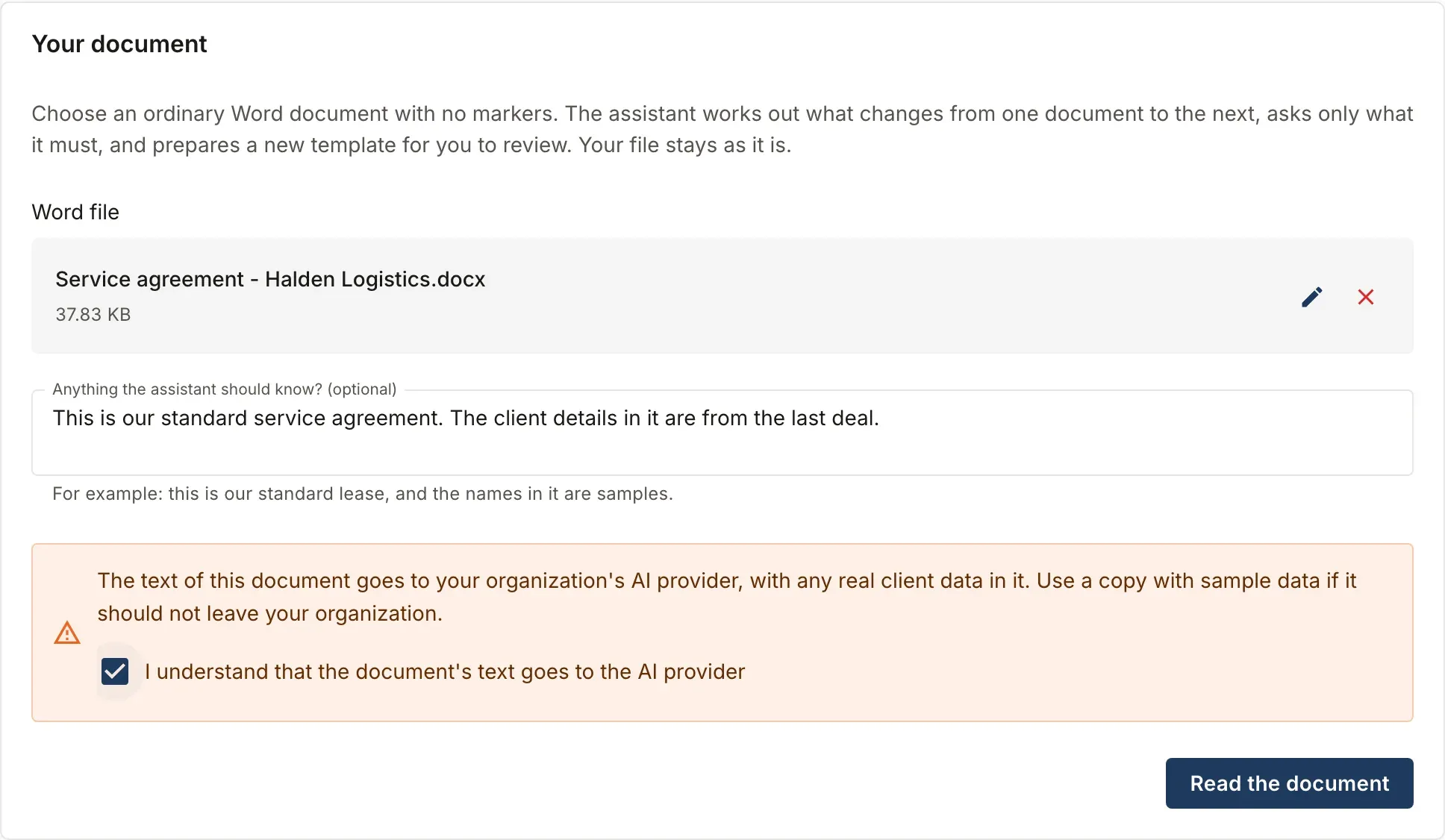
.docxfile. Started from a template’s menu, there is no file to choose, and a note says the assistant works on that template’s file. Under Anything the assistant should know? (optional) you can say what the document is, for example that it is your standard service agreement and the client details are from the last deal. -
Read the note about your AI provider, tick I understand that the document’s text goes to the AI provider, and press Read the document.
-
The assistant says what the document is and how many places it found to fill, and how many of them are obvious. If it needs you, it asks. Each question has its options, with the safest one already chosen. What the document holds that is not handled is listed here as well. With nothing to ask, this step is skipped and the draft is built at once.
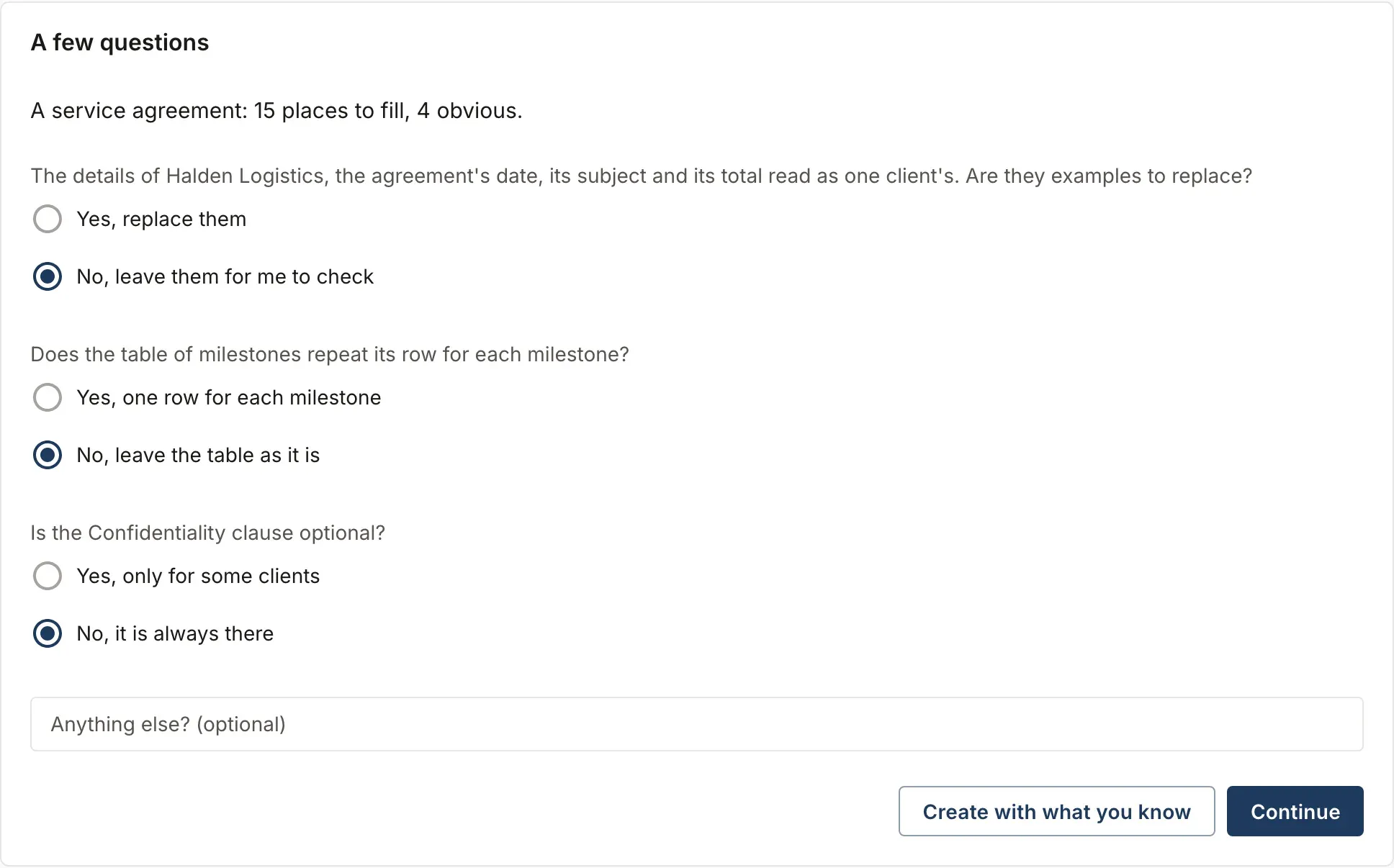
Press Continue to answer. Create with what you know is there from the first question, if you would rather go straight to the draft: it keeps the options you chose and takes the default for the rest. It is switched off while a remark, or an answer the assistant has to act on, waits to be read. Press Continue, or clear it.
-
Doxtly builds the draft and checks it. Look through the list of changes, and tick or untick what you want. After a change to the list, press Check again.
-
Check the Template name, which starts as the file’s name, and press Save as a new template. The template opens, ready to use like any other.


The questions
Section titled “The questions”The assistant asks the way a careful colleague does: one question about a whole group of details, not one for each. It asks at most three questions at a time and at most two rounds, and the limit holds whatever the document looks like. It asks only about what changes the result, and everything else waits for you on the list of changes. Under Anything else? (optional) you can add a remark, which it reads before its next answer.
Values the assistant only assumes and did not ask about still get a question: Doxtly adds one of its own, which says how many there are and quotes a few of them. It counts towards the limit and costs no call to your provider. With the limit reached, they wait on the list, and the list says so. Conditions, repeating rows and crossed boxes are not in that question: they wait on the list too.
Choosing an option yourself is what counts. An option you leave as it was offered confirms nothing: a detail the assistant only assumes stays unticked, and you decide on the list. A default that leaves text alone is taken at its word, so what it covers starts unticked.
Reviewing the changes
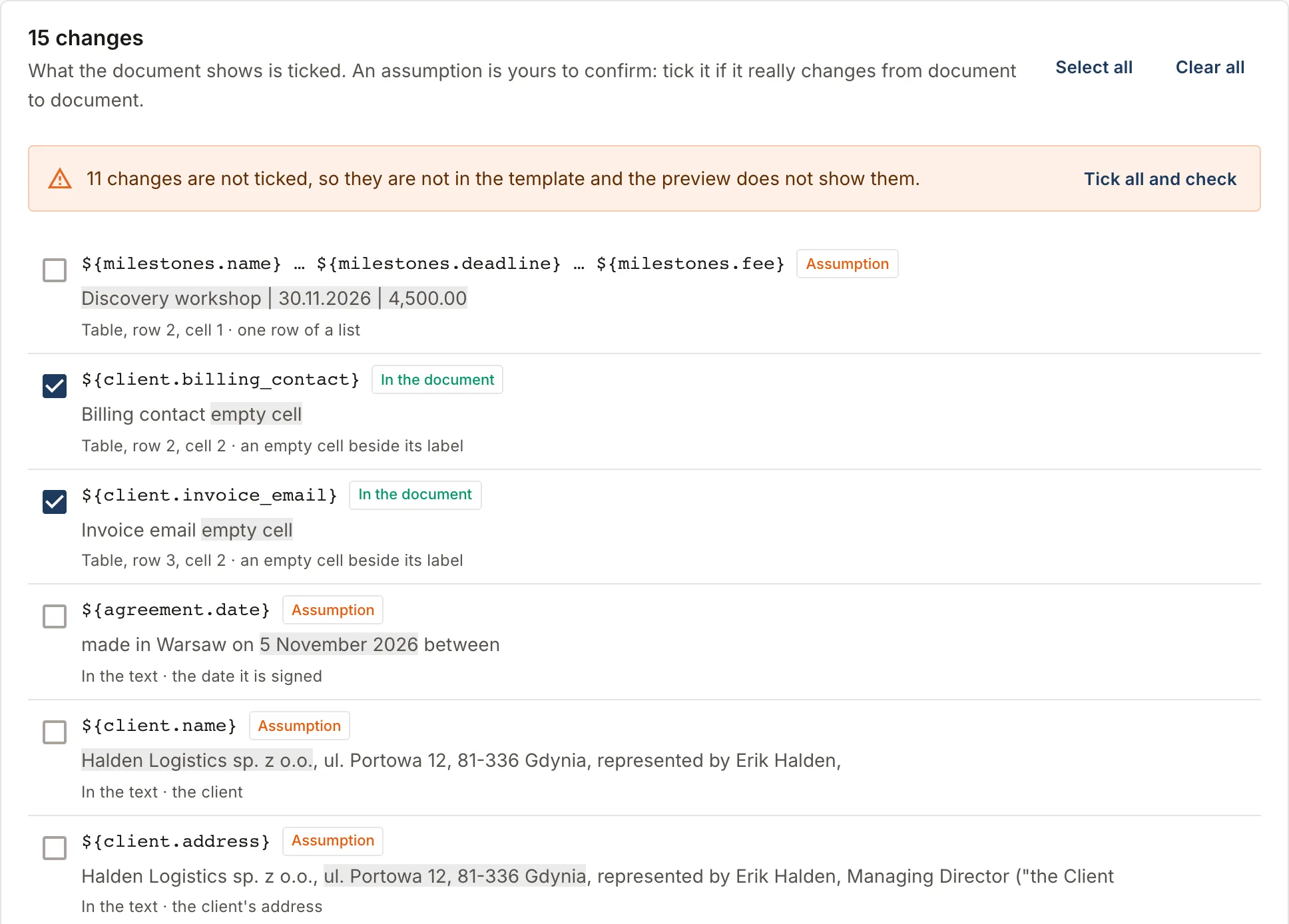
Section titled “Reviewing the changes”The list shows each change with the marker it writes, the words it replaces, where they stand and the assistant’s reason.
| Label | What it means | Ticked at first |
|---|---|---|
| In the document | The document itself shows a place to fill: a line of underscores, a run of dots or dashes standing apart from the words, <NAME> in capitals, {name}, or an empty ☐ box. Text whose own characters someone highlighted or shaded, whatever it says; shading on a whole paragraph or cell does not count. Square brackets with no digit in them and a comma or slash, such as [Name, Full Address], all in capitals, or only the words of a field, such as [date]. Parentheses with several words in capitals, or a comma or slash, such as (MONTH, DAY, YEAR) or (FULL NAME), unless they open with THE, ZWANY or the like. A label ending in a colon with nothing after it, in its line or in the column beside it, and with nothing under it but a blank or another empty label. An empty table cell beside a label, unless the row is a header, the first of its table, or holds a value such as a number. |
Yes, unless a question left it out |
| Assumption | It looks like one client’s detail, such as a name or a date, or the document does not settle it: [Reserved], [Figure 2], [sic], one word in capitals such as (SPECIFY) or (USA) that nobody highlighted, an empty cell beside a value, a crossed ☒ box. Only you know whether it really changes. |
Only if you confirmed it in a question |
A condition is always an assumption. A repeating table row is one too, unless the table is a header with a single row of blanks. Select all and Clear all change the whole list. When something is not ticked, a note above the list says how many changes that is, and that they are in neither the template nor the preview. Tick all and check ticks them and checks the draft in one step. Saving is switched off after a change to the list until you press Check again, so what you save is always what was checked.
What the assistant can put in
Section titled “What the assistant can put in”| It finds | It writes | For example |
|---|---|---|
| A value | A marker in place of the text, or right after a label with nothing after it | ${client.name} |
| An empty table cell beside a label | A marker in the cell, with the look the cell has for text typed there | ${client.name} |
A date written out, such as 1 April 2026 or 01.04.2026 |
A date marker that writes the date the same way | ${date:agreement.signed_on:d MMMM yyyy} |
| An empty or crossed box, ☐ or ☒, as a character or as a tick-box control of Word | A tick box | ${checkbox:paper_invoices} |
| A table with one row of items | A row that repeats for each item | ${milestones.name} |
| A clause that is sometimes left out | A condition around whole paragraphs or some words | ${if:confidential} … ${/if} |
A marker takes the look of the text it replaces, as a whole, so the rule about formatting a marker as one piece is kept for you. Nothing is ever restyled: text with more than one look stays as it is. The one exception is a placeholder whose brackets look different from the words in them: the brackets stay and the marker takes the words, so (MONTH, DAY, YEAR) gives (${agreement.date}). Conditions do not stand inside each other.
A row with no label, such as a spare line under a question, takes no marker, and neither does a cell that continues a merged one, a cell for a signature, stamp or seal, or a cell in a row that repeats.
The markers of a condition around whole paragraphs stand at the end of the paragraph before and of the last paragraph, because no paragraph may be added for them. A clause that goes leaves no gap.
What stays unchanged
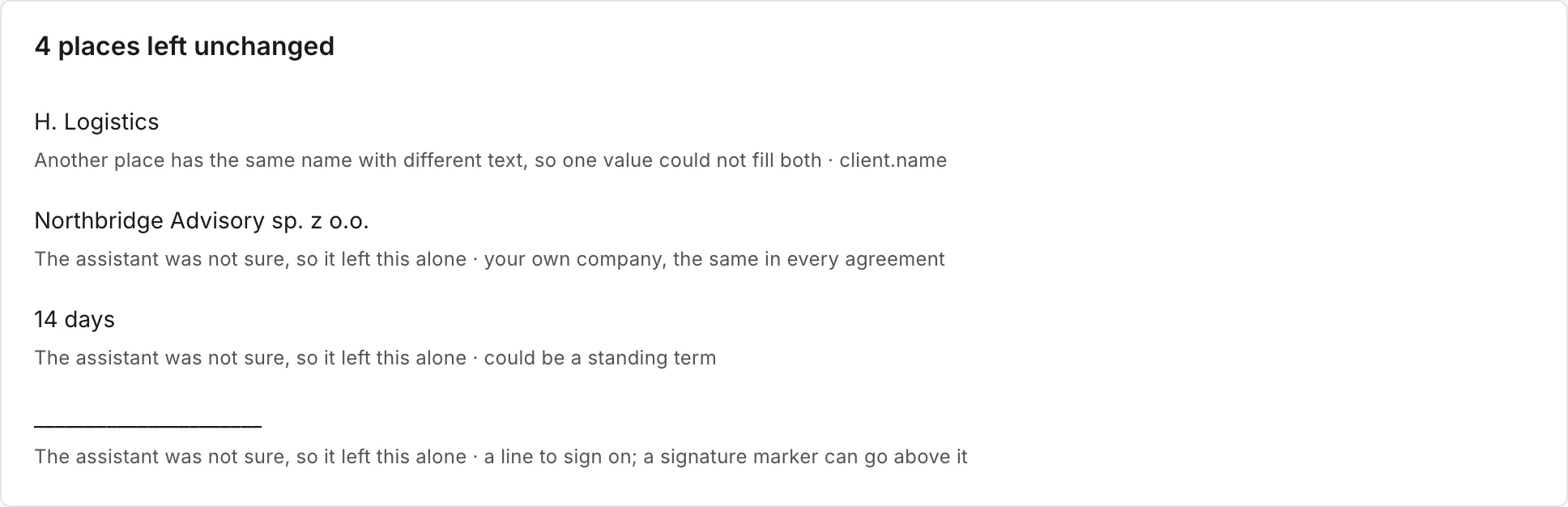
Section titled “What stays unchanged”The default is to change nothing. The places left unchanged card lists what the assistant considered and left alone, each with the reason, or says Nothing else was considered. Add a marker there yourself in Word if you disagree.
| Reason | What to do |
|---|---|
| The assistant was not sure, so it left this alone | Nothing, or add the marker yourself. A signature line is left this way, because it is there to sign on: put a signature marker above it in Word. |
| This exact text is not in the document, That place is not in the document, This text appears more than once, and the assistant did not say which one, This overlaps another change, The name cannot be used in a marker, The name is already used for something else, A checkbox needs an empty or crossed box character, Only an empty table cell with a label before it in its row can take a value, A cell of a row that repeats would print one value in every row. Add it in Word if you want it, A date needs a date format of the supported symbols, such as d MMMM yyyy, Too many changes at once | Nothing: these are the assistant’s slips, so the change was refused. Add the marker in Word if you want it. |
| Left as it is for now. Tick it in the list above to include it | Tick it on the list if you want it after all. A question’s answer or default left it out. |
| Another place has the same name with different text, so one value could not fill both | Make the two places the same in Word, or give the second a marker of its own. This is what catches J. Kowalski beside Jan Kowalski, two blanks of different lengths, and a blank given the name of a marker the file already holds. |
| This is a place for a signature, so a value cannot go here. Put a signature marker in this cell in Word | As it says: the label speaks of a signature, stamp or seal. See signature markers. |
| Only a table with one row of items can repeat. Delete the other sample rows in Word first | Delete the extra rows in your file and start again, as the assistant may not remove anything. A total of another shape under the row is fine. A first row with figures in it counts as a filled row, unless it is marked as a header row in Word. The same refusal covers what cannot repeat at all: a row in a header or footer, a table inside a table, and a table with cells merged down. Add that list by hand, or not at all. |
| A condition cannot stand here without breaking the layout | Add the condition in Word. The paragraph before the clause and the clause’s last paragraph must both end in plain text, so an empty line before the clause is enough to stop it. So are the first paragraph of the document, a paragraph after a table, a clause reaching across table cells or inside a repeating row, and a section break or tracked change inside the clause. |
| This text has mixed formatting, and a marker has only one. Make the formatting uniform in Word, or add the marker yourself | As it says. Colour, size, underline or any other difference counts; only the language of the text does not. |
| This text cannot be changed: it is not plain text | The text is a field, a link or something else listed below. |
The same list says what the document holds that is not handled at all. It is left as it is, and never guessed at:
| In the document | What happens |
|---|---|
| Text boxes | Their text stays as it is. |
| Tracked changes | The paragraphs that have them stay as they are. Accept or reject the changes in Word first. |
| Fields such as page numbers, and content controls other than tick boxes | They stay as they are. A tick-box control takes a marker in place of its box, unless it is locked against editing, and stays a control. |
| Links | Their text stays, because the link would still lead to the old address. |
| Footnotes and endnotes | They stay, because markers do not work there. |
| Hidden text | It stays hidden and is not sent to the AI provider. |
| Comments, charts, embedded objects and macros | They stay in the file. Macros never run here. |
A marker that prints a value, such as ${client.name} or ${x|default}, or a signature marker |
It stays and works as a marker. The template asks for its value, which a default makes optional. |
Any other marker, such as ${if:x} or ${checkbox:x} |
The file is refused at the start, as such a marker cannot give the document back. |
One value written in two ways, such as ${x} and ${x|-}, or a value that is also a group, such as ${x} and ${x.y} |
The file is refused at the start, as one value cannot give both back. |
The checks
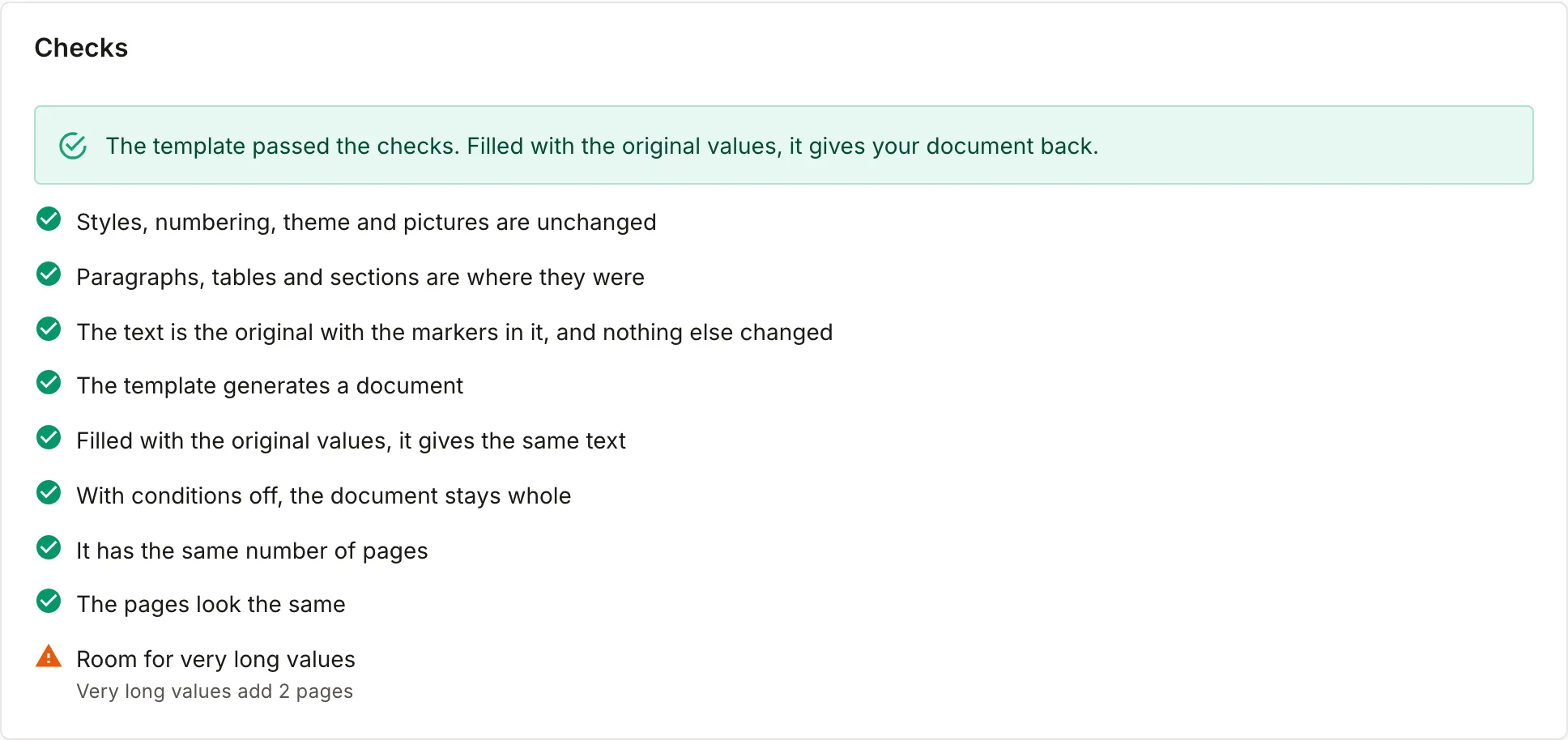
Section titled “The checks”Before a draft is offered, Doxtly proves that it did not damage your document. The most important check is the round trip: it fills the finished template with your document’s own values, through the same engine that makes real documents, and compares the result with the original.
| Check | What it proves |
|---|---|
| Styles, numbering, theme and pictures are unchanged | Everything but the text is the same, byte for byte. |
| Paragraphs, tables and sections are where they were | Nothing was added, removed or moved. |
| The text is the original with the markers in it, and nothing else changed | Character for character. |
| At least one change is ticked | Shown when nothing is ticked, as there is nothing to save then. |
| The template generates a document | It works when it is used. |
| Filled with the original values, it gives the same text | The round trip, paragraph by paragraph. |
| With conditions off, the document stays whole | Only when there are conditions. What they hold goes, and the file still opens. |
| It has the same number of pages | The round trip, by pages. |
| The pages look the same | The round trip, by the picture of each page in colour, every page, to the pixel. |
| Room for very long values | A warning only: it says where very long values add pages, would be cut off or leave the page. When they could not be tried, or the document is too long to measure, it says that instead, so a warning here proves nothing either way. |
A draft that fails any of them, other than the last, cannot be saved. You see This draft cannot be saved. and where it happened, such as the page and how far down it. Usually one change is to blame: untick it and press Check again. A check that could not be made counts as failed: press Check again in a moment. Check again is always there on a draft that cannot be saved.
The preview
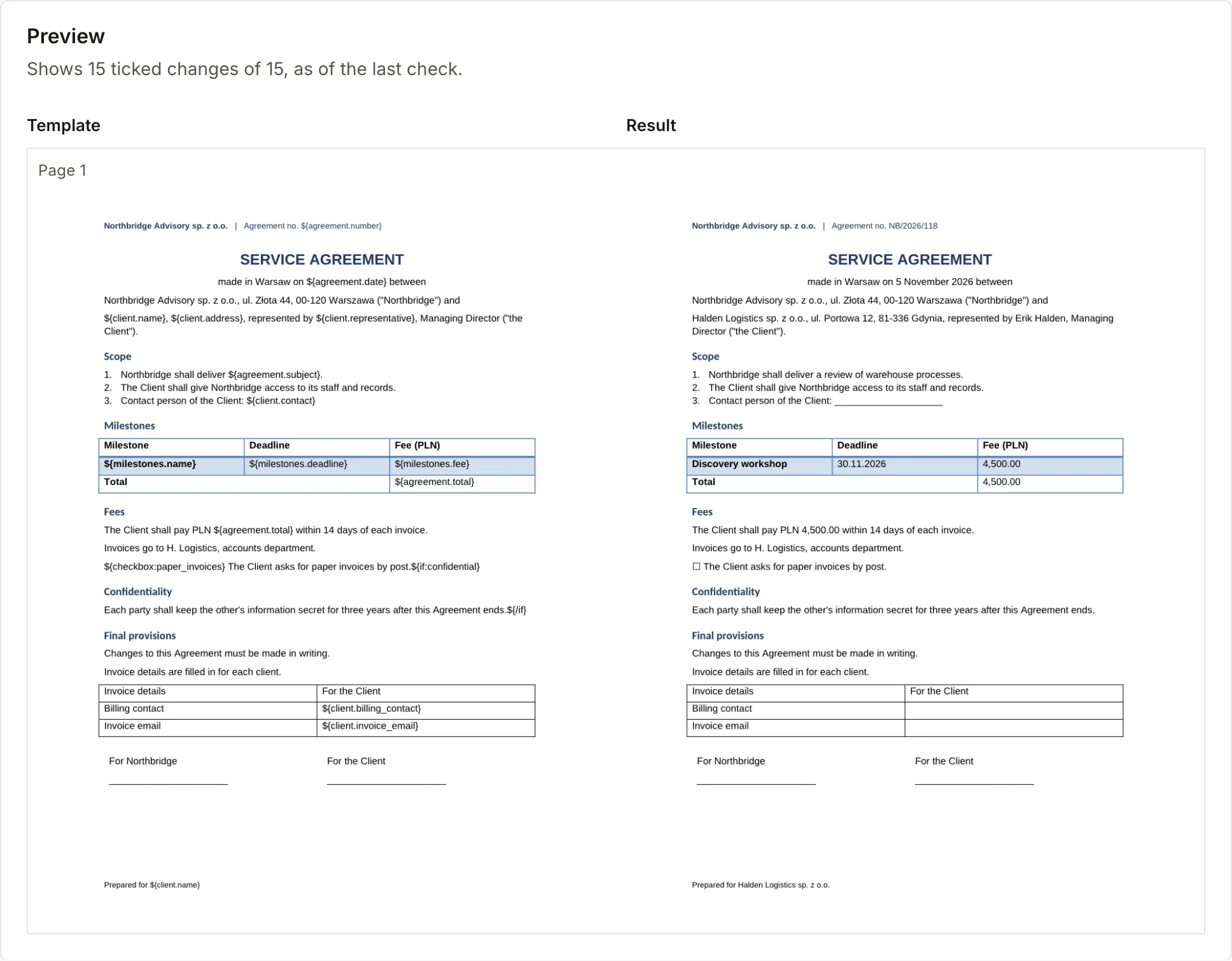
Section titled “The preview”Preview shows the Template with its markers beside the Result it gives with your document’s values, so you can compare them line by line. It is missing when nothing is ticked or when the file itself failed a check, as there is nothing to show then.
It shows the ticked changes as of the last check, and says how many of how many that is. A marker is longer than what it replaces, so the template runs on and its own pages break elsewhere. Each page of the result therefore stands beside the part of the template that says the same, however its pages fall. When too few lines match to be sure, the preview goes page by page and says so.
Before you use the template, read Before you go live and try it with another client’s data. The checks prove the template is faithful to your document, not that the right places vary.
Limits
Section titled “Limits”| Limit | Value |
|---|---|
| File | A .docx of up to 10 MB. A file that is damaged, or built to look like something else, is refused. |
| Length | 300,000 characters and 8,000 paragraphs, headers and footers included. Past that: The document is too long to work on at once. Split it, or add the markers in Word. |
| Changes | 400 in one document. Past that: Too many changes at once |
| What you tell the assistant | 2,000 characters in each box |
| Template name | 128 characters |
| Questions | Three at a time, two rounds |
| Conversation | Two hours from its start, however much you do in them. After that, or if you leave the page, choose the file again. |
| Requests | Reading, answering and each build count towards the 30 requests a minute your organization has for the AI buttons of this page, of the accent color and of the Recurring trigger. |
When something goes wrong
Section titled “When something goes wrong”| Message | What to do |
|---|---|
| This file already has markers that do more than print a value, such as … | Nothing was sent. Edit the file in Word, or start from a copy without them. |
| This file writes one value in two ways: … Make them the same in Word, and try again. | Nothing was sent. As it says. |
| The file is empty, or larger than the 10 MB a template file may have. | Nothing was sent. Save a smaller copy: fewer or smaller pictures usually do it. |
| The file cannot be read as a Word document. Open it in Word and save it as .docx again. or The file was refused because it looks unsafe. Open it in Word and save it as .docx again. | As it says. Nothing was sent. |
| AI isn’t available at the moment: this month’s AI budget is used up, or no AI is set up for your organization. An administrator can assign an AI integration to Doxie in the organization settings. | Nothing was sent. Wait for the next month, or ask an administrator to assign an AI integration to Doxie. See Which AI Doxie runs on. |
| There isn’t enough of this month’s AI budget left for this. Try again later, or ask an administrator to give Doxie your organization’s AI integration. or Too many AI requests. Try again in … seconds. | Wait, or ask an administrator, as it says. |
| This conversation has ended. Choose the file again to start over. | Two hours have passed, or the document could no longer be kept. Start again. |
| The document could not be kept for this conversation. Try again in a moment. | As it says. |
| The changes could not be written into the file. Your file was not changed. | Press Check again, or start over. |
| This draft did not pass its checks, so it cannot be saved. | See the checks. |
When a step fails, the message comes with Ask Doxie, for people who may use her. It opens Doxie told what you tried, on which file, and what the message said, so she can help you find the cause.
You can do the same in a conversation with Doxie: attach the file and ask her to turn it into a template. Her cards ask the same questions, and the last one opens this page’s review, where you save.
PDF files and scans are not turned into Word. For a PDF, Doxie can place areas on the pages instead.
Text in a document that tries to give the assistant instructions is treated as text. Even if such text misled it, Doxtly would accept only changes that quote the document exactly, and you would see each of them on the list.