

Invitations
An invitation is how a new person joins your organization. You name their email address, their role and optionally their department, and Doxtly emails them a link. They hold exactly that access from the moment they accept, so a new trainer at Northbridge Advisory can start on day one with the Training department’s work and nothing else. The one other way in is single sign-on with Create accounts on first sign-in on, for people with an address in your verified domain. Plans don’t limit how many people you can invite.
Available when: your role has Invite people
Invite someone
Section titled “Invite someone”-
Open Users in the Organization group of the sidebar and press Invite user.
-
Enter their Email.
-
Choose a Role. The list shows the roles you may hand out, never one that allows more than you hold. The built-in roles come first.
-
Choose a Department, or leave No department.
-
Press Send invitation.
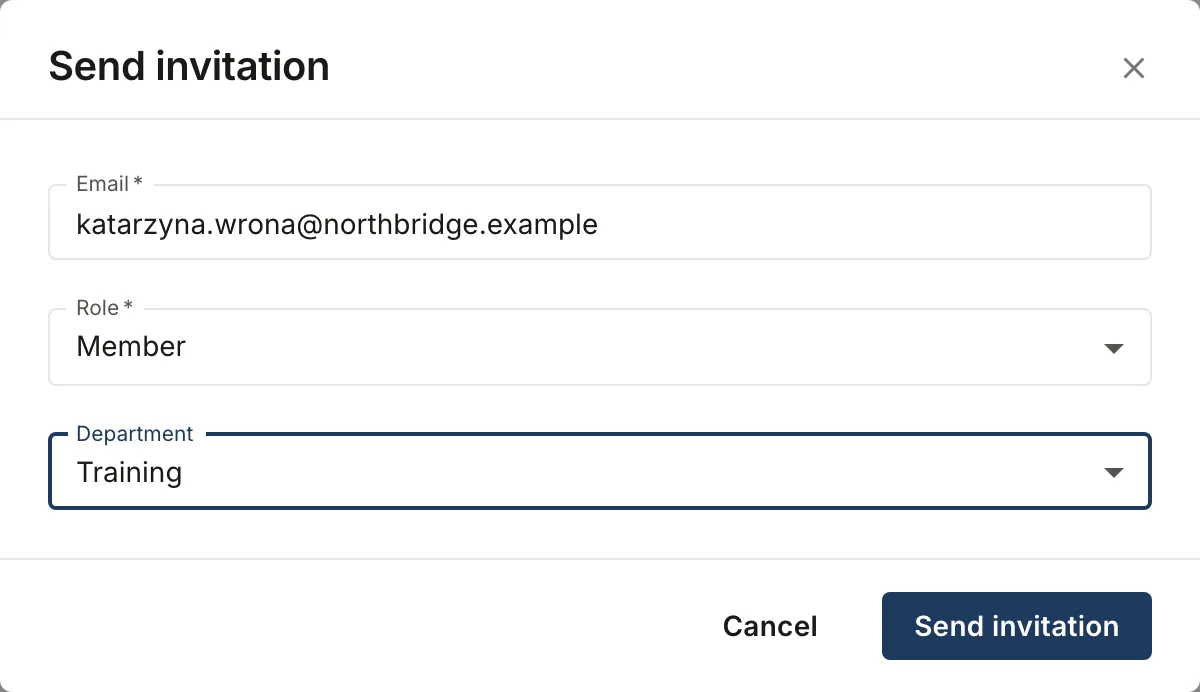
The button stays greyed out until the address is valid and a role is chosen.
If your Invite people permission reaches only your own department, the invitation can only lead into it. The dialog chooses it for you, says You can only choose your own department. and doesn’t offer No department. If you hold that reach and belong to no department yourself, you have nowhere to invite people to, so ask an administrator to give you a department.
Two things can stop an invitation. Doxtly compares addresses in any letter case, so Jan@example.com and jan@example.com are the same person:
| Message | What to do |
|---|---|
| A user with this email address already exists in this organization. | They are in already. You will find them on the Users tab, perhaps deactivated. |
| An invitation for this email address is already pending. Delete it first or wait for it to expire. | Resend the one that’s there, or cancel it and invite again. |
What the invited person gets
Section titled “What the invited person gets”They receive an email in your organization’s language, carrying your logo and titled Invitation to Northbridge Advisory in Doxtly. It says who invited them, to which organization and in which role, how long the link lasts, and has an Accept invitation button. The link leads to your organization’s own address if it has one.
What the link opens depends on who they are:
| Situation | What they see | What they do |
|---|---|---|
| The address has no Doxtly account | Join Northbridge Advisory | Enter their name and a password and press Create account and join, or continue with Google, Microsoft or Facebook. The address is filled in and can’t be changed. |
| The address already has an account | Sign in to join Northbridge Advisory | Sign in as usual, with a password, Google, Microsoft or Facebook, and press Sign in and join. Your organization is added to their organizations. There is no second password. Forgot password? is there too, and brings them back to the invitation. |
| They are signed in with that address | Join Northbridge Advisory as their name? | Press Join Northbridge Advisory. They can go by a different name in your organization, 2 to 100 characters each for first and last name. |
| They are signed in with another address | This invitation is for another address | Press Sign out and continue, or go Back to the app. |
| The link is expired, used or cancelled | This invitation can no longer be used | Ask you for a new one. |
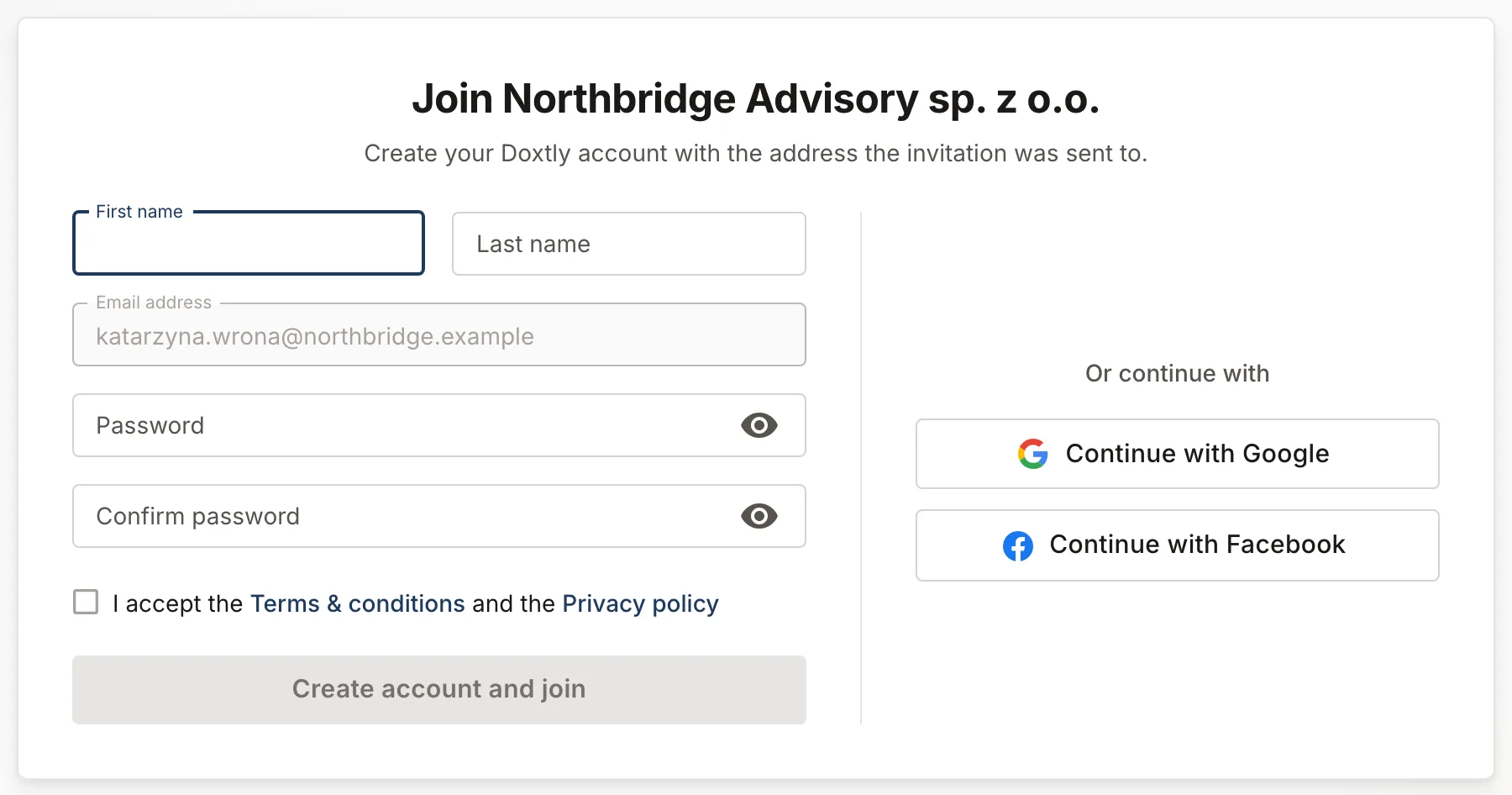
Only the address you invited can accept. The link proves they own that inbox, so a forwarded invitation gets nobody else in. Someone joining with Google, Microsoft or Facebook must use an account with that same address.
Someone who is signed in and accepts sees You are now in Northbridge Advisory with an Open Northbridge Advisory button. If they were already a member, it says You are already in Northbridge Advisory, and they keep the role they had.
Once they are in, they hold the role and department you chose, and their row moves from the Invitations tab to the Users tab. If your organization requires two-factor authentication, they set that up first.
The invitations list
Section titled “The invitations list”The Invitations tab shows the invitations nobody has answered yet, so you can chase a new hire who hasn’t joined. If your Invite people permission reaches your own department only, you see those leading into it. With no invitations, it says There are no invitations yet.
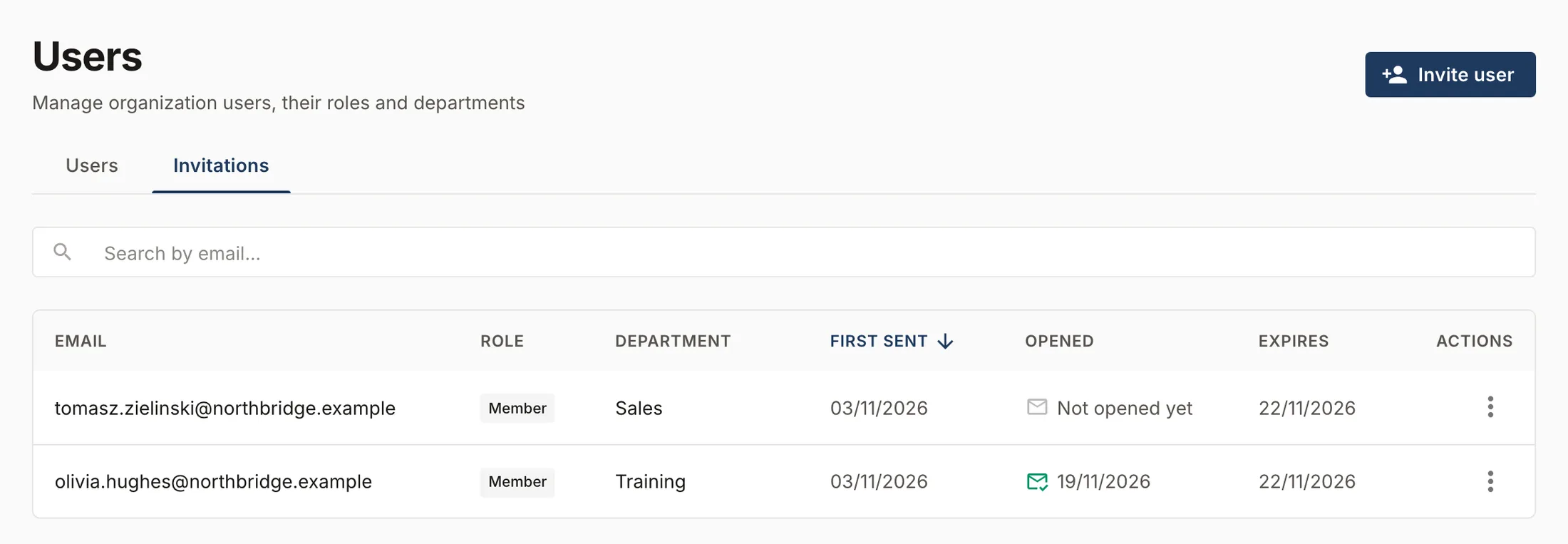
| Column | What it shows |
|---|---|
| Who you invited. | |
| Role | The role they will hold. |
| Department | The department they will join, or a dash. |
| First sent | When the invitation was first sent. A resend doesn’t change it. |
| Opened | Whether the person opened the invitation email. See Did they open it? |
| Expires | When the current link stops working. Past that moment, an Expired chip appears here. |
| Actions | Resend invitation and Cancel invitation. |

The search box looks through email addresses. Every column but Opened and Actions sorts on a click, and the default order is newest first, 25 to a page. On a phone, each invitation is a card with the same details.
Did they open it?
Section titled “Did they open it?”Doxtly watches whether the invitation email is opened, the same way it does for the emails you send from templates. The Opened column tells you whether a new hire has seen your invitation or whether it is worth a call.
| The column shows | What it means |
|---|---|
| A green envelope and a date | The person’s mail program registered an open on that day. Hover for the time. |
| Fetched automatically | A mail program picked the email up by itself, as Apple Mail with privacy protection does and sometimes the Gmail app. Whether anybody read it is unknown. |
| Not opened yet | Nothing has registered so far. |
| A dash | Opens of this invitation weren’t tracked, because it was sent before Doxtly started watching invitation emails. |

Read it as a hint. Not opened yet doesn’t mean unread, because some mail programs, such as classic Outlook in its default setup, never report an open. A resend sends the same invitation again, so an open of an earlier or a later email counts, and the column keeps the date of the first one. Opens are watched for every invitation, whatever your email templates are set to.
When they join
Section titled “When they join”Once the person accepts, whoever sent the invitation last gets the notice Someone you invited joined, with the person’s name and address. It comes whether they created an account or joined with one they already had, and it has no link, since there is nothing more to do. Like any notice, it reaches you in the app and by email unless you switched it off. Nobody is told when the person was already a member.
How long an invitation lasts
Section titled “How long an invitation lasts”An invitation lasts 72 hours. After that its link stops working. An expired invitation stays on the list, with its Expired chip, until the nightly clean-up removes it. If someone says their link is dead, look for the chip and resend.
Resend an invitation
Section titled “Resend an invitation”Resend invitation creates a new link and sends it, with a fresh 72 hours. The mail names you as the person inviting, even if a colleague sent the first one, and you are the one told when they join. The earlier link stops working at once, so tell the person to use the latest email. This works on an expired invitation too.
You can resend once every 5 minutes. Before that, Doxtly tells you how long to wait. A resend brings the invitation back into use, so you must be able to hand out its role and department yourself.
Cancel an invitation
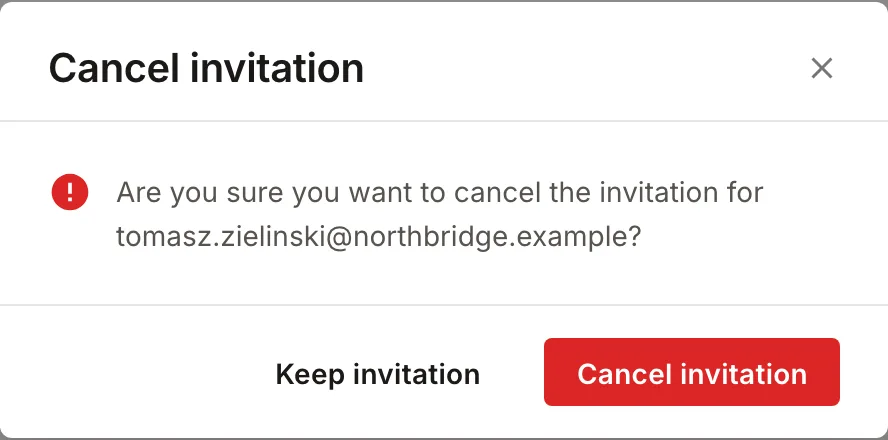
Section titled “Cancel an invitation”Cancel invitation withdraws it. Confirm with Cancel invitation, or press Keep invitation to back out. The link stops working straight away.
Change a role or department before they join
Section titled “Change a role or department before they join”You can’t edit an invitation. Cancel it and send a new one, or let them join and then change their role and department. Inviting an address whose invitation has expired replaces it with the new role and department.
How invitations touch roles and departments
Section titled “How invitations touch roles and departments”A role can’t be deleted while an invitation on the list offers it, even an expired one. Cancel the invitation first. Changing what a role grants changes what the person will get: they join with the role as it stands when they accept.
A department can be deleted while invitations lead into it. Those people then join with no department.