

Roles and permissions
A role is a named set of permissions, and it decides what a person can do in your organization. Everyone holds exactly one. Doxtly has four built-in roles that suit most companies from day one. When they don’t fit, you build your own, such as “Contract reviewer” or “Training coordinator”.
Available when: your role has View roles to read them, and Manage roles to create, change and delete them
How permissions work
Section titled “How permissions work”A permission allows one thing. Most come in pairs: view is reading (lists, details, history, files) and manage is everything that changes the thing. A few stand alone so you can give them to fewer people, such as Reset two-factor authentication.
Manage doesn’t include view. A role grants exactly what it lists. Someone with Manage forms but without View forms and submissions can’t open the forms list, so nearly every role that has manage needs view as well.
Editing a submission needs seeing it. Edit submissions works only together with the view permission of its group: you edit what you can see, and the edit permission alone gives nothing. Ticking Edit submissions in the role editor ticks the view as well, and unticking the view unticks the edit. A role that holds the edit without the view shows “Gives nothing without …” under it.
View reaches what’s made from a thing. View forms and submissions also opens the form’s submissions and their files. View file templates and generated files opens the files made from templates. You never need a second permission for records that came from something you can already see.
A permission doesn’t add to your plan. If your plan has no PDF editor, Use the PDF editor opens nothing. See Plans and limits.
What a role doesn’t open isn’t offered. The sidebar and every page show only what your role opens. A link to a page your role doesn’t include, shared by a colleague or bookmarked, opens a page that says so, with a way back.
A party always reaches their package. Someone who has to sign a document can open that package with any role, even one that grants nothing. So can someone holding a colleague’s authorization for that type of package.
Your own account is yours. Whatever your role, you manage your own sign-in methods, two-factor authentication and sessions in your profile. No permission grants them, and no role can take them away.
Reach: how far a permission goes
Section titled “Reach: how far a permission goes”| Reach | What it covers |
|---|---|
| Own records | The person’s own entry. Only View people has this option. |
| Own department | The records of the person’s department. Someone in no department reaches nothing this way. |
| Whole organization | Every record in the organization. |
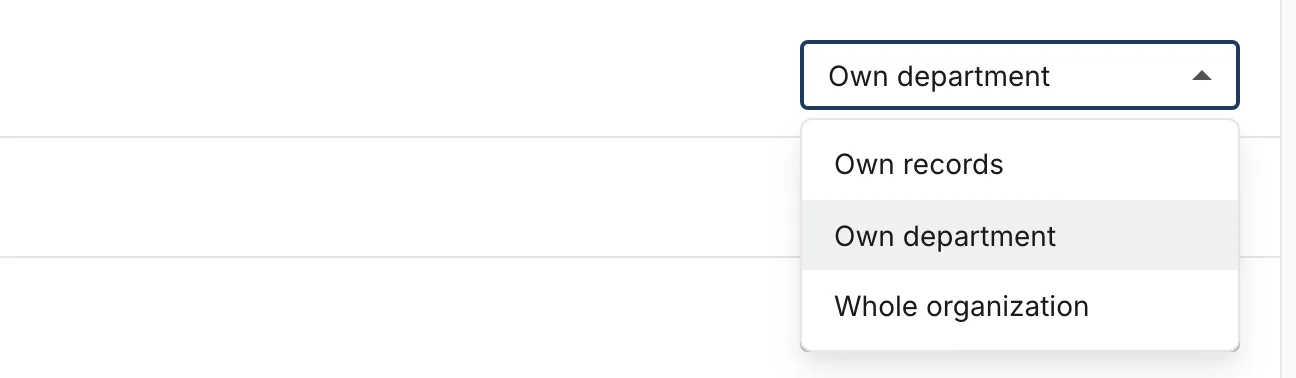
Most permissions only come at Whole organization, because forms, templates, workflows and keys belong to the company as a whole. The narrower reaches exist where records can be told apart by department, which is the case for people, departments, documents and document types, and for editing form submissions. The permission tables show which is which.
A narrow reach lets you trust a team lead with their own team and no further. With Manage people at Own department, the head of Training can change a trainer’s role, deactivate them or delete them, and can’t touch anyone in Sales.
The built-in roles
Section titled “The built-in roles”Every organization has these four. They always appear first in the list, follow the application and can’t be changed or deleted. You can duplicate one to start your own from it.
| Role | Meant for |
|---|---|
| Administrator | Whoever owns the account. May do everything. The founder of an organization is one, and an organization always keeps one. |
| Manager | Whoever runs daily work and looks after people, but doesn’t decide the access model, the settings or the bill. |
| Member | Whoever does the work: documents, forms, templates, automation, the tools. Sees the people of their own department. |
| Viewer | Whoever needs to look and not touch: an auditor or a partner reviewing results. |
Keep in mind how much a built-in Member can do: they can manage forms, templates, workflows, webhooks, integrations and access keys across the whole organization. Fine for a small team. If a new assistant shouldn’t be able to disconnect your Google Drive, build a narrower role.
Exactly what each one allows
Section titled “Exactly what each one allows”Org means the Whole organization reach, Dept means Own department, Own means Own records, and a dash means not granted.
| Permission | Administrator | Manager | Member | Viewer |
|---|---|---|---|---|
| View documents | Org | Org | Org | Org |
| Manage documents | Org | Org | Org | – |
| Host in-person signing | Org | Org | Org | – |
| Manage custom fields of packages | Org | Org | – | – |
| View document types | Org | Org | Org | Org |
| Manage document types | Org | Org | Org | – |
| Restrict types to departments | Org | Org | Org | – |
| View contacts | Org | Org | Org | Org |
| Manage contacts | Org | Org | Org | – |
| Manage contact types | Org | Org | Org | – |
| Manage custom fields | Org | Org | Org | – |
| View sensitive values | Org | Org | Org | – |
| View forms and submissions | Org | Org | Org | Org |
| Manage forms | Org | Org | Org | – |
| Edit submissions (forms) | Org | Org | Org | – |
| View interactive documents and submissions | Org | Org | Org | Org |
| Manage interactive documents | Org | Org | Org | – |
| Edit submissions (interactive documents) | Org | Org | Org | – |
| View portals | Org | Org | Org | Org |
| Manage portals | Org | Org | Org | – |
| View quizzes, attempts and results | Org | Org | Org | Org |
| Manage quizzes | Org | Org | Org | – |
| View surveys, responses and results | Org | Org | Org | Org |
| Manage surveys | Org | Org | Org | – |
| Grade attempts | Org | Org | Org | – |
| View file templates and generated files | Org | Org | Org | Org |
| Manage file templates | Org | Org | Org | – |
| View email templates and sent emails | Org | Org | Org | Org |
| Manage email templates | Org | Org | Org | – |
| View SMS and WhatsApp templates and sent messages | Org | Org | Org | Org |
| Manage SMS and WhatsApp templates | Org | Org | Org | – |
| View workflows and their runs | Org | Org | Org | Org |
| Manage workflows | Org | Org | Org | – |
| Manage workflow categories | Org | Org | Org | – |
| View cloud files | Org | Org | Org | Org |
| Manage cloud files | Org | Org | Org | – |
| Use the PDF editor | Org | Org | Org | – |
| Use AI agents | Org | Org | Org | – |
| Build AI agents | Org | Org | Org | – |
| Use the AI assistants | Org | Org | Org | – |
| Use Doxie | Org | Org | Org | Org |
| View webhooks and their requests | Org | Org | Org | Org |
| Manage webhooks | Org | Org | Org | – |
| View access keys | Org | Org | Org | Org |
| Manage access keys | Org | Org | Org | – |
| View integrations | Org | Org | Org | Org |
| Manage integrations | Org | Org | Org | – |
| View payments | Org | Org | Org | – |
| Refund payments | Org | Org | – | – |
| View people | Org | Org | Dept | Own |
| Invite people | Org | Org | – | – |
| Manage people | Org | Org | – | – |
| Reset two-factor authentication | Org | – | – | – |
| View departments | Org | Org | Dept | – |
| Manage departments | Org | – | – | – |
| View roles | Org | Org | – | – |
| Manage roles | Org | – | – | – |
| View organization settings | Org | Org | – | – |
| Change organization settings | Org | – | – | – |
| Manage themes | Org | Org | – | – |
| View subscription and invoices | Org | – | – | – |
| Manage subscription | Org | – | – | – |
In short: a Manager differs from an Administrator by six permissions. They can read departments, roles and settings but not change them, they can’t reset anyone’s two-factor authentication, and they don’t see the subscription or invoices at all. A Member has the same work permissions as a Manager apart from the custom fields of packages, has no say over people or themes, sees neither roles nor settings, and can see payments but not refund them. A Viewer reads all the work except payments, has no tools other than Doxie and sees only themselves in the people list.
The roles list
Section titled “The roles list”Open Structure in the Organization group of the sidebar and choose the Roles tab.
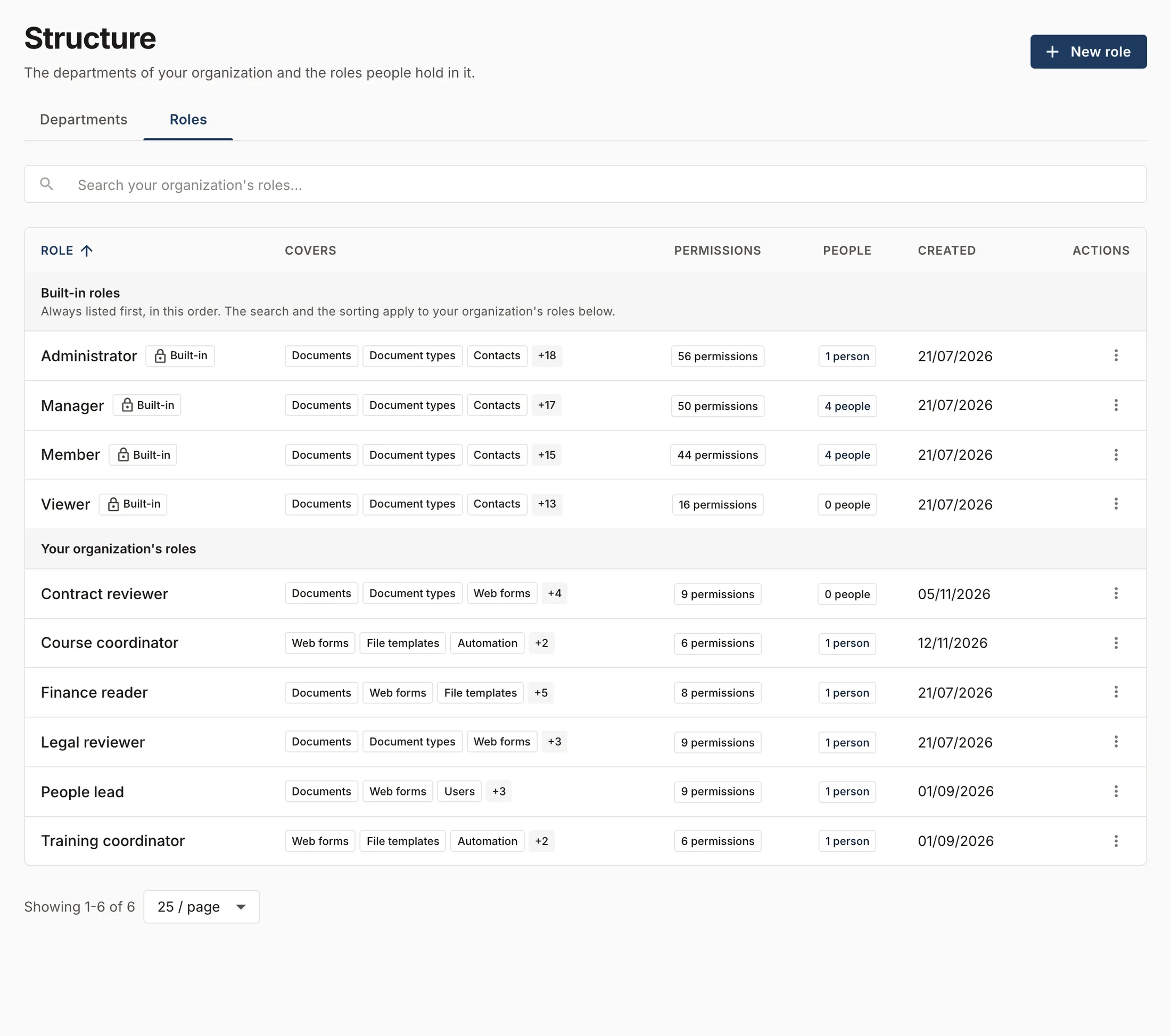
| Column | What it shows |
|---|---|
| Role | Its name. Built-in roles carry a Built-in mark. |
| Covers | The parts of the application it grants anything in. The first three are named, and a + count stands for the rest: hover to read them, press to list them all, and Show fewer folds them away. A role with no permissions says No permissions. |
| Permissions | How many it grants. |
| People | How many people hold it. |
| Created | When it was made. |
| Actions | Duplicate and, for your own roles, Delete. Only for people with Manage roles. |
The built-in roles sit under their own heading, in a fixed order, above the first page. Search, sorting and paging apply to Your organization’s roles under them, so a search never hides the built-in four. Sorting works on Role and Created, the default order is by name, and a page holds 25 roles. Until you make one, that part of the list says No roles of your own yet.
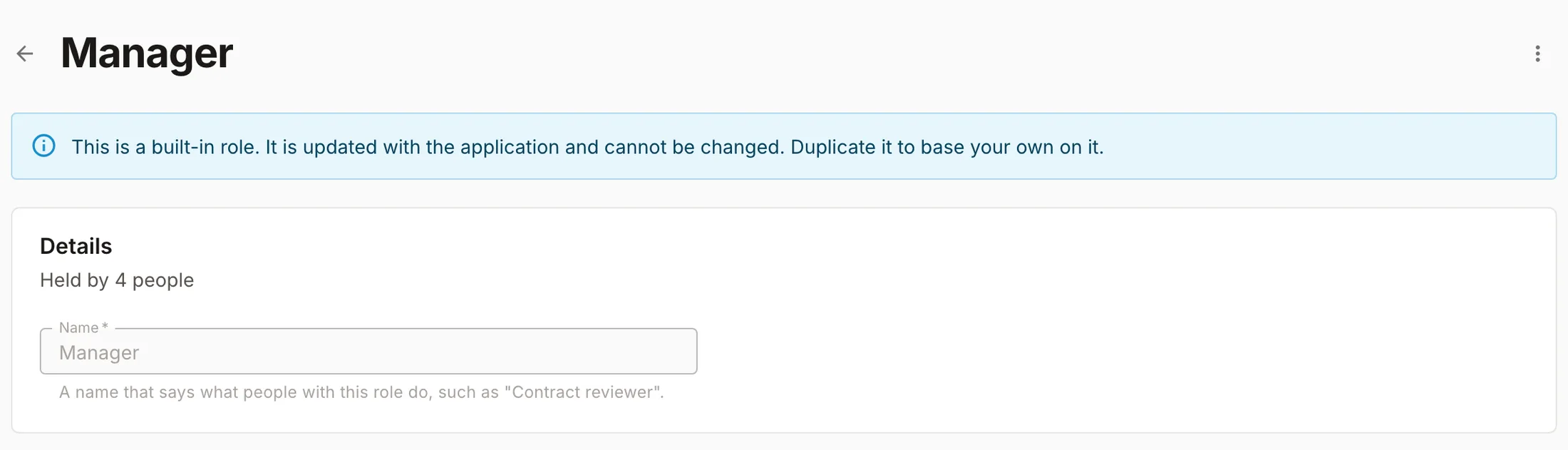
Click any role to open it. Anyone who may view roles can read what a role grants, and only someone with Manage roles can change it. A built-in role opens with a note that it can’t be changed. Your own roles open for someone without Manage roles with the note You can see this role, but not change it.
Custom roles
Section titled “Custom roles”Create a role
Section titled “Create a role”Available when: your role has Manage roles
-
Press New role at the top of the Roles tab.
-
Enter a Name, from 2 to 120 characters, such as Contract reviewer. Each name can be used once, and the names of the built-in roles are taken.
-
Tick the permissions the role should grant. They are grouped by part of the application.
-
Where a permission offers a choice, set its reach.
-
Press Create role.
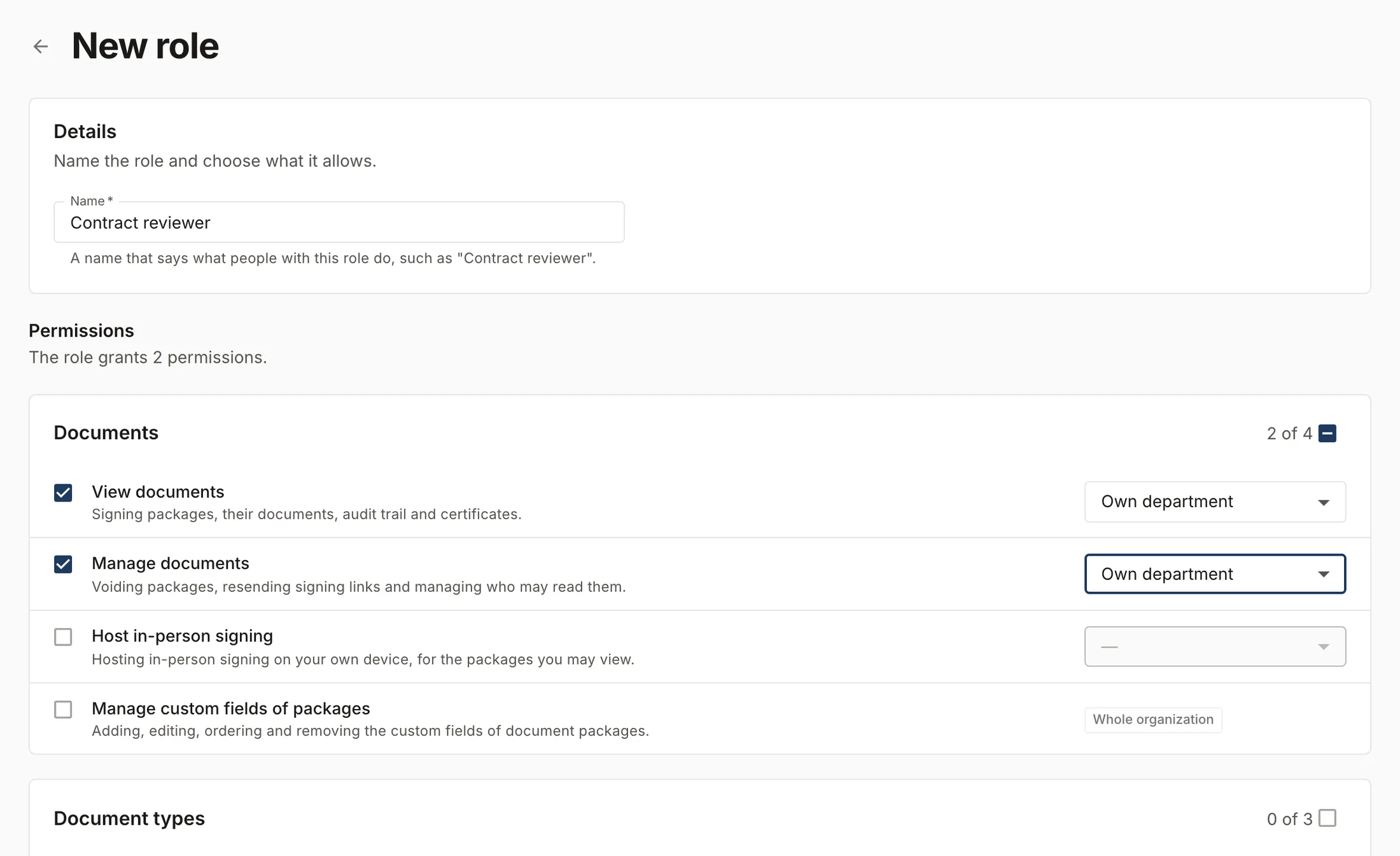
The box in the header of each group, beside a count such as 2 of 3, grants everything in that group that you are able to grant, or withdraws it all.
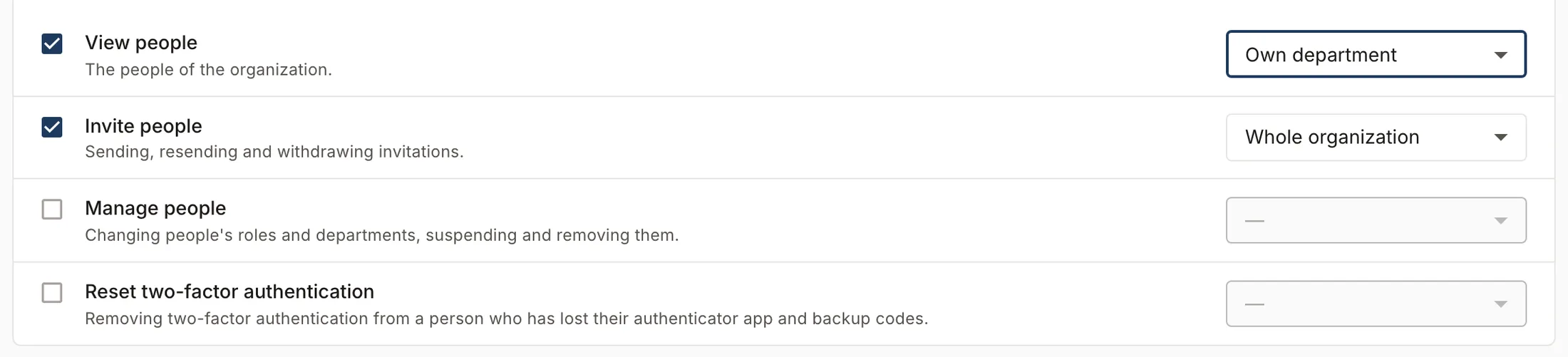
A ticked permission starts at the widest reach you may hand out. Narrow it in the select on its row, where a reach wider than yours is listed but greyed out. When a permission only comes at one reach, that reach is shown as a label and there is nothing to choose.
Under the Permissions heading, the page keeps count of what the role grants. A role can be saved with no permissions at all. Its holders can still sign in and open the document packages they are a party to.
Once created, the role stays open on its own page, ready to be handed out.
Change a role
Section titled “Change a role”Open it, change what you need and press Save changes. Cancel takes you back to the list. If you try to leave with unsaved changes, Doxtly asks first, and you choose Leave or Stay.
The page says how many people hold the role, for example Held by 3 people. Saving changes what all of them can do, straight away, and that includes you if you hold it. Check that number before you take something away.
Duplicate a role
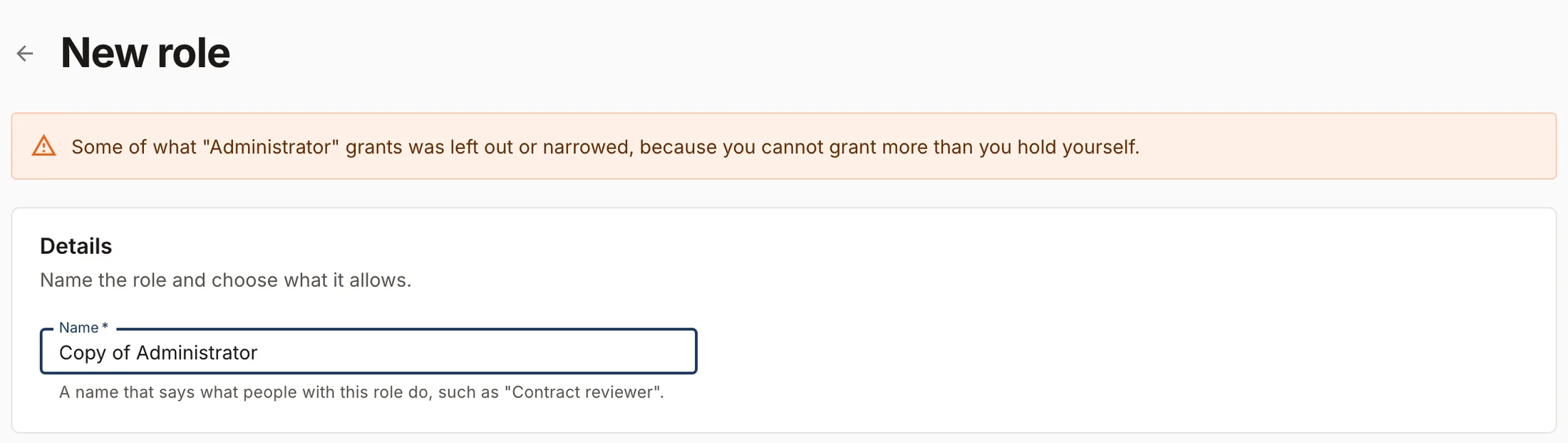
Section titled “Duplicate a role”Duplicate, in a row’s menu or the menu on a role’s page, opens a new role filled in from that one and named Copy of Manager. This is the quick way to get “a Member who can’t touch integrations”: duplicate Member, untick two boxes, save.
If the original grants more than you hold, the copy leaves that out or narrows it, and a warning at the top tells you.
Delete a role
Section titled “Delete a role”Choose Delete in the row’s menu or the menu on the role’s page, and confirm in the Delete role? dialog. This can’t be undone.
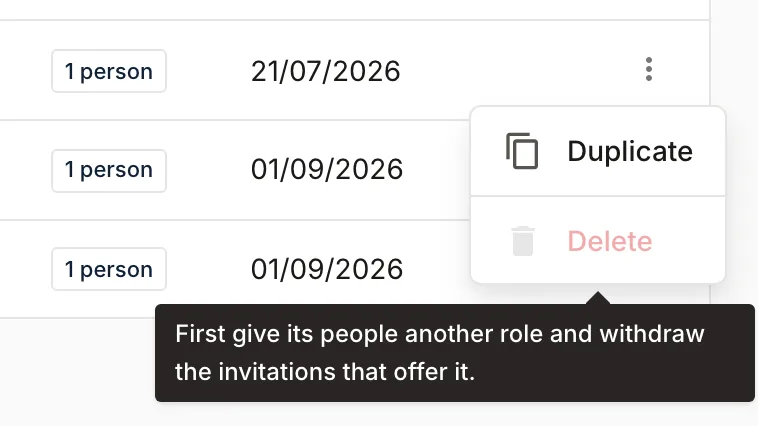
A role that someone holds, or that an invitation on the list offers, can’t be deleted, because everybody must hold a role. That includes expired invitations until they are cleaned up. Delete is greyed out until you give those people another role and cancel those invitations.
Nobody hands out more than they hold
Section titled “Nobody hands out more than they hold”If you could give someone more than you have, you could widen your own access through them. So Doxtly applies one rule everywhere:
- Building a role. You can grant a permission only if you hold it, and at no wider a reach than yours. Other boxes are locked, with a tooltip saying why. Manage roles alone doesn’t let you build a stronger role than your own.
- Changing a role someone else built. What the role already grants may stay, so you can still edit the rest. But you can’t remove or narrow what you couldn’t have granted yourself, because everyone holding the role would lose it, including people above you.
- Giving someone a role. The pickers on invitations and on the users list offer only roles whose every permission you hold, at the same reach or wider.
- Changing a person. You can change, deactivate, delete or reset someone only if you could hand out their role. That’s what keeps a Manager from removing an Administrator.
- Creating an access key. A key can only be given what its creator holds. After that, it holds what it was given, whatever happens to its creator’s role. See Access keys.
So a Manager can invite Managers, Members and Viewers but not Administrators. Only someone who holds everything can build or hand out a role that has everything.

Every permission
Section titled “Every permission”Each table is one group in the role editor, in the same order. Everyone can see their own list on the Role & permissions tab of their profile.
Documents
Section titled “Documents”| Permission | What it allows | Reach |
|---|---|---|
| View documents | Signing packages, their documents, audit trail and certificates. At Own department: packages of types open to that department or to everyone. Also a package’s notes and, with Manage workflows, adding a Find a contract step to a workflow. | Department or organization |
| Manage documents | Voiding packages, resending signing links and managing who may read them, and naming as a package’s party or approver a colleague who may read its type. For contracts: changing the term, creating annexes and notices, and adding or importing documents signed outside Doxtly, of the types it reaches. Writing notes on a package and changing or deleting your own; an Administrator may delete anyone’s. | Department or organization |
| Host in-person signing | Hosting in-person signing on your own device, for the packages you may view. | Department or organization |
| Manage custom fields of packages | Adding, editing, ordering and removing the custom fields of document packages. Apart from Manage custom fields, because a package’s fields are a setting of the whole organization and of the integrations that fill them; a built-in Member defines the fields of contacts but not these. | Organization |
Document types
Section titled “Document types”| Permission | What it allows | Reach |
|---|---|---|
| View document types | The types packages are filed under. | Department or organization |
| Manage document types | Adding, editing and removing types. Changing how long a type keeps its finished packages also takes Change organization settings, and choosing the templates under Documents for changes takes View file templates and generated files. | Department or organization |
| Restrict types to departments | Choosing the departments a type is open to. Without it, the types you make are open to the whole organization. At Own department, you can restrict a type to your own department only. | Department or organization |
Contacts
Section titled “Contacts”| Permission | What it allows | Reach |
|---|---|---|
| View contacts | The address book: contacts, their notes and history, companies, contact types, and contact suggestions in email fields, people from a CRM among them. With Manage forms, Manage interactive documents, Manage quizzes or Manage surveys, also sending a contact or a company a form, a document, a quiz or a survey to fill in and revoking such a link, each kind with its own permission. | Organization |
| Manage contacts | Adding, editing and removing contacts, adding, editing and removing your own notes, and bringing a person suggested from a CRM into the contacts. | Organization |
| Manage contact types | Adding, renaming and removing contact types. | Organization |
| Manage custom fields | Adding, editing, ordering and removing the custom fields of contacts and companies. | Organization |
| View sensitive values | Seeing the values of sensitive custom fields and, with Manage contacts, changing them. Apart from View contacts, because a sensitive value is one an organization shows to few. | Organization |
Web forms
Section titled “Web forms”| Permission | What it allows | Reach |
|---|---|---|
| View forms and submissions | Forms, what was submitted and the files, a form’s results, and exporting a form. | Organization |
| Manage forms | Building, publishing, importing and removing forms, among it whether a form shows results, and removing submissions. | Organization |
| Edit submissions | Correcting what was submitted and running the form’s workflows again. Only with View forms and submissions. At Own department: forms that name your department, and forms that name none. | Department or organization |
Interactive documents
Section titled “Interactive documents”| Permission | What it allows | Reach |
|---|---|---|
| View interactive documents and submissions | Interactive documents and what was submitted through them, and exporting one. | Organization |
| Manage interactive documents | Building, publishing, importing, duplicating and removing them. | Organization |
| Edit submissions | Correcting submitted values and rendering a submission’s documents again, where the interactive document allows it. Only with View interactive documents and submissions. | Organization |
Portals
Section titled “Portals”| Permission | What it allows | Reach |
|---|---|---|
| View portals | Portals and their settings. | Organization |
| Manage portals | Creating, editing, publishing, duplicating and removing portals, and sending a portal’s link. | Organization |
Quizzes
Section titled “Quizzes”| Permission | What it allows | Reach |
|---|---|---|
| View quizzes, attempts and results | Quizzes, the attempts at them and their results. | Organization |
| Manage quizzes | Building, publishing, duplicating and removing quizzes, removing attempts, and deciding who may take them: access lists and invitations. | Organization |
| Grade attempts | Grading the answers the AI couldn’t grade, and changing an attempt’s points by hand. | Organization |
Surveys
Section titled “Surveys”| Permission | What it allows | Reach |
|---|---|---|
| View surveys, responses and results | Surveys, the responses to them and their results. | Organization |
| Manage surveys | Building, publishing, duplicating and removing surveys, removing responses, and deciding who may answer them: access lists and invitations. | Organization |
File templates
Section titled “File templates”| Permission | What it allows | Reach |
|---|---|---|
| View file templates and generated files | Templates and the files generated from them. | Organization |
| Manage file templates | Uploading, changing and removing templates, and generating files. | Organization |
Email templates
Section titled “Email templates”| Permission | What it allows | Reach |
|---|---|---|
| View email templates and sent emails | Email templates and the emails sent from them, and exporting a template. | Organization |
| Manage email templates | Designing, sending, importing and removing email templates. | Organization |
SMS and WhatsApp templates
Section titled “SMS and WhatsApp templates”| Permission | What it allows | Reach |
|---|---|---|
| View SMS and WhatsApp templates and sent messages | SMS and WhatsApp templates and the messages sent through them. | Organization |
| Manage SMS and WhatsApp templates | Creating, editing and removing SMS and WhatsApp templates, and restoring their original text. | Organization |
Automation
Section titled “Automation”| Permission | What it allows | Reach |
|---|---|---|
| View workflows and their runs | Workflows and the history of their runs. Also lets you see the categories. | Organization |
| Manage workflows | Building, exporting and importing, duplicating, switching on and off, rerunning and removing workflows, and putting them in categories. A few steps ask for more: see Who can do what. | Organization |
| Manage workflow categories | Adding, renaming and deleting the categories workflows are grouped in. | Organization |
Cloud files
Section titled “Cloud files”| Permission | What it allows | Reach |
|---|---|---|
| View cloud files | Files and folders in every connected drive, downloading them and the structure of spreadsheets. | Organization |
| Manage cloud files | Uploading files, creating folders, renaming, moving and deleting. With View cloud files, also saving exports to a drive. | Organization |
| Permission | What it allows | Reach |
|---|---|---|
| Use the PDF editor | The PDF editor. To open from or save to connected drives, a person needs the cloud files permissions too. | Organization |
| Use AI agents | The AI agents list, opening an agent and trying it out, and, together with Manage workflows, adding or changing an AI agent step in a workflow. Runs use your organization’s AI integration and its key. | Organization |
| Build AI agents | Creating, changing, duplicating and deleting agents and library skills, and, with Use Doxie, having Doxie build or improve an agent and write its skills. Give it together with Use AI agents. | Organization |
| Use the AI assistants | The AI buttons on other pages: a form from a link and a template from a Word file, together with Manage workflows the schedule described in words, and together with Change organization settings the accent color matched to the logo. Together with Manage surveys or Manage quizzes it runs the AI analysis of results. They need a plan with AI agents and run on what Doxie runs on: the AI integration assigned to her, or Doxtly AI within the plan. | Organization |
| Use Doxie | Doxie, the AI assistant in Doxtly, in the app: answers about Doxtly, help with the work, and changes she prepares for the person to confirm. She works only within the person’s own permissions, so building a form with her takes Manage forms and creating a role takes Manage roles. Every built-in role has it, Viewer included. | Organization |
Webhooks
Section titled “Webhooks”| Permission | What it allows | Reach |
|---|---|---|
| View webhooks and their requests | The organization’s webhooks and the requests made to them, with what they brought, and the outgoing webhooks with their deliveries. | Organization |
| Manage webhooks | Creating, changing, switching off and deleting webhooks, incoming and outgoing, deleting their requests, sending test events and sending deliveries again. Those who hold it are told when an outgoing webhook keeps failing. | Organization |
Access keys
Section titled “Access keys”| Permission | What it allows | Reach |
|---|---|---|
| View access keys | The organization’s keys that let other systems call the API, whoever created them. | Organization |
| Manage access keys | Creating, changing, suspending and removing keys, and downloading the API description (OpenAPI). A key can only be given what you hold yourself. | Organization |
Integrations
Section titled “Integrations”| Permission | What it allows | Reach |
|---|---|---|
| View integrations | Connections to other services, such as cloud storage. For an AI integration that includes this month’s calls, tokens and cost. The learning platforms too. | Organization |
| Manage integrations | Connecting, changing and disconnecting services, choosing the custom fields a CRM integration keeps its IDs in, and the notification when a merge in the CRM unlinks a record, and registering learning platforms. | Organization |
Payments
Section titled “Payments”| Permission | What it allows | Reach |
|---|---|---|
| View payments | The Payments page: payments taken through the forms, with their attempts, refunds and payers’ email addresses. Also setting up the Payment trigger of a workflow. | Organization |
| Refund payments | Giving money back to payers, in full or in part, and the notifications A refund failed and A late payment was refunded. | Organization |
| Permission | What it allows | Reach |
|---|---|---|
| View people | The people of the organization. | Own, department or organization |
| Invite people | Sending, resending and withdrawing invitations. | Department or organization |
| Manage people | Changing people’s roles and departments, deactivating and deleting them. | Department or organization |
| Reset two-factor authentication | Taking away a person’s two-factor authentication when they lost their app and backup codes. Kept apart from managing people, because it leaves an account open to whoever knows its password. | Department or organization |
Departments
Section titled “Departments”| Permission | What it allows | Reach |
|---|---|---|
| View departments | The departments of the organization. At Own department: only your own. | Department or organization |
| Manage departments | Adding, renaming and removing departments. At Own department: renaming your own, and nothing else. | Department or organization |
| Permission | What it allows | Reach |
|---|---|---|
| View roles | Roles and what each of them grants. | Organization |
| Manage roles | Creating, changing and removing roles, within what you hold yourself. | Organization |
Organization settings
Section titled “Organization settings”| Permission | What it allows | Reach |
|---|---|---|
| View organization settings | Every settings section, read-only, including what Doxie runs on. | Organization |
| Change organization settings | Changing the details, branding, limits and policies, the electronic signature consent, what Doxie runs on, whether she may read the organization’s records and her AI Mode, and, with Manage document types, how long a document type keeps its finished packages. | Organization |
| Manage themes | Making, changing, duplicating and deleting the organization’s themes, their custom CSS included, choosing the default theme and seeing where a theme is used. Picking a theme for a form, a quiz, a survey or an interactive document needs only the permission for it, and anyone who may view one of them can open the theme library read-only. | Organization |
Subscription and billing
Section titled “Subscription and billing”| Permission | What it allows | Reach |
|---|---|---|
| View subscription and invoices | The plan, its usage and invoices. | Organization |
| Manage subscription | Changing the plan, paying and canceling the subscription. | Organization |
Roles and notifications
Section titled “Roles and notifications”Organization-wide notifications go to the people who can act on them, so roles decide who hears what. A failed workflow run or signing session reaches whoever has View workflows and their runs. A cloud template that needs attention reaches whoever has both View file templates and generated files and Manage file templates. A used-up plan limit, a stopped subscription, a failed payment, the warning that the next payment attempt is the last, and the identity verification limit being reached go to whoever has both View subscription and invoices and Manage subscription, which among the built-in roles means Administrators. If you build a role for your finance person, give them both so these notices reach them. A failed refund and a late payment given back reach whoever has Refund payments, and a payment provider that couldn’t be reached whoever has Manage integrations.
Example: building a role
Section titled “Example: building a role”Northbridge Advisory wants a “Contract reviewer”: someone in Legal who reads and manages signing packages in their department, and nothing else.
-
Press New role and name it Contract reviewer.
-
Under Documents, tick View documents and Manage documents, and set both to Own department.
-
Under Document types, tick View document types and set it to Own department.
-
Under Users, tick View people and set it to Own department, so they can see who their colleagues are.
-
Press Create role.
-
Restrict the contract document types to the Legal department.
-
Give the role to the reviewer and put them in Legal, on the users list.
Packages of those types now appear for the reviewer, along with packages of types open to everyone. Types restricted to other departments stay out of sight.