

Reminders and deadlines
A package waiting on somebody can remind them by itself and has a deadline it ends on. You can also nudge anyone by hand at any time.
Automatic reminders
Section titled “Automatic reminders”Available when: you have the Manage documents permission
A package can carry up to five reminders. You set them in the package editor, on the Delivery tab, and in the Create documents step, on its Delivery tab. Add reminder adds one, and the bin removes it.
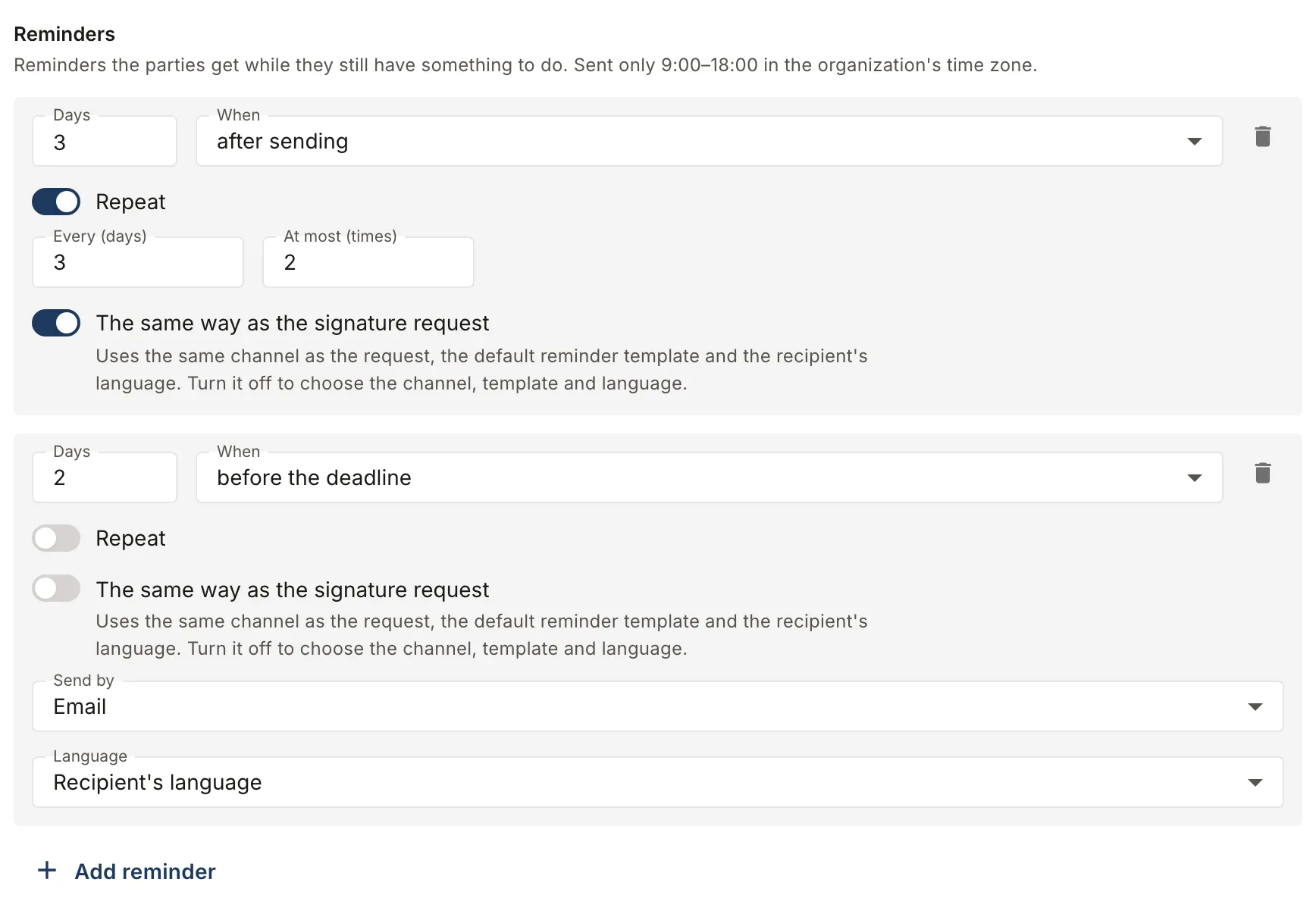
The Fairway Hotels engagement letter above has a 14-day deadline: the client is reminded 3 days after sending, then every 3 days at most twice more, and once more 2 days before the deadline, by email, whatever channel the request used.
| Setting | Values | What it does |
|---|---|---|
| Days and When | after sending or before the deadline, 1 to 90 days. | When it goes. before the deadline is available only for a package with a deadline. |
| Repeat | Off by default. On: Every (days) and At most (times). | Repeats the reminder at that interval, up to that many extra times, at most ten. |
| The same way as the signature request | On by default. | Goes the way the party was asked to sign, from the organization’s default reminder, in the party’s language. Turned off, you pick the Send by channel and the Language (Recipient’s language or one you choose) yourself, and the Message where you have templates for reminders besides the default one. A party nobody asks to sign, such as one whose link you deliver yourself, gets no reminder this way. |
A reminder only goes to somebody who can act now:
- Their turn has begun. In a package with an order, after sending counts from the moment their own turn starts, and before the deadline skips any party whose turn has not come.
- They haven’t signed or declined yet, and the package has not ended.
- It’s daytime. Reminders go out only between 9:00 and 18:00 in your organization’s time zone: one that falls due at night goes in the morning.
- Two reminders falling due in the same run are one message to a person, unless they go by different channels.
A party that stands for a department and that nobody has taken on yet has no address of its own: its reminder goes by email to each member of the department who may act on the package, with a link to sign in the application. Two identical reminders on one package make no sense, so the editor keeps only one and says so.
Each reminder that goes out adds Reminder sent to the audit log of every document the party still has to deal with, saying how and where it went. An email counts as a sent email under Sent emails, and a text message goes through your own SMS or WhatsApp integration. Reminder emails aren’t counted against your plan’s email limit, like the requests to sign themselves; sent from Doxtly’s mailbox, they count among its messages.
On a package that is already sent
Section titled “On a package that is already sent”The package’s page has a Reminders card. It lists each reminder, when the next one goes and how many went out so far, and names anybody a reminder could not reach and why.
Change lets you add, change or remove reminders until the package is over. A reminder left as it was stays as it was. A new or changed reminder takes effect from that moment, and anything that fell due before you changed it is not sent late.
Reminding somebody yourself
Section titled “Reminding somebody yourself”Available when: you have the Manage documents permission and the organization can send the link by email, SMS or WhatsApp
-
Open the package in Documents.
-
In the party’s row under Parties, open the menu with the three dots.
-
Choose Send the signing link again. The same item is on a party’s row in a document’s Parties tab.
-
Choose how to send it, or leave the dialog as it is, and press Send.
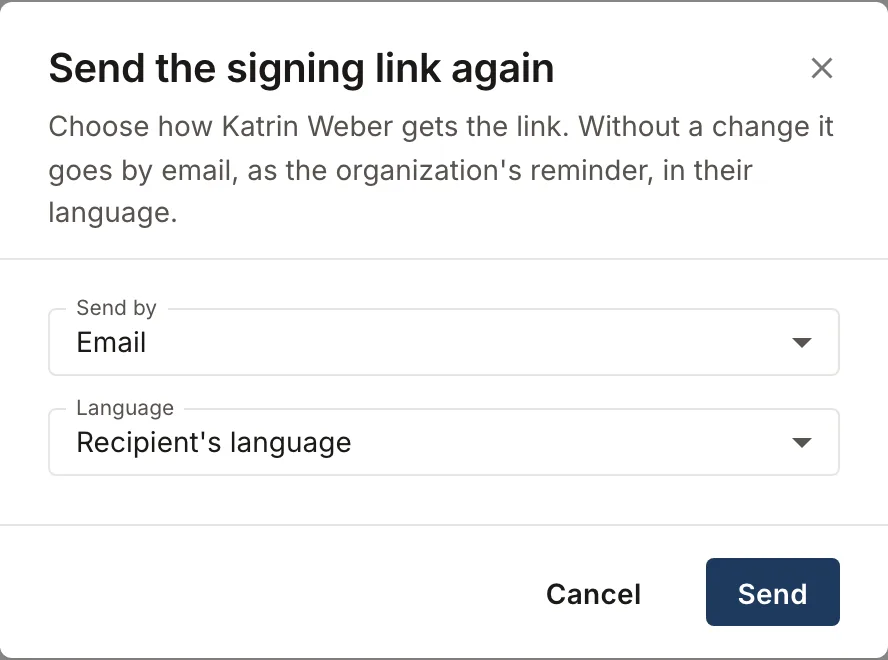
Left as it is, the dialog sends your organization’s default reminder by email, in the party’s language, with the same link as before. You can send it by SMS or WhatsApp instead, pick another email template, or another language: see Sending a signing link again. An old link keeps working: nothing is replaced. The document’s audit log gets a Link sent again entry saying who asked, how it went and where to, which is your proof that the person was reminded. A party Doxtly hasn’t asked yet, such as one whose link you deliver yourself, has Send the signing link in its place, and it sends your organization’s default signature request.
The item is greyed out in these cases, and pointing at it tells you why:
- The organization can’t reach the party: no email configuration for their address, or no email address and no phone number it can send a text message to. Add an integration under Integrations.
- Every document in the package is finished.
- The party’s turn hasn’t come yet.
- The party has nothing left to do, because they signed or declined everything of theirs.
Deadlines
Section titled “Deadlines”A document type can give its new packages a deadline and reminders, and lock them. A lock holds after sending too: Change deadline is not offered and the reminders cannot be changed on such a package.
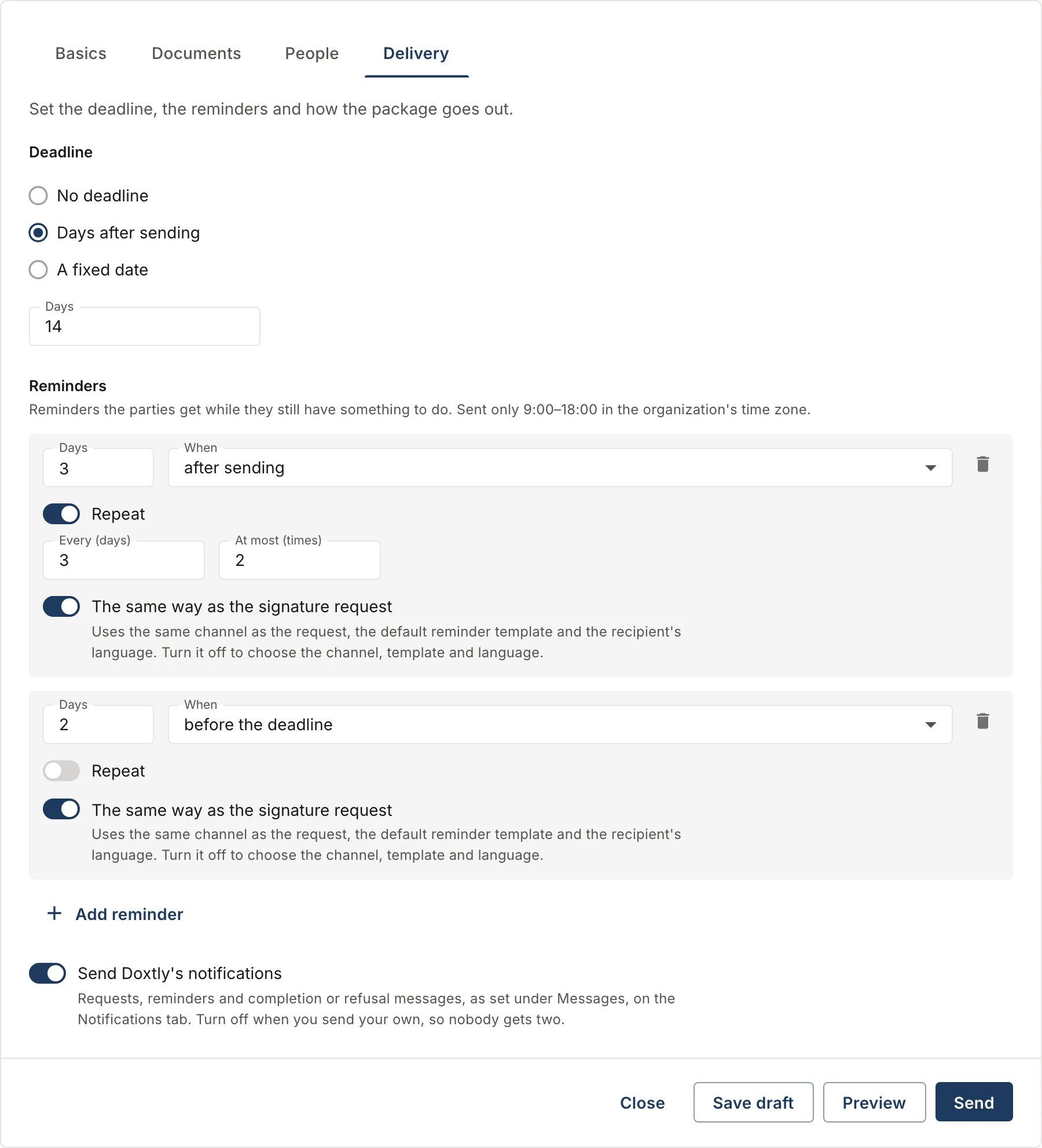
Days after sending on the Create documents step counts from the moment the package is created. A value of 14 means fourteen days later, at the same time of day. A package made by hand sets its deadline on the Delivery tab: No deadline, Days after sending or A fixed date.
Once the deadline passes:
- Nobody can sign or decline. A party opening the link sees Package expired.
- Within a few minutes, the documents still open are marked Expired and the audit log gets a Document expired entry. This happens by itself, whether or not anybody looks.
- Documents already sealed stay sealed. A package with one sealed document and another unfinished ends as Expired.
Before the deadline passes, Change deadline in the package’s menu moves it, and can tell the parties. Reminders before the deadline then count from the new date and go again, even if they already went for the old one; those after sending stay as they were. Once it has passed the documents stay expired: Send again opens a copy of the package as a draft, to check and send.
The signers see the deadline at the top of the signing page. Your team sees it in the Expires column, and somebody the package waits on sees it under Waiting for you on the dashboard, marked Due soon in the last three days.
Deadlines and the end of a contract
Section titled “Deadlines and the end of a contract”A deadline and its reminders are about signing: they end once everybody has signed, and Expired always means that a signing ran out of time. A signed contract runs on with a clock of its own. Its last day in force, its renewals and its notice deadline come from its term, and as its end or notice deadline nears, the contract shows Ending soon and its responsible person is warned: see Alerts before the end. A contract that has run its course reads Ended or Terminated, never Expired.
An annex or a notice is a package like any other, with its own deadline and reminders while it is being signed. If its deadline passes, it is Expired and does nothing to the contract.