

Find a contract
The Find a contract node looks among your organization’s contracts for the one a run is about, and goes on along Found or Not found. A client asks through a form for their retainer to be extended: the node finds their contract by the email address they gave, and the next step makes the annex to it. A message from your billing system can name a contract by its number in the same way.
Available when: the View documents permission to set up
You find it in the Documents group of the palette. On the canvas it shows what it searches by, such as By number, contact.
Settings
Section titled “Settings”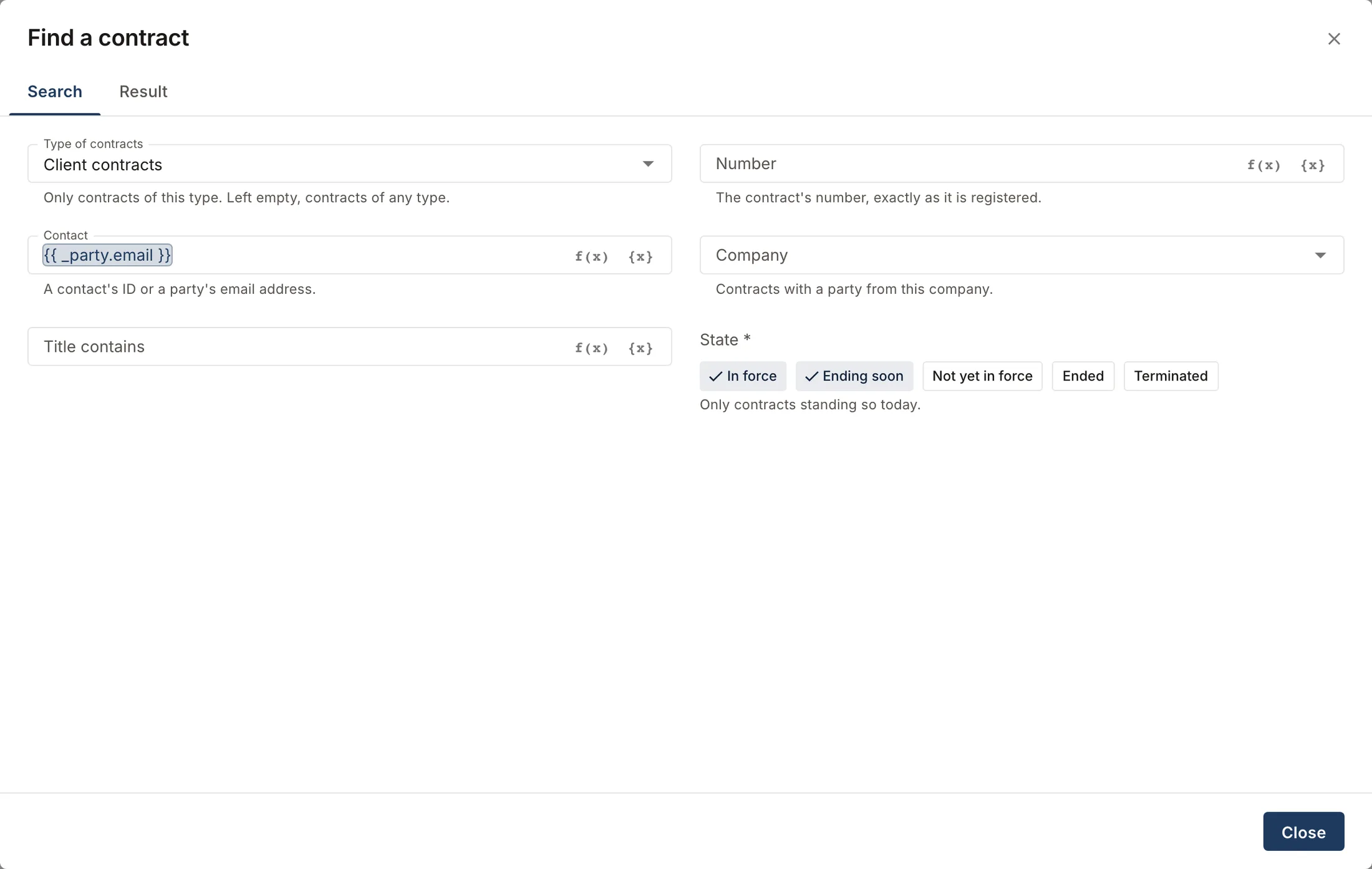
Configure this step opens a dialog with two tabs. Every text field takes variables.
Search
Section titled “Search”| Setting | What it does |
|---|---|
| Type of contracts | Only contracts of this type. The list holds only the types that keep contracts with a term. Left empty, it says Any type of contracts. |
| Number | The contract’s number, exactly as it is registered. |
| Contact | A contact’s ID, or a party’s email address in any letter case. A party is someone the contract was sent to, or someone recorded for a contract signed outside Doxtly. |
| Company | Contracts with a party who is a contact of this company. Type a few letters to find it. |
| Title contains | A part of the title, in any letter case: retainer finds “Advisory retainer – Harbourline Logistics”. |
| State | Required. Contracts standing so today: In force, Ending soon, Not yet in force, Ended or Terminated, as many as you choose. In force and Ending soon to start with. See contract states. |
A contract must match everything you fill in, and a setting left empty isn’t searched, so with only a type and states the step looks at every contract of that type standing so. A setting that has something in it but comes out empty on a run, such as an address the client left blank on the form, finds nothing: the run goes along Not found, never on with a contract picked from all of them.
The step looks at every contract of your organization, whatever the departments of the person who set it up, as a workflow acts for the whole organization. It finds contracts only. A package still being signed has no state yet, and a change of a contract, such as an annex, is never found in place of its contract.
Result
Section titled “Result”| Setting | What it does |
|---|---|
| When several match | Ending latest (the default) takes the contract that runs the longest, one with no end before any other. Ending earliest takes the one that ends first, one with no end last. Newest takes the contract made or added last. |
| Output key | What later steps call the contract. contract by default. |
Found and Not found
Section titled “Found and Not found”The node has two outputs. Found goes on with the contract under the output key. Not found goes on without one. Leave Not found unconnected if nothing should happen then: the run ends there without an error, as Completed, and the list of runs marks it with the chip No contract found, so you can filter for such runs by Outcome.
What it leaves for later steps
Section titled “What it leaves for later steps”| Variable | Label in the picker | Contents |
|---|---|---|
{{ contract.id }} |
Contract ID | The contract’s ID: what the Contract of a change in Create documents takes. |
{{ contract.title }}, {{ contract.number }} |
Contract title, Contract number | Its title, and its number if it has one. |
{{ contract.state }} |
Contract state | in_force, ending_soon, upcoming, ended or terminated. |
{{ contract.startsOn }} |
In force from | Its first day in force, such as 2025-12-01. |
{{ contract.endsOn }} |
Contract ends on | Its last day in force. Empty for a contract with no end. |
{{ contract.noticeDeadline }} |
Notice deadline | The last day to give notice. Empty without a notice period. |
{{ contract.renews }} |
Renews automatically | true or false. |
{{ contract.typeId }} |
Type ID | The ID of its document type. |
contract.parties |
Parties | The list of its parties, each with indicator, fullName, email and contactId. Approvers are not among them. A contract signed outside Doxtly lists the parties recorded with it, with an empty indicator. |
{{ contract.matches }} |
Contracts matched | How many contracts matched, the one taken among them. 0 on Not found. |
The days are those of the contract as they work out today, with its renewals and changes in effect counted. On Not found the same names are there, empty, so a step after it reads no missing value.
On the run’s page
Section titled “On the run’s page”
The step’s card says Contract found or No contract found. When several contracts matched, it says how many, such as 2 contracts matched; one was taken. The contract taken is linked under Used.
When it can’t be saved
Section titled “When it can’t be saved”The step itself doesn’t fail when it finds nothing: that is Not found. Saving the workflow is refused when the step can’t search at all:
| What you see | Why |
|---|---|
| Choose at least one state. | No state is chosen under State. |
Node "..." looks for contracts of a document type that is gone or does not track contracts. Open the step and choose another type, or none. |
The type was deleted, or it no longer keeps contracts. |
Node "..." looks for contracts of a company that is gone. Open the step and choose another company, or none. |
The company was deleted. The dialog says This company no longer exists – choose another. |
Example: the client’s own contract
Section titled “Example: the client’s own contract”A client writes in through a form to ask for an extension. Set Type of contracts to “Client contracts”, Contact to {{ email }} and keep State at In force and Ending soon. From Found, a Create documents step makes an annex to {{ contract.id }}. From Not found, a Send email tells the account manager that no contract has that address. Extension requested through a form builds it step by step.