

Security
The Security tab of your profile covers three things: the second lock on your account, the ways you sign in, and every device you are signed in on. All apply to your whole account, in all your organizations. Looking for your password? It has its own tab.
Two-factor authentication
Section titled “Two-factor authentication”With two-factor authentication, also called 2FA, a stolen password isn’t enough to get into your account. After your password, Doxtly asks for a 6-digit code from an authenticator app on your phone, and that code changes every 30 seconds. For a firm whose Doxtly holds client contracts and signed NDAs, it is well worth setting up.
Available when: an organization you belong to has an active subscription
You set it up once. It then protects your account in every organization you belong to, with one entry in your authenticator app labelled with your sign-in address. It applies to Google, Microsoft and Facebook sign-ins too.

Set it up
Section titled “Set it up”You need an authenticator app on your phone, such as Google Authenticator, Microsoft Authenticator, 1Password or Authy.
-
Open your profile, choose Security and click Enable 2FA. A page of its own opens, without the menu.
-
Enter your Password and click Continue. This stops somebody at an unlocked computer from putting a second factor on your account and locking you out. If your account has no password, because you sign in only with Google, Microsoft or Facebook, this step is skipped. A wrong password gets The password is incorrect. Enter the password you sign in with.
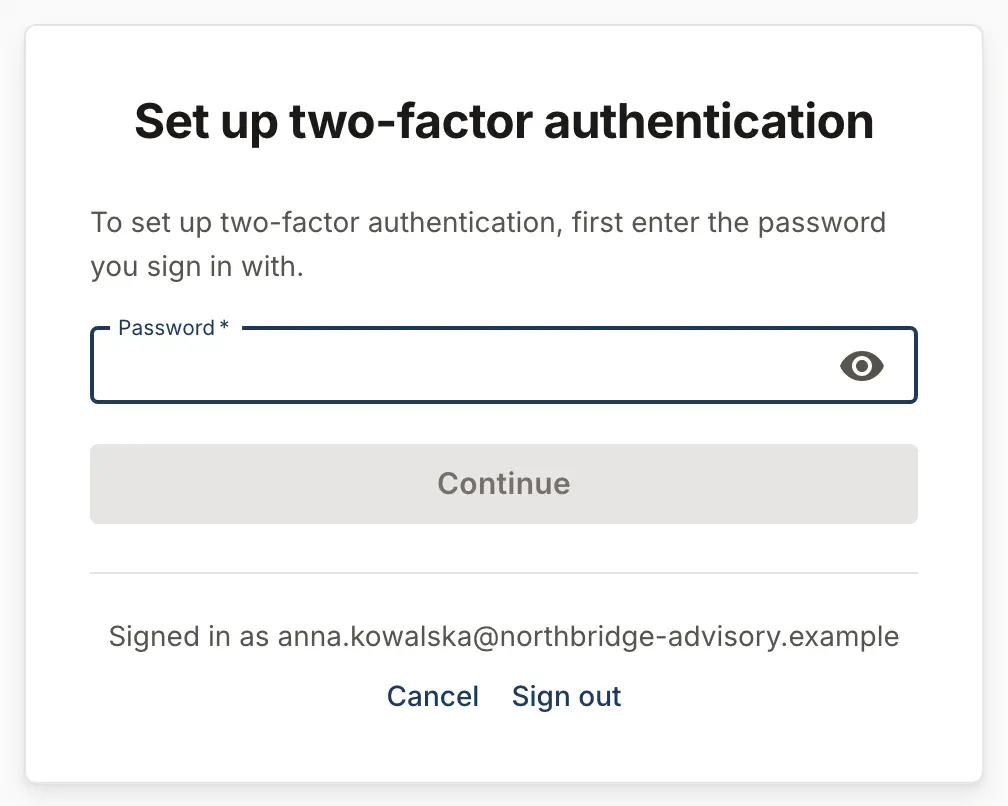
-
Scan the QR code with your app. If you can’t scan it, type the key shown below it into the app instead. The copy button beside the key saves you the typing.
-
Enter the code your app now shows in 6-digit code from the app and click Confirm and enable.
-
Save your backup codes, as described below, and click Continue.
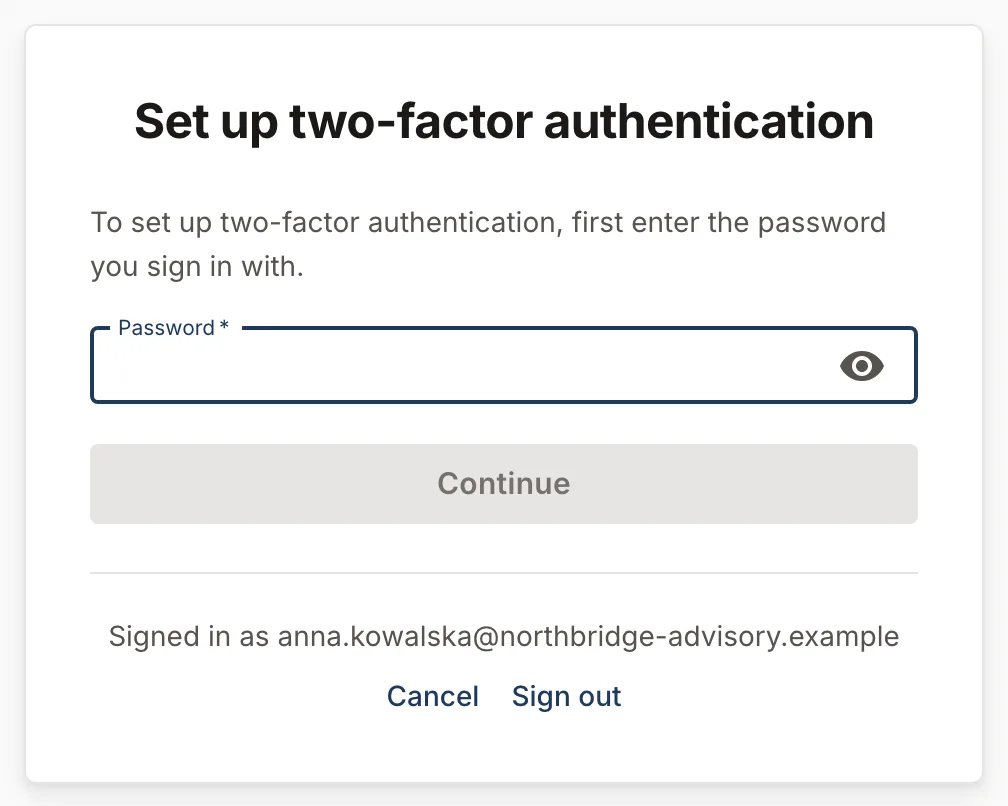
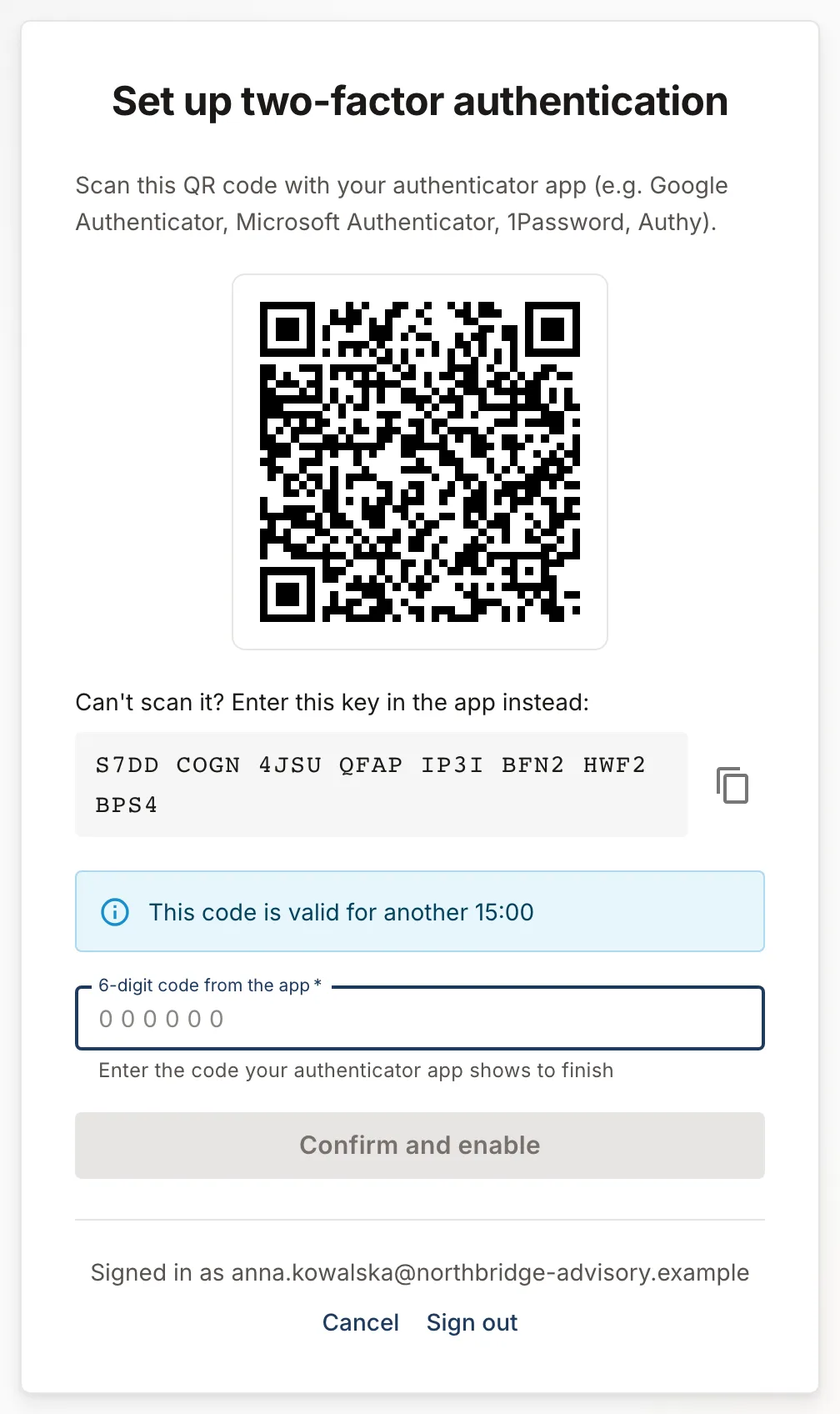
The QR code lasts 15 minutes, and a countdown shows what remains. It turns amber in the last minute. Reload the page or open it in another tab and you get the same code, so an entry you already scanned keeps working. If you leave and come back in time, the button on the tab reads Continue setup. When the time runs out the page says The QR code has expired, and Generate a new code starts over, with your password again if you have one. During a reset the button reads Start again. An entry you scanned from the expired code won’t work, so delete it from your app.
Cancel, at the foot of the card, gives up the setup and takes you back to the tab. Nothing has changed until you confirm the code.
Once you confirm, every other session of your account ends, in all your organizations. The device you are using stays signed in, and Continue brings you back to the tab, or to the dashboard if your organization required the setup. From now on, each sign-in asks for a code, as the sign-in page describes.
Your backup codes
Section titled “Your backup codes”Backup codes get you in when your phone doesn’t. You receive 10 of them, in the form XXXX-XXXX, and each works once in place of an app code. You see them only once, right after confirming.
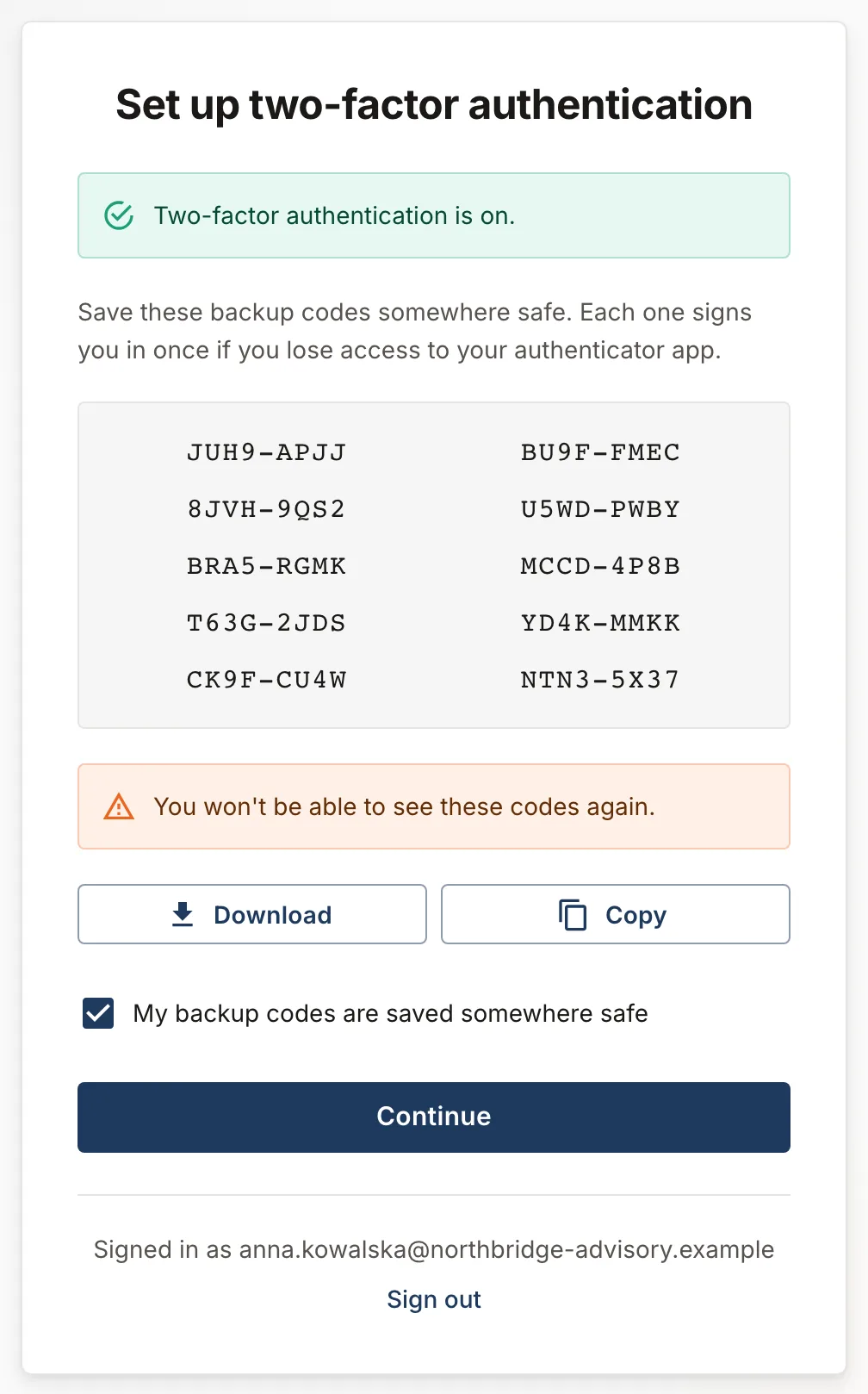
| Control | What it does |
|---|---|
| Download | Saves them as a text file, doxtly-backup-codes.txt, headed with your address |
| Copy | Puts them on the clipboard |
| My backup codes are saved somewhere safe | Must be ticked before Continue works. Downloading or copying ticks it for you. |
Keep them away from your phone: a password manager or a printed sheet in a safe place both work. A code is accepted with or without the dash, in capitals or small letters.
What the tab shows afterwards
Section titled “What the tab shows afterwards”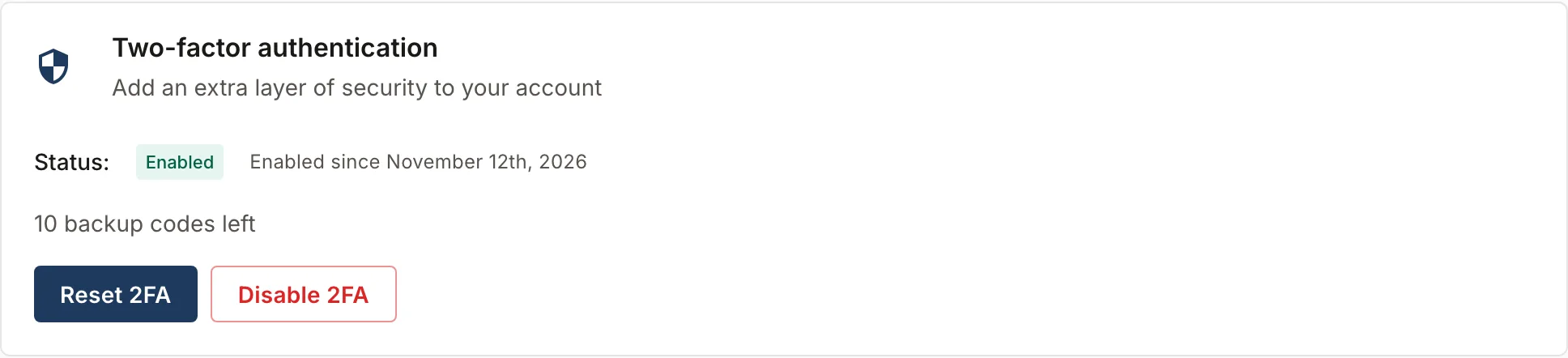
| What you see | Meaning |
|---|---|
| Enabled, Enabled since and a date | It is on, and when it was last set up |
| 10 backup codes left | How many are still unused |
| You are running out of backup codes. | You have 3 or fewer left. Reset to get a fresh set. |

Reset it
Section titled “Reset it”Reset when you move to a new phone, or to get new backup codes.
-
On the Security tab, click Reset 2FA.
-
Enter a code from your app, or a backup code, under Code from the app or backup code, and click Continue.
-
Scan the new QR code and enter the first code, as in the setup.
-
Save the 10 new backup codes.
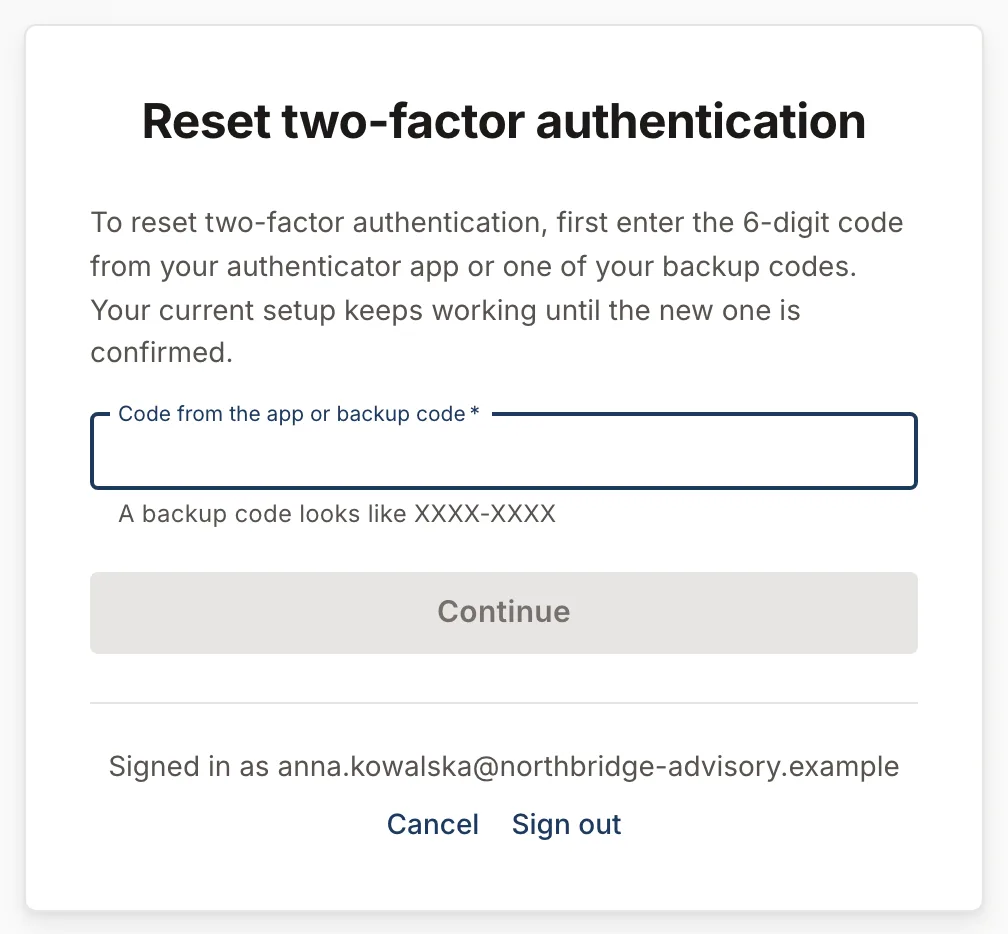
Your current setup keeps working until you confirm the new one, so you can cancel safely partway through. There is one exception: a backup code typed in step 2 is used up, whether or not you finish. Once you confirm, the old app entry and all the old backup codes stop working, so delete that entry from your app. As with the first setup, your other sessions end.
Disable it
Section titled “Disable it”Click Disable 2FA, enter a code from the app or a backup code, and confirm with Disable 2FA. Sign-ins then ask for your password alone, and every other session of your account ends. Your backup codes go with it. If you set it up again later, you start with a new QR code.
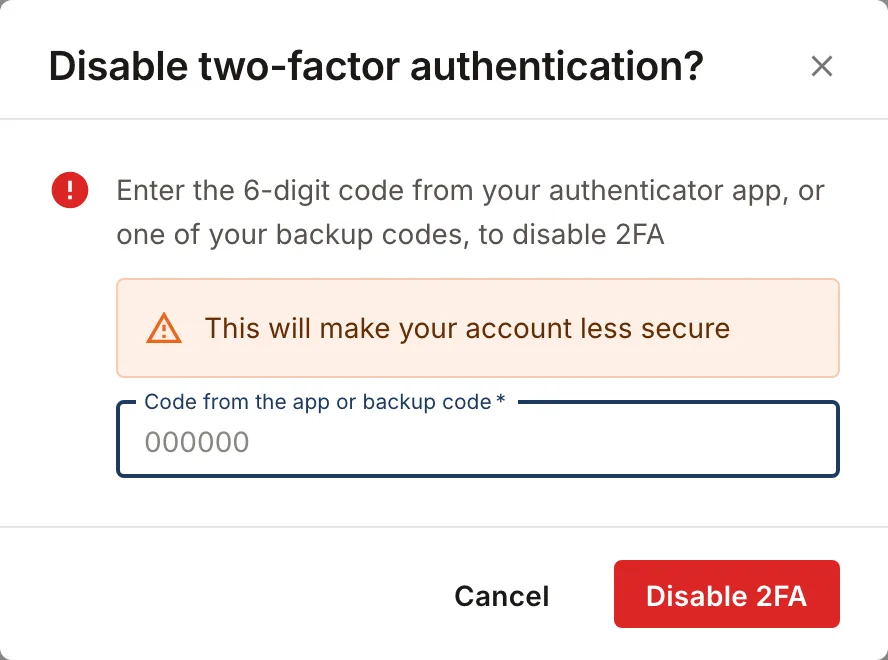
The button isn’t there when one of your organizations requires it.
If a code is refused
Section titled “If a code is refused”An app code is accepted for its own 30 seconds and the 30 seconds on either side of them, and it works only once. So:
- If you have just used a code, wait for the next one.
- If every code fails, check that your phone sets its clock automatically. Authenticator apps depend on the right time.
- Invalid two-factor authentication code. means the code didn’t match. A used backup code gets the same answer.
- Rate limit exceeded. Please try again later. means too many tries: Doxtly allows 10 in 15 minutes and 30 in a day, per account, and an accepted code clears the count.
When your organization requires it
Section titled “When your organization requires it”An administrator can turn on Require two-factor authentication for all users in the organization settings. This goes for everyone, the administrator included.
If your account has no two-factor authentication yet, you are taken to the setup page and can do nothing else in that organization until it is done. The page says Your organization requires two-factor authentication. Set it up to continue. There is no Cancel here, but you have two ways out:
- Work in another organization opens the list of your organizations, so you can move to one that doesn’t require it.
- Sign out ends your session.
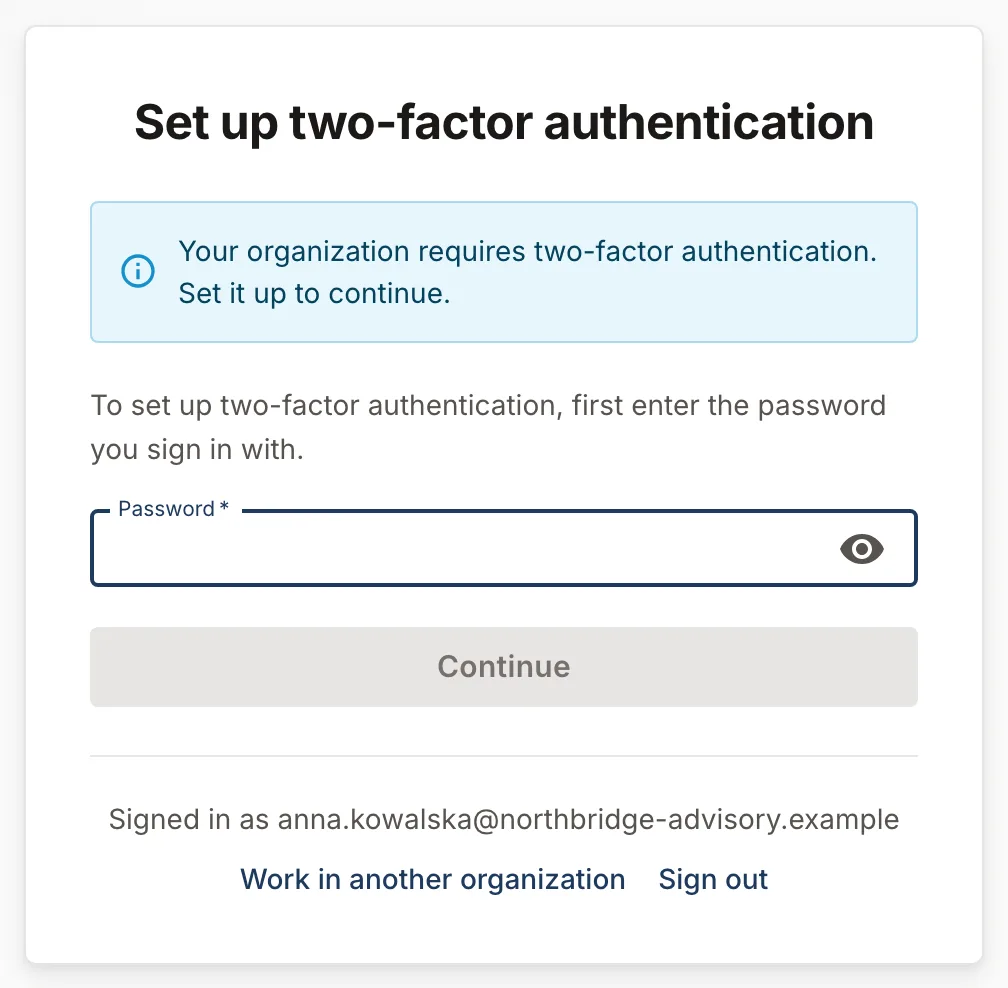
Once it is on, the Security tab names the organizations that require it. You can’t disable it while any of them does, but you can still reset it.

If you lost your phone
Section titled “If you lost your phone”If you still have a backup code, click I don’t have access to the authenticator app at sign-in and use it. Then reset on your new phone straight away.
If you have lost both:
- You belong to one organization only: ask an administrator who holds the Reset two-factor authentication permission. They find you on the Users page. Your second factor is removed and all your sessions end, so you sign in with your password alone. If your organization requires it, you set it up again right then.
- You belong to several organizations: an administrator of one can’t remove what protects the others, so contact Doxtly support.
Administrators can’t do this for themselves: if it happens to you, ask another administrator or Doxtly support.
When no subscription is active
Section titled “When no subscription is active”Every plan includes two-factor authentication, but it needs an active subscription. If no organization you can enter has one, it is suspended, not removed. Sign-ins don’t ask for a code and no requirement applies, so nobody gets locked out. The tab says so, and Reset 2FA is off. Your setup and backup codes are kept, and work again as soon as a subscription is active. In the meantime, you can still disable it. Without a setup, Enable 2FA stays off and the tab explains that the plan doesn’t include it.
If you signed in during such a time and then move into an organization where it does apply, Doxtly asks for your code once, at that moment.
Sign-in methods
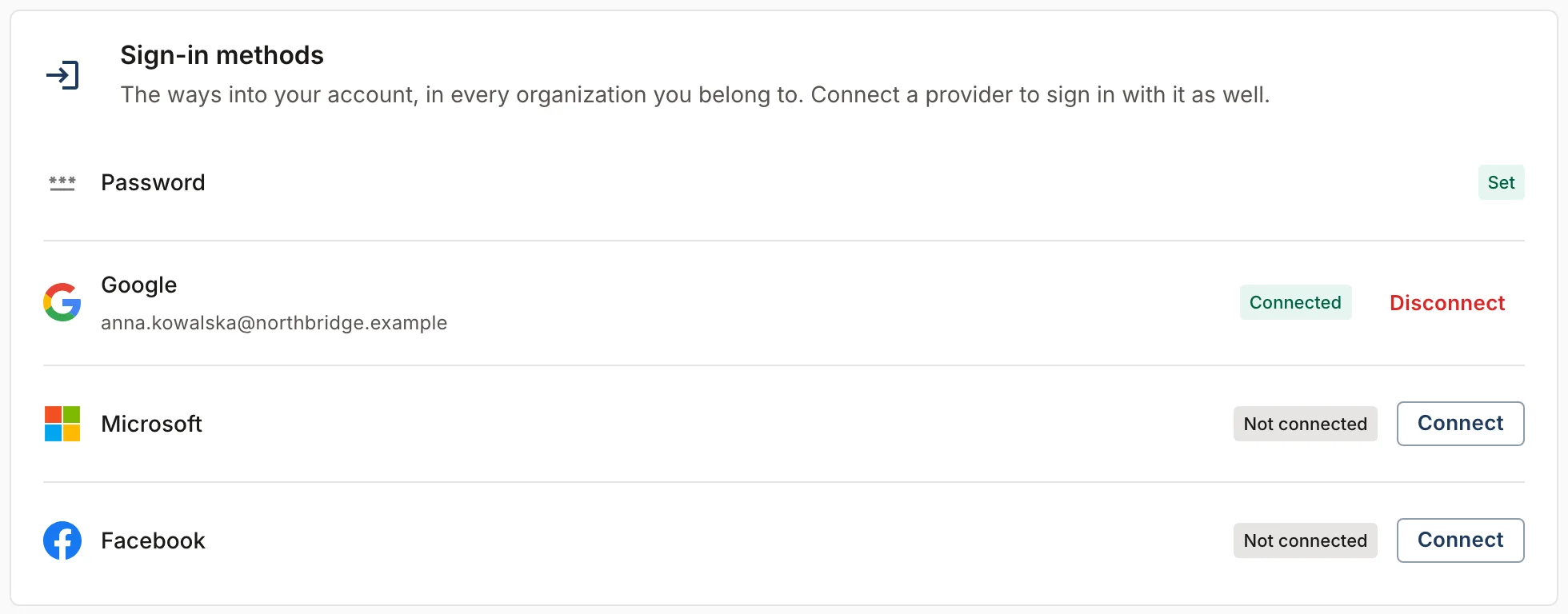
Section titled “Sign-in methods”The Sign-in methods card lists every way into your account, for all your organizations:
| Row | What it shows |
|---|---|
| Password | Set or Not set. You set or change it on the Password tab. |
| Google, Microsoft, Facebook | Connected, with the provider account’s email address under the name, or Not connected. You see the providers your platform offers. |
| SSO and the name of your company’s sign-in | Each organization whose SSO you have signed in through, with the organization’s name. |
Connect Google, Microsoft or Facebook
Section titled “Connect Google, Microsoft or Facebook”Click Connect beside a provider and sign in there. You come back to this tab, which says the provider is connected, and from then on you can sign in with it on the sign-in page.
This is the way to start using Facebook, or a personal Microsoft account, with an account you made with a password or with Google. On the sign-in page they can’t open such an account, because they don’t confirm that the address is yours. Here you are already signed in, which proves it is your account, so the provider account can even use a different email address.
- A provider account that already signs in to another Doxtly account can’t be connected here as well. You see This account at the provider already signs in to another Doxtly account: disconnect it there first.
- An account has one account of each provider. To switch to another Google account, for example, disconnect the current one first.
Disconnect a provider
Section titled “Disconnect a provider”Click Disconnect and confirm. You can no longer sign in with that provider, and you can connect it again at any time. Disconnect appears only while you keep another way in: a password, another provider or SSO. If a provider is your only way in, set a password first.
Connecting and disconnecting are recorded in Doxtly’s security log.
Active sessions
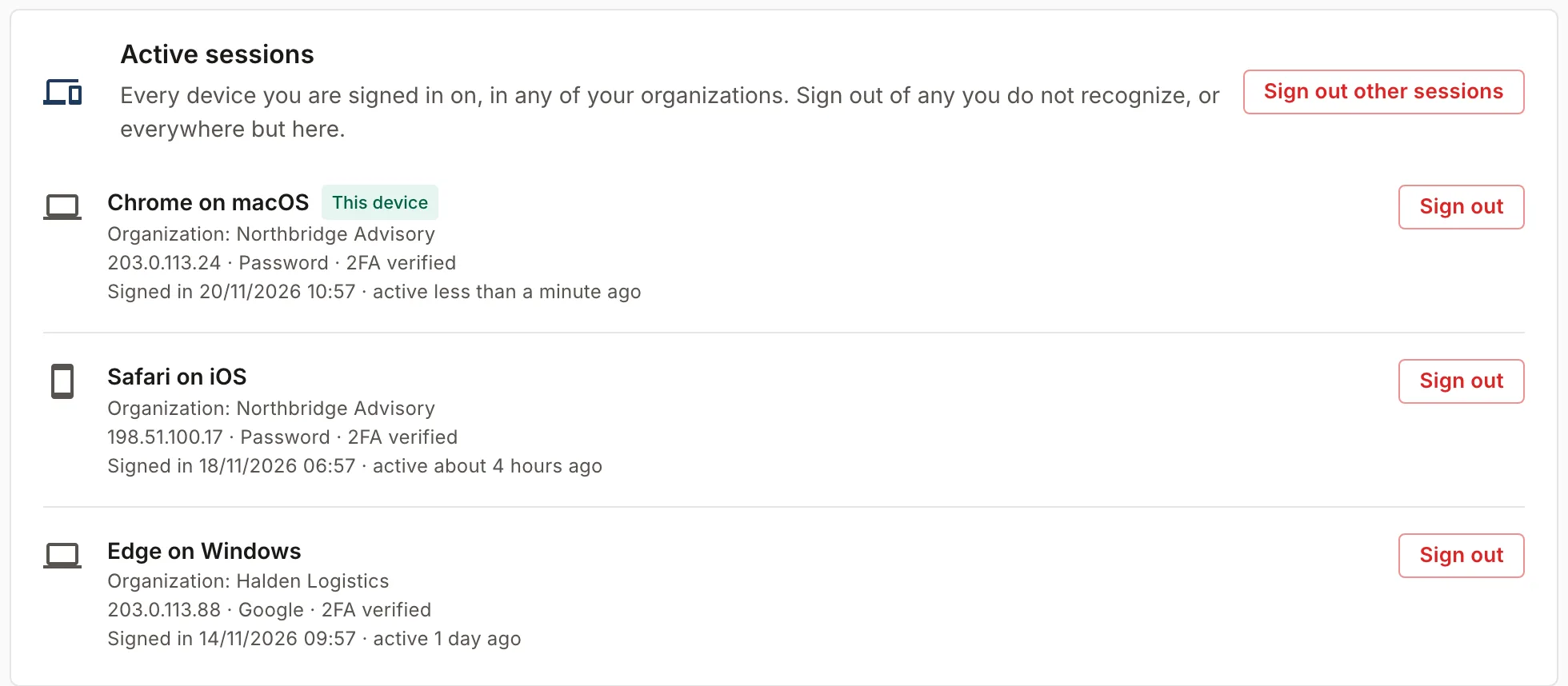
Section titled “Active sessions”A session is one sign-in on one browser. Active sessions lists all of yours, in all your organizations, with the most recently active first. Check it when you have used a shared computer, lost a laptop, or want to know where your account is open.
Reading a session
Section titled “Reading a session”
| Line | What it tells you |
|---|---|
| Device | The browser and system, such as Chrome on macOS. A phone gets a phone icon. If Doxtly can’t tell, it reads Unknown device. |
| This device | The session you are looking at the page from |
| Handed over | The device was handed to somebody for in-person signing and is locked until you take it back |
| Organization | The organization that session is working in. It changes when you switch organizations there. |
| Address and method | The IP address it signed in from, then how: Password, Google, Microsoft, Facebook, or Single sign-on with the name of your organization’s identity provider, such as Single sign-on · Ashgrove Identity |
| 2FA verified | The sign-in passed your second factor |
| Signed in and active | When it began, and how long ago it was last used, accurate to about five minutes. Hover for the exact time. |
A session lasts as long as you use it, and ends a week after you last did. Sessions that ended aren’t listed.
One browser can appear more than once. Each organization’s own address keeps its own session, so a browser signed in on the main address and on an organization’s address counts as two.
Signing out from here
Section titled “Signing out from here”| Button | What it does |
|---|---|
| Sign out on a row | Ends that session, in whichever organization it works. Doxtly asks Sign out of this session? first. On This device, it asks Sign out here? and signs you out on this device. |
| Sign out other sessions | Ends every session but this one, in all your organizations. It appears only when there are others. On a phone, it sits at the top of the list. |
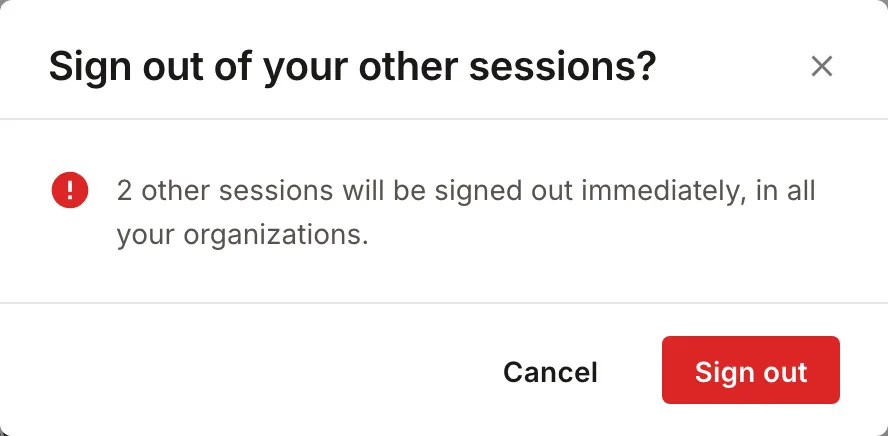
It works at once. The other device is refused at its next action and lands on the sign-in page, even if it was in the middle of something.
What else ends sessions
Section titled “What else ends sessions”| What happens | Which sessions end |
|---|---|
| You click Sign out in the account menu | This one |
| You sign in again in the same browser, on the same address | The earlier one there, replaced by the new one |
| You change your password, reset a forgotten one or set your first one | All of them, this one included |
| You set up, reset or disable two-factor authentication | All but this one |
| An administrator or Doxtly support removes your two-factor authentication | All of them |
| An administrator deactivates you or removes you from an organization | Those working in that organization. Others stay. |