

The Payment element
The Payment element makes a form ask for money: a workshop sign-up with its fee, a paid consultation, an application with a processing charge. The visitor sees the amount on the form, pays on your provider’s page right after sending it, and the submission counts, and its workflows start, only once the money is in. How payments work as a whole is on Taking payments.
Available when: your plan includes payments (Starter, Pro and Business), and your organization has an active Przelewy24, Stripe, PayU or PayPal integration
Add a payment to a form
Section titled “Add a payment to a form”- Connect Przelewy24, Stripe, PayU or PayPal first, so the integration is Active.
- Open the form in the designer and drag Payment from the Payment group of the elements onto the canvas, usually at the end, after the fields the amount depends on.
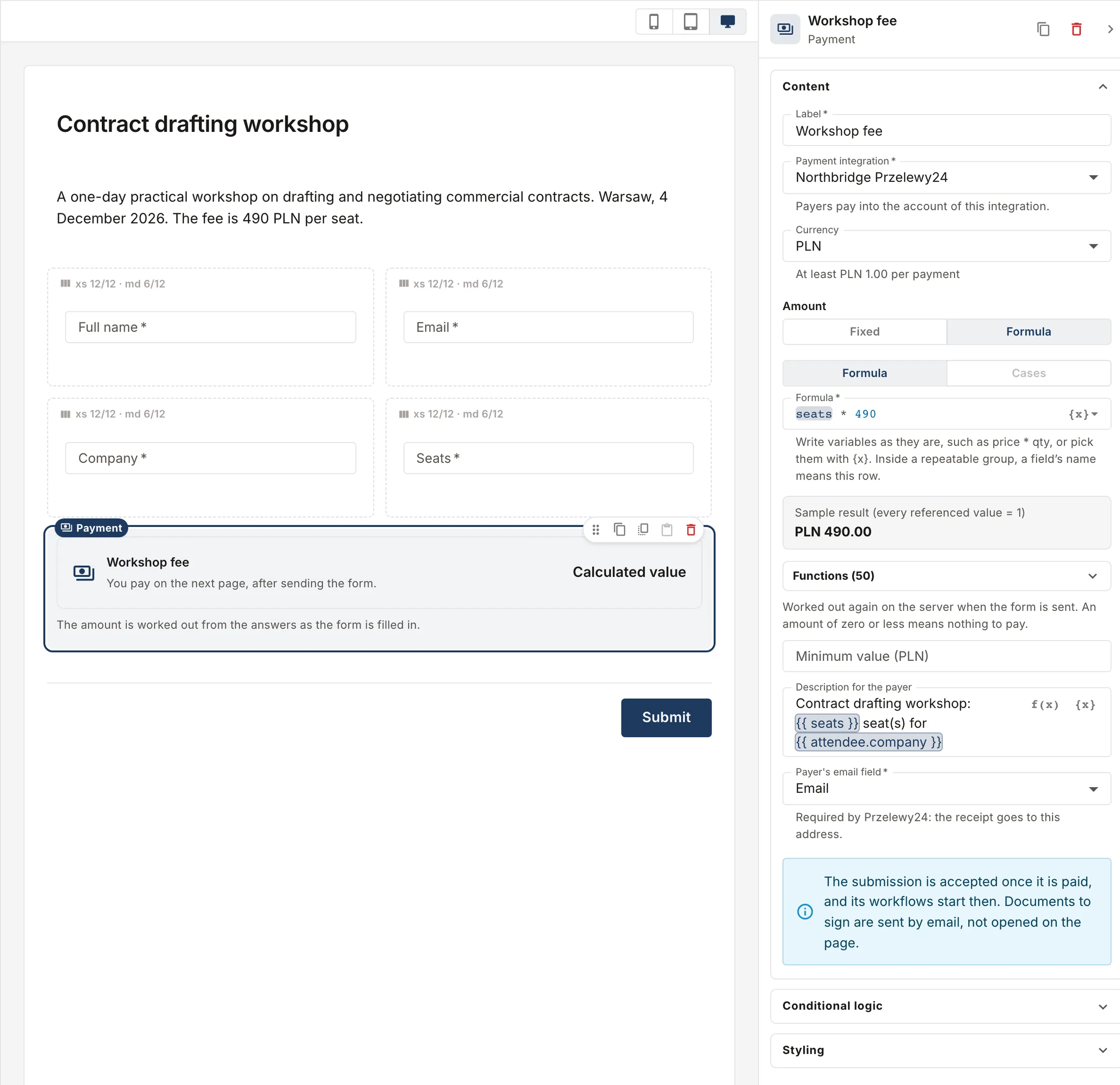
- In its properties, check the Payment integration, choose the Currency and set the Amount.
- If the form has an email field, choose it as the Payer’s email field. For Przelewy24 it is required.
- Save the form, and send it once yourself through a test integration before you share it.
Its settings
Section titled “Its settings”| Setting | What it does |
|---|---|
| Label | The heading the visitor sees above the amount, such as “Workshop fee”. Required. |
| Payment integration | The Przelewy24, Stripe, PayU or PayPal integration the money is paid through, into its account. A new element takes your default payment integration; only Active ones are offered. With none, the field says “No payment integration is connected. Connect a payment provider in Integrations.” |
| Currency | The currencies the chosen integration takes, with its minimum amount per payment under the field: “At least PLN 1.00 per payment” for Przelewy24, “At least PLN 2.00 per payment” for Stripe, “At least PLN 0.05 per payment” for PayU and “At least PLN 0.01 per payment” for PayPal. A PayU integration takes only the one currency of its POS. If the integration doesn’t take the one set, the field says “This integration does not take … Choose another currency.” |
| Amount | Fixed, a number with a dot or a comma for decimals such as 49.99, or Formula, worked out from the answers. See below. |
| Description for the payer | What the provider shows on its page and in the receipt. It can hold the answers as variables, such as Contract drafting workshop: {{ seats }} seat(s) for {{ attendee.company }}. Up to 255 characters. Left empty, it is the form’s title. |
| Payer’s email field | An email field of the form whose address the provider sends its receipt to. None leaves the receipt to the provider. Przelewy24 needs it: “Required by Przelewy24: the receipt goes to this address.” |
Like every element, it also has Conditional logic and a CSS class. A payment hidden by its condition asks for nothing, so one form can be free for members and paid for everyone else.
The note at the end of the properties is a reminder of what changes: “The submission is accepted once it is paid, and its workflows start then. Documents to sign are sent by email, not opened on the page.”
A fixed or calculated amount
Section titled “A fixed or calculated amount”A Fixed amount is the same for everyone. It is checked against the provider’s minimum as you save the form, so a form asking Przelewy24 for 0.20 PLN can’t be saved: “The amount must be at least 1.00 PLN.”
A Formula works the amount out from the answers, with the same expressions as a Dynamic value: seats * 490, or the total of a dynamic value you already show. The visitor sees the amount change as they fill in the form, and on the canvas the amount reads Calculated value, with “The amount is worked out from the answers as the form is filled in.” under it.
The amount is always worked out again on the server when the form is sent, from the form’s own settings: whatever the browser shows or sends is never trusted. An amount of zero or less means there is nothing to pay. The form is then sent as any other, the element shows Nothing to pay, and the button keeps its usual label. An amount the provider doesn’t accept, such as one below its minimum, stops the form at the element: below Stripe’s minimum, for example, with “The amount must be at least 2.00 PLN.”
A Formula amount can also have a minimum of your own, for a minimum order value. Under the formula, Minimum value, shown with the currency as in “Minimum value (PLN)”, is the least the amount may come to, and once it is set, Message when it’s lower gives the words the visitor reads, such as “Minimum order value: 50 PLN”, up to 255 characters. While the amount is lower, or works out to nothing, the form can’t be sent: Pay and submit shows the message at the element, and the server, working the amount out again, refuses the submission with the same words. Without a message of your own the visitor reads “The amount must be at least PLN 50.00.” With a minimum, an amount of zero is refused like any other below it, instead of the form going out with nothing to pay. A payment hidden by its condition isn’t checked. A minimum on a Dynamic value the amount reads, such as the order’s total, works the same way and shows its message at that field.
What the visitor sees
Section titled “What the visitor sees”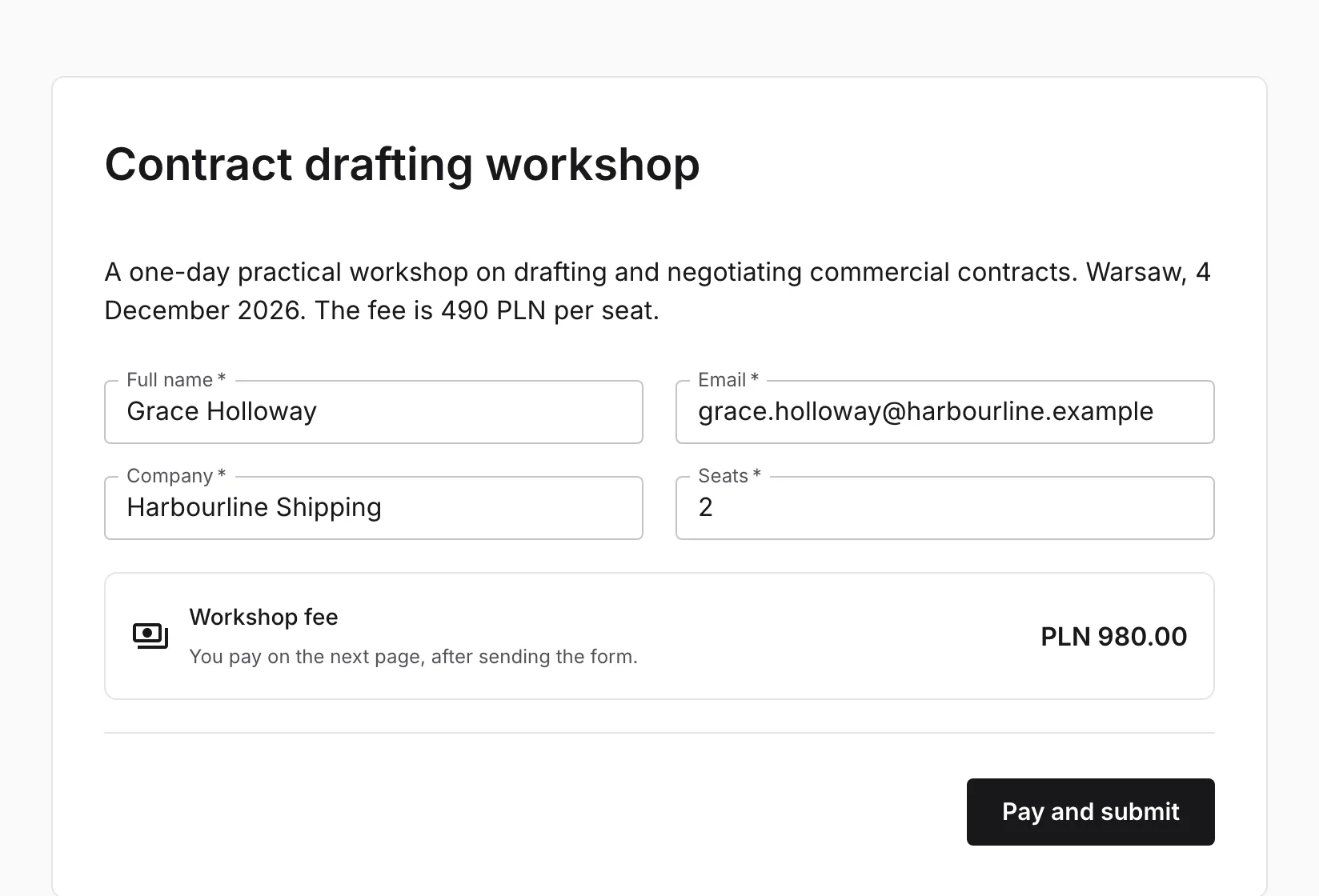
The element shows its label, the amount and “You pay on the next page, after sending the form.” The button at the end says Pay and submit. A click checks the answers as usual, then the visitor goes straight to the provider’s page; for the moment it takes, the form says On to the payment with a Go to payment button. On a form embedded in your website, the provider’s page opens in the whole browser window, not inside the frame.
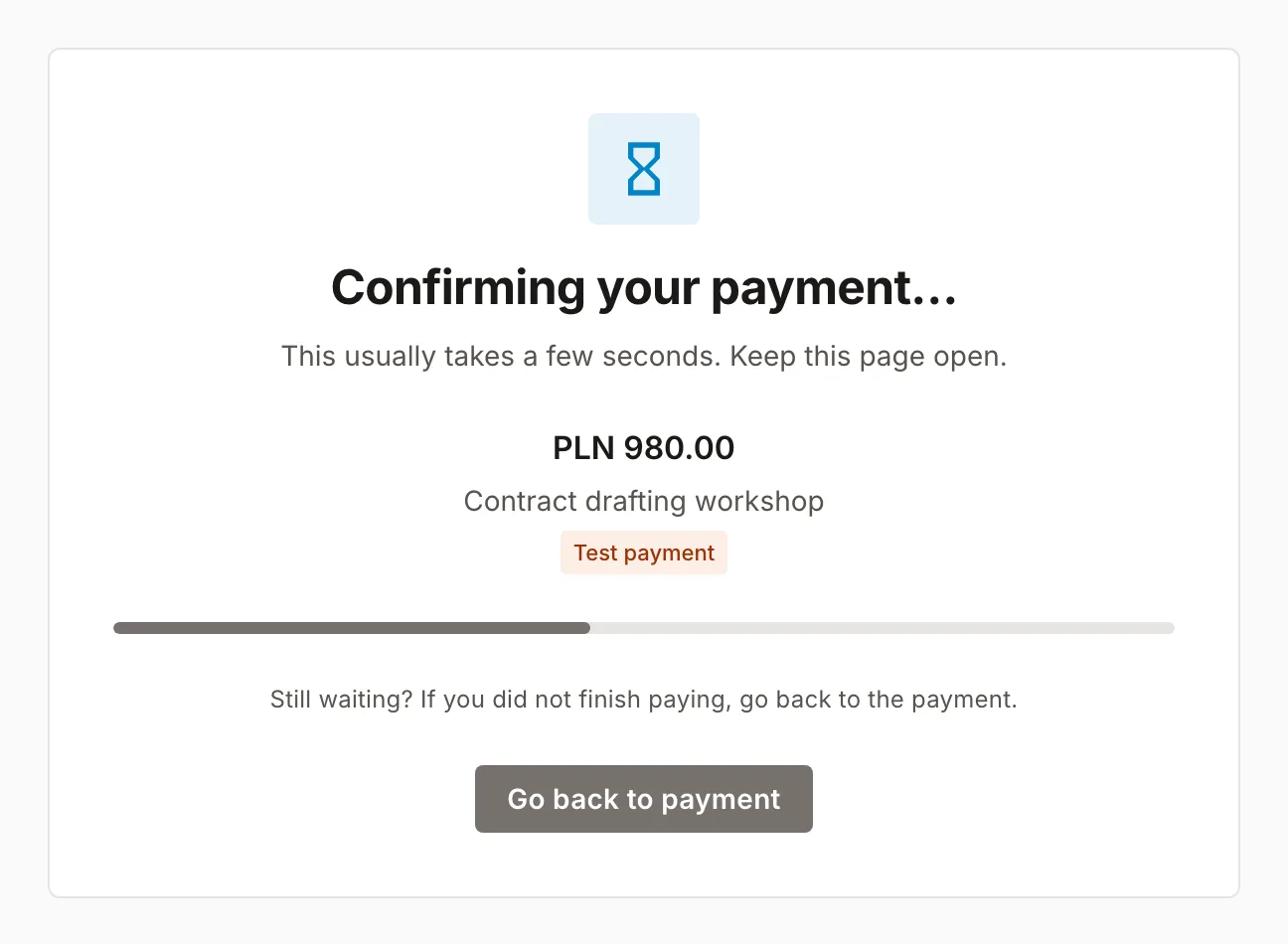
After paying, the provider sends them to Doxtly’s payment page, which confirms the payment and then shows your form’s success message or sends them on to the page you set. If they don’t pay, their answers are kept and they can try again for 24 hours. See How a payment runs.
What changes for the form
Section titled “What changes for the form”A form with a payment works a little differently from one without:
- It always keeps its data. In the form settings, Save form data is on and can’t be switched off: “Always on: the form takes a payment, and a submission is kept until it is paid.” The workflows run once the payment arrives, from what the submission kept, files included.
- Its workflows start once it is paid, not when it is sent. A submission that is never paid starts nothing.
- Nobody waits on the page for a workflow: by the time the money is in, the visitor is on the payment page, so a workflow that would open documents for signing right away, with immediate signing, sends the signing link by email instead.
- Spam owes nothing: a submission kept aside as spam is not sent to pay, and its visitor sees the usual answer. It can’t be marked as not spam later: “This submission comes from a form that takes payments and nobody paid for it, so it cannot be marked as not spam.”
- One payment per form, and not inside a dynamic fieldset. Adding, pasting or duplicating a second one says “A form can take only one payment. Change the one it has.”
- Not on an interactive document: a form that takes a payment can’t be placed on an interactive document, whose page sends all its forms together without a payment step. A form already placed on one can’t be saved with a payment element: “This form is placed on an interactive document, which cannot take payments. Remove it from the document first, or remove the payment element.”
Submissions waiting for their payment
Section titled “Submissions waiting for their payment”A submission sent but not paid yet is listed among the form’s submissions with Awaiting payment, and with Unpaid (expired) once the 24 hours have passed. Until it is paid it is left out of the results, counts and exports, doesn’t use up your plan’s submissions, and can’t be edited. Its page explains why: “This submission is waiting for its payment. Its workflows start once it is paid; until then it is left out of results, counts and exports.”
In workflows
Section titled “In workflows”A workflow started by the form’s submission gets the payment as _payment: {{ _payment.amount }}, {{ _payment.currency }}, {{ _payment.paidAt }} and more. See the Form submission trigger. To act when a payment fails or is refunded, use the Payment trigger.
Copying a form
Section titled “Copying a form”A duplicated form keeps its payment element and its integration. A form exported to another organization brings the element without the integration, which is your own: on import, you choose which of that organization’s payment integrations it goes through. Left unchosen, the import says “The payment element has no payment integration: choose one in the designer before you save the form.”