

Document types
A document type is the category a package is filed under: “Client contracts”, “NDAs”, “Course certificates”. Every package has exactly one. It looks like a simple label, but a lot hangs on it, so it pays to choose your types with some thought before you have hundreds of packages.
Available when: you have the View document types permission to see the Types tab, and Manage document types to add, edit or remove types
What a type does
Section titled “What a type does”| Area | Effect |
|---|---|
| Filing | Documents can be filtered by Document type. |
| Workflows | The document package triggers, such as The package is fully signed, A party signs and A party declines to sign, each watch one type. So the type decides what happens after signing: signed contracts go to the finance folder, signed NDAs just get archived. |
| Access | A type can be restricted to departments, and its packages follow. A department can’t be deleted while a type is restricted to it. |
| Authorizations | An authorization can cover chosen types only. |
| Application users | A party or viewer in a Create documents step can only be linked to people who may read documents of the type. |
| Signature requirements | A type can set how its packages are signed, and lock it: see Signature requirements. |
| Numbering | Packages of the type can get a number when they are sent. |
| Contracts | Packages of the type can be contracts with a term: Doxtly follows when each is in force, warns before it ends and keeps its annexes with it. |
A good rule of thumb: make a separate type whenever something should happen differently. If NDAs and service agreements get the same treatment, one type will do. If only HR may see employment contracts, those need a type of their own.
Northbridge Advisory runs on a handful. “Client contracts” start an invoicing workflow once signed. “Non-disclosure agreements” are only filed, and only Legal sees them. “Invoice requests” are open to Sales and Finance. “Employment” is restricted to the HR department, so nobody else sees those packages.
See your types
Section titled “See your types”Go to Documents and open the Types tab.
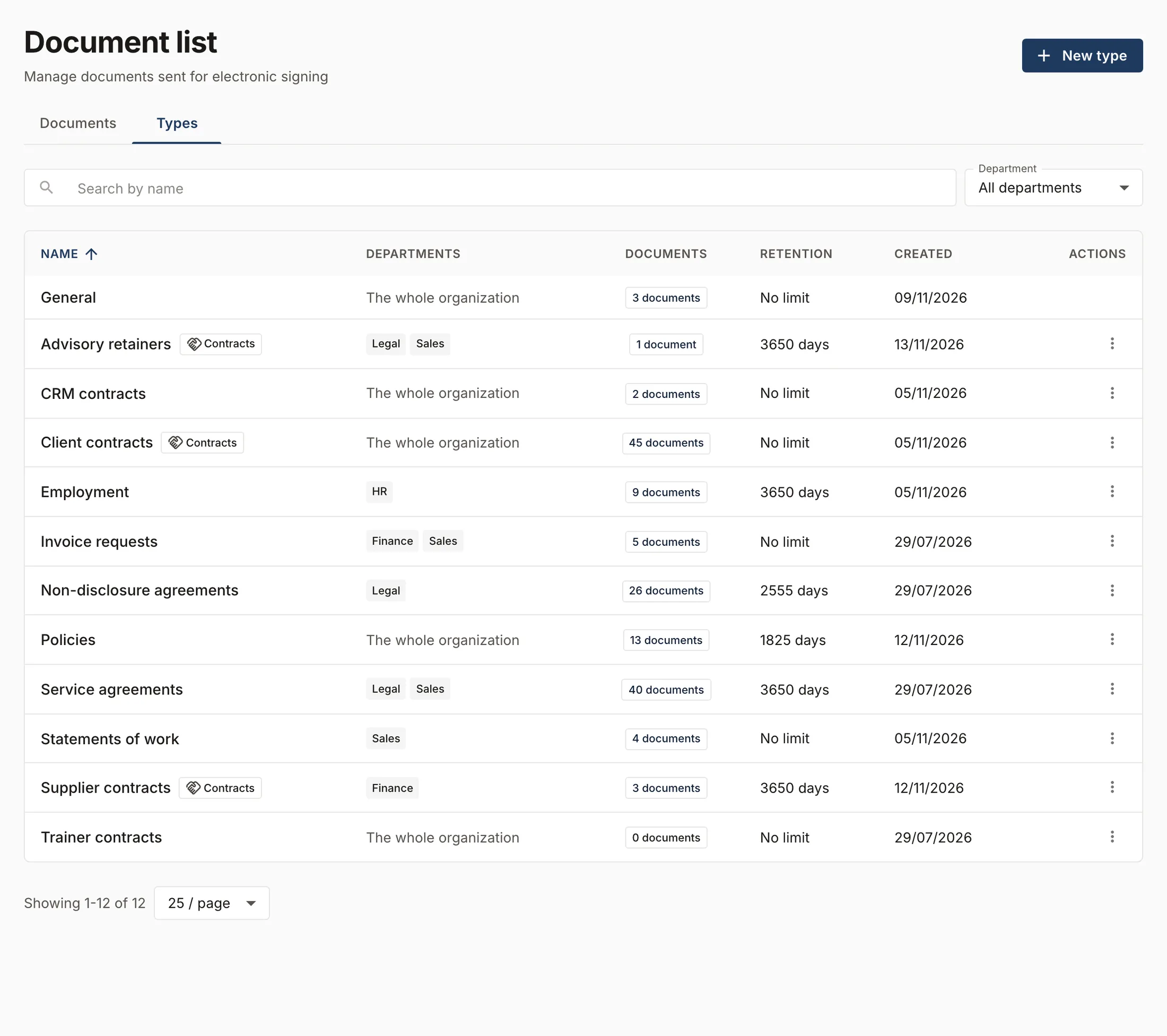
| Column | Shows |
|---|---|
| Name | The type’s name, with a Contracts chip when its packages are contracts with a term. Sortable. |
| Departments | The departments it is open to, or The whole organization. |
| Documents | How many packages are filed under it. |
| Retention | How many days it keeps a finished package, or No limit. |
| Created | When it was added. Sortable. |
| Actions | The menu with Remove, for people who may manage that type. |
Use the search box to find a type by name. The Department filter beside it narrows the list to the types opened to one department; The whole organization (not assigned) shows those opened to none. It offers the departments your access reaches. Everyone allowed to see documents can read the types of those documents as well: that is how the Document type filter gets its list, even for somebody without the Types tab.
The General type
Section titled “The General type”Every organization has a type called General, so a package always has somewhere to go. It has no rules of its own, and everybody who manages documents can use it. A new package starts with it chosen, and a Create documents step, or a request through the API, that names no type is filed under it. You only pick another type when the package should follow its rules.
General is named in the reader’s language: someone working in Polish sees Ogólny. You can rename it in the same dialog as any other type, and your name then shows as typed in every language; Back to the default name undoes that. It can’t be removed or limited to departments.
Add a type
Section titled “Add a type”-
On the Types tab, click New type.
-
Enter a Name. It must be unique in your organization, and can be up to 255 characters.
-
If you like, fill in the rest of the dialog, all described below: Additional conditions for signers, Number the packages of this type, Contracts with a term, Send parties their signed documents, Signature requirements, For new packages of this type and Remove finished packages.
-
Choose Departments at the bottom if the type should be restricted. Leave it empty for everyone allowed to see documents.
-
Click Add type.
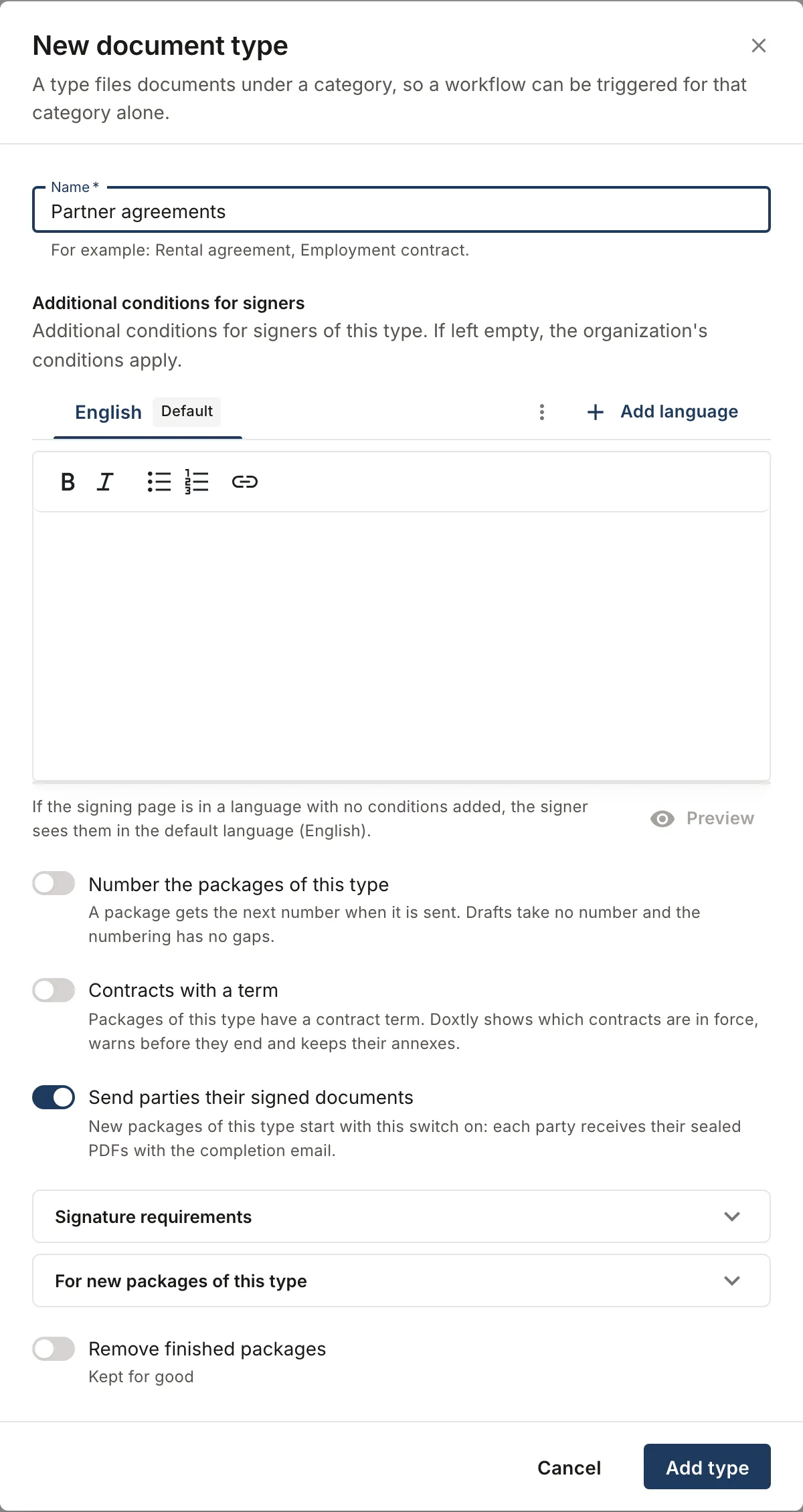
With Manage document types, you can also create one on the spot while building a workflow. In the Create documents step, type a new name in Document type and choose Create "Partner agreements" from the list. The new type starts as it would on the Types tab: open to your own department if that is as far as your permission reaches, otherwise to the whole organization. To choose departments, edit it on the Types tab afterwards.

Signing rules of a type
Section titled “Signing rules of a type”A type can set Additional conditions for signers, one tab per language, in the same editor as the organization’s. Signers of its packages accept them with one tick, instead of the organization’s conditions; left empty, the organization’s apply. A signing page in a language with no conditions shows the ones in the organization’s language. How a package of the type is signed comes under Signature requirements.
For new packages of this type
Section titled “For new packages of this type”Open For new packages of this type in the dialog to give every new package of the type a Deadline (days after sending) and reminders, the same reminders as on a package. A package made by hand or through the API starts with them, and a Create documents step takes them over when you choose the type for it. The sender can still change them on each package.
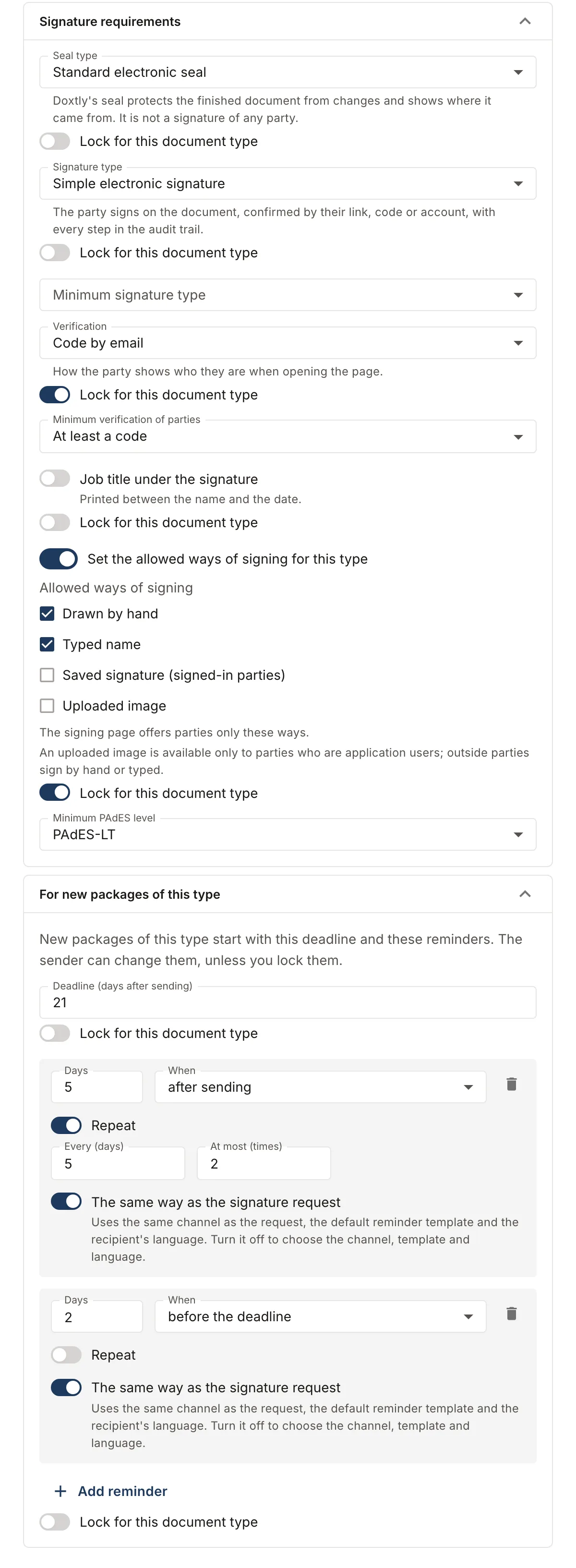
Turn on Lock for this document type beside a value and nobody can change it: the editor and the step show it read-only, and a package with anything else is refused when it is saved or sent. A deadline in a type can be 1 to 365 days. Packages already sent keep what they were sent with. Their deadline can still be changed on the package, unless the type locks the deadline: while it does, Change deadline isn’t offered on them either.
Contracts with a term
Section titled “Contracts with a term”Turn on Contracts with a term for a type whose packages are agreements that run for a time: client retainers, leases, service agreements. Each package of the type is then a contract. Its sender sets its term on the editor’s Basics tab, the documents list shows whether it is in force, and its annexes, notices and related documents are kept with it. The Contracts page tells the whole story; this section covers what you set on the type.
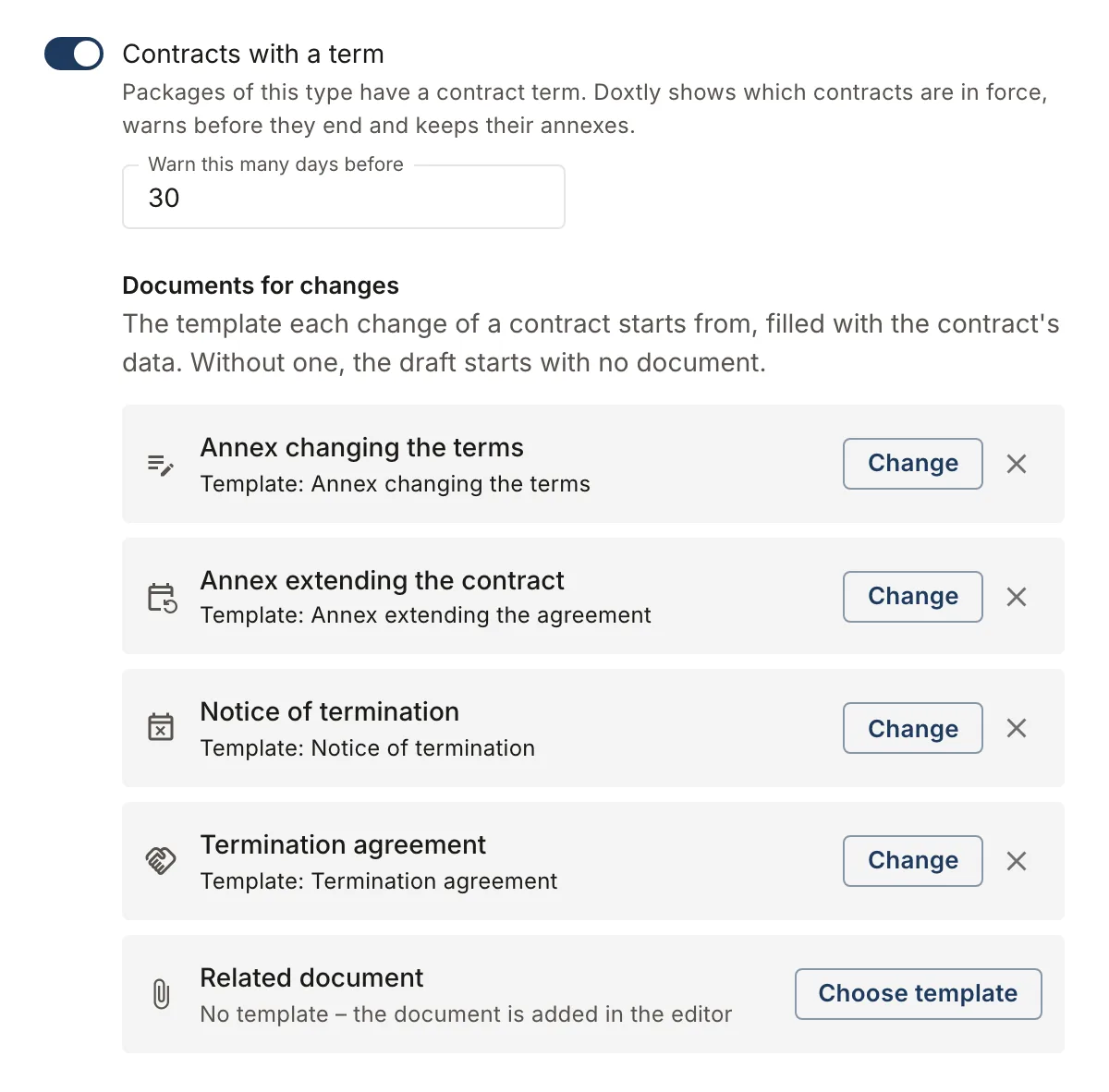
Warn this many days before says when a contract of the type counts as ending soon: so many days before its last day, or, for a contract that renews by itself, before the last day to give notice. It takes 1 to 365 days and starts at 30. What the warning does is told under Alerts before the end.
Documents for changes
Section titled “Documents for changes”Under Documents for changes each kind of change has its own row: Annex changing the terms, Annex extending the contract, Notice of termination, Termination agreement and Related document. Give a row a template, and a change of that kind made on a contract of the type (with Create annex, End contract, or Add to contract file and Send for signature for a related document) opens as a draft with that document already in it, filled with the contract’s data. A kind without one shows No template – the document is added in the editor, and its draft starts with no document. Every row is optional.
- Choose template opens the same list of templates as adding a document to a package from a template. The row then names it as Template: and the name.
- Change picks another one, and the cross (Remove template) takes it away.
Choosing a template needs View file templates and generated files as well as managing the type. Without it the button is greyed out, with the tooltip Choosing a template needs permission to view templates.; a template already set can still be removed. Once set, a change is made with it whoever makes the change. If the template itself is deleted, its row goes back to no template. What each kind of change does to the contract is told under Contract changes.
Switching it off
Section titled “Switching it off”Turning Contracts with a term off stops the type making contracts: a package made under it from then on has no term. Contracts already sent keep their term, history and changes, and can still be changed. A draft that was already a contract stays one, with its term, while it keeps the type; only moving it to a type without contracts removes the term, after the editor asks you to confirm.
How long packages are kept
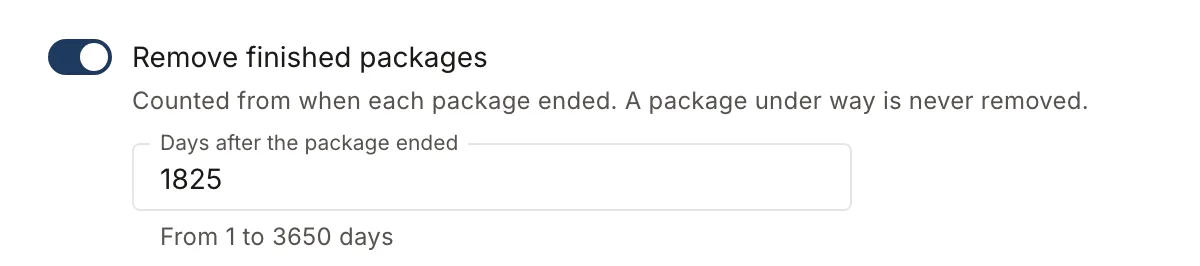
Section titled “How long packages are kept”A type keeps its finished packages for good until you decide otherwise, and every new type starts that way. Turn on Remove finished packages in the type’s dialog and enter the Days after the package ended, from 1 to 3650, to have Doxtly remove what is older every night, with its documents and audit trail. Turning the switch on starts from 365 days; with it off, the dialog reads Kept for good. A law firm may keep engagement letters for ten years, while a training company might let signed attendance sheets go after one.
The days count from when each package ended, whether it was signed, declined, voided or ran out of time. A package still under way is never removed, however old it is. The setting applies to the packages already filed under the type as well as to new ones.
A contract counts differently. Once signed, it ends at the end of its last day in force, not when its signing finished, so the days count from then. A contract in force indefinitely, or one that renews by itself until a change ends it, never ends and is never removed. Its changes share its fate: they are kept as long as the contract, by its type’s setting, and nothing of the contract goes while one of its changes is still a draft or being signed. When the contract is removed, its changes go with it, and the count before you save includes them. See How long contracts are kept.
Before you save a period that would remove anything, Doxtly says how many packages of that type would go tonight and asks you to confirm. Removal can’t be undone. If you change your mind before the night, save a longer period or turn the switch off: the nightly clean-up works from whatever is saved when it runs. If the count itself fails, you see Could not check how much data would be removed and nothing is saved.
Because a shorter period destroys evidence, changing it takes Change organization settings as well as managing the type. Everyone else who can open the dialog sees the setting read-only, with a note saying so, and can edit the rest of the type. It works on the General type too.
Numbering
Section titled “Numbering”Available when: your plan is paid
Turn on Number the packages of this type to give every package of the type a number when it is sent, such as UM/2026/0142. A draft takes no number, and a sending that fails gives its number back to the next package, so the numbering has no gaps. A change of a contract takes no number from the type, so it leaves no gap either: it is known by its title, such as Annex 2 to Advisory retainer - Harbourline Logistics, and its documents can print the contract’s number as _package.annex.contract.number.
| Field | What it does |
|---|---|
| Number pattern | The text of the number, with its parts in double braces, which the {x} button in the field offers under Parts of the number: {{ _year }} (the year, 4 digits), {{ _month }} (the month, 2 digits) and {{ _day }} (the day, 2 digits) of the date of sending in your organization’s time zone, and {{ _number }} for the counter, which is required. UM/{{ _year }}/{{ _number }} gives UM/2026/0001. Under the field you see an example of the first number. |
| Digits of the counter | How many digits the counter is padded to, from 1 to 9. |
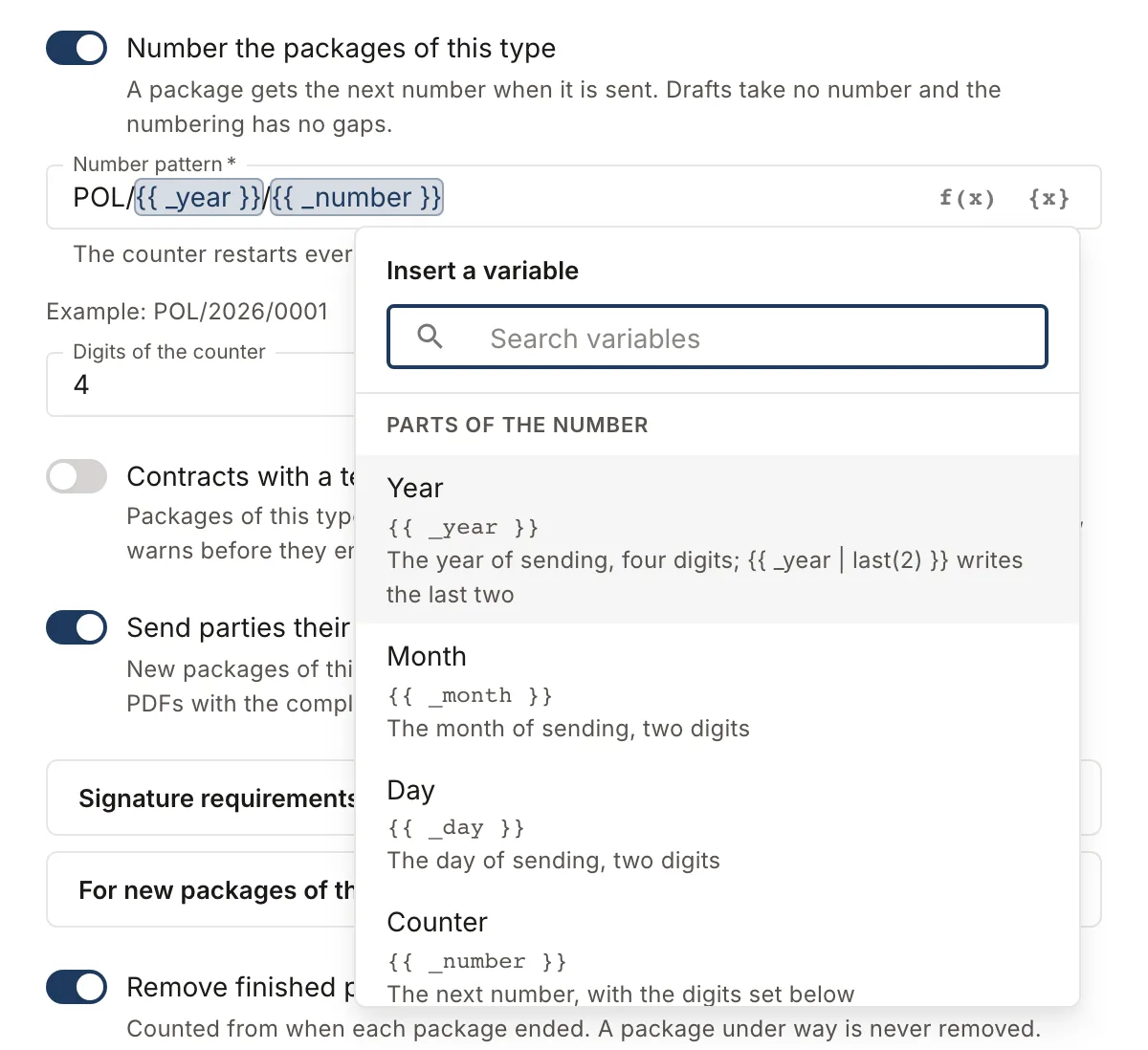
A part can carry operations, as any variable can: {{ _year | last(2) }} writes the year in two digits, so UM/{{ _year | last(2) }}/{{ _number }} gives UM/26/0001, and {{ _month | number }} drops the leading zero of the month. A pattern can read nothing but these four parts, so other variables and the functions TODAY() and NOW() are refused, as are line breaks and a pattern longer than 200 characters. The field says what’s wrong as you type.
The counter restarts with the smallest period in the pattern, and the field says when (for example The counter restarts every year.): with _day every day, with _month every month, with _year every year, and without any of them it never restarts.
A smaller period needs the larger ones, because the same number would otherwise come back: a pattern with _day must also contain _month and _year, and one with _month must contain _year.
A template prints the number as ${_package.number} in Word, {{ _package.number }} in SVG, and in a PDF template through a From data area with the path _package.number. While you preview a draft the counter shows as underscores, such as UM/2026/____. You never type it in: Fill in data of a package’s document lists it under Filled in by Doxtly, read-only, as filled in at sending, except in a change of a contract, which takes no number.
Where the number exists
Section titled “Where the number exists”A number belongs to a package, so only a template rendered for a package, or a step after one, has it:
| Where the template is rendered | _package.number |
|---|---|
| A document of a package you send yourself | The number the package gets as it is sent. |
| A Create documents step | The number of the package the step creates. |
| A step after Create documents | The number of the latest package the run created. _nodes.<step>.number holds the number of one particular step’s package. |
| A workflow started by a package event | The number of that package. |
| A Generate document step with no package before it, or a document generated through the API | None: there is no package. |
A type without numbering, or a plan without the feature, gives the package an empty number, so ${_package.number} prints nothing, in its documents and in the steps after it alike. Where a template may meet no package at all, give the marker an empty default: ${_package.number|} in Word prints nothing instead of stopping the document. In a workflow, the Template variables box of a Generate document step lists the number as not available when no package comes before the step.
The number is in the Number column of the documents list, in search and in the index.csv of an export, and on the certificate. A voided package keeps its number. To read the register, filter the list by the type.
Who sees a type and its packages
Section titled “Who sees a type and its packages”When a type has no departments, everyone allowed to see documents sees it and its packages. Once you name departments, people whose access to documents is limited to their own department see the type and its packages only if theirs is on the list. People with organization-wide access to documents still see them.
Parties always see their own package, whatever the type. So does somebody acting for a party on what that party has waiting.
Setting departments takes the Restrict types to departments permission, and what the dialog offers depends on its reach:
| Your permission | What you can do |
|---|---|
| Not granted, or the organization has no departments | The dialog says “The type will be available to the whole organization.” You can still rename an already restricted type. |
| For your own department | You can restrict a type to your department. New types start with it already selected. |
| For the whole organization | You can choose any departments, or none. |
Changing the departments of an existing type takes reach over both the old and the new list. Lifting a restriction opens the type and all its packages to everybody, and narrowing it can take them away from another department, so somebody who manages only their own department can’t do that to a type shared with others.
Departments are set up under Departments, and permissions under Roles.
What a new package of this type does
Section titled “What a new package of this type does”Send parties their signed documents is on for a new type. A package of the type starts with this setting, and whoever makes it can change it; see What happens after signing.
Edit a type
Section titled “Edit a type”Click its row. The Edit document type dialog opens, with the same fields as a new type: change what you need and click Save, which turns on once something has changed. Rows only open for people who may manage that type.
Renaming is safe. Workflows, authorizations and packages keep pointing to the same type, and the new name shows everywhere, including on packages that are already out.
Remove a type
Section titled “Remove a type”Open the row’s menu and choose Remove, then confirm with Remove type. Only a type with nothing filed under it gets that far, so no document is affected.
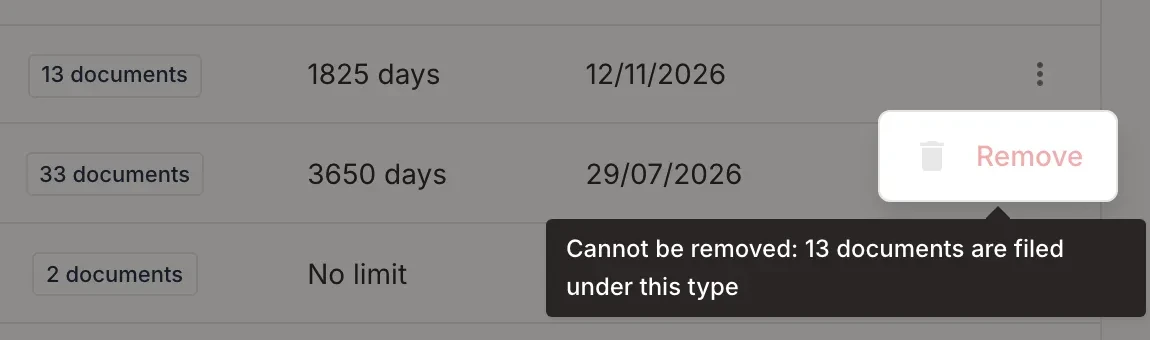
A type with packages filed under it can’t be removed: every package must have a type, and workflows depend on it. Remove is then greyed out, and the tooltip says how many packages stand in the way. Rename the type instead. A type that workflows name, in a trigger or a step, can’t be removed either: Remove type? lists them under Used by, says Change these workflows before deleting. and keeps Remove type off (Deleting what a workflow uses).
A type open to several departments is removed for all of them, so if you manage types for your own department only, you can remove only a type open to that department alone.
Permissions
Section titled “Permissions”| Permission | Allows |
|---|---|
| View document types | The Types tab, with the types your role reaches. |
| Manage document types | Adding, editing and removing types, within the departments your role reaches. |
| Restrict types to departments | Choosing the departments a type is open to. |
| Change organization settings | Also needed to change how long packages are kept. |
| View file templates and generated files | Also needed to choose a template under Documents for changes. |
Choosing a type inside a workflow is part of managing workflows, so people who build workflows can pick from every type in the organization, including ones restricted to other departments.
Signature requirements
Section titled “Signature requirements”A type can fix how its packages are signed, so that an NDA is always sent the same way whoever prepares it. Open Signature requirements in the type’s dialog.
| Field | What it does |
|---|---|
| Seal type | The seal on the finished document: Standard electronic seal, or Qualified electronic seal where one is available; Doxtly’s cloud offers none, so there it is greyed out with Not available: no qualified certificate is set up. |
| Signature type | Simple electronic signature or Qualified electronic signature. With qualified, which Ways of signing parties may use. |
| Minimum signature type | No minimum, Advanced signature or Qualified signature: a party below that is refused. |
| Verification | The default check on the way in, the same options as a party’s. |
| Minimum verification of parties | No minimum, or At least a code: no party may be left without a check. |
| Job title under the signature | Whether a title is printed, and with what. |
| Set the allowed ways of signing for this type | Off: the organization’s allowed ways apply. On: tick Drawn by hand, Typed name, Saved signature (signed-in parties) and Uploaded image as you allow them. Every party of a package of this type starts with these ways, and the sender can change them party by party, unless Lock for this document type under the field fixes them for every party. Uploaded image applies only to parties who are users of the application; outside parties sign by hand or with a typed name. |
| Minimum PAdES level | No minimum, or the lowest Signature level (PAdES) a package may have. |
Lock for this document type beside a value makes it read-only in the editor and the node, with Set by the document type and the type’s name under it. A minimum is told the same way, as in Document type “Supplier contracts” requires at least a code.

Take Northbridge’s Supplier contracts, open only to Finance. The type locks Code by email, asks for at least a code, locks drawn or typed signatures, asks for at least PAdES-LT, and starts each package with a 21-day deadline and two reminders. Whoever in Finance sends a supplier contract gets these settings without thinking about them, and can’t send one that breaks them. A package outside these rules is refused when it is saved or sent, by hand or by a workflow, with the field and the type named. Rules change nothing for packages already sent.