

Booking against a spreadsheet
The spreadsheet is your diary. Each row is a slot, and a form lets people claim one. The workflow takes the slot in a single step, so two people clicking at the same moment can’t both get it: the second is told it has gone.
Available when: an active cloud storage integration, such as Google Drive, and an active email integration
What it looks like
Section titled “What it looks like”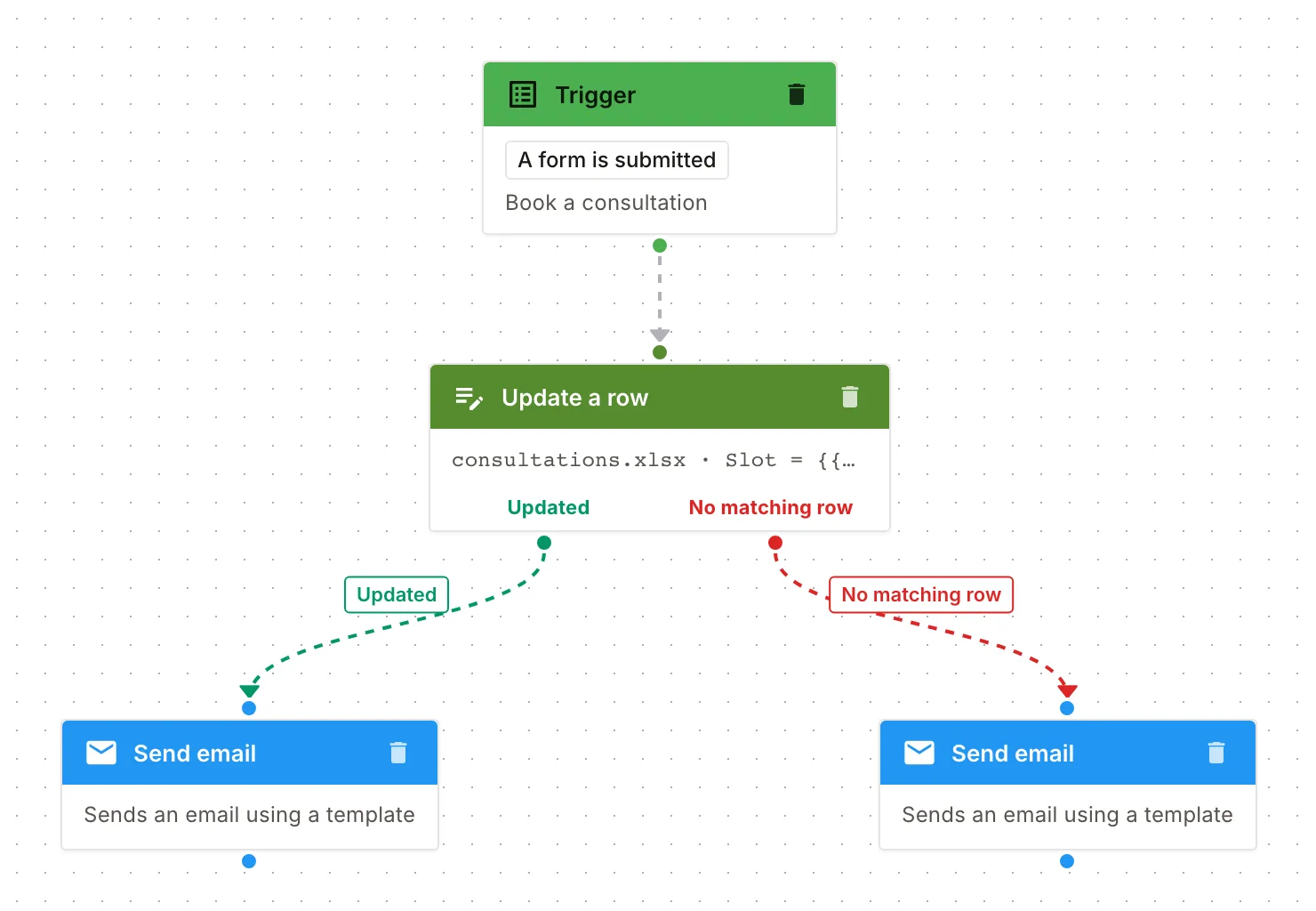
What you need
Section titled “What you need”A sheet on your drive, here Bookings/consultations.xlsx. The file must exist, because a step that only updates never creates one:
| Slot | Consultant | Booked by | Booked on |
|---|---|---|---|
| 2026-12-01 10:00 | Anna Reed | ||
| 2026-12-01 11:00 | Anna Reed |
You also need a form, here “Book a consultation”, with email, client_name and a dropdown slot whose values match the Slot column, and two email templates.
Build it
Section titled “Build it”The trick is to look for the row and take it in the same step, with Write to a sheet and no separate lookup.
-
Create a workflow with the trigger A form is submitted on the form.
-
Drop Write to a sheet and connect it. On the File tab, set Write to to Cloud file, then the Storage and the File path.
-
On the Columns tab, add
Booked bywith{{ email }}andBooked onwith{{ _submission.submittedAt }}. -
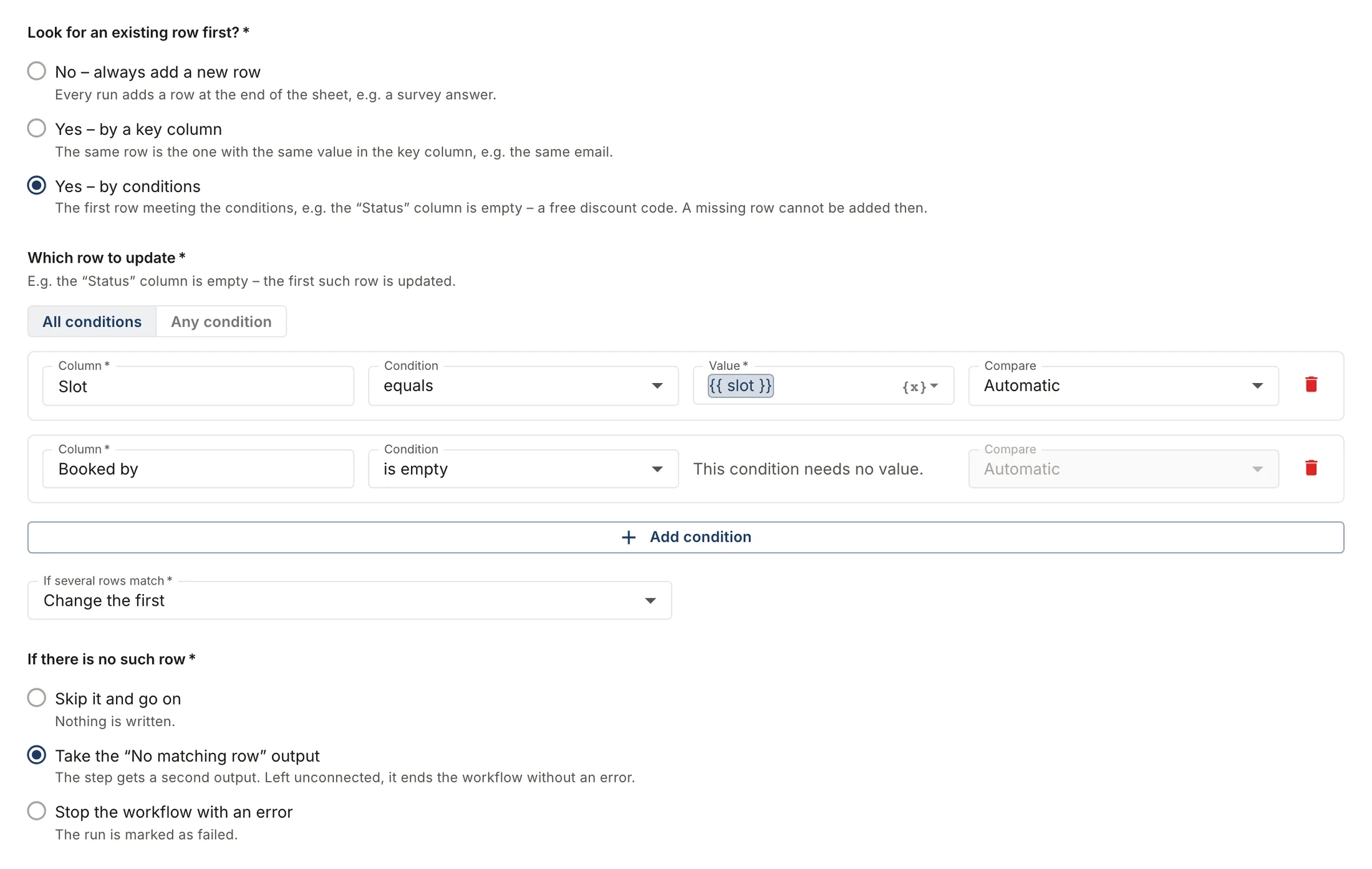
On the Search tab, set Look for an existing row first? to Yes – by conditions.
-
Under Which row to update, add two conditions:
Slotequals{{ slot }}, andBooked byis empty. Keep All conditions. -
Set If several rows match to Change the first, and If there is no such row to Take the “No matching row” output.
-
On the Advanced tab, set Store the result as to
booking. -
From Updated, add Send email to
{{ email }}, with your confirmation template. It can print{{ booking.row.consultant }}, because the result holds the whole row. -
From No matching row, add Send email to
{{ email }}, saying the slot has gone and linking back to the form. -
Save and switch it on.
Courses with several seats
Section titled “Courses with several seats”Keep one row per course, with a Seats left column, and count down instead of filling in a name.
- Condition:
Courseequals{{ course }}, andSeats leftis greater than0, with Compare set to As numbers. - Column:
Seats left, with Operation set to Decrease by and Change by set to1.
To record who came, add Write to a sheet on the Updated branch, writing to a second tab with No – always add a new row.
Check the run
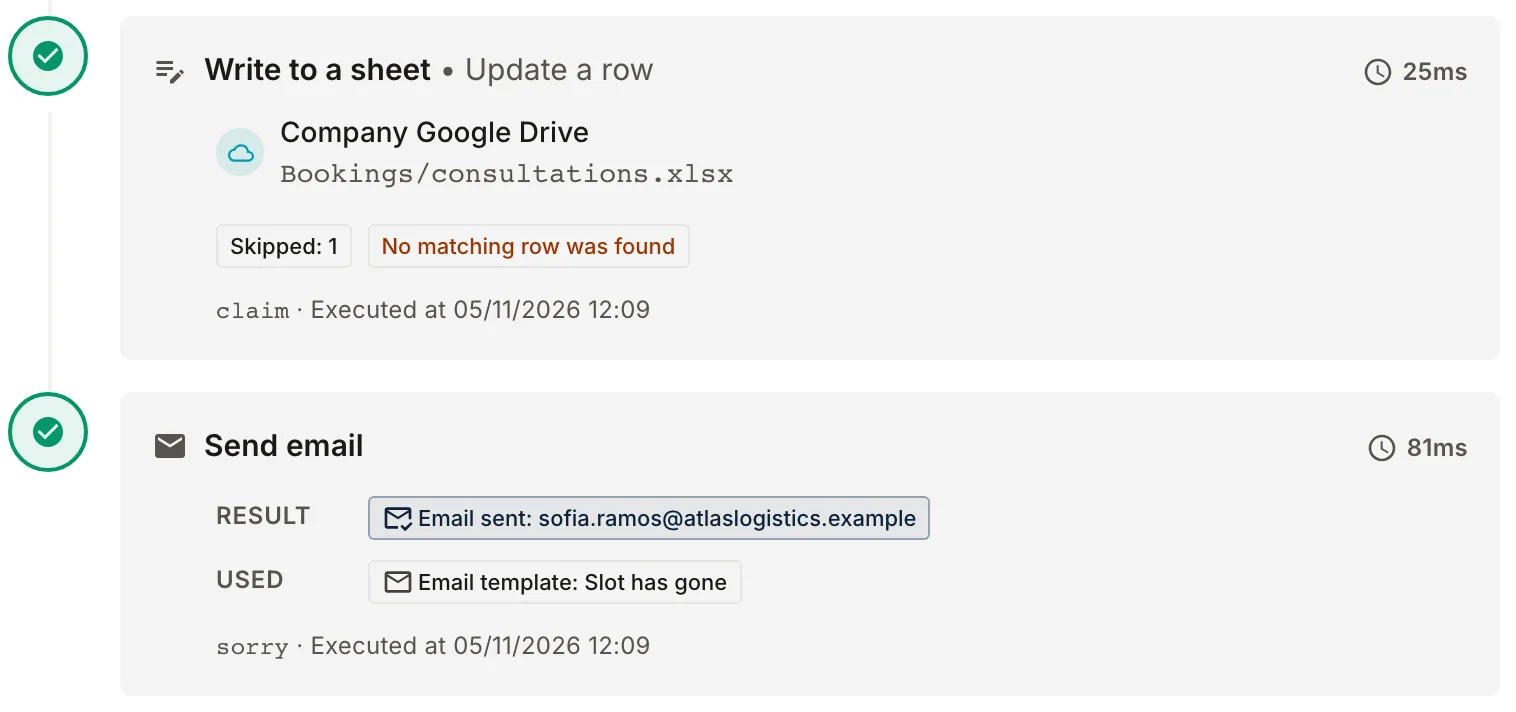
Section titled “Check the run”A successful booking shows Updated: 1 with the row number. A slot that has gone shows No matching row was found. If you left that output unconnected, the list marks the run with a No matching row chip.
If you rerun a successful booking, the sheet isn’t written twice. The card says Already written by the first run – not written again, the run takes the same branch, and booking.row is read back as long as the row still holds what this run would write. That is why Booked on uses the submission’s time, which stays the same, and not the date of the run. A booking that found no row the first time looks again on a rerun, so it may succeed if a slot has come free.
- Dates in the Slot column are easier to match as plain text. If they are real date cells, set Compare to As dates.
- A person may hold only one slot? Add a Find a row step first, with
Booked byequals{{ email }}, and go on only from Not found. - To cancel a booking, clear Booked by in the sheet. The slot is free for the next person straight away.