

Signing from your own website
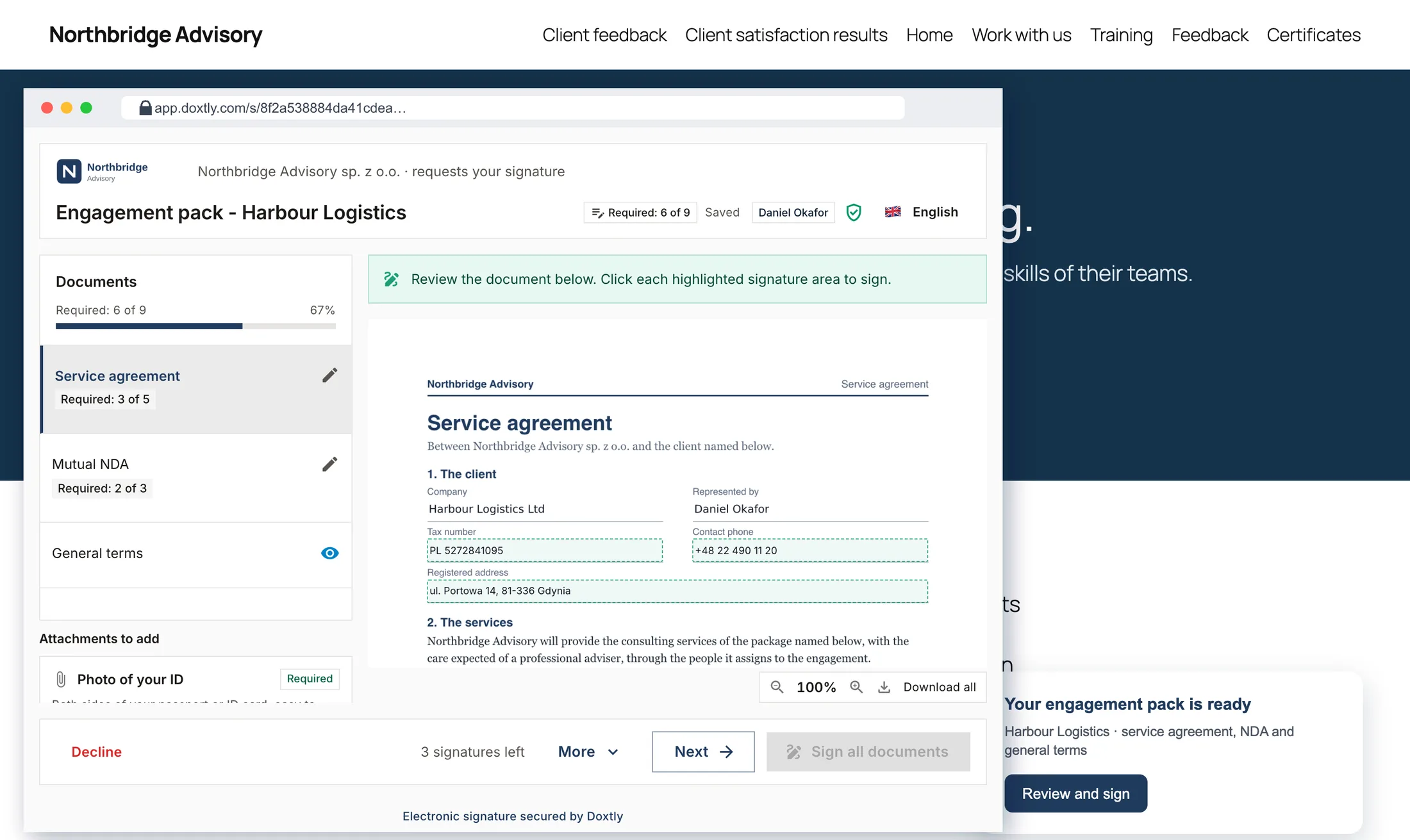
If your customers work in your own website or portal, you don’t have to send them to their inbox to sign. Your page can open the Doxtly signing page itself, in a pop-up or a new tab, and hear back when the person has signed. An insurance broker’s quote page can open the signing the moment a client accepts, and show the next step when it comes back.
Available when: your site is on your organization's list. Setting the list takes the Change organization settings permission
Why a pop-up and not a frame
Section titled “Why a pop-up and not a frame”Signing never happens inside a frame on your page. Showing the address bar means the signer can see that it is Doxtly and that nobody put a look-alike around it, and a signature must not be something another page can draw over or trick the person into. So the page opens in its own window, and it refuses to be put in a frame.
Set it up
Section titled “Set it up”-
Under Organization settings → Signing, add your address to Sites that may open signing: one per line, each starting with
https://and with no path, such ashttps://shop.example.com. -
Add the Doxtly script to your page.
<script src="https://app.doxtly.com/embed.js"></script> -
Call
DoxtlyForms.openSigningwith the party’s signing link, from a click.DoxtlyForms.openSigning(signingUrl, {mode: 'popup',onEvent: (status) => console.log(status), // 'signed', 'declined' or 'closed'});
| Option | Values | What it does |
|---|---|---|
mode |
'popup', 'tab' or 'redirect' |
How the page opens. Left out, it’s a pop-up on a wide screen and a tab on a phone. If the browser blocks the pop-up, the page opens in place of yours. |
onEvent |
A function | Called with what the signing page reports: 'signed', 'declined', or 'closed' when the window goes away without either. After 'signed' or 'declined', closing the window reports nothing more. It is not called for 'redirect', where your page is gone. |
Where the signing link comes from depends on who creates the package. A workflow has it as {{ _recipients.CLIENT.signingUrl }} in the steps after Create documents, so a Webhook step can pass it to your system. Treat it like a password: whoever has it can open that party’s page.
Which events you can rely on
Section titled “Which events you can rely on”The report goes only to a site on your list, and onEvent only reads a message that comes from Doxtly. Your page doesn’t get any data beyond the status.
| Status | Means |
|---|---|
signed |
The person pressed sign, and the signing was accepted. |
declined |
The person declined. |
closed |
The window was closed before the page reported anything else. It says nothing about whether they signed. |
Language and checks
Section titled “Language and checks”The page opens in the party’s language, and they can change it: see Languages. The verification you chose, a code, a password or an identity document, runs as it does from a link in an email, because this is the same link. A party you gave a return address to finds a button back to your site on the final page, Back to and the site’s name, for as long as the site is on your list. The signature’s record says Secure link.