

Workflows overview
A workflow is a piece of office routine that Doxtly does for you. Something happens, such as a client submitting your onboarding form, and Doxtly carries out the steps you drew: it checks a value, generates the NDA, sends it for signature, emails your team, files the signed PDF in Google Drive.
Build one whenever the same paperwork follows the same event more than a few times a month.
Available when: your role has the permission View workflows and their runs (building one takes Manage workflows, see Who can do what)
The parts of a workflow
Section titled “The parts of a workflow”| Term | What it means |
|---|---|
| Trigger | The event that starts the workflow. Each workflow has exactly one. |
| Node (or step) | One thing the workflow does: send an email, generate a document, make a decision. |
| Connection | The line from one node to the next. It sets the order. |
| Run (shown as Execution) | One pass through the workflow, for one event. Forty submissions make forty runs. |
| Variable | A value the run carries, such as the client’s name, which steps read and add to. |
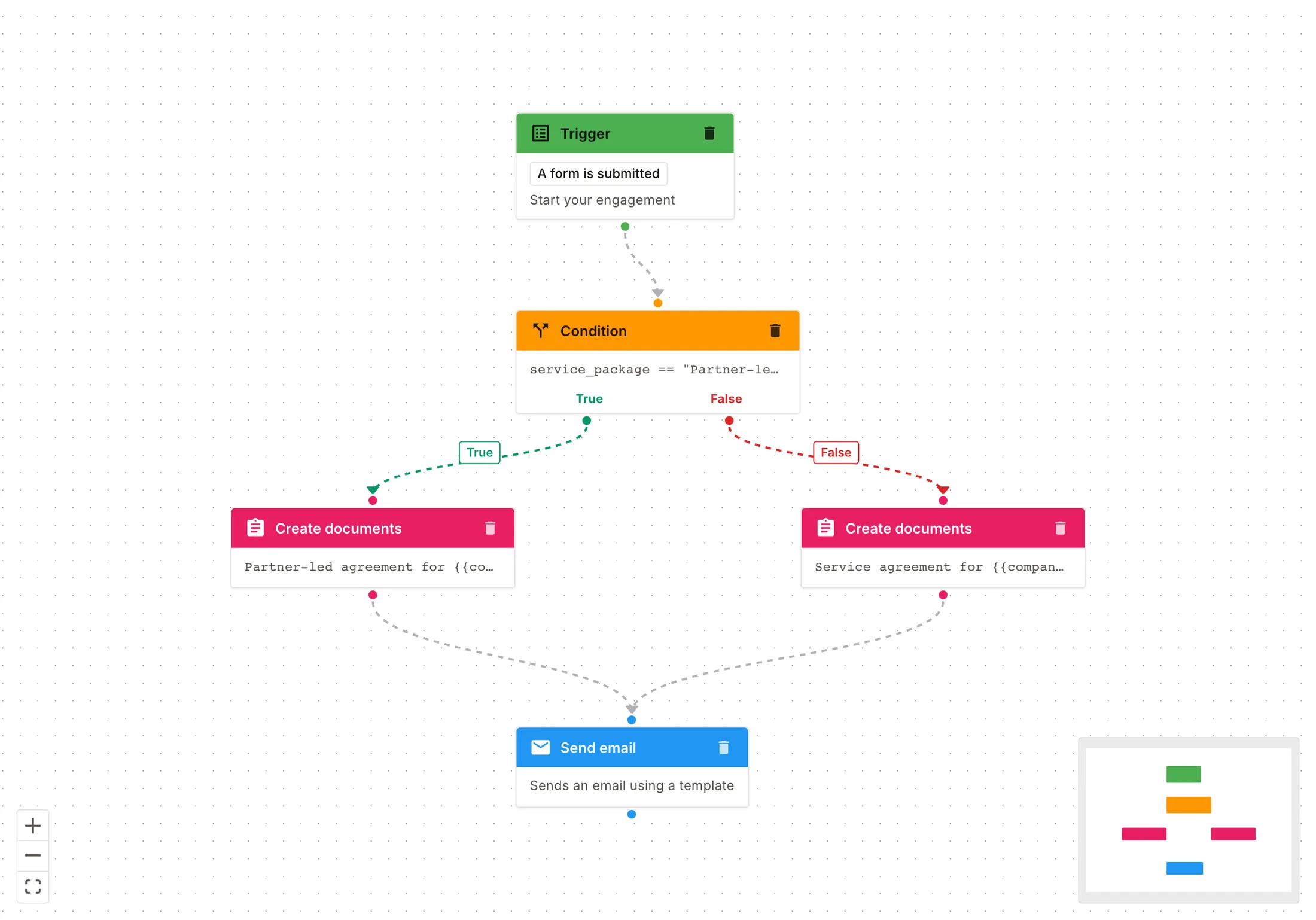
Here is what one looks like. Northbridge Advisory takes in new clients through a form. A client who chooses the Partner-led package gets an agreement a partner countersigns, so the workflow splits there, and every client gets the same email at the end.
What can start a workflow
Section titled “What can start a workflow”| Trigger | When it fires | A typical use |
|---|---|---|
| A form is submitted | Someone sends a form, or a submission is edited | Client onboarding, invoice requests |
| An interactive document is filled in | Someone sends an interactive document, or a submission is edited | A consent filled in on the web |
| A document is generated | A template produces a document | File each certificate as it is made |
| Recurring | Again and again, at times you set | A Monday reminder, a nightly report |
| A party’s turn begins | It becomes a party’s turn to sign | Send the signing link by text message yourself |
| A party opens the documents | A party opens the package for the first time | Tell the account manager the client has looked |
| An approver approves the package | An approver lets the package through | Let the sales team know the offer is cleared |
| An approver rejects the package | An approver stops the package, with a reason | Send the author the approver’s reason |
| A party signs | One party signs | Tell the partner the client has signed |
| A party pays | A party who pays as part of signing has paid | Send the client the receipt and the next steps |
| A party’s payment fails | A party’s payment is still unpaid after 24 hours | Ask the account manager to call the client |
| A party declines to sign | A party refuses to sign | Alert the account manager |
| The package is fully signed | Every party of a package has signed | Archive the signed NDA |
| The package expires | The package’s last open document runs out of time | Ask the client whether to send it again |
| The package is voided | Someone voids the package | Note it in the contracts spreadsheet |
| A contract changes | A change of a contract takes effect, its term is changed, or it renews | Tell billing the new end date |
| A contract is ending soon | A contract enters its warning period before the end | Send the client an extension to sign |
| A contract ends | A contract’s last day in force has passed | Close the client’s account in your other systems |
| A contact is saved | A contact is created or changed | Copy new clients to a spreadsheet |
| A CRM deal changes stage or status | A deal in your CRM moves to another stage, or is won or lost | Send the contract once the deal is won in Pipedrive |
| A CRM person is saved | A person is created or changed in your CRM | Copy the person to your Doxtly contacts |
| A payment succeeds | The payer has paid for a form | Send the participant the workshop details |
| A payment fails | The time to pay ran out without a payment | Invite the visitor to sign up again |
| A payment is refunded | A refund reaches the payer, in full or in part | Let your accounting team know |
| A quiz attempt is started | Somebody starts a quiz | Tell the trainer who has begun |
| A quiz attempt is finished | An attempt is sent and scored | Send a certificate to everyone who passed |
| A quiz attempt needs grading | An attempt’s open answers wait for somebody to grade them | Tell the trainer there are answers to mark |
| A quiz result is released | The person is shown their result | Send the result to the person’s manager |
| A quiz closes | The quiz reaches its close date or its response limit | Email the trainer the results |
| A quiz recipient does not respond | An invitation’s deadline passes without the person’s answer | Add a follow-up call in the CRM |
| A quiz attempt is regraded | A finished attempt’s score, pass or grade changes | Correct the person’s row in the results sheet |
| A survey response is started | Somebody starts responding to a survey | Note who has begun the client survey |
| A survey response is submitted | Somebody sends a response to a survey | Tell the account team about an unhappy client |
| A survey recipient does not respond | An invitation’s deadline passes without the person’s response | Ask the account manager to call the client |
| A survey closes | The survey reaches its close date or its response limit | Email the team the closing summary |
| A survey quota is full | One of the survey’s quotas has all the responses it takes | Tell the researcher a group is complete |
| Webhook request | Another system calls your webhook address | A new order in your shop |
Each one has its own page under Triggers. Everything a workflow can do after that is under Nodes.
How a run works
Section titled “How a run works”- The event happens. Doxtly looks for every active workflow whose trigger waits for exactly that event. A form can start several workflows, and each gets a run of its own.
- The run takes a copy of the workflow as it stands at that moment, along with the event’s data: the form’s answers, its files, the link parameters.
- Doxtly carries out one node at a time, following the connections. Each node can read what came before and add something for the nodes after it. Data and variables explains how.
- At a Condition or a Switch, the run takes one path. Some other steps can branch too, such as a spreadsheet lookup that found nothing. There is one run going down one path, never two at once.
- The run ends when it reaches a node with nothing connected after it. If a step fails, the run stops there and says why.
Runs happen in the background, so the person who sent the form does not wait for them. The one exception is a Create documents step with Allow immediate signing on, which takes the person straight from the form to the signing page. Every run is recorded on the Executions tab, step by step.
A run gets at most 5 minutes and passes through at most 100 steps. With Allow immediate signing, where somebody is sitting there waiting, it gets 90 seconds. Executions explains what you see when a run hits one of these limits.
The Automation page
Section titled “The Automation page”Open Automation in the sidebar. The page has three tabs:
- Workflows, the list described below.
- Executions, the history of runs. See Executions.
- Categories, the groups you sort workflows into. See Categories.
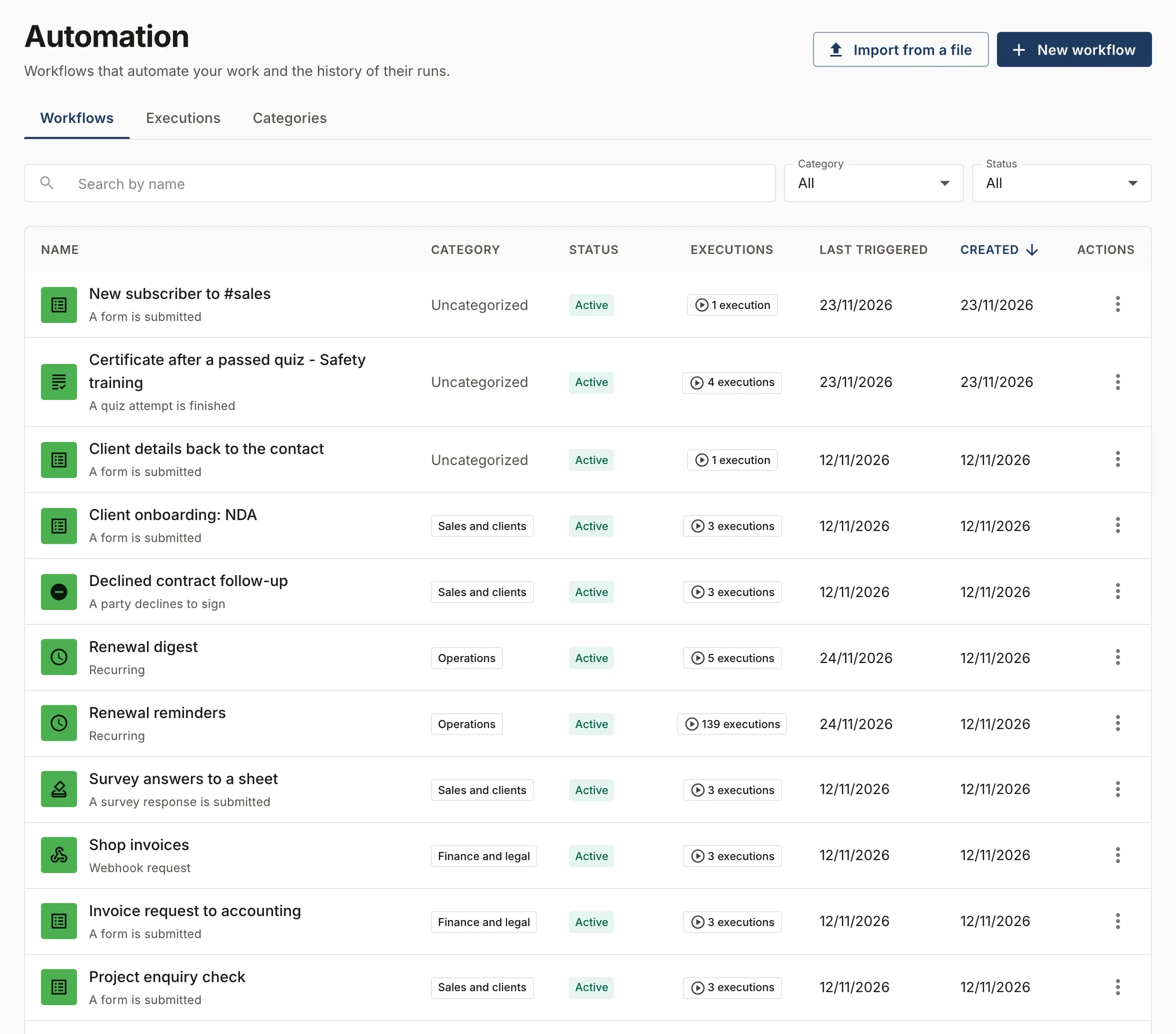
The list covers the whole organization, newest first, 25 workflows to a page. Until you make the first one, it shows No workflows. If you may build workflows and your plan has room, there is a New workflow button in it too.

Columns
Section titled “Columns”| Column | What it tells you |
|---|---|
| Name | The workflow’s name. Under it, what starts it, or No trigger. The icon on the left shows the trigger at a glance. |
| Category | The category it is in, or Uncategorized. |
| Status | Active or Inactive. |
| Executions | How many runs it has had. |
| Last triggered | When it last ran. |
| Created | When it was made. |
| Actions | The row’s menu. |
Click Name or Status to sort by that column, click again to reverse the order, and a third time to go back to newest first. Created turns between oldest and newest first. Clicking a row opens the workflow in the designer, provided you have Manage workflows.
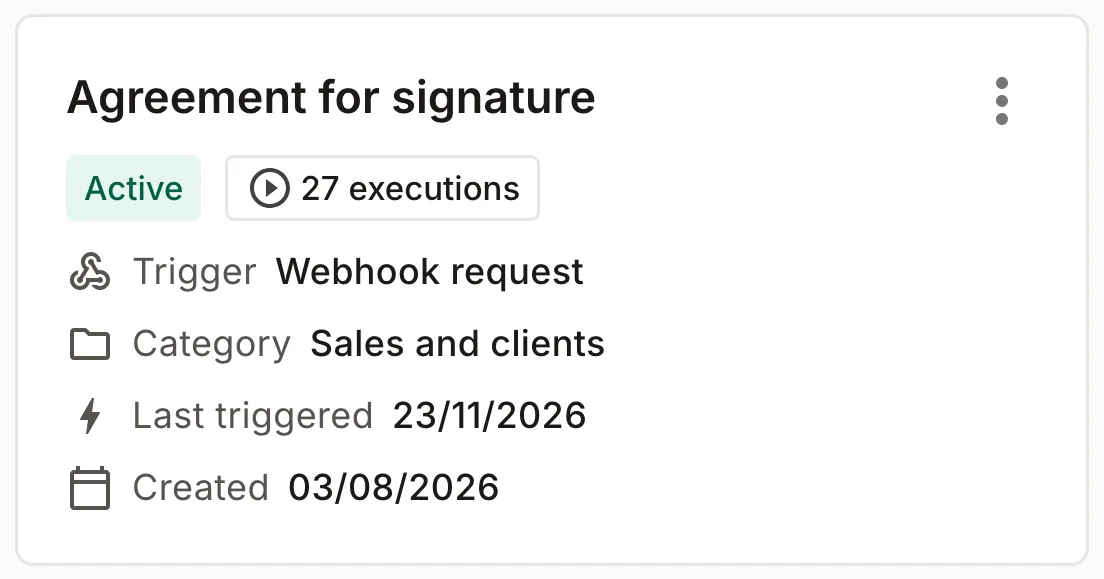
On a phone, each workflow is a card with the same information.
Filters
Section titled “Filters”| Filter | Options |
|---|---|
| Search by name | Part of the workflow’s name. |
| Category | All, Uncategorized, or one of your categories. |
| Status | All, Active, Inactive. |
Each active filter shows as a chip you can remove on its own, and Clear all removes them together. The filters live in the page address, so you can bookmark a view, such as every inactive workflow in “Client onboarding”, or send it to a colleague.

If nothing matches, the list shows No results with a Clear all filters button.
The row menu
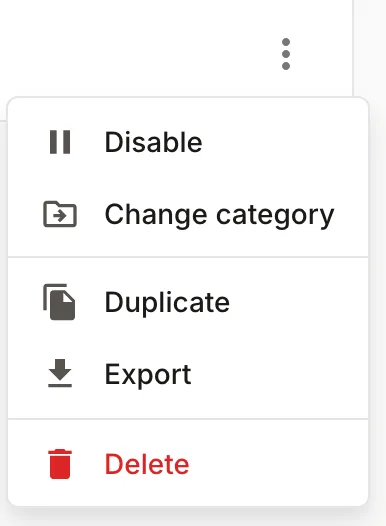
Section titled “The row menu”The three dots at the end of a row hold what changes the workflow. People without Manage workflows see no menu.
| Item | What it does |
|---|---|
| Enable / Disable | Switches the workflow on or off at once, without opening it. |
| Change category | Moves it to another category, or to none. See Categories. |
| Duplicate | Makes an inactive copy in the same category. See Duplicating a workflow. Greyed out, with an explanation, at your plan’s limit. |
| Export | Saves it as a JSON file to import in this organization or another. If your organization has a cloud drive connected and your role may change its files, you choose Download to this device or Save to a cloud drive. See Import and export. |
| Delete | Deletes it, after you confirm. |
Switching a workflow on and off
Section titled “Switching a workflow on and off”Only an Active workflow reacts to events. Set one to Inactive and forms, recurring times, signatures and webhooks no longer start it. Nothing else changes: the form keeps taking submissions, it just does not lead anywhere. Events that happen while a workflow is off are not picked up later when you switch it back on.
You can switch from two places: the row menu, or the Active toggle at the top of the designer. The toggle takes effect when you save.
Use it when you want to:
- pause the emails to clients during a holiday closure;
- rebuild a workflow without it firing halfway through;
- keep a workflow’s history without letting it run.
A new workflow starts as Active, so it goes live the moment you create it. If you are not ready, turn the toggle off before you click Create.
A workflow listening to a webhook also depends on that webhook being on. If someone switches the webhook off, the workflow stays Active but nothing starts it, and its trigger on the canvas says Webhook switched off — the workflow will not run. A webhook that is off can’t be chosen for a new trigger either.
Versions and changes
Section titled “Versions and changes”Doxtly keeps no earlier versions of a workflow. Save replaces what was there, and you cannot go back to last Tuesday’s version. What you do get:
- Undo and Redo while you edit, up to the moment you save. See the designer.
- A record of what happened: each run on the Executions tab shows the steps it actually took.
So before a large rebuild of something important, note down the settings that took you a while to get right.
Duplicating a workflow
Section titled “Duplicating a workflow”To try a change without touching the workflow that runs, or to build a second one like it for another form, use Duplicate in the row menu. A short dialog asks for the copy’s name, filled in as the original’s with “ (copy)” at the end; change it or keep it, and press Duplicate or Enter. The copy then opens in the designer.
The copy has the original’s description, category and steps, with the same trigger. The secure headers of its webhook steps and the passwords of the documents it generates come along too, so nothing has to be typed again. Its runs are the original’s, so Executions shows none for the copy.
It stays Inactive until you switch it on. Look it over first: while both are active, the same submission, signature or webhook call starts both, and both send their emails. To have the copy react to something else, change its trigger, for example to the copy of a form.
A copy counts towards your plan’s limit of workflows. At the limit, Duplicate is greyed out, and hovering over it tells you why. To move a workflow to another organization, export it instead.
Deleting a workflow
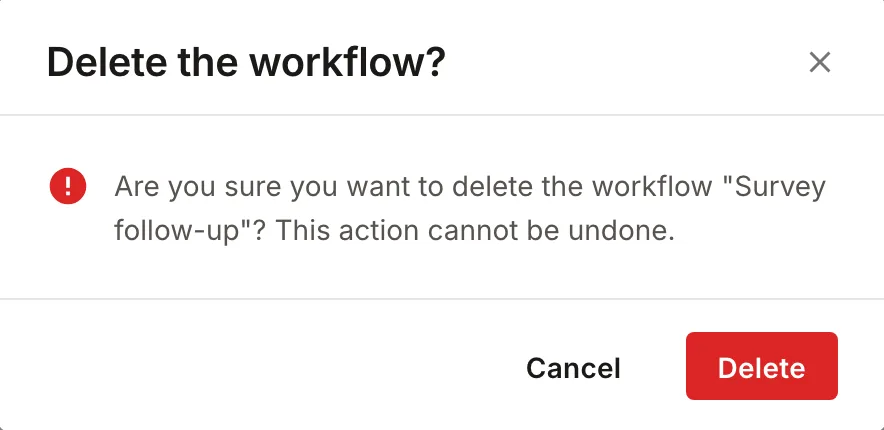
Section titled “Deleting a workflow”Delete asks once, naming the workflow, and cannot be undone.
| What happens to | Result |
|---|---|
| The workflow | Gone. |
| Its runs and their step records | Deleted with it. They disappear from Executions. |
| Documents and packages its runs created | Kept. They stay where they are. |
| Forms, templates and webhooks it used | Untouched. |
If you might want the history, Disable it instead.
Deleting what a workflow uses
Section titled “Deleting what a workflow uses”A workflow names what it works with: the form or survey its trigger listens to, the template a step fills, the email template a party’s message is written from, the department a party is picked from. Deleting one of these would leave the workflow failing, or never starting again, with nobody told why. So Doxtly refuses it, inactive workflows included:
- web forms, interactive documents, quizzes and surveys;
- email and text message templates, and file templates;
- document types, incoming webhooks, companies, contact types and departments.
The delete dialog asks first and shows Used by, with each workflow linked, opening in a new tab, and the portals that link to the record. While a workflow uses it, Delete is greyed out: change the workflow’s trigger or step, or delete the workflow, then come back. People who may not look at workflows see how many there are, not which. The API refuses in the same way, with 409 and the workflows listed.
The workflows a form’s, a quiz’s or a survey’s Keep in a spreadsheet made exist only for it, so they don’t refuse its deletion: the dialog lists them under Also removed, says the spreadsheet stays in the drive, and Delete removes them with the form, quiz or survey in one go. Any other workflow that names it still refuses.
Plan limits
Section titled “Plan limits”Your plan sets how many workflows your organization can have. Every workflow counts, active or not. At the limit, New workflow and Duplicate are greyed out and their tooltip reads Subscription limit reached. Upgrade your plan to add more workflows. Your existing workflows keep working and you can still edit them. Deleting one frees a place.
Runs have an allowance for each billing period as well. A run counts once a step after its trigger has finished, even if a later step fails. A run that fails on its first step costs you nothing. When your plan has no runs left, new runs stop before their first step and appear on Executions as failed, Rerun is disabled, and a Feature limit exceeded notification goes out. Plans and limits has the numbers.
Workflows that start one another
Section titled “Workflows that start one another”One workflow can set off another. The document it generates can be the trigger of a second one, whose signed package starts a third. That is a good way to keep each workflow small: Northbridge has one workflow that sends the NDA, one that files it once signed and one that alerts the account manager if the client declines.
Doxtly stops a chain that runs away, such as a workflow that generates the very document that triggers it. A chain can go 10 workflows deep and start 100 runs in all. A run past either limit is refused and appears on Executions as a failed run that says why. The count carries on when a Webhook step calls one of your own webhooks or forms, as long as the call comes back within an hour.