

Recurring reminders
Certificates expire, contracts come up for renewal, invoices wait to be paid. Keep the dates in a spreadsheet and let a recurring workflow watch them. A workflow has no “for each row” step, so there are two good ways to do it: one email to your team listing everything due, or one personal email per client, handled one row at a time.
Available when: an active cloud storage integration, such as Google Drive, and an active email integration
What you need
Section titled “What you need”A sheet on your drive, here Clients/renewals.xlsx. Remind on is the date to send the reminder, and Reminded stays empty until it’s done:
| Client | Renewal | Remind on | Reminded | |
|---|---|---|---|---|
| Halden Logistics | ops@halden.example | 2026-12-15 | 2026-12-01 | |
| Brightwater Clinic | office@brightwater.example | 2026-12-20 | 2026-12-06 |
A daily digest for your team
Section titled “A daily digest for your team”One run a day, and one email with the whole list. This is the one to start with.
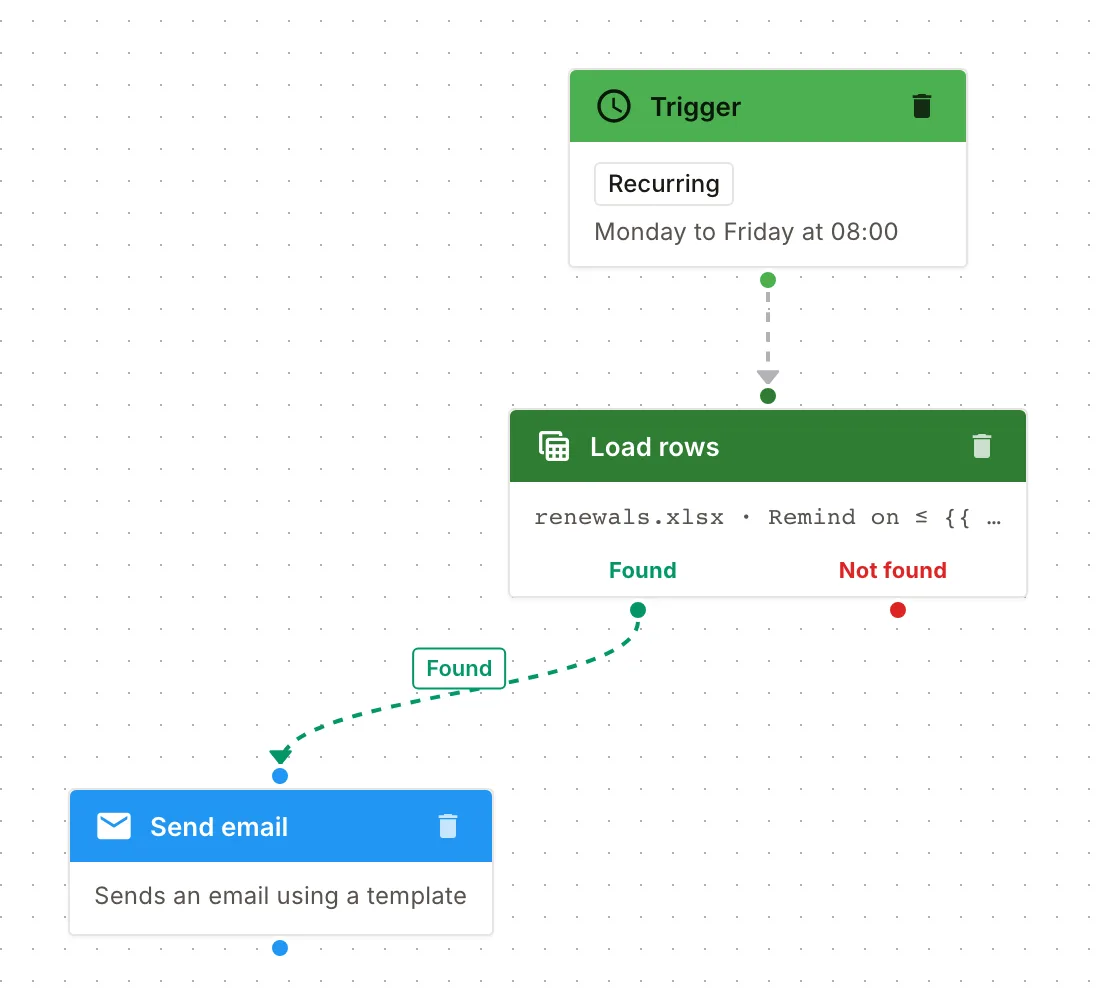
-
Create a workflow. Set Starts on to Recurring and Frequency to
0 8 * * 1-5, which means eight o’clock on working days in your organization’s time zone. -
From Spreadsheets, drop Load rows and connect it. On File, set Read from to Cloud file, then the Storage and the File path.
-
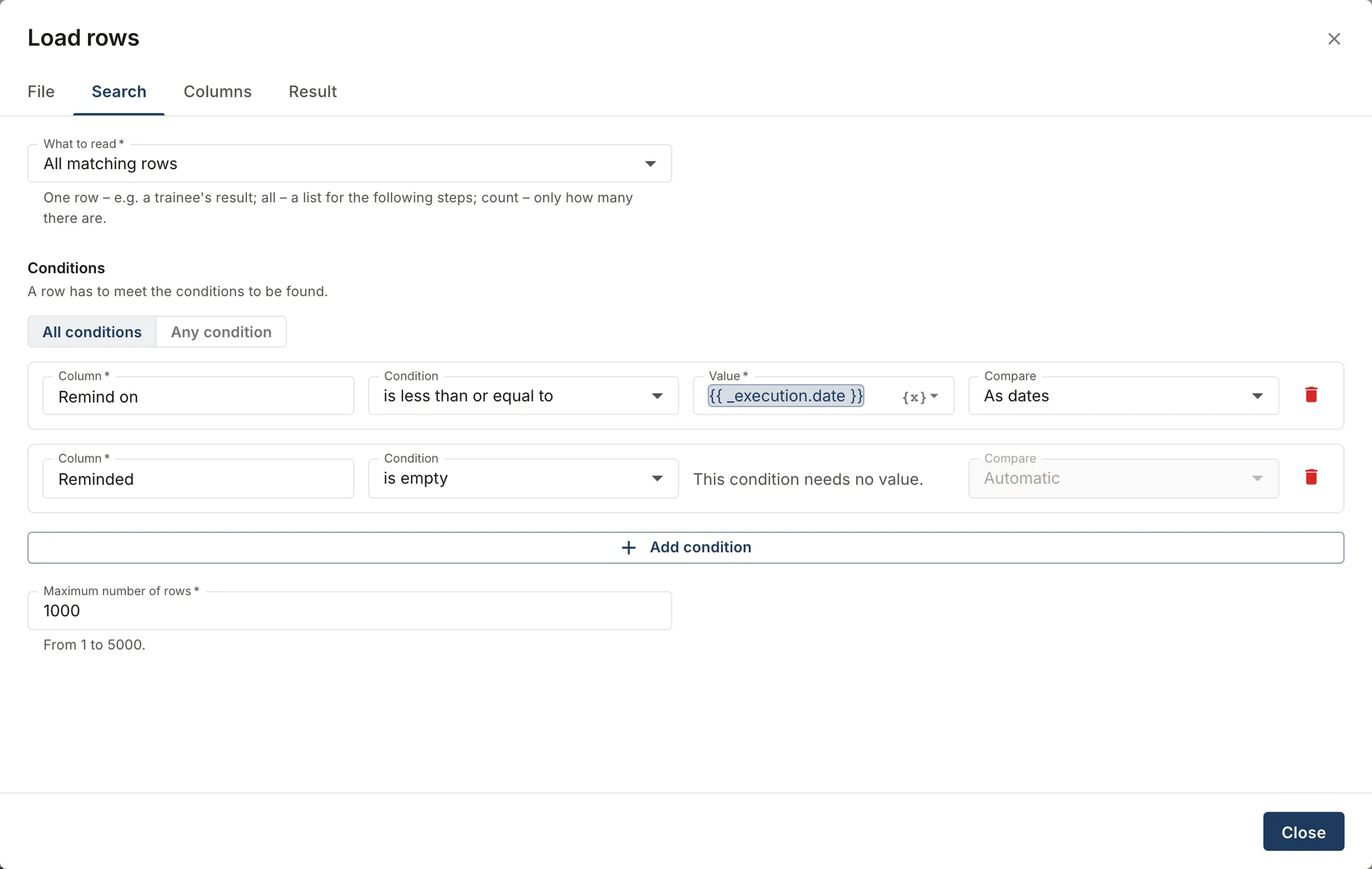
On Search, add two Conditions:
Remind onis less than or equal to{{ _execution.date }}with Compare set to As dates, andRemindedis empty. Keep All conditions. -
On Result, set Store the result as to
due, and If nothing is found to Branch: Found / Not found. This step starts on Continue, which would send an empty email on a quiet day. It reads up to 1000 rows unless you change Maximum number of rows on Search (the most is 5000). -
From Found, add Send email to your office address. In the email template, print the list, with a Loop block or straight in the text:
{% for row in due.displayRows %}{{ row.client }}: renewal on {{ row.renewal }}{% endfor %} -
Leave Not found unconnected. On a quiet day the run ends without an email.
-
Save and switch it on.
To stop a row coming up again, add Write to a sheet after the email, on the same file. On Columns, set Rows to write to A row for each list item, pick the list due.rows, and add the columns Client with {{ item.client }} and Reminded with {{ _execution.date }}. On Search, choose Yes – by a key column, set Client under Key columns, and set If there is no such row to Skip it and go on. The key has to be unique: if a client has two renewals in the sheet, key on a contract number instead.
A personal reminder for each client
Section titled “A personal reminder for each client”Here each run takes one due row, marks it and emails that client. Run it often enough to get through the day’s list.
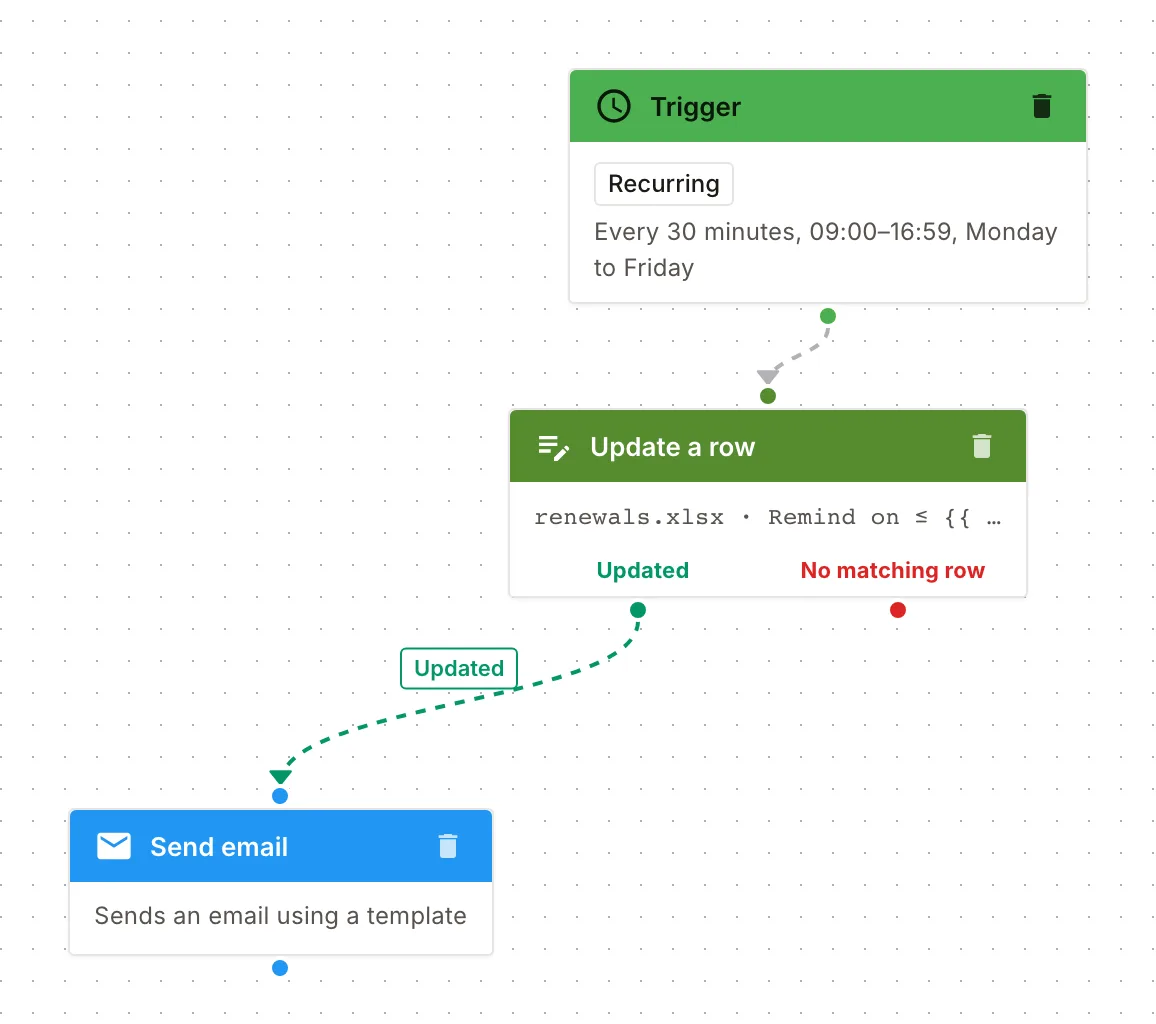
-
Create a workflow with a Recurring trigger and the Frequency
*/30 9-16 * * 1-5: every half hour from nine to just before five on working days. -
Drop Write to a sheet and point it at the same file.
-
On Columns, add
Remindedwith{{ _execution.date }}. -
On Search, set Look for an existing row first? to Yes – by conditions. Under Which row to update, use the same two conditions as above.
-
Set If several rows match to Change the first, and If there is no such row to Take the “No matching row” output.
-
On Advanced, set Store the result as to
claim. -
From Updated, add Send email with Recipient email address
{{ claim.row.email }}. The template can use{{ claim.row.client }}and{{ claim.row.renewal }}. -
Leave No matching row unconnected, then save and switch it on.
That timetable handles up to 16 clients a day. Use Send SMS with {{ claim.row.phone }} instead if you keep phone numbers.
Check the run
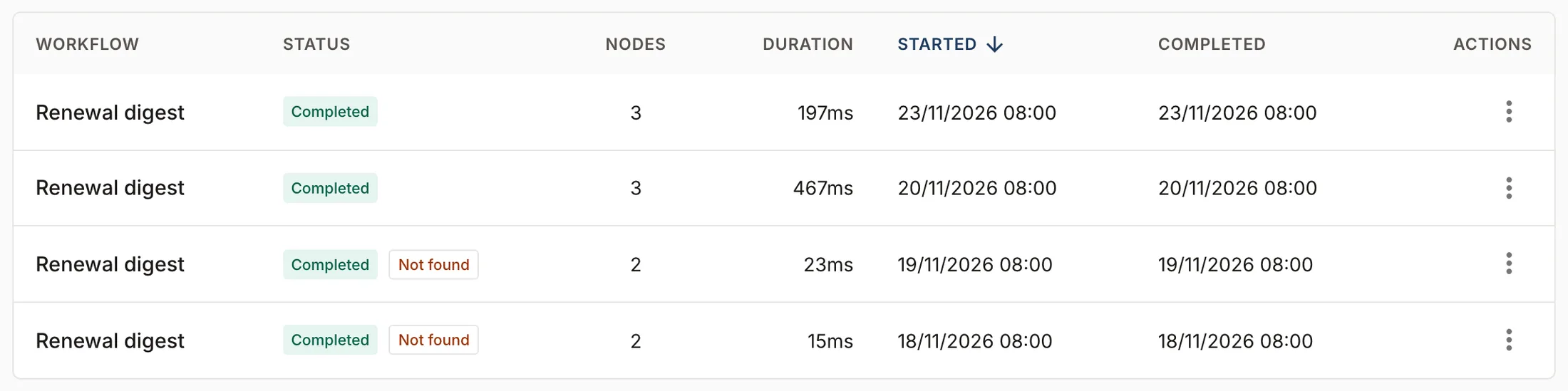
Section titled “Check the run”A quiet day’s run shows a Not found or No matching row chip in the list. That is normal for these workflows, so the outcome filter helps you find the days something was sent. The frequency also shows on the trigger’s card, so you can check which timetable a run came from.
- If an email failed and you want to resend it, clear the Reminded cell. The next run picks up that row.
- A formula can work out Remind on for you, for example the renewal date minus 14 days. The step writes only to Reminded. Keep formulas out of the columns you write to: in an Excel file, a write aimed at a formula cell stops the step with an error and changes nothing.
- A recurring workflow runs only while it is switched on.