

Archive after signature
A signed contract belongs in your client’s folder, not in somebody’s downloads. This workflow waits for the last signature, then files the sealed documents on your drive, adds a line to a register, and sends the client a copy. It works for every package of a type, whichever workflow created it.
Available when: an active cloud storage integration, such as Google Drive; an active email integration for the copy to the client
What it looks like
Section titled “What it looks like”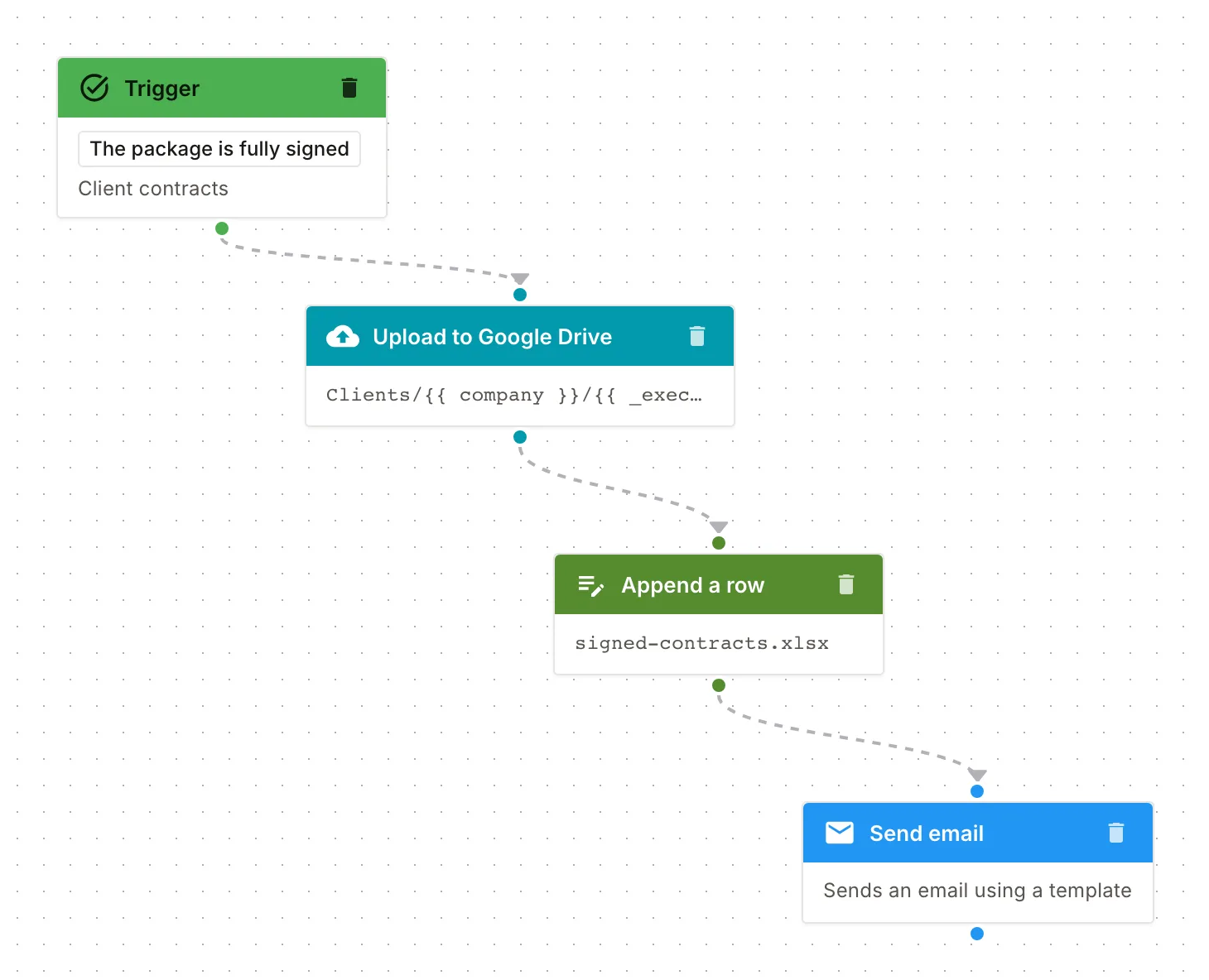
What you need
Section titled “What you need”A document type, here “Client contracts”, and a workflow that creates packages of that type, such as Contract from a form. The file and the folders can wait: the steps create them.
Build it
Section titled “Build it”-
Create a workflow. Set Starts on to Document package, When to The package is fully signed and Trigger source to “Client contracts”.
-
From Cloud files in the palette, drop Upload to Google Drive and connect it.
-
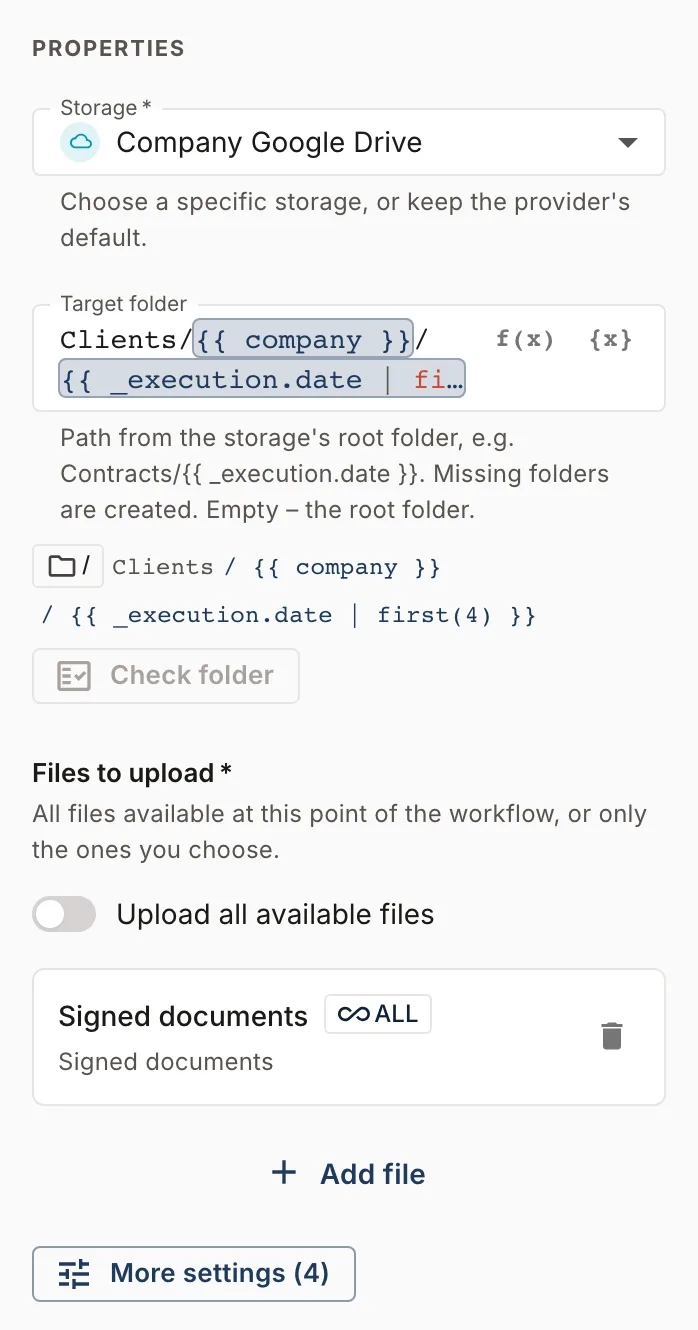
Set Target folder to
Clients/{{ company }}/{{ _execution.date | first(4) }}. Missing folders are created. -
Under Files to upload, choose Signed documents.
-
Click More settings and set If a file with this name exists to Skip the file, so a rerun doesn’t make copies.
-
Add Write to a sheet. On File, set Write to to Cloud file, then the Storage and the File path
Registers/signed-contracts.xlsx. On Columns, addPackagewith{{ _package.title }},Typewith{{ _package.type }},Clientwith{{ company }}andFiled onwith{{ _execution.date }}. -
Add Send email to
{{ client_email }}and, under Attachments, choose Signed documents. -
Save and switch it on.
Where the data comes from
Section titled “Where the data comes from”A package remembers the run that created it. So {{ company }} and {{ client_email }} here are the same form answers the first workflow got, and any value typed in during signing joins them. The variable picker lists them under Package data, gathered from the workflows that create packages of this type. It also offers Package for _package.title, _package.type and the like.
A value that a package doesn’t have stops the upload with an error rather than filing the document in the wrong folder. A value containing a slash can’t create a folder: the slash becomes _.
A package somebody sent by hand, rather than through a workflow, carries only the values entered in its documents. A field of its template, such as company, is there, but client_email, which only the form had, is not: such a run files the documents and adds the row, and Send email then fails with Could not work out the email recipient from the variables. Send the copy only from packages your workflow creates, or put the client’s address in a field of the template.
Check the run
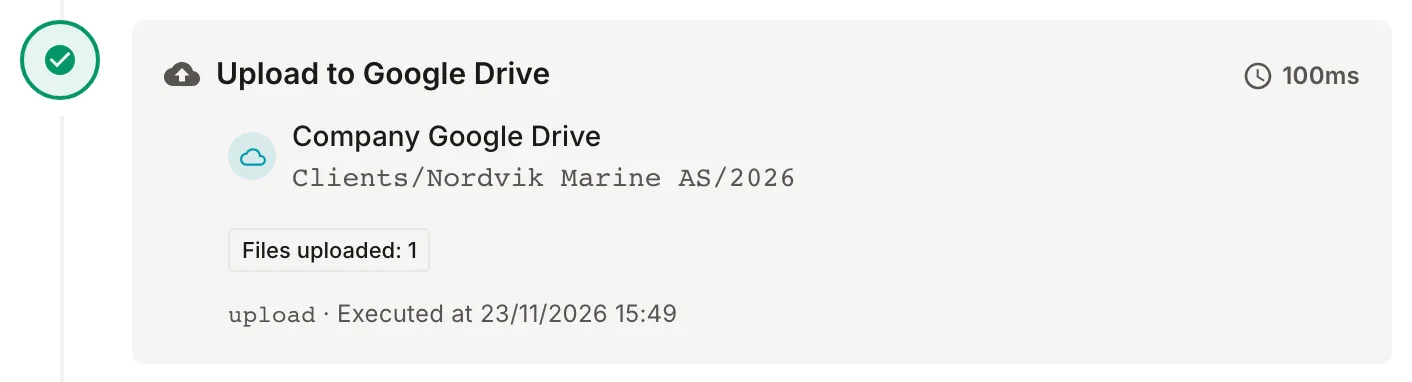
Section titled “Check the run”The Upload to Google Drive card shows the storage, the folder as you wrote it, and Files uploaded with the number of files, here 1 for the one signed agreement. On the Details tab, Document package links to the package.
Variations
Section titled “Variations”- Different folders per type. The trigger listens to one document type, so make one workflow per type. To sort packages of one type, put a Switch on a value they carry, such as a
service_linefield of the form, in front of several uploads. - Tell the partner when the client signs. Use a second workflow on A party signs, with Party indicator (optional) set to
CLIENTand a Send email. Its data holds_party.fullNameand_party.signedAt. - OneDrive, SharePoint, Dropbox or Box. The palette lists Upload to OneDrive, Upload to SharePoint, Upload to Dropbox and Upload to Box beside the Google Drive entry, each greyed out until that storage is connected. The settings are the same, apart from Convert to Google formats.
- Google formats. Under More settings, Convert to Google formats turns Excel, CSV, Word, PowerPoint and OpenDocument files into Google Sheets, Docs and Slides. It has nothing to do on signed PDFs, so leave it off.