

Package page
The package page is the full record of one signing package: who it went to, who has opened it, who has signed, and the files and evidence that came out of it. Come here to chase a late signer, to download the sealed contract, or to answer “can you prove she signed this?”.
Open it by clicking a row in the document list.
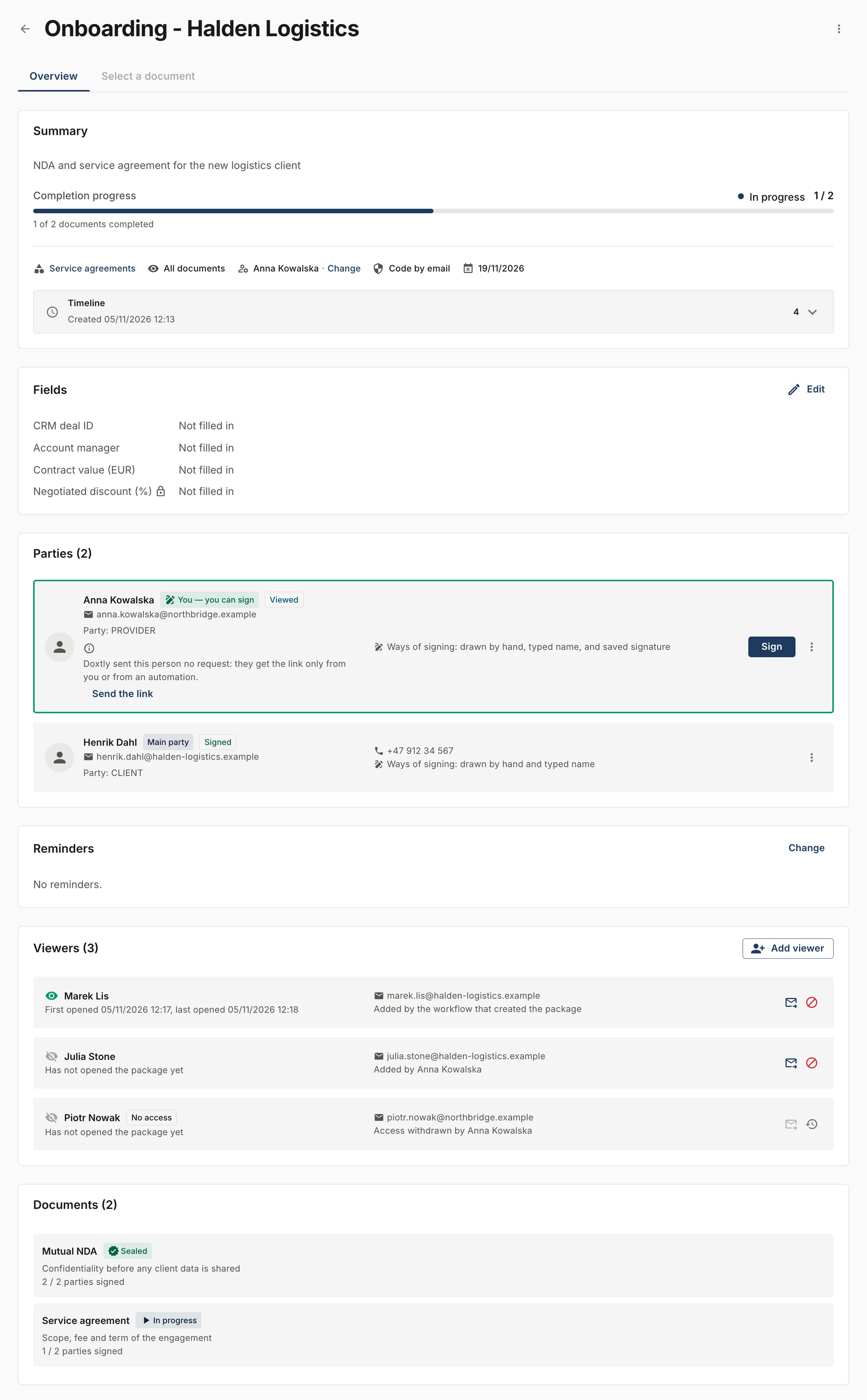
How the page is laid out
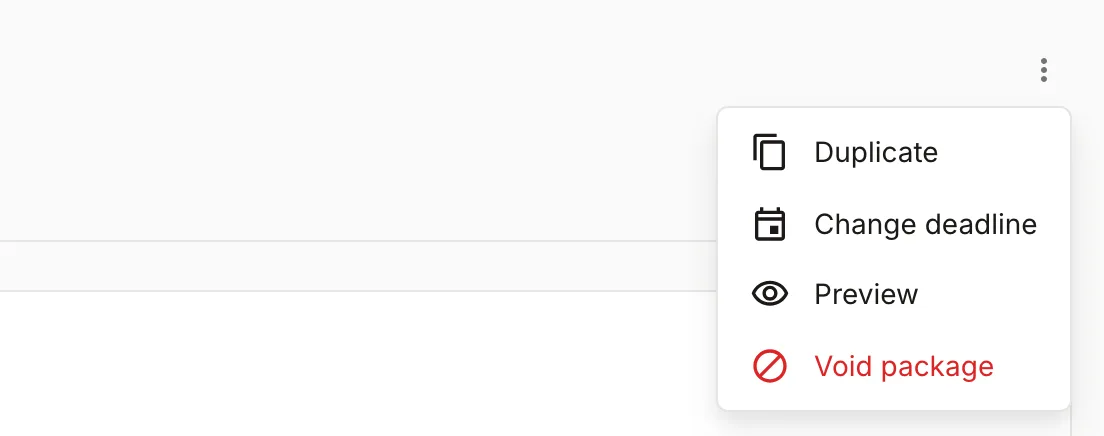
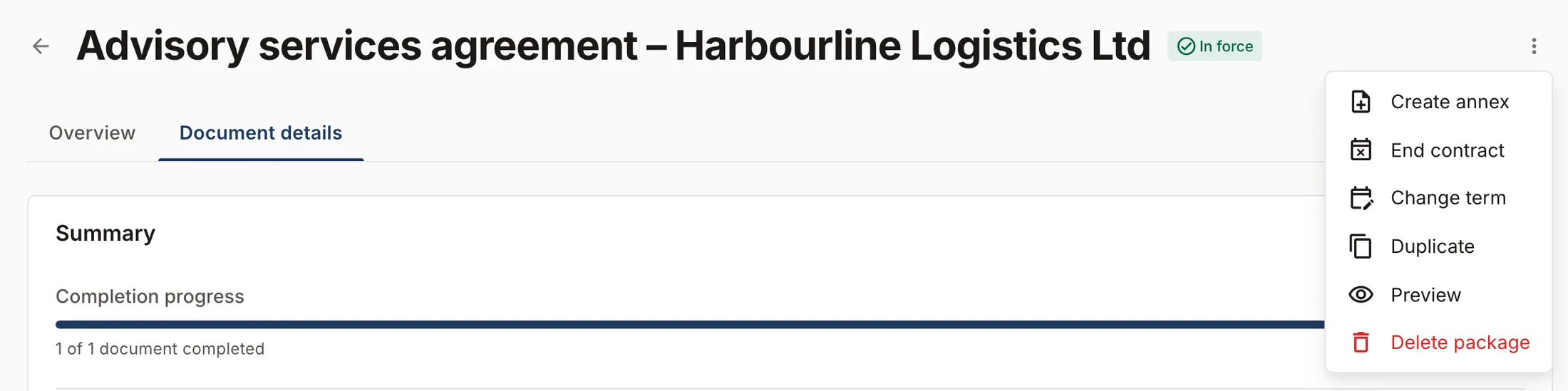
Section titled “How the page is laid out”The header has a back arrow to the list (on the page of a contract change, a link back to its contract above the title in its place), the package title and, if you may manage the package, a three-dot menu: Edit, Preview and Delete draft on a draft; on a contract, Create annex and End contract until it has ended, greyed out with Available once the contract is signed. while it is being signed, and Change term; Send again on a package that expired, was declined, not approved or voided, Duplicate always, Change deadline while something is open and the document type doesn’t fix the deadline, Void package while something is open, Preview to see it as one of its parties does, and Delete package once it is over.
Chips beside the title say what else the package is: a contract by where it stands, such as In force; a change of a contract by its kind, or by its number for an annex, such as Annex 2; and Signed outside Doxtly for a document recorded after it was signed elsewhere. A change of a contract also has a link with the contract’s title above its own, and its back arrow takes you to the contract rather than to the list.
Under the header are two tabs:
- Overview shows the package and the list of its documents.
- Document details shows one document in depth. Until you pick a document this tab reads Select a document and can’t be clicked.
A package with a single document skips the choice and opens straight on Document details. Going back to Overview lets go of the document, so to return you click it in the list. The summary, recipients and viewers stay on the page on both tabs, so the tab only changes what appears below them.
A draft
Section titled “A draft”A draft has sent nothing yet, so its page shows what it holds rather than what people did with it. Everything on it is read only: Edit draft in the summary’s heading opens the editor, where you change it.
- Sending reads Not sent where a sent package shows its progress. Under it is what still keeps the draft from going, the same reasons the editor shows beside Send: Fill in opens the editor on the tab and the row the reason is about, and +2 lists the rest. With nothing missing it reads The draft is ready to send. Somebody who may only view documents sees Draft – nothing has been sent. instead.
- Expires shows a deadline counted from sending as, say,
14 days after sending. Where the type numbers its packages, Number given on sending shows the number with today’s date and the counter still blank, such asUM/2026/11/____. - Parties lists each party with its address and role, the signature type and the verification it will be asked for, and In-person signing where set. A party sent separately to a list of people reads Separately to each person on the list (12). Approvers, the order of steps, Reminders and Viewers follow as they will go out.
- Documents lists each document with its segments and the parties it names. Click one to see it joined from its segments in the Doxtly viewer.
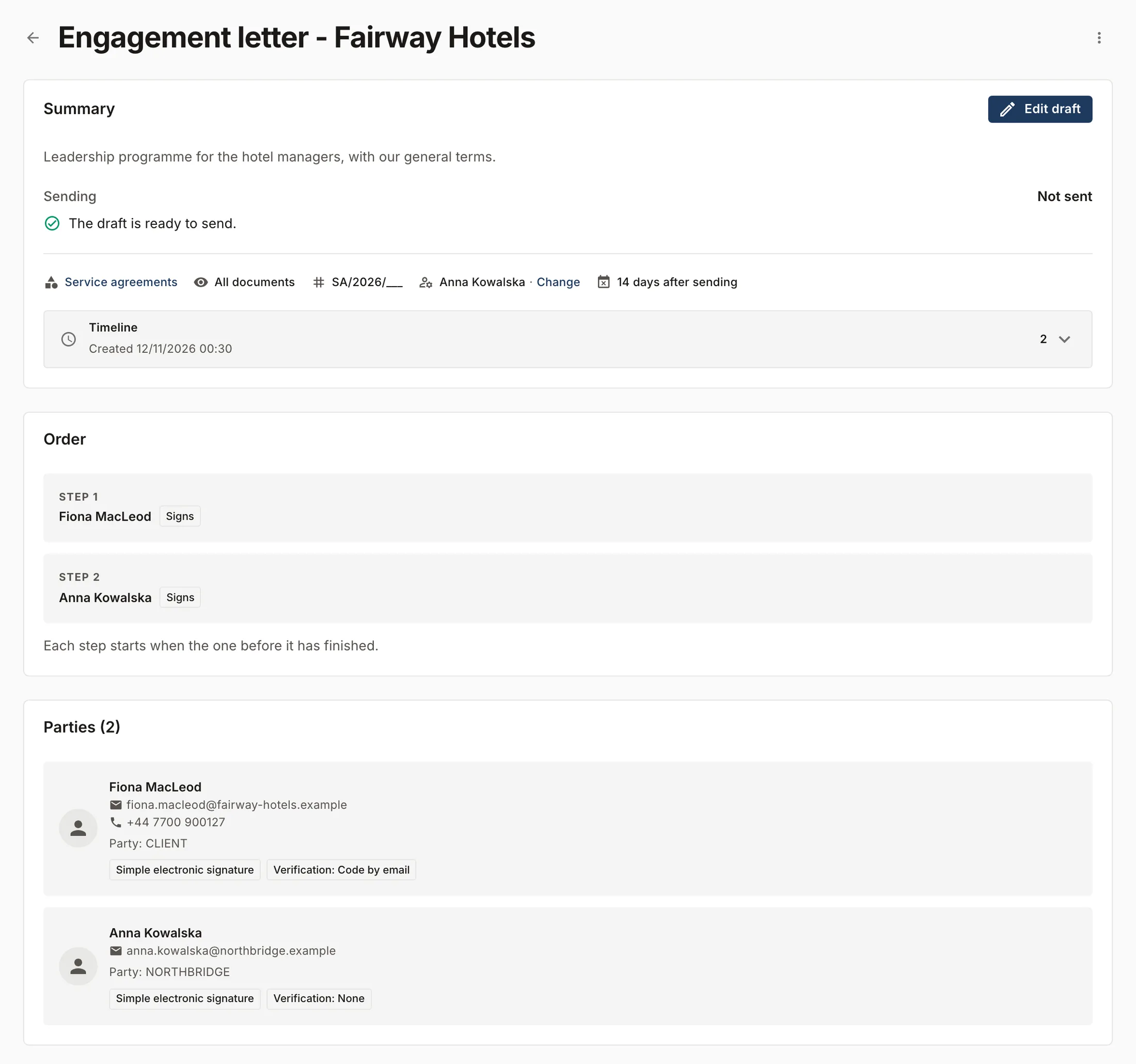
The page has no tabs, no signing links to send again, no voiding and no change of deadline: none of these means anything before sending. Delete draft removes it and takes you back to the list. A draft can’t be duplicated; copy a package once it has been sent.
What you see depends on who you are
Section titled “What you see depends on who you are”| You are | You get |
|---|---|
| Somebody whose role has View documents for this type (“staff” on the rest of this page) | Every document, all email addresses and phone numbers, and the full evidence in the audit log. |
| A recipient or somebody acting for one | Names without contact details. If the package’s visibility is Own documents only, you see only the documents that are yours to sign or fill in. In the audit log you see what happened and how it was confirmed, but not people’s IP addresses, browsers or positions, or the notes on an entry. |
| A viewer | The same names-only view, with every document of the package. |
Only people with Manage documents get the actions that change the package: voiding, sending links, and managing viewers. Being a party lets you sign or decline, and nothing else. Managing doesn’t make you a party either: someone who can void every package in the organization still can’t sign one unless they are named on it. See Roles.
Summary
Section titled “Summary”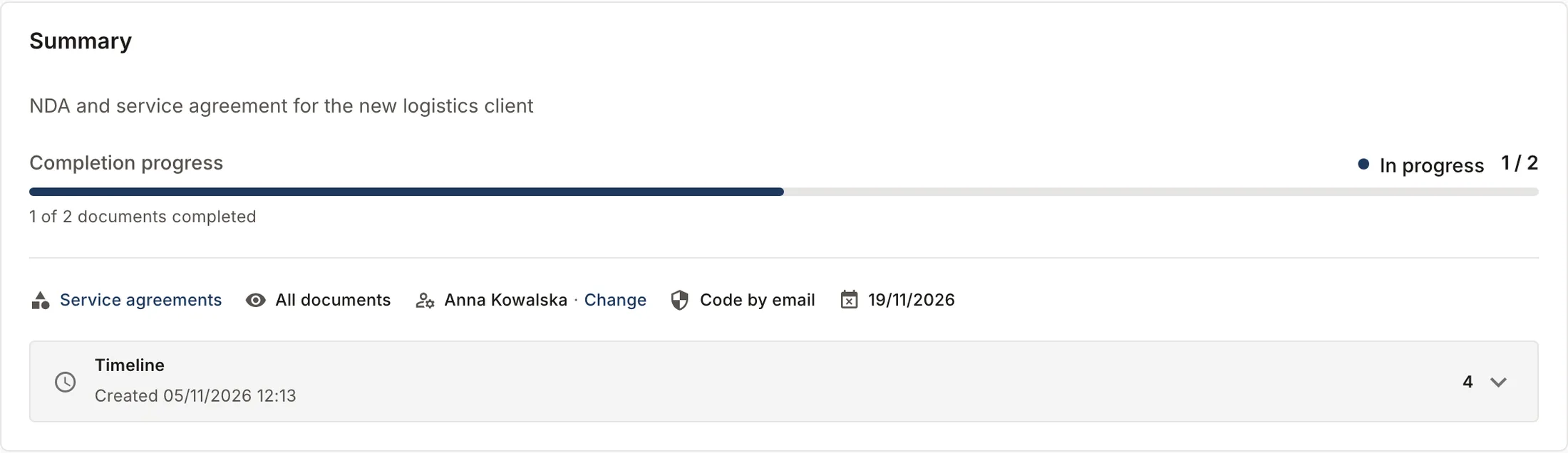
The card opens with the package’s description, if it has one, then Completion progress: the package’s status, as its row in the list gives it, and how many documents are finished, as a bar and as text like 1 of 2 documents completed. A document counts when it is sealed or has nothing left to do. A document nobody signs, such as an attachment, is left out of the count, unless nobody signs anything in the package. If you see only your own documents, the count covers those. A package that ended without being completed has no bar: the line says why signing stopped, as in Signing stopped: the package was voided., before the count.
Below that is a row of facts, each an icon and a value. Point at one, tap it or reach it with the Tab key to see its name.
| Fact | Meaning |
|---|---|
| Type | The document type. Click it to open the documents list filtered to that type. |
| Visibility | All documents: each recipient sees every document in the package. Own documents only: each recipient sees only what they sign or fill in. Useful when, say, each employee signs a personal annex that colleagues on the same package shouldn’t read. |
| Responsible | Who answers for the package, with Change: see Responsible person. |
| Verification | How the parties show who they are on top of their link, for example Code by email or Access password, when they all do it the same way; Varies by party when they do not. See Choosing how signers are checked. |
| Number | The number its type gave it when it was sent, where the type numbers its packages. A change of a contract takes none. It stays with the package whatever happens to it. |
| Expires | The package’s deadline, shown only if there is one. It turns red once it has passed. |
| Source | Workflow, for a package a workflow run created. If your role may view workflows it links to that run, which helps when you need to know why a package went out. Everyone else sees the words without the link. |
Fields
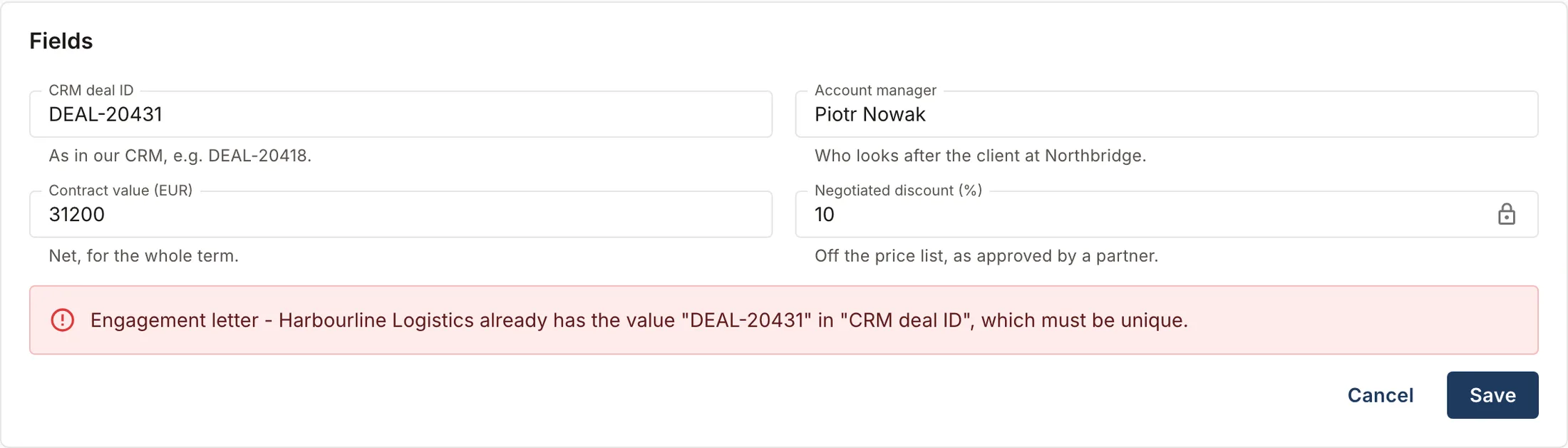
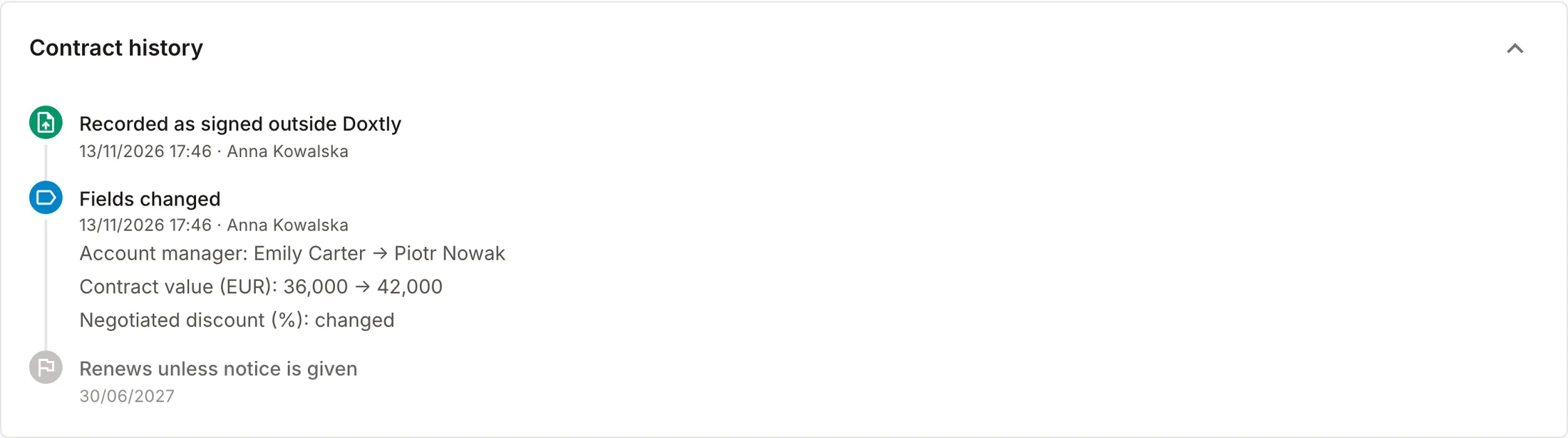
Section titled “Fields”The Fields card lists the package’s custom fields, those its document type has, with their values, or Not filled in. A sensitive value is masked; with View sensitive values, Show sensitive reveals it. Whoever may manage the package changes the values with Edit, also after it was sent: the fields are your organization’s data about the package, not what was signed, so the audit trail stays as it is. On a contract, every change goes into the contract history as Fields changed, with each value before and after; a sensitive one only as changed. A draft’s values are changed in the editor.

Edit turns the card into fields. A unique value that another package already holds is refused, with a message naming that package:
On a contract, the change then shows in its history:
Responsible person
Section titled “Responsible person”Responsible names the one person who answers for the package: the person who made it, unless someone else was chosen, by whoever built the workflow step or through the API. A package made by a workflow step that names nobody goes to the organization’s longest-standing administrator. They get the notifications about it, when it is refused, not approved, finished, expired or a request to sign is not delivered, and parties’ replies go to them.
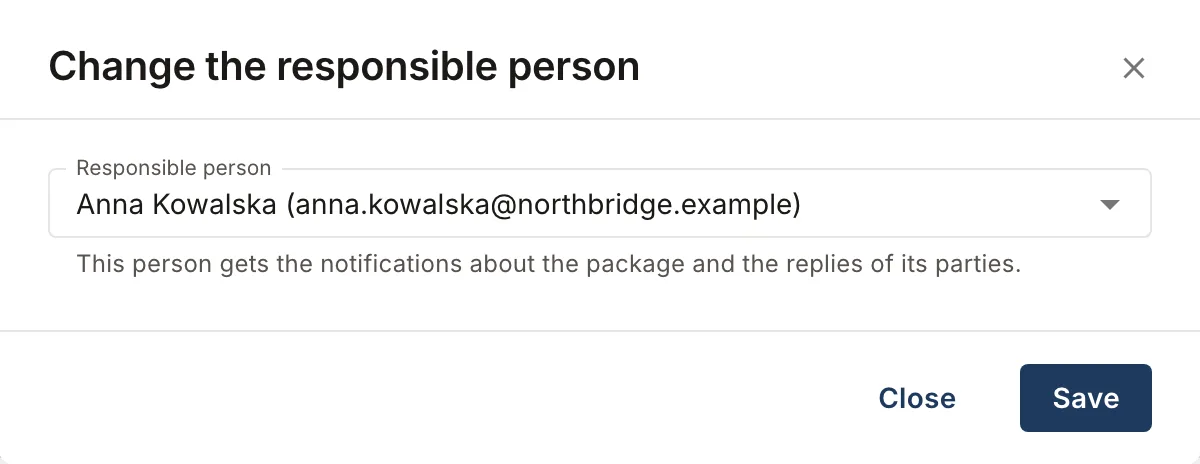
With the Manage documents permission, press Change beside the name and pick anyone who can read documents of the package’s type in Change the responsible person, then Save. To change it for many packages at once, use the bar on the list.
A package that has ended without being completed (voided, declined, not approved or expired) offers no Change. The change is recorded in the audit log. A package nobody made and nobody was given shows Not set.
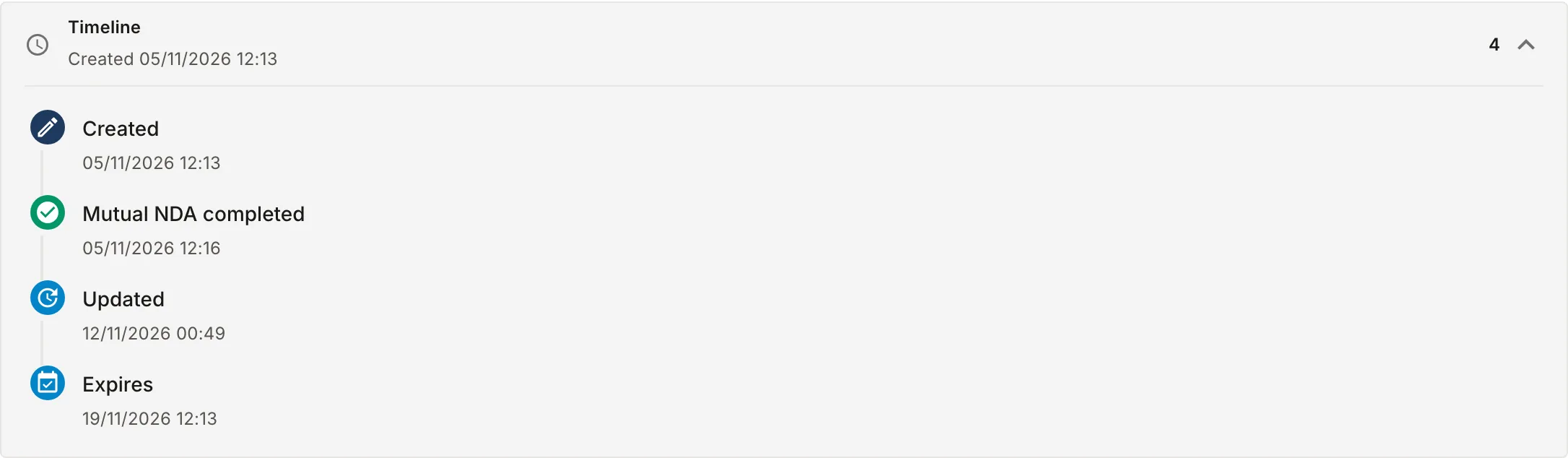
Timeline
Section titled “Timeline”Timeline is folded by default. Its heading gives the creation date, and the completion date once the package is Completed or the date it was voided once it is Voided, with the number of events in a chip. Open it to see them in date order:
- Created
- Updated, when the package has changed since it was created, for example a new responsible person
- one line for each finished document, such as
NDA completed, or Document completed when the package has one document - Package voided, when it was voided
- Expires, when there is a deadline
Contracts and their changes
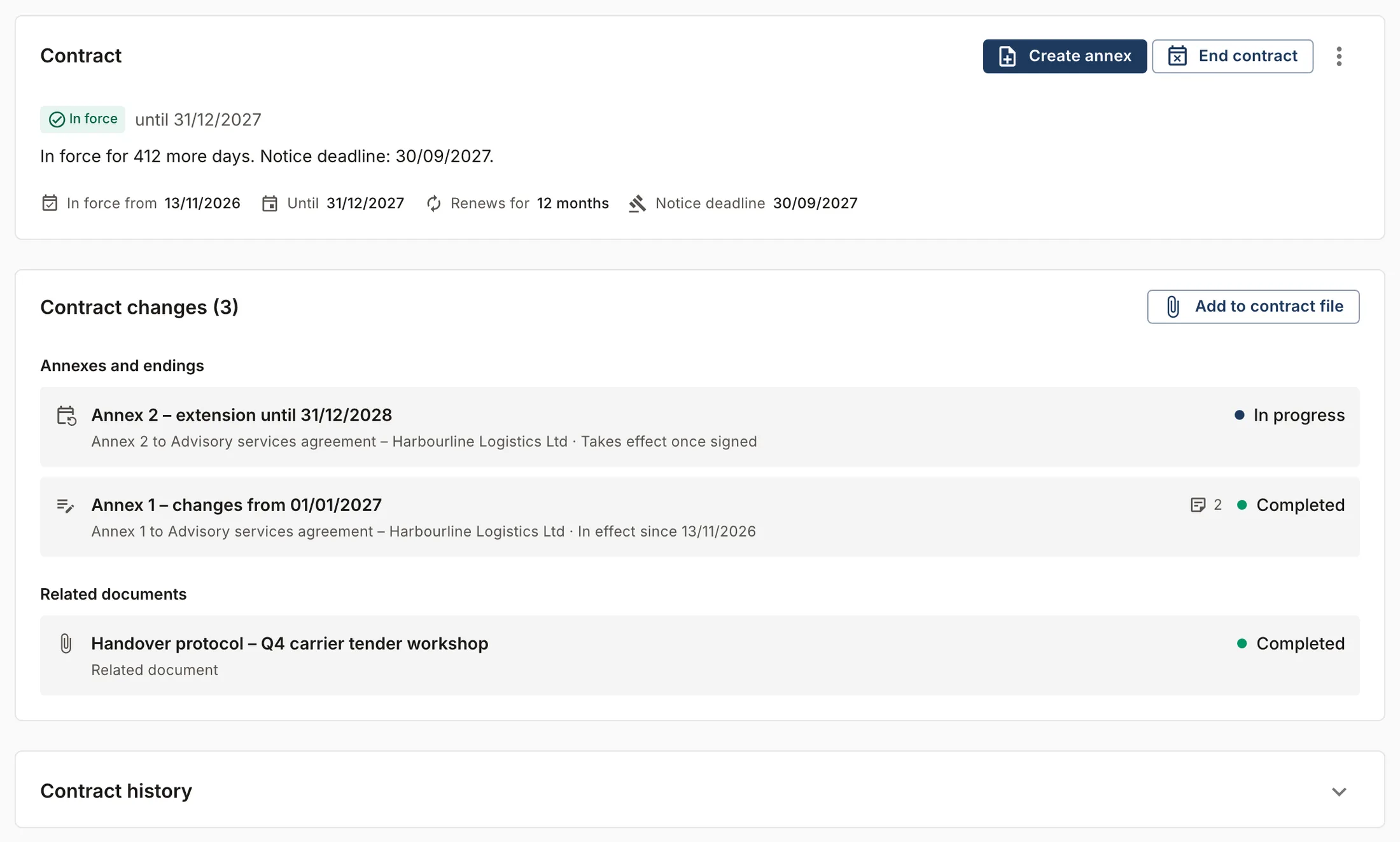
Section titled “Contracts and their changes”A package filed under a type of contracts with a term is a contract, and its page has three cards under the summary. They are told in full on Contracts.
- Contract says where the contract stands, with a sentence such as In force for 214 more days., and the days that decide it: In force from, Until, Renews for and Notice deadline, and Signed outside Doxtly on for one recorded after signing elsewhere. Create annex and End contract make its changes once everybody has signed, and its menu holds Change term: see Change the term.
- Contract changes lists its annexes and endings, newest first, then its Related documents, each with how far its signing is and how many notes it has. Add to contract file files a related document.
- Contract history, folded by default, records what happened to the contract, from signing to its end: see Contract history.
A contract whose package was voided, declined, not approved or ran out of time before everybody signed never came into force. Its Contract card holds one sentence, such as This contract never came into force: a party declined to sign it., with no days and no actions, the Contract changes card is gone, and the page’s menu offers nothing to do to the contract.
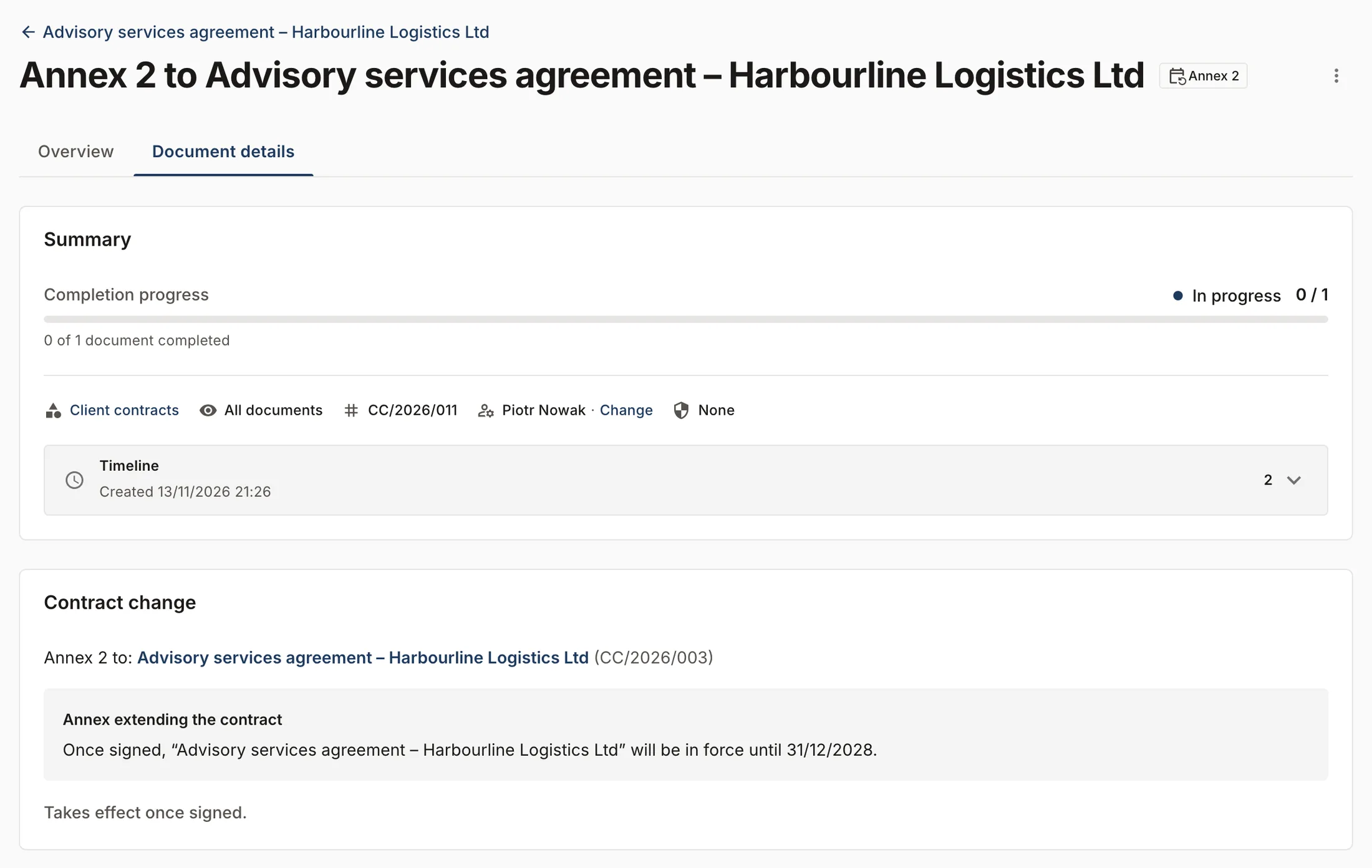
The page of a change has a Contract change card instead: which contract it changes, as a link, what the change does to it, and, for an annex or an ending, whether it has taken effect: Takes effect once signed., In effect: the contract has been changed. or Did not take effect: signing was not completed. See When a change takes effect.
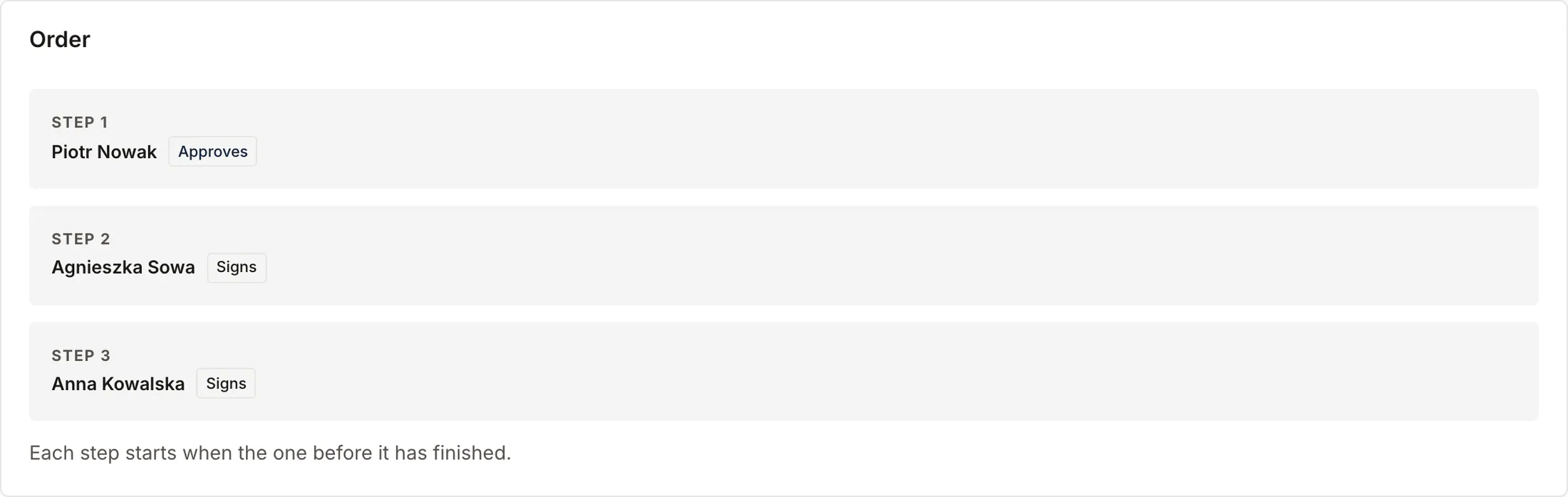
A package with a signing order or an approver shows its Order under the summary: each step with the people in it and what they do (Approves, Signs), and Each step starts when the one before it has finished. For Tatra Hospitality’s engagement letter, Piotr approves it first, then the client signs, and Anna signs last. See Signing order.
Approvers
Section titled “Approvers”A package with approvers lists them above the parties, each with their email and Waiting for approval, or Approved and the date, or Not approved with the reason. An approver who never answered because the package ended first reads No answer: and why, such as No answer: the package was voided first. See Parties, approvers and viewers.
Parties
Section titled “Parties”Parties are the people the package asks something of. The heading shows how many there are.
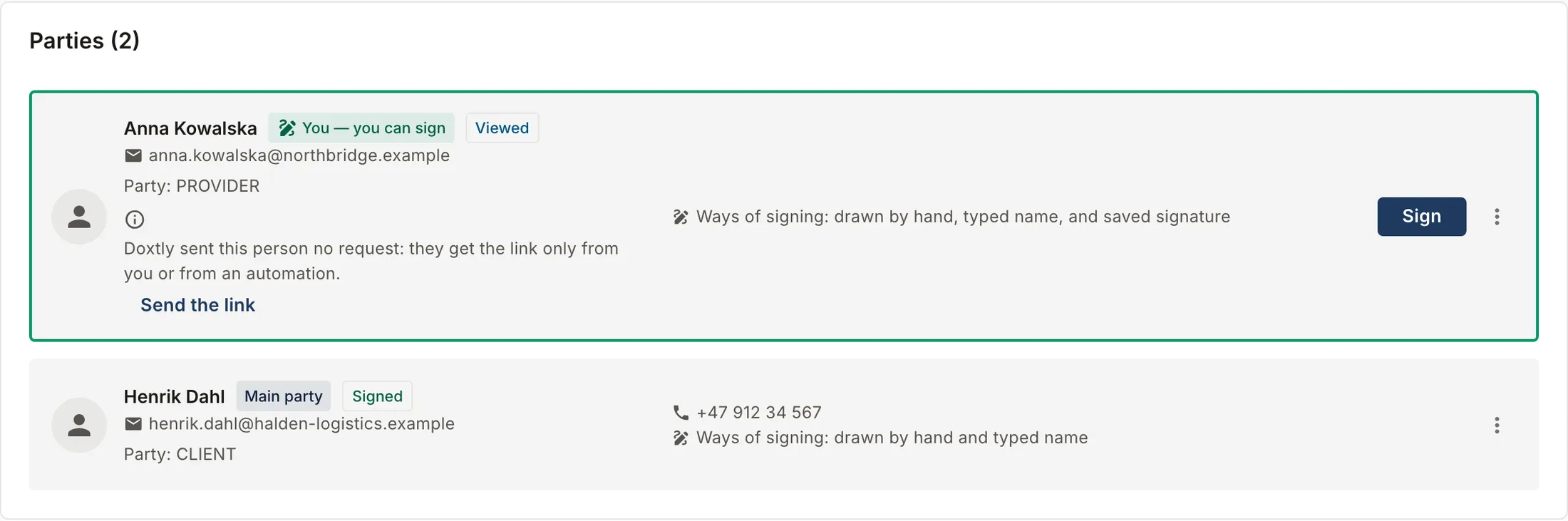
Each row gives the name, the part they play (Party: CLIENT, as the documents name it), and for staff their email and phone. A line under them says the ways the party will be offered where they sign, such as Ways of signing: drawn by hand, typed name, and saved signature (see Choosing the ways of signing): the party’s own, else the document type’s or your organization’s, and never the saved signature or an uploaded image for someone signing through a link or in person. While something waits on you, Sign sits at the end of your own row. A party whose step has not come yet reads Waiting for their turn, and one who signs in person Waiting for in-person signing; the others have their status beside the name, as in the documents’ Parties tab: Pending, Viewed, Signed once they are done with every document, or Declined. Once the package has ended, only Signed and Declined are shown, and Not signed for a party who never signed a package that ended without being completed; hover or tap it to read why, such as The package was voided before this party signed. These chips can appear beside the name too:
| Chip | Meaning |
|---|---|
| Main party | The main signing party chosen in the workflow step. |
| You | This recipient is you, and nothing is waiting on you. |
| You — you can sign | This recipient is you and you can sign now. The row gets a green outline. |
| You can sign for them | Their authorization lets you sign for them, and they still have something to sign. The row gets a green outline. Hover or tap to read how: you use your own signature, marked as given on their behalf. |
| You can decline for them | Their authorization lets you decline for them, but not sign. Hover or tap for details. |
A document signed outside Doxtly lists its parties as they were recorded, under As recorded: nobody was asked to sign in Doxtly.: each name, linked to its contact where there is one, with the email and company, and no status, link or menu.
The recipient menu
Section titled “The recipient menu”The three-dot menu at the end of a row shows only what applies to you and this person.
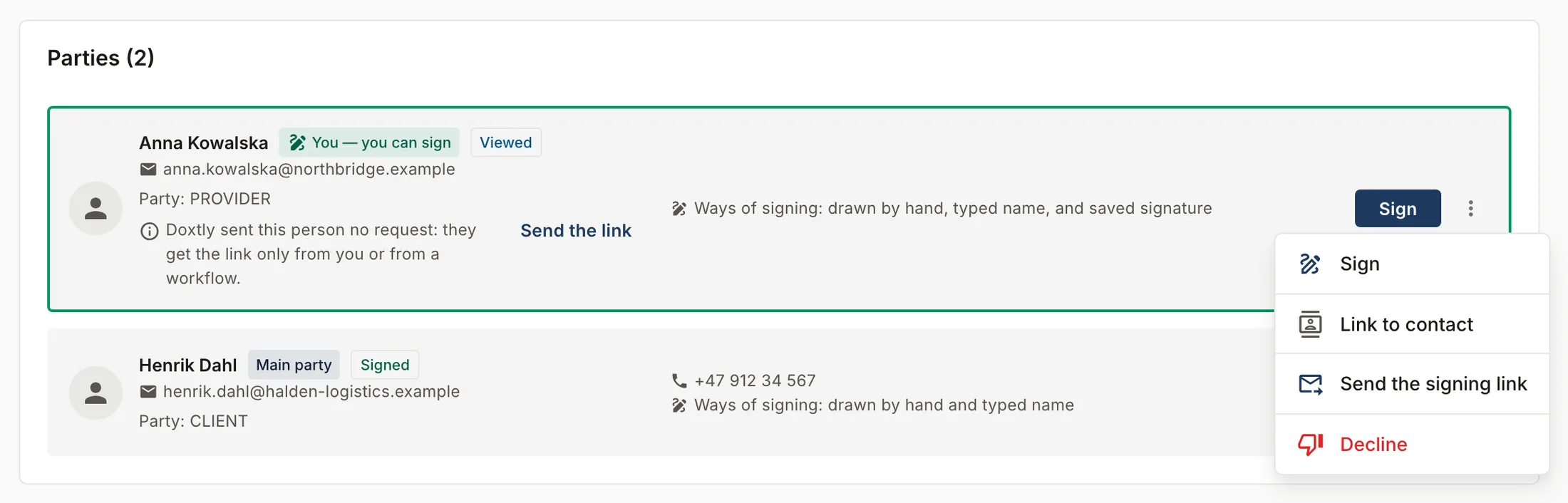
| Item | Who gets it | What it does |
|---|---|---|
| Sign | The person this row is, while something waits on them | Opens the signing page in the app. |
| Sign on their behalf | Somebody with an authorization to sign for this person | Opens the same page, acting for them. |
| Decline on their behalf | Somebody with an authorization to decline for this person | Opens the decline dialog. |
| Send the signing link again | Anybody with Manage documents | Asks how to send the party their personal link, then sends it by email, SMS or WhatsApp. It reads Send the signing link while Doxtly has asked them nothing. |
| Decline | The person this row is, while something waits on them | Opens the decline dialog for their own part. |
| Show contact / Link to contact | Staff who may view contacts | Opens the contact this party belongs to, or links the party to one. |
| In-person signing | Anybody who may host signing, while it is this party’s turn | Hands your device to the party so they sign in the room. See In-person signing. |
| Replace party | Anybody with Manage documents, while the party has done nothing yet | Gives the party to somebody else: a new name and address, and a reason. A party that waited for anybody in a department becomes that person’s alone. A new link goes out if it is their turn; the old link says the request was passed on. The certificate records who was replaced, by whom and why. |
| Change password | Anybody with Manage documents, for a party who signs with an access password | Sets a new access password and unlocks a party locked out after wrong attempts. |
Declining sits here, on your own row, and voiding sits in the page’s menu, for a reason: declining is one person’s answer about their part, and voiding is the organization calling off the whole package.
Whether the request reached them
Section titled “Whether the request reached them”Under each party a line says how the request to sign went: Sending (Doxtly is trying, and tries again for several hours after a provider refuses), Delivered with the date (your mail provider took it; a bounce after that can only be seen in your mailbox), or Failed with the reason, in which case use Send again beside it. The reasons are: no longer needed, no address for this channel, no integration for this channel, the template is no longer available, the provider did not accept it, Doxtly’s mailbox is suspended, the plan’s messages from Doxtly’s mailbox are used up, and sent again later: too many messages in a short time. The person responsible for the package is also notified when it fails.
A party whose turn it is and whose Signature request is off was sent nothing, and their line says so: Doxtly sent this person no request, so they get the link only from you or from a workflow. Send the link next to it opens the same dialog as Send the signing link again, titled Send the signing link, and so does the recipient’s menu while Doxtly has asked them nothing: the link goes as your organization’s signature request, not as a reminder of one they never got.
When the message goes from your own mailbox, Doxtly only sees what happens at the moment of sending: a bounce that arrives after your provider accepted it lands in your mailbox and doesn’t show here. When it goes from Doxtly’s mailbox, the line says what really happened: Sent, then Delivered once the recipient’s server has it, or Bounced with the date, in which case use Send again beside it, after checking the address.

Sending a signing link again
Section titled “Sending a signing link again”Available when: your role has Manage documents for this type and your organization can send the link by email, SMS or WhatsApp
When a client says they never got the email, use Send the signing link again. A small dialog asks how to send it:
| Field | What it does |
|---|---|
| Send by | Email to the party’s address, or SMS or WhatsApp to their phone number. Only the channels you can use are offered: email when your organization has an email integration, SMS or WhatsApp when the recipient has a phone number and your organization has an SMS or WhatsApp integration. With one channel, the field is not shown. |
| Message | By email, when your organization has its own active templates for this message: Default (Signature reminder) or one of your own reminders, and for a recipient Doxtly hasn’t asked yet Default (Signature request) or one of your own requests. Without such templates the field is not shown. |
| Language | Recipient’s language, your organization’s, or a language you pick. |
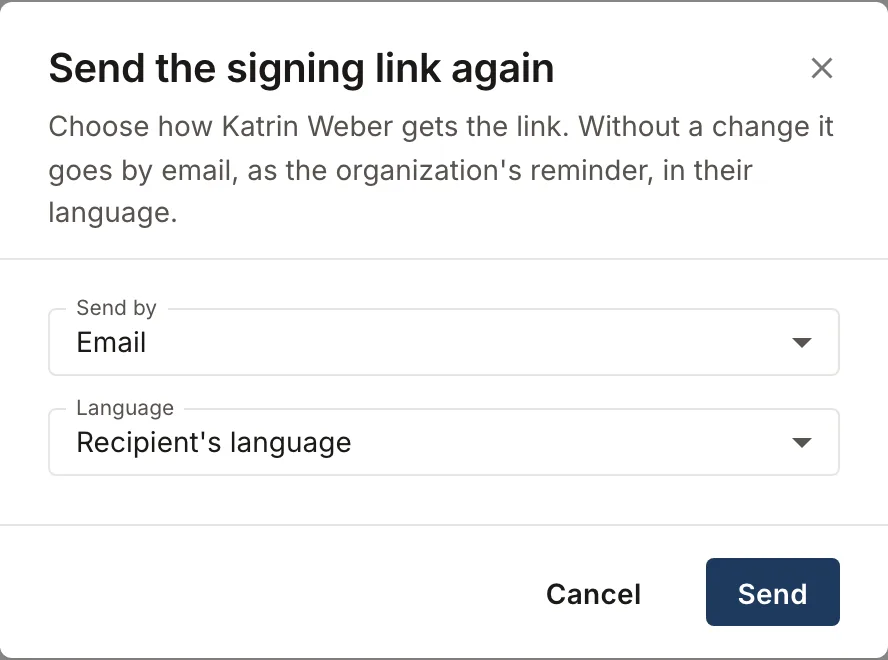
Press Send and the dialog closes. The link goes as your organization’s default reminder, or as its default signature request to a recipient Doxtly has not asked yet, unless you picked one of your own under Message. A template written for another purpose may not carry the signing link, so it isn’t offered. Without changing anything, it goes by email, in the recipient’s language. The recipient’s language is the one chosen for the party in the package; without one, the language they last used on their signing page, then the one they chose for Doxtly when they are a member of your organization, and your organization’s language otherwise. See Languages.
The email is listed under Sent emails like any other. An entry Link sent again is added to the audit log of each document the recipient still has to deal with, saying how it went, where (masked, such as e***@example.com or ••••0200, as every party reads the audit log), in which language and who asked for it, so you can prove they were reminded. If the provider refuses the message, nothing is added to the audit log and the error says why.
The app never shows you the link itself, because holding it is part of what proves who is signing. Whoever could read it could sign in that person’s name.
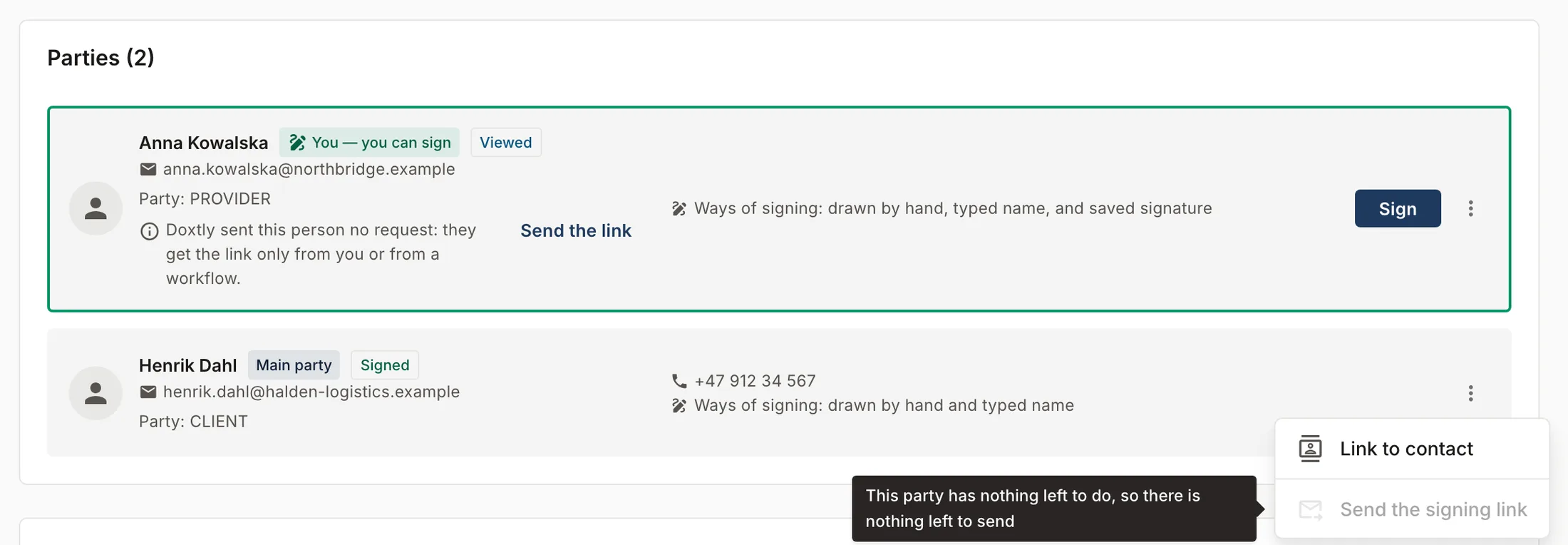
The item is greyed out, with the reason on hover, in these cases:
- every document in the package is finished
- your organization can’t send the link to the recipient: there is no email integration for their address, or they have no email address and no phone number your organization can send a text message to
- the recipient has nothing left to do
This item nudges somebody on your own say-so, whatever reminders the package has. See Reminders and deadlines.
Viewers
Section titled “Viewers”Viewers can read a package without taking any part in it. Think of a lawyer who wants to follow a contract, or a client’s accountant. They have nothing to fill in and nothing to sign. Each gets a personal link by email, and what they see is the documents and nothing to press.
A viewer comes from one of three places: the workflow that created the package, whoever made the package (a person, or an access key through the API), or somebody adding them here. A workflow suits people who always follow a type of contract, such as your legal counsel. Adding by hand suits the one-off: a client asks you to copy in their accountant halfway through.
A viewer is written to in their own language unless you choose another when you add them. A workflow can set the language for each viewer, from a variable too.
If the viewer’s email address belongs to somebody in your organization, the package also appears in their documents list, and they can open it without going to their inbox.
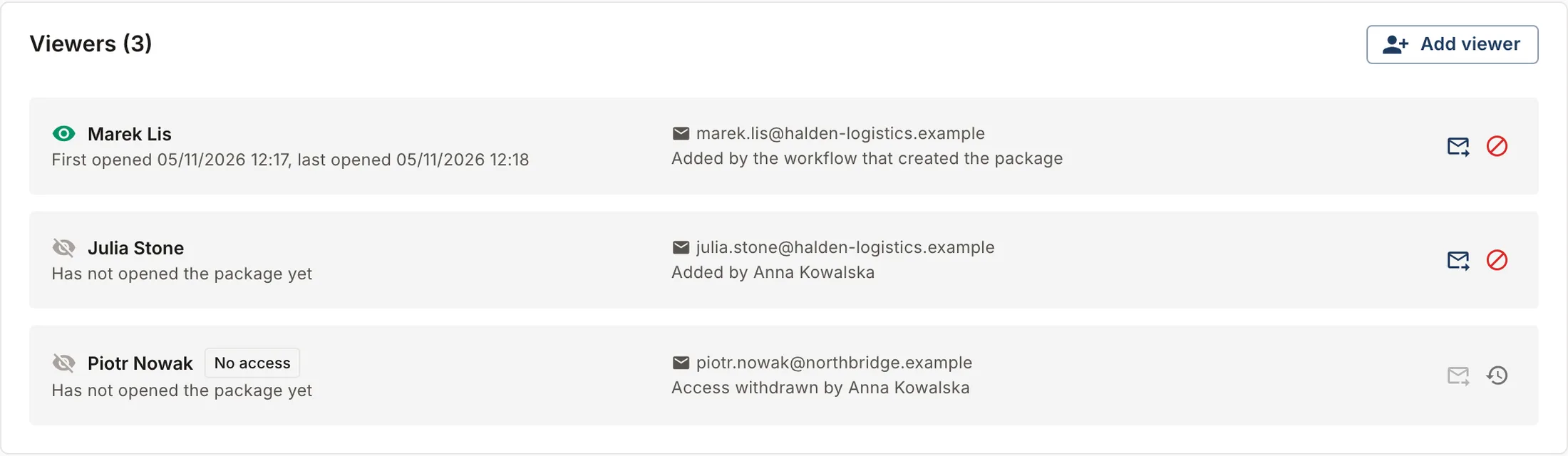
Each row shows:
- whether they have looked, with a grey or green eye icon: Has not opened the package yet, or the first and last time they opened it
- their email, for staff
- how they got in: Added by name, Added by the workflow that created the package, Added through the API with the access key name, or, once withdrawn, Access withdrawn by name
- a No access chip if their access has been withdrawn
Viewers stay on this list for good, even after losing access, because the record that somebody saw a package is part of its history. With no viewers, the section reads Nobody has been given read-only access to this package.
Adding a viewer
Section titled “Adding a viewer”Available when: your role has Manage documents for this type, your organization has an active email integration, and the package isn't finished
- Click Add viewer.
- Fill in Name and Email. Both are required, up to 255 characters each.
- Leave Language at Recipient’s language, or choose the language of the email.
- Click Add and send the link.
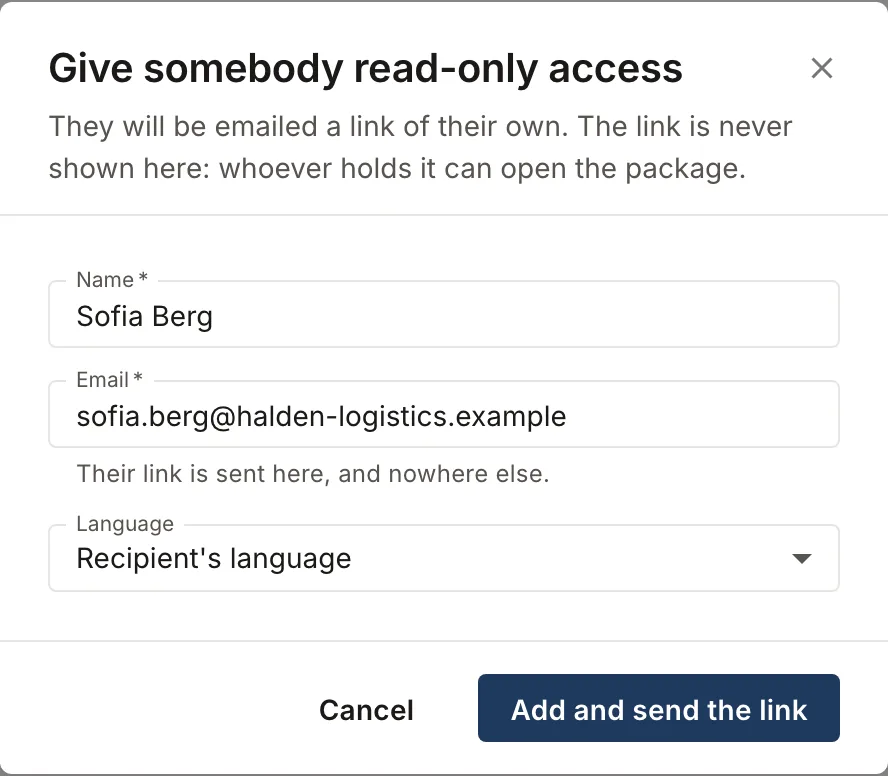
The link goes to that address and nowhere else, and it is never shown in the app. An address that already has access to the package is refused. To let back in somebody you shut out, use Give access back on their row.
What you can do with a viewer
Section titled “What you can do with a viewer”The buttons at the end of a row are small icons, and their names appear on hover. All but the first need Manage documents.
| Button | What it does |
|---|---|
| Open the preview | On your own row only, while you have access. Opens the package to read inside the app. |
| Send the link again | Emails the viewer their link. Unavailable if their access is withdrawn, the organization can’t send email, or the package ended without being completed. The tooltip says which. |
| Withdraw access | After you confirm, the viewer can no longer open the package, and it leaves their documents list. Their link answers as if it never existed, so it doesn’t reveal that they were removed. They also get no completion email. |
| Give access back | After you confirm, the same link works again. No new email is sent, so let the person know. |
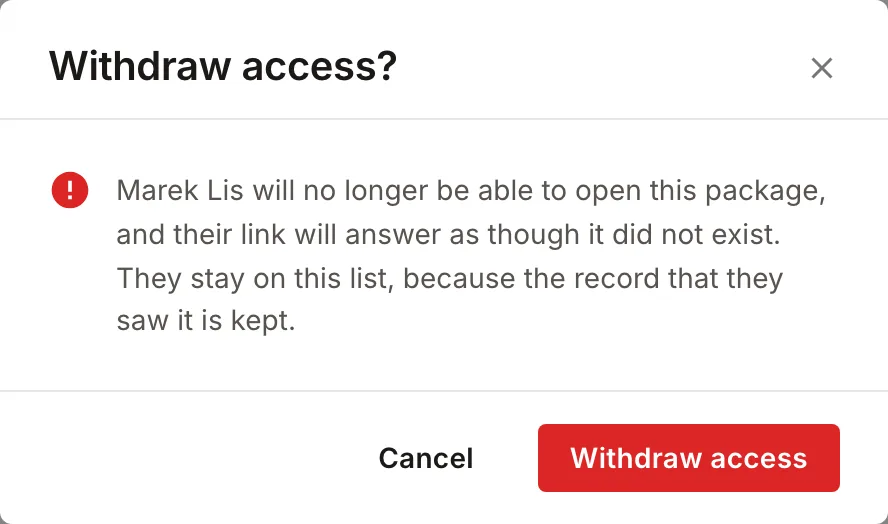
Add viewer and Send the link again go grey once the package is voided, declined, not approved or expired, because a link would show only how the package ended. A completed package keeps both: its viewers’ links go on showing the signed documents.
Documents
Section titled “Documents”On Overview the last section lists the documents in the package. Each shows its title, status, description and progress, such as 1 / 2 parties signed; a document nobody signs reads Nobody signs this document, and the progress in the summary counts only the documents somebody signs. Click one to open it on the Document details tab.
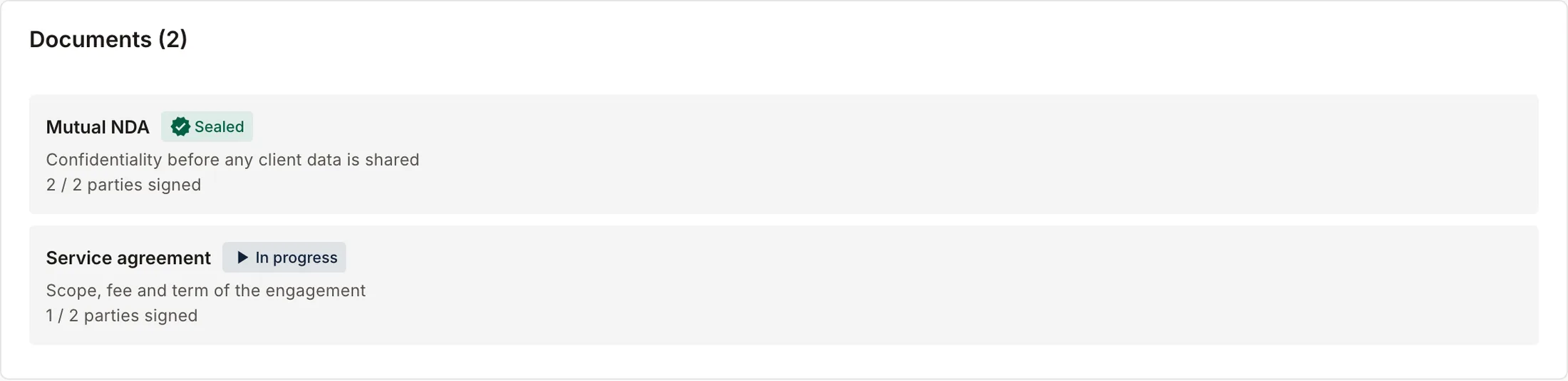
A document has its own status, which can be one of these:
| Status | Meaning |
|---|---|
| Pending | Nobody has signed it yet. |
| In progress | At least one party has signed, others haven’t. |
| Sealed | Everybody signed and the document received its digital seal. |
| Completed | Nothing is left to do and no seal was applied: an attachment, or a document that was only filled in. |
| Declined | A party refused it. |
| Voided | The package was voided while this document was open. |
| Expired | Its deadline passed before everyone signed. |
Pending and In progress documents are still open, so the next signature, a refusal, voiding and the deadline can all still happen to them. The other statuses are final.
The Notes card, on the Overview tab of every package, drafts included, holds your organization’s internal notes about it: why a clause was negotiated, what the client said on the phone, who to call about a renewal. As its heading says, Internal: only your organization sees them, never the parties. A party, a viewer, or anybody who reads the package only because they are named on it never sees the card.
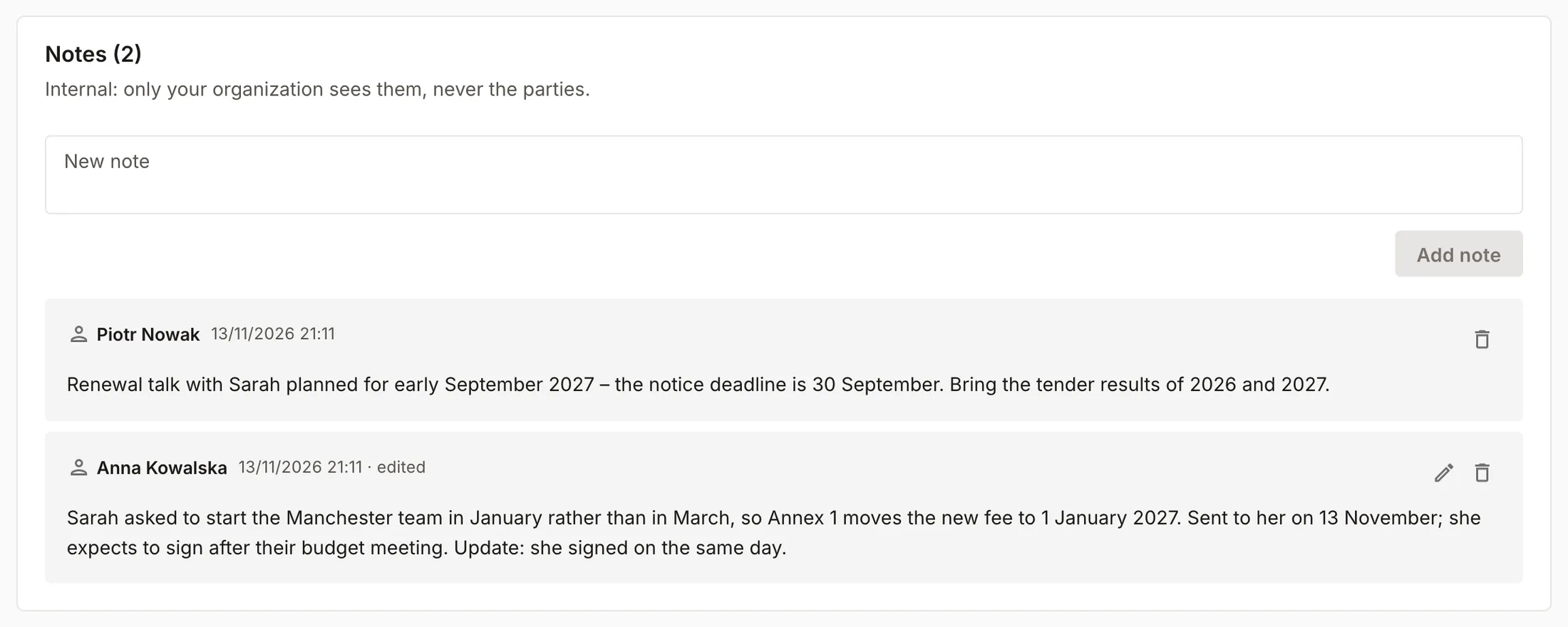
- Write in New note at the top of the card, up to 5,000 characters.
- Click Add note.
Notes are listed newest first, each with its author and the date and time it was written. A note written through the API names its access key as the author. A note changed after it was written is marked edited. Edit note beside your own note changes it in place, with Save and Cancel, and Delete note asks Delete this note? before it goes for good.
| Who | Can |
|---|---|
| Anyone whose role has View documents for the package’s type | Read the notes. |
| Anyone whose role has Manage documents for it | Add notes, and edit or delete their own. |
| A user with the built-in Administrator role | Also delete anybody’s note. |
Nobody edits a note somebody else wrote. On a contract, the Contract changes card says how many notes each change has.
Document details
Section titled “Document details”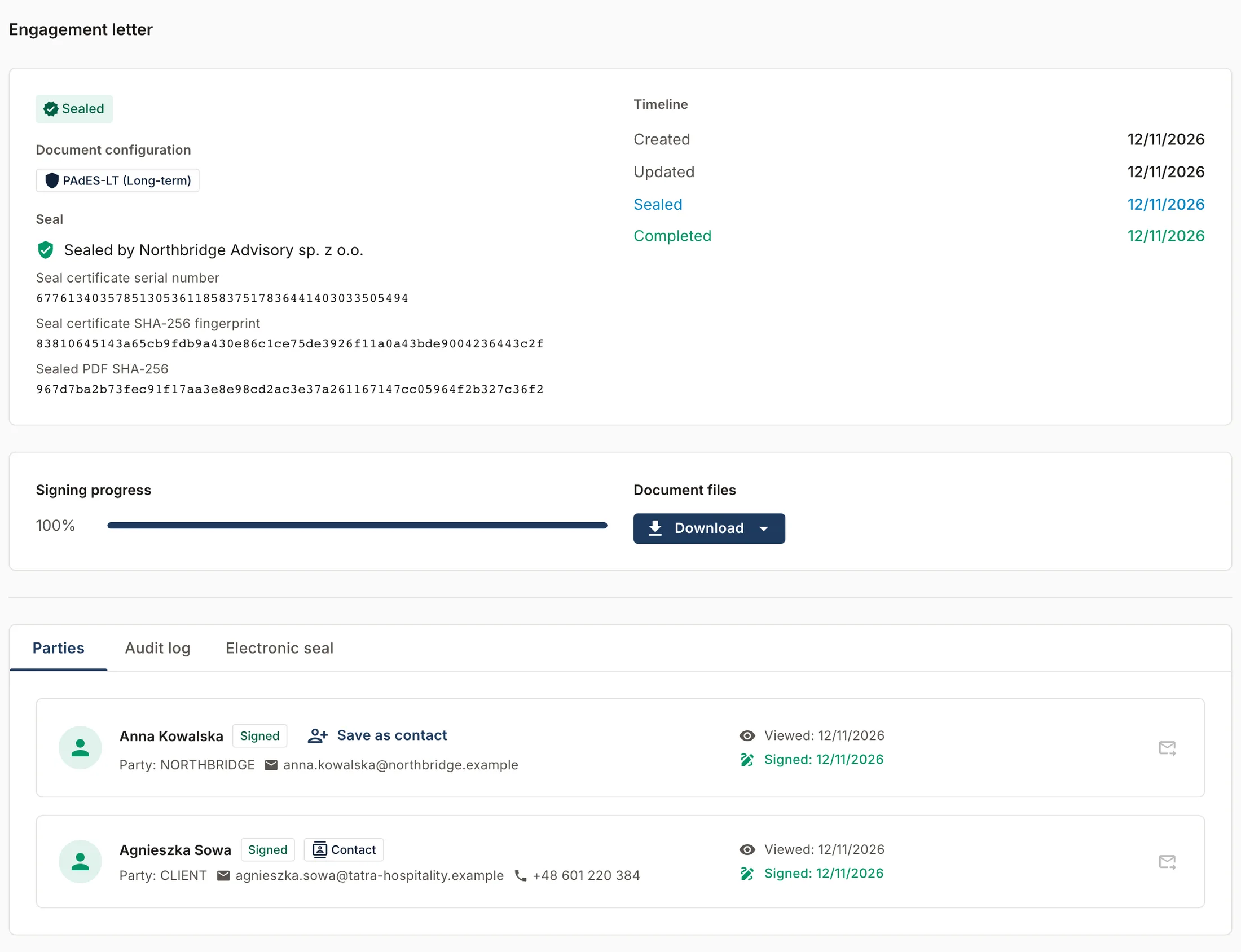
The tab opens with the document’s title and description, then the sections below. On a phone the Parties, Audit log and Electronic seal tabs turn into a drop-down.
Status card
Section titled “Status card”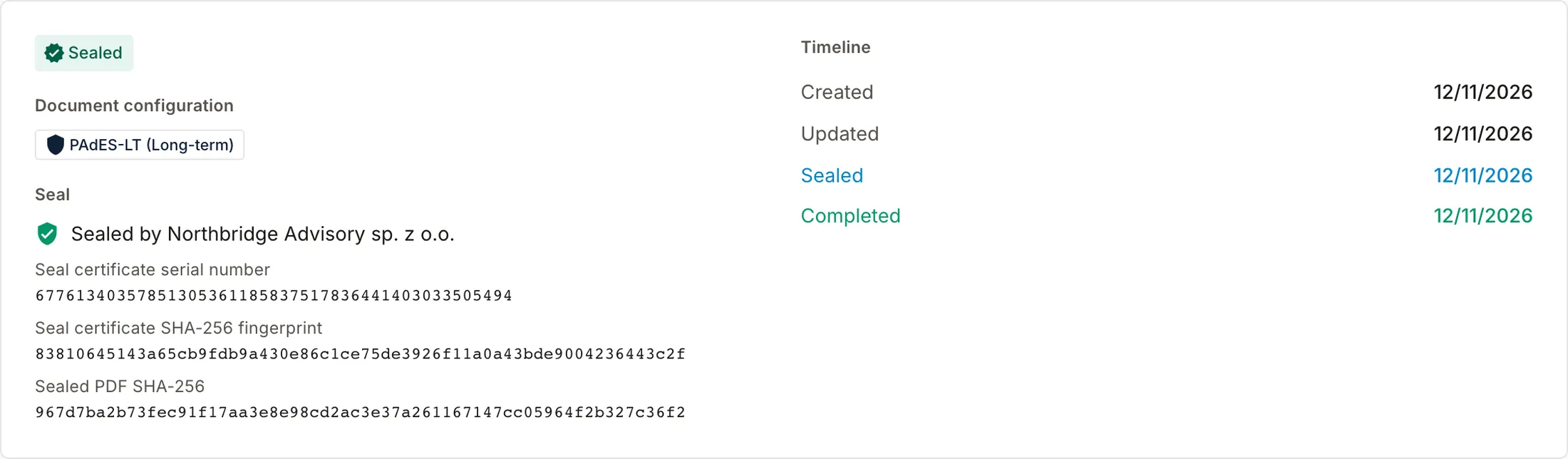
The left side shows the document’s status and, if it has a deadline of its own, the expiry date. Under Document configuration is the signature level: PAdES-B (Basic), PAdES-T (Timestamped), PAdES-LT (Long-term) or PAdES-LTA (Archival). These are explained in Signature types.
Once sealed, a Seal block appears with what a careful reader will want to compare against the file:
| Field | What it’s for |
|---|---|
| Sealed by name | The organization the seal names. |
| Seal certificate serial number | Identifies the certificate that sealed the document. |
| Seal certificate SHA-256 fingerprint | A fingerprint of that certificate. |
| Sealed PDF SHA-256 | A fingerprint of the sealed file. It lets you check a copy against this record. |
The right side, Timeline, gives the dates: Created, Updated, and whichever of Sealed, Completed, Declined and Voided apply.
If the document was voided, a red box below the card says who voided it and when, as in Voided by Piotr Nowak on and the date and time, and quotes the Void reason.

Signing progress and files
Section titled “Signing progress and files”Signing progress is the percentage of parties who have signed this document. Attachments and documents that are only filled in have no signers, so they have no bar. A document that ended without being completed shows no bar either: it says why signing stopped, such as Signing stopped: the document expired., and how many signed by then, as in Parties who signed: 1 of 2.
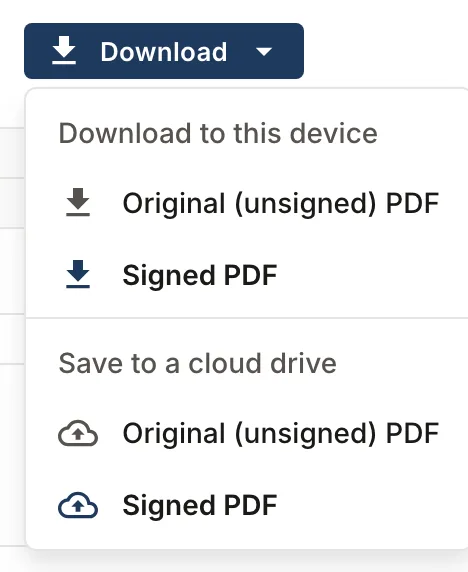
Document files holds the Download button, for anyone who can open the document. It turns solid once the signed file exists. Its menu offers the versions that exist:
| Version | What it is |
|---|---|
| Original (unsigned) PDF | The file as it was generated, before anybody touched it. Always there. |
| Current PDF | The document as it stands, with the signatures and values given so far. It carries no seal. Shown until the signed file exists. For a document that was only filled in, this is the finished file. |
| Signed PDF | The sealed file. This is the one to keep and to send. It ends with a Certificate of Completion page listing each signature. |
Available when: your role has both View cloud files and Manage cloud files, and your organization has a connected drive
With a drive connected, the menu has two groups: Download to this device and Save to a cloud drive. Saving opens a dialog where you pick the drive, walk to a folder, create one if needed, and name the file. If the name is taken, you are asked what to do. See Cloud files.
Parties tab
Section titled “Parties tab”Who has to sign this document, and how far each person has got. A document with no signers says No signing parties have been created yet.
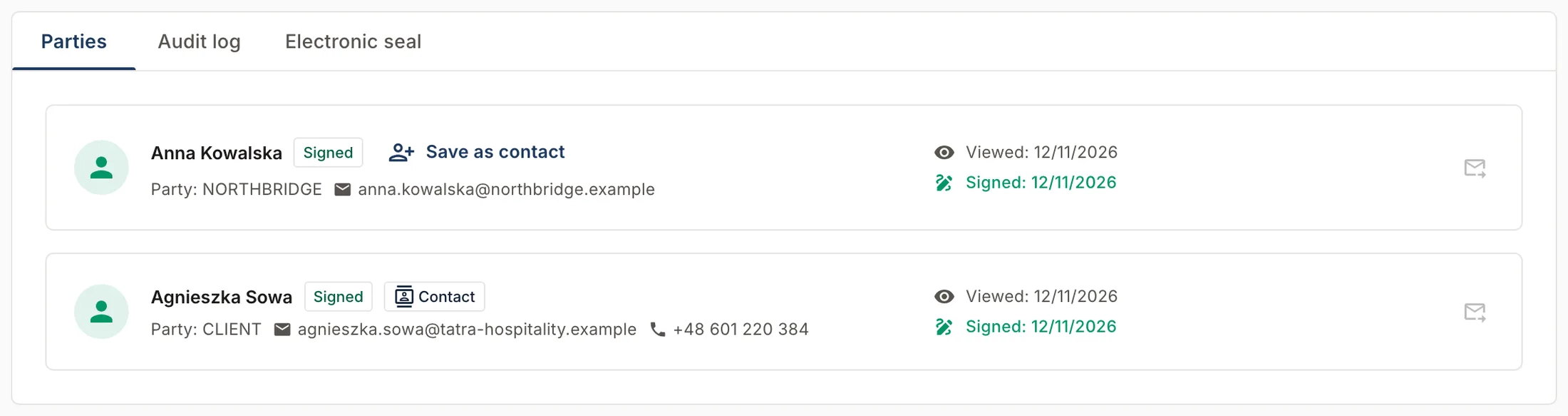
Each row shows the name, a status, the line Party: with their part, their email and phone for staff, and the dates Viewed, Signed and Declined at. Staff also see Contact beside a party linked to a contact, which opens it, or Save as contact to make one from the party’s details. The reason for a refusal appears in italics, and everyone who can open the document can read it.
The status tells you how far they got: Pending (hasn’t opened this document), Viewed (opened it and hasn’t answered), Signed or Declined. On a document that ended without being completed, a party who hadn’t signed reads Not signed, with the reason on hover, such as The document was voided before this party signed. A client who says “I never got it” while the row reads Viewed is worth a second, friendlier call.
People with Manage documents get a send button at the end of the row. It sends the signing link under the same rules as the recipient menu item, and when it’s greyed out, hovering gives the same reason.
Audit log tab
Section titled “Audit log tab”The audit log is the document’s evidence: an entry for everything that happened to it, recorded as it happened and listed in the order it was written, oldest first. This is the tab to open when somebody asks “can you prove she signed this?”.
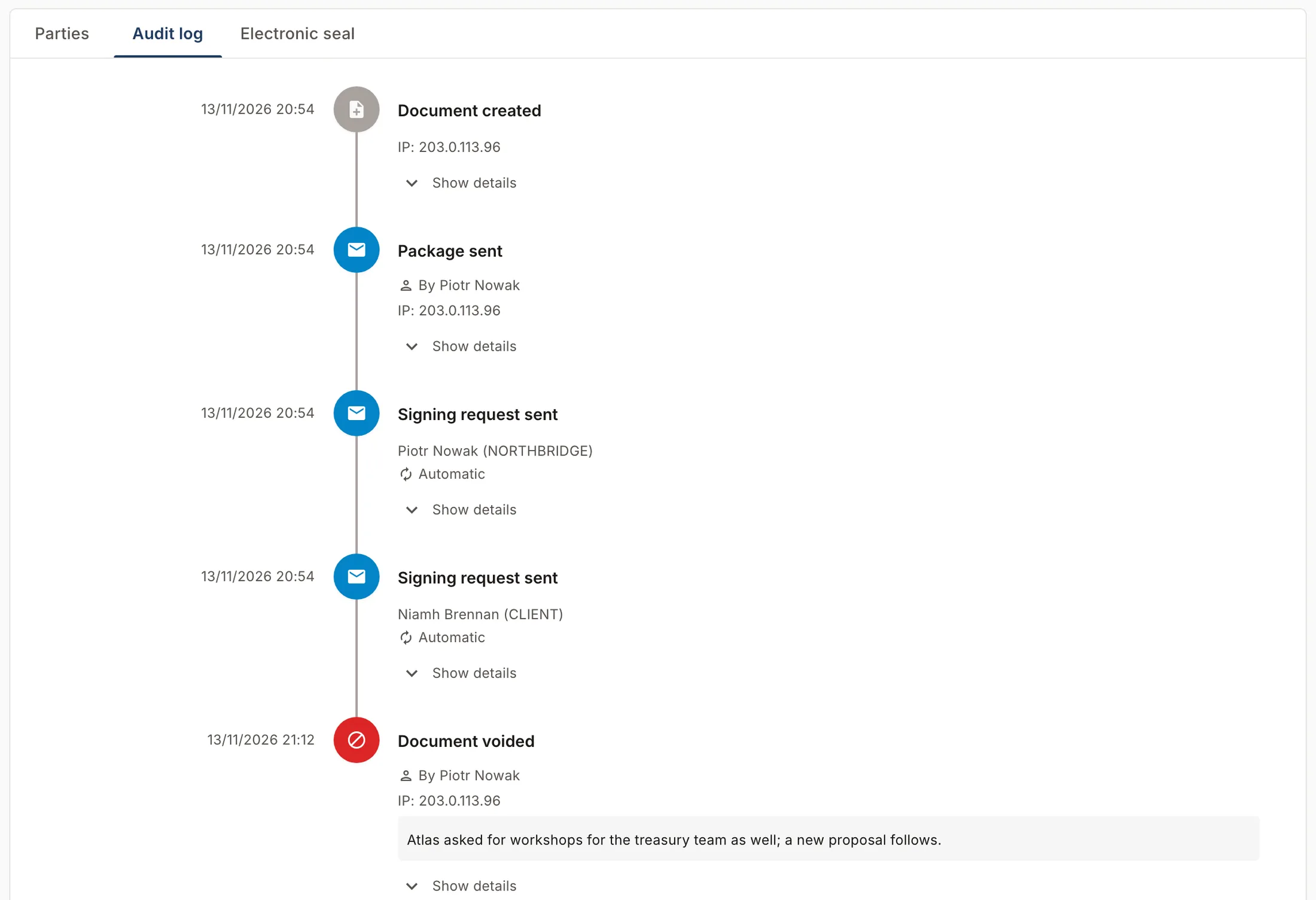
| Entry | Written when |
|---|---|
| Document created | The document was created, by a workflow or with the package. |
| Package sent | A package put together as a draft, by hand or through the API, was sent. |
| Document viewed | A party opened it. |
| Signing request sent | A party was sent their link: the first request, by email when a signing session’s signer didn’t open the documents in time or when a workflow’s step sends the package with nobody waiting to sign, or by somebody with Manage documents to a party Doxtly had not asked. The entry says how it went and where to, the address masked. |
| Link sent again | Somebody with Manage documents resent a party’s link. |
| Party signed the document | A party signed. |
| All parties signed — document completed | The document finished: the last signature came in and it was sealed, or the last required value of a document that is only filled in arrived, or it is an attachment, which is finished from the start. |
| Completion notice sent | A party or viewer was sent the message that the package is complete. |
| Signing declined | A party refused. Staff see the reason under the entry, if one was given. |
| Document voided | The package was voided. Staff see the reason under the entry. |
| Document expired | The deadline passed. Nobody did this, so no person is named. |
| Reminder sent | A reminder went to a party. |
| Party confirmed who they are | A party passed the check on the way in. |
| Deadline changed, Access password changed, Party replaced, Responsible person changed, Verification method changed | Somebody changed the package. |
| Viewer added, Viewer’s access withdrawn, Viewer’s access restored | Somebody with Manage documents let somebody read the sent package, or withdrew or gave back a viewer’s access. The entry names the viewer, and for staff their email. A viewer who came with the package, from its draft or its workflow, adds no entry. |
| Signing link handed to the organization (workflow) | A party’s link went to your own systems instead of to the party: a workflow step used it, or somebody read it through the API. |
| Party taken on by a department member, Party released back to the department | A party that stands for a department was taken on by one of its members, or handed back. |
| Party added an attachment, Copy for printing and signing downloaded, Copy of the document downloaded | A party added a file or took a copy. |
| Package approved, Package not approved, Approval request sent | The approver’s decision and the request. |
| Device handed over to the party, Handover ended, Device taken back by the host | In-person signing. |
| Identity verification started, Identity verified, Identity verification failed, Another attempt allowed, Name difference accepted, Another way to verify requested | The party’s identity check, and what the sender did about it. |
| Document prepared for qualified signatures, Qualified signature started, Qualified signature given, Qualified signature failed, Signed PDF sent back | A qualified signature: the document fixed before the first qualified party, and each party’s signature. |
Once the document is sealed, Public verification link above the log holds the address anyone can open to check the sealed file, with a copy button and how many times it was opened: see Verification link on a sealed document.
Under the title you see the party and their part. If somebody acted for them, a line reading acting: and a name follows, so nobody can mistake the entry for the party’s own act. An act done at your organization’s end, such as voiding, a new deadline, a link sent again or a viewer added, has a line saying who did it: By and the person’s name, By access key and its name for one done through the API, or Automatic for what Doxtly did by itself, like a deadline passing or a reminder going out. Then come small chips, for staff with the IP address first (hover it for the browser):
- how they got in: Secure link (the personal link sent to this party), In the app (signed in as the user linked to this party), or On behalf of the party (signed in, under an authorization)
- what was asked on top: Email OTP, SMS OTP, WhatsApp OTP or Account password
The password appears only for somebody acting for a party in an organization that can’t send them a code.
Viewers reading a package don’t appear here. Whether they looked is on the Viewers list.
Show details
Section titled “Show details”Show details opens every fact recorded for an entry, and Hide details folds them away. Only the facts that exist are listed.
Every time in the log is in your organization’s time zone, with the zone’s name and the same moment in UTC beside it, such as 20.11.2026 10:42 CET (09:42 UTC), as the audit certificate gives it.
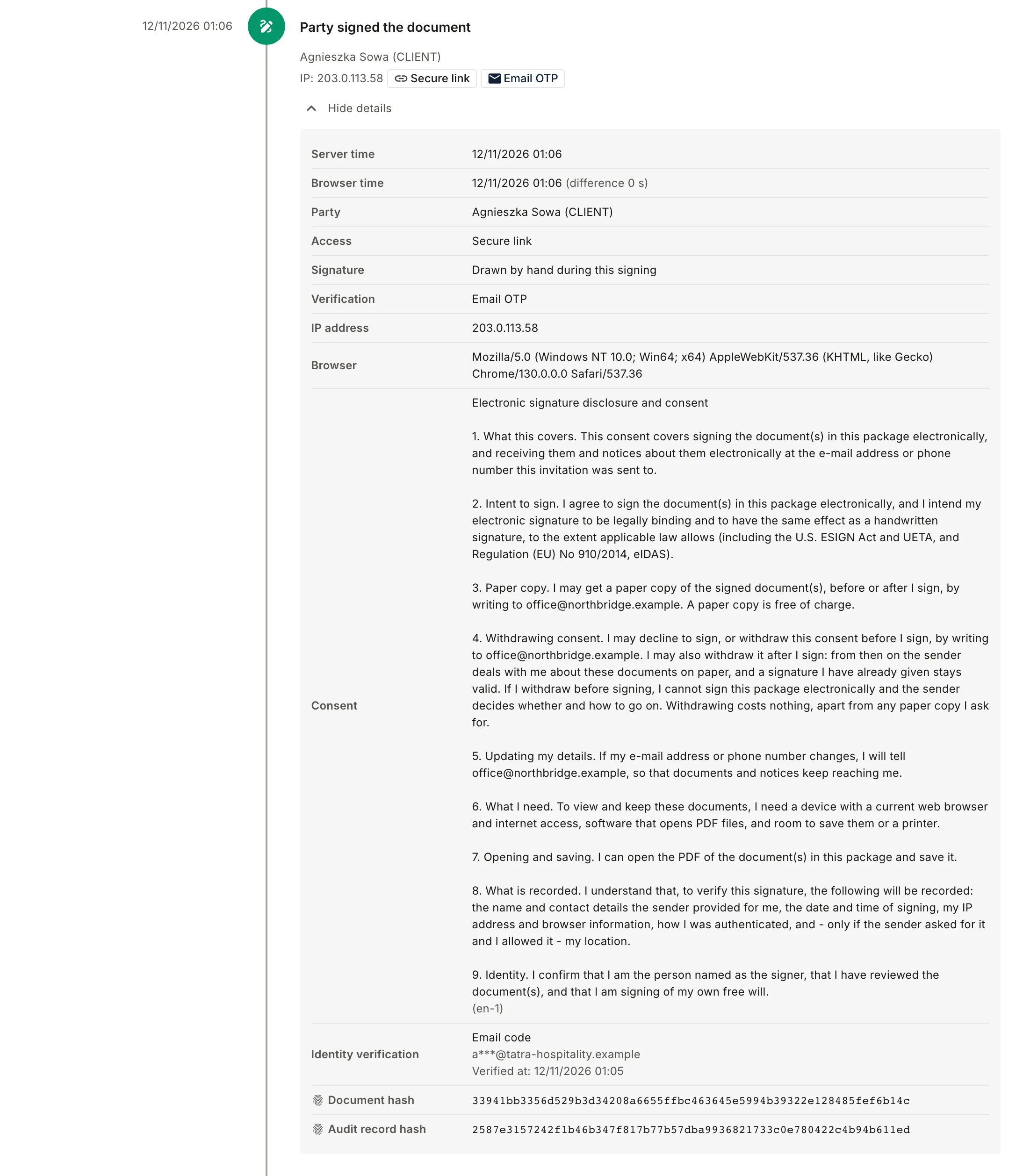
| Fact | What it tells you |
|---|---|
| Server time | When Doxtly recorded the act. |
| Browser time | What the clock on the person’s device said, with the difference from the server, such as +12 s. A large gap is worth a look. |
| Party | Who the act was done as. |
| Access | How they got in, as in the chip. |
| Performed by | The person who really acted, when they were acting for the party, with a note that the party didn’t perform the act. For an act done at your organization’s end, the person or the access key, with the person’s email. |
| Authorization hash | A fingerprint of the authorization the act rests on. |
| Signature | Where the signature image came from: Drawn by hand during this signing, Typed and rendered in a handwriting font, Taken from the signature saved on the account, An uploaded picture of a signature (a file given at signing, or a saved signature made from a picture), or More than one method across this document. |
| Verification | The extra check that was passed. |
| IP address | The address the act came from. Staff only. |
| Browser | The browser and device description. Staff only. |
| Location | The position shared by the browser with its accuracy, when the package asks for it (staff only). Otherwise the reason there is none: Not shared — the party declined, Not shared — the device could not determine it, Not shared — the device did not answer in time, Not shared — the browser has no such feature, Not shared — the browser gave no reason or Not requested. |
| Consent | The full text the signer agreed to, with its version. |
| Identity verification | How the person was shown to be who the package was sent to (SMS code, WhatsApp code or Email code) and Verified at. |
| Document hash | A fingerprint of the document at the moment of signing. |
| Audit record hash | A fingerprint of this entry. Each signature’s hash is computed from the one before it, which links the signatures into a chain. |
A typed, saved or uploaded signature looks identical wherever it is used, and identical signatures can look suspicious to an examiner. So the entry says plainly that the sameness comes from the method, and that the record is what ties the mark to this document.
Audit certificate
Section titled “Audit certificate”Once a document is Completed or Sealed, Download audit certificate appears above the log. It produces a PDF titled Certificate of Completion, in a form you can hand to a client or an auditor:
- a document summary with the title, ID, status, dates and the hash of the original PDF
- a table of signing parties
- the detailed audit trail, in the same order as the log, with all the evidence recorded for each entry, including the full text of the consent each signer accepted and its version
- the hash chain: the last hash in the chain, the sealed PDF’s hash and the sealing certificate
- a legal compliance statement
With a connected drive and the permissions to change its files, the button also offers Save to a cloud drive.
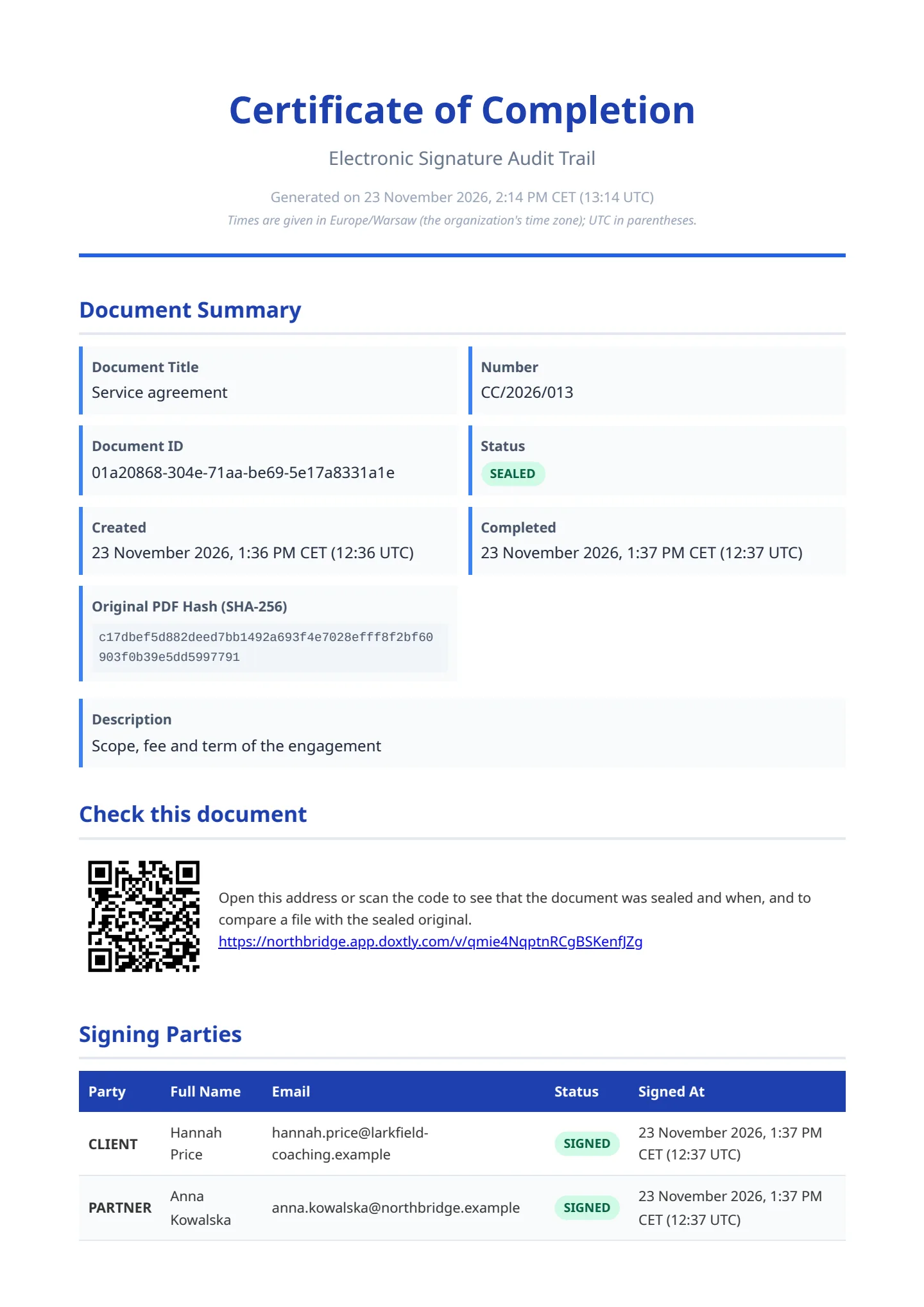
Times are in your organization’s time zone, named as it was on that day (such as CET or CEST), with the same moment in UTC in parentheses - 20 November 2026, 10:42 AM CET (09:42 UTC) - and the header says which zone that is. The certificate is written in your organization’s language - with Certificate in the parties’ languages switched on, followed by a full copy in each party’s language. Generating it doesn’t count against your plan’s document limits. It holds people’s email and IP addresses, so treat it as personal data when you pass it on.
This PDF is more detailed than the Certificate of Completion page at the end of the Signed PDF. The sealed file carries that shorter page with it wherever it goes. The audit certificate adds the full history, including views, reminders and notices.
Electronic seal tab
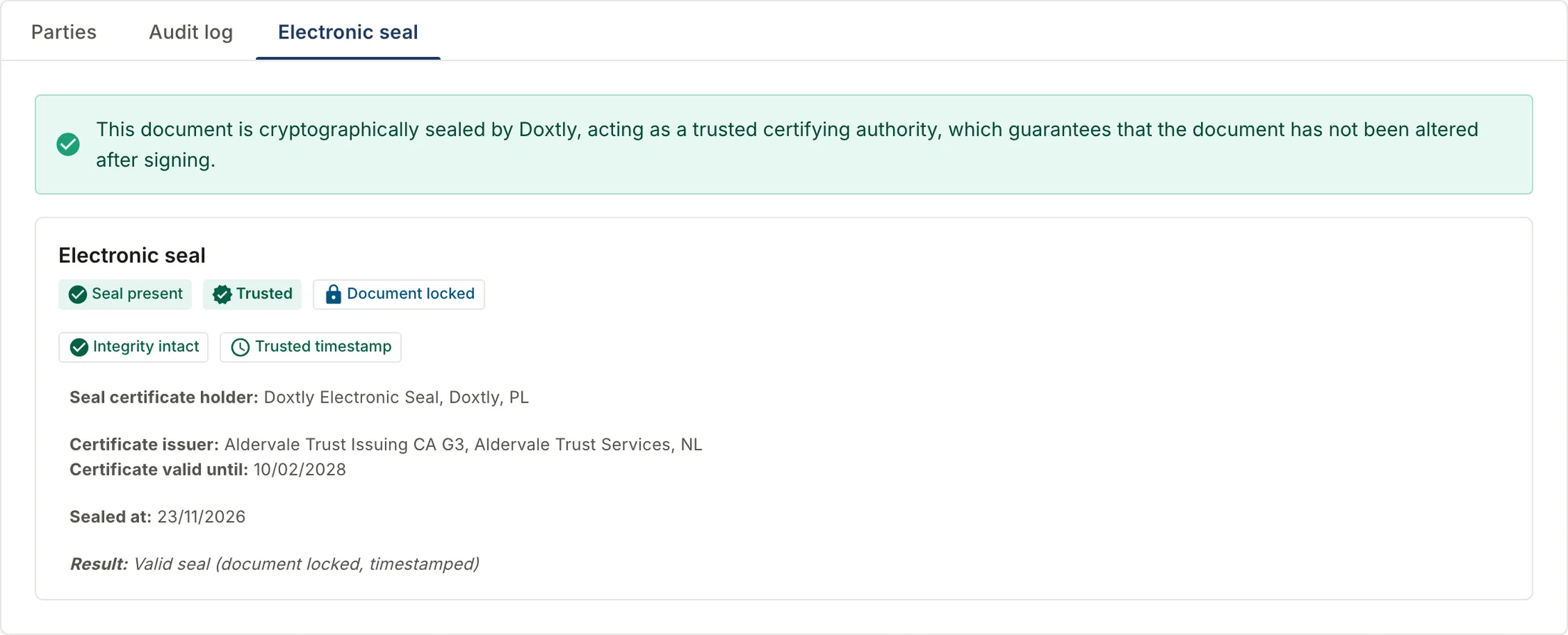
Section titled “Electronic seal tab”This tab checks the seal in the document’s current file, live, and shows you the result. Use it when you want to confirm that the stored document is sound without downloading anything.
| What you see | Meaning |
|---|---|
| Seal validation will be available after the last party signs. | The document isn’t sealed. The seal is applied once, after the last party signs, so you see this on every open document. You also see it on documents that will never be sealed: attachments, documents that were only filled in, and anything declined, voided or expired. |
| A green banner | The seal is valid and trusted. The report follows. |
| Seal issues in yellow | The seal has a problem. The report follows and says what. |
| Failed to validate seal | The check couldn’t run. Try again in a moment. |
Each item in the report is explained on Verifying signatures. That page also checks files that come back to you from outside.
Voiding a package
Section titled “Voiding a package”Available when: your role has Manage documents for this type and at least one document is still open
- Open the three-dot menu in the page header and choose Void package.
- Write the reason in Reason for voiding. It is required, up to 1,000 characters.
- Click Void package.
Every open document becomes Voided and gets a Document voided entry with your reason. The page then opens with a red banner, Voided by your name on the date and time, above the reason, and so does each voided document. Where Doxtly did it by itself, the banner reads Voided automatically on and the date. Finished documents keep their state. It can’t be undone. Tell the parties, checked by default, sends the Package voided message to those who signed or whose turn has come, unless that message is turned off under Messages; nobody further down the order hears, and the reason stays out of the message unless you tick Include the reason in the message. Workflows with the The package is voided trigger start. With nothing left open, every link to the package shows only how it ended.
A package can show Declined and still have documents open. You can void it to close them, for example when one director refused and there’s no point in the others signing their parts.
After a package ends
Section titled “After a package ends”Once a package is over, every party’s link to it shows only how it ended, not the documents. When a package completes, each party gets the Everyone signed message with their own signed documents attached, or a secure link when they are too large; viewers get every signed document attached, when they fit, and their own link, which goes on opening them. Everything Doxtly sends here is configured under Messages > Notifications.
The link they signed with never opens the documents again, so this is their copy. To send them differently, turn off Send the parties their signed documents and use a workflow on The package is fully signed. See What happens after signing. Everybody who can open this page keeps access to the files here, and a party who is one of your organization’s people finds Open the package in the message, which brings them to it.
Delete a package
Section titled “Delete a package”A package that is over - signed, declined, voided, expired or not approved - can be deleted from its menu, with its documents, parties and audit trail. A package still under way has to be voided first, and a contract that has changes can be deleted only once its changes have been. This is how a request to erase data is carried out: find the packages with the filters and delete them, or keep them where the law requires.
Export finished packages
Section titled “Export finished packages”Export on the document list writes finished packages to ZIP files, with their sealed documents and an index.csv: see Exporting finished packages.