

Embedding a form
Embedding puts a form inside a page of your own website, so visitors never leave it. Northbridge Advisory has its course registration form on the course page: people read about the course and sign up on the spot, instead of following a link to another site and perhaps not coming back.
Submissions, workflows and protection work exactly as they do on the public link, and your form keeps its custom styling wherever it appears.
Choosing a method
Section titled “Choosing a method”All the snippets are ready to copy in the form’s Share dialog, under Embed on a website, with the form’s public token and your address already filled in. Each of the Script, Iframe and WordPress tabs opens on its simplest option. Click a title to open the others, and use the copy button next to the code.
If you are not sure, take the script, or the plugin on WordPress, Joomla, Drupal or Magento.
| Method | Best for | Height | Needs JavaScript |
|---|---|---|---|
| Script | Most websites. The form becomes part of your page. | Follows the form | Yes |
| Iframe widget | When your page’s scripts or styles get in the way of the form, or you want the signing link kept away from your page. | Follows the form | Yes |
| Plain iframe | Site builders that accept only an iframe tag. |
Fixed, you set it | No |
| Plugins | WordPress, Joomla, Drupal and Magento sites. No code at all. | Follows the form | Yes |
Quizzes and surveys are embedded the same ways, with the same options. Whichever you pick, the form has to be Active, or the page shows Form not found in its place. If you use Validate request origin, check what it needs for your method before you publish.

The embed script
Section titled “The embed script”The script draws the form straight into your page. Add a container and the script where the form should appear:
<div id="doxtly-form-YOUR-FORM-TOKEN"></div><script src="https://app.doxtly.com/embed.js" data-form-id="YOUR-FORM-TOKEN" data-container="#doxtly-form-YOUR-FORM-TOKEN"></script>In the Share dialog this is Simple native embed (recommended) on the Script tab. Both data-form-id and data-container are required. If either is missing, the script loads and waits for you to call it from code.
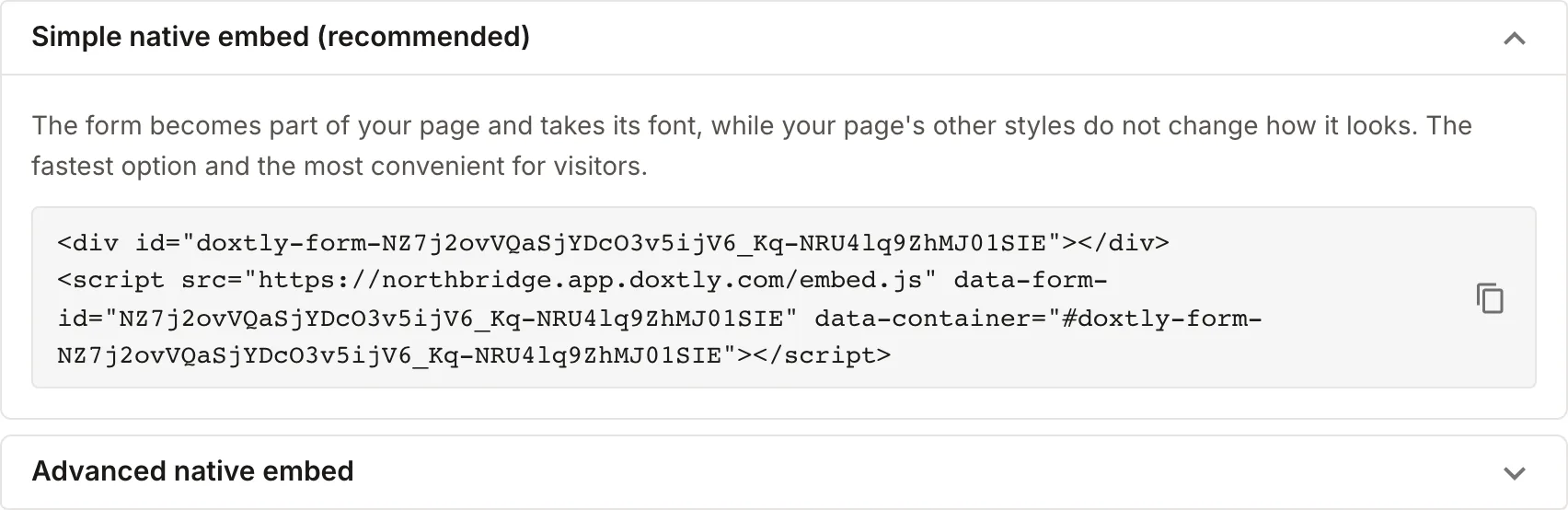
You can adjust the form with further attributes on the same tag.
| Attribute | What it sets | Default |
|---|---|---|
data-form-id |
The form’s public token, the last part of its link. Required. | |
data-container |
A CSS selector for the element the form goes into. Required. | |
data-width |
The form’s width, such as 600px. |
100% |
data-min-height |
Its minimum height. | 400px |
data-language |
pl, en, es, de, pt, fr, uk, th, zh, hi, ar, ja, tr or it. See Language. |
The visitor’s browser |
data-shadow-dom |
false turns off style isolation. |
On |
data-query-params |
Parameters for the form, as JSON: '{"source": "pricing-page"}'. See Passing parameters. |
|
data-theme |
Another theme of your library to show the form in. | The form’s own theme |
data-transparent |
true leaves out the theme’s page background, so your page’s own shows. |
Off |
data-base-url |
The Doxtly address to load the form from. You rarely need this: the script works it out from its own address. | Worked out from the script’s address |
Calling the script from code
Section titled “Calling the script from code”Advanced native embed gives you full control, for example to react when someone sends the form:
<div id="doxtly-form"></div><script src="https://app.doxtly.com/embed.js"></script><script> DoxtlyForms.embed({ formId: 'YOUR-FORM-TOKEN', container: '#doxtly-form', width: '100%', minHeight: '400px', shadowDom: true, language: 'en', queryParams: { source: 'pricing-page' }, onSubmitted: function (formId) { console.log('Form submitted:', formId); }, onError: function (error) { console.error('Form error:', error); }, onResize: function (height) { console.log('Form height:', height); }, });</script>| Option | What it does |
|---|---|
formId |
The form’s public token. Required. |
container |
A CSS selector or an HTML element. Required. |
width, minHeight |
Set on the container. Without them the container keeps its own size. |
shadowDom |
false turns off style isolation. On by default. |
language |
pl, en, es, de, pt, fr, uk, th, zh, hi, ar, ja, tr or it. |
baseUrl |
The Doxtly address to load the form from, if it should differ from where the script came from. |
queryParams |
Parameters to hand to the form. See Passing parameters. |
theme |
Another theme of your library to show the form in. |
transparent |
true leaves out the theme’s page background. |
onSubmitted |
Called with the form’s public token once a submission succeeds. A good place for a conversion event in your analytics. |
onError |
Called with a message when sending the form fails. |
onResize |
Called with the form’s height in pixels whenever it changes, such as on a new page or a new error message. |
DoxtlyForms.embed() returns an object with two methods: destroy() removes the form again, and getContainer() returns its container. It returns null and writes the reason to the browser’s console if formId or container is missing or the container is not found. DoxtlyForms.version tells you the script’s version.
Several forms on one page
Section titled “Several forms on one page”Load the script once and call embed() for each form:
<div id="contact"></div><div id="newsletter"></div><script src="https://app.doxtly.com/embed.js"></script><script> DoxtlyForms.embed({ formId: 'FIRST-FORM-ID', container: '#contact' }); DoxtlyForms.embed({ formId: 'SECOND-FORM-ID', container: '#newsletter' });</script>Two script tags with data attributes work as well, each with its own container. The same form embedded twice on one page keeps each copy’s restored answers apart.
Style isolation
Section titled “Style isolation”By default the form lives in a Shadow DOM, a sealed area of the page. Your site’s CSS cannot reach the form and the form’s styles cannot leak into your site, so a theme that restyles every input will not break it. Only the font comes through: the form is written in your site’s typeface, so it reads as part of the page. The form’s theme, its font and its custom CSS still apply, inside the form only.
With isolation off, the theme’s custom CSS still reaches nothing of your page: Doxtly puts the form’s own root in front of every rule.
Turn it off with shadowDom: false (or data-shadow-dom="false") when you want your site’s stylesheet to style the form, or your own scripts to reach its fields. You then take responsibility for any clashes.
The iframe widget
Section titled “The iframe widget”The widget shows the form in a frame and keeps resizing that frame to fit the form, so there are no inner scrollbars. The form stays fully separate from your page. It is iframe widget (auto-resize) on the Iframe tab.
<div id="doxtly-iframe-YOUR-FORM-TOKEN"></div><script src="https://app.doxtly.com/iframe.js" data-form-id="YOUR-FORM-TOKEN" data-container="#doxtly-iframe-YOUR-FORM-TOKEN"></script>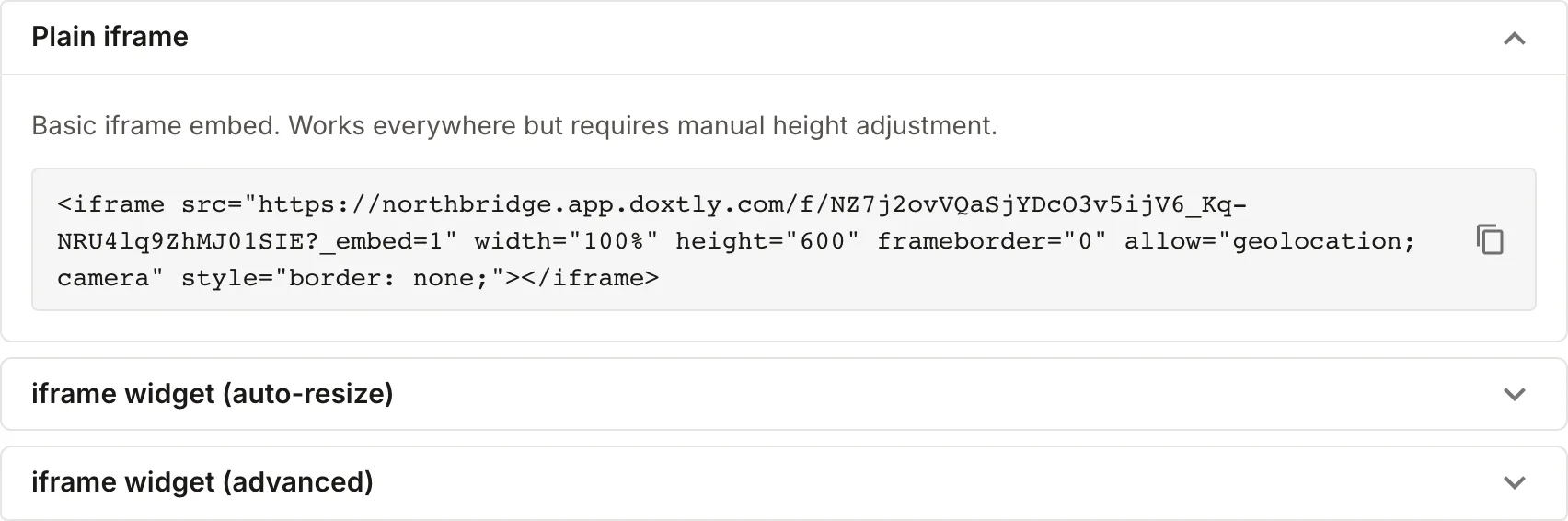
The attributes are data-form-id, data-container, data-width, data-min-height, data-language, data-theme, data-transparent, data-base-url and data-query-params, with the parameters as JSON, as for the script:
<script src="https://app.doxtly.com/iframe.js" data-form-id="YOUR-FORM-TOKEN" data-container="#my-form" data-query-params='{"source": "pricing-page"}'></script>iframe widget (advanced) does the same from code:
<div id="doxtly-iframe"></div><script src="https://app.doxtly.com/iframe.js"></script><script> DoxtlyIframeForms.embed({ formId: 'YOUR-FORM-TOKEN', container: '#doxtly-iframe', width: '100%', minHeight: '400px', language: 'en', queryParams: { source: 'pricing-page' }, onSubmitted: function (formId) { console.log('Form submitted:', formId); }, onResize: function (height) { console.log('Form height:', height); }, });</script>The options are formId, container, width and minHeight (100% and 400px by default), language, theme, transparent, baseUrl, queryParams, onSubmitted and onResize. embed() replaces whatever the container held, and returns an object with iframe, wrapper and destroy(), or null with the reason in the browser’s console if formId is missing or the container is not found. DoxtlyIframeForms.version tells you the widget’s version. Several forms on one page do not interfere with each other.
Another theme or a transparent background
Section titled “Another theme or a transparent background”An embedded form looks as it does on its own page: in the theme picked in its settings, with that theme’s font and custom CSS. When one form sits on two websites that look different, each embed can name another theme of your library instead, and leave the form’s own setting alone.
theme(data-theme, or_themein a plain iframe’s address) is the theme’s id: the last part of its address when you open it in the theme library, or for a built-in theme its key:branding,standard,neutral,calm,bold,examordark. A theme of another organization, or one that no longer exists, is ignored, and the form keeps its own.transparent(data-transparent="true", or_transparent=1) leaves out the theme’s page background, so the form sits on your page’s own. Its fields, buttons, colours and font stay as the theme has them.
<script src="https://app.doxtly.com/embed.js" data-form-id="YOUR-FORM-TOKEN" data-container="#doxtly-form" data-theme="calm" data-transparent="true"></script>Both work the same for the script, the iframe widget, a plain iframe and the plugins, and for forms, quizzes and surveys alike. _theme and _transparent are reserved: a form can’t take a link parameter of either name, and neither is saved with a submission.
A plain iframe
Section titled “A plain iframe”Opened directly, a form’s address shows your organization’s page. Inside a frame, it always shows only the form, with or without this parameter, so an iframe you pasted earlier keeps showing the bare form.
A plain tag works anywhere that accepts HTML, even where scripts are forbidden. It is Plain iframe, the first snippet on the Iframe tab.
<iframe src="https://app.doxtly.com/f/YOUR-FORM-TOKEN?_embed=1" width="100%" height="600" frameborder="0" allow="geolocation; camera" style="border: none;"></iframe>The frame does not resize itself, so set height for the longest state of your form and test it with error messages showing. allow="geolocation; camera" matters only for a form that saves the location: without it the browser will not even ask the visitor.
_embed=1 tells Doxtly to show the bare form, with no page around it, and lays it out for a frame, taking the width of the frame. It goes no further: the form doesn’t pass it on, save it with a submission or use it as a value. It also makes the form report to your page, so with a little code of your own you can react to the two messages it posts:
window.addEventListener('message', function (event) {  if (event.origin !== 'https://app.doxtly.com') return;
  if (event.data.type === 'doxtly:resize') {    document.querySelector('iframe').style.height = event.data.height + 'px';  }
  if (event.data.type === 'doxtly:submitted') {    console.log('Submitted:', event.data.formId);  }});
Do not add a sandbox attribute to the frame unless you must. If you do, keep at least allow-scripts allow-same-origin allow-forms allow-top-navigation-by-user-activation, or the form cannot work or take the visitor to signing on its own.
Forms with a take-photo field
Section titled “Forms with a take-photo field”A Take photo field needs the browser’s camera, which a page has to allow for a form inside a frame:
- The iframe widget and the plain iframe snippet already say
allow="geolocation; camera". If you wrote theiframetag by hand, addallow="camera"to it. - With the embed script the form runs on your page, so the camera is your page’s: it must be served over
https, and its ownPermissions-Policyheader, if it has one, mustn’t turn the camera off.
Passing parameters to a form
Section titled “Passing parameters to a form”Embedded forms read the parameters of the page they sit on. If a visitor lands on https://www.example.com/contact?utm_source=google, the form receives utm_source=google with no configuration. This applies to the script, the iframe widget and the WordPress plugin. A plain iframe gets only what you write into its src.
You can add more of your own: queryParams in code, or data-query-params on the tag, for the script and the widget alike. When names collide, a later step wins:
- The page’s own parameters. A repeated name keeps its first value.
- The
languageyou set for the form. - What you pass in
queryParams. A value ofnullis left out.
Whether a submission keeps any of this depends on the form’s Link parameters settings. With an empty whitelist it keeps everything the form receives, including ad parameters such as gclid, language, and embed from the iframe widget. List the names you care about to keep your data tidy.
A required parameter applies here too. If it is missing, your page shows Missing required parameters in place of the form.
Language
Section titled “Language”Set language to pl, en, es, de, pt, fr, uk, th, zh, hi, ar, ja, tr or it for the texts Doxtly adds around the form. Without it, the visitor’s browser languages decide. If none of them is one of these languages, the script looks at the lang attribute of your page, and after that it falls back to English. Inside an iframe the form cannot see your page, so it goes straight from the browser’s languages to English. A plain iframe takes the language in its address, as in ?_embed=1&language=en. Your field labels stay as you wrote them.
Forms that lead to signing
Section titled “Forms that lead to signing”When a workflow prepares a document for signing right after the form is sent, the visitor goes straight to the signing page in the full browser window, not inside your page.
- In an iframe, the frame opens the signing page itself. The signing link is never handed to your page, so analytics or chat scripts on it cannot read the link.
- With the script, the form is part of your page, so your page navigates. The link passes through your page’s JavaScript. If that matters to you, use an iframe.
If a browser refuses the move, the visitor sees Your document is ready to sign with a Continue to signing button.
Forms that redirect
Section titled “Forms that redirect”A form set to redirect to another page moves the whole browser window, wherever it’s embedded, so your thank-you page never opens in a small box inside the page.
- With the script, the form is part of your page, so your page moves on.
- In an iframe, the frame moves the top window itself. Browsers allow that once the visitor has used the frame, which they have by sending the form.
- If the move is refused, most often because the frame has a
sandboxattribute withoutallow-top-navigation, the visitor stays on the confirmation and the Continue button takes them there. So nobody is left without a confirmation.
The address isn’t posted to your page’s scripts as a message, but it holds the values you chose, so see the warning about values in addresses. onSubmitted still fires before the page moves, though a conversion event that needs time to send belongs on the thank-you page. A form that leads to signing goes to the signing page instead.
Quizzes and surveys
Section titled “Quizzes and surveys”A quiz or a survey goes on a website in the same ways as a form, with the same options: the embed script, the iframe widget, a plain iframe and the plugins. Its Share dialog has the snippets, under On a website, on the Script, Iframe and CMS plugin tabs. Name it by the token of its public link, the last part of /q/…:
<div id="doxtly-survey"></div><script src="https://app.doxtly.com/embed.js" data-survey-id="YOUR-SURVEY-TOKEN" data-container="#doxtly-survey"></script>- On the tags,
data-quiz-idordata-survey-idtakes the place ofdata-form-id; in code,quizIdorsurveyIdtakes the place offormId. The two are the same: a survey’s token works asquizIdtoo. - The script draws the quiz in your page, in its theme, isolated by default as a form is. One question per screen fills the width of its container, and a quiz that asks for the full screen puts your whole page in full screen when the person starts.
onSubmittedis called with the token once the person sends the attempt on that page, not when they open one they sent earlier.- The host page’s own parameters reach the quiz, so a page opened with
?key=gives the person their own access. - With Only from these websites in the quiz’s security settings, put your website’s address on the list. With the script your page itself asks Doxtly, with a frame the frame tells Doxtly which website shows it; a quiz shown by any other website is not found.
WordPress plugin
Section titled “WordPress plugin”The Doxtly Forms plugin adds a block, an Elementor widget and a shortcode, so nobody needs to touch HTML. It needs WordPress 6.3 or newer and PHP 7.4 or newer. Elementor is optional. This section is the short version: the Plugins section covers it in full, with screenshots, examples and every message it can show.
Installing
Section titled “Installing”- Download
doxtly-forms.zipfrom the plugin’s page. - In WordPress, go to Plugins, Add Plugin, Upload Plugin, choose the file and activate the plugin. To update, upload a newer version over the installed one.
- Open Settings, Doxtly Forms. Under Connection, enter your Application URL: the address you open Doxtly at, such as
https://app.doxtly.comorhttps://acme.app.doxtly.com. Left empty, it ishttps://app.doxtly.com. - Press Save changes.
Only WordPress users who may manage the site’s settings, usually administrators, see this page. An address that is not a valid http or https address is refused, and nothing is saved. The side of the page keeps a short reminder of the three ways to embed a form and of the shortcode’s attributes.
The plugin is translated into the 14 languages of Doxtly: WordPress users see its screens in their own WordPress language when it is one of them, and in English otherwise. Arabic is written right to left. Deleting the plugin removes its settings and the saved access key, on every site of a network.
Choosing forms from a list
Section titled “Choosing forms from a list”Without further setup you type the form’s public token, the last part of its link, into the block or widget. Save a Doxtly access key and you pick from a list of your active forms instead, which is friendlier for colleagues who edit pages and rules out typos.
- In Doxtly, create an access key with the List forms permission. Add List interactive documents if you also want to link to interactive documents.
- Copy its API key and API secret. The secret is shown only once.
- In Settings, Doxtly Forms, paste them into API key and API secret and press Save changes.
The page then checks the connection and shows what it found. Check again repeats the test. The label next to Access key tells you where you stand:
| Label | What it means |
|---|---|
| Not connected | No key is saved. Forms are entered by their ID. |
| Connected | The list of forms was read. |
| Connected, without forms | The key reads interactive documents but lacks List forms. |
| Connection failed | The list could not be read. The message below says why, for example that the key may not list forms. |
| Needs an encryption key | See the note below. |
| Cannot be decrypted | See the note below. |
Only WordPress talks to Doxtly with this key: it never reaches the visitor’s or the editor’s browser, and WordPress stores it encrypted. Leaving a field empty on a later save keeps what is saved, so you can replace the secret alone. Tick Remove the saved access key to go back to entering IDs.
The same key lets the editors’ link tools find your forms by name, for when you want a link to the form’s own page and not the form inside yours.
If your Doxtly address has no app label, or the plugin says it cannot work out the API address, open Advanced and fill in API URL. Otherwise leave it empty.
The block
Section titled “The block”In the block editor, add Doxtly Form and set it up in the sidebar, where the settings are split into Form and Display. The editor shows a placeholder with the form’s title and the embed type, and the real form appears on the published page.
| Setting | Choices |
|---|---|
| Form | The form, from the list or as an ID. See what the form picker shows. |
| Embed Type | Native Embed (the script) or Iframe Embed (the iframe widget) |
| Language | Auto-detect, English, Polski, Español, Deutsch, Português, Français, Українська, ไทย, 简体中文, हिन्दी, العربية, 日本語, Türkçe or Italiano |
| Width | For example 100% or 600px. The default is 100%. |
| Minimum Height | For example 400px, which is the default |
The Elementor widget
Section titled “The Elementor widget”Drag Doxtly Form from the panel onto the page. Under Form Settings you get the same five settings as in the block.
The shortcode
Section titled “The shortcode”The WordPress tab of the Share dialog gives you the shortcodes for the form ready to copy: Native embed shortcode (recommended), and iframe embed shortcode for a theme the native one does not get along with. They work in any post, page or widget area:
[doxtly_form id="YOUR-FORM-TOKEN" type="embed" width="100%" min_height="400px"]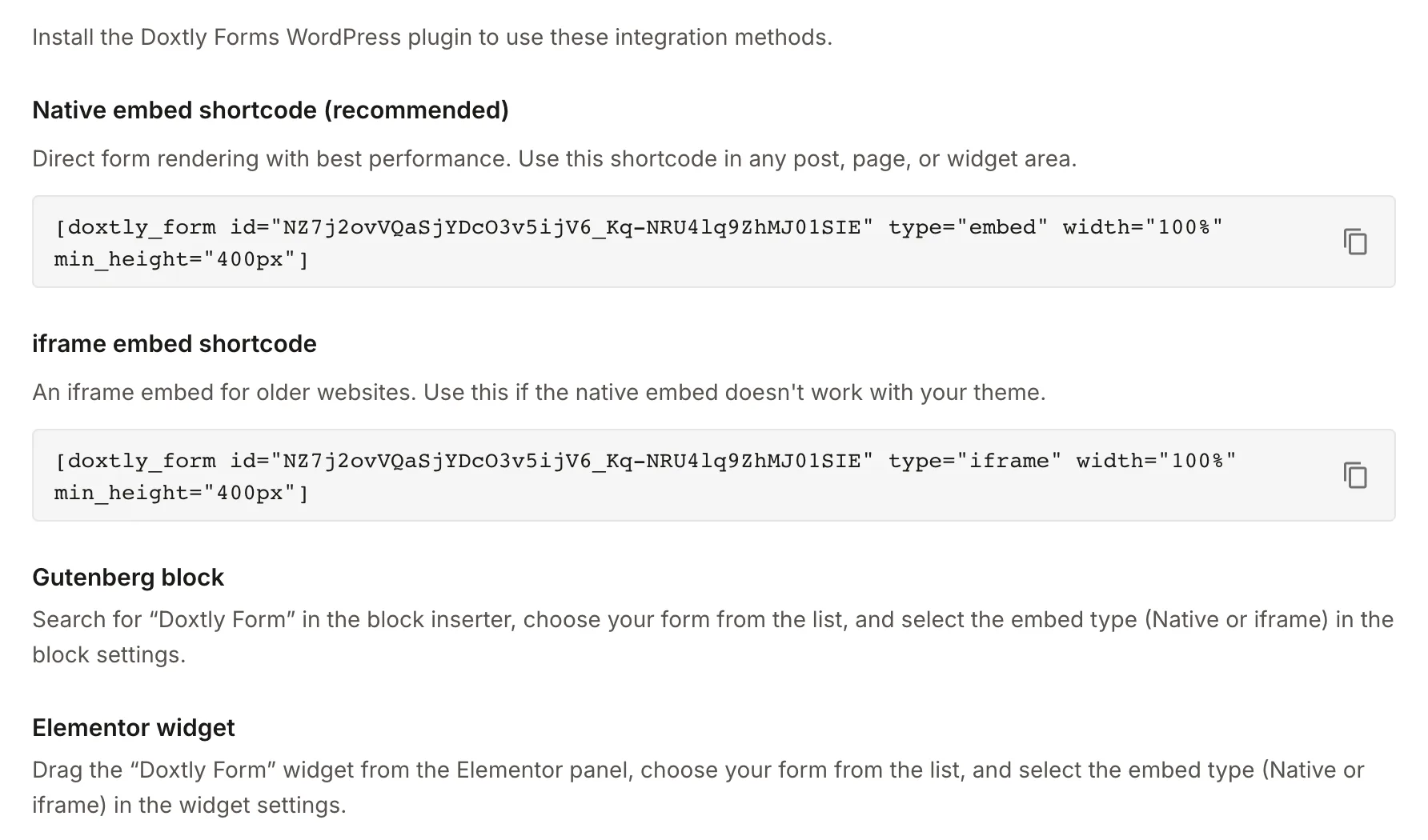
| Attribute | What it sets | Default |
|---|---|---|
id |
The form’s public token. Required. | |
type |
embed or iframe |
embed |
width |
A number with a unit: px, %, em, rem, vh or vw. Anything else falls back to the default. |
100% |
min_height |
The same, for the minimum height. | 400px |
language |
pl, en, es, de, pt, fr, uk, th, zh, hi, ar, ja, tr or it |
Detected |
shadow_dom |
false lets the theme’s styles reach the form. For type="embed" only. |
true |
shadow_dom exists only in the shortcode, not in the block or the widget. For iframe, the plugin always uses the iframe widget, so the height follows the form. A shortcode with no id, or with one that cannot be a form ID, shows “Doxtly Forms: Form ID is required.” or “Doxtly Forms: Form ID is invalid.” on the page.
What the form picker shows
Section titled “What the form picker shows”| Situation | What the editor offers |
|---|---|
| No access key saved | A Form ID field |
| The list loaded | A list of active forms, sorted by title. An ID cannot be typed. |
| No active forms | “No forms to choose from”, with a note to make a form active and refresh the list |
| The list failed to load | The reason, and a Form ID field, so that a failing connection stops nobody from working |
The list is kept for ten minutes, so a form you made active a moment ago may not be on it yet. The refresh button next to it reads it again. Saving the plugin’s settings clears the list too. It shows at most a thousand forms. Only people who can edit posts can load it. When the list needs attention, administrators also get an Open the settings link in the notice.
A form saved in a block or widget that is not on a loaded list stays in place, shown as Unavailable form, with a warning. That happens when the form was deleted or switched to inactive, or when it belongs to another organization. It is never swapped silently, and you decide what to choose instead. With no active forms left to choose from, Remove the saved form clears it.
If the form does not arrive
Section titled “If the form does not arrive”If the script is blocked or late, for example by an ad blocker or a performance plugin, the page shows “The form could not be loaded here.” with an Open the form link to the public page after ten seconds. The plugin keeps watching, and if the script arrives later, the form replaces that message.
Other website builders
Section titled “Other website builders”There are plugins for WordPress, Joomla, Drupal and Magento. For any other CMS or site builder, paste the script or an iframe wherever it lets you add custom HTML. If your platform removes script tags, the plain iframe is the one to use.
Open signing from your website
Section titled “Open signing from your website”The same script can open a signing page from your own website. Signing does not happen inside your page: it opens in a pop-up, a new tab or the same tab, with Doxtly’s address visible, so the person can see where they are signing.
DoxtlyForms.openSigning(signingUrl, { mode: 'popup', // or 'tab', or 'redirect' onEvent: (event) => console.log(event.status), // 'signed', 'declined' or 'closed'});First add your website’s address under Organization settings → Signing → Sites that may open signing. closed only means the window was closed: confirm the result in your own backend, with a workflow or the API.
If your website has a Content Security Policy
Section titled “If your website has a Content Security Policy”A Content Security Policy is a list your site sends to browsers, naming what its pages may load. Most sites have none. If yours has one, it has to let the form through, or the form will not load:
| What the form needs | Directive | Value |
|---|---|---|
| The script or widget | script-src |
https://app.doxtly.com |
| Calls to Doxtly, with the script | connect-src |
https://api.doxtly.com |
| The form’s pictures, with the script | img-src |
https://api.doxtly.com |
| The form’s styles, with the script | style-src |
'unsafe-inline' |
| The theme’s font, with the script | font-src |
https://app.doxtly.com |
| The frame, with an iframe | frame-src |
https://app.doxtly.com |
With your own subdomain, use https://acme.app.doxtly.com and https://acme.api.doxtly.com. A form with reCAPTCHA also needs Google’s reCAPTCHA addresses when you use the script.
When something goes wrong
Section titled “When something goes wrong”| What you see | What to check |
|---|---|
| Nothing at all | Both data-form-id and data-container are on the tag, and the container exists on the page. If the tag has both, the browser’s console names the problem. |
| Form not found | The form is Active, the ID is right, and your page’s address is among the allowed origins if you use them. |
| Missing required parameters | The page’s address, or your queryParams, must carry the required parameter. |
| The iframe does not resize | Use the widget. A plain iframe needs ?_embed=1 and your own code. |
| Pictures are missing | Your Content Security Policy. |
| The location is never recorded | The frame needs allow="geolocation". |
| Your theme’s styles do not apply | That is style isolation at work. Use the custom CSS of the form’s theme, or turn it off. |
| WordPress shows a list error | The message says why. Check the access key, its List forms permission and the addresses in Settings, Doxtly Forms. |