

My signature and initials
Keep your signature here and you won’t have to make it again each time. If a partner at Northbridge Advisory signs ten client agreements in a morning, she accepts her saved signature with one click on each. Only you can see it here, and you can change or delete it whenever you like.
It belongs to the organization you are working in. Each organization you are in keeps a signature of its own, so if you work in two, save one in each.
Save your signature
Section titled “Save your signature”-
Open your profile and choose Signature & initials. The tab has two cards, My signature and My initials.
-
On My signature, click the area marked Click to sign. The Signature window opens.
-
Choose Draw, Type or Upload image and make your signature, as described below.
-
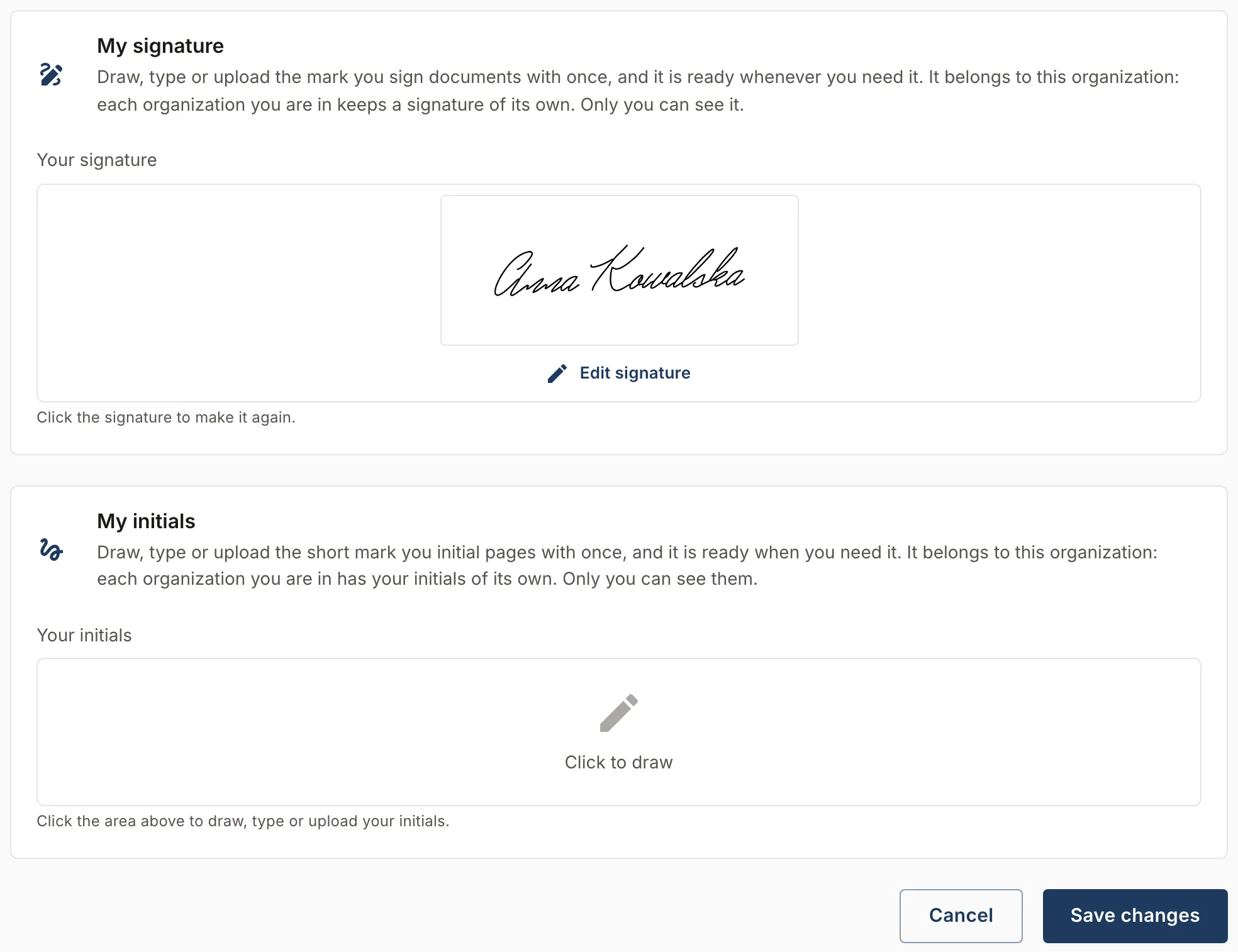
Click Accept, which turns on once there is something to accept. The window closes and the signature appears on the card.
-
Click Save changes in the bar at the end of the tab.
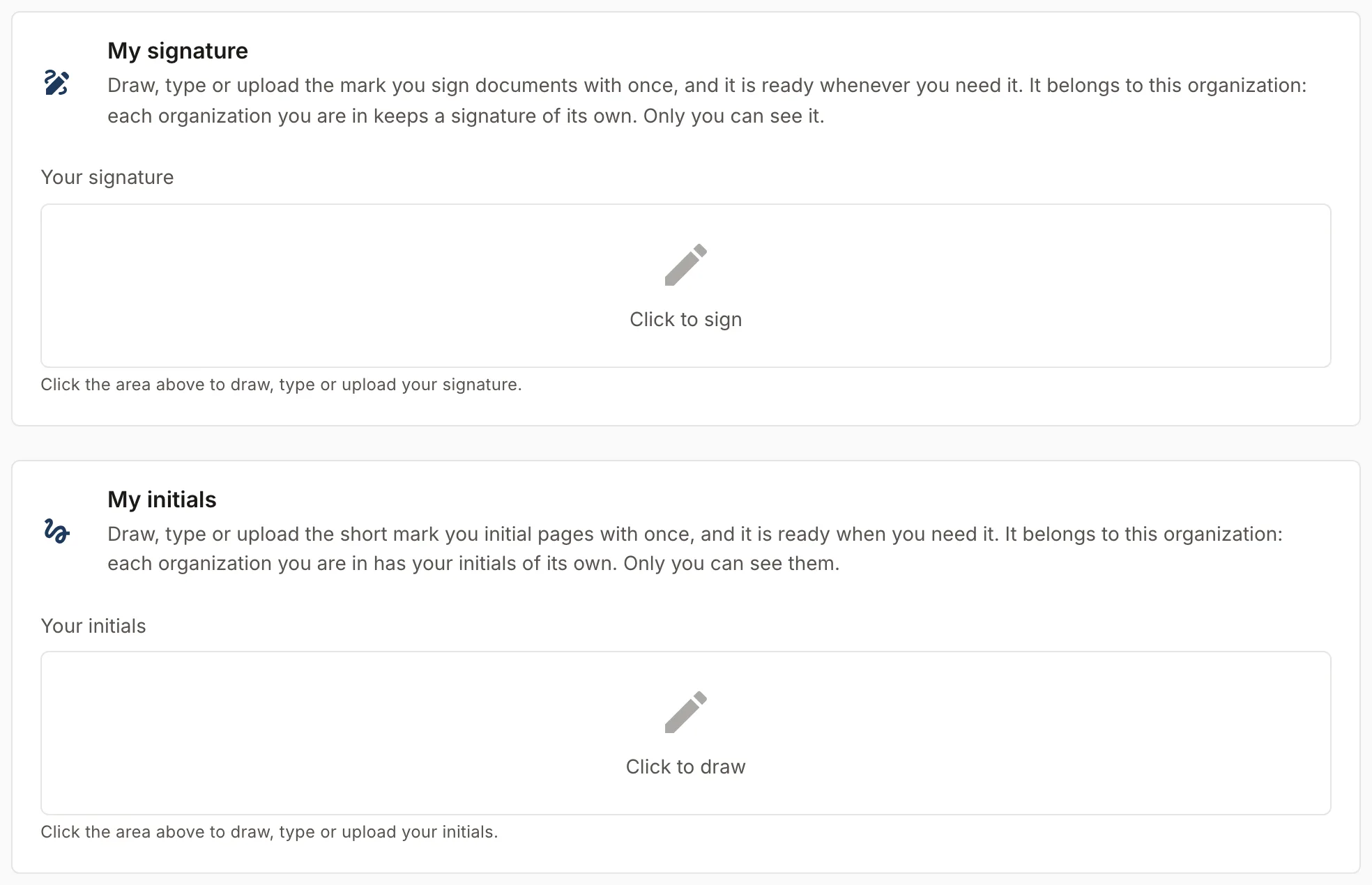
Accept alone doesn’t store anything: the bar’s Save changes does, for both cards at once. Cancel in the same bar drops what you drew and goes back to what is stored. If you try to leave the tab or the page with something unsaved, Doxtly asks Unsaved changes first: Stay keeps you here, Leave drops the drawing.
Sign with a mouse, a finger or a stylus. A phone or tablet gives the most natural result, so it can be worth opening your profile there just for this.
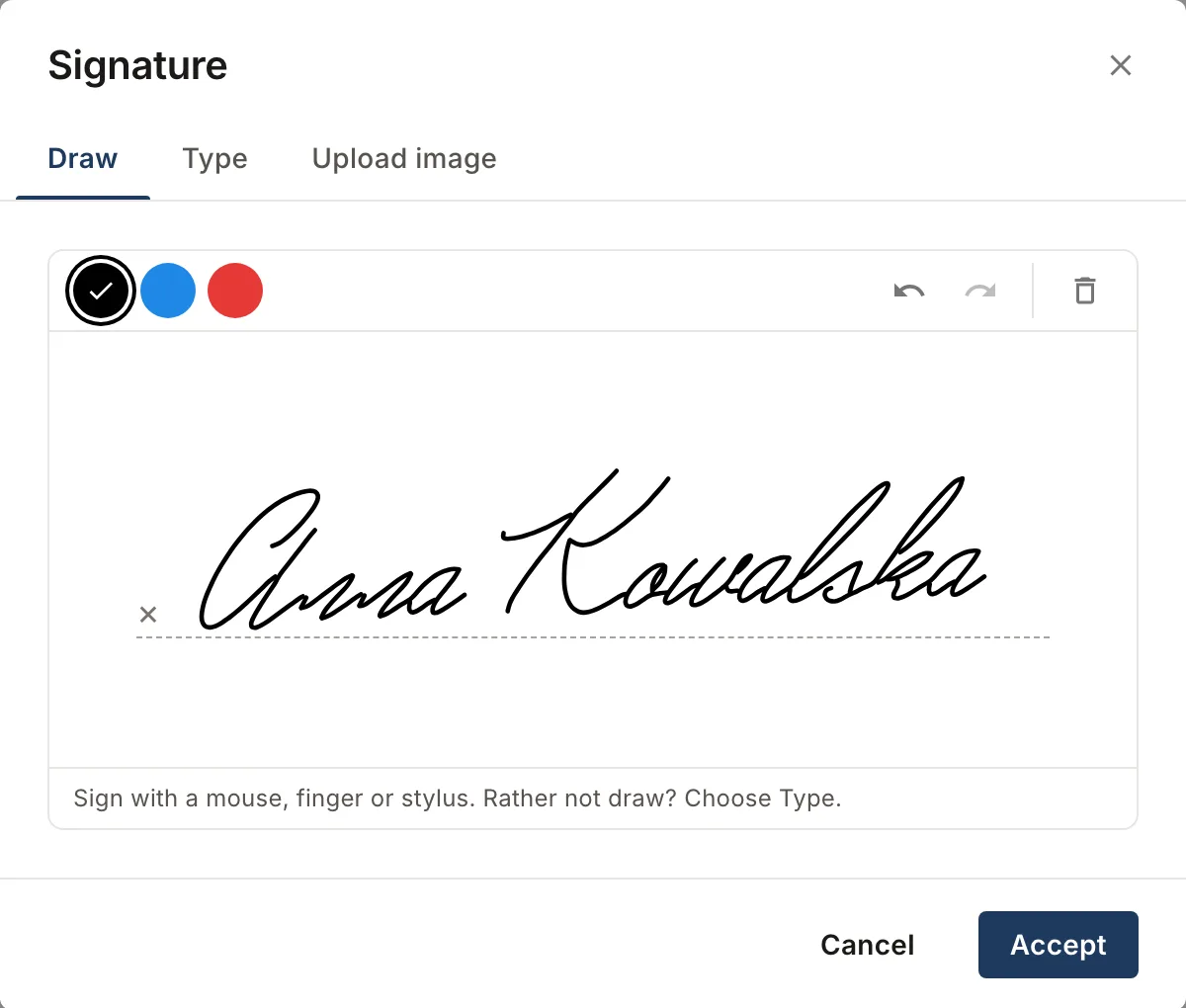
| Control | What it does |
|---|---|
| Ink color | The three swatches above the pad: Black, Blue or Red. Black is the default. A new colour repaints what you have just drawn. |
| Undo, Redo | The two arrows above the pad step back or forward one stroke. Ctrl+Z and Ctrl+Y do the same, with Cmd in place of Ctrl on a Mac. |
| Clear | The bin icon wipes the pad. Undo brings it back if you slip. |
If you would rather not draw, enter your name and let a handwriting style do it. This suits people who work on a desktop with a mouse and find a drawn signature comes out shaky.
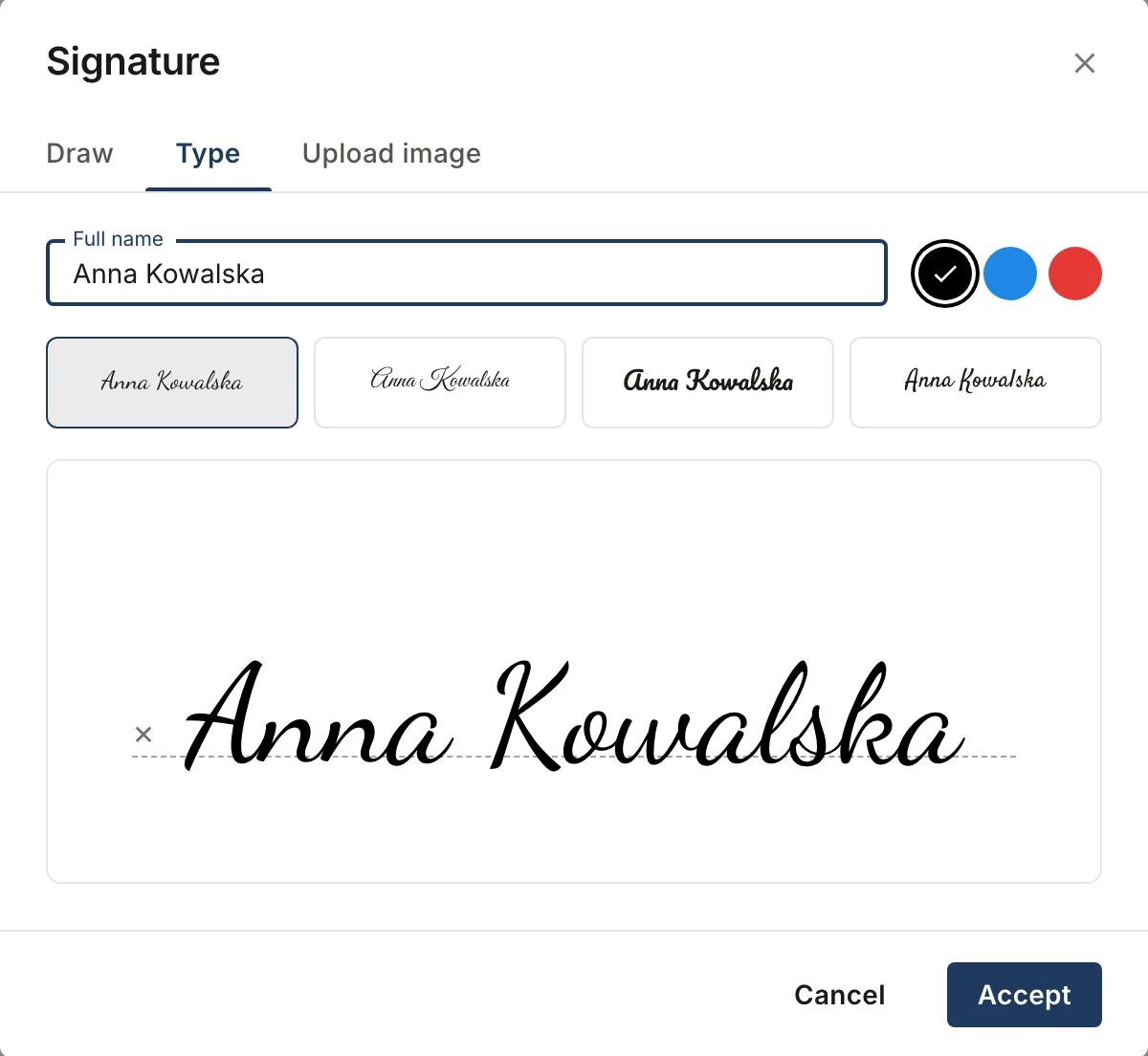
| Control | What it does |
|---|---|
| Full name | The words of the signature, up to 60 characters |
| Font style | One of four handwriting styles, each shown with your own name in it |
| Ink color | Black, Blue or Red |
Upload image
Section titled “Upload image”If you already have a signature you like on paper, take a picture of it and use that. It suits someone whose signature never comes out right with a mouse, and it takes a minute with a phone.
-
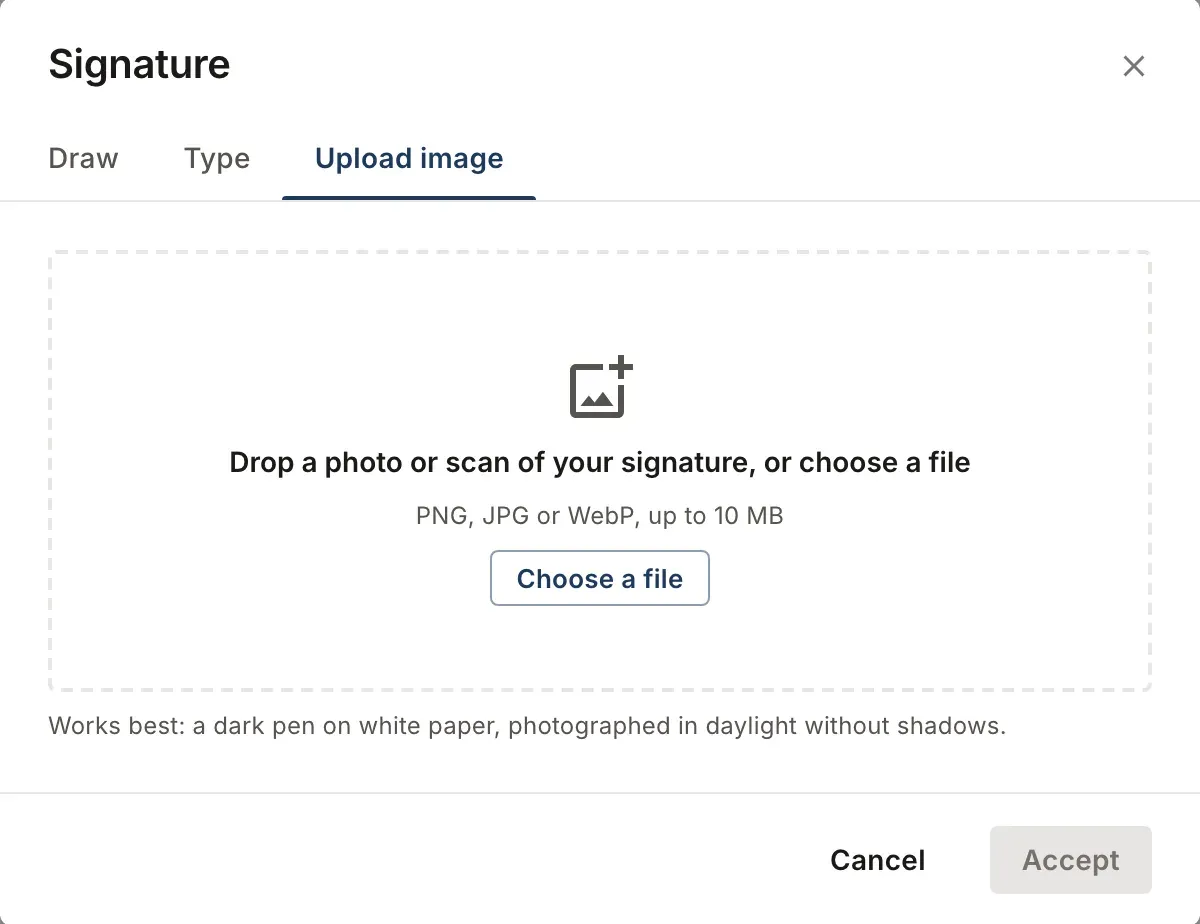
On Upload image, drop the file onto the area that reads Drop a photo or scan of your signature, or choose a file, or click Choose a file. Doxtly takes PNG, JPG or WebP, up to 10 MB. On a phone or tablet, Take a photo opens the camera straight away.
-
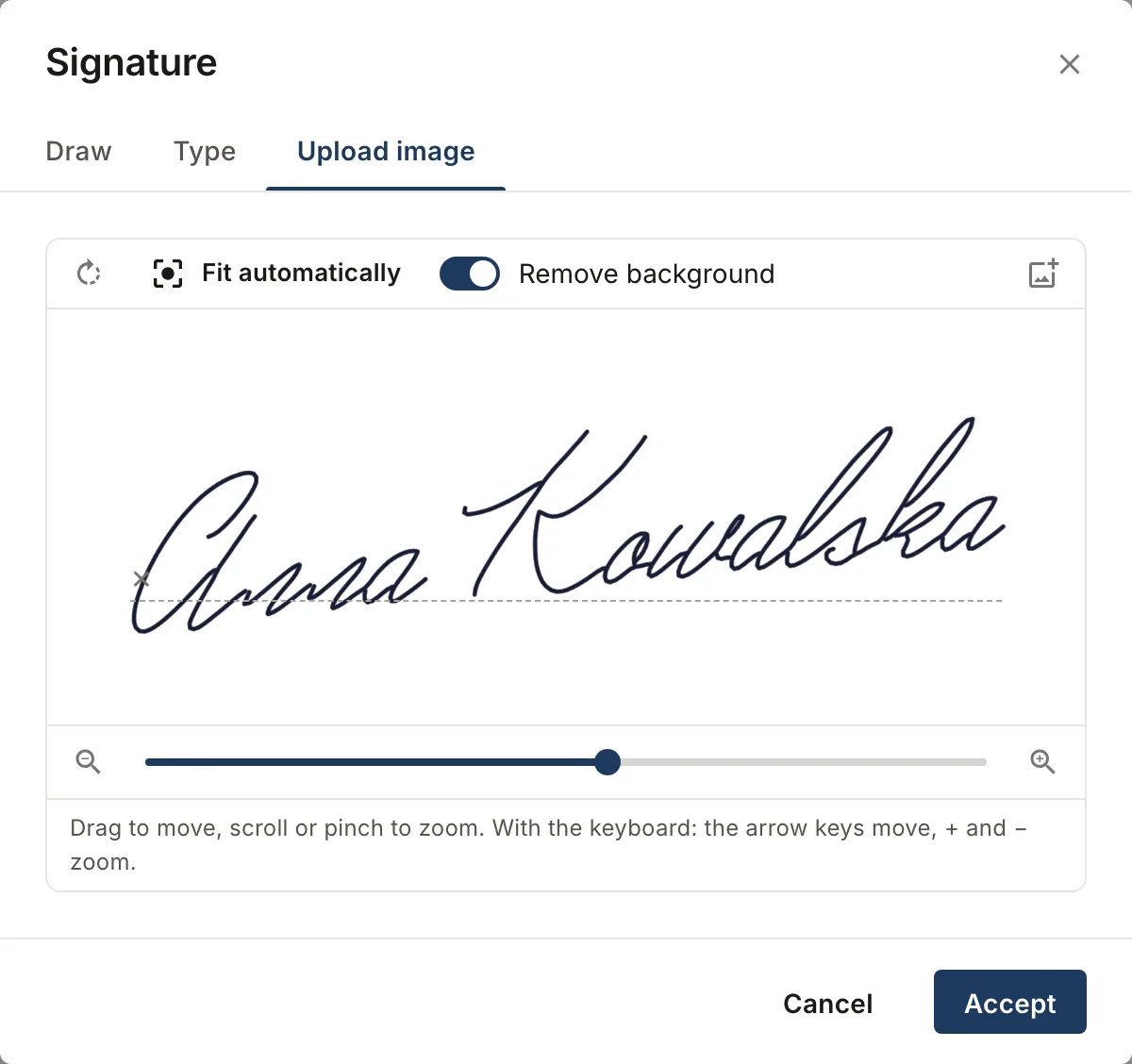
Doxtly finds the ink in the picture and places it for you: as large as it fits, centred, resting on the line. Most pictures need nothing more.
-
If you want it different, move, zoom or turn it with the controls below. The sheet shows exactly the image you will get.
-
Click Accept, then Save changes, as with a drawn signature.
| Control | What it does |
|---|---|
| Dragging the picture | Moves it on the sheet, with a mouse or a finger. With the keyboard, the arrow keys move it, and further with Shift held down. |
| The zoom slider | Makes the picture larger or smaller. The magnifier buttons at its ends, the mouse wheel, two fingers on a touch screen and the + and − keys do the same. |
| The rotate button, Rotate 90° in its tooltip | Turns the picture a quarter, for a scan or a photo taken sideways, and places it again. A phone photo’s own orientation is applied by itself. |
| Fit automatically | Puts the picture back where Doxtly placed it. |
| Remove background | On at first. Grey paper and shadows become white, and the ink keeps its colour, so the signature sits on the document without a grey box around it. Turn it off to keep the paper as it was photographed. |
| The button at the right of the toolbar, Choose another file in its tooltip | Drops this picture and goes back to the first step. |
A file that is not one of the three formats gets This file is not a PNG, JPG or WebP picture., a larger one This file is larger than 10 MB., and one the browser cannot open This picture could not be read. Choose another file. A photo in an iPhone’s own format, HEIC, opens in a browser that can read it, such as Safari; any other says This browser can’t read HEIC photos, an iPhone’s own format. Save the photo as a JPG or PNG and choose that file.
For a good picture
Section titled “For a good picture”- Sign plain white paper with a dark pen. A thicker line reads better than a fine one.
- Photograph it in daylight, from straight above, with no shadow of your hand or phone across it.
- Keep anything else written or printed away from the signature: Doxtly looks for the dark marks on the page, and a stray line nearby is taken for ink.
- Fill most of the photo with the signature, so it stays sharp when it is fitted to the line.
A PNG with a transparent background works as well: what is transparent becomes white paper.
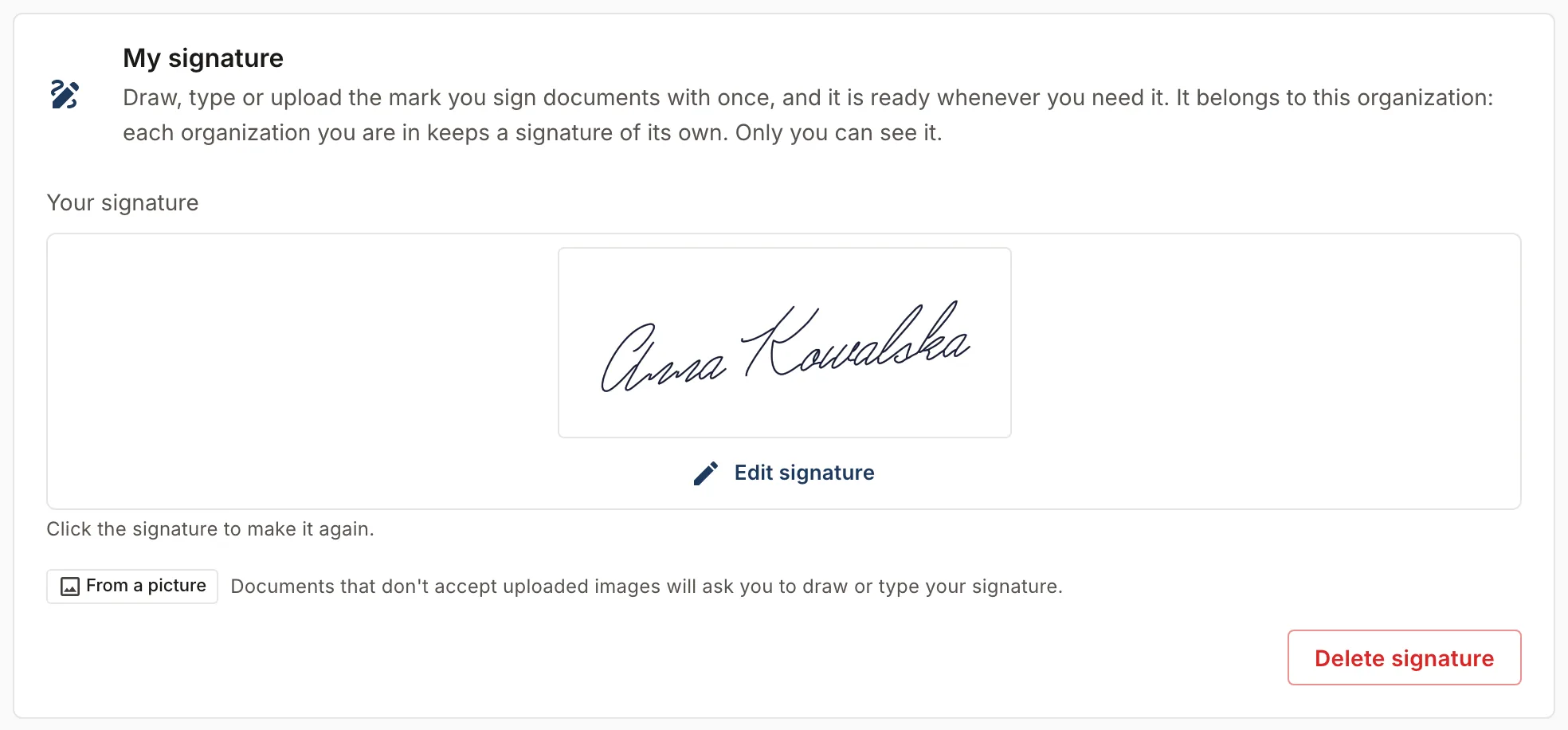
A saved signature made from a picture shows From a picture under it, with a reminder that documents which don’t accept uploaded images will ask you to draw or type your signature. See How a picture is treated when you sign.
Change or delete it
Section titled “Change or delete it”Once a signature is saved, the card shows it with an Edit signature button. Click the signature or the button to open the window again. The pad opens with your current signature on it, so press Clear first if you want to start from nothing. New strokes are otherwise added on top, and strokes added on top of a picture leave it a picture. Accept the new one and click Save changes: it takes the place of the old one, since you only ever have one.
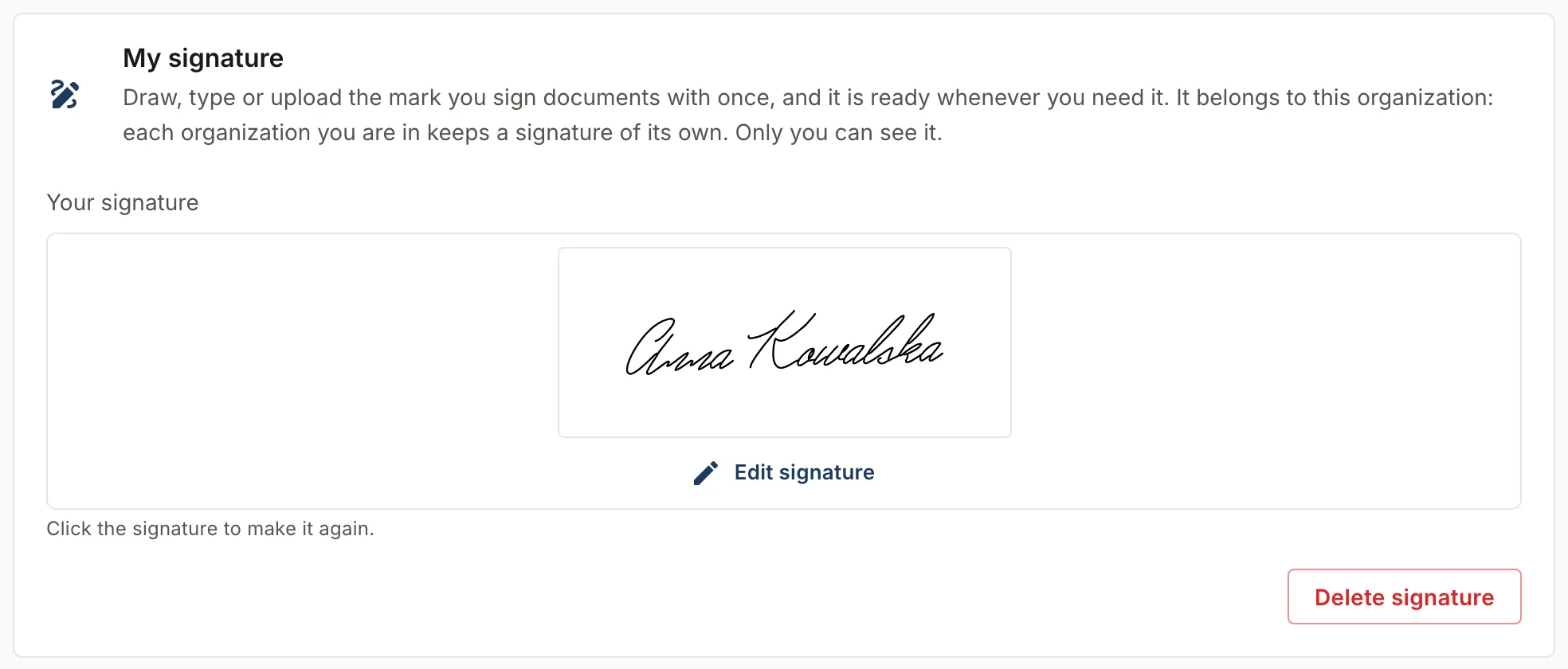
Delete signature appears only while a signature is stored. It asks you to confirm, then removes the signature and its image at once, without the bar. This touches only the organization you are working in.
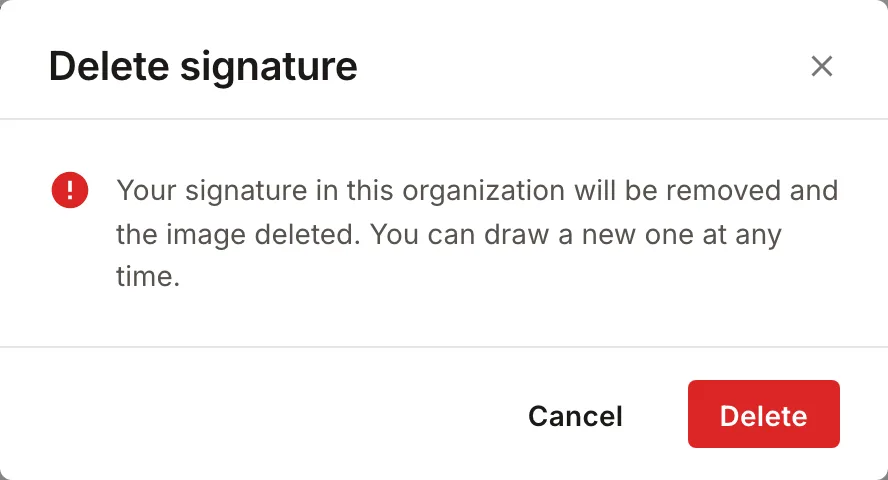
Replacing or deleting your saved signature doesn’t touch anything you have already signed. The mark became part of those documents when you signed them.
Your initials
Section titled “Your initials”The My initials card below works just like the signature: click Click to draw, draw, type or upload them in the Initials window, click Accept, then Save changes. When you type, the field is called Initials: enter the letters, such as AK for Anna Kowalska. Keep them short, since initials go on a page as a small stamp, with no name or date beside them. Edit initials opens the window again, and Delete initials removes them after you confirm.
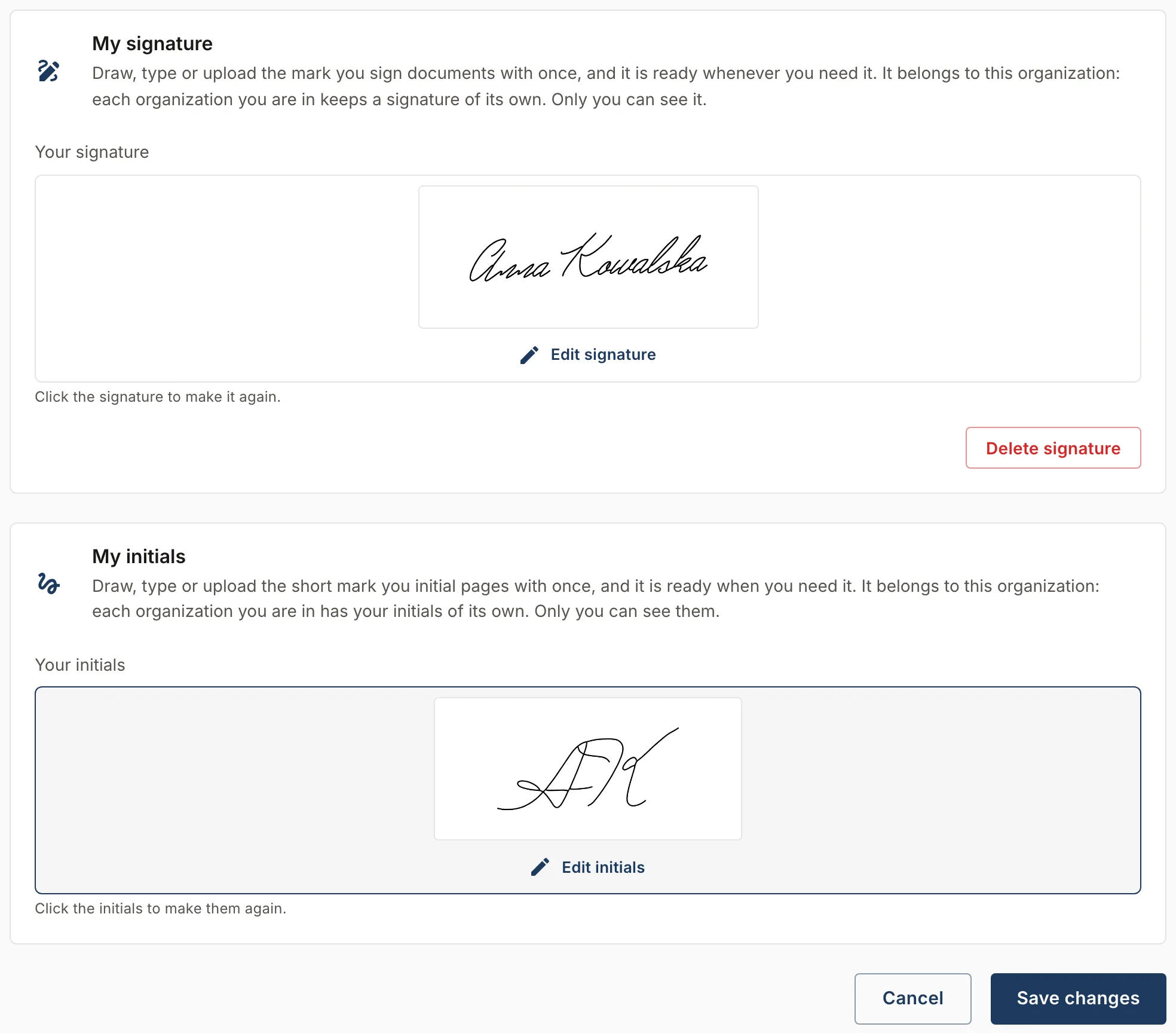
A signature and initials changed together are saved together, with one click on Save changes. Initials are saved in each organization separately, as your signature is.
Where it is offered
Section titled “Where it is offered”| Where | What you see |
|---|---|
| Signing inside Doxtly | The Signature window opens on My signature when the place you are signing is still empty. One click on Accept applies it. A place for initials opens the Initials window on My initials the same way. |
| PDF editor | My signature is the first tab of the signature window, and My initials of the initials window. |
You are never forced to use it. Draw and Type stay available beside it, for a document where you would rather sign by hand. If a place already holds a signature, the window opens on Draw, so your saved one never replaces a mark unasked.
The saved signature is offered only when you sign inside Doxtly, signed in. If you open a package from the link in your email, Doxtly doesn’t know which account to take a signature from, so you draw or type as any other signer does. To use the saved one, open the package in the app. Signature fields on web forms don’t offer it either.
Don’t confuse it with Use your last signature, which appears while you sign. That one repeats what you drew or typed earlier on the same page, and it is forgotten when the page closes.
Signing for a colleague under an authorization works the same way: you use your own signature, and the document says on whose behalf.
How a picture is treated when you sign
Section titled “How a picture is treated when you sign”A signature saved from a picture counts as an uploaded image when you sign, because that is what it is: anyone with a copy of the picture could make the same mark. So My signature applies it only where the package lets your party use Uploaded image. Elsewhere the tab says Your saved signature is a picture, which this document doesn’t accept – draw or type it., and the window opens on Draw. Initials saved from a picture follow the same rule. In the PDF editor, your own document, it is always offered.
If most documents you sign don’t take uploaded images, a drawn or typed signature saved here saves you that step.
The audit trail notes whether each signature was drawn, typed, your saved one, or an uploaded picture, which a saved signature made from a picture is recorded as. A saved signature looks identical on every document, and that record explains why.