

Workflow categories
A category groups the workflows that work around one matter. Client onboarding at Northbridge takes three: one takes the form in and sends the NDA, one runs when it is signed, one when it is declined. Put them in a category called “Client onboarding” and you see them as the set they are.
Categories change nothing about how workflows run. They only keep the list readable once it grows past a screen.
Available when: your role has the permission View workflows and their runs. Adding, renaming and deleting takes Manage workflow categories, and putting a workflow in a category takes Manage workflows.
The Categories tab
Section titled “The Categories tab”Open Automation and switch to Categories.
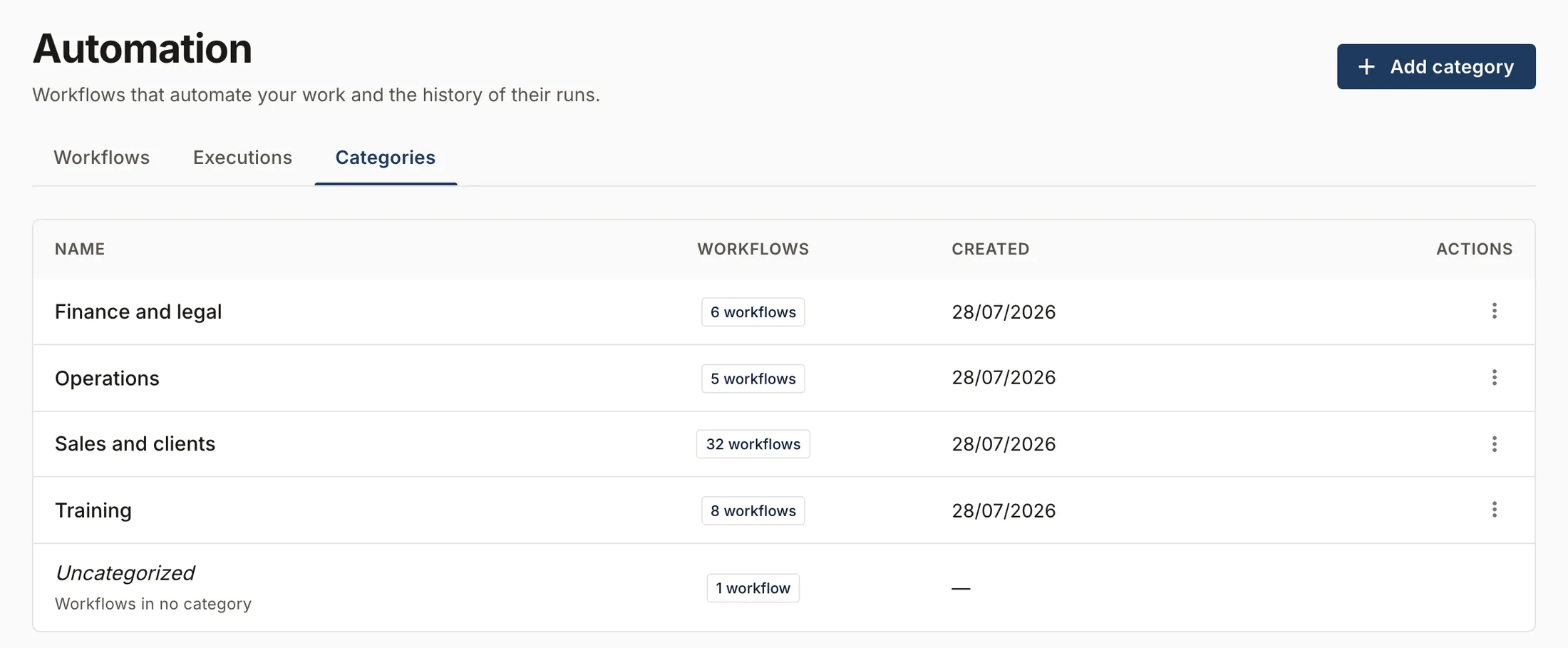
| Column | What it shows |
|---|---|
| Name | The category’s name. Categories are listed alphabetically. |
| Workflows | How many workflows it holds. |
| Created | When it was added. |
| Actions | The row’s menu. |
The last row, Uncategorized, counts the workflows in no category. It isn’t a real category, so it can’t be renamed or deleted. On a phone, each row is a card with the same information.
Click any row to open the Workflows tab filtered to it. The Uncategorized row is a quick way to find the workflows nobody has sorted yet.
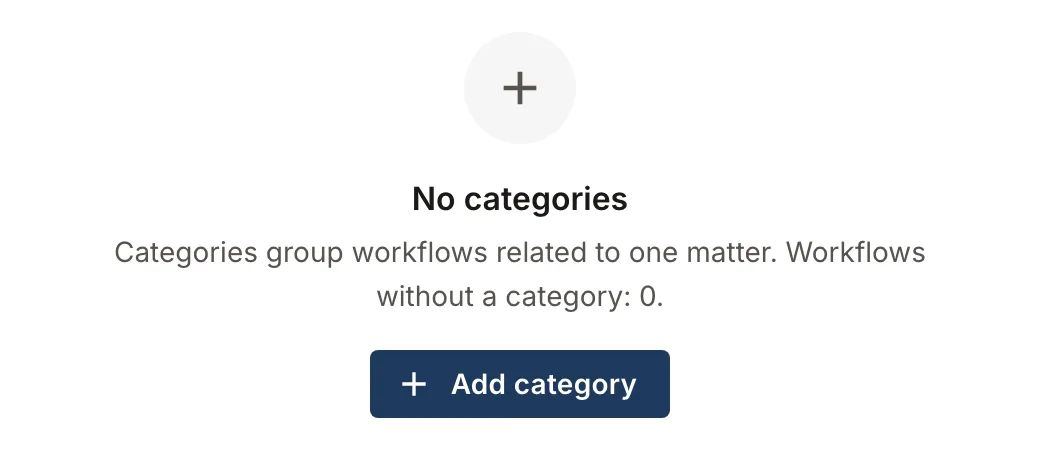
With no categories yet, the tab shows No categories, tells you how many workflows are in none, and offers Add category if you may add one.
Adding a category
Section titled “Adding a category”- Click Add category.
- Type a Name, up to 100 characters.
- Click Add.
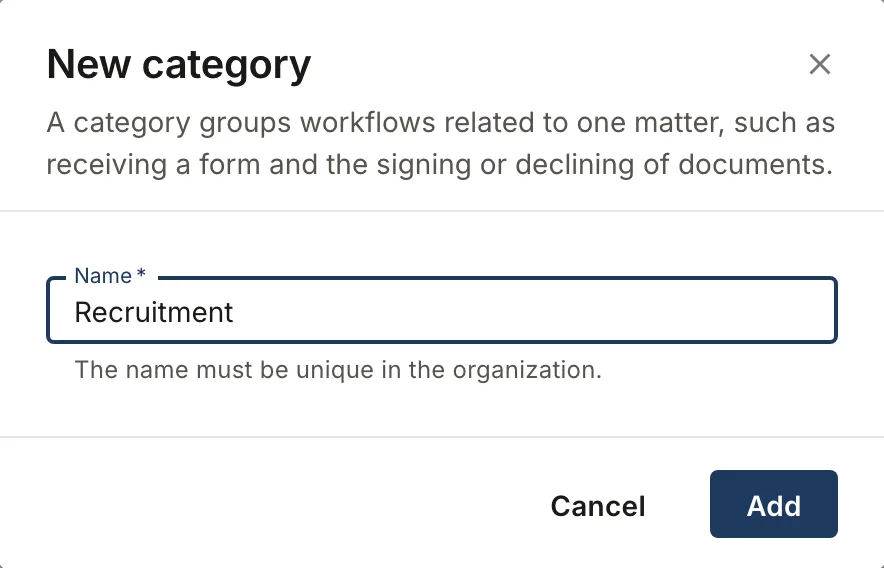
A category is nothing more than its name. The name has to be unique in the organization, whatever the letter case: “Onboarding” and “ONBOARDING” count as the same. If it’s taken, the dialog says A category of this name exists already. and stays open.
Putting a workflow in a category
Section titled “Putting a workflow in a category”A workflow is in one category or in none. There are two places to set it:
- From the list. Open the row menu of the workflow, choose Change category, pick one and click Save. Nothing else about the workflow changes, and it takes effect at once. It’s the quicker way when you are sorting several workflows.
- In the designer. Open Workflow settings, choose the Category under General and close the settings with ✕. It’s stored when you save the workflow.
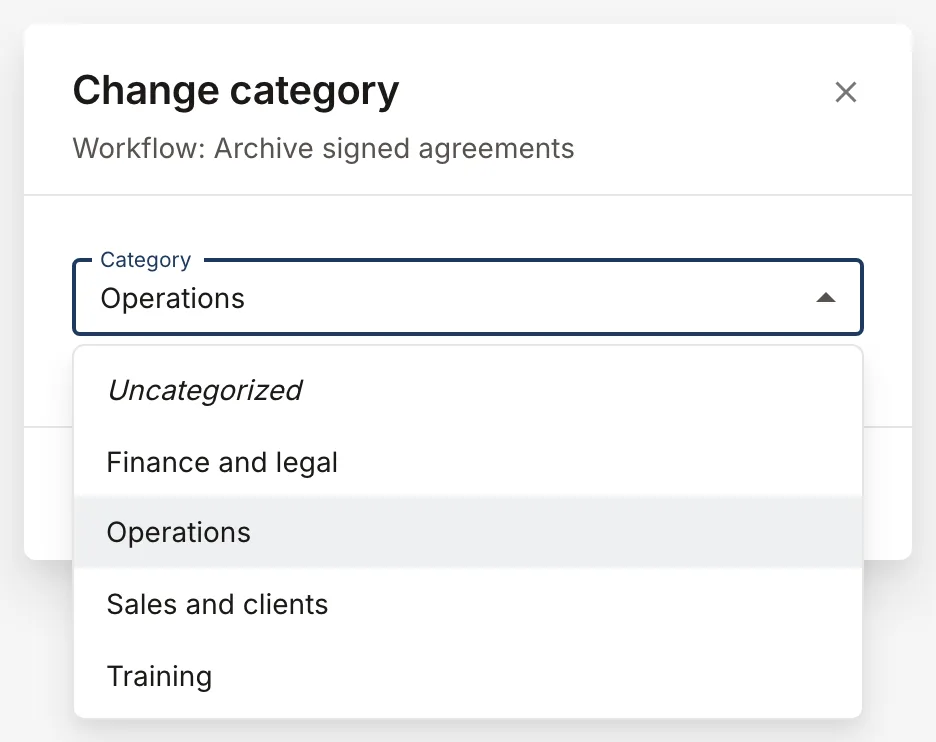
Choose Uncategorized to take a workflow out of its category.
Finding workflows by category
Section titled “Finding workflows by category”The Workflows tab shows each workflow’s category and has a Category filter with All, Uncategorized and every category. See Filters.
Renaming and deleting
Section titled “Renaming and deleting”The row menu of a category holds Rename and Delete. You see it only with Manage workflow categories.
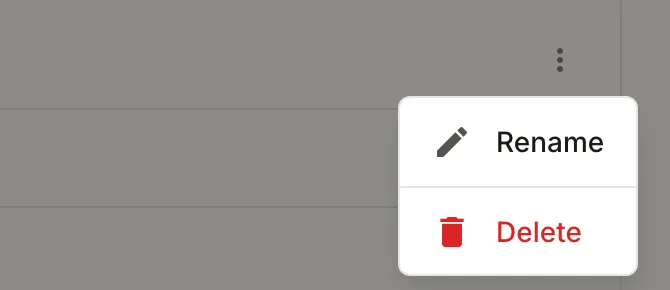
Rename opens the same dialog as adding, titled Rename category, with Save in place of Add. The change shows everywhere at once, and the workflows stay in the category.
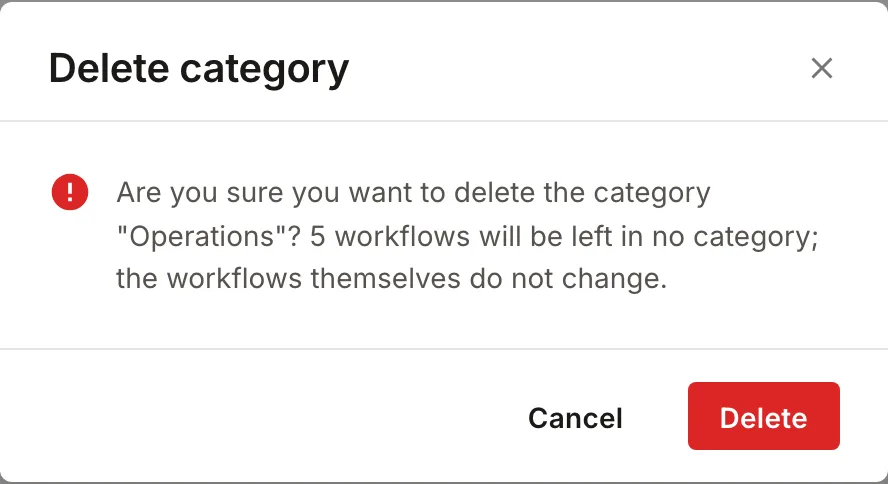
Delete asks first and says how many workflows it affects. The workflows are not deleted: they end up Uncategorized and otherwise stay exactly as they were, active ones included.
Who can do what
Section titled “Who can do what”| Action | Permission |
|---|---|
| See categories and their counts | View workflows and their runs |
| Add, rename, delete a category | Manage workflow categories |
| Put a workflow in a category | Manage workflows |
The two manage permissions are separate, so you can let a team build workflows while one person keeps the list of categories in order. See Who can do what.