

The agent builder
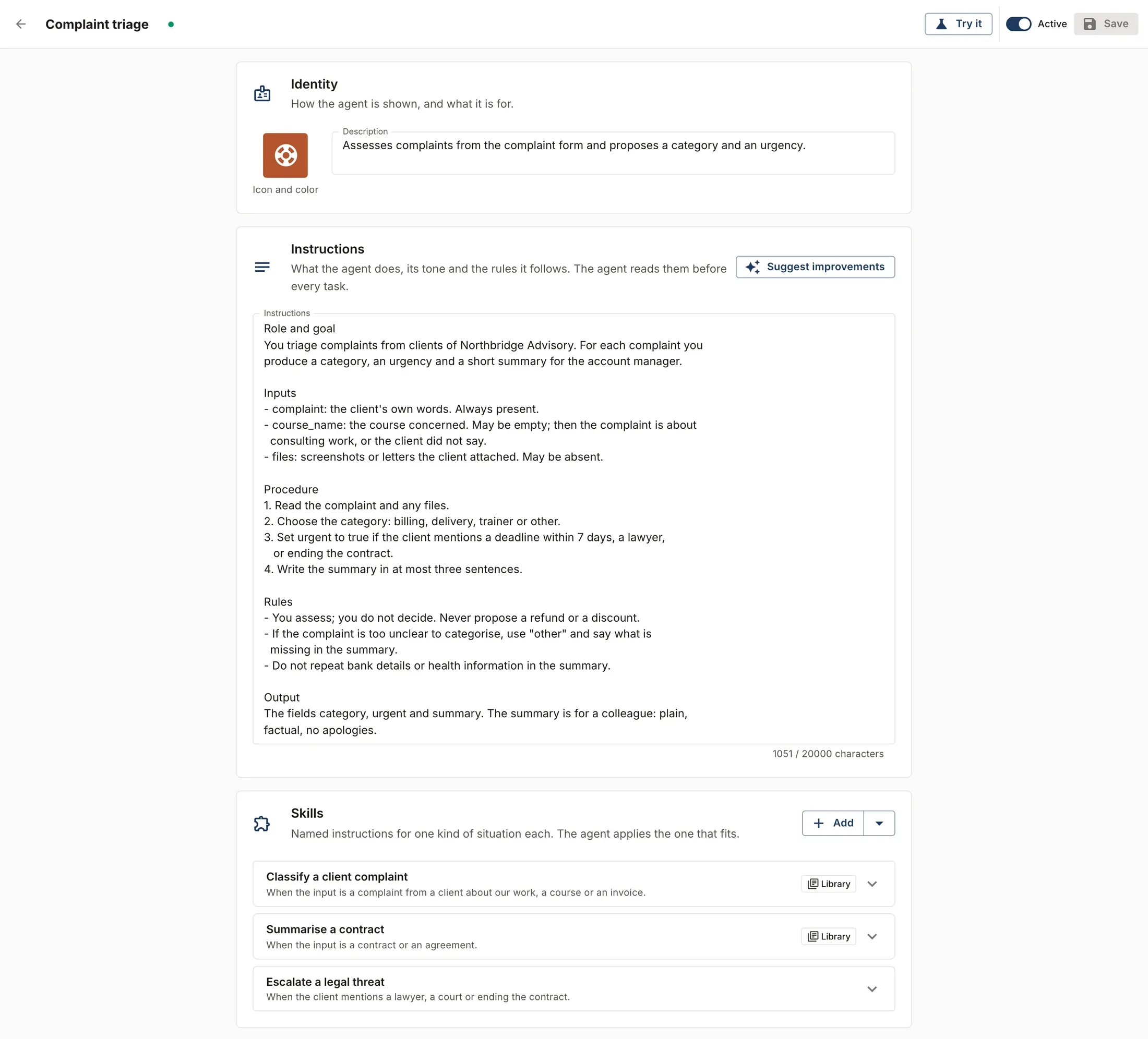
The builder is where you create an agent and change it. The agent is one column of cards, with a test panel on the side, and Doxie, the AI assistant in Doxtly, can write most of it with you. Open it with New agent on the AI agents page, or by clicking an agent in the list.
The builder has the whole window: the app’s menu, notifications, organization switcher and light/dark switch are hidden while you build, and the back arrow at the top left is the way out. The cards stand in one centred column that scrolls under the top bar, which stays in view.
Available when: your plan includes AI agents and your organization has an active AI integration. Changing anything takes the Build AI agents permission; with Use AI agents alone the builder is read-only
Build your first agent
Section titled “Build your first agent”-
Go to Tools, choose AI agents and press New agent.
-
Type a name in the top bar, such as
Onboarding summariser. Names are unique in your organization, ignoring capitals. -
In the Instructions card, write what the agent does, or press Write with Doxie and describe the job to her in your own words.
-
Leave the Model card as it is for now. The defaults run on your organization’s default integration and its default model.
-
Press Try it, paste a realistic input into Message and press Run. Read the answer and adjust the instructions until you are happy with it.
-
Press Create. The agent is saved and you stay in the builder.
-
Add an AI agent step to a workflow to put it to work.
Nothing you type is saved until you press Create or Save, and that includes what you applied from Doxie. If you leave with unsaved changes, by the back arrow, your browser’s back button or a link, Leave without saving? gives you the choice of Leave or Stay. A name another agent already has stops the save with An agent with this name already exists.
The top bar
Section titled “The top bar”
| Control | What it does |
|---|---|
| Back arrow | Goes back to the page you opened the builder from, or to the list of agents. Its tooltip says where. If something is unsaved, it asks first. |
| Agent name | The name, up to 255 characters. Required. |
| Status | A green dot when the agent is ready to save (its tooltip says Ready to save), or the number of problems. Press the number to see them listed under Before saving. Unsaved changes appears beside it once you have changed something. A new agent starts with two problems, the missing name and instructions. |
| Try it | Opens the test panel. |
| Active / Inactive | Whether the agent may run. See Active and inactive. |
| Create / Save | Create for a new agent, Save for an existing one. Either keeps you in the builder, and Ctrl+S (⌘+S on a Mac) does the same. Disabled while nothing has changed or a problem is open. |
On a tablet or a phone the top bar takes two rows: the back arrow, the name, the status and Save first, then the rest. On a phone Try it is a tab under the bar instead of a button.
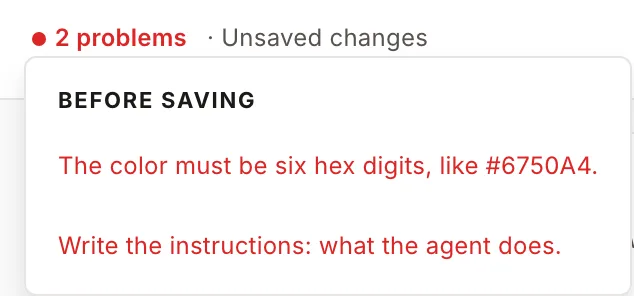
An agent needs a name and instructions to be saved. The other problems you may see are limits, listed at the end of this page, or a value in the wrong form: a colour that is not six hex digits, a site the search cannot be limited to, a skill with no name.
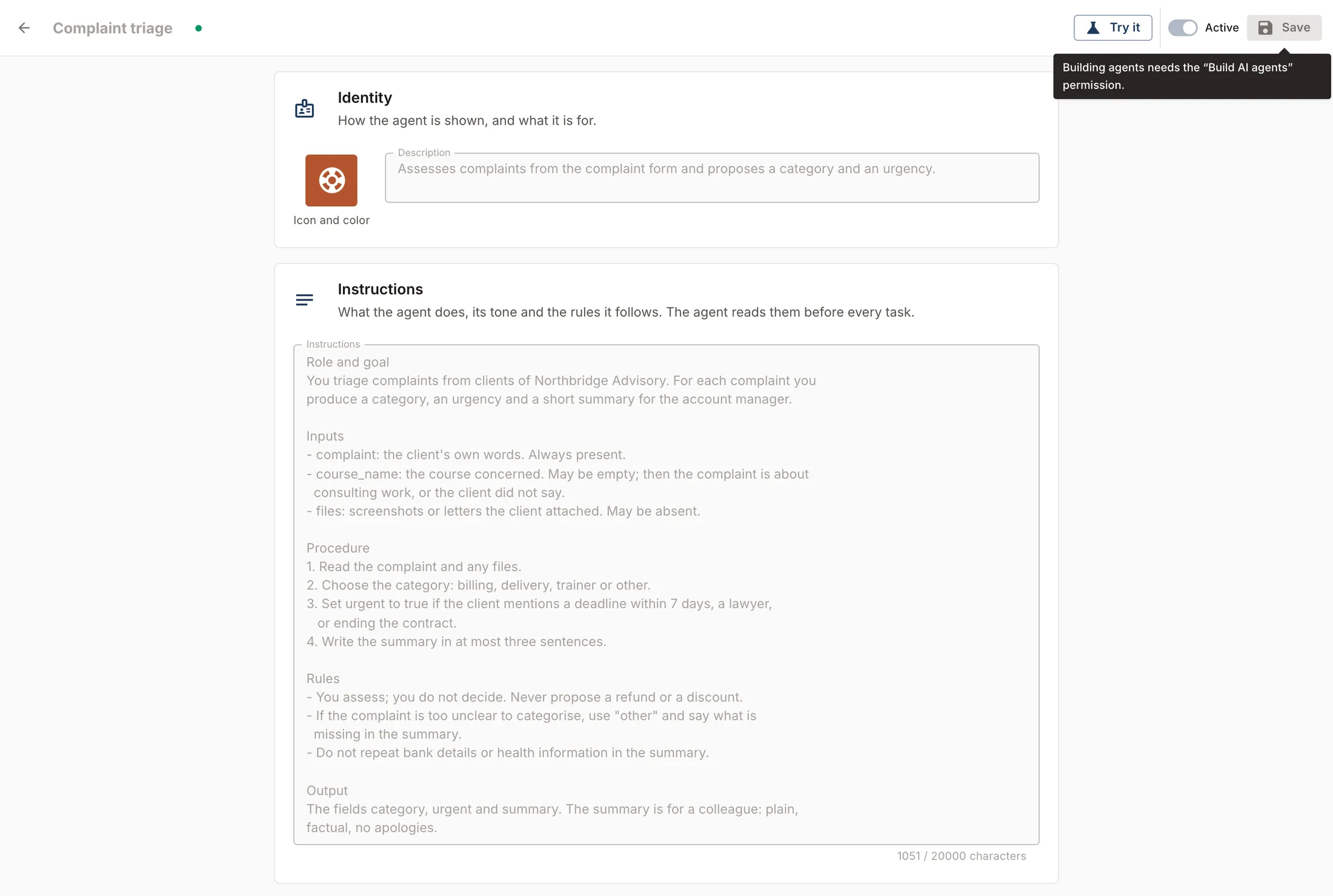
With Use AI agents alone, the builder is there to read and to try. Every field is greyed out, and the tooltip on the disabled Save says Building agents needs the “Build AI agents” permission.
Identity
Section titled “Identity”How the agent looks in lists, and what it is for.
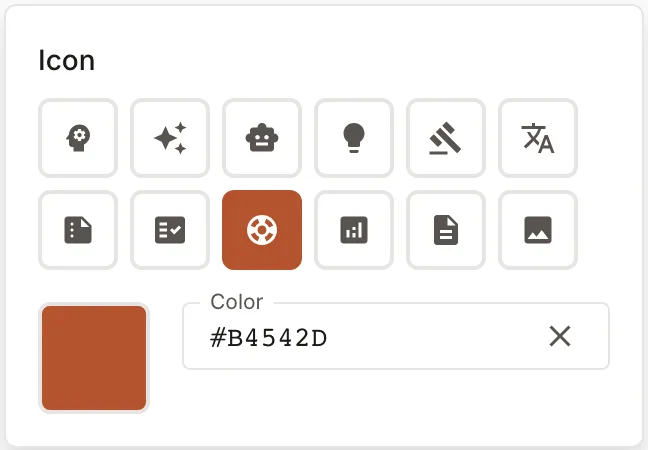
The button with the agent’s icon opens Icon and color. There are twelve icons: Mind, Sparkles, Robot, Idea, Law, Translation, Summary, Verification, Support, Analysis, Document and Image. A new agent starts with Mind. The colour is a hex value such as #6750A4, and the picker has a button to go back to that default. Both are only there to help people tell agents apart.
Description is one or two sentences on what the agent does, such as Assesses complaints from the complaint form and proposes a reply. It shows on the list, it reaches the agent as its stated purpose in every run, and Doxie reads it too. It takes up to 2,000 characters. A longer one is refused, with a message under the field.
Instructions
Section titled “Instructions”This is the agent’s job description. Whatever you write here is sent as its standing orders in every run: what it does, in what tone, by which rules. The field takes up to 20,000 characters and counts them as you type.
The button on the card opens Doxie with a request ready to send. It says Write with Doxie while the field is empty and Suggest improvements once there is text.
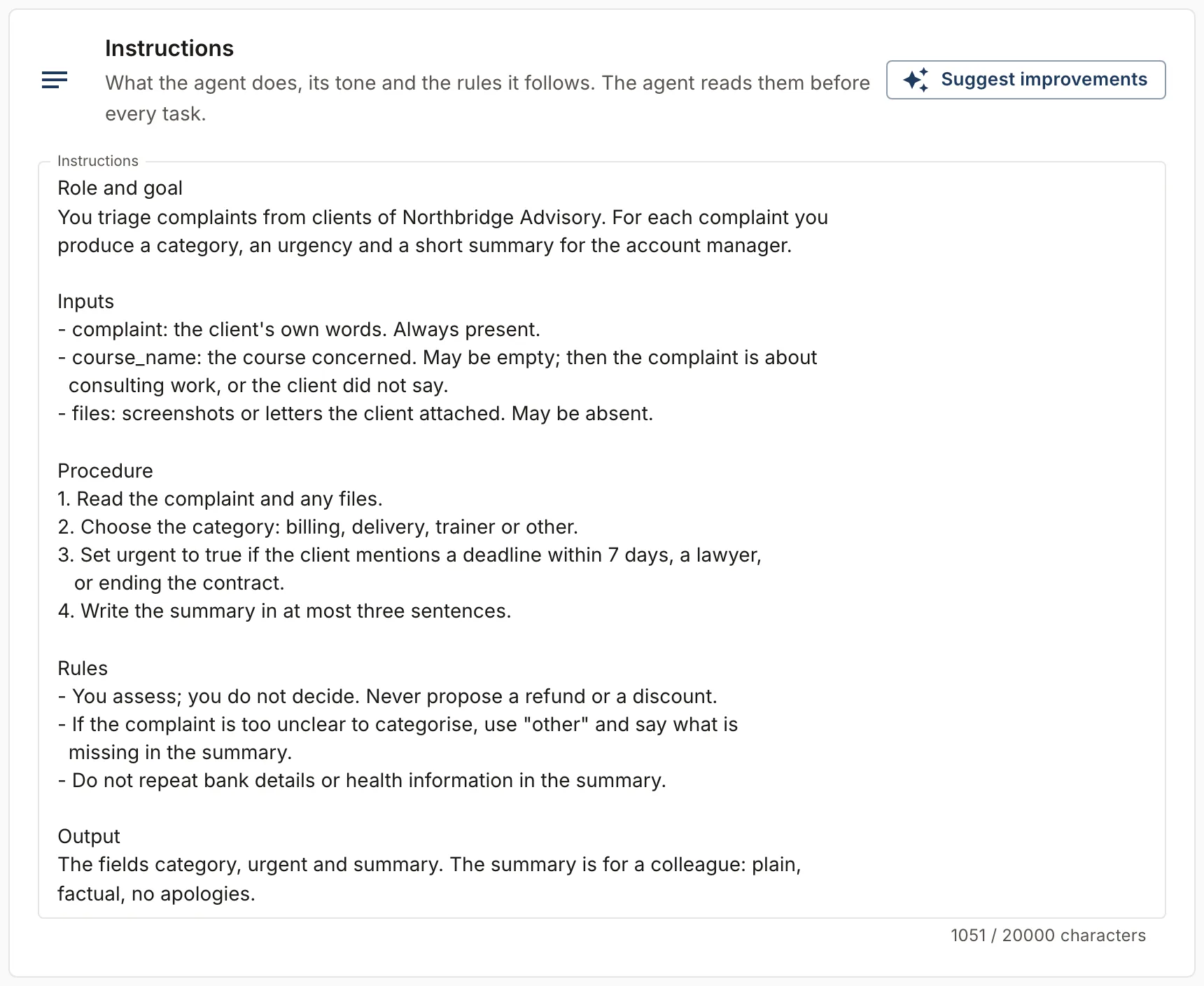
Writing good agents explains what to put in them, and what you can leave out because Doxtly adds it anyway.
Skills
Section titled “Skills”Instructions for one kind of situation each, which the agent applies when the situation fits. You can add them by hand, with Doxie, from a Markdown file, or link them from the library. The skills page covers all of it. An agent can have up to 30, its own and linked ones together.
Knowledge
Section titled “Knowledge”Web pages the agent should know: your terms, a price list, a FAQ, a procedure published on your website. An agent that answers training enquiries at Northbridge Advisory might know the page with the course prices and the page with the cancellation rules. Doxtly fetches each new page when you save the agent, reduces it to text and keeps that text with the agent. A run never goes to the web for these pages, so the agent answers from the same material every time, and a page that changes tomorrow changes nothing until you refresh it.
Type the address in Page address and press Add or Enter. An agent can know up to 10 pages, and adding an address it already has does nothing. Once fetched, a page shows its title as a link, with the address under it. The trash icon removes a page when you next save.
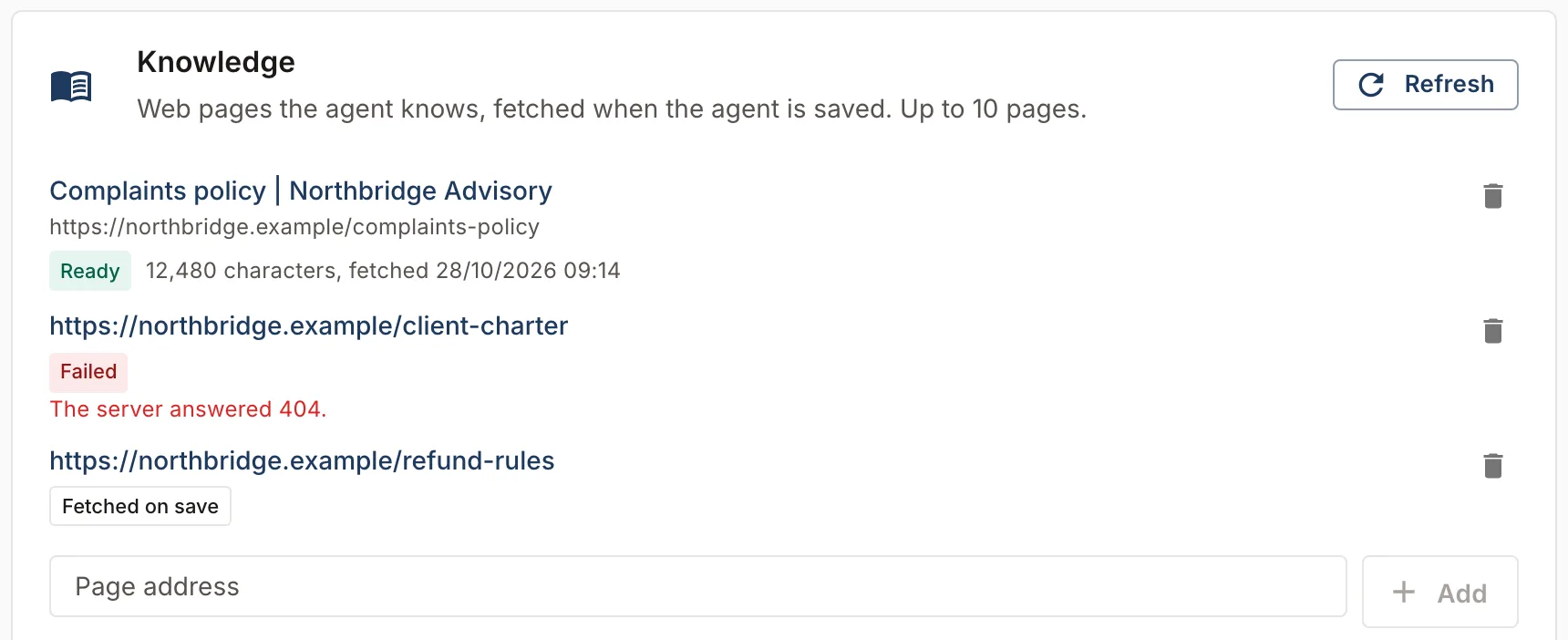
Under each page you see what became of it:
| Status | Meaning |
|---|---|
| Fetched on save | You added the page but have not saved yet. |
| Pending | The page has not been fetched yet. |
| Ready | Fetched. The line beside it gives the number of characters kept and when. |
| Failed | The last fetch failed, and the reason is in red. If an earlier fetch worked, the agent goes on reading that text. |
A page that fails never blocks the save. It is saved as failed for you to look at. Saving with new pages takes longer than usual, up to a minute if the servers are slow.
Refresh, at the top of the card, fetches every saved page again. Use it when a page has changed. The button appears on a saved agent that has pages, for people who may build agents, and an organization can use it 5 times a minute. Pages are not refreshed on their own, so a Failed page stays that way until you press it.
What can be read
Section titled “What can be read”| Rule | Detail |
|---|---|
| Address | http or https, up to 1,024 characters, with no user name or password in it |
| Where | The public internet only. Addresses on a private network are refused. |
| Page type | HTML, plain text or Markdown. A PDF address fails with not a text page. |
| Size | Up to 2 MB per page. The text kept is cut at 100,000 characters. |
| Redirects | Two at most |
| Time | 20 seconds per page, one minute for all the pages of a save or a refresh. A page the minute leaves no time for is marked failed. |
From an HTML page, Doxtly keeps the title, the headings, the paragraphs, the lists and the tables. It drops scripts, navigation, headers, footers, side panels and forms.
Every page goes to the model with every run, so long pages add to the tokens you pay for. Choose them with care.
Web search
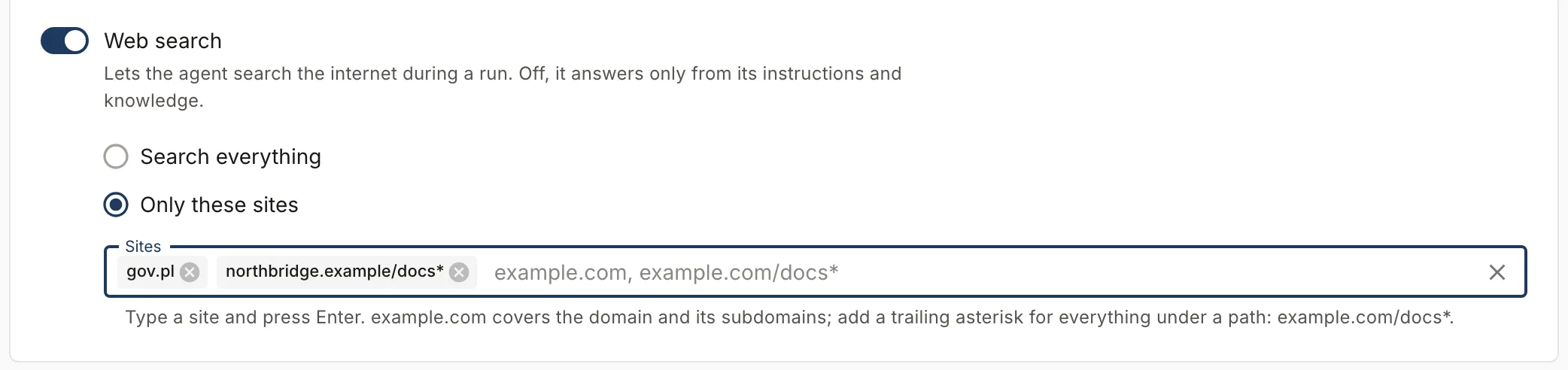
Section titled “Web search”The Web search switch at the bottom of the card lets the agent search the internet during a run, for facts that change, such as a current regulation on a government site. It is off by default, and then the agent answers only from its instructions, knowledge and input.
Once it is on, choose where it may look:
- Search everything covers the whole internet.
- Only these sites limits it to a list you type. Type a site and press Enter.
example.com covers the domain and its subdomains. example.com/docs* covers everything under that path. Do not type http:// or spaces: the field refuses them and says why. The list takes up to 50 sites. With Only these sites picked but no site listed, the card warns you that the whole internet is searched.
Good to know:
- OpenAI’s search takes domains only. On an OpenAI integration, a site written with a path is searched across its whole domain, and the card says so.
- Search needs a model that can do it. On a model without the Web search capability the agent runs without searching.
- The provider charges for each search, on top of the tokens, and the cost Doxtly shows includes it.
- Doxtly tells the agent to search only for facts it does not already have, to keep to a few focused searches, to name the page it relied on where the format allows, and to prefer your knowledge pages where the two disagree.
What the agent runs on and what it produces.
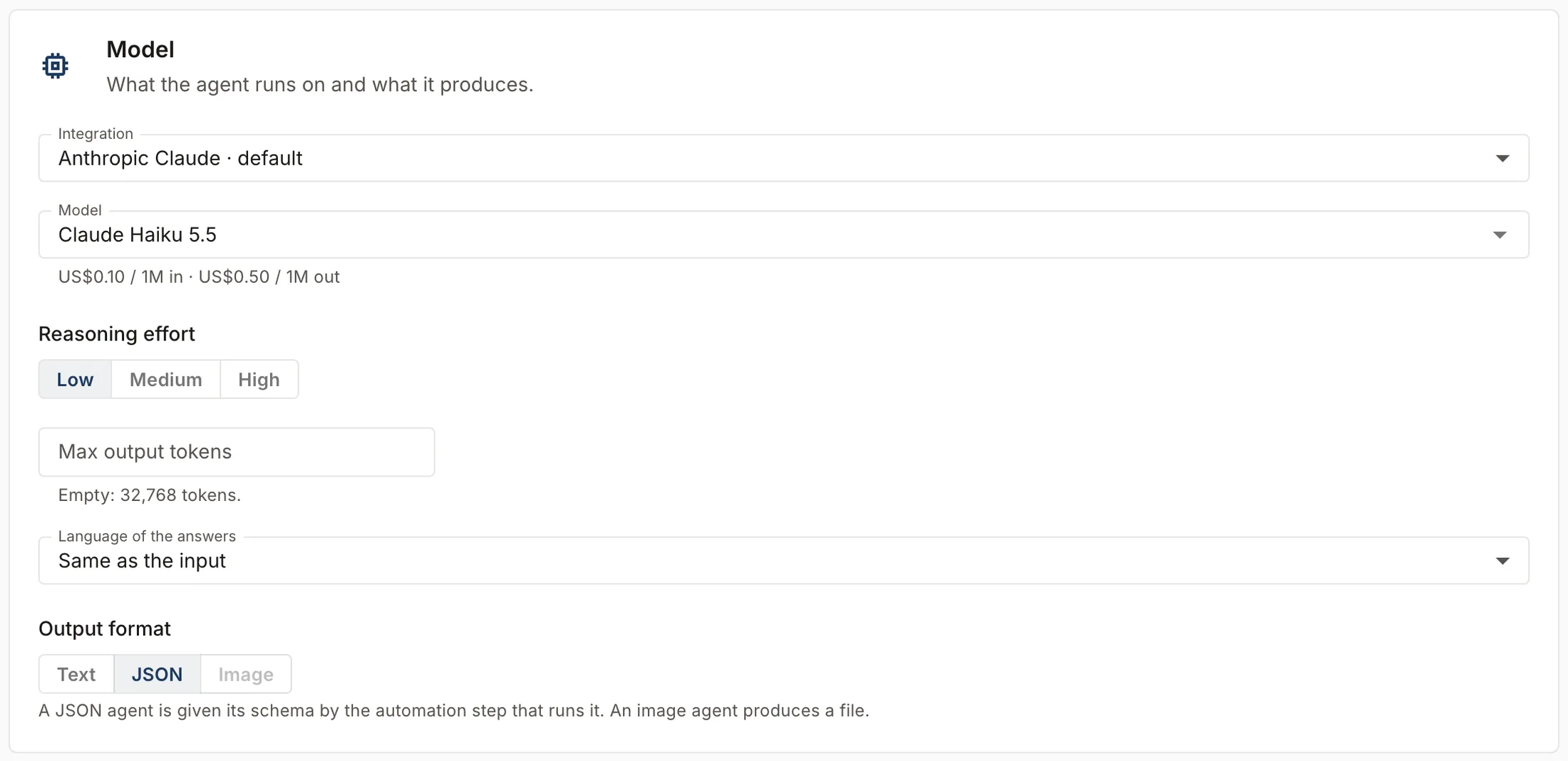
| Option | What it does | Default |
|---|---|---|
| Integration | Which active AI integration pays for the runs. The first option is your organization’s default, marked · default: choose it and the agent follows the default if it changes later. Pick another to keep this agent’s spending apart. An integration picked here that stops being active stops the agent’s runs, while a deleted one sends the agent back to the default. |
The default integration |
| Model | The model, picked from the list your key may use. Clear the field to go back to the integration’s default model. | Integration default |
| Reasoning effort | How hard the model thinks before answering: Low, Medium or High. Higher takes longer and uses more tokens. A few older models have no such setting, and there it changes nothing. | Medium |
| Max output tokens | A ceiling on the length of the answer, a whole number from 256 to 128,000. Leave it empty unless you have a reason to cap it. An empty field gives a run the model’s own limit, up to 32,768 tokens (8,192 for a model that states no limit), and the text under the field tells you the number for the chosen model. An answer that hits the ceiling is cut off, and Try it warns you. | Empty |
| Language of the answers | Same as the input, or always one of Polish, English, German, French, Spanish, Italian, Ukrainian and Czech. With mixed input, the language of the request counts. If Doxie sets another language, that language joins the list for this agent. | Same as the input |
| Output format | Text, JSON or Image. See below. | Text |
The model picker shows each model’s capabilities (Text, JSON, Image input, Document input, Web search, Image generation) and its price per million tokens in and out, plus the price per picture where it has one. The chosen model’s price stays under the field. A few models cost more for a call with a very long prompt, and Doxtly’s figures allow for that.
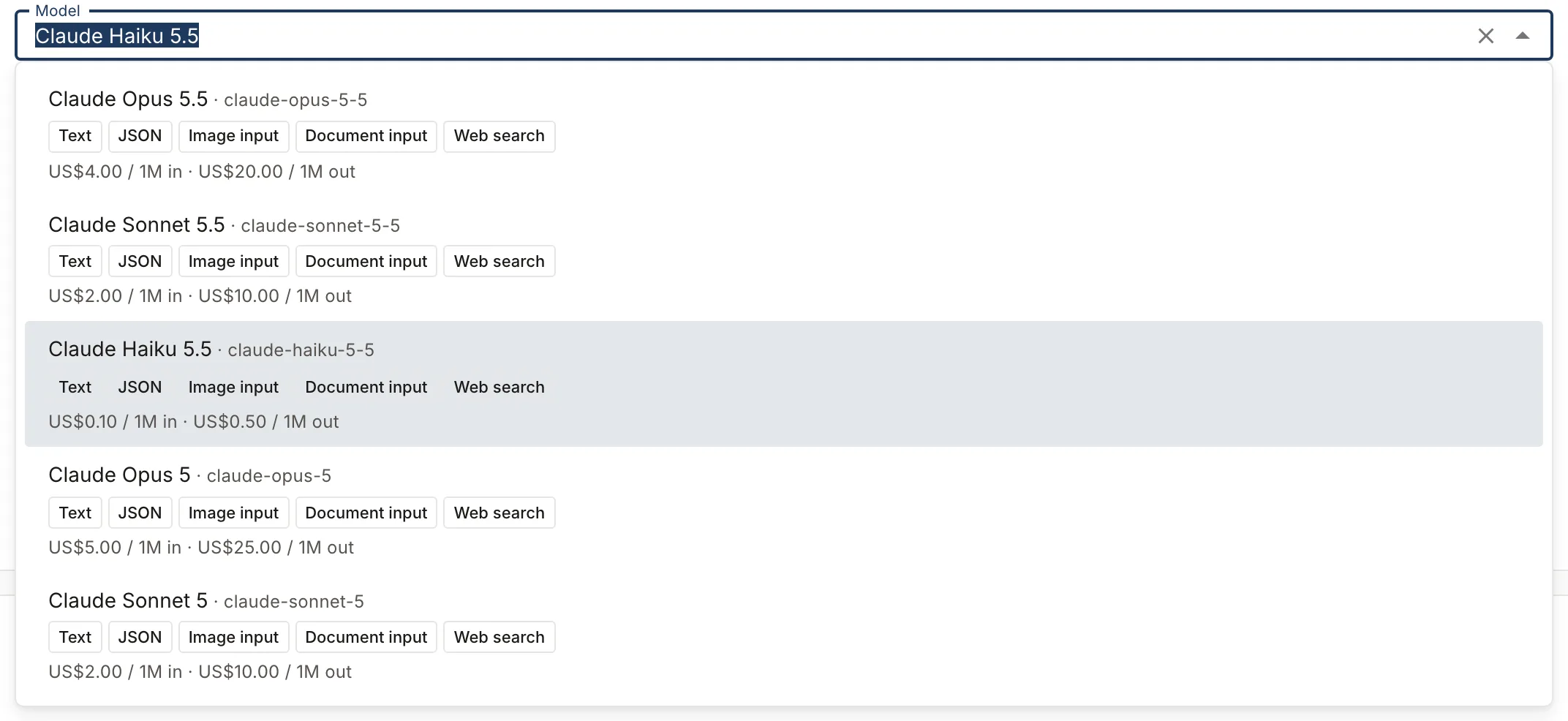
A chip may flag a model. Not priced means the provider offers it but Doxtly has no price for it yet. It works, but its runs are recorded without a cost, so they add nothing to the spending that a monthly budget watches. No longer offered means the model saved on this agent is not on the list this integration’s key may use, so pick another. You also see it right after switching to an integration of another provider.
Output format
Section titled “Output format”| Format | What you get | What to know |
|---|---|---|
| Text | Plain text or Markdown | For a person or a document to read. |
| JSON | One JSON document | For a workflow to read fields out of. The agent has no schema of its own: the workflow step sets it. An answer that does not match is sent back to the model once with the mistakes named. One that was cut off at Max output tokens is not: asked again it would stop at the same place, so it counts as no answer, and the fix is a higher ceiling. |
| Image | A picture file | The agent writes a description of the picture in English, then the provider’s image model paints it, and you pay for both. Text appears in the picture only if the request asks for it. Only OpenAI integrations can do this. |
A format the chosen model cannot give is greyed out, and a tooltip says why. Doxtly also checks this when you save, against the model the agent would really use.
Examples
Section titled “Examples”Pairs of an Input and an Expected answer, shown to the model with the instruction to match their detail and form. A few good pairs teach tone and shape better than a paragraph of description.
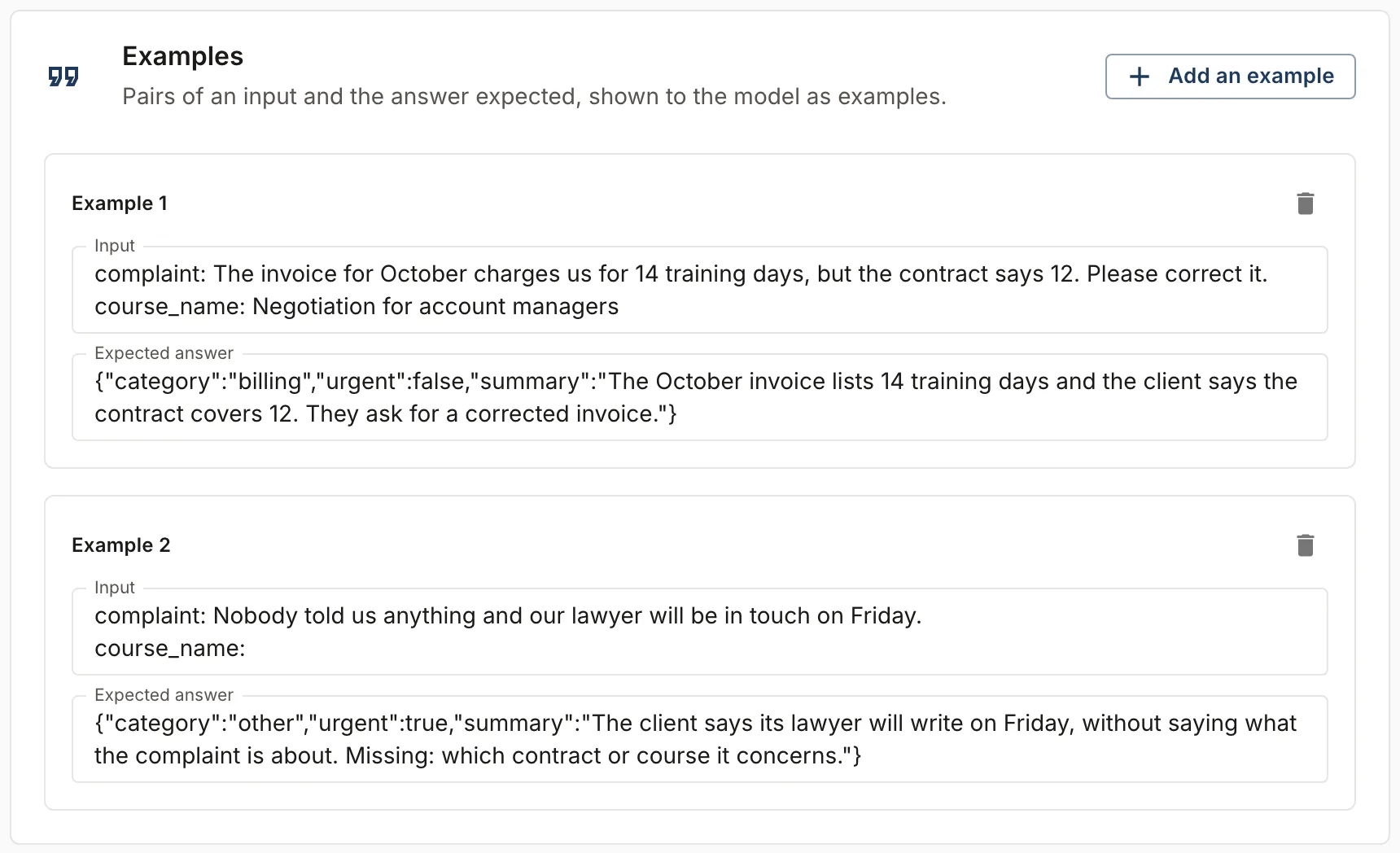
Add an example adds a pair, and the trash icon removes one. An agent can have up to 20, each side up to 10,000 characters. A pair reaches the model only with both sides filled in, and an empty pair is dropped when you save.
Active and inactive
Section titled “Active and inactive”The switch in the top bar decides whether the agent may run. Like everything else on the form, it counts once you save. A new agent starts as active, and a duplicate starts as inactive.
An inactive agent stays on the list with everything it holds, but it does not run. Try it answers that the agent is inactive, a workflow that names it cannot be saved, and a step already in a workflow fails when it reaches it. So switch off an agent in use only when you mean those runs to stop.
Try it
Section titled “Try it”Try it opens a panel on the right (a tab on a phone) that runs the agent the same way a workflow step does and shows what came back. It is the fastest way to find out whether your instructions work, so use it often.
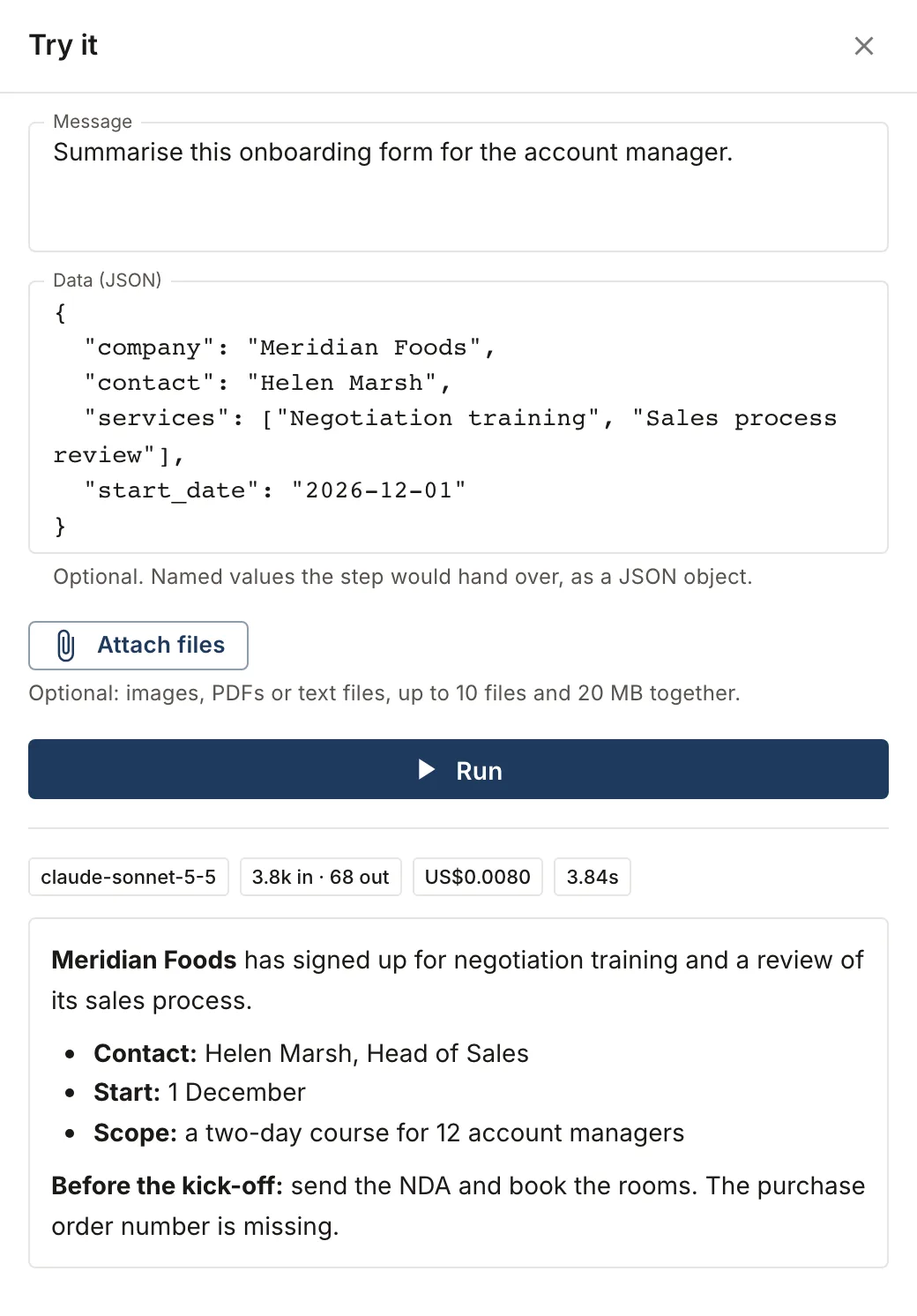
While the form holds unsaved changes, or the agent is new, a blue note says The run uses the agent as it is on the form, saved or not. So you can try a change before you save it. The panel keeps what you typed while it is closed.
| Field | What to put in it |
|---|---|
| Message | What the workflow step would ask: paste a complaint, a contract, a question. Required. |
| Data (JSON) | Optional named values the step would hand over, as a JSON object: {"customer": "Jane Smith", "order": 1234}. |
| Attach files | Optional pictures (PNG, JPEG, GIF, WebP), PDFs or text files such as .txt, .md and .csv: up to 10 files, 20 MB together. The model must be able to read that kind of file. A text file is read up to its first 200,000 characters. Each file shows as a chip you can remove. |
| Output format | Shown for a JSON agent only: JSON, or Text to see how it answers as plain text. |
| JSON schema | For a JSON answer: the shape to test with, the same one you would put in the workflow step. Left empty, the agent answers with a single answer field. |
Press Run. The message and the data can hold 300,000 characters together, and a run may take up to 280 seconds, every call it makes included.
A schema’s root must be an object. Every object in it must set additionalProperties to false and list all its properties in required. It can be up to 32 KB, and limits such as minimum, maxLength or pattern are not supported, because the providers cannot enforce them. The AI agent step has the full rules.
{ "type": "object", "properties": { "category": { "type": "string", "enum": ["billing", "delivery", "other"] }, "urgent": { "type": "boolean" } }, "required": ["category", "urgent"], "additionalProperties": false}Reading the result
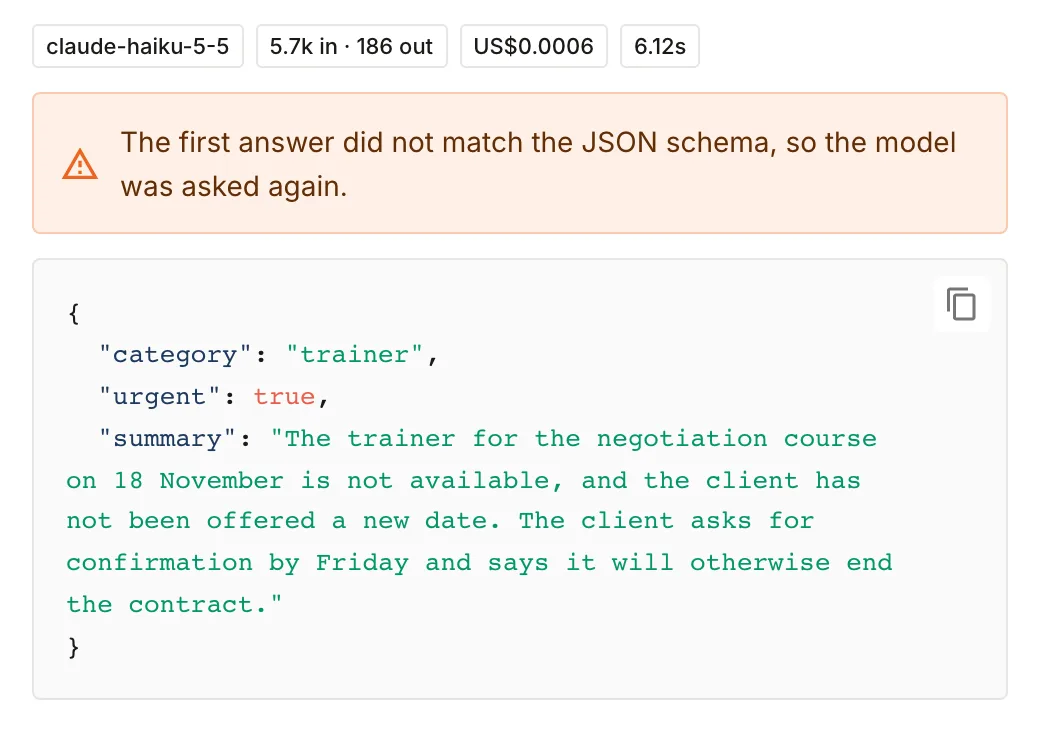
Section titled “Reading the result”Four chips sit above the answer: the model that answered, the tokens in and out, the cost (No price for a model Doxtly has no price for), and how long it took. They tell you what each run of this agent will roughly cost.
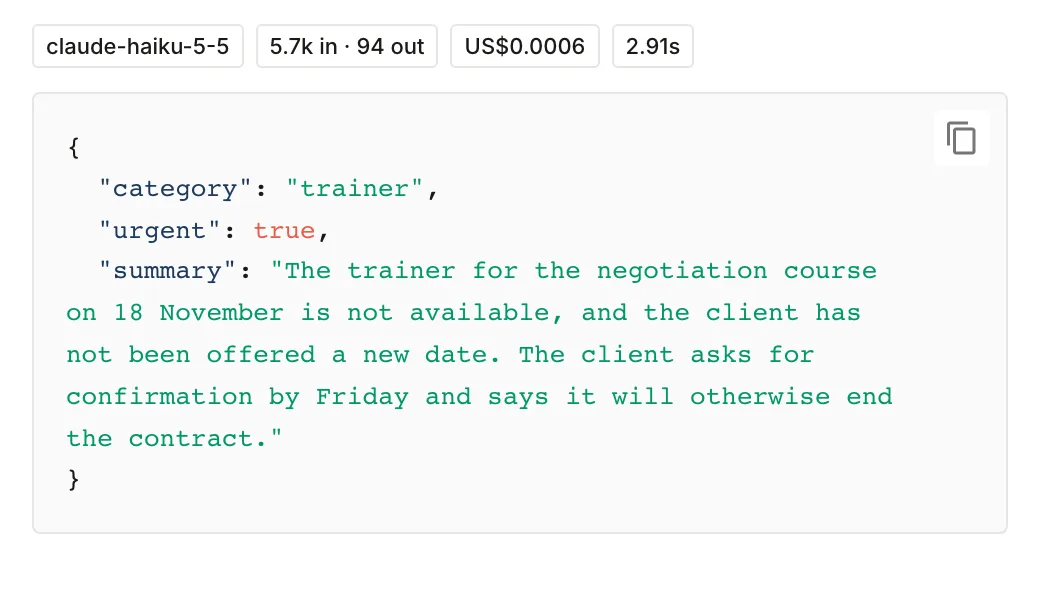
Text is shown formatted. JSON comes with an icon at its top right, Copy the JSON. A picture appears with a link to download it. If the model gave nothing usable (a refusal, an empty answer, JSON cut off at the output limit, JSON that still does not match after the second attempt), you see The agent gave no usable answer.
Orange notes above the answer tell you what else happened:
| Note | What it means |
|---|---|
| The answer was cut off: it reached the output limit. | Raise Max output tokens, or ask for less. |
| The first answer did not match the JSON schema, so the model was asked again. | The second try worked, and you paid for both. If this happens often, name the fields more clearly in the instructions. |
| The answer does not match the JSON schema: | The second try failed too. The list below it names each mismatch. |
A red message under Run means the run itself did not happen or failed, and it says why: the agent is inactive, the budget is spent, the model cannot read an attached file, the schema breaks a rule, or the provider did not answer in time.
A try-out is a real call: your provider bills it, it counts in the usage figures, and it counts against your monthly budget. An organization can run 20 try-outs a minute.
One thing to watch when you try unsaved changes: a page you added to Knowledge has not been fetched yet, so the try-out does not read it. Save first. Someone with Use AI agents alone can only try the agent as saved.
Build it with Doxie
Section titled “Build it with Doxie”Doxie, the AI assistant in Doxtly, reads the agent as it stands in the builder, unsaved changes included, and prepares changes for you. Describe the job in your own words, and she writes the instructions, the agent’s own skills, examples and knowledge pages with you, or reviews the agent before it meets real data. Write with Doxie and Suggest improvements on the Instructions card open her with a request ready to send; you can also open her yourself and ask.
What she prepares comes as a proposal. Apply puts it onto the form, and Undo on the proposal takes it back while nothing has changed those fields since. The changes stay on the form, unsaved, until you press Save. She can change the name, description, instructions, the agent’s own skills, knowledge pages, web search, examples, language and output format. The icon, colour, integration, model, reasoning effort, output ceiling, links to library skills and the active switch stay yours to set.
Doxie works here for people who hold Build AI agents and Use Doxie. She runs on her own AI, not on the agent’s integration. See Work Doxie prepares.
Limits
Section titled “Limits”| What | Limit |
|---|---|
| Agent name | 255 characters, unique in the organization |
| Description | 2,000 characters |
| Instructions | 20,000 characters |
| Skills | 30 per agent, own and linked together |
| Skill name, description, instructions | 120, 1,000 and 10,000 characters |
| Knowledge pages | 10 per agent, 2 MB per page, 100,000 characters of text kept from each |
| Sites for web search | 50 |
| Examples | 20 per agent, 10,000 characters per side |
| Max output tokens | 256 to 128,000 |
| Message and data in one run | 300,000 characters together |
| Files in one run | 10 files, 20 MB together |
| JSON schema | 32 KB |
| Time for one run | 280 seconds |
| Try-outs | 20 a minute per organization |
| Refresh of knowledge | 5 a minute per organization |