

Sign up and sign in
There are two ways into Doxtly: you register a new organization, or someone invites you to theirs. A company with single sign-on can also let its people in the first time they sign in with their work account. If a colleague sent you an invitation, skip to joining through an invitation. This page also covers signing in, Google, Microsoft and Facebook, and getting back in when you forget your password.
Registering a new organization
Section titled “Registering a new organization”Registering creates your personal account and your organization together. The organization starts with 14 days of Starter, free and with no card, and then moves to Free unless you choose a plan; you become its administrator. Register on the main Doxtly address: an organization’s own address is only for the people of that organization.
-
Open the sign-in page and click Create account.
-
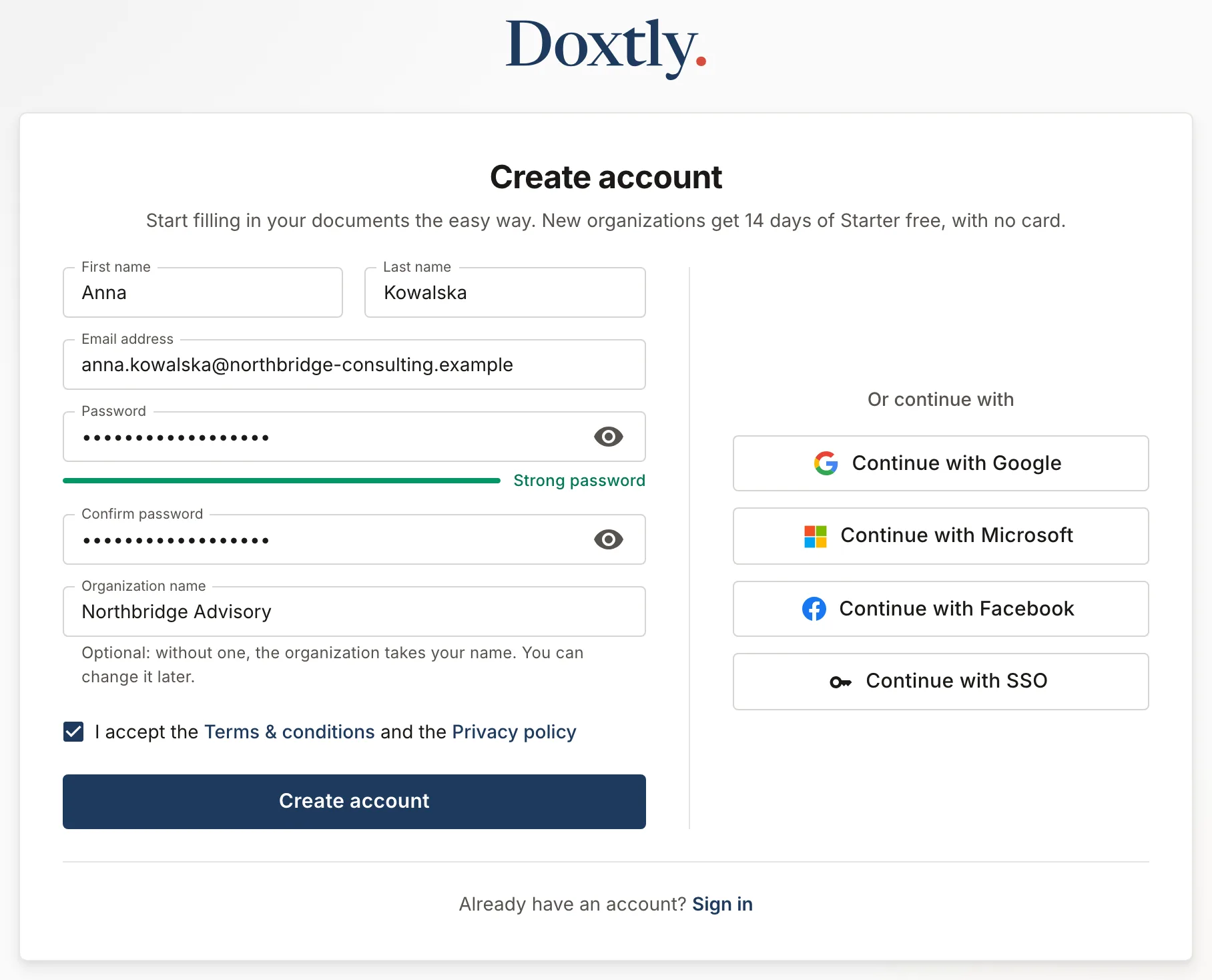
Fill in the form:
Field Rules First name, Last name Required, 2 to 100 characters each Email address Required, at most 180 characters. You will sign in with it, and you cannot change it later. Password At least 8 characters, with a lowercase letter, an uppercase letter and a digit Confirm password Must match Organization name Optional, 2 to 150 characters. Without one, the organization takes your first and last name, for example Anna Nowak. You can change the name later. I accept the Terms & conditions and the Privacy policy Required A bar under the password rates it as Weak password, Fair password, Good password or Strong password. Twelve characters or more and a symbol raise the score. The eye icon shows what you typed.
-
Click Create account. The page says Check your inbox. Nothing has been created yet.
-
Open the email within 24 hours and follow its link.
-
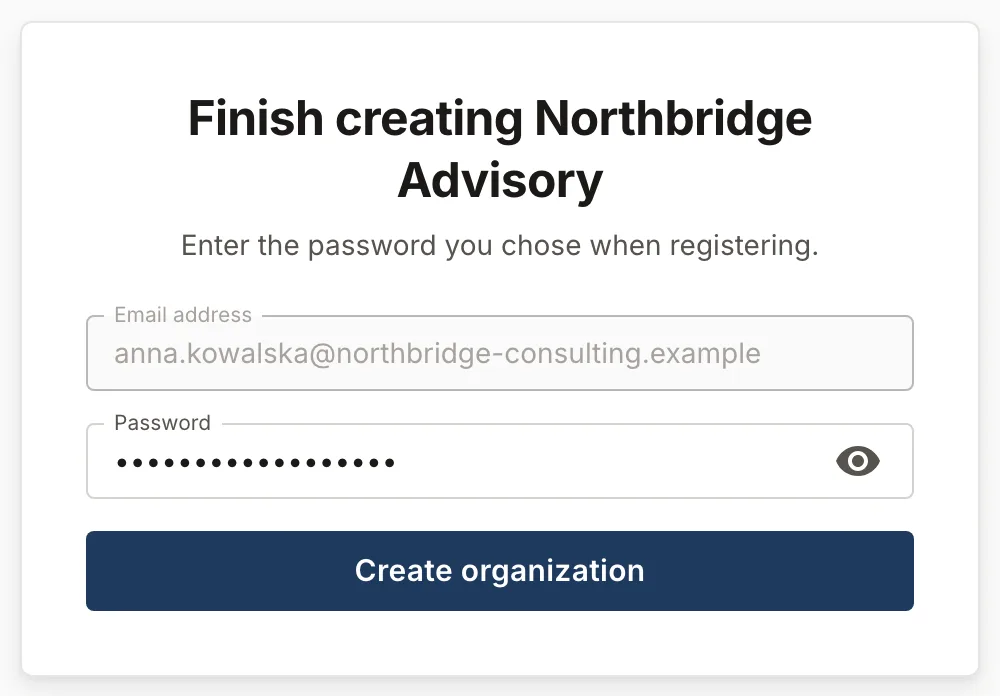
On the page that opens, enter the password you just chose and click Create organization. You are signed in, in your new organization.
The second password step is deliberate. If someone registers with your address, nothing happens unless the link is opened with the password they chose, and that link only ever reaches your inbox.
If you already have an account
Section titled “If you already have an account”Doxtly never says on the page whether an address has an account: only the email does. If yours has one, the email tells you so, and the link asks for your existing password, with Forgot password? beside it. If you use two-factor authentication, it asks for your code too. The new organization is then added to your account, and you switch between them at the top of the app.
If the link does not work
Section titled “If the link does not work”The page says This link can no longer be used when the link has expired, was already used, or took five wrong passwords or five tries with a different Facebook account. Click Register again to start over. No email after a few minutes? Check the spam folder. To protect inboxes, an address gets at most one registration email every five minutes, with at most three waiting at a time.
Your organization takes the language you registered in, whichever browser you confirm the link from. You can change it later in the organization settings.
Registering with Google, Microsoft or Facebook
Section titled “Registering with Google, Microsoft or Facebook”On the same page, click Continue with Google, Continue with Microsoft or Continue with Facebook. Tick the terms in the dialog and click Continue, and you go to the provider’s page. The page shows a button only for each provider your Doxtly platform offers, so you may see fewer of them.
With Google, your account and organization are created when you come back, with no confirmation email. Either way, your account has no password until you set one.
Your name comes from the provider: the first and last name it gives, or, when it gives only your full name, its first word as the first name and the rest as the last name. The organization takes the same name, for example Anna Nowak, and you can rename it at any time. If the provider gives no name at all, Doxtly makes none up: you are named by the part of your address before the @, which you can change in your profile, and the organization is shown under your address until you name it.
Continue with SSO, the last of the buttons, is for people whose company signs them in with its own sign-in page. There is nothing to register: it takes you to the sign-in page’s work email step, and your company’s sign-in lets you in.
With Facebook, you confirm your address by email first
Section titled “With Facebook, you confirm your address by email first”Facebook does not tell Doxtly whether the address on your profile really belongs to you, so the address gets the same kind of email as a registration with a password:
-
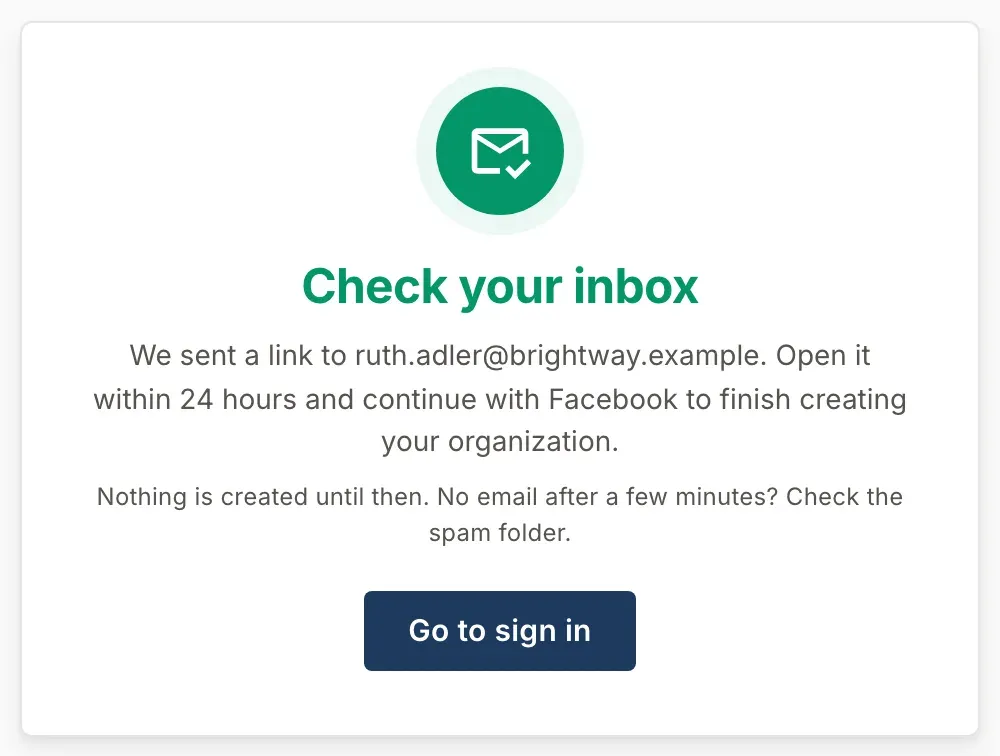
You come back from Facebook to Check your inbox. Nothing is created yet.
-
Open the link in the email within 24 hours, on any device.
-
Click Continue with Facebook, with the Facebook account you registered with. Your account and organization are created and you are signed in. From then on, Continue with Facebook on the sign-in page opens your account.
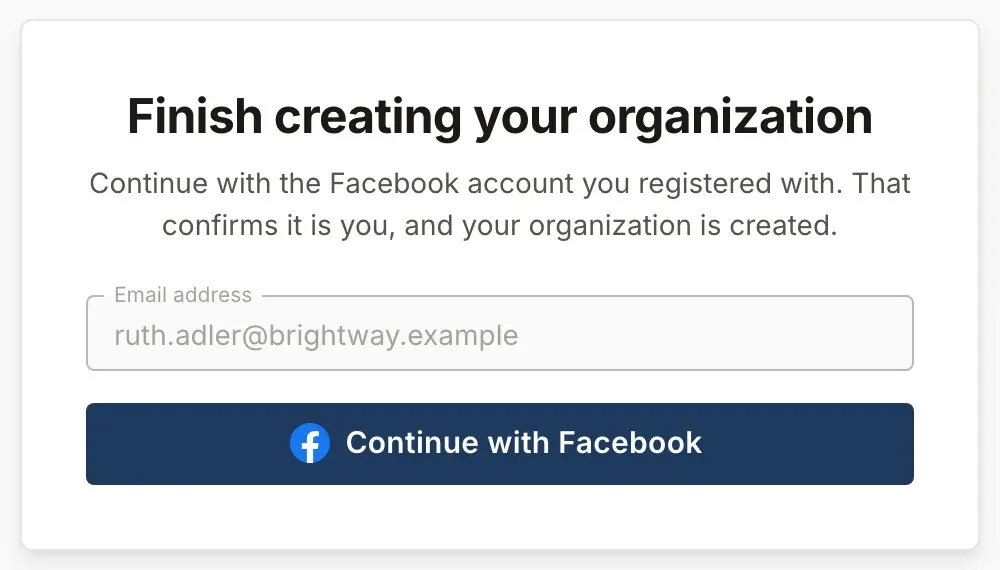
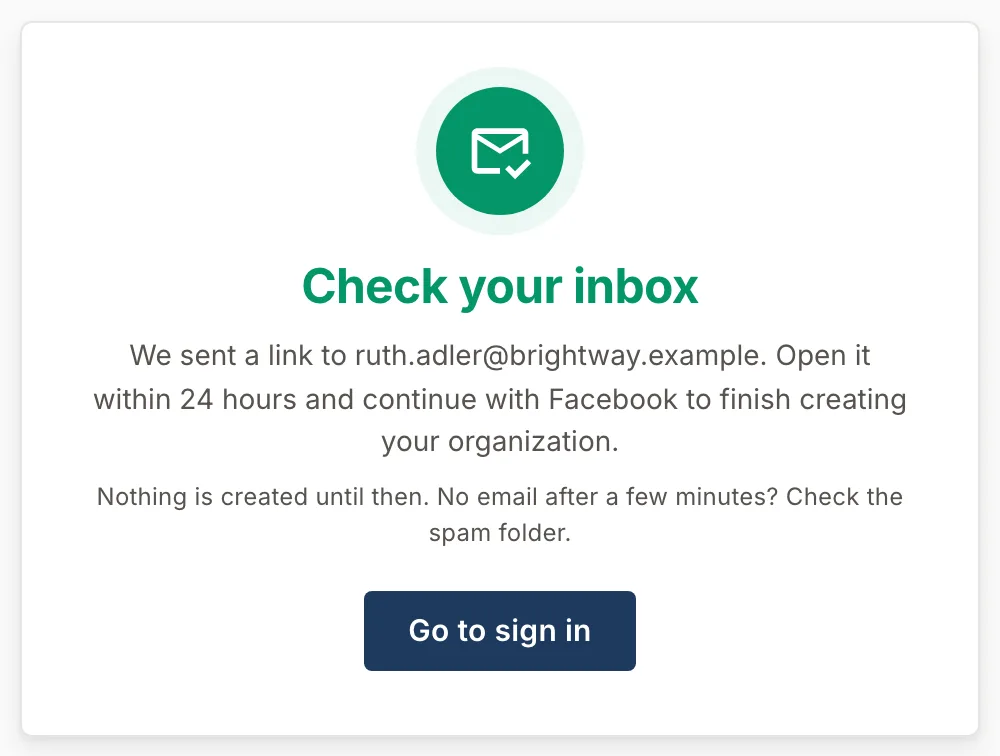
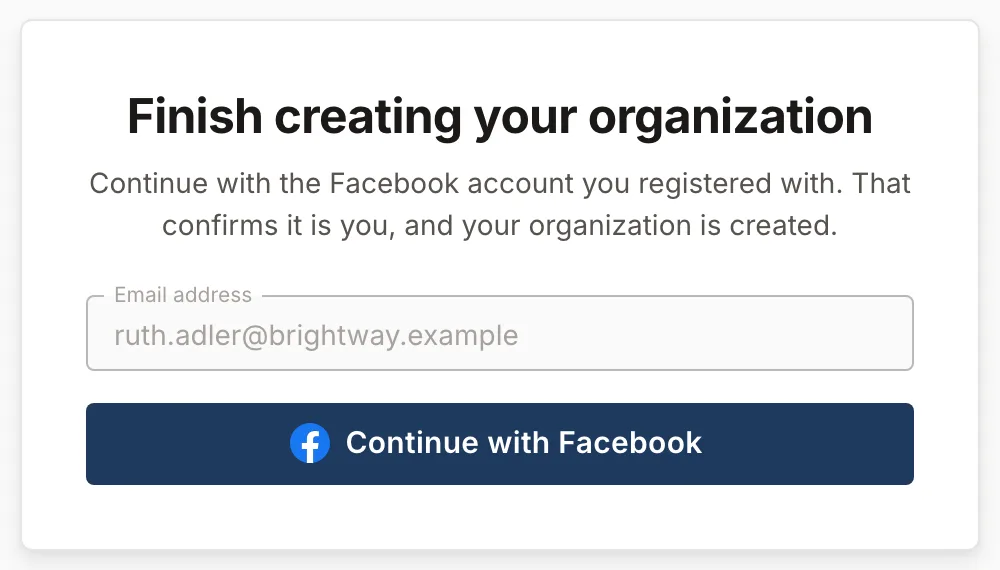
You need both the email and the Facebook account, and that protects you. If someone puts your address on their Facebook profile and registers, you get the email, but the link does nothing without their Facebook account, and they never see the link. Ignore the email and nothing happens. If you open the link with a different Facebook account, you see This registration was made with a different Facebook account: switch to the one you registered with.
The limits are those of a registration with a password: one email to an address every five minutes, and at most three waiting at a time.
If you are following an invitation, there is no email: the invitation was sent to your address, and that already confirms it. If the address already has a Doxtly account, Facebook can’t open it or register beside it. You see This address already has a Doxtly account, and Facebook does not confirm that it is yours: sign in with your password or with Google, and connect Facebook on the Security tab of your profile to use it from then on.
With Microsoft, it depends on the account
Section titled “With Microsoft, it depends on the account”Continue with Microsoft takes a work or school account and a personal Microsoft account, such as Outlook.com or Hotmail.
- A work or school account whose domain its organization has verified with Microsoft works as Google does: your account and organization are created when you come back, with no confirmation email.
- A personal Microsoft account, or a work account whose domain is not verified, works as Facebook does: Microsoft does not confirm that the address is yours, so you confirm it by email first and click Continue with Microsoft after opening the link.
Registering with a plan in mind
Section titled “Registering with a plan in mind”The buttons on the pricing page lead to the same registration. Get started free opens it as it is. Choose Starter, Choose Pro or Choose Business opens it with a note naming the plan and its price, monthly or yearly as the switch above the plans was set.
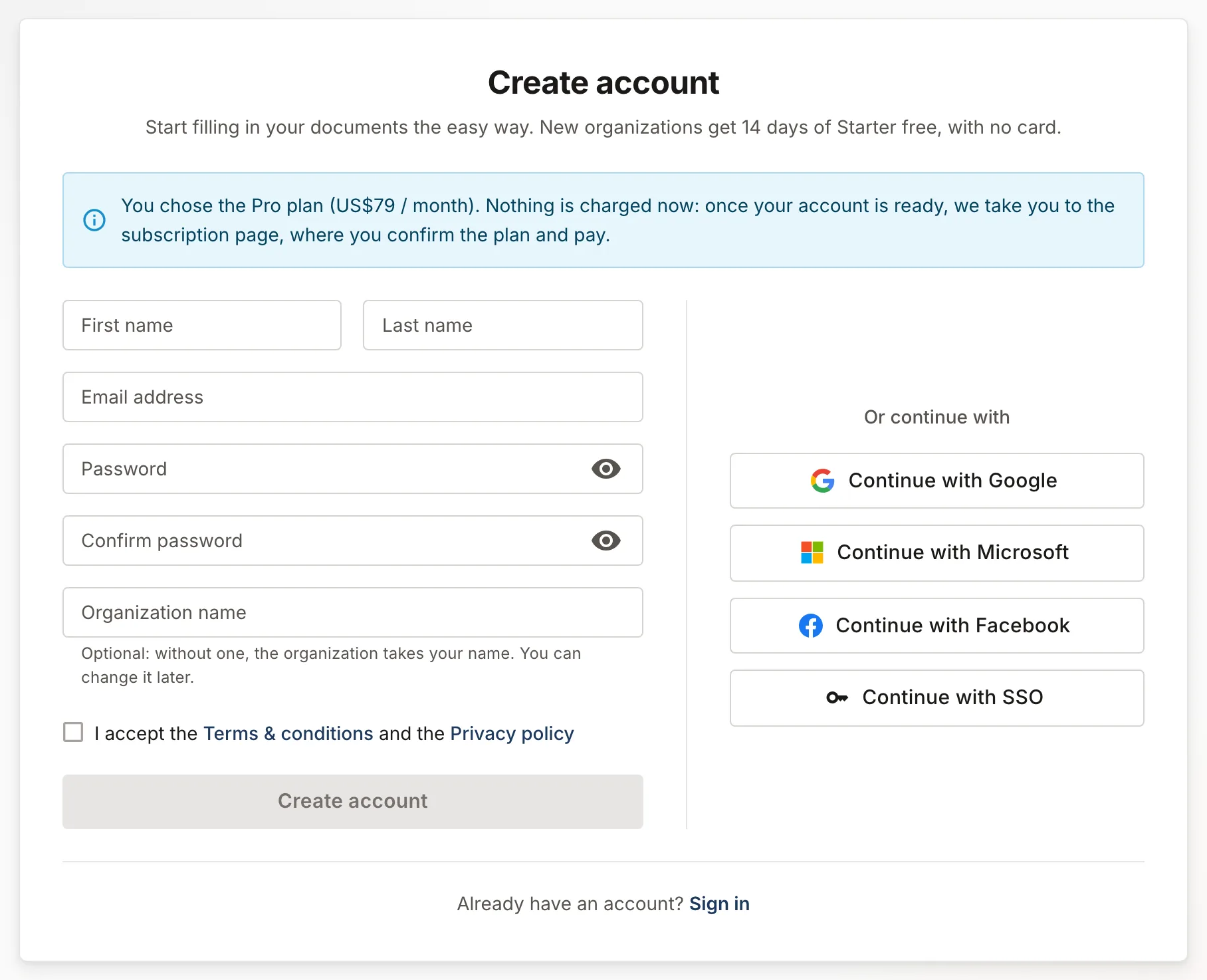
Your organization still starts with the free Starter trial, and nothing is charged. The choice only decides where you land: once you are in, you arrive on the subscription page with that plan selected, and you confirm it and pay there if you still want it.
This works with a password, with Google, with Microsoft and with Facebook. Doxtly keeps your choice with the registration, so you can open the confirmation email on your phone or in another browser. If a two-factor code or a two-factor setup comes first, you get to the plan right after it.
If you already have an account:
- Click Sign in on the registration page. After signing in, you land on the subscription page of the organization you enter, with the plan selected.
- If you are signed in already, the button on the pricing page takes you straight there.
- Continue with Google with an address that has an account signs you in and adds no organization, so you land as you do after Sign in.
- Registering with an address that has an account adds a new organization, as described above, and the plan is selected for that new organization.
- If you may not change the subscription of the organization you enter, you land on your dashboard as usual.
A person joining through an invitation becomes part of the inviting organization, whose plan stays as it is.
Signing in
Section titled “Signing in”Enter your Email address and Password and click Sign in, or use Continue with Google, Continue with Microsoft or Continue with Facebook. You see the buttons of the providers your platform offers.
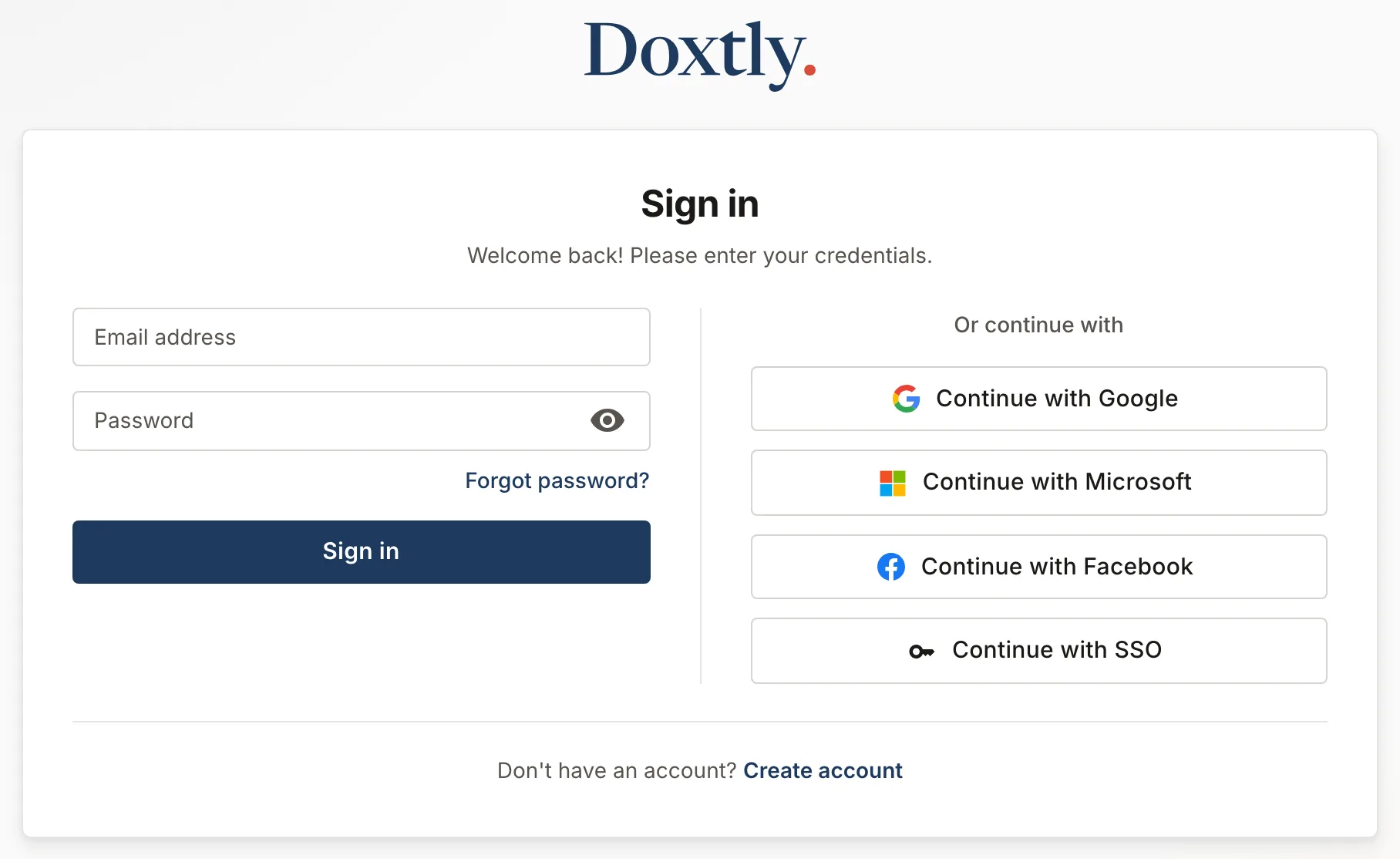
One sign-in opens every organization you belong to. You land in the one you used last, and you switch at the top of the page. If you followed a link to a record, you continue to it after signing in.
Google signs in to the Doxtly account of the same address. The first time, it is linked to that account automatically, because Google vouches for the address. Facebook opens only an account it is already linked to, which means one you registered with Facebook or made with it from an invitation. To use Facebook with an account you made with a password or with Google, sign in as usual and click Connect beside Facebook under Sign-in methods on the Security tab of your profile: from then on, Facebook opens your account. Microsoft does as Google does for a work or school account of a verified domain, and as Facebook does for any other account. An account has one identity of each provider, and you can keep using your password alongside them.
The footer of these pages has links to the terms, the privacy policy and this manual, and switches for the language and the theme.
Single sign-on
Section titled “Single sign-on”If your organization uses single sign-on, you sign in through your company’s own sign-in page rather than with a Doxtly password.
- On your organization’s own address, click Sign in with and the name of your company’s sign-in, for example Sign in with Ashgrove Identity.
- On the main page, click Continue with SSO, the last of the buttons beside the password form, and the card turns into Sign in with SSO. Enter your Work email: Continue becomes available once it is a whole address. Doxtly finds your organization by the address’s domain. Other ways to sign in takes you back to the password and the other buttons, with the address you typed.
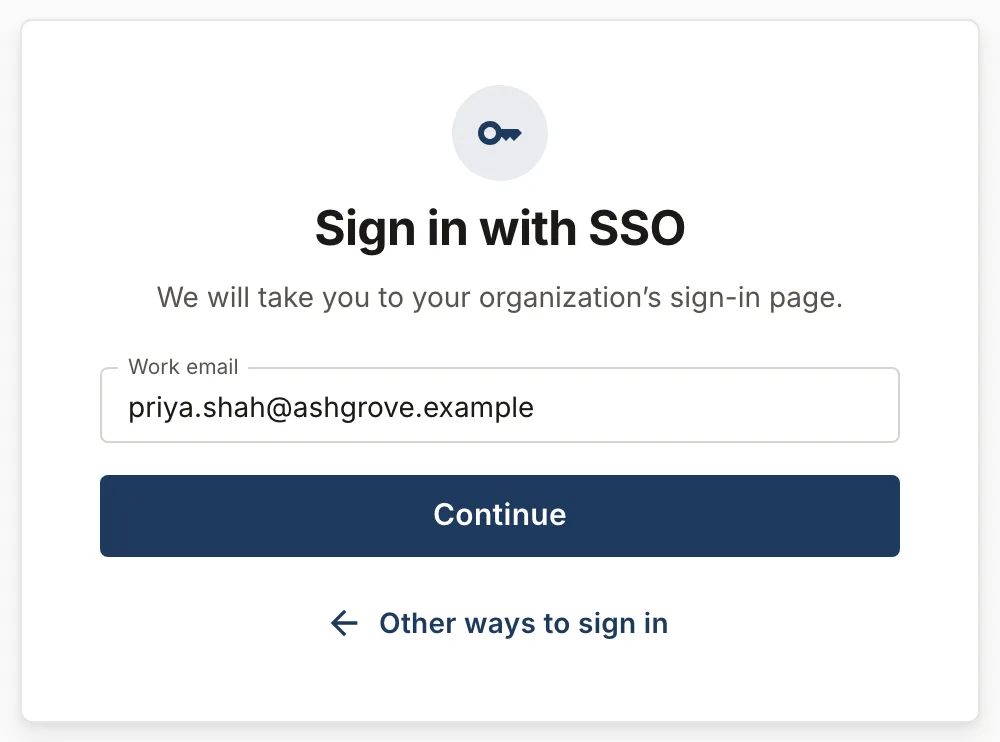
Your company’s sign-in page opens, and you come back signed in to that organization alone. If the address belongs to no organization with single sign-on, the field says so under it: Your organization has no single sign-on for this address. Sign in with your password. When your organization requires single sign-on, signing in with a password there is refused with Your organization requires you to sign in with and the name of its sign-in.
Two-factor authentication
Section titled “Two-factor authentication”If you have set up two-factor authentication, the next screen asks for the 6-digit code from your authenticator app. No access to the app? Click I don’t have access to the authenticator app and enter one of your backup codes, in the form XXXX-XXXX. Each backup code works once, and Use the authenticator app instead takes you back. The step lasts 10 minutes: after that, click Back and sign in again.
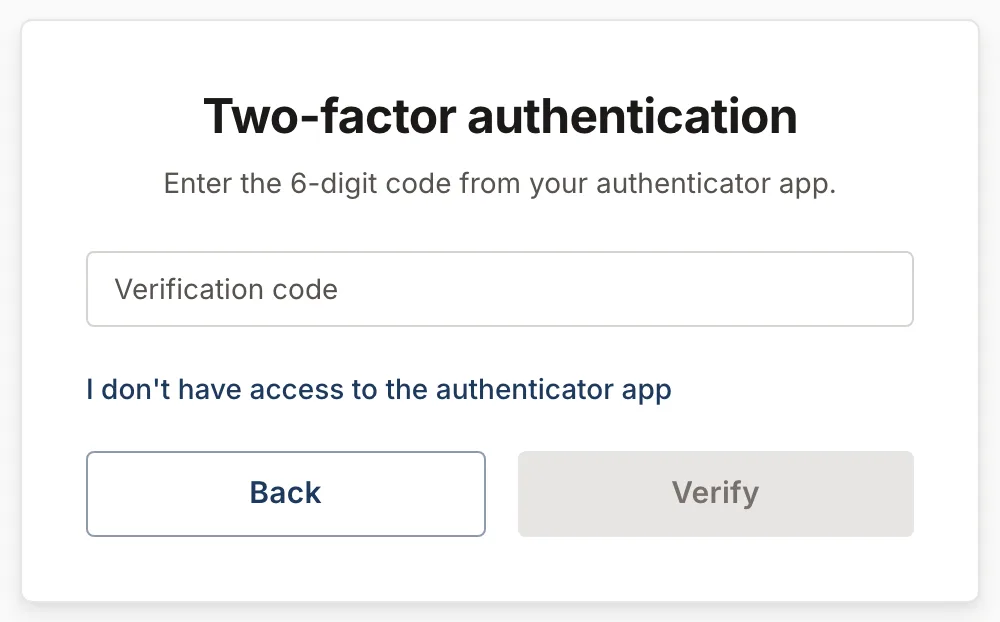
If your organization requires two-factor authentication and you have not set it up, you are taken to its setup and can do nothing else until it is done.
Your organization’s own address
Section titled “Your organization’s own address”An organization can have its own address, set by its Subdomain in the organization settings. On that address, sign-in opens that organization alone, and the page says so. If your account is not a member, you see a message with a link to the main Doxtly address, which reaches all your organizations.
Each address keeps its own session, so being signed in on the main address does not sign you in on an organization’s own one. The organization switcher handles this: it takes you through the other address’s sign-in with your email already filled in.
How long you stay signed in
Section titled “How long you stay signed in”A session lasts as long as you use it, and ends a week after you last did. Sign out in the account menu ends the session on this device. You can see every device you are signed in on, and end any of them, on the Security tab of your profile.
When you cannot sign in
Section titled “When you cannot sign in”| Message or situation | What it means | What to do |
|---|---|---|
| Invalid credentials. | The address or the password is wrong. Doxtly does not say which, to protect accounts. | Check both, or reset your password. An account made with Google, Microsoft or Facebook has no password until you set one. |
| Your email address has not been confirmed yet. | The account’s address was never proved | Use Forgot password?. Setting a new password through the link confirms the address. |
| Rate limit exceeded. Please try again later. | After 10 tries in 15 minutes at one address, sign-in pauses from your connection | Wait, then try again or reset your password |
| We found no account for this address | Google, Microsoft or Facebook gave an address with no Doxtly account, or you have not opened the link of your registration with Facebook yet | Create an account, or open the link in the email |
| This address already has a Doxtly account, and Facebook does not confirm that it is yours (or Microsoft) | Facebook, or Microsoft for an address it did not verify, gave the address of an account it is not linked to | Sign in with your password or with Google, then connect the provider in your profile |
| This address has a Doxtly account now | The address got an account after you registered with Facebook, so the link can’t create another one | Sign in to that account and create the organization from the menu at the top of the app |
| Authentication failed. Please try again. | Google, Microsoft or Facebook could not confirm who you are | Try again. |
| Facebook shared no email address with Doxtly. (or Microsoft) | Your Facebook or Microsoft account has no address, or you did not let Doxtly see it | Check it on Facebook, or register with a password or with Google. |
| Your account is not in any organization | You were removed from your last organization | Open an invitation, or register a new organization |
| Your organization has been blocked | The whole organization is blocked | Contact Doxtly support |
| Account is disabled. | An administrator deactivated you in the organization you were entering | Ask them to activate you. Your other organizations still work. |
| This address’s Doxtly account is already linked to a different account from this provider | The account has another identity of the same provider | Sign in with that one, or with your password |
Forgot your password?
Section titled “Forgot your password?”-
On the sign-in page, click Forgot password?
-
Enter your address and click Send reset link. The page says Link sent whether or not the address has an account, so nobody can use it to find out who is registered.
-
Open the email within an hour and follow its link. The email names the organizations this password opens: up to three, then how many more.
-
Enter a New password, confirm it, and click Change password. The rules are the same as when registering, with a limit of 255 characters.
-
Click Sign in and enter the new password.
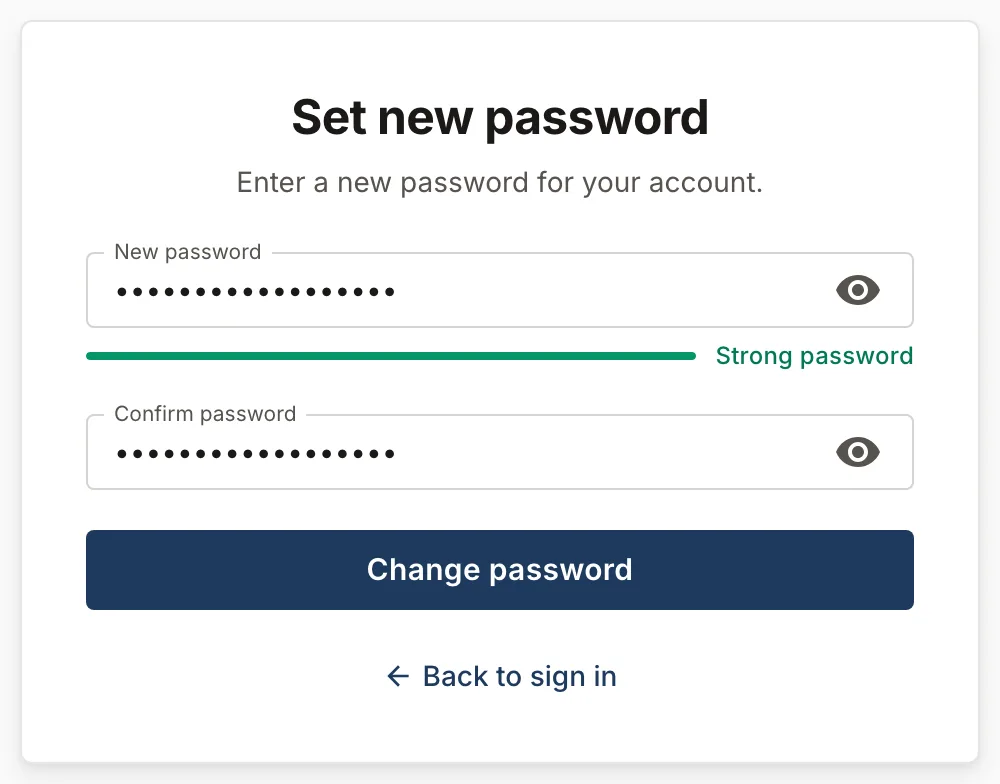
Good to know:
- You have one password for all your organizations, so this changes it everywhere.
- Resetting signs you out on all your devices, in every organization.
- Two-factor authentication stays on. A reset does not bypass it.
- Only the latest link works, and another is not sent within five minutes of the last.
- An account created with Google, Microsoft or Facebook can use this to add a password. So can Send me a link to set a password on the Password tab of your profile.
- If the account’s address was never confirmed, setting the password confirms it.
This link can no longer be used on the reset page means the link has expired or was replaced. Ask for a new one.
To change a password you know, use the Password tab of your profile.
Joining through an invitation
Section titled “Joining through an invitation”When an organization invites you, you get an email with a link that works for 72 hours. Where the link takes you depends on your situation:
| Your situation | What you see | What you do |
|---|---|---|
| New to Doxtly | Join and the organization’s name, with your address filled in and locked | Enter your name and password, accept the terms and click Create account and join. You are in at once, because the link proved the address. Google, Microsoft and Facebook work too, where your platform offers them. |
| You have an account, signed out | Sign in to join and the organization’s name | Enter your usual password, or use Google, Microsoft or Facebook, and click Sign in and join. Forgot password? is on the page if you need it. |
| You are signed in with the invited address | Join the organization as your name | Confirm the names you will go by there, at least 2 characters each, then click the join button. You can use a different name in each organization. |
| You are signed in with a different address | This invitation is for another address | Click Sign out and continue, then sign in with the invited address, or go Back to the app |
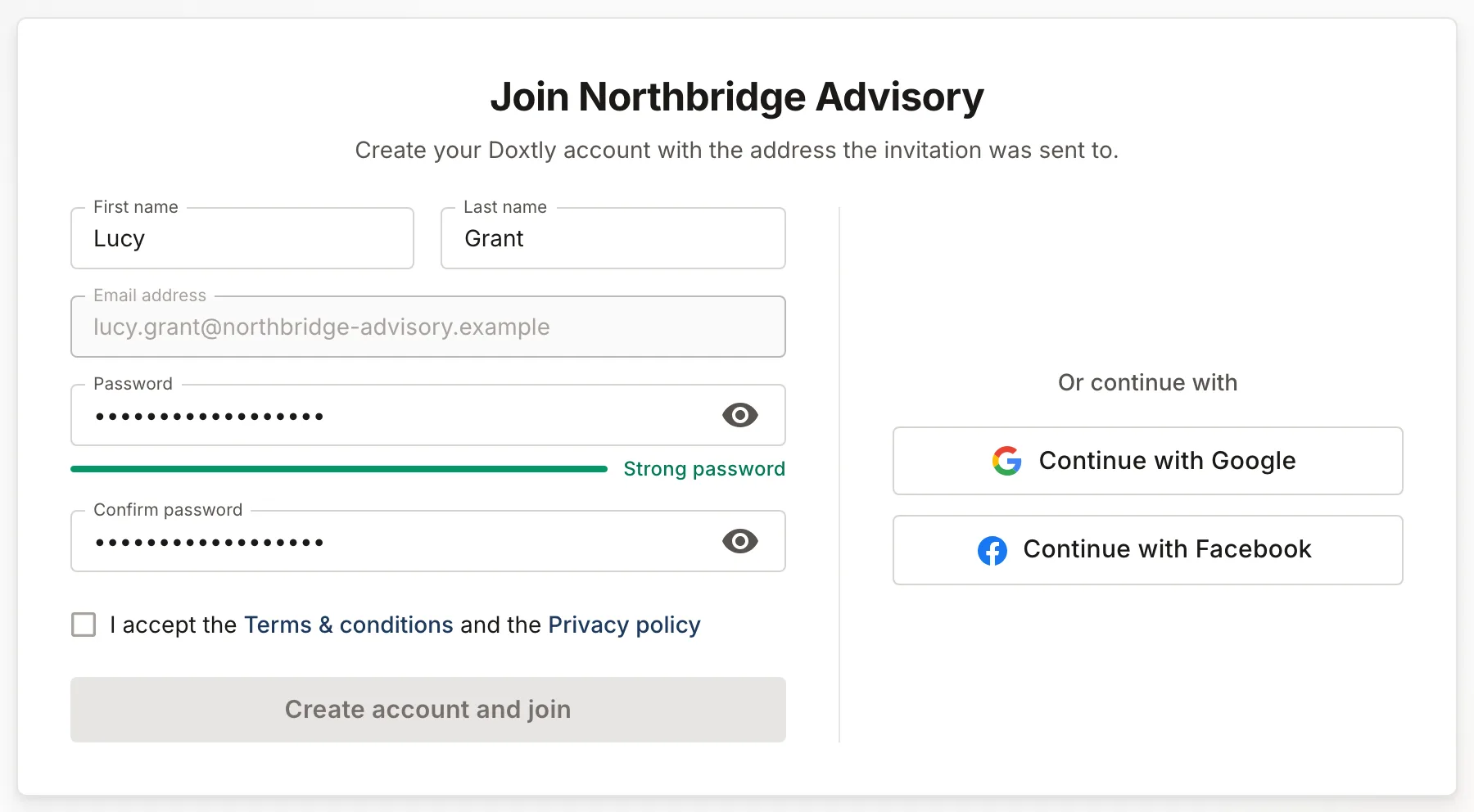
If your account uses two-factor authentication, you give your code on the way in. After joining, the new organization appears in your organization switcher, with the role and department the invitation gave you. If you were a member already, the page says You are already in the organization and offers to open it.
An invitation works only for the address it was sent to, so forwarding the link to a colleague will not let them in. With Google, Microsoft or Facebook, the provider’s address must match the invited one, and the dialog warns you about this. If it does not, you come back with The invitation was sent to a different address than this account’s.
This invitation can no longer be used means it expired, was used or was withdrawn. Ask whoever invited you to send a new one.