

Creating a quiz
The designer is where a quiz is built: the questions, what is correct and what each is worth, the content between them and the order every attempt gets. Surveys are built in the same designer, without correct answers, points or a time limit; where a survey differs, this page says so.
Available when: your role has the Manage quizzes permission (Manage surveys for a survey) and, for a new one, your plan still has room for it
Build your first quiz
Section titled “Build your first quiz”- Open Forms → Quizzes, click New quiz and choose Blank (for a survey, Forms → Surveys and New survey). To start from a ready quiz instead, choose From a template (below). To change an existing one, click its row in the list.
- Type the title over Quiz title (or Survey title) in the bar at the top. It is shown to the people who take it, and nothing can be saved without one.
- In Add on the left, click an answer type, or drag it onto the page in the middle.
- Type the question in the properties on the right, add its options, and click the correct option on the page to mark it. Set the points.
- Add the next items the same way. Each new item goes after the one selected, or exactly where you drop it.
- Press the eye icon (Preview) to see one attempt’s order.
- Click Create. For a quiz that already exists, the button says Save.
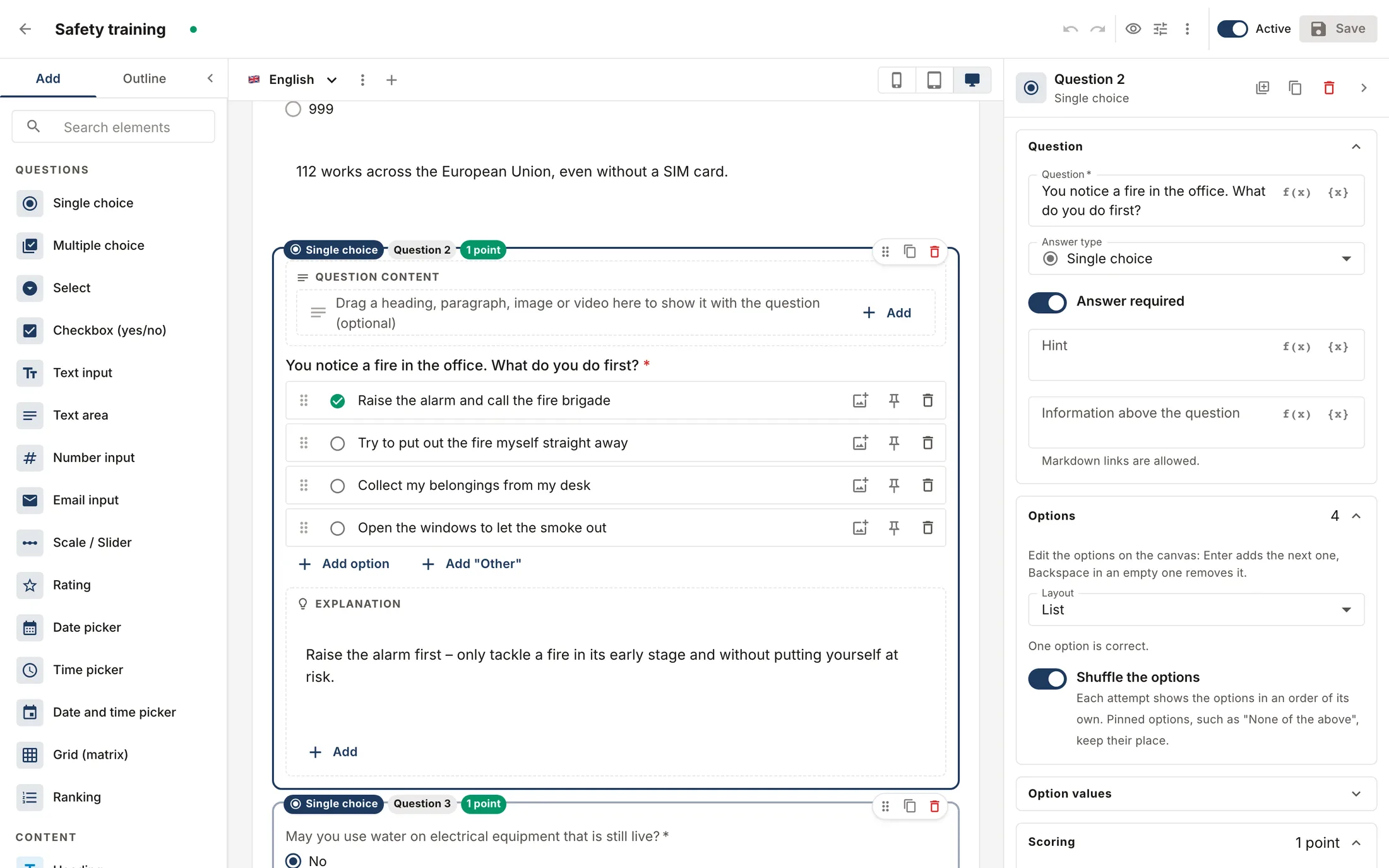
A new quiz is saved with the message “Quiz created” and stays open in the designer. Saving an existing one says “Quiz saved”.
If you have built a web form, the designer will feel familiar: it is laid out as the form designer is, with the things you can add on the left, the page in the middle and the properties of what you selected on the right.
Start from a template
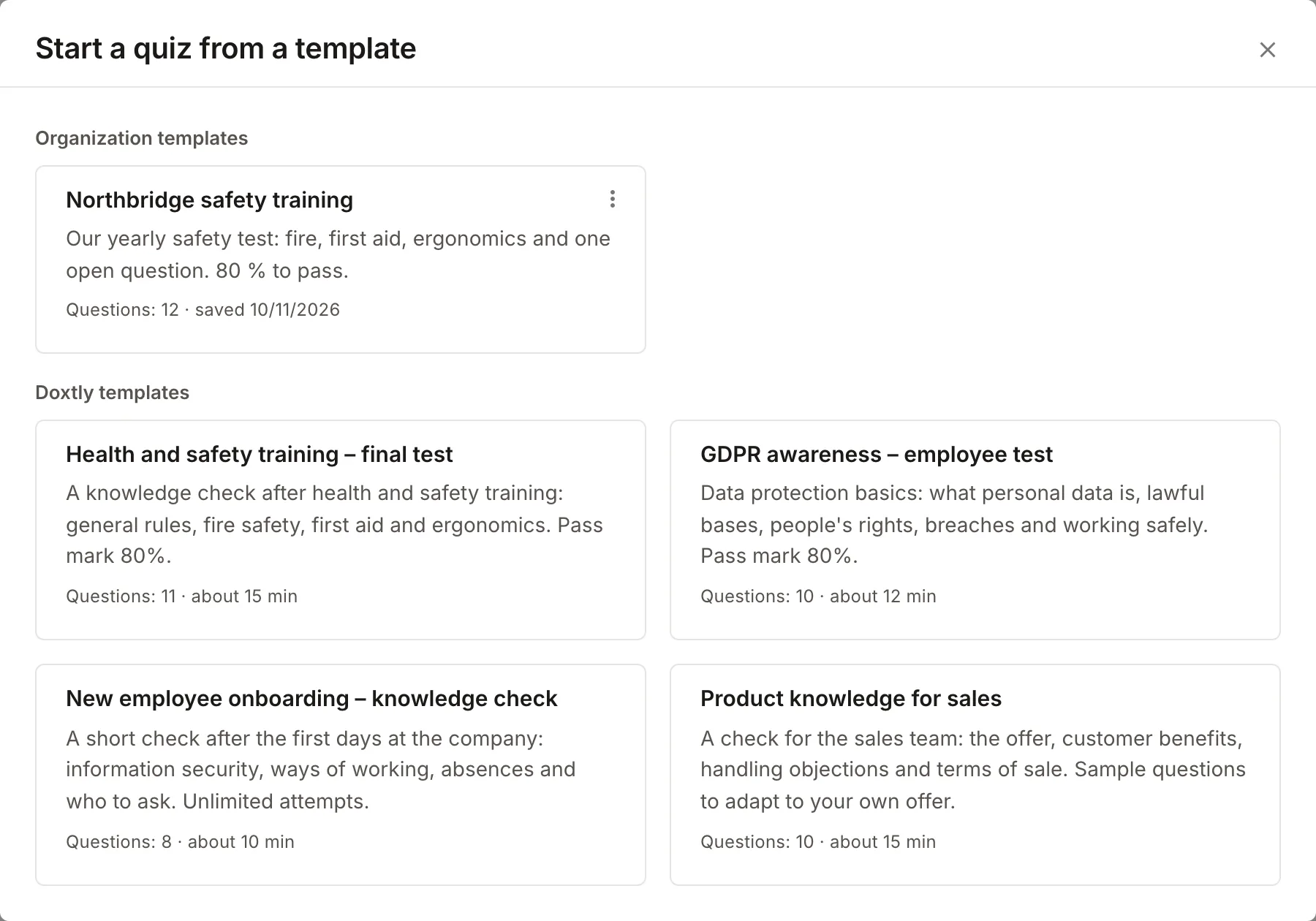
Section titled “Start from a template”New quiz → From a template opens a gallery of ready quizzes. Each card says what the quiz is for, how many questions it asks and about how long it takes:
| Template | What it sets |
|---|---|
| Health and safety training – final test | 11 questions in three sections (general rules and fire safety, first aid, ergonomics), one section per page, pass mark 80% with a Pass / Fail scale, three attempts with the best counted, the score and the answers with explanations shown at the end |
| GDPR awareness – employee test | 10 questions on personal data, lawful bases, people’s rights, breaches and safe work, one question per page, pass mark 80% with a Pass / Fail scale, three attempts |
| New employee onboarding – knowledge check | 8 questions on information security and ways of working, in two sections, pass mark 70%, unlimited attempts |
| Product knowledge for sales | 10 questions on the offer, benefits, objections and terms of sale, one per page, a 20-minute time limit, pass mark 75% with a Distinction / Merit / Pass / Fail scale, two attempts |
Click a card and the designer opens with the whole quiz in it: the introduction, the questions with their right answers, points and explanations, the texts for a passed and a failed result, and the settings above. Nothing is saved until you click Create, so change, add or remove what you like first - a question marked as a sample (the product’s trial period, the people new employees turn to) is there to be replaced with your own.
The templates are written in Polish and English: the gallery shows them in the language of your interface, otherwise in your organization’s, otherwise in English. A template is opened the way an imported file is, so your plan’s limit of quizzes counts it once it is created.
Your organization’s templates
Section titled “Your organization’s templates”Once your organization has saved its own templates, the gallery shows them first, under Organization templates, with Doxtly’s under Doxtly templates. Each card gives the template’s name, its description, how many questions it asks and when it was saved. Its ⋮ menu renames it (name and description) or deletes it; a quiz created from a template stays as it is when the template is renamed or deleted. Creating from your own template works exactly as from Doxtly’s: nothing is saved until you click Create.
Save as a template
Section titled “Save as a template”Save as a template - in the quiz’s ⋮ menu on the list, or in the designer’s ⋮ menu once the quiz is saved - asks for a name (the quiz’s title to start with) and a short description. The template keeps the quiz as it was last saved: the introduction, the questions with their answers, points and explanations, the pictures (as copies of their own, so deleting the quiz does not take them away), the language versions, the grading scale and the settings - everything an exported file carries. It never keeps the people who took the quiz, their attempts and results, the access list, the password or the examiner notes.
Everyone who may manage quizzes sees, uses, renames and deletes the organization’s quiz templates; survey templates are separate and appear only for surveys. Templates do not count against your plan’s limits - a quiz created from one counts once it is created. Saving, renaming and deleting templates are done in the app only; they have no access-key operation.
The top bar
Section titled “The top bar”The designer has the whole window: the app’s menu, notifications, organization switcher and light/dark switch are hidden while you build, and the back arrow at the top left is the way out.
| Control | What it does |
|---|---|
| ← (back) | Leaves the designer: back to the page you opened it from, or to the list of quizzes (or surveys). Leaving with unsaved changes asks Leave without saving? first. |
| Title | The quiz’s title. |
| Status | Ready, or the number of problems to fix. Click it for the list: see Problems that block saving. A dot shows Unsaved changes. |
| Undo, Redo | Step back and forward through your changes. Typing into one field is one step. |
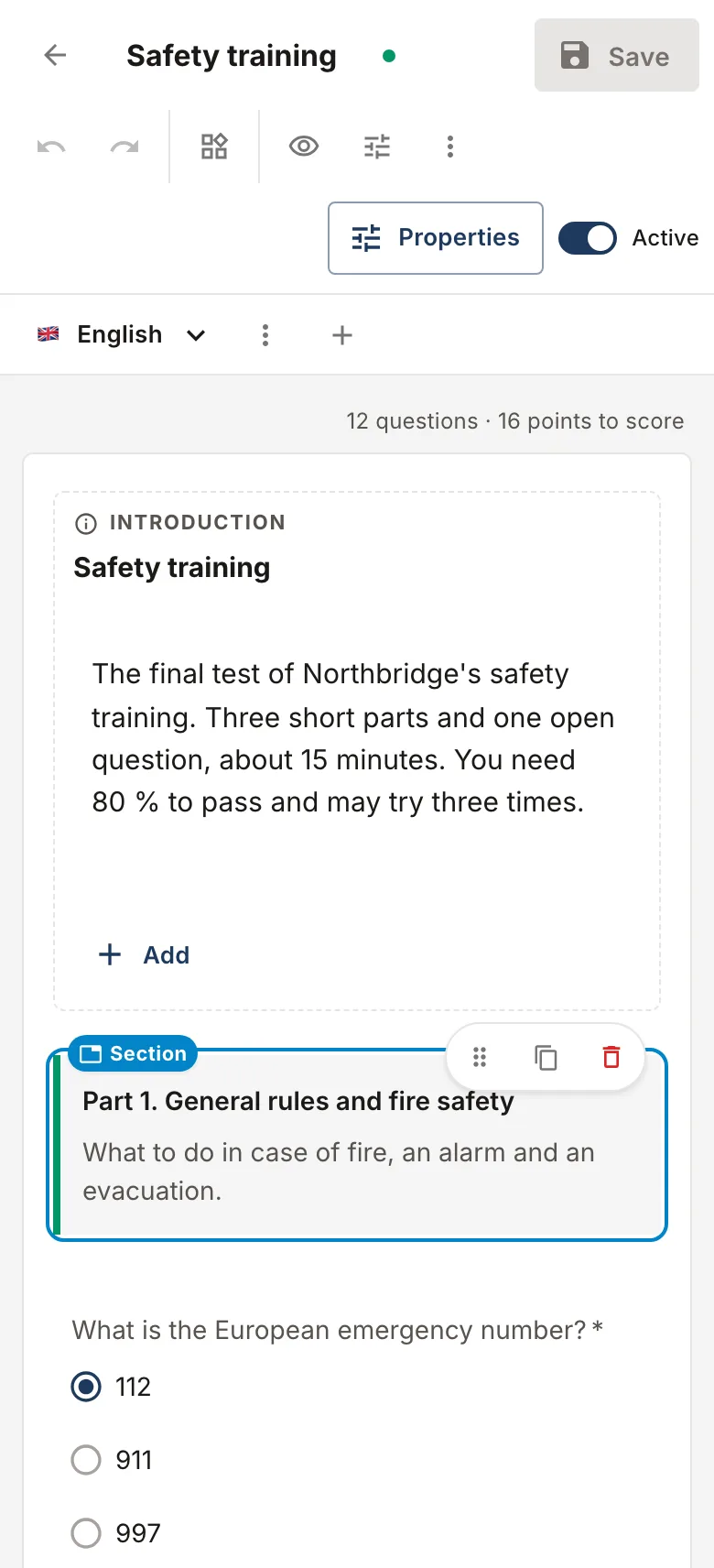
| Add | On a narrow screen only: opens the Add and Outline tabs in a drawer. On a tablet or phone the top bar takes two rows, and the Properties button at the right of the tool row opens the selected item’s settings, from the side on a tablet and from the bottom on a phone. |
| Preview | Shows the order one attempt would get. See Preview. Shown once there is a question. |
| Settings | Opens the quiz settings. |
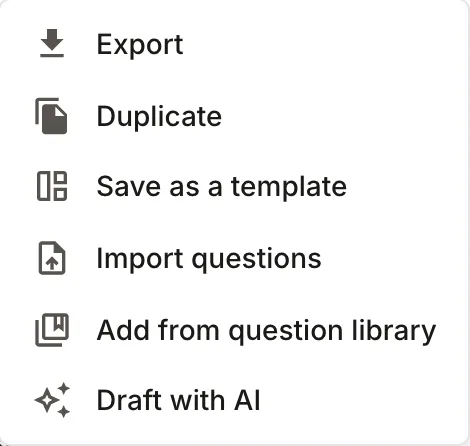
| ⋮ (More actions) | Export, also before the quiz is saved; once it is saved, Duplicate and Save as a template; then Import questions, Add from question library and, for whoever may use the AI assistants, Draft with AI. |
| Active / Inactive | Whether the link takes attempts. An inactive quiz’s link says Nothing to open here. |
| Save / Create | Saves and keeps you in the designer: a new quiz gets its own address. Ctrl+S (⌘+S on a Mac) does the same. |
Under it, a second bar sits over the page:
- The language button shows the language you are editing. Click it to open another version; the icons beside it add a language and open the version’s menu. See Language versions.
- The phone, tablet and desktop icons set the width of the page, so you can see how the quiz reads on each. They are hidden when the page is too narrow for the choice to matter.
A summary over the page, such as 12 questions · 24 points to score, says what the quiz holds.
The page in the middle
Section titled “The page in the middle”The middle of the designer shows the quiz as the people taking it will see it: the title and the introduction first, then every question with its content and its real answer controls, the content between the questions, and in a quiz with a pass mark the texts of the result.
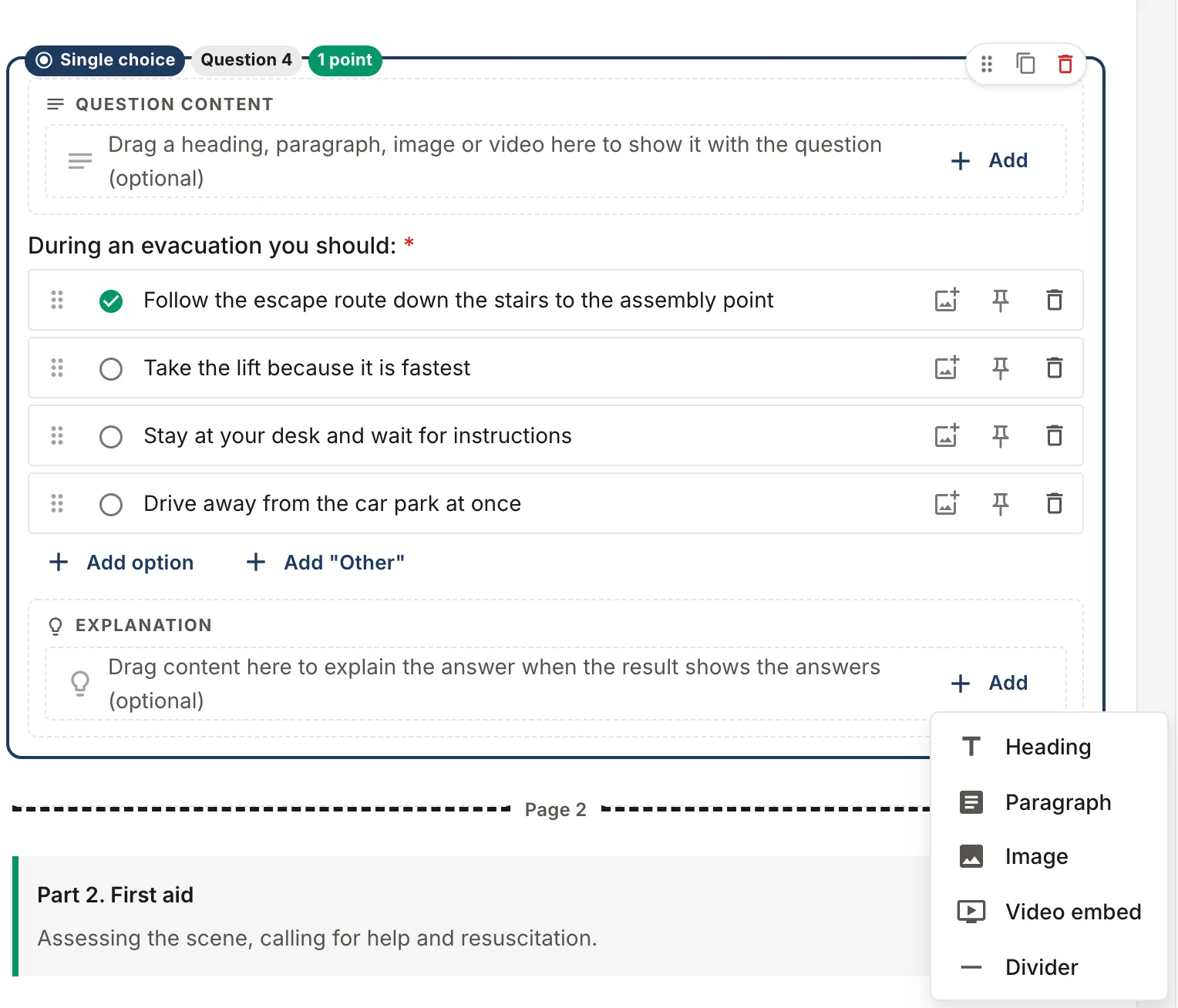
- Select an item by clicking it. Its properties open on the right, and a frame shows its type, its number (Question 3), its points or Not scored, a shuffle icon when it is shuffled, and a red mark when something needs fixing.
- Edit in place. Double-click a question’s text, or a heading, to type over it on the page. Double-click a paragraph to open its editor.
- Mark the correct answer. In a quiz, the correct options are shown ticked in green. Click an option of the selected question to mark it correct, or to take the mark away. For a Checkbox (yes/no), a click switches between correct when ticked and correct when not ticked. Questions judged another way show what they are judged by under the answer: the accepted answers, the number with its tolerance, or Judged by AI.
- Move. Hover over an item and drag it by the handle at the top right to another place. The same buttons duplicate and delete it.
- Pages. When the settings put more than one question on a page, a dashed line marks where each page starts. Shuffled items take their pages in the attempt’s order, so the lines show the order you set.
The Introduction is the area at the top of the page, under the quiz’s title: what people read before the first question. Build it the way you build the content between the questions. Drag a Heading, Paragraph, Image, Video embed or Divider from Content in the palette into it, or click the introduction and then click an element in the palette. Its elements are selected, edited, moved, duplicated and deleted exactly like the other items. Questions cannot be placed in the introduction: while you drag one over it, the area is greyed out and says that questions go below it. An empty introduction is optional and is not shown to people taking the quiz.
The same areas, built the same way, hold all the other content of a quiz:
| Area | Where it is | What people see |
|---|---|---|
| Question content | Inside the selected question, above its answer. | Text, a picture or a video shown with the question, above its answer. |
| Explanation | Inside the selected question, under its answer. Only in a quiz. | Shown with the correct answer when the result shows the answers; never sent to the page before then. |
| Passed and Not passed | Under Result, at the end of the page, in a quiz with a pass mark. | Shown with the score to people who passed, or did not. |
An area shows its frame while its question, the area or one of its elements is selected, and while you drag content: drop the content into it, or click the area and then an element in the palette. Areas that hold nothing are not shown to people taking the quiz. An open area also has its own + Add: a menu of Heading, Paragraph, Image, Video embed and Divider, in its hint while it is empty and after its last element otherwise. What you choose goes to the end of that area, which on a phone is quicker than opening the palette.
The Add and Outline tabs
Section titled “The Add and Outline tabs”The left side has two tabs.
Add lists everything a quiz can hold, with a search box: Questions, by the type of answer, and Content to put between them. Click an entry to add it after the item selected, or drag it to the exact place on the page.
In a survey, Survey comes first, with three questions ready to ask: NPS (how likely people are to recommend you, 0 to 10), CSAT (how satisfied they are, 1 to 5 stars) and CES (how easy it was, 1 to 7). Each comes with its question and the words at both ends, which you can change, and the survey’s results show its score. The question’s properties say Measures NPS (or CSAT, CES). The score counts only while the question keeps its type and range: change them and it becomes an ordinary question.
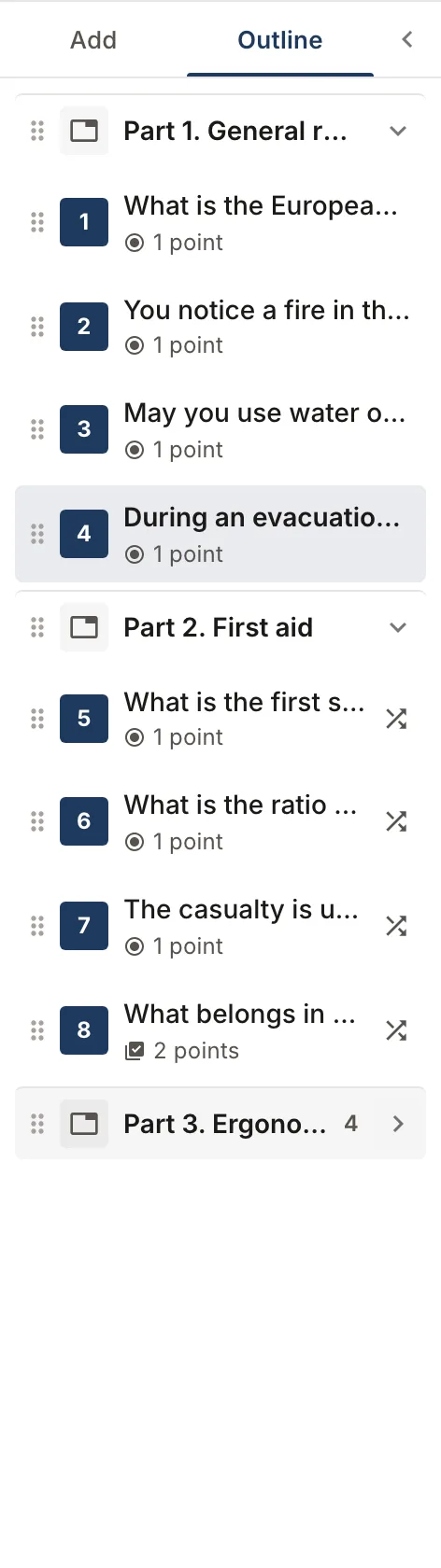
Outline lists every item in order, questions numbered and content not. Each row shows the points a question is worth or Not scored, a shuffle icon when the item is shuffled, a translation icon when it is not translated yet, and a dot when something needs fixing. Click a row to select the item and bring it into view; drag a row to move it. In a long quiz this is the quickest way around.
Import questions
Section titled “Import questions”Questions you already have in a file come in through the ⋮ menu of the top bar, Import questions. Choose the file on your computer or, with a drive connected, on a cloud drive: a GIFT, Aiken or Moodle XML file, or an Excel or CSV sheet. Doxtly reads it, stores nothing and shows what it found before anything is added: each question with its type, its options and, in a quiz, the right ones, the accepted answers or the number with its tolerance, and its points. Parts it could not import are listed by their line, with the reason (a type Doxtly does not have, no question text, fewer than two options, no right answer). Import puts the questions after the question selected, or at the end; one Undo takes them all back.
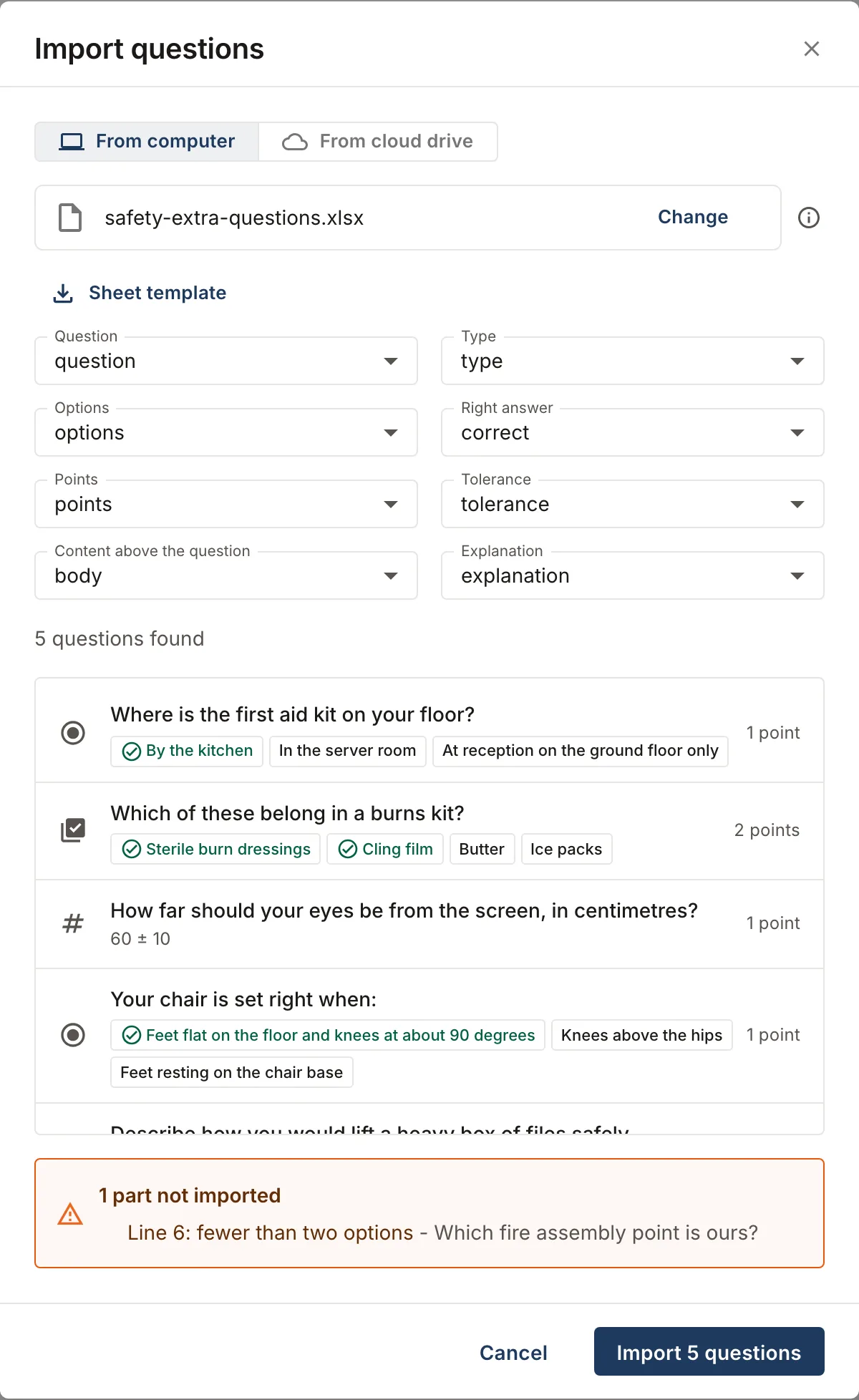
A sheet is read by its columns: question, type (single, multiple, text, number, essay or truefalse), options (one per line or split by |), correct (the right options by their text or letter, the accepted answers, or the number), points and tolerance. Sheet template downloads a file with these columns and examples. When your sheet names its columns differently, pick the column for each field in the dialog; the questions are read again as you choose. A row without a type is read by what it holds: options make a choice, several right ones a multiple choice, a number a number question, any other answer a text question, no answer an open one.
A question’s Question content and Explanation come with it, built exactly as in the question library’s import: from a sheet’s body and explanation columns in Markdown, and from a GIFT or Moodle XML question text of several paragraphs (all but the last) and its general feedback. Each paragraph or heading becomes an item, a YouTube or Vimeo address on its own line a video. A picture can’t come from a file’s words: it is left out, the message after Add names its lines, and you add it in the editor. Both columns can be mapped in the dialog like the others.
In a survey the questions come without right answers, points or explanation, and the sheet needs only question, type and options. Questions from a file are checked and saved like the ones you add yourself.
A Word file (.docx) is read by Doxie, when you may use the AI assistants: she finds the questions, their options and the right answers the document marks, and the dialog shows them to review like any other file. Reading a Word file uses Doxtly AI, or your organization’s AI integration assigned to Doxie.
Draft with AI
Section titled “Draft with AI”Draft with AI, in the same ⋮ menu, writes questions from a description: say what they should ask about (Fire safety at work, for new employees, basic level) and how many, and click Draft. Doxie writes them in the quiz’s language, with right answers; in a survey, in the survey’s language and without them. Review them, Draft again if you want others, then Add: they go in after the question selected, and one Undo takes them back. It is offered to whoever may use the AI assistants, and uses Doxtly AI like the other assistants.
Question library
Section titled “Question library”The question library keeps the questions your organization asks again and again, so that any quiz can reuse them: the fire safety questions of every induction, or a pool of exam questions by topic and level. Surveys have a library of their own, which works the same way without right answers; the two never see each other’s questions.
Save a question. Select it and click Save to question library, beside the duplicate button at the top of its properties. Type its Tags, pressing Enter after each one (up to 20, each up to 50 characters), choose a Difficulty from 1 to 5 if you like, and click Save. The library keeps a copy of its own, so changing the question in the quiz later leaves the library’s copy as it was. The copy stands alone: it is saved without its condition, its jumps and its role in questions about the person. Its pictures, in its text, its options or its explanation, are copied with it, so the library keeps them even if the quiz is deleted, and so are the words of the quiz’s language versions.
Add questions from the library. Add from question library, in the ⋮ menu of the top bar, lists the library’s questions with their tags and difficulty. Search by the question’s text, click tags to see only the questions carrying every tag you chose, tick the questions you want and click Add 3 questions. They go in after the question selected, or at the end, each as a copy with its own answer key in the data, its pictures and the words of the quiz’s language versions the library has, and one Undo takes them back. Once added, a question belongs to the quiz: change it there as you like. The bin icon, Remove from the library, deletes a question from the library; quizzes it was added to keep their copies, and attempts already taken keep the question they were asked.
Draw questions for every attempt. A section can also give each attempt questions drawn at random from the library: see Questions from the library under Sections.
The library’s page. Open the question library, in the Add from question library dialog and under a section’s Questions from the library, opens the library’s page in a new tab, and the quiz stays as it is. There, under Resources > Question library, you add and edit questions, import them from a file, export them, change their tags and delete them in bulk: see Question library.
The library holds up to 2,000 questions. Saving a question and removing one need the Manage quizzes permission; in a survey, Manage surveys.
The properties on the right
Section titled “The properties on the right”The right side shows the properties of what is selected, in groups you can fold away. At the top are its name, its type, and buttons to duplicate and delete it. On a narrow screen the properties open from the Properties button in the corner.
Questions
Section titled “Questions”| Group | Settings |
|---|---|
| Question | Question, the text (required); Answer type, one of the 15 types below, and changing it keeps what still fits, such as the options; Answer required, the person must answer before moving on or sending; Hint, shown under the answer, for example the unit expected; Information above the question, where Markdown links are allowed. |
| Options | For Single choice and Multiple choice: how the options are laid out (List, or a grid of cards in 2, 3 or 4 columns), the alternative texts of their pictures, and Shuffle the options. See Options on the page and Shuffling. |
| Scoring | How the question is judged and what it is worth: see Scoring. Only in a quiz. |
| Explanation | Where to build it: see Explanation. |
| Order in an attempt | Fixed position or Shuffled: see Shuffling. |
| More | Answer key in the data, the name the answer has in workflows and exports (it cannot start with _), and Placeholder. |
Options on the page
Section titled “Options on the page”The options of the selected Single choice or Multiple choice question are edited on the page, one row each:
- type an option’s words in its row; Enter adds the next option, and Backspace in an empty row removes it;
- drag a row by its handle to change the order;
- in a quiz, click the mark at the start of a row to make the option correct;
- the picture button adds a picture to the option, or drop a picture file on the row;
- while the options are shuffled, the pin keeps an option in its place, such as “None of the above”.
An option with a picture, or a question laid out as a grid, is shown as cards: each card has its picture and its words, the whole card can be clicked or tapped, and on a phone a grid of three or four columns shows two; in a narrow place a row takes fewer cards, down to one.
“Other” with a text answer
Section titled ““Other” with a text answer”A Single choice or Multiple choice question can offer Other, for the answer you did not think of. Under the options, click Add “Other”. The option is always the last one: it is never shuffled, it has no picture, and its row has no pin.
- Its label is edited on the page like any option. It starts as Other:, and it is translated in each language version like any other option.
- A person who chooses it types their own answer, up to 500 characters, and must fill it in before moving on. Choosing another option instead drops the text.
- In a quiz, you can mark Other as correct: then any text counts as the correct answer.
- The examiner sees the text next to the option in the attempt’s review. Workflows read it as
otherTextin each entry of_results.
Answer types
Section titled “Answer types”These are the form designer’s field types, and the last column says how each can be scored.
| Answer type | How it can be scored |
|---|---|
| Single choice | One option ticked as correct. |
| Multiple choice | Every correct option ticked, with partial credit if you like. |
| Select | One option ticked as correct. |
| Checkbox (yes/no) | Correct when ticked, or correct when not ticked. |
| Text input | Exact answer or Judged by AI. |
| Text area | Exact answer or Judged by AI. |
| Email input | Exact answer. |
| Number input | Correct number. |
| Scale / Slider | Correct number. |
| Rating | Correct number. |
| Date picker, Time picker, Date and time picker | Not scored: “This type of answer is not scored.” |
| Grid (matrix) | Right column per row. |
| Ranking | Right order. |
A Grid (matrix) asks several statements on one scale, and a Ranking has the person put options in order. Both work in quizzes and in surveys as they do in forms, and look the same: a grid is a table when its answers fit beside the statements in the space the question has, and a card per row when they don’t, also on the canvas as you switch its width. In a quiz each can have a correct answer: see Grid and ranking.
When a Checkbox (yes/no) question is selected, the panel says “For several options use: Multiple choice or Single choice”, and Change type switches the question to one of those types, keeping its text.
Questions that upload a file, a photo, a drawing or a signature are not offered.
Content between questions
Section titled “Content between questions”Content in Add offers items that are not questions:
| Content | What it shows |
|---|---|
| Heading | A heading, in four sizes from Largest to Small, aligned left, centred or right. |
| Paragraph | Rich text: bold, italics, lists, links and tables. |
| Image | A picture, with its width and alignment: see Pictures. |
| Video embed | A YouTube or Vimeo video, with a title. |
| Divider | A line between the items before and after it. |
| Section | A page of its own, with an optional title and description: see Sections. |
Use content to split a long quiz into parts, or to show a video or a picture the next questions ask about. Content has an Order in an attempt too, so it can stay with the questions it belongs to.
Sections
Section titled “Sections”Section in the Content group of Add groups the questions, as a section does in a form. It sits only in the flow of questions: not in the introduction, in a question’s body or explanation, or in the result texts. Everything after a section, up to the next one, belongs to it; the content before the first section goes with it.
- Title and description are typed on the section’s band on the page, or in its properties, where the
{x}button offers the variables. Both are optional, and both are translated in the language versions. - Pages. With One section per page in Pages, each section is one page of the attempt; with One question per page, a page never holds questions of two sections. The sheet marks where each page begins (Page 2, Page 3…) for the paging chosen.
- Draw some questions at random picks the given number of the section’s questions for each attempt. They keep their order, and the score is out of the questions the person was served.
- Questions from the library gives each attempt questions drawn at random from the question library. Set How many questions (1 to 100) and, under With every tag, the tags they must all carry, capital letters aside; with no tags any question of the library can be drawn. The line below says how many of the library’s questions match, and Open the question library under it opens the library’s page in a new tab. The drawn questions join the end of the section, and Draw some questions at random then picks among the section’s own questions and the drawn ones together. When fewer questions match than you asked for, an attempt gets the ones there are, and two sections never draw the same question. A drawn question counts as one question across all the attempts that got it, in the results and the statistics, read as the library holds it now: a correct answer fixed in the library is the one a regrade applies. Removing it from the library, or taking off a tag the section asks for, doesn’t change attempts already taken, but the results no longer list it. In a survey it works the same way for each response.
- Time limit gives the section minutes of its own, counted from the moment the person reaches it, with any extra time the person has on the access list added. A chip beside the quiz’s timer shows what is left of the section, however the quiz is split into pages. Once its time is up, the person is taken on to what follows, or the attempt is sent when nothing does; what they answered in the last seconds is kept. Between timed sections the quiz goes forward only: a timed section left, or one before it, can’t be opened again, so its required questions are asked as it is left. With Everything on one page, a timed section gets a page of its own. A survey’s sections have no time limit.
- Order in an attempt: Fixed keeps the section in its place, Shuffled swaps it with the other shuffled sections. Questions marked as shuffled are mixed only within their own section.
- An empty section shows a warning.
- In Outline, the arrow beside a section folds its questions under it. Dragging a section, there or on the page, moves it with all its questions.
The list of questions on the quiz page shows the questions under the title of each section, and the result page and the attempt’s review show the score per section under Score by section.
Logic and branching
Section titled “Logic and branching”Select an item and open Logic in its properties. The same conditions as in a form’s conditional display decide what is shown:
- Show if shows a question, a piece of content or a whole section only when an earlier answer matches (simple condition or an expression).
- Then go to (questions only) sends the person on to a later section, or to the end of the quiz or survey, when its condition holds; the first matching jump wins. With Only when switched off the question always goes on there.
Everything a jump skips, and every item hidden, is not asked: required questions are required only when shown, hidden questions are not scored and the maximum score counts only the questions shown. An answer given before a later change hid its question is dropped when the attempt is sent. Pages with nothing shown are skipped, also when people go forward only, and the progress and question numbers count only what is shown. A jump goes forward only; with shuffled sections, a jump to a section that came before it does nothing.
Pictures
Section titled “Pictures”A quiz can show pictures in three places:
- With a question, as an Image dragged into its Question content area. With Beside the question on, the picture stands to the left or right of the question and its answer; on a phone it stands above them. Each option of a single or multiple choice can have a picture too, from its row on the page.
- Between questions, as an Image from Content, with its width and alignment.
- In the introduction, an explanation or a result text, as an Image dragged into it from Content, with its width and alignment, like an image between questions.
A picture can be a JPEG, PNG, GIF or WebP file of up to 3 MB. Give it an Alternative text: what it shows, for people who cannot see it. Each language version can have its own alternative text; the picture itself is the same in every language.
The pictures are stored with the quiz when you save it, and count towards your organization’s storage. A picture you remove is deleted with the next save, and deleting the quiz deletes all of them. A copy of the quiz gets copies of its pictures. People taking the quiz see the pictures only while its link is active.
Scoring
Section titled “Scoring”A quiz’s question is scored once it has a correct answer. Without one it counts for nothing, and the outline says Not scored. A survey has no Scoring section at all.
Points sets what the question is worth: from 0 to 1,000, stepped by whole points with the buttons beside it and typed to a fraction if you need one. A new question is worth 1 point.
Choice questions
Section titled “Choice questions”Click the correct option on the page, or tick the mark before it in Options. For Single choice and Select, one option is correct. For Multiple choice, every ticked option is correct, and the attempt must tick exactly those to score. Until an option is ticked, the question says The question is not scored until an option is ticked as correct.
Partial credit (Multiple choice only): each correct option ticked earns its share of the points, and each wrong one takes a share away, never below zero. So ticking everything earns nothing. Take five options, three of them correct, worth 3 points. Someone ticks two correct options and one wrong one: the two earn two thirds of the points, and the wrong one, one of the two wrong options, takes half away. That makes 3 × (2/3 − 1/2) = 0.5 points.
A Checkbox (yes/no) is correct when Ticked, or when Not ticked: choose which.
Exact answer
Section titled “Exact answer”For text: type each Accepted answer and press Enter. Any of them is correct. Spaces at the ends are ignored, and spaces in between are evened out, so “New York” counts as “New York”. Case matters is off unless you switch it on: off, “paris” counts the same as “Paris”.
Grid and ranking
Section titled “Grid and ranking”For a grid, Right column per row lists its rows: choose the right column for each. With Points for each right row on, each row right earns its share of the question’s points; off, only every row right scores. For a ranking, Right order starts from the order of the options; move an option with its arrows. With Points for each option in its place on, each option in its right place earns its share; off, only the exact order scores. Adding or removing a row or an option keeps the rest of the answer. A ranking with a right order is always shown in another order, so keeping it as it comes is never the answer. The result and the examiner’s review show each row with its right column, and the right order numbered.
Correct number
Section titled “Correct number”For a number, a scale or a rating: the Correct number and a Tolerance, how far the answer may be from it either way. With 100 and a tolerance of 5, anything from 95 to 105 is correct. A comma counts as a decimal point. For a scale or a rating, click the correct value among the ones it offers, in the properties or under the question on the page.
Judged by AI
Section titled “Judged by AI”For an open text answer: describe What a good answer contains, for example “names at least two causes and explains one of them”. After the attempt is sent, the AI reads each such answer against your description and gives it its points, between nothing and what the question is worth, with a short explanation.
Grading uses the same AI as Doxie: Doxtly AI on your plan, or the AI integration your organization assigned to her. The person’s result page waits for it, usually a few seconds. If the AI cannot grade, the attempt shows Needs review on the Responses tab of the results and the person is told the author will grade those answers.
Under the description, Try on a sample answer checks it before anyone takes the quiz: write an answer a person might give and click Try. The AI judges it exactly as it would an attempt’s answer and shows the verdict, the points out of what the question is worth, and why. Each try is one AI call, billed to Doxtly AI like Doxie’s calls. When the AI is not available, or the balance has no room for a call, the designer says so instead.
Examiner notes
Section titled “Examiner notes”Examiner notes hold what the people who grade should know about a question: what to look for, the usual wrong answers, when to give part of the points. They are for examiners only: people who can grade or manage quizzes see them in the designer, and the AI grader reads them when it grades an open answer. A participant never sees them, not on the quiz’s page, not in the result, the e-mails, the certificate or a workflow. If the AI’s comment to the participant repeats a sentence of the notes, the comment is not shown.
Negative marking
Section titled “Negative marking”A wrong answer costs sets the points a wrong answer to this question takes away, for a choice, an exact answer or a number. Leave it empty to use what the quiz sets in Settings > Result. A question left unanswered never costs anything.
Explanation
Section titled “Explanation”Explanation says why the answer is correct. Build it in the question’s Explanation area on the page, under its answer, from headings, paragraphs, images, videos and dividers. It is shown with the correct answer when the result shows the answers, and is never sent to the page before then.
Questions about the person
Section titled “Questions about the person”On a link anyone can open, Doxtly doesn’t know who wrote an attempt. A Short text or E-mail question without a correct answer can say what it asks about the person: under About the person, choose Full name, First name, Last name, E-mail, ID number or Group or class. The answer then names the attempt in the results, on the answer sheet and on the certificate, and the e-mail address receives the result when it is released. Each can be asked by one question only.
When the person comes from the quiz’s access list, the list says who they are, whatever they answer.
Shuffling
Section titled “Shuffling”Shuffling gives each attempt its own order, so neighbours in a training room don’t see the same question at the same time.
- Items. In Order in an attempt, Fixed position keeps the item in its place in every attempt, and Shuffled lets it take the place of another shuffled item. Fixed items stay where they are, so you can keep an introduction first and a closing question last while the ones between them are mixed.
- Options. Shuffle the options mixes a question’s options in every attempt. While it is on, a pin after each option keeps that one in place: use it for “None of the above” or “All of the above”.
The order is chosen when an attempt starts and kept for that attempt, also after a reload.
Variables in texts
Section titled “Variables in texts”The {{ }} variables, with the same syntax and functions as elsewhere in Doxtly, work in the introduction, the texts and options of questions, the bodies and explanations of questions, the titles and descriptions of sections, and the texts shown for a passed and a failed attempt. The {x} button beside a text, and on the option being written, opens the variable picker. It offers only what the text can print where it stands, and a field warns of a variable that prints nothing there: an unknown name, or an answer to a later question.
They are filled in on the quiz page as the person goes. An earlier answer is printed by its option’s label, and appears as soon as it is given. You can use:
| Variable | What it prints |
|---|---|
| An earlier answer, by its data key | What the person answered. |
{{ _params.name }} |
A parameter of the link. |
{{ _person.name }} |
The name of the invited person. |
{{ _quiz.title }} |
The title of the quiz. |
{{ _attempt.score }}, {{ _attempt.maxScore }}, {{ _attempt.percent }}, {{ _attempt.passed }} |
The result of the attempt. Only in the texts of a passed and a failed attempt and in the explanations. |
What is filled in is shown as plain text, never as formatting or a link, and a variable with no value prints nothing.
Language versions
Section titled “Language versions”A quiz can be taken in several languages. It is written in one, its own language, marked Default - the organization’s language for a new quiz - and each other language is a version of its words.
- In the bar over the page, click the Add language icon (+) next to the language button and pick the language.
- The whole designer now writes that language. The page shows the quiz in it, with the quiz’s own words wherever a translation is missing, and the properties on the right show a box for each word of the item selected, with the quiz’s own text under it. You can also double-click a question or a heading on the page and type its translation there.
- Fill in what you want translated. A word left empty is read in the quiz’s own language.
- Click the language button and pick the quiz’s own language to go back to editing the questions themselves.
A version holds words only: the title, the introduction, each question’s text, hint, placeholder and information, the options’ labels, the explanation, the text of headings and paragraphs, and the pictures’ alternative texts. What a question is - its type, options, correct answer and points - is the same in every language and is changed in the quiz’s own language. For an Exact answer, a version can list its own Accepted answers: an attempt taken in that language is judged by them, and by the quiz’s own when the list is left empty.
While a version is open, each item with a word not yet translated carries a translation icon on the page and in the outline. The status in the top bar counts what is left in every version, in amber, under Not translated yet: click a language there to open it at the first item to translate. Untranslated words never block saving.
The menu next to the language button copies another version’s words, or the quiz’s own, into the open one, as a start for a translator, and removes the open version. The send button’s text and the success message are written per language in the settings; the texts of a passed or failed attempt are translated on the page, like the rest of the content.
People read the version of the page’s language, then of their browser’s languages, then of the organization’s language; with none of these, the quiz’s own. The language is chosen when the attempt starts and kept for that attempt.
Problems that block saving
Section titled “Problems that block saving”The designer checks the quiz as you work. Each problem is marked on its item on the page and in the outline, shown at the top of its properties, and listed under To fix before saving when you click the status in the top bar. Save stays greyed out until there are none. Besides the checks of the form designer, such as a question without text or two answers with the same key, a quiz also needs:
| Problem | Fix |
|---|---|
| Give at least one accepted answer. | An exact answer has no accepted answer. |
| Give the correct number. | A correct number is empty. |
| Describe what a good answer contains. | An AI-judged question has no description. |
| Nobody can give this correct answer: it is outside the question’s range or steps, or longer than it lets a person write. | A correct number outside the slider’s, the rating’s or the number’s limits, or between the slider’s steps (a slider from 1 to 5 never takes 33), or an accepted answer longer than the text area allows. |
| The warning must come before the attempt is sent: set a smaller number for it. | In Leaving the tab, the warning comes at or after the send. |
Preview
Section titled “Preview”Preview shows the quiz as one attempt would get it, at phone, tablet or desktop width, with the questions numbered and split into pages as the settings say. The correct answers are not sent to the page, and nothing is saved. Reshuffle shows the order of another attempt; it is greyed out when nothing is shuffled. With language versions, a list in the bar shows the preview in each language, in the same order. The preview works on unsaved changes too.