

Submissions
A submission is one filled-in form: the answers, the uploaded files, and a record of where and when it came from. This is where you check what a client sent, see which workflows it started, and sort real messages from spam.
Available when: your role includes View forms and submissions
Say a client of Northbridge calls: they sent the onboarding form this morning and no NDA has arrived. Here is how you find out why.
- Open the Submissions tab and type the client’s name into the search box. If the form has a title template that holds the name, the submission comes up. No result? Set the Spam filter to All in case it was kept aside.
- Open it and look at Triggered workflows on the Info tab. A Failed run tells you where it stopped, and “No workflows were triggered by this submission” tells you nothing was listening.
- Click the run’s name to see which step went wrong and why.
Doxtly doesn’t announce new submissions by itself. If somebody should hear about each one, add a Send email step to a workflow on the form.
Finding submissions
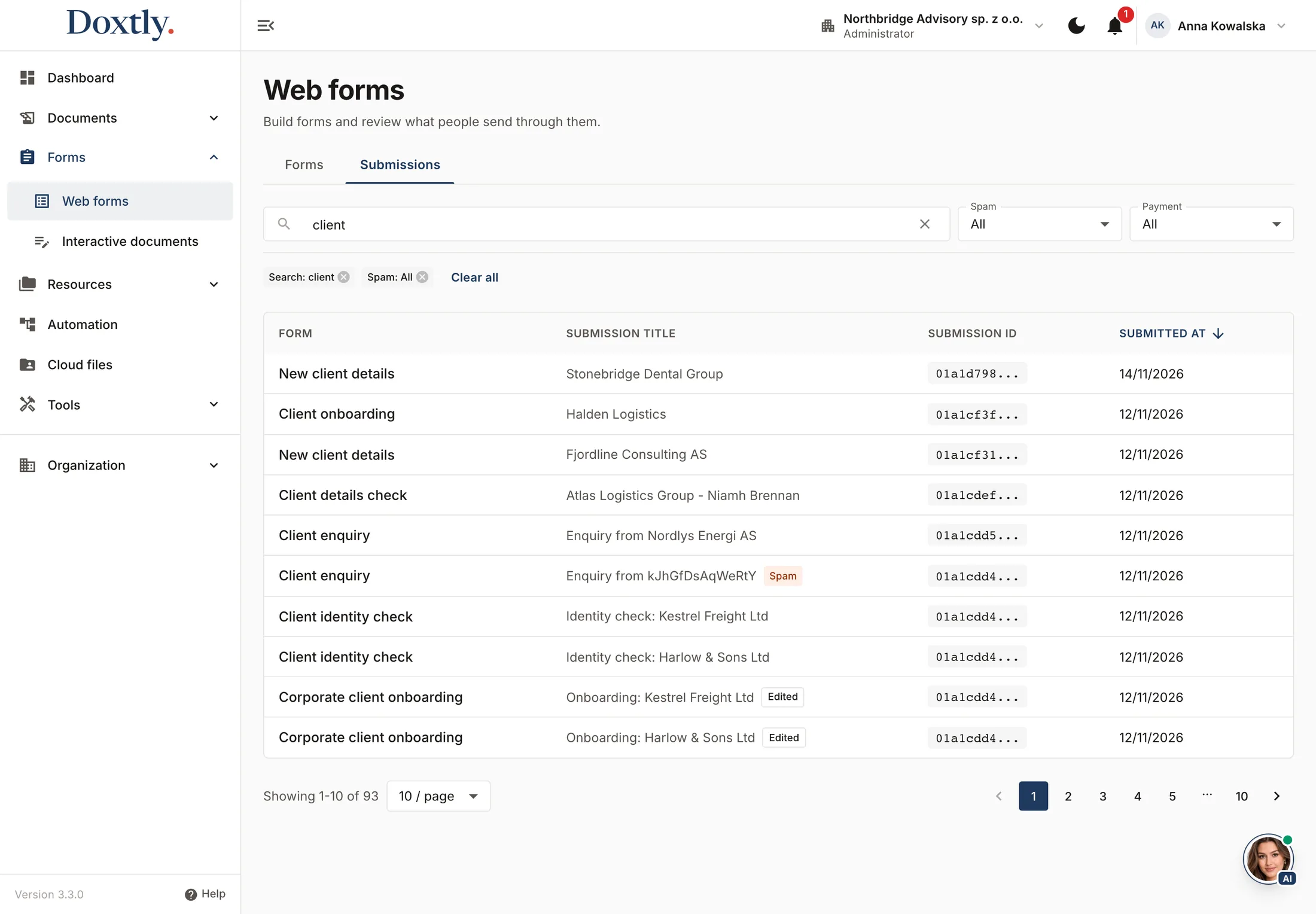
Section titled “Finding submissions”Open Web forms and switch to the Submissions tab. It lists what was sent through every form in your organization, newest first. There is no separate list per form: to see one form’s submissions, type the form’s name into the search box. The Submissions column on the forms list shows how many each form has, leaving out spam kept aside and submissions not paid for.
The permission to view submissions covers the whole organization. Departments limit who may edit a submission, not who may read it. See Editing submissions.
Columns
Section titled “Columns”| Column | What it shows |
|---|---|
| Form | The form the submission came through. |
| Submission title | A title built from the answers, such as “Onboarding: Harlow & Sons Ltd”, if the form’s settings have one under Submission title. Otherwise the form’s own title. See Form settings. |
| Submission ID | The first eight characters of the ID. The full ID is on the Info tab. |
| Submitted at | The date it was sent. |
Badges can appear next to the title. Spam means the submission is kept aside as spam, and Edited means somebody has corrected it since it was sent. On a form that takes a payment, Awaiting payment means the visitor hasn’t paid yet, Unpaid (expired) that the 24 hours to pay ran out, and Paid that the payment was made.
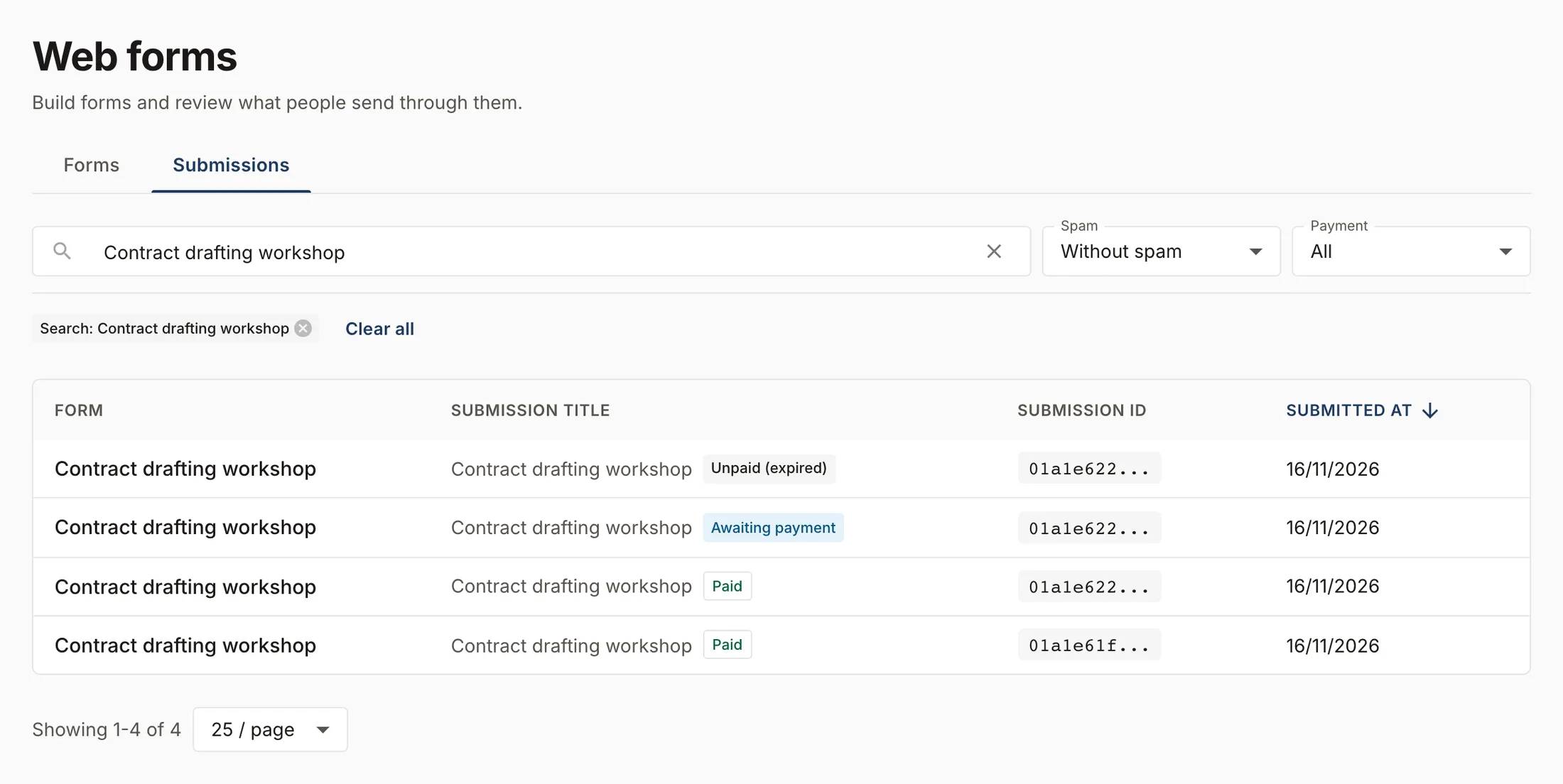
Click a row to open the submission. On a phone the table becomes a list of cards with the same information, and there are no column headers to sort by.
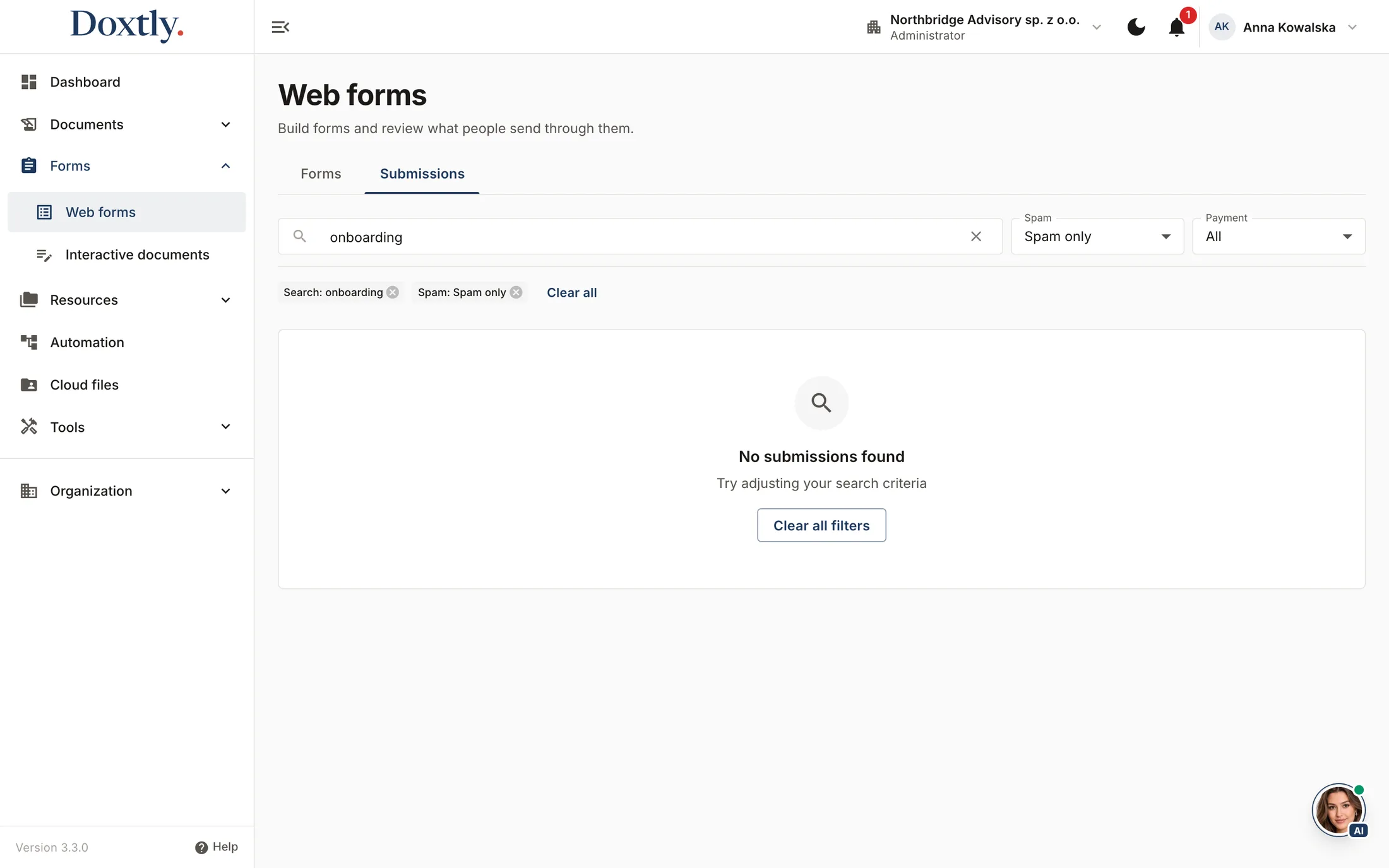
Until the first form is sent, the tab says “No submissions yet”. If your search or filter finds nothing, it says “No submissions found” and offers Clear all filters.
Sorting and paging
Section titled “Sorting and paging”Every column header sorts the list. The first click sorts ascending, the second descending, and the third goes back to newest first. On Submitted at the clicks switch between the two directions.
Below the list you can show 10, 25 or 50 rows per page. The default is 25.
Search and filters
Section titled “Search and filters”The search box, labelled “Search by form, title or ID”, looks through form titles, submission titles, form IDs and submission IDs. It ignores upper and lower case, and part of a word or ID is enough, so you can paste the eight characters from the Submission ID column, or the reference a client quotes from your success message. A form’s ID is handy when two forms share a title. The search does not look inside the answers, which is why a good submission title template pays off: if the title holds the client’s name, you can search for the client.
The Spam filter decides how spam is treated:
| Option | What the list shows |
|---|---|
| Without spam | Everything except submissions kept aside as spam. This is the default. |
| Spam only | Only the submissions kept aside as spam. |
| All | Every submission, spam included. |
A submission marked as not spam counts as an ordinary one, so it appears under Without spam.
The Payment filter narrows the list to the submissions of forms that take a payment:
| Option | What the list shows |
|---|---|
| All | Every submission. This is the default. |
| Awaiting payment | Those whose visitor hasn’t paid yet, within the 24 hours to pay. |
| Unpaid (expired) | Those whose time to pay ran out. They never count as submitted. |
| Unpaid | Both of the above. |
| Paid | Those paid for. |
Each active filter shows as a chip you can remove one by one, or all at once with Clear all. Search, filter, sort order and page size are all kept in the page address, so a reload keeps them and you can send the link to a colleague. A link that lists the submissions from a moment on, such as one made by an API integration, shows that moment as a Since chip; remove it to see every submission again.
Getting data out of the list
Section titled “Getting data out of the list”The list has no export button and no bulk actions: you open and delete submissions one at a time. To move answers elsewhere, you have these routes:
- For a steady flow, add a workflow to the form. The Write to a sheet node adds a row for each submission to an Excel, CSV or Google Sheets file. A client satisfaction survey can fill one sheet that your team reads every month.
- For another system, read the submissions through the API. It can list, read and delete them and download their files. Correcting a submission or marking it as not spam happens only in the app.
- For a single submission, use Copy JSON on the Data tab.
- For answers summed up across a whole form, use Results, which can also be exported as Excel or CSV, or kept in a spreadsheet in your drive.
Results
Section titled “Results”For a survey, the numbers matter more than the individual answers. Results sums up a form’s answers question by question: how many people chose each option, the average rating, how old the respondents are, which towns they wrote in. A form has results once Show results is on in its settings, and a new form starts with it off. Open them from the form’s menu on the forms list. The Results entry is there only while the form shows results.
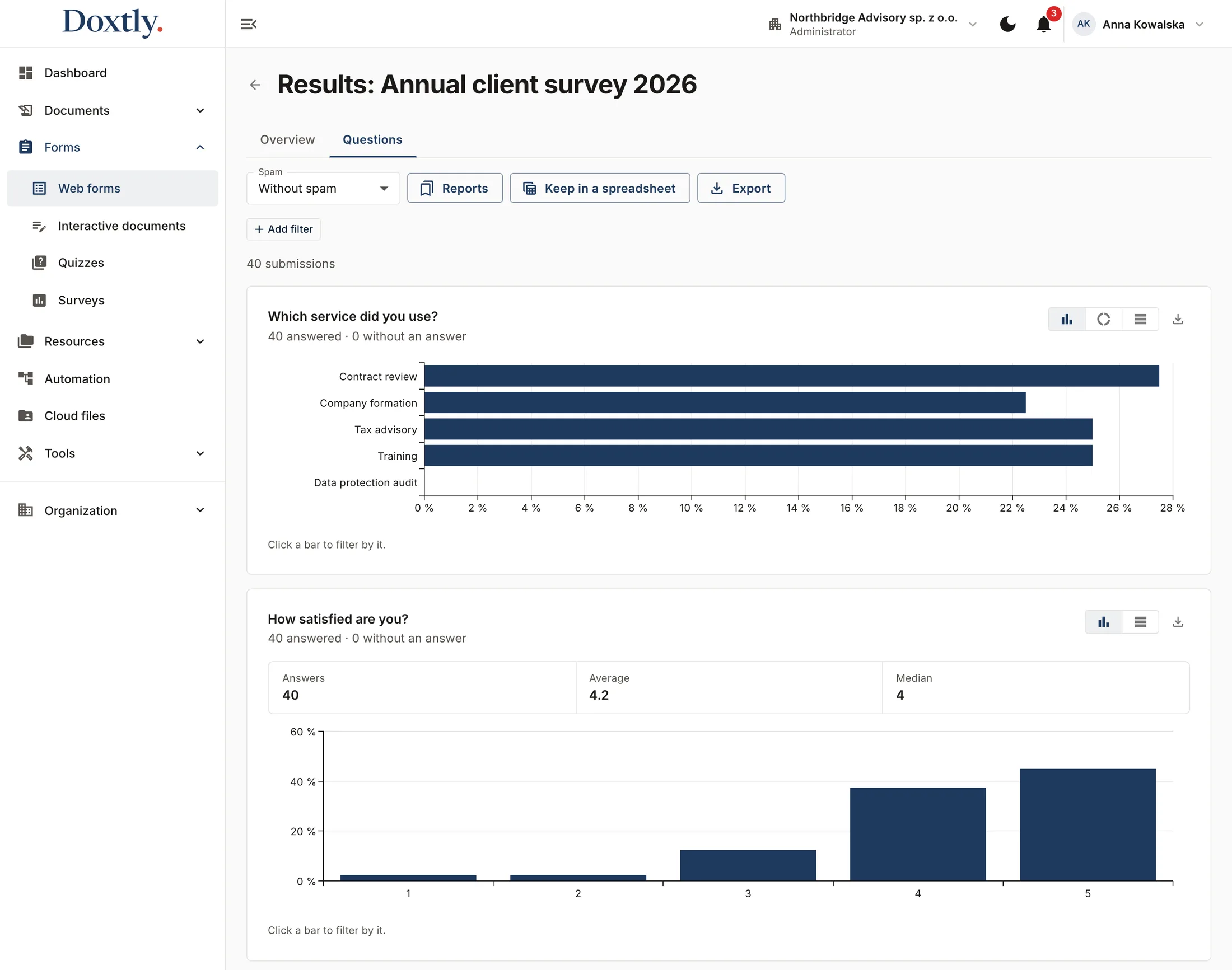
On the Questions tab, each field included in the results gets a card, in the form’s order. A card says how many submissions answered the question and how many didn’t, such as 34 answered · 6 without an answer. A field left empty counts as without an answer, and so does one a condition hid. A field in a Dynamic fieldset is answered once in every row, so its card counts each row’s answer and says so: 12 answers, counted in each row of “Children”.
Results always count the submissions as they are now. A new submission, a correction or a deletion shows the next time you open the page.
Overview and Questions
Section titled “Overview and Questions”Results open on Overview: the tiles Submissions, First submission and Latest submission, then Submissions over time, a line of how many arrived each day, week, month or year (whichever fits the span), counted on your organization’s clock, the days without any included. Questions has a card for each field, described below. The tab is part of the page address, and the filters above the tabs apply to both, as on survey results.
What each card shows
Section titled “What each card shows”| Field | What the card shows |
|---|---|
| Select and Single choice with their own options | A bar for each option, in the form’s order, with how many chose it and its share of the answers. An option nobody chose shows 0. An answer whose option you’ve since removed keeps a bar of its own. |
| Checkbox (yes/no) | Ticked and Not ticked. |
| Rating and Scale / Slider | A bar for every step of the scale, with Average and Median. An answer given before you changed the scale keeps a bar of its own. |
| Number input | Answers, Lowest, Highest, Mean and Median, then bars, see Numbers. |
| Date picker, Date and time picker and Time picker | Earliest and Latest, then bars, see Dates and times. |
| Text input, Email input, and a Select or Single choice whose options come from a data source | The ten most frequent answers, then everything else in one line, see Text answers. |
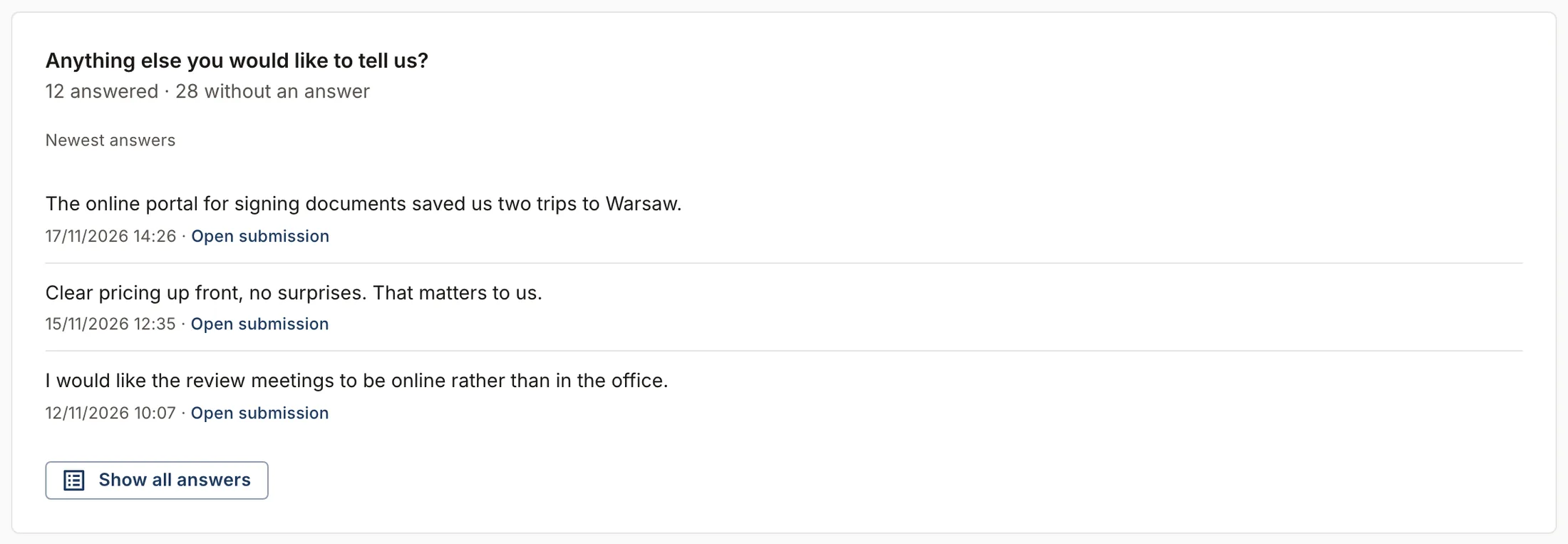
| Text area | The three newest answers, each with a link to its submission, and Show all answers. |
| Dynamic value | Like a number, a text or a date, depending on its format. |
The share on a bar is out of the answers to that question, not out of all submissions.
Above the chart of a choice, a checkbox, a rating or a scale, Chart switches between Bars, Donut (for a Select, a Single choice or a Checkbox, whose answers are the parts of one whole) and Table, with each count and its share. The choice is part of the page address, so a link shows the same charts. Download beside it gives the card as an Image (PNG), or its counts and shares as Numbers (CSV). Quizzes and surveys draw their cards the same way: see Survey results.
A Single choice or Multiple choice whose options have pictures shows them above its chart, each with its option’s label, so you see at a glance which colour or design the bars stand for.
Numbers
Section titled “Numbers”How a number’s answers are shown depends on how many different values there are:
- Twelve values or fewer each get a bar of their own, from the smallest: a question about the number of children shows 0, 1, 2, 3 and 4.
- More than twelve are put into ranges of a round width, 1, 2 or 5 times 1, 10, 100 and so on, chosen so that there are 6 to 10 ranges. Ages from 19 to 68 come out as 10–19, 20–29, up to 60–69. Whole numbers get ranges of whole numbers such as 20–29. A range of decimals ends where the next one starts, shown as
2.5 – <3, so 3 goes into the next range. - Ranges of your own, set in the field’s settings, replace both: 18–24, 25–34, 35–49 and 50+, say. A value outside all of them is counted under Other.
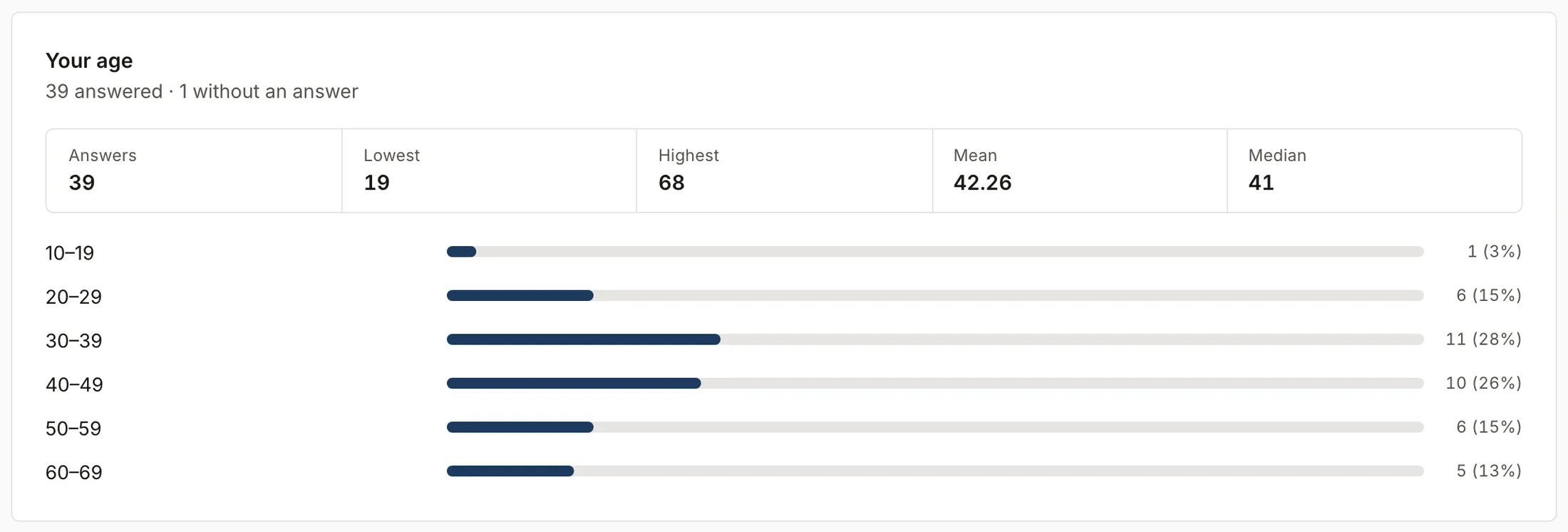
A question with ranges of its own is counted in them, with Other for the answers that fall outside:
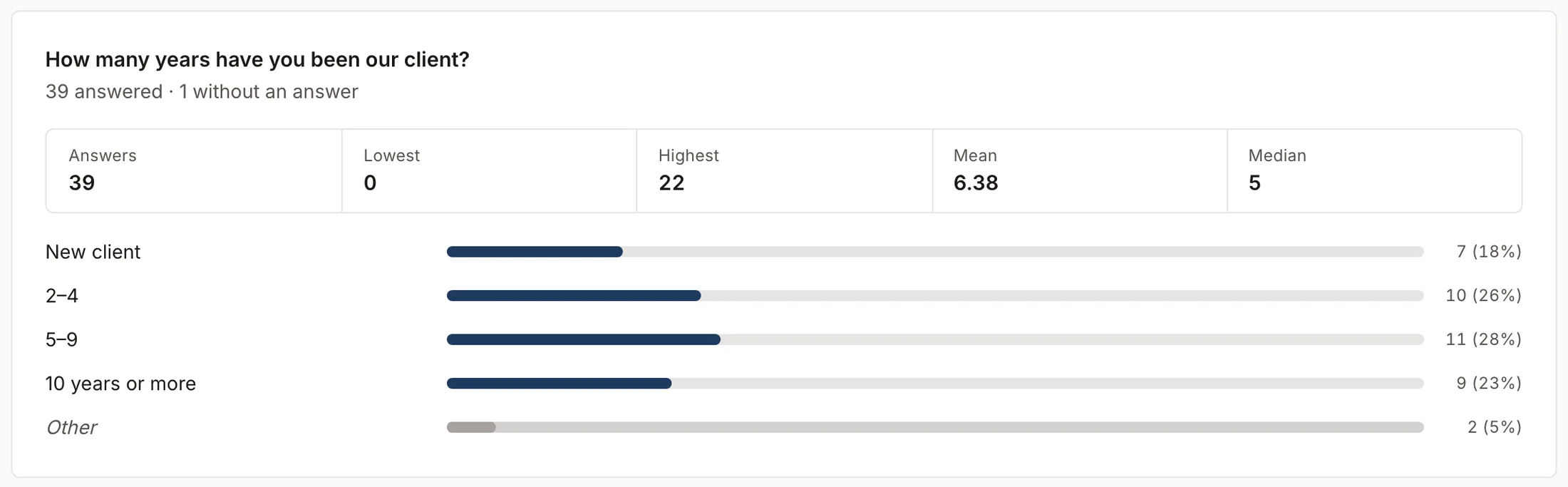
Mean and Median are rounded to two decimal places. The median is the middle answer, or the average of the two middle answers when their number is even, so a few very large answers move it less than the mean.
Dates and times
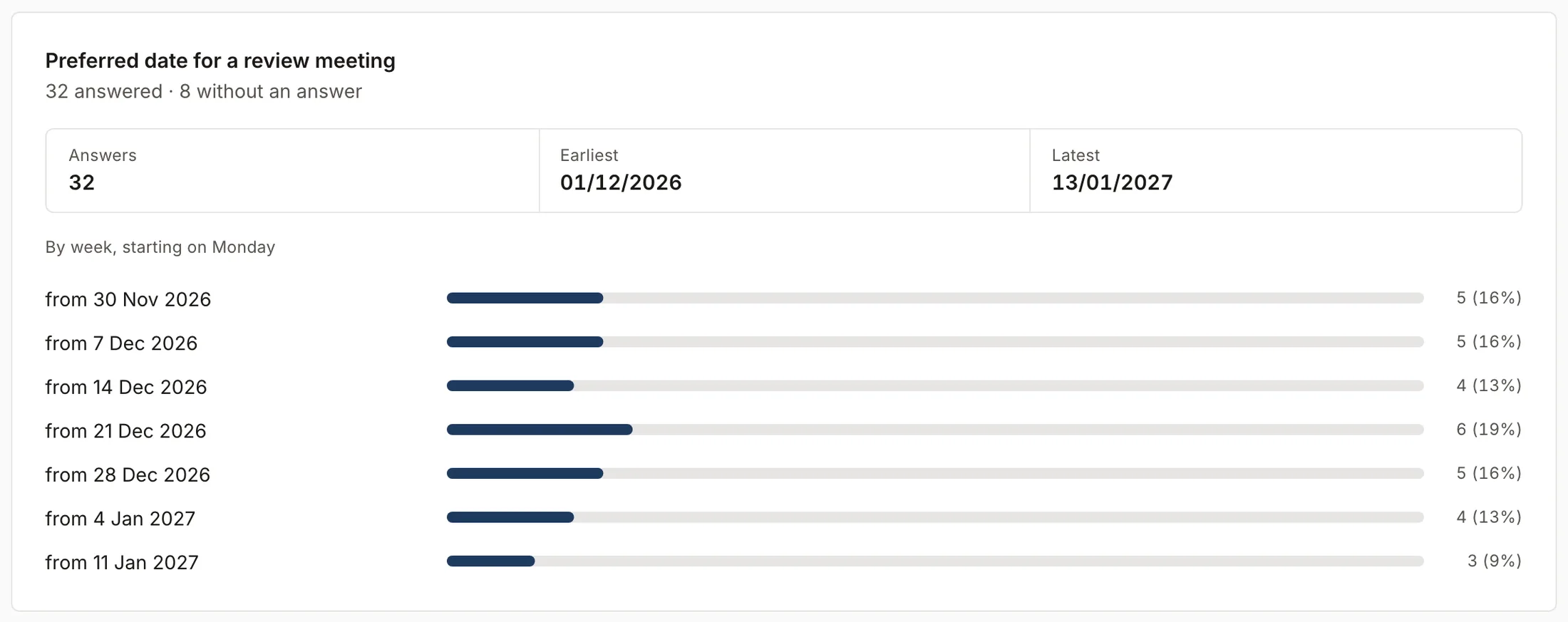
Section titled “Dates and times”A date question shows its earliest and latest answer, and bars for the time between them, empty days and weeks included, so a quiet week shows as one. How long each bar is depends on how far apart the answers are:
| Answers spread over | One bar for each |
|---|---|
| Up to 31 days | Day |
| Up to 182 days, about six months | Week, starting on Monday |
| Up to 5 years | Month |
| Longer, such as dates of birth | Year |
A Time picker has a bar for each hour of the day between the earliest and the latest answer. A date and time is counted on your organization’s clock, its time zone, which is also the clock the form shows.
Text answers
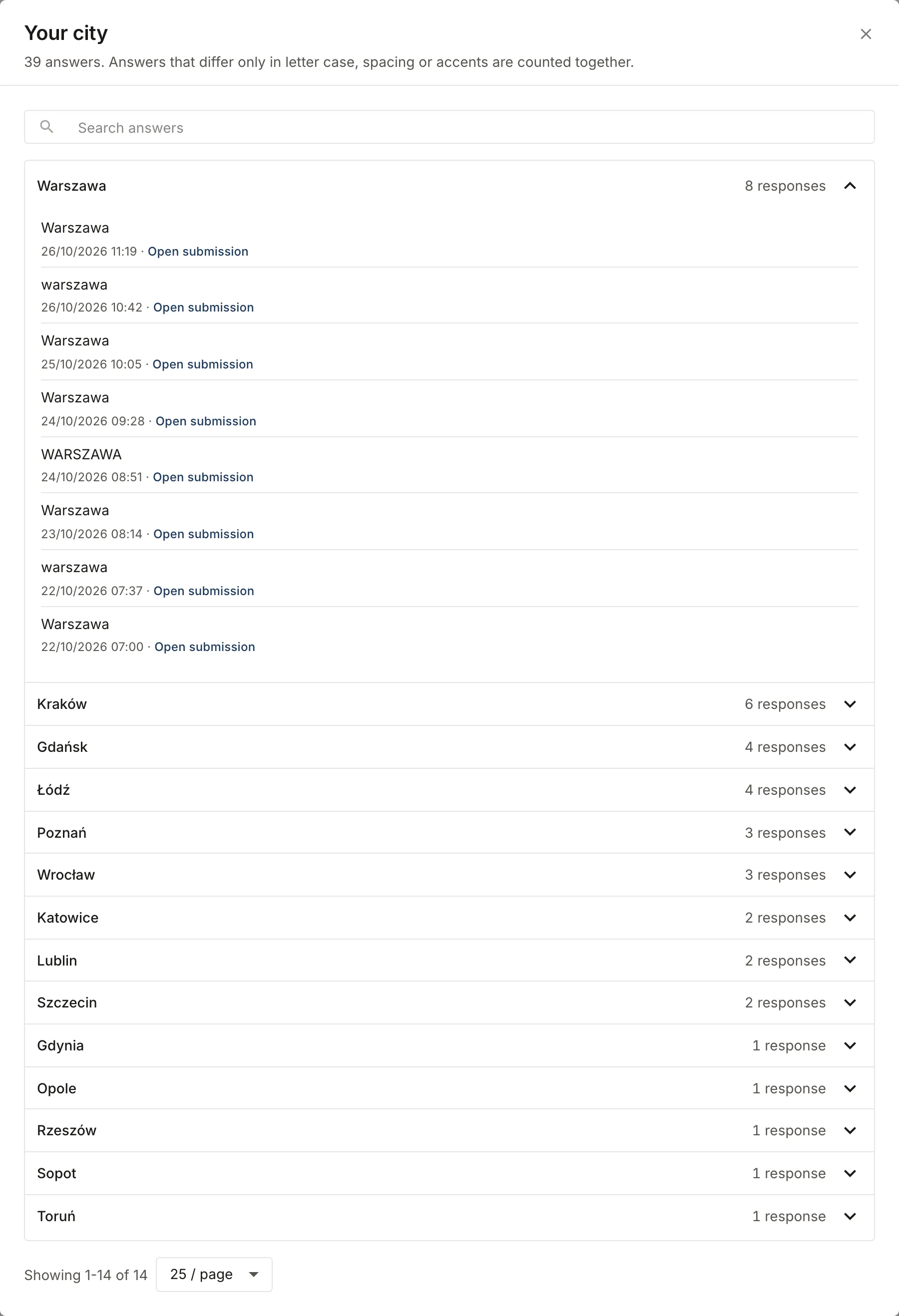
Section titled “Text answers”People write the same thing in different ways: Kraków, krakow, KRAKÓW, or with a space at the end. Results counts them as one answer. Before counting, each answer is tidied up:
- Spaces at the beginning and the end are dropped, and several spaces, tabs or line breaks in a row count as one space.
- Upper and lower case are treated as the same, so WARSZAWA and Warszawa match.
- Accents and other marks on Latin letters are ignored, Polish ones included: ó and o, ę and e, ł and l, é and e, ñ and n all match. Letters of other alphabets keep their marks, because in Ukrainian or Hindi a mark makes a different letter.
- A letter typed as one character and the same letter typed with a separate accent count as the same.
Each group is shown under the spelling people used most often. When two spellings were used equally often, the one that came first wins. The card shows the ten largest groups; groups of the same size are ordered alphabetically. Everything else is added up in one line, such as Other (7 different answers, 9 responses).
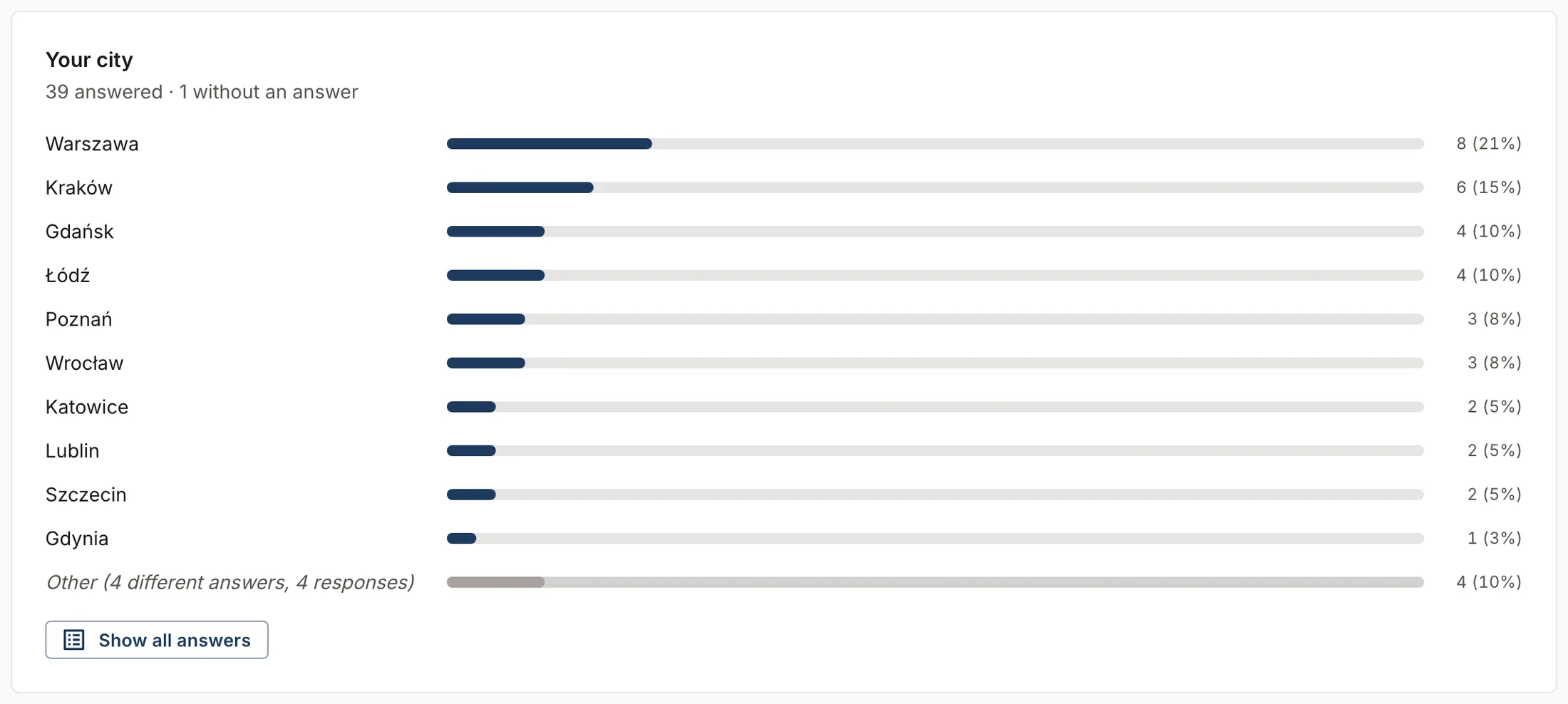
Grouping looks only at how an answer is written, not at what it means: “Warsaw” and “Warszawa” stay two answers, and so do “Krakow city” and “Kraków”. A Select or Single choice fed by a data source is counted the same way, by the value it stores, since its options can change with the source.
All answers
Section titled “All answers”Show all answers on a text card opens every group with its count, the largest first, a page at a time. Type in Search answers to find a group, in any letter case and with or without accents. Open a group to see its answers, newest first, each with the date and Open submission, which takes you to the submission it came in.
On a Text area card the same button lists every answer, newest first, with the same search and links. An answer longer than 1,000 characters is cut off with “…”; the submission holds all of it.
Filters and what’s counted
Section titled “Filters and what’s counted”Results read the same submissions as the list. Submissions kept aside as spam are left out unless the Spam filter asks for them. On a form with a payment element, submissions not paid for are left out too, unless the Payment filter asks for them; a form that takes no payment has no Payment filter. There is no search box: the submissions of one form aren’t worth finding by their title here, and each text card searches its own answers under Show all answers. A form that doesn’t save its answers has no results to show and says so. A link that counts the submissions from a moment on shows it as a Since chip, as on the list.
Click a bar of a chart to count only the submissions that gave that answer: a chip above the cards names the filter, such as Which service did you use?: Tax advisory. Click more bars to narrow it further; remove a chip with its cross, or all of them with Clear filters. Add filter builds any other condition step by step: what it reads - a field, or something of the submission (Sent, the day it arrived on your organization’s clock, Language, Device, a Link parameter or Metadata by its name) -, then how it compares it (is one of, between, contains, answered, skipped, only those that fit what it reads), then the values. Add puts it beside the others; on a phone, Filters opens all of them on a sheet of its own. The filter is part of the page address and applies to the cards, their lists of answers and the CSV, as it does for surveys.
A form with no field included in the results says Nothing to summarize, and a card whose question nobody has answered yet says Nobody has answered this question yet.
Exporting the results
Section titled “Exporting the results”Export beside the filters gives the submissions shown as a file, under the same filters and conditions, one row per submission and one column per field included in the results, in the form’s order, after a first column with when it was sent. A choice is written as its option’s label, a checkbox as Yes or No, a grid as Row: column; …, a ranking as 1. first; 2. second; …, anything else as it was given, and the answers from the rows of a Dynamic fieldset side by side, separated by commas.
- Excel (.xlsx) has the form’s title, when the file was made, the filter in words (such as 1. Plan: Basic; Sent: 2026-11-01 – 2026-11-30, or All submissions) and how many submissions it holds above the rows; when each was sent is a date on your organization’s clock.
- CSV has the rows only. Spreadsheets open it directly; a cell that a spreadsheet would run as a formula starts with an apostrophe.
- Results report (PDF) is the results to read or hand on, in your language and your organization’s colours, with its logo: the form’s title, the filter in words, how many submissions and when the first and the latest arrived, the submissions over time, then a card for every field in the results, numbered, under the name of its Dynamic fieldset - the counts and shares of each answer as bars, with a small picture beside each option that has one, a rating’s or a number’s mean and median, a text’s most common answers.
With a drive connected, the menu lists each file twice: under Download to this device, and under Save to a cloud drive, which puts it into a folder of the drive: see Saving exports to a drive. Export is greyed out while no submission is shown.
Saved reports
Section titled “Saved reports”Reports beside Export keeps views of the results to open again in one click: the filter, each card’s chart (bars, donut or table) and the tab. Save view as a report names the view on screen; the menu then lists the reports by name, and choosing one brings its view back - the page address names it, so a link to the page opens the same report. With a report open, the menu also offers Save changes, Rename report, Share report and Delete report; deleting a report leaves the submissions as they are. A form keeps up to 50 reports. A report keeps the filter of Add filter and of clicked bars; the list’s filters (Spam, Payment, Since) aren’t part of it.
Share report gives the report a link for people outside your organization, at once, with the app’s share dialog: the link, its QR code, how often it was viewed, an optional password, and when the link stops opening. Stop sharing ends it; sharing again gives a new link. The link shows the report on your organization’s page as the Results show it, and its PDF, but totals only: no text answers (names, e-mail addresses, comments all are), the filter in words only when it reads no text, link parameter or metadata, and nothing of what fewer than 5 submissions answered. It counts the submissions as they are when it is opened, leaving out spam and submissions not paid for. A form whose results are turned off shows nothing through its links either.
Available when: your role has the View forms and submissions permission to open reports, and Manage forms to save, rename, share and delete them
Keep in a spreadsheet
Section titled “Keep in a spreadsheet”Available when: your role has the Manage forms, Manage workflows and View cloud files permissions, and a drive is connected
Keep in a spreadsheet beside Export writes every submission into a spreadsheet in your drive as it arrives, and writes it again when the submission is edited. It opens a dialog; nothing is set up until you confirm it. Choose the drive, then either A spreadsheet in the drive (picked from its files, and the sheet to write, the first one if you leave it empty) or A new spreadsheet (a folder and a file name). The name can hold variables, so {{ _form.title }} – submissions {{ _submission.submittedAt | year }} keeps a file per year, each made with the first submission that needs it. A line in the dialog says where the rows will go.
Confirming adds one active workflow, named after the form in your organization’s language, started by every submission and every edit of one (Form submission, Either). It writes the submission’s row: Submission ID, Sent, then one column per field included in the results, written as in the export. A row is found by its submission ID and updated, or added, so an edit changes its row and a run repeated never doubles it. A submission waiting for its payment is written once it is paid. A chosen spreadsheet is followed by its file, so moving or renaming it in the drive changes nothing, and a sheet with columns of its own keeps them and its rows: columns are matched by their header, the missing ones are added at the end.
Afterwards the button reads Submissions sheet; its menu opens the spreadsheet and the workflow, which you change like any other, and Stop keeping the sheet deletes the workflow, leaving the spreadsheet in the drive. A form keeps one sheet; deleting the form deletes its workflow too. In your own workflows the same row is the variable {{ _submission.resultsRow }} of the Form submission trigger.
Who can see results
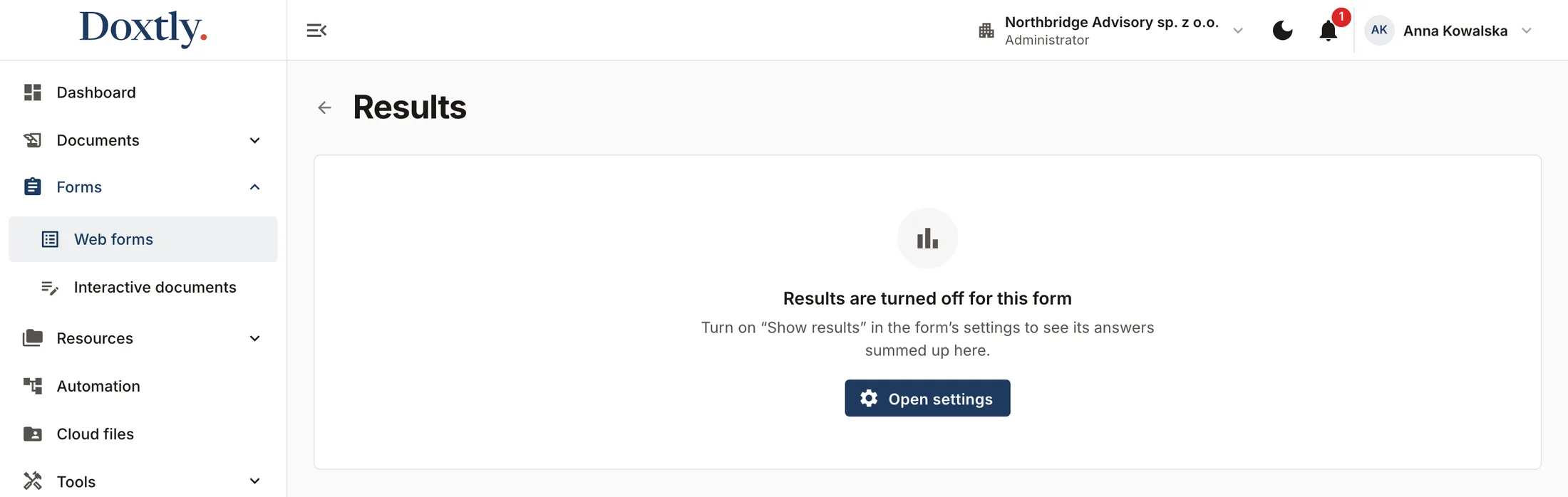
Section titled “Who can see results”Results, their exports and saved reports need the same View forms and submissions permission as the submissions list; saving, sharing and deleting a report takes Manage forms. Turning them on and choosing the fields is part of designing the form, so it takes Manage forms. When a form’s results are turned off, its results page says Results are turned off for this form; someone who may manage forms gets an Open settings button there, which opens the setting in the designer.
Inside a submission
Section titled “Inside a submission”The header shows the form’s title, any Spam or Edited badge, a back arrow to the list, and the menu with the actions you are allowed to use. If you may do none of them, as a Viewer can’t, there is no menu.

| Menu item | What it does | You need |
|---|---|---|
| Edit submission | Opens the form filled in with this submission’s answers, so you can correct them. See Editing submissions. | Edit submissions, on a form that allows editing |
| View the form | Opens the form in the designer. | Manage forms |
| Delete | Deletes the submission for good, after you confirm. See Deleting a submission. | Manage forms |
Tabs appear only when they have something to show:
| Tab | Shown |
|---|---|
| Info | Always |
| Data | Always |
| Link parameters | When the submission kept link parameters |
| Metadata | When the form had metadata at the time |
| Files | When the submission holds at least one file |
| Location | Always, because it shows at least the IP address line |
| History | Once the submission has been edited |
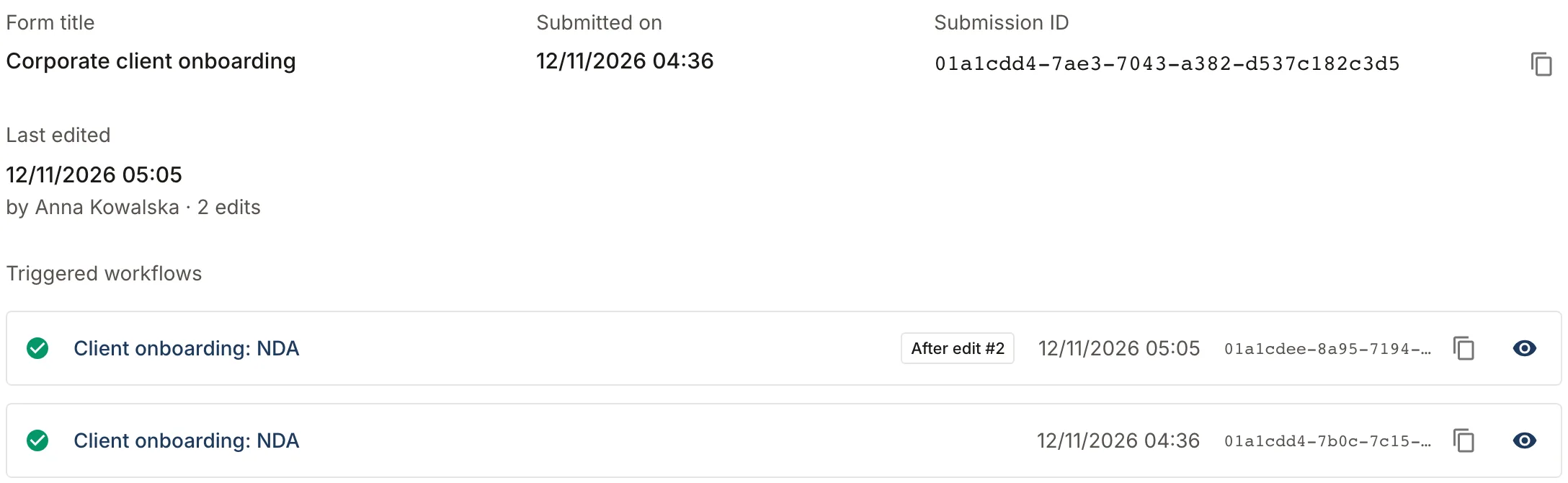
The summary: Form title, Submitted on with the date and time, and the full Submission ID with a button to copy it.
A submission of a form that takes a payment also shows Payment: the amount, the payment’s status, the provider, when it was paid, and Test for a test payment. Open the payment opens its page on Payments, if you may view payments.
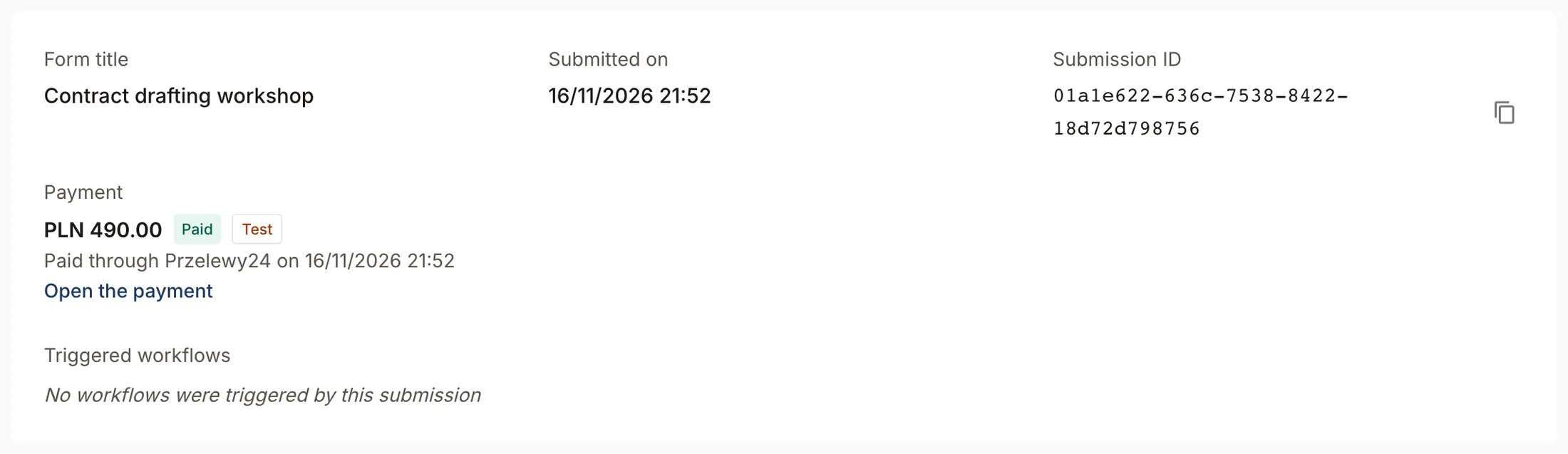
After an edit, Last edited adds the time, the editor’s name and how many edits there have been, as in “by Anna Kowalska · 2 edits”. If the form has anti-spam protection, you also see the anti-spam score.
Triggered workflows is the answer to “did anything happen with this?”. Each run has a status icon (hover for its name), the workflow’s name, the time it started and its execution ID with a copy button.
| Status | Meaning |
|---|---|
| Completed | The run finished. |
| Running | The run has started and isn’t finished yet. |
| Failed | The run stopped on an error. |
| Timeout | The run took too long and was stopped. |
If you may view workflows, the name and the eye icon open the run, where you can see each step. See Executions. Without that permission you still see the name and status, with no link. A run started by a correction carries a chip with the number of the edit, such as After edit #2. If nothing ran, the section says “No workflows were triggered by this submission”.
It works the other way round too. Paste a submission’s ID into the search box of the runs list to find everything it started, and a run’s page links back to its Form submission.
The answers, as a tree of field names and values. The names are the data paths you set on the form’s fields, so company.name appears as name under company. These are the same paths you use in templates and workflows.
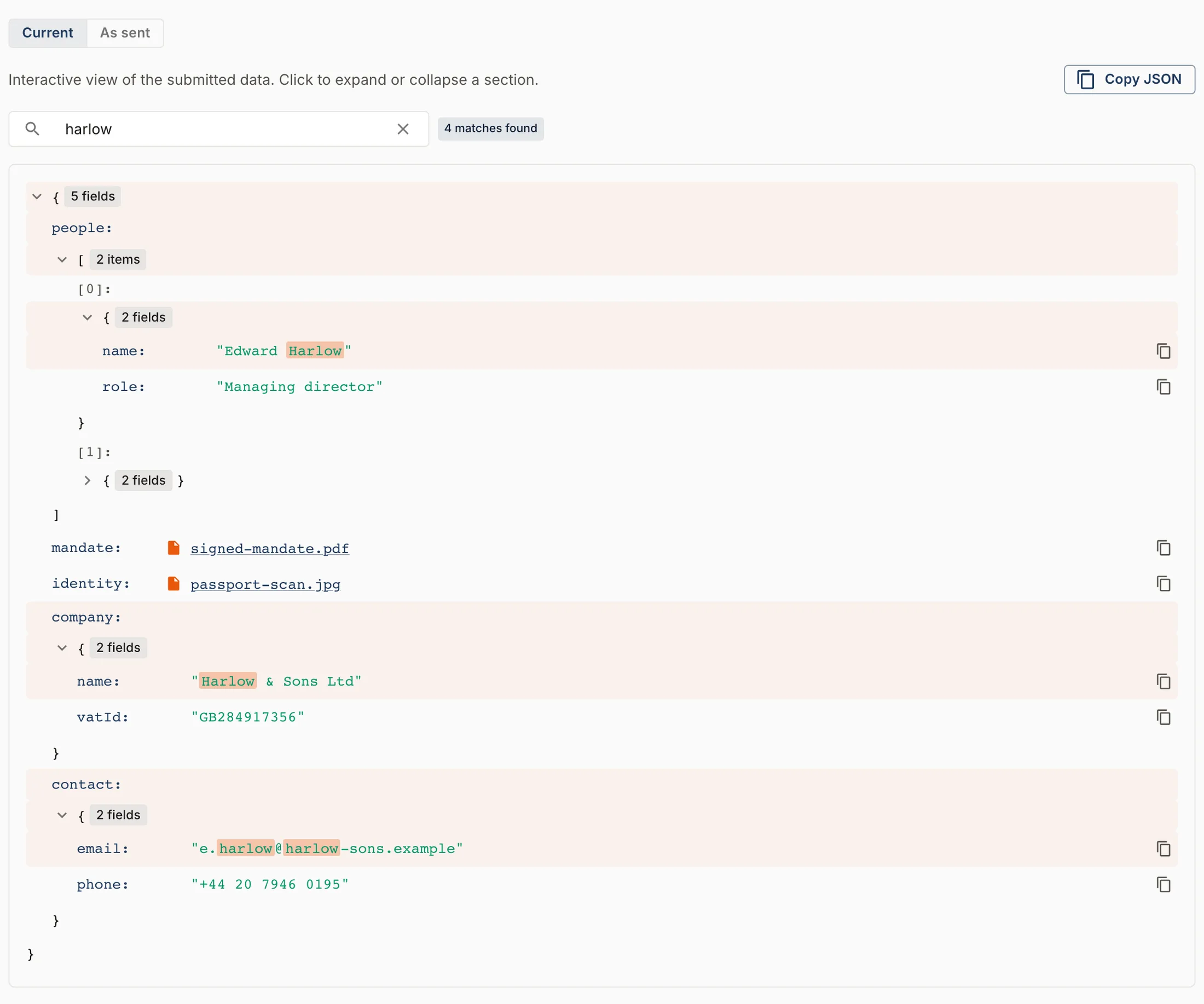
- Click a group to fold or unfold it. The first two levels start open. Chips show how many fields or items a group holds.
- The box above the tree searches names and values and shows how many matches it found. Matches are highlighted and folded groups on the way to them open. A file can be found only by its reference, not by its filename.
- The copy icon next to a value copies that value. Copy JSON copies the whole submission as JSON, ready to paste into a ticket or another tool.
- A repeated group shows its rows numbered from zero:
[0]is the first person,[1]the second. - Files appear as references with a file icon:
file:followed by an ID for a stored file,temp:for one the form did not keep. A photo and a drawing are files too. Their names are on the Files tab. - A drawn signature is stored as the picture itself, and the tree shows it as that picture. Its copy icon copies the picture as a data URI, a long line of text starting
data:image/png;base64,.
If the form had Save form data off, the tab says “The data was not saved for this submission. Only its metadata is available.” With that setting off, the form’s workflows get no field values either, so use it only when you need the record of a submission and not its content. A file a field stored is still kept, and then its reference is all the tree holds.
Once a submission has been edited, a switch appears above the tree: Current shows the data as it is now, As sent shows what the person originally sent. Search and copying work on whichever version you are looking at, and switching empties the search box.
Link parameters
Section titled “Link parameters”The parameters of the link the person used, if the form has Accept link parameters on. If you send a client the link with ?source=newsletter&advisor=jkowalski, this is where you see those values, so you can tell which campaign or advisor brought the client in. When Allowed parameters lists names, only those are kept; when it is empty, all of them. They are stored with the submission and passed to its workflows. See Form settings.

Metadata
Section titled “Metadata”The metadata the form had when the submission was sent, such as a department code or a cost centre. It is a copy: changing the form’s metadata later does not change submissions already received, and this is also what the submission’s workflows are given.
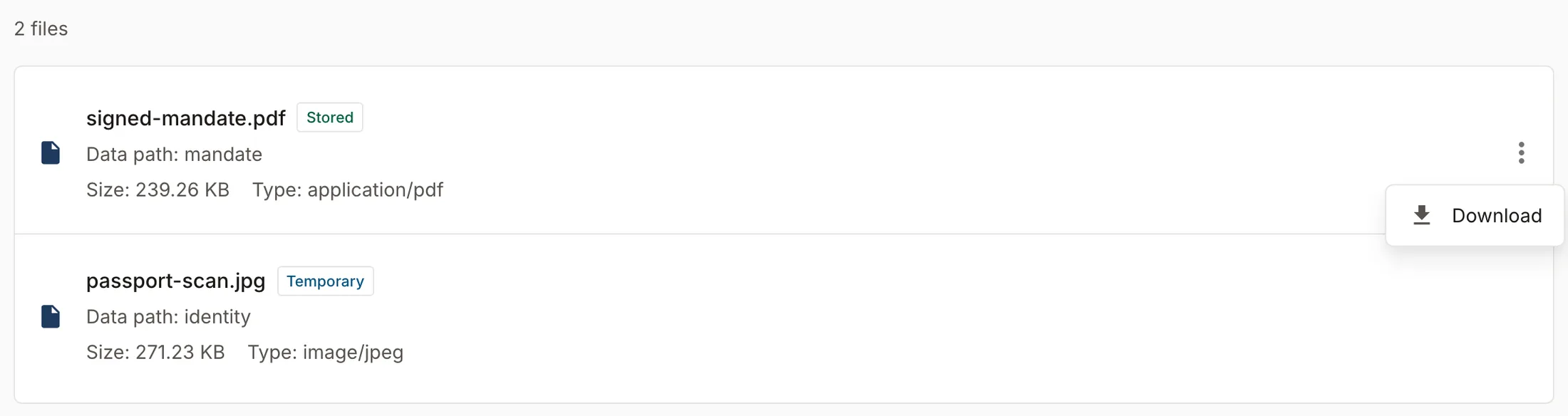
Every file the submission holds now, with its name, the data path of its field, its size and type. The line at the top counts them, as in “2 files”. An original file that an edit replaced is no longer listed here, but you can still download it from the history.
| Badge | Meaning |
|---|---|
| Stored | The file is stored. Open the three-dot menu and choose Download. |
| Temporary | The field had Store the file permanently off, so the file was available to the workflows while the submission was processed, and only its description stayed. It cannot be downloaded. |
Location
Section titled “Location”Where the submission came from.
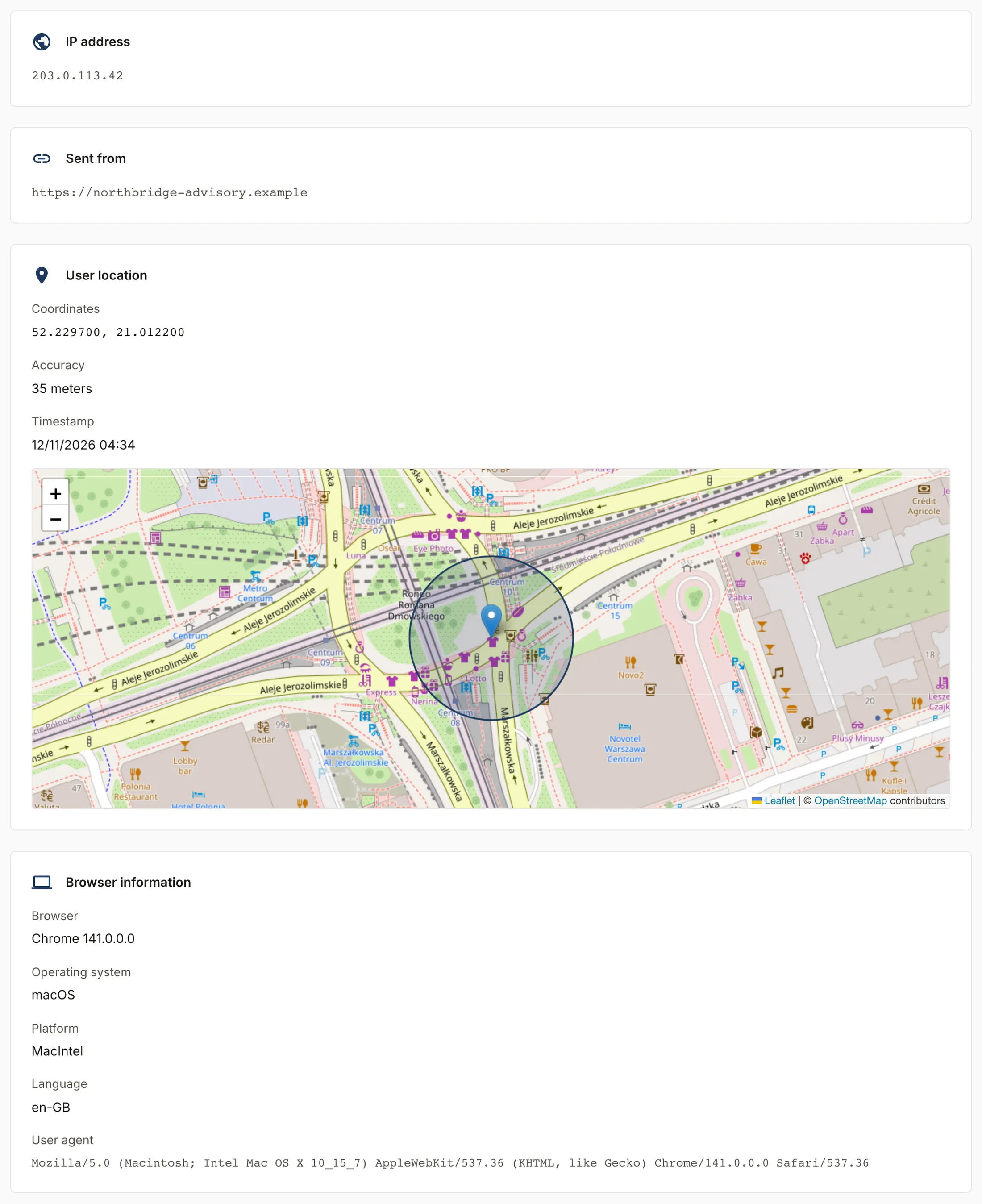
- IP address of the sender, or “No IP address recorded”.
- Sent from: the site or page the form was sent from, which is useful when the same form is embedded in several places. If the browser reported neither, it reads “No Origin or Referer recorded”.
- User location: if the form has Save user location on and the person agreed in their browser, the Coordinates, Accuracy in meters (“Not reported by the browser” if it gave none), Timestamp and a map with a circle showing the accuracy. The browser asks when the form opens, so this is where the person was then.
- Browser information: Browser, Operating system, Platform, Language and the full User agent, whichever the browser reported.
If there is no location, a Location error card says why. On a form that never asks for one you will see the card too, with the “off” message from the table below, and that is nothing to worry about.

| Message | What happened |
|---|---|
| User denied location permission | The person said no when the browser asked. |
| Location information unavailable | The device could not work out where it was. |
| Location request timed out | The device took too long to answer. |
| Geolocation not supported by browser | The browser cannot share a location. |
| Location tracking was off when this was sent | The form had Save user location off at the time. |
| Unknown error occurred | The browser reported something else. |
If neither a location nor a reason was recorded, the tab says “No location data available for this submission”.
History
Section titled “History”Who changed the submission, when and why. The tab appears after the first edit and is described in Editing submissions.
If any field on a form has Anti-spam protection on, each submission of that form gets a score. The higher the score, the more it looks like the random strings bots type. Leaving the protected fields blank scores 0. Set up the protection in Protecting forms.
The Info tab shows the Anti-spam score with the form’s current threshold, for example “5.5 (threshold 4)”, a chip, and the score of each protected field, worst first. That list tells you which answer gave it away. The chip says where the submission stands: Spam while it is kept aside, Not spam otherwise. Changing the threshold later moves nothing that has already arrived.

What happens at the threshold depends on the form. With Reject it, the sender is asked to check the fields, nothing is stored, and there is nothing here to review. With Keep it aside (recommended), the submission is stored with a Spam badge and a warning at the top of its page, while the sender sees the normal success message. Until somebody decides otherwise, it starts no workflow and does not count towards your plan or the form’s submission count. It also cannot be edited, because an edit could start workflows.
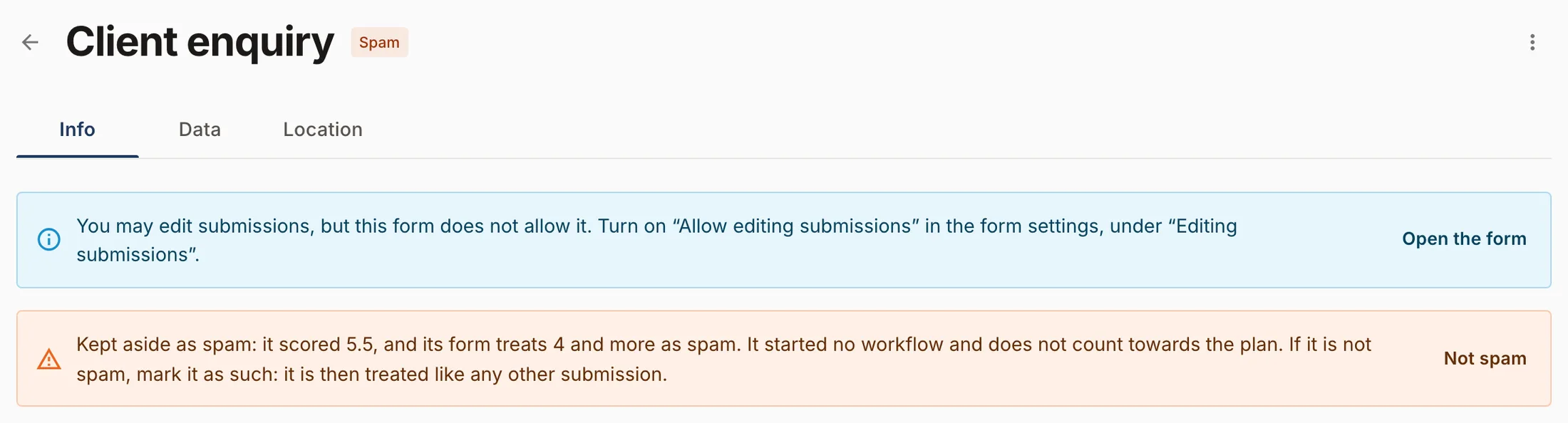
Marking a submission as not spam
Section titled “Marking a submission as not spam”Available when: your role includes Manage forms
- Set the Spam filter to Spam only and open the submission.
- Read the answers on the Data tab and the field scores on the Info tab.
- Click Not spam in the warning, then Not spam again in the dialog.
Without Manage forms you see the warning but no button, so ask somebody who has it.
From then on it is an ordinary submission. It counts towards your plan, and the form’s workflows start on it straight away. Nobody is on the form’s page any more, so a workflow that would have shown documents for signing on the page sends the signing link instead, the way the main party’s Signature request says. If your plan’s submission limit is used up, the release is refused.
The page keeps a blue note saying who marked it and when. It cannot be marked as spam again, so if you decide it was spam after all, delete it.

Submissions waiting for their payment
Section titled “Submissions waiting for their payment”A form with a Payment element stores the submission as it is sent, before the visitor pays. Until the payment is made:
- the submission is listed with Awaiting payment, and a note at the top of its page says “This submission is waiting for its payment. Its workflows start once it is paid; until then it is left out of results, counts and exports.”
- it starts no workflow, doesn’t count towards your plan or the form’s submission count, and is left out of Results
- it can’t be edited
Once paid, it becomes an ordinary submission, and the form’s workflows start. If the 24 hours to pay run out first, it stays marked Unpaid (expired) for good, with the note “The time to pay for this submission ran out. It was never accepted: no workflow ran, and it is left out of results, counts and exports.” You can delete it like any other.
A submission of a payment form kept aside as spam owes nothing, and it can’t be marked as not spam: nobody paid for it.
Deleting a submission
Section titled “Deleting a submission”Available when: your role includes Manage forms
Choose Delete in the header menu and confirm. This cannot be undone.
The submission goes with its files, both the current ones and the ones it was originally sent with, and with its whole edit history. It frees the space they took, but it does not give back the submission it used in this billing period.
The workflow runs it started go with it, their steps and the data they were given included, because a run’s steps hold what was submitted, such as the folder a file went to. The confirmation says so. A run still under way is deleted as soon as it ends. Runs that another trigger started and that only read the submission, such as a scheduled workflow, stay, and so do the documents, emails and files the runs made: each is a record of its own. Keep that in mind when a client asks you to erase their data.
There is no bulk delete. To clear out old submissions automatically, set how long the organization keeps them on the Data retention section of the organization settings, under Form submissions. The default is 1825 days, about five years. Records older than that are removed every night, with their files, edit history and the workflow runs they started. Deleting a form deletes all its submissions too, with the runs they started.
What decides what a submission holds
Section titled “What decides what a submission holds”| Setting | Where | Effect on submissions |
|---|---|---|
| Save form data | Form settings, Security | Off: no answers are stored and workflows get no field values. The date, IP address and browser are still recorded, stored files are kept, and the list shows the form’s title instead of a title built from the answers. |
| Store the file permanently | The file field’s properties | Off: the file shows as Temporary and cannot be downloaded. |
| Allow editing submissions | Form settings, Security | On: answers and every file are always kept, whatever the two settings above say. |
| Save user location | Form settings, Security | On: the browser asks the person for their location. |
| Submission title (setting) | Form settings, General | Builds the Submission title, and so what the search can find. |
| Accept link parameters | Form settings, Link parameters | Whether link parameters are kept, and which. |
| Metadata | Form settings, Metadata | Copied onto each new submission. |
| Data retention | Organization settings | How long submissions are kept. |
Each new submission that is not kept aside as spam counts towards your plan. See Plans and limits. Submissions of interactive documents have a list of their own, described in Interactive document submissions.