

Email integration
An email integration is the mailbox your organization’s mail leaves from. A client who gets a signing link from office@northbridge-advisory.example knows who is writing, and replies reach you. Set this up first: without it, the only mail Doxtly can send in your name is the messages about your packages, from Doxtly’s mailbox, in its standard wording and within your plan’s limit.
You can have more than one. Northbridge sends contracts from its office mailbox, which is the default, and has a second integration on SendGrid that only its course certificate workflow picks, so that a big mailing can’t eat into the office mailbox’s sending limit.
Available when: you hold Manage integrations
What needs it
Section titled “What needs it”Everything Doxtly sends to your clients in your name goes through this integration:
- signing links, one-time codes by email, and the notice that a package is complete
- links to a package for people who may read it
- Send link on a form, an interactive document or a portal
- email templates and the Send email workflow step
With no active integration, those buttons are greyed out with the reason, such as “The organization has no active email integration, so there is no mailbox to send from. Add one under Organization → Integrations.” The Send email step is unavailable in the workflow designer. What was sent is listed under Sent emails, and what you send counts towards your plan’s limits.
Signature and approval requests, reminders, and completion, void and refusal notices can also go from Doxtly’s mailbox instead, chosen on the Notifications tab. Everything else in this list needs your own mailbox.
Doxtly’s own messages to the people in your organization, such as an invitation or a password reset, do not depend on this integration.
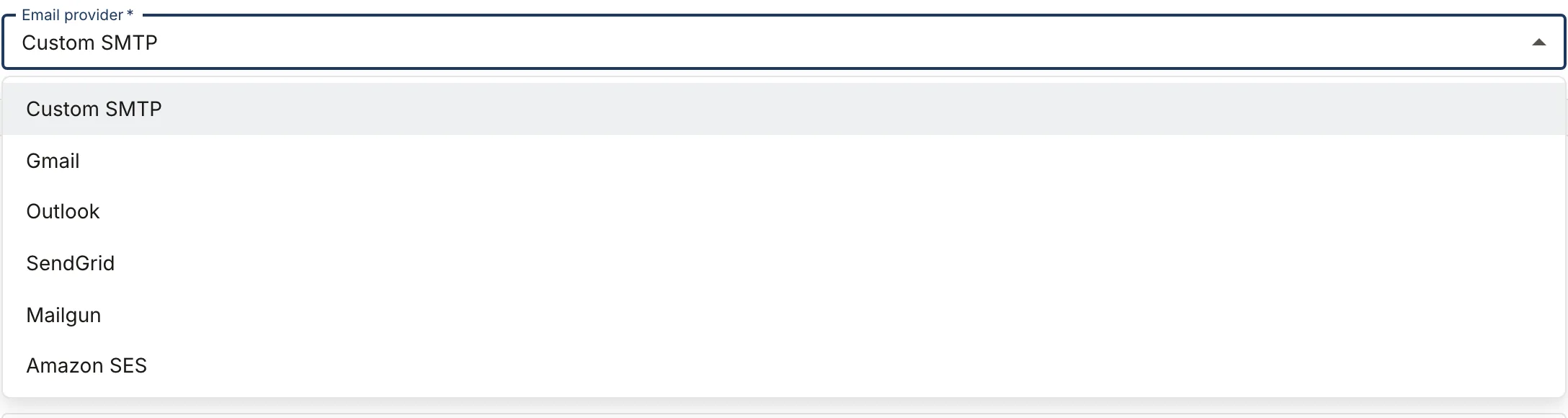
Choose a provider
Section titled “Choose a provider”| Provider | Choose it when | How it connects |
|---|---|---|
| Gmail | Your mailbox is on Google, personal or Google Workspace | You sign in at Google |
| Outlook | Your mailbox is on Microsoft 365 or Outlook.com | You sign in at Microsoft |
| SendGrid | You send a lot and already have a SendGrid account | SMTP details from SendGrid |
| Mailgun | The same, with a Mailgun account | SMTP details from Mailgun |
| Amazon SES | The same, with an Amazon Web Services account | SMTP details from Amazon |
| Custom SMTP | Anything else: your hosting company’s mailbox, your own mail server | SMTP details from your provider |
If your mailbox is on Google or Microsoft, take Gmail or Outlook. You give Doxtly no password, and mail appears in the mailbox’s Sent folder as if you had sent it yourself.
No mailbox to connect at all? Doxtly e-mail is an email integration every organization already has: switch it on and your messages go through Doxtly, from your organization’s name “via Doxtly” or from your own domain.
Connect Gmail or Outlook
Section titled “Connect Gmail or Outlook”You need access to the mailbox. You do not need to set anything up at Google or Microsoft, though a company’s administrator may have to allow Doxtly first (see below).
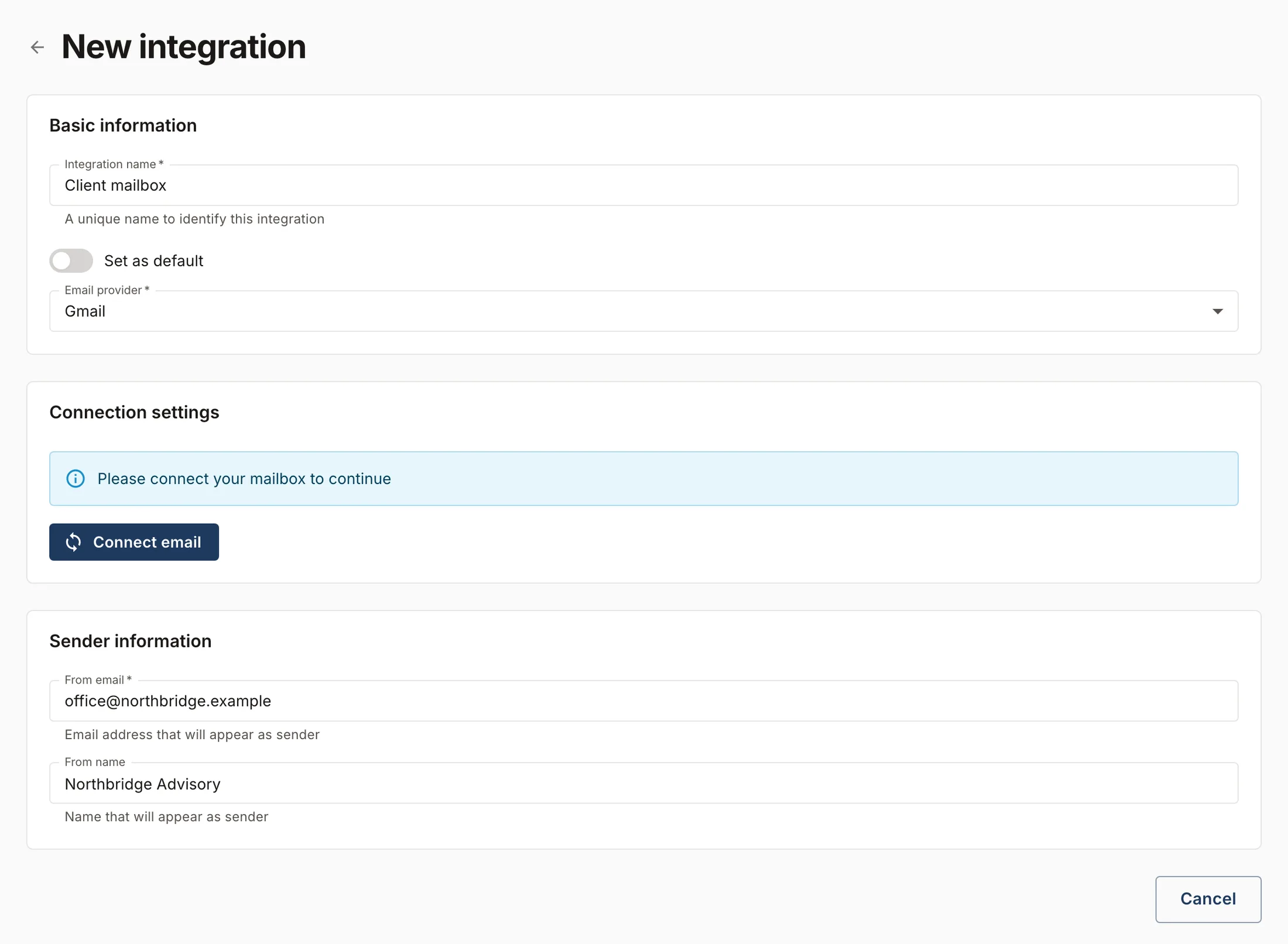
- Go to Organization, Integrations, click New integration and pick Email.
- Fill in Integration name.
- Choose Gmail or Outlook under Email provider.
- Under Sender information, fill in From email with the mailbox’s address, and From name if you want one. Connect email stays greyed out until the name and the address are in. Until the mailbox is connected, the page shows “Please connect your mailbox to continue”.
- Click Connect email.
- Sign in on the provider’s page and accept. Doxtly asks for permission to send mail as you, to read your address, and to keep that access while you’re away. It doesn’t ask to read your mail.
- You return to the integration, which is now Active and shows “Connected as” with the address.

A new Gmail or Outlook integration has no Save button, because connecting is what creates it. If you stop at the provider’s page, you find a Draft in the list. Open it and click Connect email again.
Test connection on a connected mailbox sends nothing. It asks the provider to renew the connection, which tells you whether the provider still accepts it. A pass after an edit brings the verified mark back, so you don’t need Reconnect for that.
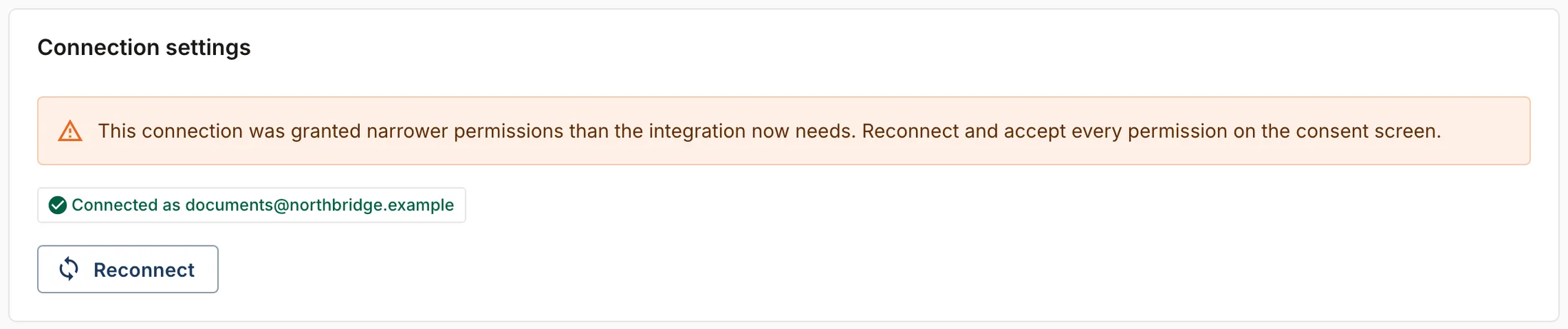
If someone unticked the permission to send on the provider’s page, the card shows “This connection was granted narrower permissions than the integration now needs. Reconnect and accept every permission on the consent screen.” above the connected address. Click Reconnect and leave everything ticked.
Which address the mail comes from
Section titled “Which address the mail comes from”The mailbox you signed in with does the sending, so keep From email the same as that mailbox.
- Gmail sends from the mailbox or one of its “Send mail as” addresses, and replaces any other address with the mailbox’s own.
- Outlook sends a message with another From email from the connected mailbox, under your From name, and replies go to the From email.
Limits of Gmail and Outlook
Section titled “Limits of Gmail and Outlook”Your provider decides how much you may send. If you reach its limit, sending stops with “… does not let the mailbox send more email for now. Try again later.” and starts again when the provider allows it. A mailing to many clients is often better sent through SendGrid, Mailgun or Amazon SES.
Outlook also takes at most 4 MB per message, in the encoded form it travels in, which leaves room for about 3 MB of attachments and pictures. A larger message is refused with a note telling you so. An SMTP server sets its own limit, so an SMTP integration is the way out if you regularly attach large files.
If the connection is refused
Section titled “If the connection is refused”Many company accounts block outside apps until an administrator approves them. If Google or Microsoft shows a message about needing an administrator’s approval, ask whoever runs your Google Workspace or Microsoft 365 to allow Doxtly. Then click Connect email again. The error messages you might see on the way back are listed in the overview.
Connect through SMTP
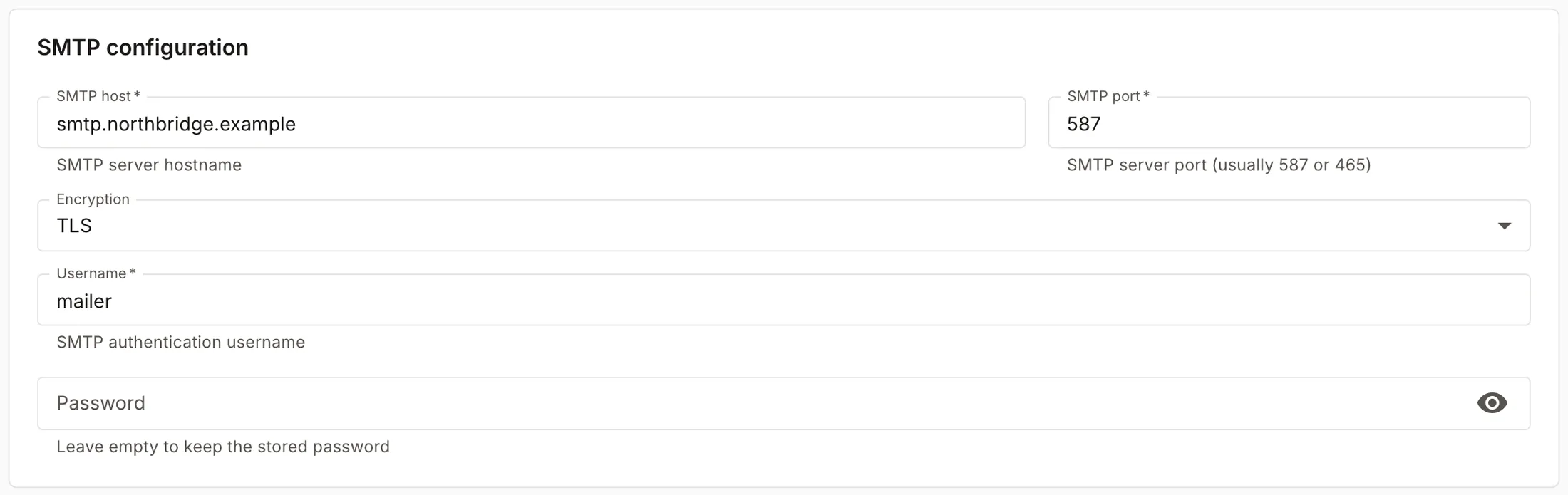
Section titled “Connect through SMTP”SMTP is the standard way programs hand mail to a mail server. All four SMTP providers use the same form. When you choose SendGrid, Mailgun or Amazon SES, Doxtly fills in SMTP host, SMTP port and Encryption for that service, replacing what the fields held. Change the host if your account lives elsewhere, as the tabs below explain. With Custom SMTP you type everything yourself.
- Prepare the details at your provider, as described in the tabs below.
- Go to Organization, Integrations, click New integration and pick Email.
- Fill in Integration name and choose the Email provider.
- Under SMTP configuration, check the server’s details and fill in Username and Password.
- Under Sender information, fill in From email and From name.
- Click Save. The integration is a Draft, and you land on its page.
- Click Test connection. A message titled “SMTP Connection Test” goes from the From email to itself. When the test passes, the integration is Active.
Ask your hosting company or IT department for the outgoing mail server’s address and port, and a username and password. They are often in the “mail client settings” of the hosting panel.
The server has to be reachable from the internet and has to ask for a login: Doxtly can’t reach a server inside your office network, and the username and password are required.
If your provider uses two-step sign-in, you may need a separate “app password” for Doxtly. Use that in Password.
- In SendGrid, go to Settings, Sender Authentication, and verify your domain or a single sender address. SendGrid refuses mail from an address it has not verified.
- Go to Settings, API Keys and create a key with permission to send mail. Copy it now, SendGrid shows it only once.
- Keep the values Doxtly fills in and add the login:
| Field | Value |
|---|---|
| SMTP host | smtp.sendgrid.net, filled in for you |
| SMTP port | 587, filled in for you |
| Encryption | TLS, filled in for you |
| Username | apikey, literally this word |
| Password | The API key |
- In Mailgun, add your sending domain and complete its DNS records, so that the domain shows as verified.
- Open the domain’s settings and create SMTP credentials. Copy the password now.
- Keep the values Doxtly fills in, unless your domain is in Mailgun’s EU region, and add the login:
| Field | Value |
|---|---|
| SMTP host | smtp.mailgun.org, filled in for you. Change it to smtp.eu.mailgun.org if the domain is in the EU region. |
| SMTP port | 587, filled in for you |
| Encryption | TLS, filled in for you |
| Username | The SMTP login, such as postmaster@mg.northbridge-advisory.example |
| Password | The SMTP password |
- In the Amazon SES console, pick the region you want to send from and verify your domain or address under Identities.
- A new account can write only to verified addresses. Request production access before you write to clients.
- Under SMTP settings, create SMTP credentials. These are not your usual AWS access keys. Copy both values now.
- Doxtly fills in the server of the
us-east-1region. If you send from another region, change the host, and add the login:
| Field | Value |
|---|---|
| SMTP host | email-smtp.us-east-1.amazonaws.com, filled in for you. For another region use the address shown under SMTP settings, such as email-smtp.eu-central-1.amazonaws.com. |
| SMTP port | 587, filled in for you |
| Encryption | TLS, filled in for you |
| Username | The SMTP user name |
| Password | The SMTP password |
Every field
Section titled “Every field”| Field | Shown for | What it does |
|---|---|---|
| Integration name | All | Your label for this mailbox. Up to 255 characters, unique among your email integrations. A repeat is refused with “An integration of this type with this name already exists.” |
| Set as default | All | Makes this the mailbox organization mail leaves from. See the default integration. |
| Email provider | All | One of the six above. New forms start on Custom SMTP. |
| SMTP host | SMTP | The server’s name, up to 255 characters. Filled in for SendGrid, Mailgun and Amazon SES. It has to be a public internet address, or sending fails with “The server address must be a public internet host.” |
| SMTP port | SMTP | A number from 1 to 65535, usually 587 or 465. Filled in with 587 for the same three services. |
| Encryption | SMTP | How the connection is protected, see below. Starts on TLS. |
| Username | SMTP | The login for the server. Up to 255 characters. |
| Password | SMTP | The password for the server. Up to 255 characters, stored encrypted and never shown again. On edit, leave it empty to keep the stored one. |
| From email | All | The address your mail comes from. Required, up to 255 characters, and has to be a valid address. |
| From name | All | The name clients see beside the address, such as “Northbridge Advisory”. Optional, up to 255 characters. |
Encryption
Section titled “Encryption”| Option | What happens | Typical port |
|---|---|---|
| TLS | The connection starts plain and has to switch to encryption, a step called STARTTLS. If the server can’t, or its certificate doesn’t match the SMTP host, nothing is sent. This keeps your password from travelling unprotected. | 587 |
| SSL | The connection is encrypted from the first moment. | 465 |
| None | Encryption is not required. Doxtly still switches to it if the server offers it. Use this only if your provider tells you to. | Varies |
What you see once it’s set up
Section titled “What you see once it’s set up”Click the row in the list to see the summary: Provider, Connected account for Gmail and Outlook, SMTP server with its port and encryption for the others, and From email with the name in front of it. After a passed test there is also a Verified on chip with the date of that test.
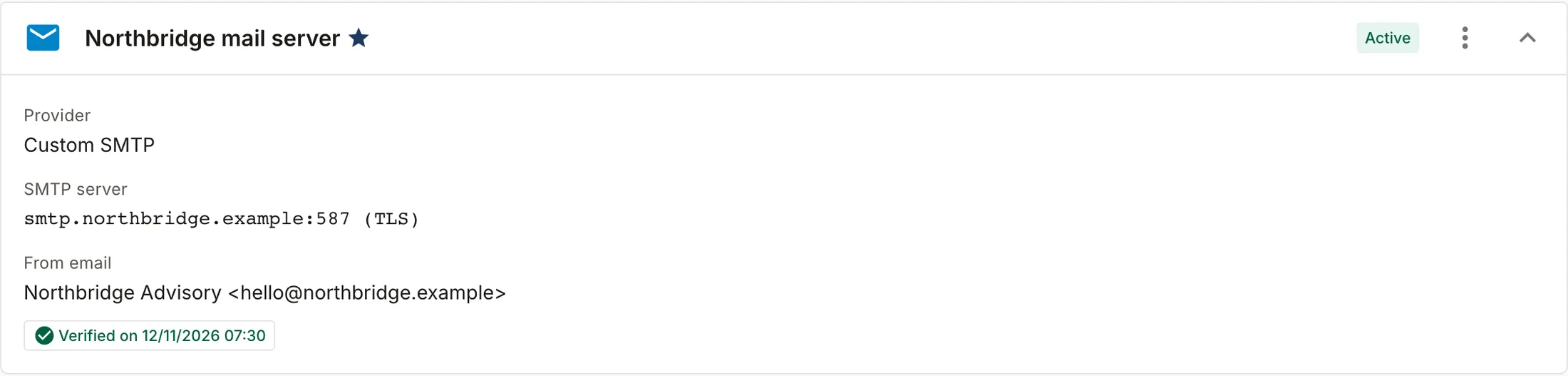
The integration’s own page shows “Email configuration verified successfully” under the fields once a test has passed. Saving any change removes both marks until the next pass.
Change the provider
Section titled “Change the provider”You can switch an integration to another provider without creating a new one, and everything using it follows. That’s handy when a firm moves from its hosting company’s mailbox to Microsoft 365: workflow steps pinned to “Office mailbox” keep working once the new connection is in place.
A connection belongs to the provider it was made with. When you save a different provider on a connected Gmail or Outlook integration, the connection is dropped.
- Moving to Gmail or Outlook puts the integration back to Draft. Mail stops going through it until you click Connect email.
- Moving to an SMTP provider keeps the status, so test it straight away. The form asks for the server’s login, and choosing SendGrid, Mailgun or Amazon SES overwrites the host, port and encryption with that service’s values.
Connect email stays greyed out while your change is unsaved, with a note telling you to save first.
When mail doesn’t go out
Section titled “When mail doesn’t go out”The message tells you who refused and usually why. These are the ones you may meet:
| Message | What to do |
|---|---|
| “Your organization has no active email configuration…” | Add an integration, or test the one you have. With several active ones, mark one as default. |
| “… did not let the configured account send this message. Check the integration’s user name, password and sender address.” | The SMTP server refused the login or the sender. Correct the integration and test it. |
| “… does not let the connected mailbox send this message. Connect the mailbox again, or check that it may send email from the sender’s address.” | Click Reconnect, or correct the From email. |
| “The connection to … has expired or was revoked. Connect the integration again.” | Click Reconnect. |
| “… refused to send the message as it is. Check the addresses of its recipients and of its sender.” | A recipient’s address is wrong, or the provider didn’t accept the content. When a message goes to several people, the others still get theirs. |
| “… refused the message because it is too large. Send fewer or smaller attachments and pictures.” | Make the message smaller. |
| “… does not let the mailbox send more email for now. Try again later.” | You reached a sending limit. Wait, or send through another provider. |