

AI check of a submission
Somebody on your team reads every submission just to sort it: complete, needs a question, not for us. An AI agent can do that first pass. It reads the form and any attached file, answers in a fixed shape, and the workflow acts on the answer. Your people then only see what needs them.
Available when: your plan includes AI agents, the organization has an active AI integration, and your role may use AI agents
What it looks like
Section titled “What it looks like”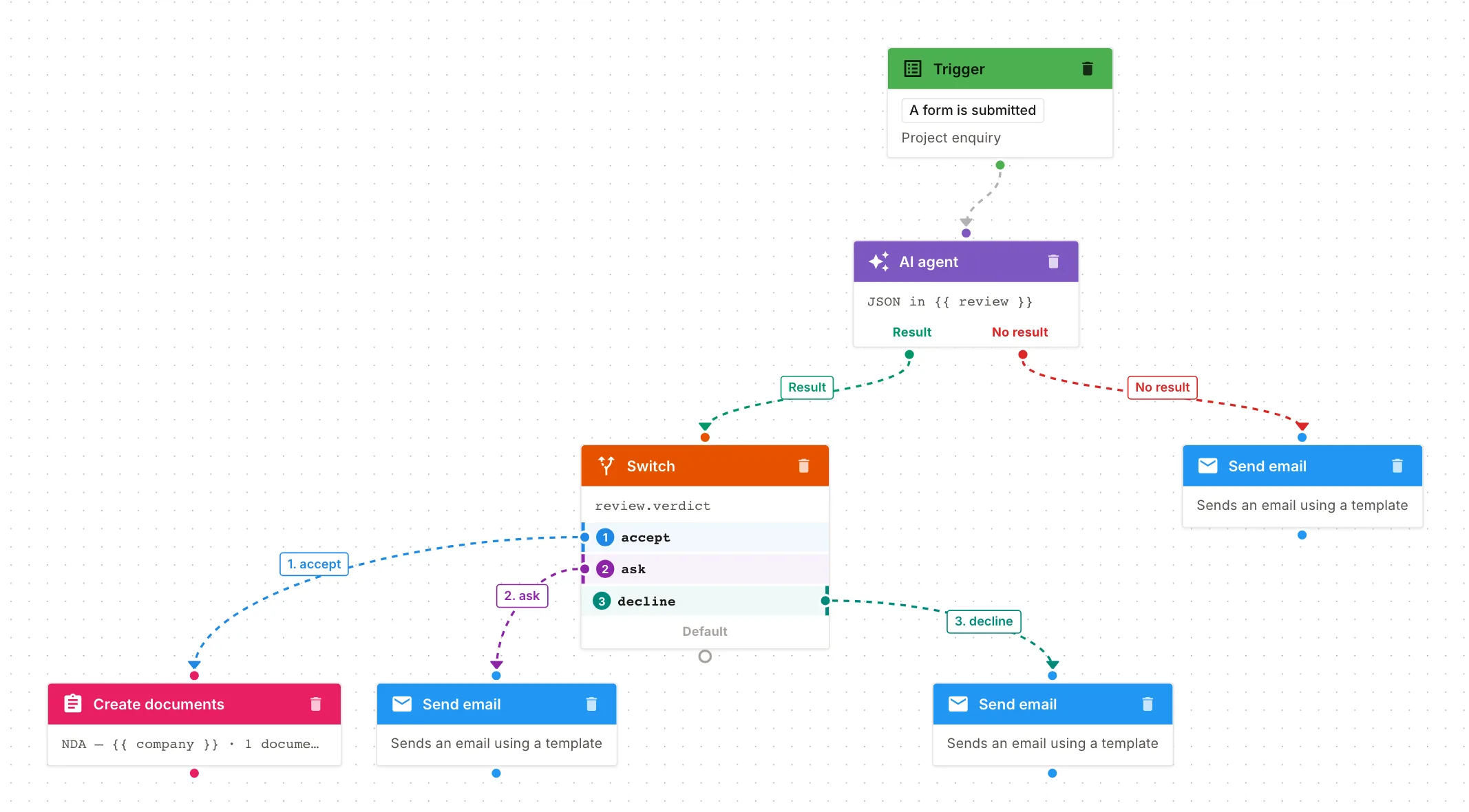
What you need
Section titled “What you need”- An AI integration with your provider key.
- An AI agent, here “Submission reviewer”, with its Output format set to JSON. A text agent can’t give the structured answer this recipe needs. Its instructions say what a good submission looks like, for instance: “You review project enquiries for a consulting firm. Accept those with a clear scope, a budget and a deadline.”
- A form, here “Project enquiry”, with
client_name,company,email,briefand perhaps a file field for a PDF.
Build it
Section titled “Build it”-
Create a workflow with the trigger A form is submitted on the form.
-
From AI in the palette, drop AI agent and connect it.
-
On Agent, pick “Submission reviewer”.
-
On Input, write the Prompt:
Review this enquiry from {{ company }}.Under Data, click Add value, with the Namebriefand the Value{{ brief }}. Under Files, pick the form’s upload if it has one. -
On Output, set Answer format to JSON, Store the answer as to
review, and paste the schema below into JSON schema. -
On No result, set When there is no usable answer to Branch: Result / No result.
-
From Result, add a Switch. Set Expression to
review.verdict. A switch starts with two cases, so fill those in and use Add case for the third:accept,askanddecline. -
Connect each case to its own step. For example:
acceptgoes to Create documents, which sends the client an NDA to sign before you talk details,askto a Send email to your office that prints{{ review.reason }}, anddeclineto a polite Send email to{{ email }}. -
From No result, add Send email to your office, so that a person reads this one.
-
Save and switch it on.
The schema fixes the shape of the answer, so the following steps can rely on it:
{ "type": "object", "properties": { "verdict": { "type": "string", "enum": ["accept", "ask", "decline"] }, "reason": { "type": "string" }, "missing": { "type": "array", "items": { "type": "string" } } }, "required": ["verdict", "reason", "missing"], "additionalProperties": false}Every object has to set additionalProperties to false and list all its properties in required. If you forget, the Fix automatically button does it for you.
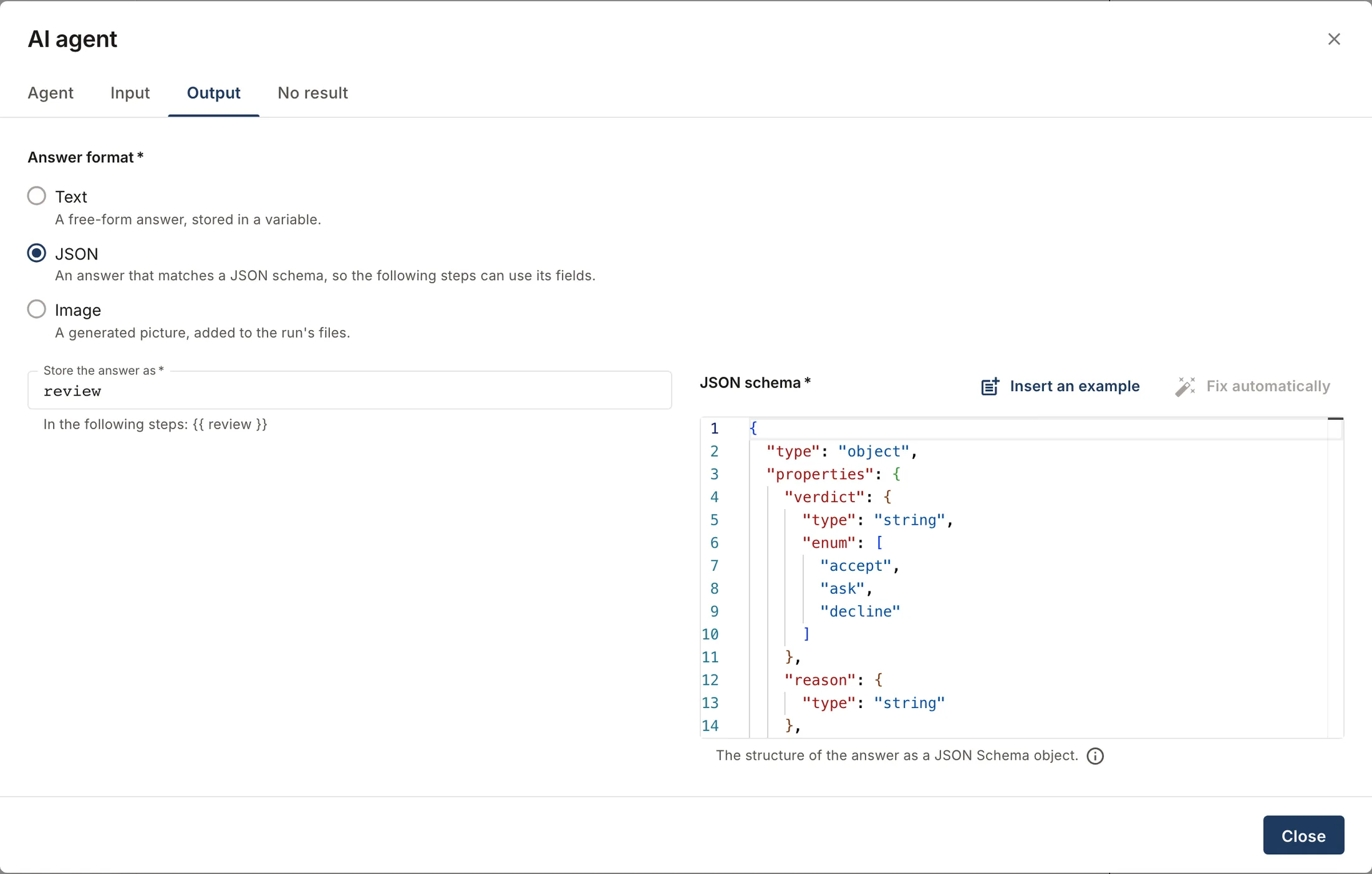
The fields then appear in the variable picker: {{ review.verdict }}, {{ review.reason }}.
When the agent has no answer
Section titled “When the agent has no answer”No result covers an empty answer, a refusal, or JSON that doesn’t fit the schema even after a retry. A provider that can’t be reached, a rejected key or a spent budget always stops the step with an error, whatever you choose here. That is why it’s worth keeping an eye on failed runs.
Check the run
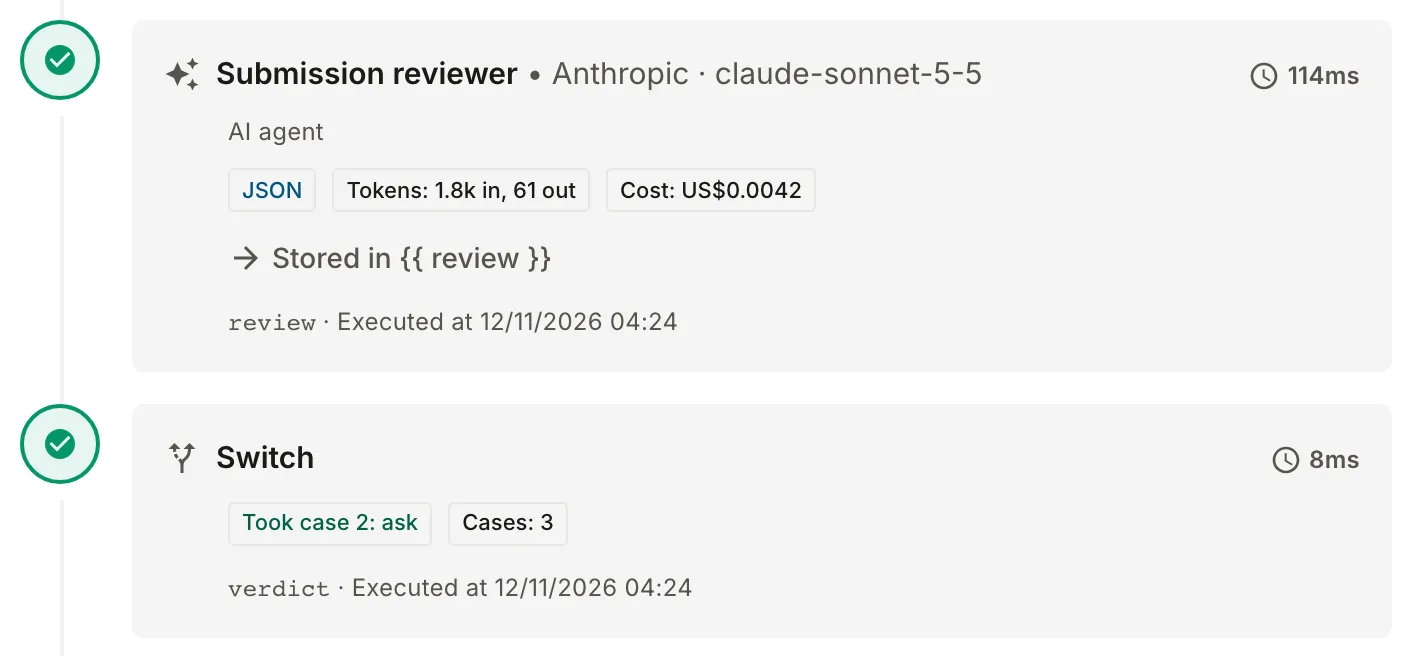
Section titled “Check the run”The AI agent card shows the model, the tokens used, the cost and Stored in {{ review }}. The Switch card after it says which case it took, for example Took case 2: ask. The prompt and the answer are not on this page: use your email to the office, or write them to a sheet.
Variations
Section titled “Variations”- Just a draft. Use an agent with the text format, set Answer format to Text and Store the answer as to
answer, ask for a suggested reply, and print{{ answer }}in an email to your team. - Reading a document. Attach a CV or a PDF contract under Files. Pictures, PDFs and text files work, up to 10 files and 20 MB together, sent only to a model that accepts them.
- A score. Add
"score": { "type": "integer" }to the schema’sproperties, listscoreunderrequired, and use a Condition:review.score >= 7.