

Write to a sheet
This node writes into a spreadsheet the way an application writes to a database. It adds a survey answer as a new row, updates a registration by email, reserves the next free discount code, or builds a new Excel file with an order’s lines. Use it when people work in a sheet anyway and you want form data to land there on its own.
Available when: the target is a file of the run or a new file; for a cloud file, the organization also needs an active Google Drive, OneDrive, SharePoint, Dropbox or Box integration and your role needs View cloud files and Manage cloud files
One entry in the palette, Write to a sheet under Spreadsheets, does every kind of write. Three questions on the Search tab decide which: do you look for an existing row, what do you do when it is there, and what when it is not. The canvas then names the node by what it does:
| Canvas title | What it does |
|---|---|
| Append a row | Always adds a row |
| Add or update | Updates the row with the same key, or adds it |
| Add if absent | Adds the row only if its key is new |
| Update a row | Changes an existing row, and never adds one |
| Create an Excel file, Create a CSV file | Writes into a new file |
Set it up
Section titled “Set it up”Selecting the node shows what is missing and a Configure this step button. The settings open in a dialog with four tabs: File, Columns, Search and Advanced. Once it is set up, the node sums itself up on the canvas, for example answers.xlsx · key: Email.
You can also ask Doxie, the AI assistant in Doxtly, to set up the selected step. She reads the real spreadsheet first, checks her settings against its sheets and columns, and shows what they would do, such as “Matches 12 of 340 rows.”, before you apply them.
- Drag Write to a sheet onto the canvas and open its settings.
- On File, choose where to write. A new node starts on Workflow file.
- On Columns, press Fill in and pick All form fields, or add columns one by one.
- On Search, leave No – always add a new row for a plain log, or choose a key.
- Save. On a cloud file, the first run creates the file if it is not there yet.
File tab
Section titled “File tab”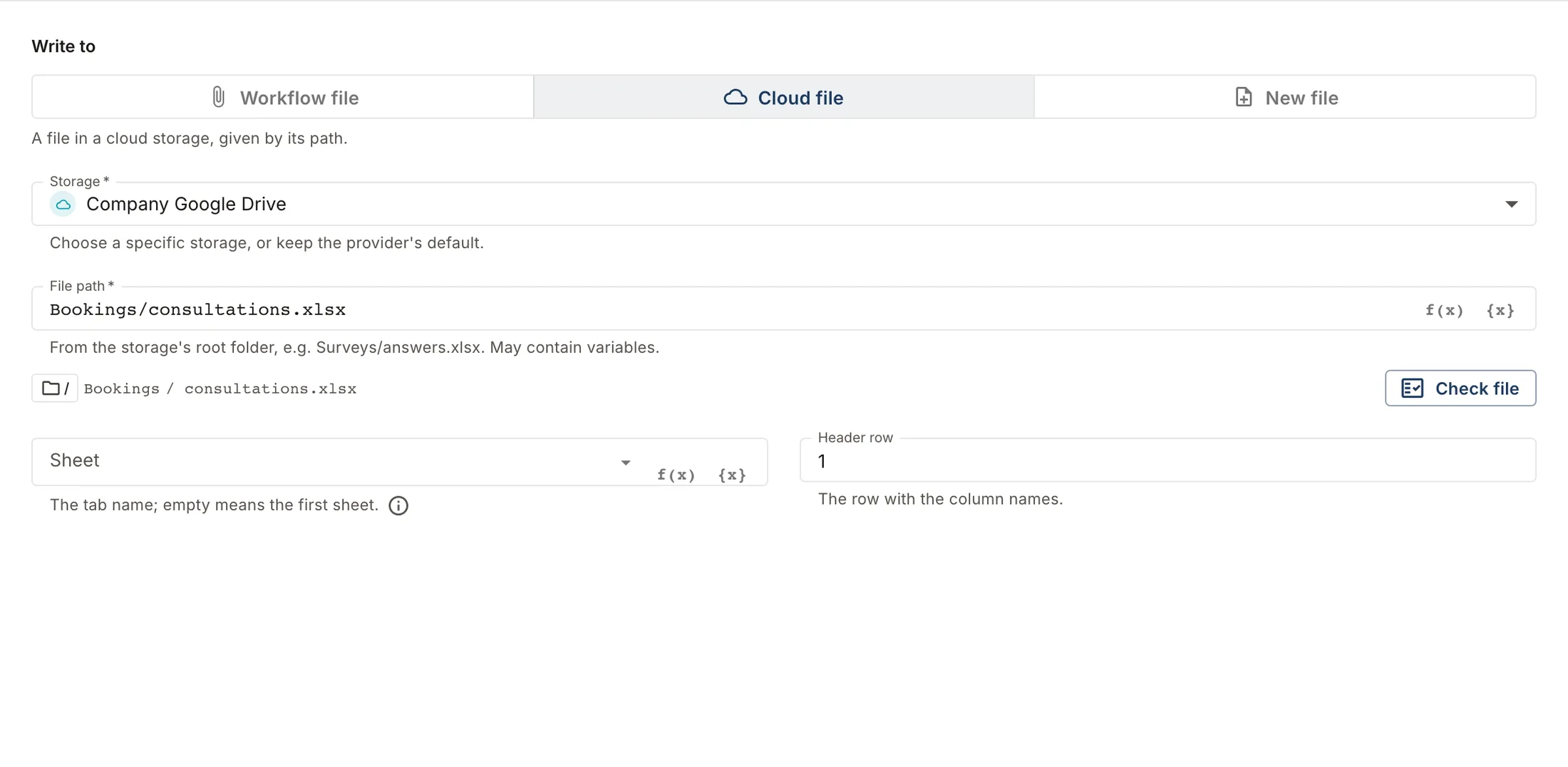
| Setting | What it does | Allowed values | Default |
|---|---|---|---|
| Write to | Where the rows go. | Workflow file, Cloud file, New file | Workflow file |
| File | The run’s file to change. Workflow file only. | One XLSX, XLS, ODS or CSV file | Required |
| Storage | The connected storage. Cloud file only. | A default storage or a named one | Required |
| File path | The file, from the storage’s root folder. Cloud file only. A step made by a quiz’s results sheet shows File chosen instead: that file is written wherever it is moved or renamed to; Choose another file or Type a path instead change it. | A path, which may contain variables | Required |
| File name | The new file’s name. New file only. | Text with variables, no folders | Sheet-{{ _execution.id | first(8) }} |
| Format | The new file’s format. New file only. | Excel (XLSX), CSV | Excel (XLSX) |
| Sheet | The tab to write to. | A name, which may contain variables | Empty: the first sheet |
| Header row | The row with the column names. Not offered for a new file, whose header is always row 1. | 0 for no header, or a row number |
1 |
Variables in these fields can carry operations and functions, such as {{ id | first(8) }} or {{ nickname ?? firstName }}: click a variable and then Operations, or use f(x).
With Header row at 0, the Column of each value has to be a letter, such as C. A name the sheet cannot know fails the run, and Add missing columns cannot help, as there is no header to add it to.
Write to decides what happens to the result:
- Workflow file changes a file sent with the form or made earlier. The following steps get the new version, which file pickers offer under Spreadsheets from the workflow with (after the write) beside its name. Think of a client’s order form that arrives with an Excel list: the node adds a total row, and an email sends the list on.
- Cloud file writes in place on your drive. The file is there for everyone at once, and it is the one target that is protected against double writes on a rerun.
- New file makes a file inside the run, for an email or an upload. Choosing it fills in the name. That default carries part of the run’s id, so two runs never produce the same name.
.xlsxor.csvis added if the name lacks it.
While no storage is connected, Cloud file is greyed out and points you to the integrations. Check file works as for Download from the cloud, with one difference: a missing file reads The file does not exist yet – it will be created on the first write., or The file was not found, and creating a missing file is turned off. when the node will not create it.
Moving to New file changes the Search tab too, since a file with no rows has nothing to find: a search by conditions goes back to No – always add a new row, and a search by key adds what it misses.
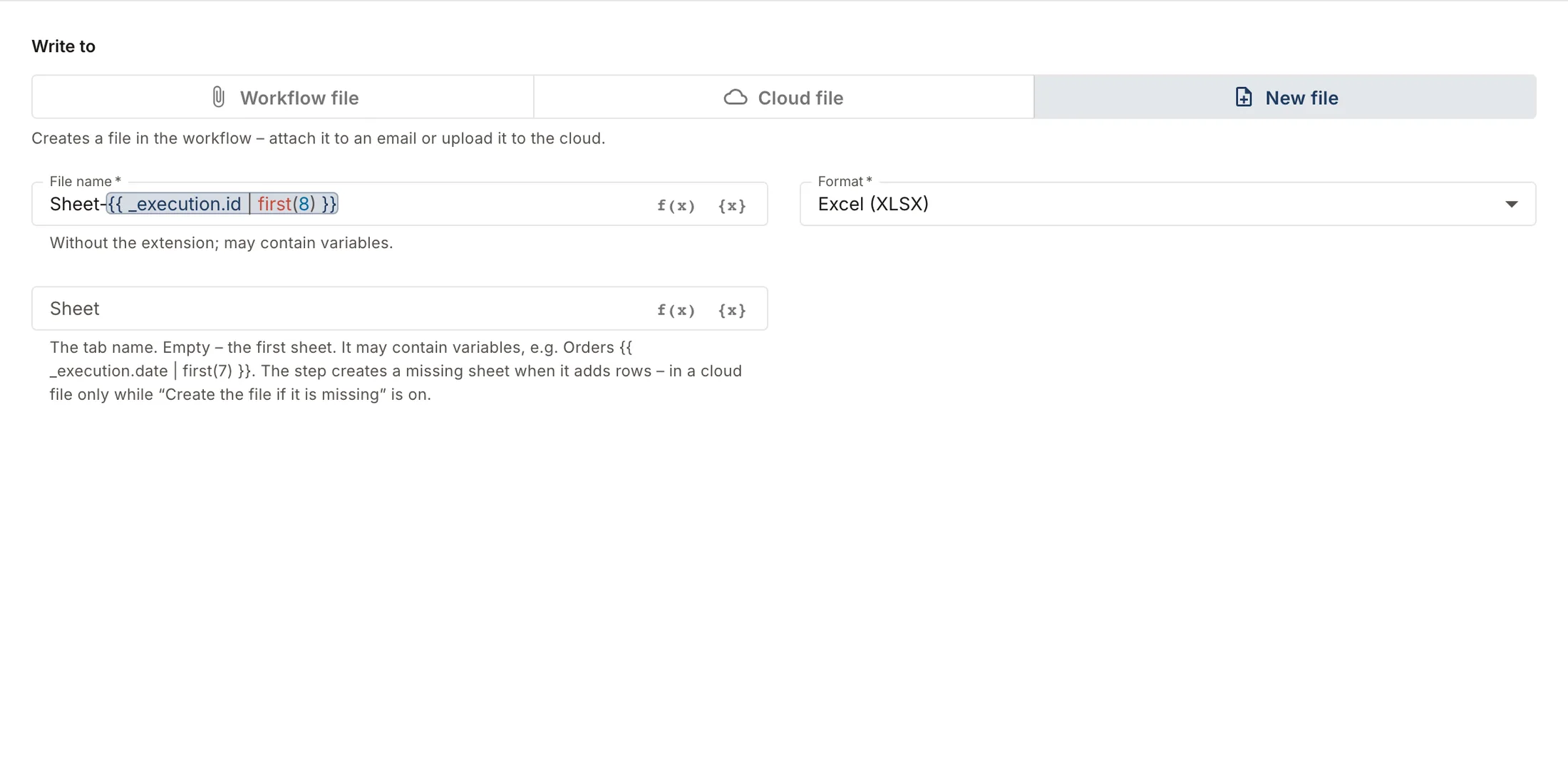
Sheet works as in Read from a sheet, variables and the Choose a sheet from the file list included. A sheet that does not exist is added when the write adds rows: always in a workflow file or a new file, and in a cloud file while Create the file if it is missing is on. In a new file, the first sheet takes the name you give, or else Sheet1 (Arkusz1 for an organization working in Polish). The same goes for a cloud file the node creates.
A sheet the step adds follows the rules spreadsheets have for tab names. Its name is cut to 31 characters, each of : \ / ? * [ ] becomes _, and History gets a _ at the end. The step finds the sheet again by the name you gave, and letter case doesn’t matter: Results and RESULTS are the same sheet.
File formats
Section titled “File formats”| Format | Writing |
|---|---|
| XLSX, ODS, CSV, TSV | Yes, files of up to 10 MB. Only the cells written change: formats, formulas, merged cells, comments, charts, pictures and the other sheets stay as they were. |
| XLS (Excel 97-2003) | Yes, files of up to 4 MB, keeping formats, formulas, merged cells, column widths, pictures, links, named ranges, validation, conditional formats and the other sheets. A sheet has at most 65,536 rows and 256 columns. |
| Google Sheet | Yes, on Google Drive |
.xlsb, .xlsm (with macros), Excel 5.0/95 workbooks, workbooks protected with a password |
No: the node fails |
Saving an .xls file again would lose some of what it can hold, so a file with any of it is left exactly as it was and the node fails with This .xls file contains something that would be lost if it were written to – charts, pivot tables, macros, comments, drawings, embedded objects, array formulas or formulas that cannot be saved again in this format – so it was left unchanged. Save it as .xlsx and write to that file instead. Open the file in Excel, choose Save As > Excel Workbook (.xlsx), and point the node at the new file. Reading such a file still works.
Columns tab
Section titled “Columns tab”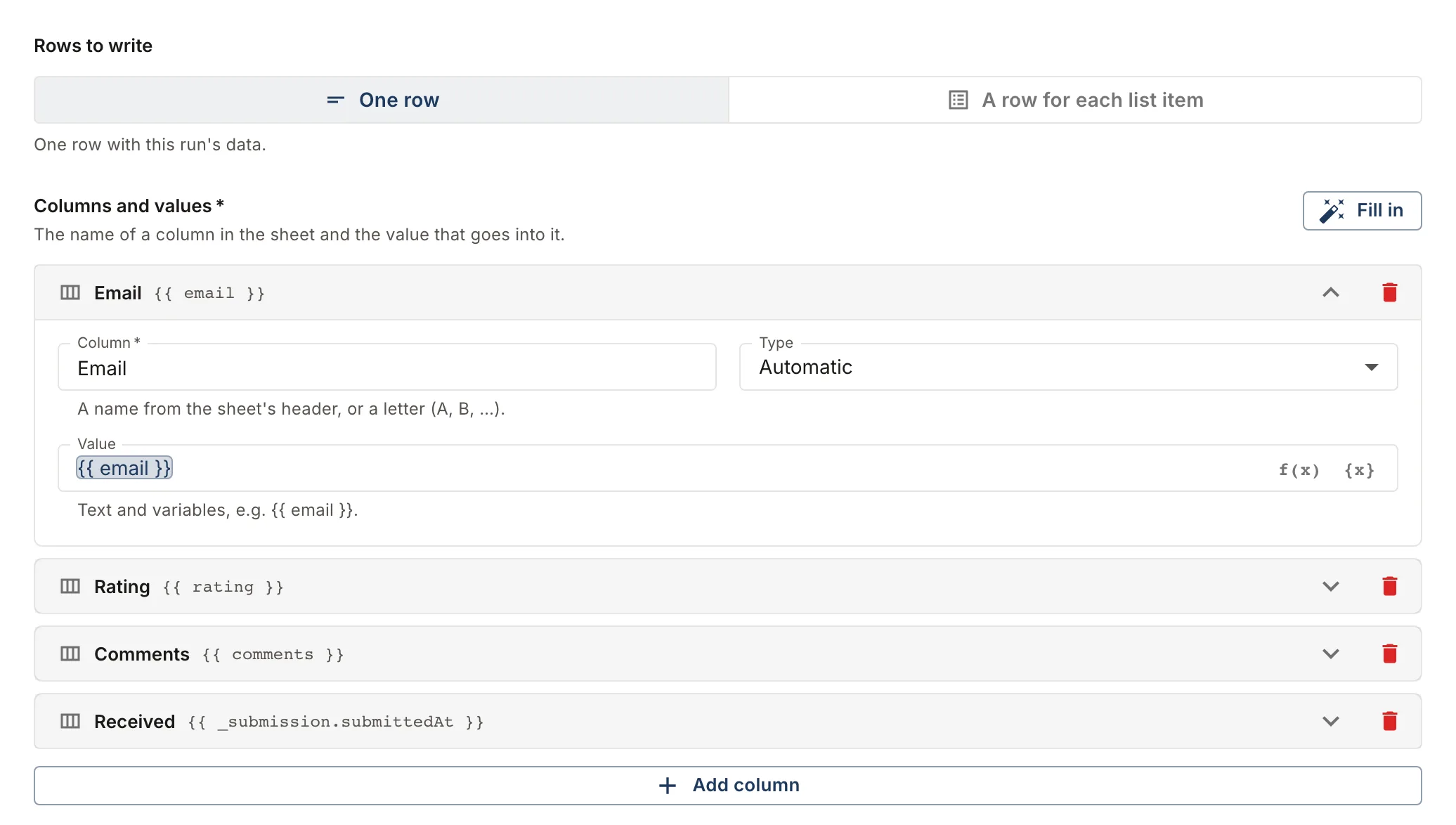
Rows to write is the first choice:
| Choice | What it does |
|---|---|
| One row | One row with this run’s data. The default. |
| A row for each list item | One row per item of a list, such as a form’s repeating section or the rows a read loaded. Pick the list from those on offer or type its path in List, for example order.products. |
With a list, the values use {{ item.field }} for a field of the item and {{ itemIndex }} for its position, counting from 0. Conditions on the Search tab are worked out per item too. A list can have up to 5,000 items. An empty list adds no rows, and a variable that is no list fails the node.
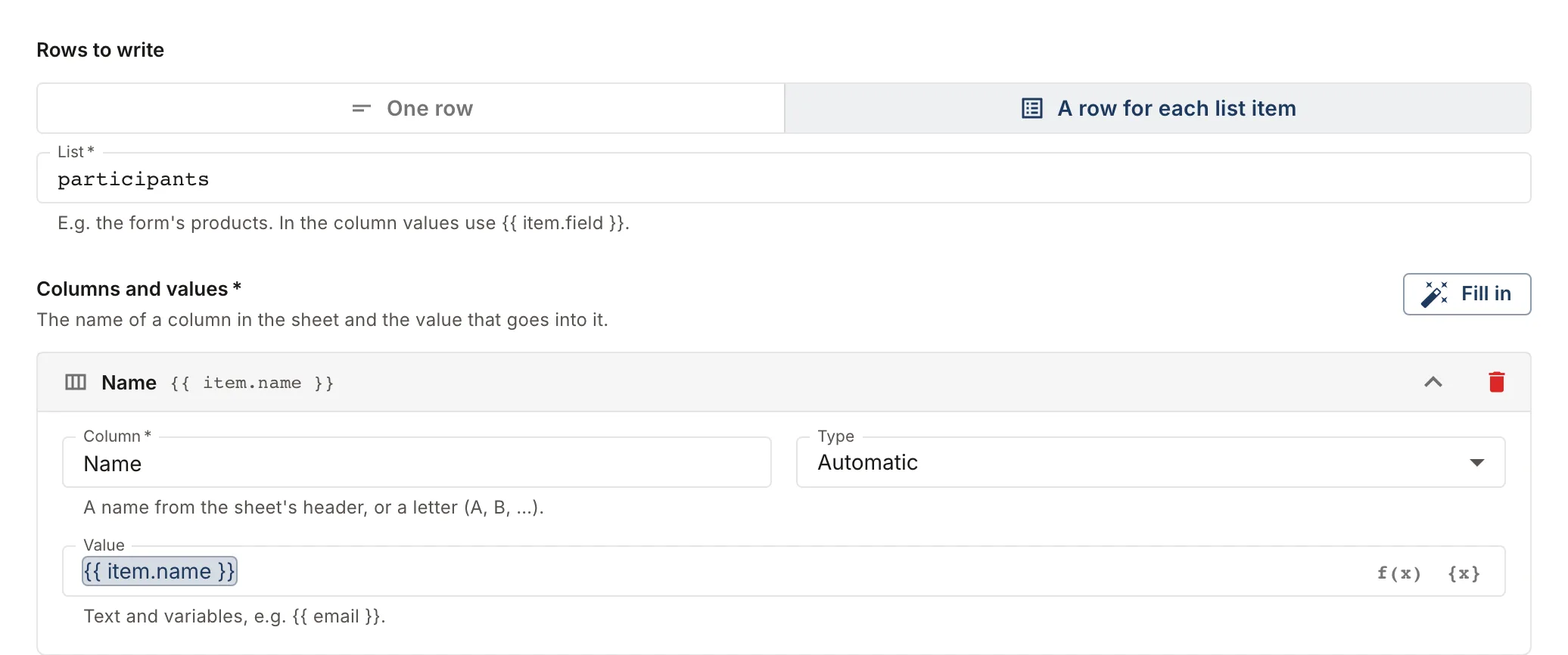
Columns and values lists what goes into the row. At least one column is required. Fill in does the typing:
| Fill in option | What it does |
|---|---|
| All form fields | A column for each field of the trigger. It is named after the trigger: All interactive document fields, All document data, All package data, All request fields, All quiz answers, All survey answers, All trigger fields. Disabled with The trigger provides no fields. when there are none. |
| All list fields | A column for each field of the list’s item. Until a list is chosen it is disabled and says Choose a list in “Rows to write” on the Columns tab first. |
| Load columns from the file | Reads the header from a cloud file and matches headers to fields. It is Load columns from a sample file for a workflow file or a path with variables. Not available for a new file, which gets the columns you add here. |
Each option adds what is missing and keeps what is there. Reading a file learns its headers and column types, never a value. A sample is not kept.
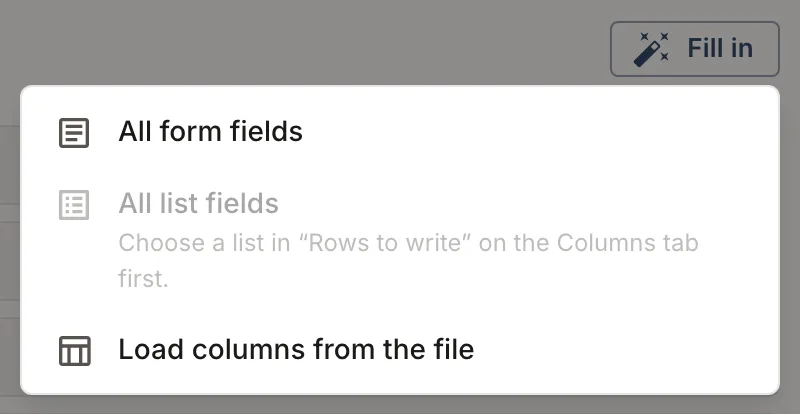
Each column has these settings:
| Setting | What it does | Allowed values | Default |
|---|---|---|---|
| Column | The header in the sheet, or a letter. Required. | Text | Empty |
| Type | How the value becomes a cell. | Automatic, Text, Number, Whole number, Date, Date and time, Yes/No | Automatic |
| Value | What goes into the cell. | Text and variables, such as {{ email }} |
Empty |
| Operation | Shown when the node updates rows, for columns that are not keys. | Set the value, Increase by, Decrease by | Set the value |
| Change by | Replaces Value when the operation is an increase or decrease. | A number or a variable | Empty |
How values become cells:
- With Automatic, text stays text.
02070803628keeps its zero and1-2never turns into a date. A value that is one single variable keeps that variable’s type:{{ score }}stays a number, a checkbox a yes/no value, and a list of ticked options is joined into the cell. - Number, Whole number, Date, Date and time and Yes/No read the value the way people type it: a decimal comma,
15.06.2026,tak. Dates become real date cells. A value that does not fit is written as text rather than lost. - Text is always text.
- A variable that is missing or empty writes nothing into the cell. Text longer than 32,767 characters is cut.
- Increase by and Decrease by work on the number in the cell. An empty or non-numeric cell counts as 0, so a new row gets
0plus or minus the amount. An amount that is no number counts as 0 too. This is how a sheet keeps a running count, such as seats taken on a course.
When the node updates rows, a column with no value empties that cell. The tab warns you, naming the columns. Enter a value, remove the column, or turn on Skip empty values on the Advanced tab. For the same reason, loading columns from the file leaves out headers no field fills in, and says how many.

Search tab
Section titled “Search tab”Look for an existing row first?
Section titled “Look for an existing row first?”| Answer | What it means | Good for |
|---|---|---|
| No – always add a new row | Every run adds a row at the end. The default. | A survey, a log |
| Yes – by a key column | The same row is the one with the same value in the key column. | One row per email, per client, per course |
| Yes – by conditions | The rows that meet your conditions. A missing row cannot be added then, as conditions do not say what it would hold. | The first free discount code, the next open slot |
For a new file, Yes – by conditions is not offered, and Yes – by a key column only joins list items of the same run that share a key. A missing row is then always added. That is handy for an order with several lines of one product, which end up as one row.
By a key column
Section titled “By a key column”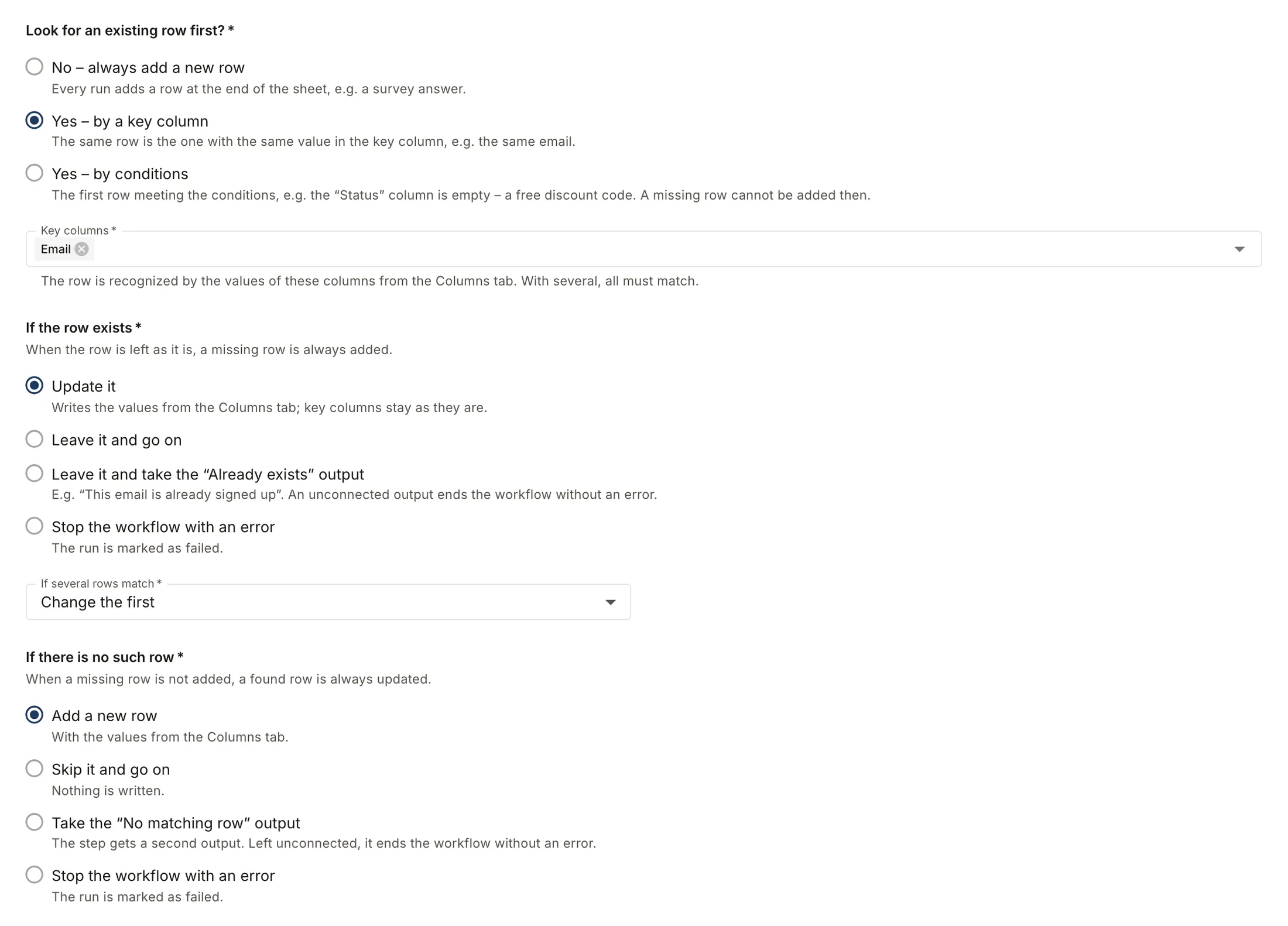
| Setting | What it does | Allowed values | Default |
|---|---|---|---|
| Key columns | The columns a row is recognised by, picked from the Columns tab, where they get a Key chip. With several, all must match. Each needs a value. Required. | Columns of this node | None |
| If the row exists | What to do with a found row. | See below | Update it |
| If several rows match | Shown while found rows are updated. | Change the first, Change all of them, Stop with an error | Change the first |
| If there is no such row | What to do without a row. | See below | Add a new row |
If the row exists:
| Answer | What it does |
|---|---|
| Update it | Writes the values from the Columns tab. Key columns stay as they are. |
| Leave it and go on | Nothing changes, and the run goes on. |
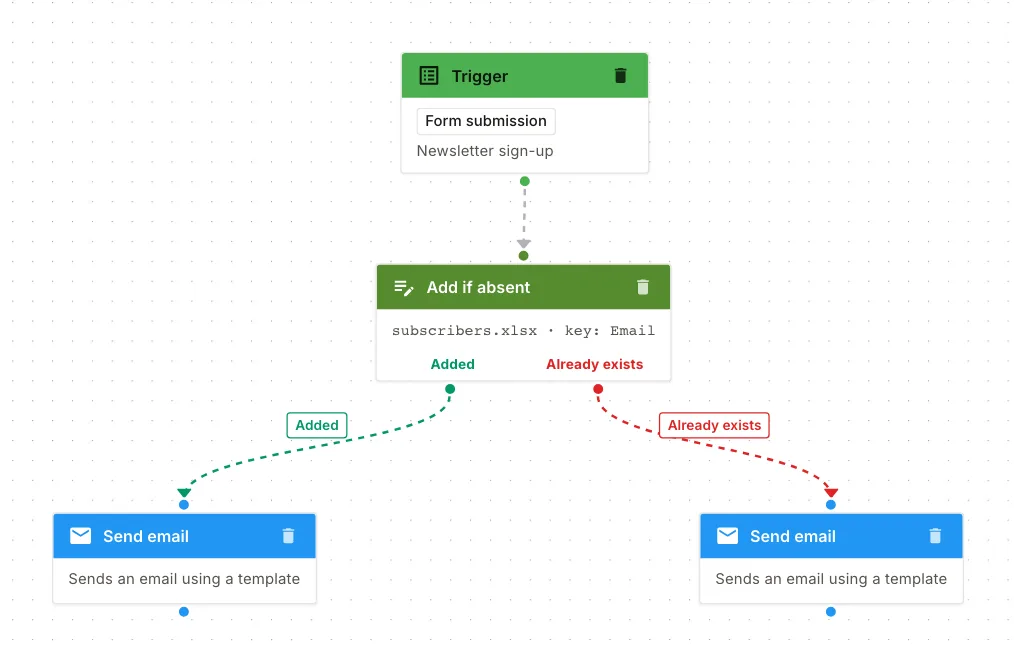
| Leave it and take the “Already exists” output | The node gets a second output, for example for “this email is already signed up”. |
| Stop the workflow with an error | The run fails and nothing is written. |
If there is no such row:
| Answer | What it does |
|---|---|
| Add a new row | With the values from the Columns tab. |
| Skip it and go on | Nothing is written. |
| Take the “No matching row” output | The node gets a second output. |
| Stop the workflow with an error | The run fails and nothing is written. |
The two questions lean on each other. If you leave a found row as it is, a missing row is always added, and if you do not add a missing row, a found row is always updated. Otherwise the node would never write anything, so changing one answer moves the other along with it. To check whether a row exists without writing, use Find a row.
Key columns compare the way Automatic does in conditions, always for equality. A key column finds the row and never changes it, so one that was set to Increase by goes back to a plain value when you make it a key. A key value that comes out empty fails the node.
By conditions
Section titled “By conditions”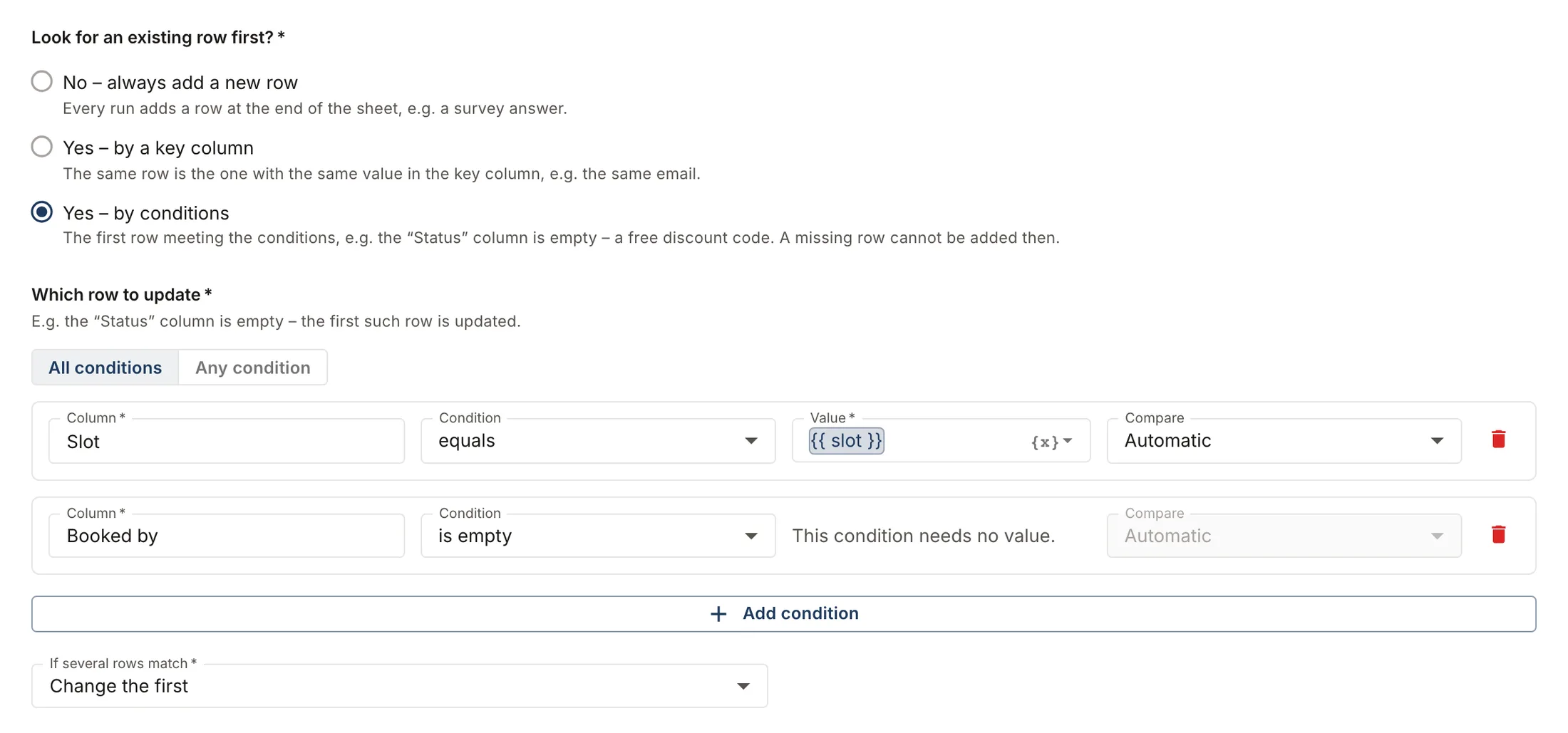
| Setting | What it does | Allowed values | Default |
|---|---|---|---|
| Which row to update | The conditions a row must meet. At least one is required. They work exactly as on Read from a sheet, with All conditions or Any condition. | A list of conditions | None |
| If several rows match | Which rows change. | Change the first, Change all of them, Stop with an error | Change the first |
| If there is no such row | What to do without a row. | Skip it and go on, Take the “No matching row” output, Stop the workflow with an error | Take the “No matching row” output |
Rows of one write apply in order, each one seeing what the previous left. Two reservations in one write take two different rows, and two list items with the same key end up in one row.
Advanced tab
Section titled “Advanced tab”| Setting | What it does | Allowed values | Default |
|---|---|---|---|
| Store the result as | Optional variable saying what was written. | A variable name | Empty |
| Create the file if it is missing | For a cloud file, when the node adds rows. A new file gets a header made of this step’s columns and any missing folders. | On, off | On |
| Create as | What a created file is, on Google Drive. | Google Sheet, File in the path’s format | Google Sheet |
| Add missing columns | Columns the header lacks are added at its end. When off, such a column fails the run, which is the safer choice for a sheet other people rely on. A sheet with no header at all gets one from this step’s columns either way. | On, off | On |
| Skip empty values | When the node updates rows: an empty value leaves the cell alone rather than clearing it. | On, off | Off |
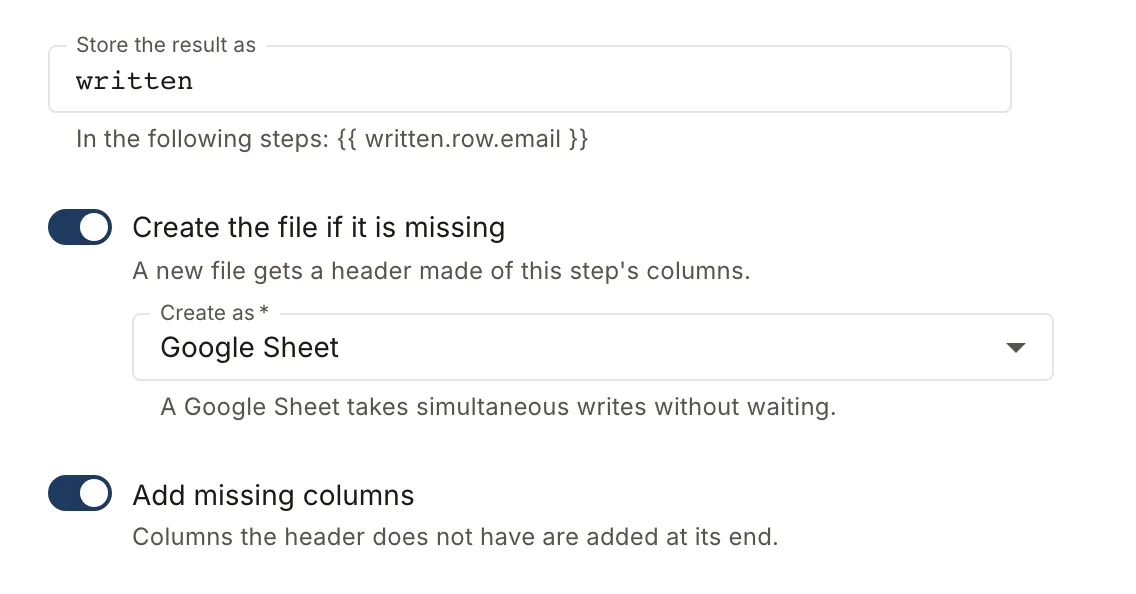
Create the file if it is missing and Create as appear only when they can matter: for a cloud file, on a node that adds rows, and Create as on Google Drive alone. A node that never adds rows does not create a file: a missing file then counts as “no such row”. Skip empty values appears only when the node updates rows.
Create as matters because a Google Sheet takes simultaneous writes without waiting, which suits busy forms. A Google Sheet has no extension, so Surveys/answers.xlsx creates the sheet answers, and the same path finds it on the next run. A .csv or .tsv path always makes that kind of file, and on OneDrive, SharePoint, Dropbox and Box you always get a file. A file is of the format its path’s extension names: .xlsx, .xls, .ods, .csv or .tsv, so Surveys/answers.ods makes an OpenDocument file. A path with no extension becomes name.xlsx, which the same path finds again.
New CSV files are written so that Excel in Polish opens them correctly: UTF-8, semicolons between values and a decimal comma. A new .tsv file uses tabs and a decimal point. Existing CSV files keep their own separator and encoding. A Windows-1250 file that has to take a character it cannot hold becomes UTF-8.
What it produces
Section titled “What it produces”Outputs. The node normally has one way out. It gets two in these cases:
| Setting | Outputs | Second output, left unconnected |
|---|---|---|
| Take the “No matching row” output | Updated, No matching row | Ends the run, marked No matching row |
| Leave it and take the “Already exists” output | Added, Already exists | Ends the run, marked Already exists |
The main output means the node wrote. The second means it left the sheet as it was. For a list, the second output is taken when any item hit that case. A run that ends on an unconnected second output can be found in the execution list through the Outcome filter.
If you change the settings so that the second output turns from one case into the other, the line leaving it is removed, and you connect it again knowing what it now means.
A file. A new file joins the run’s files, and a changed workflow file replaces the old one for later steps. File pickers offer both under Spreadsheets from the workflow, for an email attachment or an upload. Cloud files stay on the drive.
A variable, if you named one. Under the name written:
| Variable | What it holds |
|---|---|
{{ written.action }} |
appended, updated, mixed (both), skipped or none |
{{ written.appended }}, {{ written.updated }}, {{ written.skipped }} |
How many rows went each way |
{{ written.rowNumbers }} |
Rows found or written, existing rows first |
{{ written.row.code }} |
The first row found or written, as it reads after the write, by column key |
{{ written.rowAvailable }} |
Whether row holds anything |
{{ written.fileCreated }}, {{ written.sheetCreated }} |
Whether this write created them |
{{ written.fromReceipt }} |
true on a rerun that skipped the write |
{{ written.file.name }}, {{ written.file.path }} |
The file. The path is empty for a workflow file or a new file. |
row is what makes discount codes work: the row the node took comes back whole, including columns it did not write. A row appended to a Google Sheet reports the row number 0, because that kind of append does not say where the row landed. The run’s card then leaves that row out of Rows:, and shows no Rows: at all when no number is left.
Two people at once
Section titled “Two people at once”Two submissions at the same moment both succeed. Writes to one cloud file wait in line, first come first served, and each opens the file afresh, so it sees what the previous writer left. Two people reserving a code get two different codes. Files with different names never wait for each other.
Plain appends to a Google Sheet never wait in line, as long as its header already has every column, so a burst of survey answers goes straight through. A write waits up to two minutes (45 seconds in a run a person is waiting on, such as signing on the page), then fails with The spreadsheet is busy with other writes. Try again in a moment. If a colleague changes the sheet at the very moment of the write, Doxtly notices and plans the write again, up to twice.
Reruns
Section titled “Reruns”A rerun handles the same event as the original, and a cloud file must not get the row twice. The first write leaves a note, and a rerun skips the write, takes the same output as before and reports fromReceipt. The card says Already written by the first run – not written again.
The row the first run wrote is read back for later steps only while it still holds what this run would write. If the row was sorted away, edited or deleted, row is empty and rowAvailable is false, and the same goes for a row appended to a Google Sheet, whose number nobody knows. A sheet named after _execution.date follows the date of the rerun, so a rerun in another month writes nothing and finds no row.
A write that stopped with an error wrote nothing, so a rerun tries it again. So does a rerun of a write that changed nothing the first time, such as one that took No matching row.
When something goes wrong
Section titled “When something goes wrong”| Situation | What happens |
|---|---|
| A key column’s value is empty | The node fails. |
| Stop the workflow with an error, row exists | The node fails: A row with these key values already exists. Nothing is written, not even for the other items of a list. |
| Stop the workflow with an error, no row | The node fails: No matching row was found. Nothing is written, not even for the other items of a list. |
| Stop with an error, several rows match | The node fails. |
| The cell holds a formula | The node fails rather than overwrite it. |
| The column is missing and Add missing columns is off | The node fails and lists the columns. |
| The sheet is missing and the file may not be created | The node fails and lists the sheets. |
| The file is missing and Create the file if it is missing is off | The node fails. |
| A variable in the path or sheet name is empty | The node fails. |
| A row of nothing but empty values, in an append | The row is skipped. |
| List holds something that is no list | The node fails. |
| The list has more than 5,000 items | The node fails. |
Limits for one write:
| What | Limit |
|---|---|
| File rewritten by a write (XLSX, ODS, CSV) | 10 MB |
| XLS file rewritten by a write | 4 MB |
| Rows searched | 200,000 |
| Columns | 200 |
| List items | 5,000 |
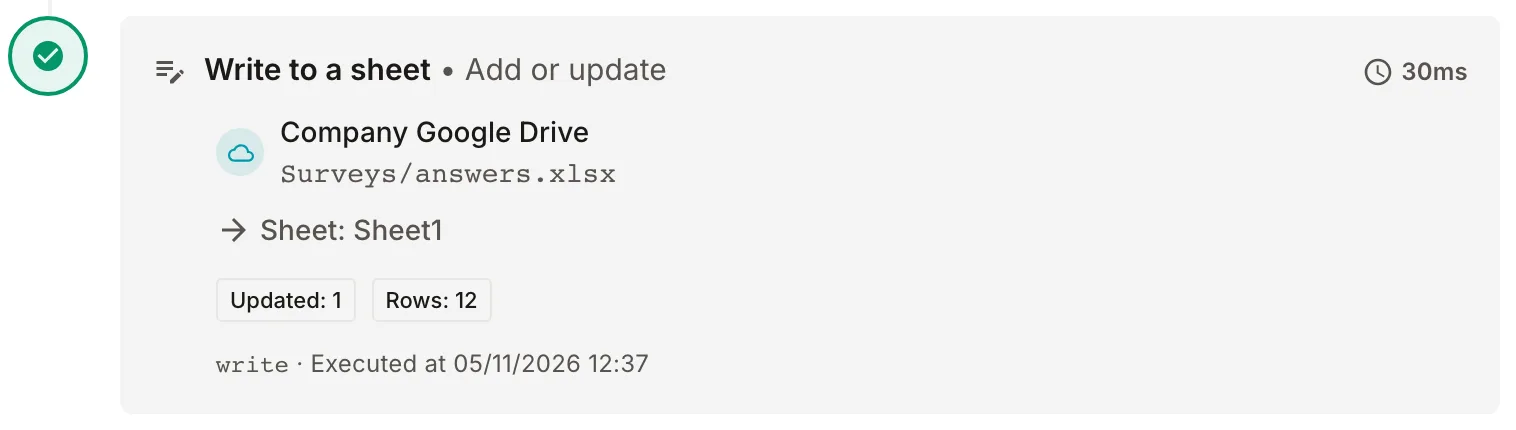
The run’s card shows the file and sheet, Appended, Updated, Skipped or Nothing written, the first five Rows touched, File created, Sheet created, and why a second output was taken: No matching row was found or The row already existed – left unchanged. It also shows Waited for the file when the write waited a second or more, and Write attempts when it tried again. Like a read’s card, it never shows a value.
For a cloud file, setting up or changing the node takes View cloud files and Manage cloud files. A person without them gets Show the settings of this step, sees the settings read-only, and can still connect, move or delete the node. A node on a file of the run or a new file takes nothing extra. See Access.
Example
Section titled “Example”Northbridge Advisory gives each satisfaction-survey respondent one discount code from Marketing/Codes.xlsx, which has the columns Code, Used by and Used on.
| Tab | Setting | Value |
|---|---|---|
| File | Write to | Cloud file |
| File | File path | Marketing/Codes.xlsx |
| Columns | Used by |
{{ email }} |
| Columns | Used on |
{{ _execution.date }}, type Date |
| Search | Look for an existing row first? | Yes – by conditions |
| Search | Which row to update | Used by is empty |
| Search | If several rows match | Change the first |
| Search | If there is no such row | Take the “No matching row” output |
| Advanced | Store the result as | coupon |
Updated leads to an email saying “Your code is {{ coupon.row.code }}”. No matching row leads to an email to the office: the codes ran out. Two people finishing the survey in the same second get two different codes.
More patterns, such as booking a slot that only one person can take or a survey that lands in a sheet, are under Recipes.